How to Use Wireframes in Adobe XD: Complete Guide
EpicPxls offers 11+ curated wireframes for Adobe XD, all with a commercial license. Formats vary by item, and each listing shows its files. Download your chosen wireframes from EpicPxls, then use Adobe XD's import function. Check each listing for the files it includes.
Last updated September 03, 2021
Everything you need to know about using wireframes in Adobe XD.
Trusted by designers at leading companies
Top Wireframes for Adobe XD
Handpicked resources from our curated collection
![[Free] Wireframe UI Kit - Adobe XD preview picture](https://imgproxy.epicpxls.com/nH08bGUd61RsJWXFVkTLZ-U3O6zliN5D55HAJlVaceQ/rs:fill:720:540:0/g:no/aHR0cHM6Ly9pdGVt/cy5lcGljcHhscy5j/b20vdXBsb2Fkcy9w/aG90by9mODViNTMw/ZWE1OGMxMzRjNWEy/YWU4OTY5NzY5MDc4/Zg.jpg)
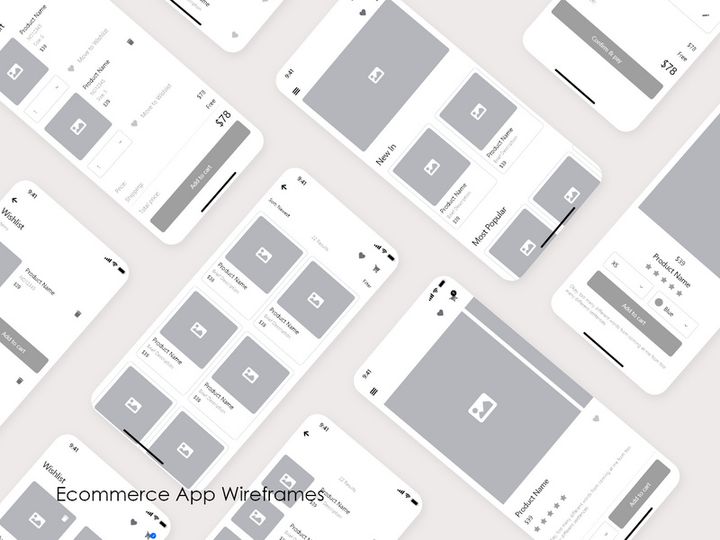



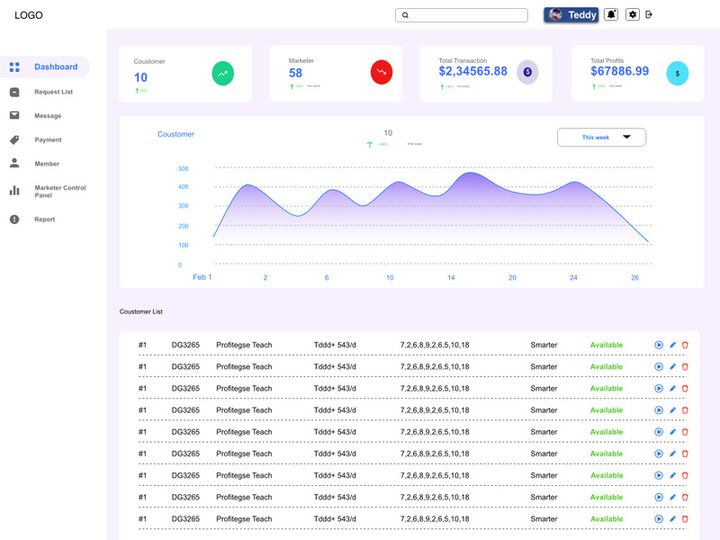

Try Our Free Resources
Download any of these for free - no account required
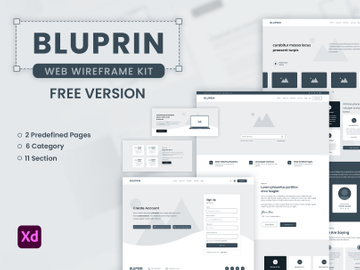
![[Free] Wireframe UI Kit - Adobe XD](https://items.epicpxls.com/uploads/photo/32808c70a62b3586a91e8fc054c6af48)
Getting Started with Wireframes in Adobe XD
Adobe XD has become a go-to tool for UX/UI designers due to its intuitive interface, powerful prototyping capabilities, and seamless integration with design systems. One of the most effective ways to kickstart your design process is by leveraging wireframes—simplified blueprints that outline the structure and layout of digital products. Whether you're designing websites, mobile apps, or complex dashboards, starting with a solid wireframe ensures clarity, efficiency, and consistency throughout your project.
Before diving into wireframe integration, ensure that Adobe XD is installed on your system. The software is available for both macOS and Windows and can be downloaded via Creative Cloud. Make sure you're running the latest version to avoid compatibility issues and to take full advantage of new features like responsive resize, component states, and voice prototyping. A stable internet connection is recommended, especially when working with cloud documents or collaborative features.
When it comes to sourcing high-quality wireframes, it's essential to use templates that are specifically optimized for Adobe XD. This ensures seamless functionality and preserves layer structures, components, and naming conventions. Many designers turn to curated design marketplaces, and EpicPxls stands out as a trusted source for professionally designed, ready-to-use wireframes. With 11+ resources available on EpicPxls, you’ll find everything from minimalist mobile wireframes to comprehensive dashboard layouts, all built with best practices in mind.
These wireframe kits often include predefined grids, UI components, and artboard presets tailored for various screen sizes. Utilizing these pre-built assets significantly reduces setup time and helps maintain design consistency. Whether you're working on a solo project or part of a larger team, integrating well-structured wireframes from EpicPxls streamlines your workflow and allows you to focus on user experience and functionality rather than starting from scratch. In the next section, we'll walk you through how to import these valuable resources directly into Adobe XD.
How to Import Wireframes into Adobe XD
- Download the Correct File Format: When acquiring wireframes from platforms like EpicPxls, always confirm that the file is available in .xd format—Adobe XD's native file type. This ensures maximum compatibility, preserving layers, components, and artboard organization. If only other formats are available, check whether conversion tools or alternative versions are provided.
- Extract the Downloaded Archive: Most wireframe kits come in ZIP format. After downloading, extract the contents to a designated folder on your computer. Look for the .xd file among the extracted items, along with any documentation or font files that may accompany the kit.
- Launch Adobe XD: Open Adobe XD and go to File > Open. Navigate to the folder where you extracted the wireframe file, select the .xd file, and click “Open.” Adobe XD will load the document with all its artboards and layers intact.
- Importing Non-XD Files (PSD, AI, SVG): If you're working with wireframes in other formats, Adobe XD supports direct import of PSD, AI, and SVG files. Use File > Import to bring these into your workspace. Note that complex layer effects or font styles may not translate perfectly, so always review the imported content carefully.
- Handling Figma Files: While direct Figma file imports aren’t supported, you can use third-party plugins or export components as SVG from Figma and import them into Adobe XD. Alternatively, some resources on EpicPxls offer multi-format downloads, including both Figma and XD versions, making cross-platform transitions easier.
- Verify Structure and Assets: Once imported, check the Layers panel to ensure all groups, components, and text elements are correctly organized. If fonts are missing, XD will notify you—address this by installing required fonts or replacing them with system alternatives.
By following these steps, you ensure a smooth transition of wireframes into your Adobe XD environment, setting a strong foundation for further customization and development.
Step-by-Step: Working with Wireframes in Adobe XD
Editing Layers and Components
One of the key strengths of using wireframes in Adobe XD is the ability to easily customize and adapt them to your project’s specific needs. Once your wireframe is imported, open the Layers panel to explore its structure. Well-designed kits—like the 11+ resources available on EpicPxls—typically use clear naming, grouped containers, and reusable components. These components can include buttons, navigation bars, form fields, and icons.
To edit a component, simply double-click it to enter isolation mode. From here, you can modify colors, text, size, or even swap out elements. If you need to break a component for deeper customization, right-click and choose “Break Link to Component.” For repeated changes across multiple instances, edit the master component, and all instances will update automatically—ideal for maintaining consistency in large-scale projects.
Text layers can be edited directly by selecting the text box and typing new content. Ensure you have the correct fonts installed; otherwise, XD will default to fallback fonts. Use the Property Inspector to adjust alignment, spacing, and character styles. For visual elements like lines, rectangles, or icons, use the shape tools to resize, recolor, or reposition them precisely.
Organizing Your Wireframes Library
As your design projects grow, managing multiple wireframes becomes critical. Create a structured file-naming convention (e.g., “ProjectName_Version_Device.xd”) to keep versions clear. Use artboard names that reflect screen functions (e.g., “Login_Screen,” “Dashboard_Home”) to improve navigation.
Consider building a personal wireframe library by saving frequently used components. You can do this by dragging reusable elements into a dedicated “Library” artboard or using Creative Cloud Libraries for cloud-based access across devices. Tag components with keywords like “button,” “modal,” or “form” to make them searchable. If you’re working with multiple kits from EpicPxls, organize them into separate files or folders to avoid clutter.
Use color labels in the Layers panel to categorize elements (e.g., red for interactive elements, blue for text). This visual aid speeds up identification during editing and collaboration.
Exporting for Production
Once your wireframes are finalized, Adobe XD offers robust export options for sharing with stakeholders or handing off to developers. To export, select the desired artboard or layer, then go to File > Export. You can choose from several formats: PNG for high-quality static images, SVG for scalable vector graphics ideal for icons and illustrations, and PDF for printable documentation or client presentations.
For web and mobile development, export assets at 1x, 2x, and 3x resolutions to support different screen densities. Use the “Responsive Resize” feature to ensure elements scale correctly before exporting. You can also export entire artboards as a sprite sheet or individual screens for integration into prototyping tools or documentation platforms.
When preparing deliverables, consider using XD’s “Share for Review” feature to generate a clickable prototype link. This allows stakeholders to interact with wireflows without needing Adobe XD installed. Include annotations or use the “Design Specs” mode to highlight dimensions, spacing, and color codes for accurate implementation.
Troubleshooting Common Adobe XD Issues
File Won't Open
If an Adobe XD file fails to open, the most common cause is version incompatibility. Older versions of XD may not support files created in newer updates. Always ensure your Adobe XD application is up to date via Creative Cloud. If you're receiving a file from a third party—such as a wireframe kit from EpicPxls—verify that it was saved in a backward-compatible format. In some cases, the file may be corrupted during download; try re-downloading it and ensure the download completes fully before extraction.
Missing Fonts or Assets
When opening a wireframe file, Adobe XD may display warnings about missing fonts. This happens when the original designer used custom typefaces not installed on your system. To resolve this, check the kit’s documentation (often included in the download) for font names and download links. Many kits use free fonts available on platforms like Google Fonts. Alternatively, replace missing fonts with similar system fonts and update the text styles accordingly. For missing icons or images, ensure all linked assets were included in the original package. If assets are embedded (as in properly packaged .xd files), they should appear without issue.
Performance Problems
Large wireframe files with numerous artboards and high-resolution images can slow down Adobe XD. To improve performance, close unused artboards or split large projects into multiple files (e.g., one per user flow). Avoid importing high-res images during the wireframing phase—use placeholders instead. Regularly clean up unused layers and groups via the Layers panel. If you're working on a complex project with multiple collaborators, consider using cloud documents to reduce local file strain and improve sync efficiency.
Advanced Adobe XD Tips for Wireframes
Batch Processing
When working with multiple wireframe screens, batch processing can save significant time. Use the “Repeat Grid” feature to quickly duplicate lists, cards, or form elements and populate them with different content. This is especially useful for designing data-heavy interfaces like dashboards or product listings. You can also leverage third-party scripts or automation tools that allow batch renaming of layers or exporting multiple artboards at once, streamlining your workflow during handoff or documentation phases.
Plugins and Extensions
Adobe XD supports a variety of plugins that enhance wireframe functionality. Explore the Plugin Manager to install tools for auto-naming layers, generating design systems, or exporting assets in custom formats. Plugins like “UI Faces” or “Content Generator” help populate wireframes with realistic placeholder data, improving presentation quality. Some wireframe kits from EpicPxls are designed to work seamlessly with popular plugins, enhancing their utility and adaptability across different project types.
Collaboration Workflows
For teams, Adobe XD’s cloud documents enable real-time collaboration on shared wireframes. Invite team members to view or edit files directly through the Share menu. Use comments to leave feedback on specific artboards or elements, ensuring clear communication. Establish a centralized wireframe library using cloud documents so all team members access the latest versions. If your team uses multiple kits from the 11+ resources on EpicPxls, consider creating a master library file that consolidates approved components, ensuring design consistency across projects. Regular sync-ups and version control practices further enhance team efficiency and reduce redundancy.
Why Download from EpicPxls?
Commercial License
Use in personal and commercial projects
No Account Required
Download free resources instantly
Quality Curated
Every resource is reviewed for quality
Preview Files
See preview images on each item page before downloading
Who Uses These Wireframes?
Professionals and teams who benefit most from our collection
UI/UX Designers
Speed up your workflow with ready-to-use wireframes for Adobe XD. Perfect for prototyping and client presentations.
Developers
Get production-ready assets without design skills. Export in any format for web and mobile apps.
Startups & Agencies
Save design budget with affordable premium wireframes. Commercial license included.
Marketing Teams
Create professional campaigns faster. All wireframes are optimized for social media and ads.
Wireframes for Adobe XD FAQCommon questions about these resources
Simple, Transparent Pricing
Get unlimited access to all premium resources
Yearly
- 20 downloads per month
- All file formats
- Commercial license
Lifetime
- Unlimited downloads forever
- All file formats
- Commercial license
Earn 85% and
more on all sales
Upload your products and put them up
for sale at whatever price you want.


