How to Use Icons in Adobe XD: Complete Guide
EpicPxls offers 45+ curated icons for Adobe XD, all with a commercial license and editable source files (Figma, Sketch, PSD). Download your chosen icons from EpicPxls, then use Adobe XD's import function. Most resources include Adobe XD-native files for seamless opening.
Last updated October 05, 2026
Everything you need to know about using icons in Adobe XD.
Trusted by designers at leading companies
Top Icons for Adobe XD
Handpicked resources from our curated collection
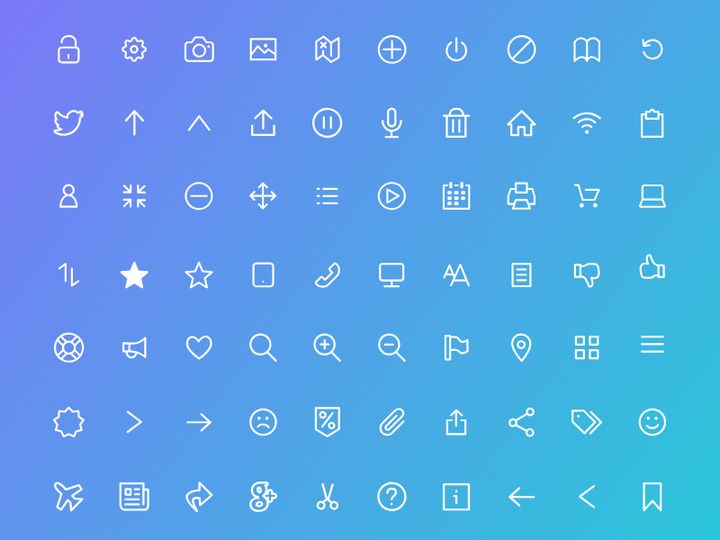

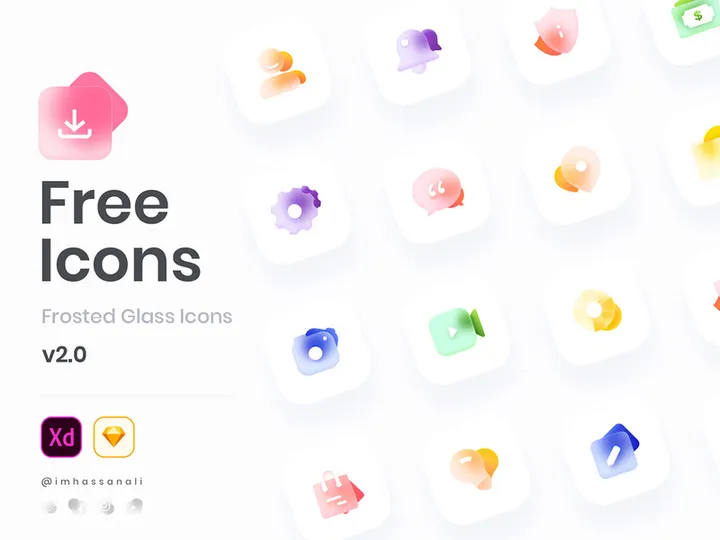
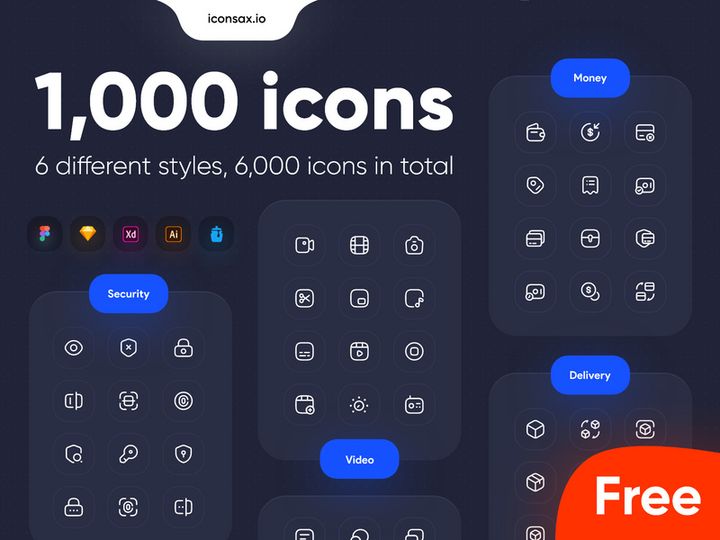
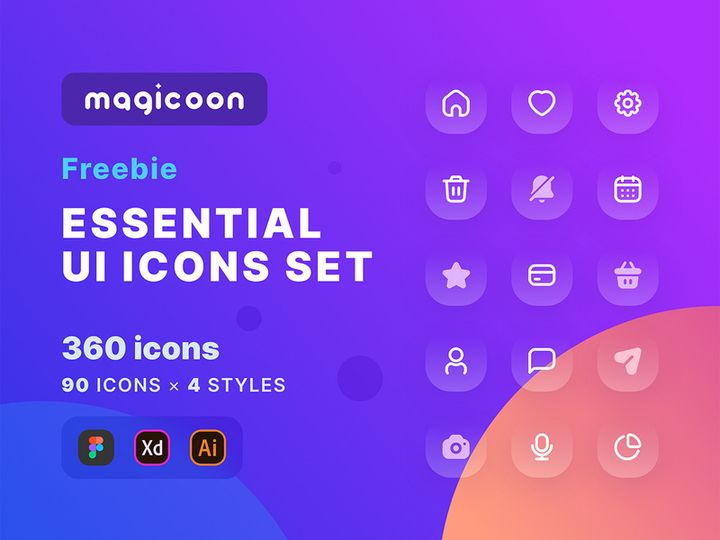
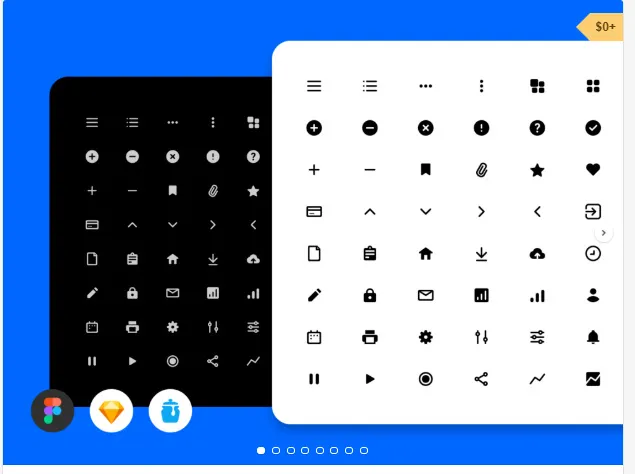

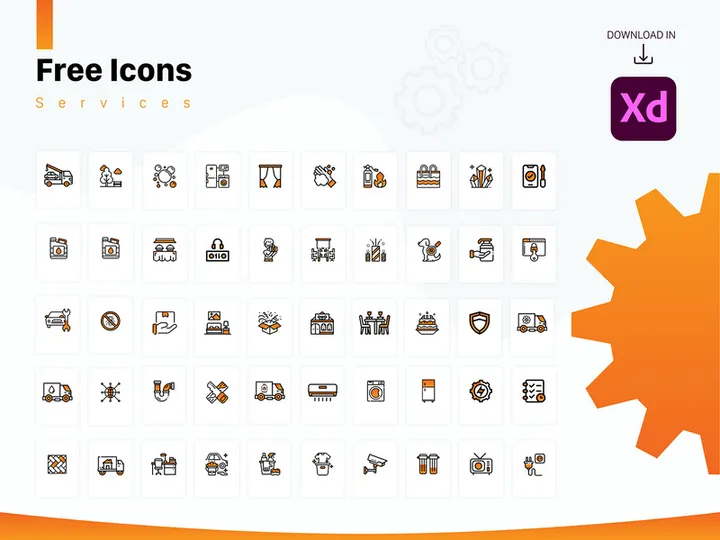
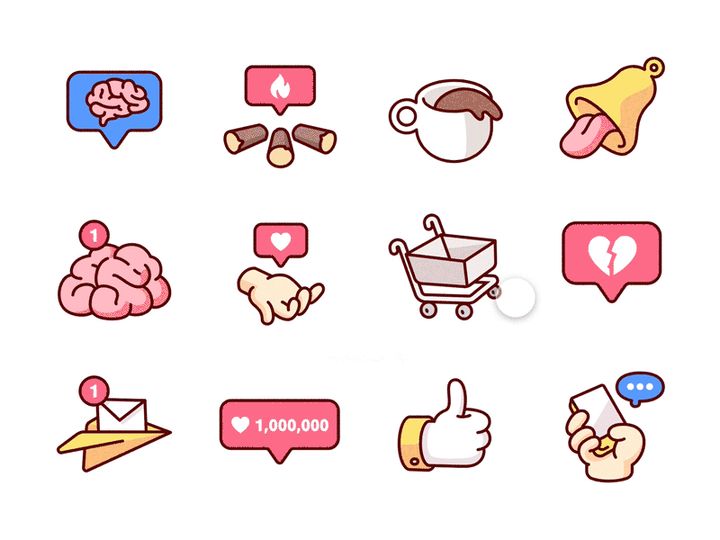
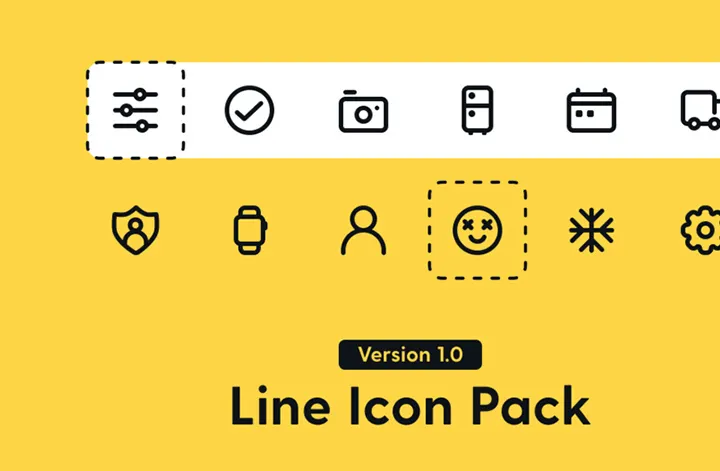
![[Free] Icon Set Categories preview picture](https://imgproxy.epicpxls.com/UBqWarHeI2FH-PmupKopUZoKjKTiA6tE9TQJi8nPuSc/rs:fill:720:540:0/g:no/aHR0cHM6Ly9pdGVt/cy5lcGljcHhscy5j/b20vdXBsb2Fkcy9w/aG90by9kYmNmZWJm/OTE3MmI5YWE1ZWM4/MmU4MDI5M2I4ODZm/YQ.jpg)

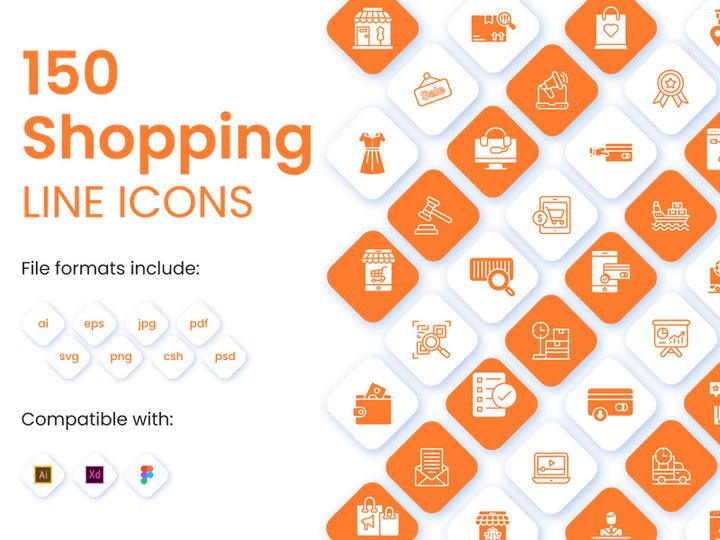
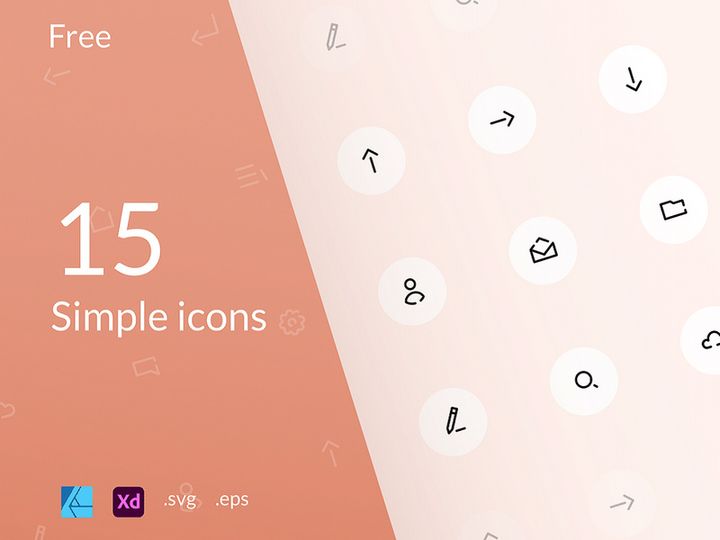

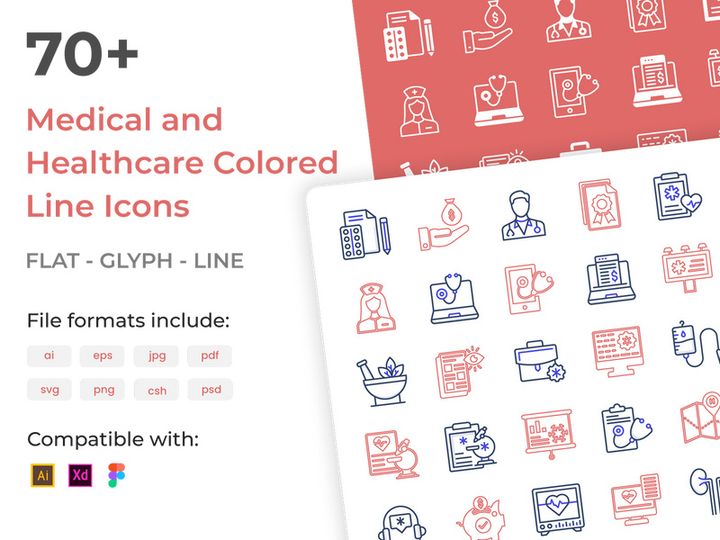

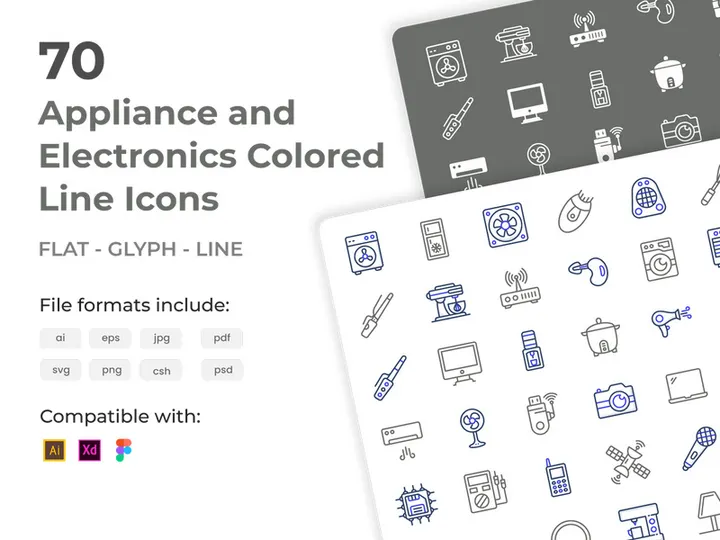
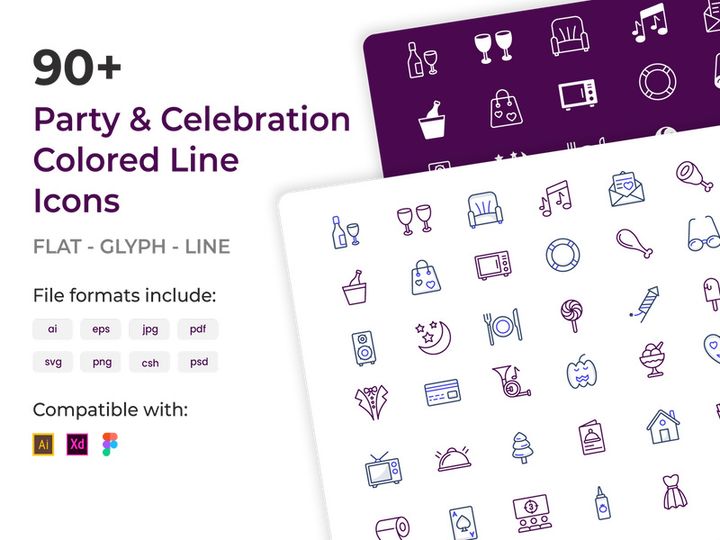
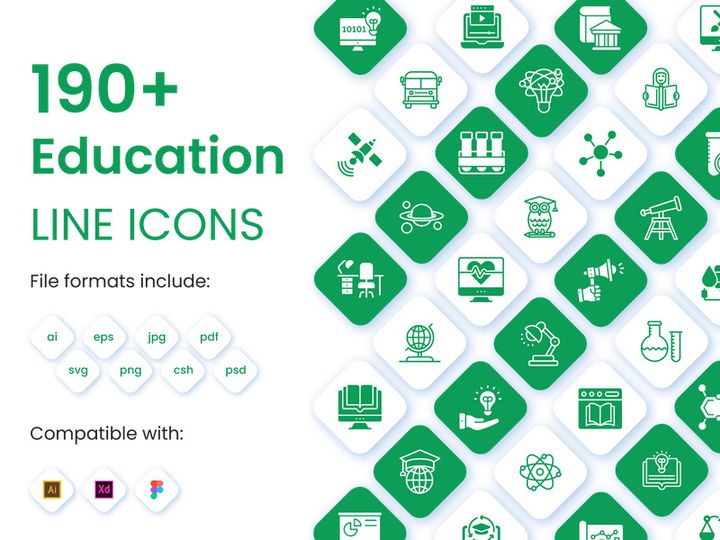
Try Our Free Resources
Download any of these for free - no account required
Getting Started with Icons in Adobe XD
Adobe XD has become a go-to tool for UI/UX designers looking to create intuitive, visually compelling digital experiences. One of the most effective ways to enhance interface design is through the strategic use of icons. Icons improve usability, reduce cognitive load, and add visual hierarchy to your projects. Whether you're designing a mobile app, website, or dashboard, knowing how to use icons in Adobe XD is an essential skill.
Before diving in, ensure you have the latest version of Adobe XD installed. This guarantees access to updated features, improved performance, and better file compatibility. Adobe XD is available for both Windows and macOS via the Creative Cloud desktop app. A stable internet connection is also recommended, especially when downloading resources or syncing with cloud libraries.
When it comes to sourcing icons, compatibility with Adobe XD is key. While some icon sets are provided in formats like PSD or AI, the most efficient options are those delivered in native XD format or SVG, which preserve vector quality and are easy to manipulate. Many design platforms offer curated icon libraries, but not all are optimized for seamless integration into Adobe XD workflows.
That’s where EpicPxls stands out. With over 45+ resources tailored for modern design needs, EpicPxls offers a wide variety of high-quality, customizable icons compatible with Adobe XD. From minimalist line icons to bold filled styles, their collection supports diverse design systems and branding requirements. These downloadable kits often come with organized layers, named components, and ready-to-use artboards—making them ideal for rapid prototyping.
Whether you're building a personal project or working within a team, leveraging professionally designed icon sets saves time and ensures visual consistency. The 45+ resources available on EpicPxls include themed packs such as e-commerce, social media, navigation, and productivity tools—giving you flexible options no matter your project scope. With the right setup and a reliable source of icons, you're ready to bring clarity and elegance to your designs in Adobe XD.
How to Import Icons into Adobe XD
- Choose the Right File Format: Begin by downloading icons in a format compatible with Adobe XD. The best options are native XD files (.xd), SVG (Scalable Vector Graphics), or Figma files (which can be imported via plugin). If the icons are provided in AI or PSD format, you'll need to open them in Illustrator or Photoshop first and export them as SVG before importing into XD.
- Download from Trusted Sources: Visit EpicPxls and browse their 45+ resources to find an icon pack that fits your project. Ensure the download includes XD or SVG files for optimal integration. Always check the license terms to confirm usage rights for commercial or personal projects.
- Launch Adobe XD: Open Adobe XD and either start a new design file or open an existing project where you'd like to use the icons. Make sure your workspace is set up with the appropriate artboard size and grid system for consistency.
- Import the Icon File: Go to File > Open and select your downloaded .xd file, or use File > Import to bring in SVG files. For Figma files, install the Figma to XD importer plugin from the Adobe Add-ons panel, then follow the plugin’s import instructions.
- Copy Icons into Your Project: Once imported, open the icon file in XD. Select the icons you need—either individually or in groups—and copy them (Ctrl+C or Cmd+C). Switch to your main project file and paste (Ctrl+V or Cmd+V) the icons onto your artboard.
- Verify Icon Integrity: After pasting, inspect the icons for any formatting issues. Ensure they remain vector-based, scalable, and properly layered. If you imported an SVG, confirm that strokes and fills are editable and that no elements are rasterized or flattened.
Pro tip: When working with multiple icon styles (e.g., filled vs. outlined), import them into separate artboards or use clear naming conventions. This helps maintain organization and makes future edits easier. By following these steps, you’ll ensure a smooth import process and preserve the quality and flexibility of your icons within Adobe XD.
Step-by-Step: Working with Icons in Adobe XD
Editing Layers and Components
Once icons are in your Adobe XD project, customization is often necessary to match your brand’s visual language. Most icons from EpicPxls are structured with clean, well-named layers, making them easy to modify. To edit an icon, simply double-click it to enter isolation mode. From there, you can adjust individual paths, change fill and stroke colors, or tweak stroke weight using the properties panel on the right.
If your icon is made from vector shapes, you can ungroup it (right-click > Ungroup) to access each element. However, avoid breaking components unless necessary—especially if the icon is part of a reusable symbol. For consistent styling across multiple icons, use the Assets panel to define color swatches and character styles. This ensures that all icons adhere to your design system.
Adobe XD’s Components feature is particularly useful for icons used repeatedly, such as navigation bars or action buttons. Convert an icon into a component by selecting it and clicking the “Create Component” button in the property inspector. You can then generate variants for different states (e.g., active/inactive) and reuse them across artboards. Any updates to the master component automatically propagate to all instances, saving time and reducing errors.
Organizing Your Icons Library
As your project grows, managing icons becomes increasingly important. A well-organized icon library improves efficiency and collaboration. Start by grouping related icons on dedicated artboards—e.g., “Navigation Icons,” “Social Media Icons,” or “Settings.” Name each artboard clearly so it’s easy to locate assets during design handoff.
Use XD’s Asset Symbols panel to create a centralized library. Drag commonly used icons into the “Components” section of the Assets panel so they’re accessible across all files linked to your document library. For teams, publish these components to a shared design system via Creative Cloud Libraries for consistent usage.
Take advantage of naming conventions: prefix icons with categories (e.g., “icon-arrow-right,” “icon-user-filled”) and suffix them with style or state when needed. This makes searching and filtering easier. If you’re using multiple icon packs from the 45+ resources on EpicPxls, keep them in separate files or tabs to avoid clutter and maintain version control.
Exporting for Production
When your design is finalized, exporting icons correctly ensures they render well across devices and platforms. Adobe XD supports exporting assets in PNG, SVG, and PDF formats—each suited for different use cases.
For web and mobile apps, SVG is ideal because it’s resolution-independent and loads quickly. Select the icon or group, go to the Export section in the right-hand panel, and choose SVG. Make sure “Responsive” is enabled if the icon needs to scale dynamically. For raster formats, export PNG at 1x, 2x, and 3x densities to support various screen resolutions.
To export, click the “+” next to “Export” in the property inspector, select your desired format and scale, then click “Export” and choose a destination folder. You can also batch-export multiple icons by placing them on a single artboard and using the slice tool to define individual export areas.
Always review exported files to confirm color accuracy, transparency, and file size. For developers, include a style guide or annotation sheet that specifies icon usage, spacing, and states. This streamlines handoff and ensures consistent implementation in production environments.
Troubleshooting Common Adobe XD Issues
File Won't Open
If an icon file fails to open in Adobe XD, the issue is often related to file format or version compatibility. Older versions of XD may not support newer file features or imported formats like Figma. Always update Adobe XD to the latest release through Creative Cloud. If you're trying to open an AI or PSD file directly, remember that XD doesn’t support these natively—convert them to SVG first using Illustrator or Photoshop before importing.
Missing Fonts or Assets
While icons typically don’t rely on fonts, some symbol-based icon sets use custom icon fonts that may not transfer correctly. If icons appear as empty squares or question marks, it means the associated font isn’t installed. However, most modern icon packs—including those from EpicPxls—use vector shapes instead of fonts, eliminating this issue. Always download icon sets that use vector paths rather than font glyphs to ensure portability and editability.
Performance Problems
Large icon libraries or complex vector groups can slow down Adobe XD, especially on lower-spec machines. To improve performance, avoid importing entire icon packs at once. Instead, copy only the icons you need into your project. Regularly clean up unused components and layers, and avoid excessive grouping or nesting. If performance lags persist, consider linking to external XD files rather than embedding all assets in one document. Breaking your project into modular files helps maintain responsiveness and speeds up collaboration.
Advanced Adobe XD Tips for Icons
Batch Processing
When working with dozens of icons, manual editing becomes inefficient. Use XD’s Repeat Grid feature to apply changes across multiple icons simultaneously. Place icons in a row or column, convert them into a Repeat Grid, and adjust properties like color or size—changes will reflect across all items. While XD doesn’t support true batch export scripting natively, third-party plugins can automate repetitive tasks like renaming or resizing icon groups.
Plugins and Extensions
Enhance your icon workflow with Adobe XD plugins. The Icons for XD or SVG Importer plugins allow direct integration of external icon libraries. You can search, preview, and insert icons without leaving XD. Additionally, the Design System Organizer plugin helps manage and document icon usage across components. Plugins from the official Adobe Add-ons marketplace are safe, regularly updated, and integrate seamlessly with XD’s interface.
Collaboration Workflows
For team-based projects, maintaining a shared icon library ensures consistency across designs. Use Creative Cloud Libraries to publish approved icons as reusable components. Team members can access these assets in real time, reducing duplication and version conflicts. When using resources from the 45+ collections on EpicPxls, designate one team member to import, organize, and publish the icons to the shared library. Include documentation on proper usage, spacing, and variants to guide other designers. Combined with XD’s coediting and commenting features, this creates a streamlined, scalable workflow for enterprise-level design systems.
Why Download from EpicPxls?
Commercial License
Use in personal and commercial projects
No Account Required
Download free resources instantly
Quality Curated
Every resource is reviewed for quality
Preview Files
See Figma and Photoshop files before downloading
Who Uses These Icons?
Professionals and teams who benefit most from our collection
UI/UX Designers
Speed up your workflow with ready-to-use icons for Adobe XD. Perfect for prototyping and client presentations.
Developers
Get production-ready assets without design skills. Export in any format for web and mobile apps.
Startups & Agencies
Save design budget with affordable premium icons. Commercial license included.
Marketing Teams
Create professional campaigns faster. All icons are optimized for social media and ads.
Icons for Adobe XD FAQCommon questions about these resources
Simple, Transparent Pricing
Get unlimited access to all premium resources
Yearly
- 20 downloads per month
- All file formats
- Commercial license
Lifetime
- Unlimited downloads forever
- All file formats
- Commercial license
Ready to Get Started?
Access 4,440+ free design resources today.
Browse Free ResourcesView Premium PlansEarn 85% and
more on all sales
Upload your products and put them up
for sale at whatever price you want.


