Graphics for Illustrator: 809+ Resources
EpicPxls offers 809+ curated graphics for Illustrator, all with a commercial license and editable source files (Figma, Sketch, PSD). We have 809+ graphics compatible with Illustrator, tested and verified for seamless integration.
Last updated September 30, 2026
Discover 809+ handpicked graphics for Illustrator.
Trusted by designers at leading companies
Top Graphics for Illustrator
Handpicked resources from our curated collection



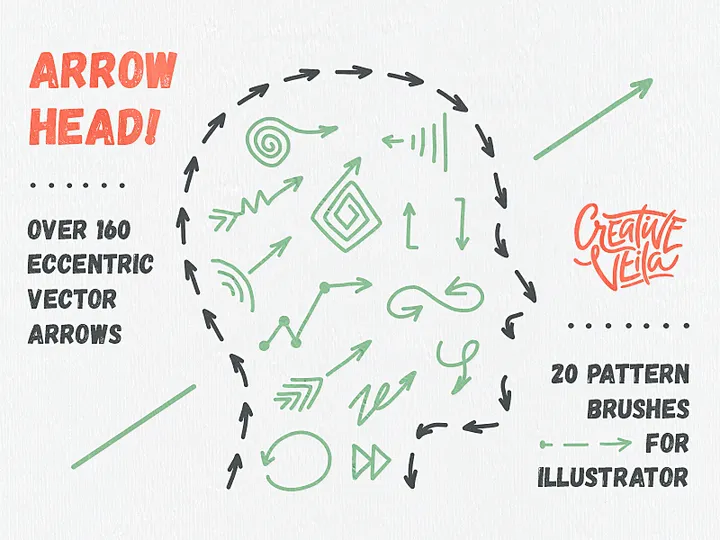

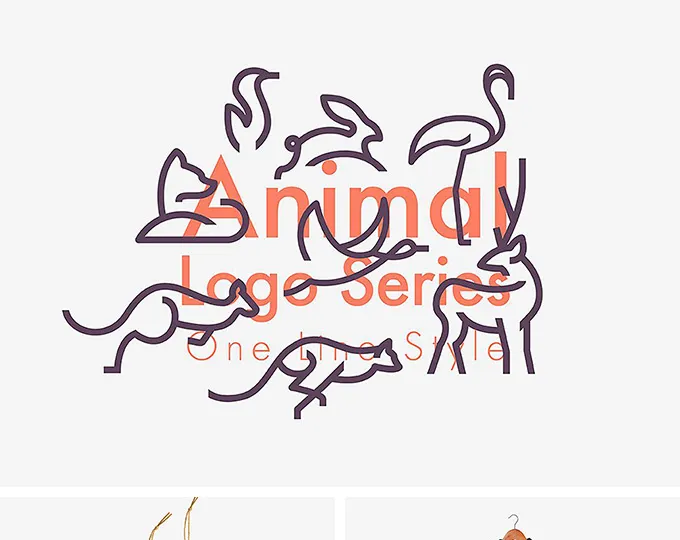
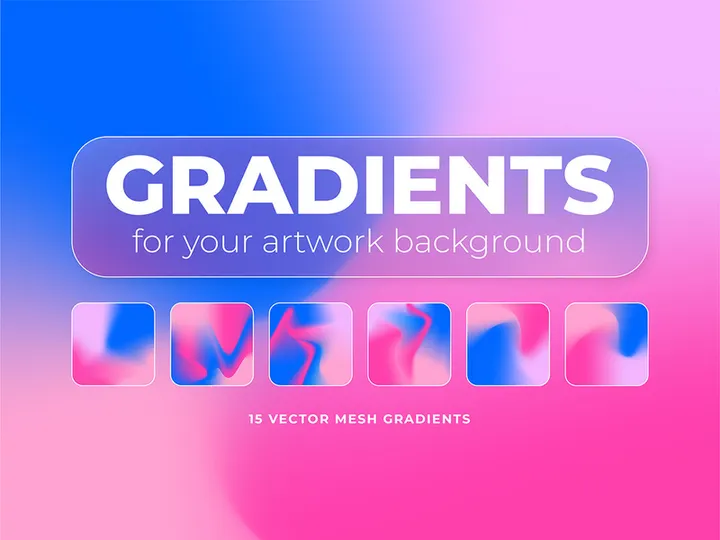


![[Free] E-Commerce Logo Kit & Icon Set preview picture](https://imgproxy.epicpxls.com/-zLkC083zXvrEA4IAhX2L2xFiRZ4FBRtWr1XQr3q3YI/rs:fill:720:540:0/g:no/aHR0cHM6Ly9pdGVt/cy5lcGljcHhscy5j/b20vdXBsb2Fkcy9w/aG90by82NGFiZGU3/ZGZiNWQ4ZGIwZTcy/YTMyYTNkODU5NzFh/NA.jpg)

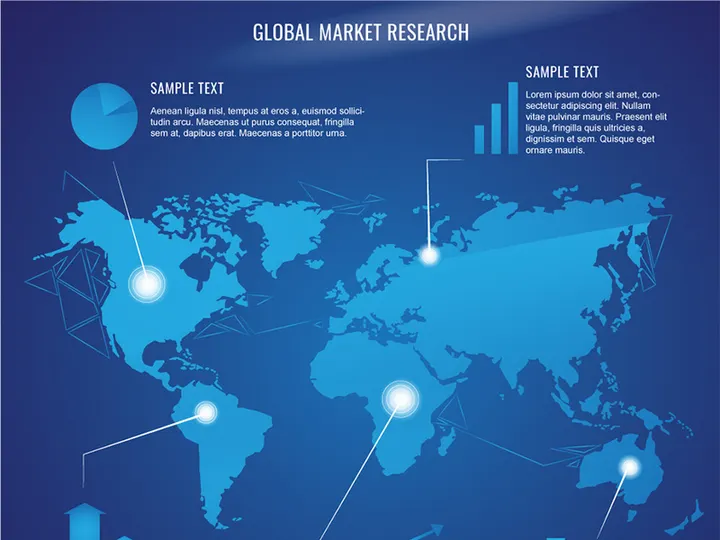
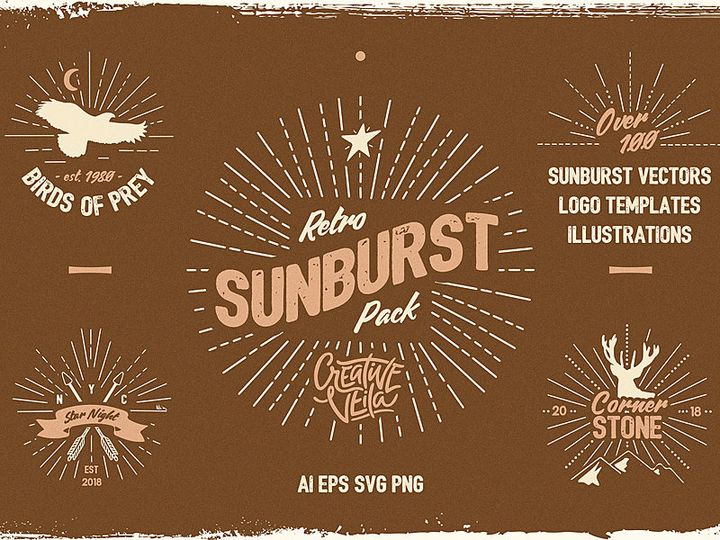

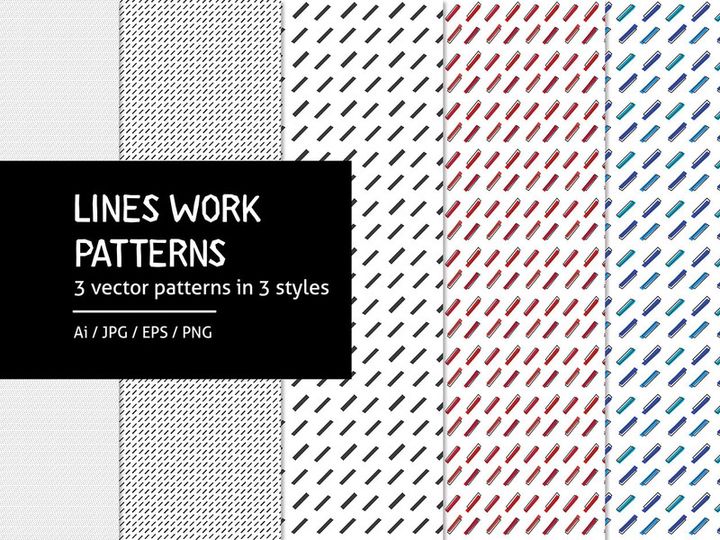

Try Our Free Resources
Download any of these for free - no account required
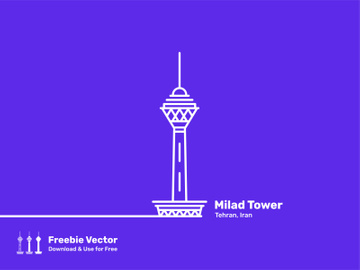
Why Illustrator for Graphics?
Adobe Illustrator has long been the industry standard for vector-based graphic design, making it a top choice for creatives who demand precision, scalability, and flexibility. Unlike raster-based tools, Illustrator uses mathematical equations to create crisp, resolution-independent graphics that can be scaled infinitely without losing quality—ideal for everything from intricate logos to expansive billboards. This vector foundation is particularly powerful when working with graphics that need to maintain clarity across multiple formats and sizes, such as brand assets, icons, and illustrations.
One of Illustrator’s most compelling features is its robust toolset tailored specifically for graphic creation. The Pen Tool allows for precise path creation, while the Shape Builder and Pathfinder tools make combining and modifying vector shapes intuitive. Features like the Color Guide, Global Colors, and Live Paint enable designers to experiment with palettes and apply consistent color schemes across entire projects. Additionally, Illustrator’s integration with other Adobe Creative Cloud apps—like Photoshop and InDesign—streamlines workflows, allowing seamless transitions between image editing, layout, and vector design.
Another reason Illustrator remains dominant in the graphic design space is its extensive ecosystem of compatible resources. From vector brushes and custom patterns to pre-designed icons and full illustration kits, users have access to a vast library of assets that enhance productivity and creativity. At EpicPxls, we understand the importance of quality and compatibility, which is why we meticulously curate every item in our collection of 809+ resources to ensure flawless integration with Illustrator. Each graphic is tested for vector integrity, layer organization, and ease of customization, so designers can focus on creating rather than troubleshooting. Whether you're crafting a minimalist logo or a complex infographic, Illustrator combined with reliable, professionally designed assets from EpicPxls empowers you to bring your vision to life with unmatched precision and speed.
Top Graphics Picks for Illustrator
Best for Beginners
Starting out in Illustrator can be both exciting and overwhelming. That’s why beginner-friendly graphics are essential—they simplify the learning curve and help new users build confidence. At EpicPxls, we offer a range of intuitive, well-documented resources designed with newcomers in mind. These include drag-and-drop vector icons, simple shape kits, and template-based design packs that allow users to experiment with layouts, colors, and typography without needing advanced skills. Many of these beginner sets come with step-by-step guides or layered .AI files that clearly label components, making it easy to understand how designs are constructed. These resources are perfect for students, hobbyists, or anyone transitioning from raster-based tools to vector design.
Best for Professionals
For experienced designers, efficiency and precision are non-negotiable. Professional-grade graphics from EpicPxls are engineered to meet the demands of high-stakes projects—whether it’s a corporate branding suite, a detailed technical illustration, or a custom pattern collection for product design. Our premium packs include fully editable vector assets with organized layers, named groups, and non-destructive effects. You’ll find advanced brush sets, scalable infographics, and modular design systems that integrate seamlessly into complex workflows. These resources are crafted by industry professionals and optimized for performance, ensuring that even the largest files remain responsive and easy to navigate. With access to over 809+ professionally vetted graphics, seasoned illustrators can accelerate production without sacrificing creative control.
Best Free Options
High-quality design resources don’t always have to come with a price tag. EpicPxls offers a growing selection of free graphics for Illustrator that maintain the same standards of quality and compatibility as our paid collections. These include free vector icons, starter brush packs, minimalist illustration sets, and seasonal design kits—perfect for personal projects, quick mockups, or portfolio building. While free resources are often limited in scope compared to full suites, our team ensures they are fully functional, well-structured, and compatible with current versions of Illustrator. These no-cost downloads are ideal for designers on a budget or those looking to test a resource style before investing in a larger pack. Combined with our extensive library, these free options make powerful design tools accessible to everyone.
Illustrator vs Other Tools for Graphics
When it comes to creating scalable, high-fidelity graphics, Illustrator stands apart from other design applications due to its deep focus on vector artistry. While some tools specialize in raster editing or UI/UX design, Illustrator is purpose-built for crafting clean, editable, and infinitely resizable graphics. This makes it the preferred platform for logo design, typography, technical illustrations, and any project where precision and scalability are critical. Other software may offer basic vector capabilities, but they often lack the depth of control, path manipulation tools, and typographic refinement that Illustrator provides.
The Illustrator ecosystem also offers unique advantages through its native file formats and seamless plugin support. The .AI and .EPS formats preserve vector data, layers, and effects, ensuring that graphics remain fully editable across sessions. This level of fidelity is essential when collaborating across teams or repurposing assets for print, web, or animation. Additionally, Illustrator’s support for SVG export makes it ideal for web designers who need responsive, code-friendly graphics. At EpicPxls, all 809+ resources are delivered in formats optimized for Illustrator, including layered .AI, .EPS, and SVG files, so users can take full advantage of these capabilities without conversion issues.
Another key differentiator is the depth of customization. Illustrator allows users to modify every aspect of a graphic—anchor points, stroke profiles, color swatches, and effects—without degrading quality. This level of control is unmatched by tools that prioritize speed over editability. Whether you're adjusting a logo for a new brand color or resizing an intricate pattern for packaging, Illustrator ensures your graphics remain sharp and flexible. With curated resources from EpicPxls, designers gain access to assets that are not only visually compelling but built to leverage Illustrator’s full potential.
Setting Up Graphics in Illustrator
- Download and Extract: After acquiring your graphics from EpicPxls, download the compressed file (usually .ZIP) and extract its contents to a dedicated folder on your computer. Organize by category—such as icons, brushes, or patterns—for easier access later.
- Verify Compatibility: Ensure the resource files are in a format supported by your version of Illustrator. Most EpicPxls graphics come in .AI, .EPS, or .SVG, which are universally compatible with modern Illustrator versions.
- Import the File: Open Illustrator and go to File > Open or File > Place to import the graphic. Use “Open” for standalone assets and “Place” when embedding into an existing project.
- Explore the Layers Panel: Once imported, review the Layers panel to understand the structure. Well-organized resources from EpicPxls include named layers, grouped elements, and locked guides (if applicable), making customization straightforward.
- Customize and Scale: Use the Selection or Direct Selection tool to modify colors, resize elements, or edit anchor points. Because these are vector graphics, you can scale them to any size without quality loss.
- Save and Reuse: After customization, save your work in .AI format to preserve editability. Consider adding frequently used graphics to your Creative Cloud Libraries or creating templates for future projects.
Managing a large collection of graphics—such as the 809+ resources available at EpicPxls—requires a smart organizational strategy. Use consistent naming conventions, maintain a master folder with subcategories, and consider using metadata or third-party asset management tools to quickly locate files. Regularly archive outdated packs and update your library with fresh content to keep your workflow efficient and inspiration flowing.
Illustrator Workflow Tips
Organizing Graphics Libraries
An organized library is the backbone of an efficient Illustrator workflow. Start by categorizing your graphics into folders—such as "Logos," "Icons," "Textures," and "Illustrations"—based on usage and content type. Within Illustrator, leverage the Libraries panel (accessible via Window > Libraries) to create cloud-synced collections of your most-used assets. Drag and drop symbols, swatches, brushes, and vector elements into custom libraries for instant access across projects. When using resources from EpicPxls, take advantage of their clean layer structures and named components to quickly identify and reuse parts of complex graphics. Regularly clean up unused items and update outdated versions to keep your libraries lean and relevant.
Batch Operations
When working with large sets of graphics—like those found in the 809+ collection at EpicPxls—batch processing can save hours of manual labor. Use Illustrator’s Actions panel (Window > Actions) to record repetitive tasks such as resizing, recoloring, or exporting multiple files. For example, you can create an action that applies a specific color profile, resizes artboards, and exports assets as SVG or PNG. Then, use the Batch command (under File > Automate) to apply that action to an entire folder of graphics. This is especially useful for preparing icon sets, creating social media kits, or standardizing branding elements across multiple files. Automating these processes ensures consistency and frees up time for more creative work.
Collaboration Best Practices
Collaborating on Illustrator projects requires clear communication and file management. When sharing files that include external graphics, always embed or package linked assets to avoid missing elements. Use the Package feature (File > Package) to gather fonts, images, and placed files into a single folder for easy handoff. Maintain consistent layer naming and color swatch labels so team members can quickly understand the structure. For cloud collaboration, save files to Adobe Creative Cloud and invite team members with appropriate permissions. When using curated resources from EpicPxls, ensure all team members have access to the same asset packs to maintain design consistency. Add notes or annotations using the Notes panel if necessary, and version-control your files by including date or stage indicators in filenames (e.g., “logo_v2_final.ai”). These practices help prevent confusion and keep team projects on track.
Why Download from EpicPxls?
Commercial License
Use in personal and commercial projects
No Account Required
Download free resources instantly
Quality Curated
Every resource is reviewed for quality
Preview Files
See Figma and Photoshop files before downloading
Who Uses These Graphics?
Professionals and teams who benefit most from our collection
UI/UX Designers
Speed up your workflow with ready-to-use graphics for Illustrator. Perfect for prototyping and client presentations.
Developers
Get production-ready assets without design skills. Export in any format for web and mobile apps.
Startups & Agencies
Save design budget with affordable premium graphics. Commercial license included.
Marketing Teams
Create professional campaigns faster. All graphics are optimized for social media and ads.
Graphics for Illustrator FAQCommon questions about these resources
Simple, Transparent Pricing
Get unlimited access to all premium resources
Yearly
- 20 downloads per month
- All file formats
- Commercial license
Lifetime
- Unlimited downloads forever
- All file formats
- Commercial license
Earn 85% and
more on all sales
Upload your products and put them up
for sale at whatever price you want.


