Graphics for Photoshop: 3165+ Resources
EpicPxls offers 200+ curated graphics for Photoshop, all with a commercial license and editable source files (Figma, Sketch, PSD). We have 200+ graphics compatible with Photoshop, tested and verified for seamless integration.
Last updated February 12, 2026
Discover 3165+ handpicked graphics for Photoshop.
Trusted by designers at leading companies
Top Graphics for Photoshop
Handpicked resources from our curated collection
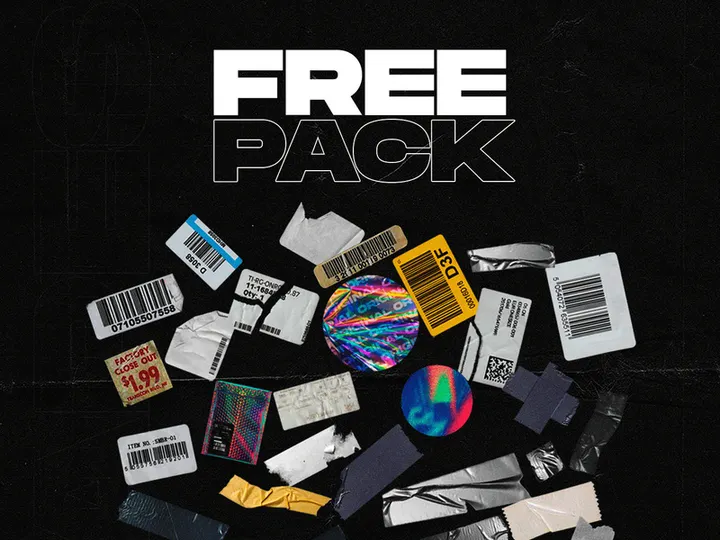


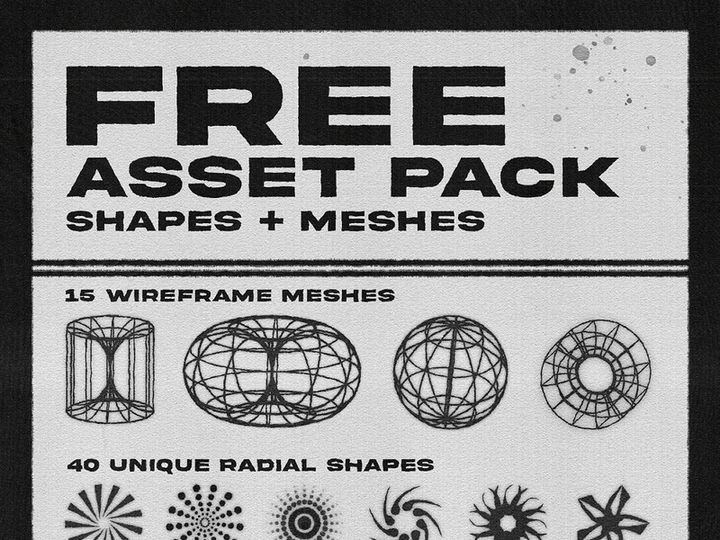

![[Free] Foil Balloon Text Effect PSD File preview picture](https://imgproxy.epicpxls.com/Y1H1bmMcJ74ue5xRPri4fpzJjk7W4HuFspTJ4ScL0Tw/rs:fill:720:540:0/g:no/aHR0cHM6Ly9pdGVt/cy5lcGljcHhscy5j/b20vdXBsb2Fkcy9w/aG90by8xNTk0NmNh/MWVlOTFkZjI5YzUw/MWYzMTcyNjAxMDU3/Mg.jpg)


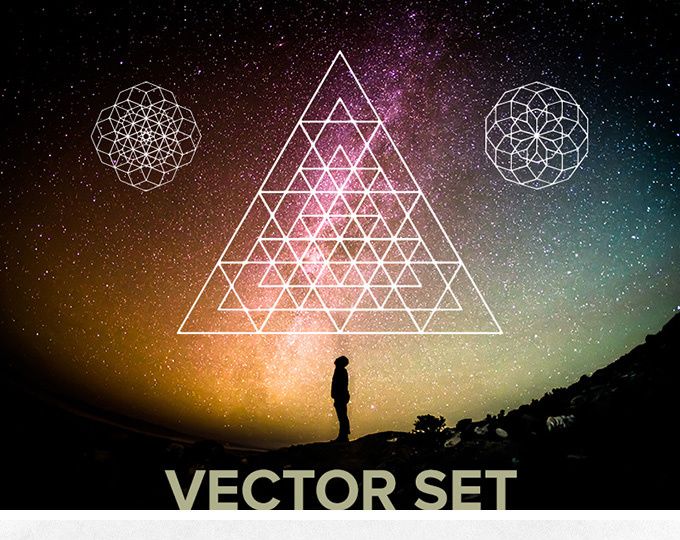





![[Free] Foil Balloon Text Effect PSD File preview picture](https://imgproxy.epicpxls.com/pCnvq8SvHVpPXz0Y4eWFTkFoIdyBCcZiess4_hipdf4/rs:fill:720:540:0/g:no/aHR0cHM6Ly9pdGVt/cy5lcGljcHhscy5j/b20vdXBsb2Fkcy9w/aG90by84NDljZDFi/YTM5NjAyMjFjZTky/NzZkMDQwMTViZTUy/MQ.jpg)


Try Our Free Resources
Download any of these for free - no account required

Why Photoshop for Graphics?
Adobe Photoshop remains the gold standard for digital graphics creation and editing, trusted by millions of designers, illustrators, photographers, and creative professionals worldwide. Its enduring popularity stems from a powerful combination of precision tools, intuitive interface design, and unmatched flexibility in handling raster and layered image data. Whether you're crafting intricate illustrations, designing web graphics, or editing high-resolution photographs, Photoshop provides a comprehensive environment tailored to diverse creative needs.
One of the key reasons Photoshop excels in graphics workflows is its robust layer system, which allows users to stack, blend, and manipulate visual elements non-destructively. This is essential when working with complex compositions that include textures, vector shapes, masks, and smart objects. Photoshop also supports advanced color management, high-bit-depth editing, and a vast array of filters and effects, enabling nuanced control over every pixel. Features like adjustment layers, blending modes, and customizable brushes empower users to create graphics with depth, realism, and artistic flair.
Beyond its built-in capabilities, Photoshop thrives on an expansive ecosystem of third-party resources. At EpicPxls, we understand how vital it is to have access to high-quality, compatible assets that enhance creativity without slowing down production. That’s why our team meticulously curates over 3165+ resources specifically optimized for Photoshop. Each item—from brushes and textures to templates and actions—undergoes rigorous testing to ensure seamless integration, professional-grade output, and compatibility across recent versions of Photoshop. By focusing exclusively on Photoshop-ready graphics, EpicPxls empowers users to work efficiently, consistently, and creatively, transforming ideas into stunning visuals with confidence and ease.
Top Graphics Picks for Photoshop
Best for Beginners
Starting out in Photoshop can feel overwhelming, but the right graphics resources can make learning intuitive and enjoyable. For newcomers, we recommend user-friendly packs that include clear documentation, organized layers, and drag-and-drop usability. Look for beginner-oriented brushes, mockups, and templates that demonstrate core techniques like layer masking, blending, and text styling. These resources not only speed up design tasks but also serve as practical learning tools. At EpicPxls, many of our beginner-friendly selections come with video walkthroughs and tooltips to help users grasp essential workflows while building real projects.
Best for Professionals
Experienced designers demand precision, scalability, and efficiency—qualities embodied in professional-grade Photoshop graphics. Top-tier resources include high-resolution texture sets, customizable UI kits, advanced action scripts, and vector-based design systems. These tools are engineered for complex workflows, supporting non-destructive editing, consistent branding, and multi-format output. Professionals will appreciate features like smart object integration, organized layer naming, and cross-document compatibility. Our 3165+ resources include numerous pro-level packs designed for agencies, freelancers, and in-house design teams who need reliability and polish in every deliverable.
Best Free Options
High-quality doesn’t have to mean high cost. There’s a wealth of free graphics available that are both powerful and production-ready. From signature brush sets and grunge overlays to minimalist icon packs and social media templates, free resources can significantly expand your creative toolkit. The key is choosing well-crafted assets from trusted sources. EpicPxls offers a growing collection of free Photoshop graphics that meet strict quality standards—ensuring crisp resolution, clean layer structures, and ease of use. These free downloads are perfect for hobbyists, students, or professionals testing new styles without financial risk.
Photoshop vs Other Tools for Graphics
While many tools exist for digital design, Photoshop maintains a unique edge in the realm of graphics creation. Unlike vector-centric programs, Photoshop specializes in pixel-perfect control, making it ideal for photo manipulation, digital painting, and detailed compositing. Its deep integration with raster-based workflows allows for unparalleled realism and texture handling—critical when designing for print, web, or multimedia platforms.
The Photoshop ecosystem stands apart due to its extensive support for layered PSD files, smart objects, and non-destructive editing. These features enable designers to maintain flexibility throughout the creative process, revising individual elements without compromising the whole composition. Additionally, Photoshop’s support for a wide range of file formats—including PSD, TIFF, PNG, JPEG, and RAW—ensures smooth collaboration across different stages of production and compatibility with complementary tools.
Another major advantage is the sheer volume of community-developed resources. With 3165+ resources available through EpicPxls, users gain instant access to assets that are pre-optimized for Photoshop’s environment. This level of specialization means faster setup, reliable performance, and consistent output. Whether you're working on branding, advertising, or personal art, Photoshop’s comprehensive toolset and asset ecosystem make it the preferred choice for creators who value control, quality, and creative freedom.
Setting Up Graphics in Photoshop
- Download and Extract Files: Begin by downloading your chosen graphics from EpicPxls. Most resources come in ZIP format—extract them to a dedicated folder on your computer for easy access.
- Install Brushes and Tools: For brush sets (.ABR files), go to Edit > Presets > Preset Manager in Photoshop, click Load, and select the ABR file. Custom shapes, gradients, and patterns can be installed the same way.
- Load Actions and Styles: Double-click .ATN (Actions) or .ASL (Styles) files to automatically import them into Photoshop, or load them manually via the Actions or Styles panel.
- Open Template Files: For PSD templates, simply open them in Photoshop. Explore the layer structure, adjust smart objects, and customize text and colors to fit your project.
- Organize in Libraries: Use Photoshop’s Creative Cloud Libraries to save frequently used graphics, colors, and assets for quick access across devices.
- Verify Compatibility: Ensure your Photoshop version supports the resource format. Most items in our 3165+ resources collection are compatible with Photoshop CC 2019 and later, with fallback options for older versions when possible.
For optimal performance, especially when managing large sets of graphics, store resources in clearly labeled folders by category—such as “Textures,” “Brushes,” or “Mockups.” This structured approach simplifies updates and backups. EpicPxls provides detailed installation guides with each download, ensuring even first-time users can get set up quickly and efficiently.
Photoshop Workflow Tips
Organizing Graphics Libraries
An efficient workflow begins with a well-organized library. Use Photoshop’s built-in Library panel to group assets by project, client, or theme. Save colors, layer styles, and smart objects as reusable components. For offline management, maintain a master folder structure on your hard drive, mirroring your digital library. Tagging and naming conventions (e.g., “Brush-Watercolor-01”) make searching faster. At EpicPxls, we recommend downloading resources into categorized subfolders and keeping a master spreadsheet of asset sources and licenses for professional use.
Batch Operations
When working with multiple graphics, batch processing can save hours. Use Photoshop’s Actions panel to record repetitive tasks—such as resizing, renaming, or applying filters—and then automate them across a folder via File > Automate > Batch. This is especially useful for preparing web graphics, social media posts, or product images for e-commerce. Combine this with Image Processor Pro for exporting in multiple formats simultaneously. Many of our 3165+ resources include pre-built actions designed to streamline common production tasks, from shadow generation to logo mockups.
Collaboration Best Practices
Collaborating in Photoshop requires clear communication and standardized workflows. Always use consistent layer naming, group related layers, and include a README layer or document notes when sharing PSDs. Flatten or package fonts and linked smart objects to avoid missing assets. For teams, leverage cloud storage with version control or use shared Creative Cloud Libraries to maintain design consistency. When sourcing graphics from EpicPxls, ensure all team members have access to the same asset packs and understand licensing terms—especially for client projects or commercial distribution. These practices minimize errors, reduce revision cycles, and keep creative teams aligned and productive.
Why Download from EpicPxls?
Commercial License
Use in personal and commercial projects
No Account Required
Download free resources instantly
Quality Curated
Every resource is reviewed for quality
Preview Files
See Figma and Photoshop files before downloading
Who Uses These Graphics?
Professionals and teams who benefit most from our collection
UI/UX Designers
Speed up your workflow with ready-to-use graphics for Photoshop. Perfect for prototyping and client presentations.
Developers
Get production-ready assets without design skills. Export in any format for web and mobile apps.
Startups & Agencies
Save design budget with affordable premium graphics. Commercial license included for client work.
Marketing Teams
Create professional campaigns faster. All graphics are optimized for social media and ads.
Graphics for Photoshop FAQCommon questions about these resources
Simple, Transparent Pricing
Get unlimited access to all premium resources
Yearly
- 20 downloads per month
- All file formats
- Commercial license
Lifetime
- Unlimited downloads forever
- All file formats
- Commercial license
Ready to Get Started?
Access 4,441+ free design resources today.
Browse Free ResourcesView Premium PlansEarn 85% and
more on all sales
Upload your products and put them up
for sale at whatever price you want.


