Icons for Photoshop: 307+ Resources
EpicPxls offers 307+ curated icons for Photoshop, all with a commercial license. Formats vary by item, and each listing shows its files. We have 307+ icons compatible with Photoshop, tested and verified for seamless integration.
Last updated November 20, 2024
Discover 307+ handpicked icons for Photoshop.
Trusted by designers at leading companies
Top Icons for Photoshop
Handpicked resources from our curated collection
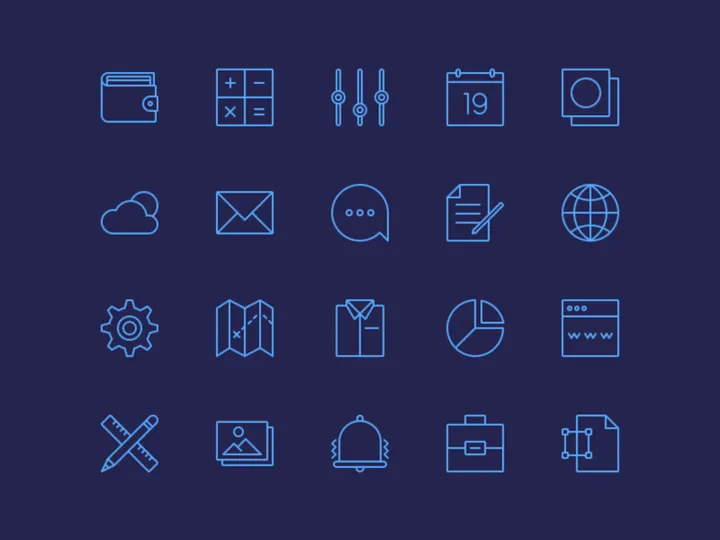
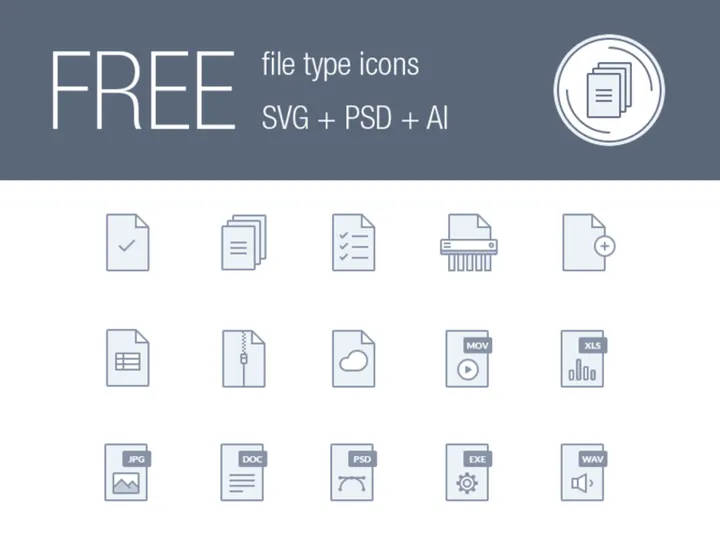


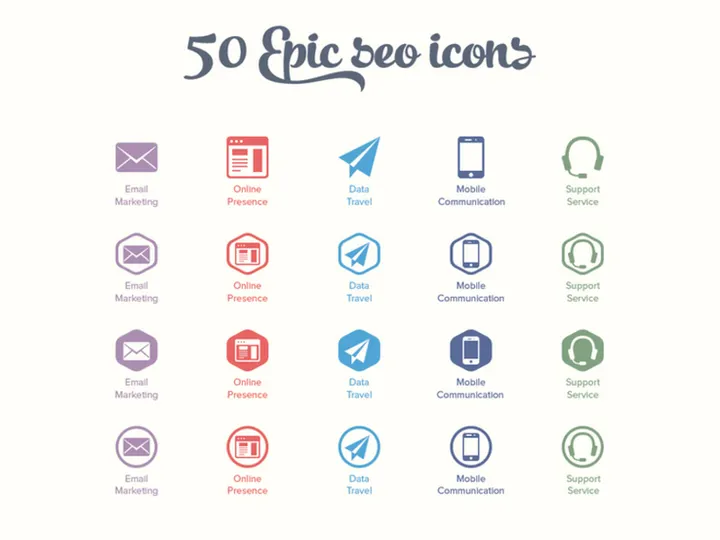


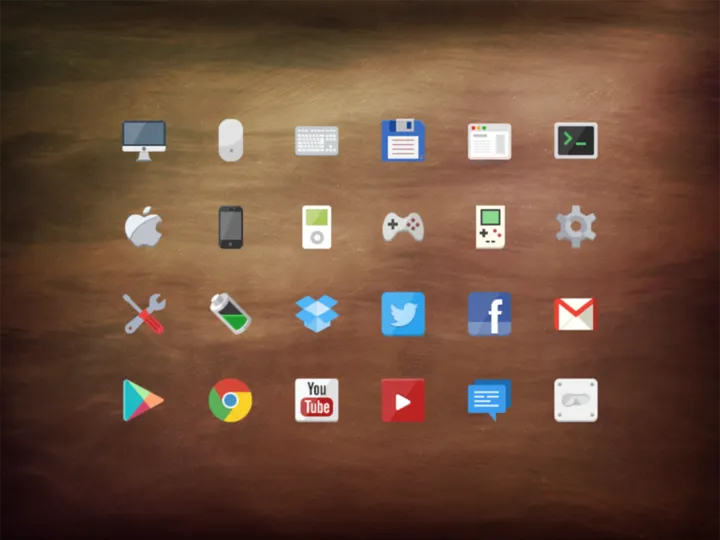
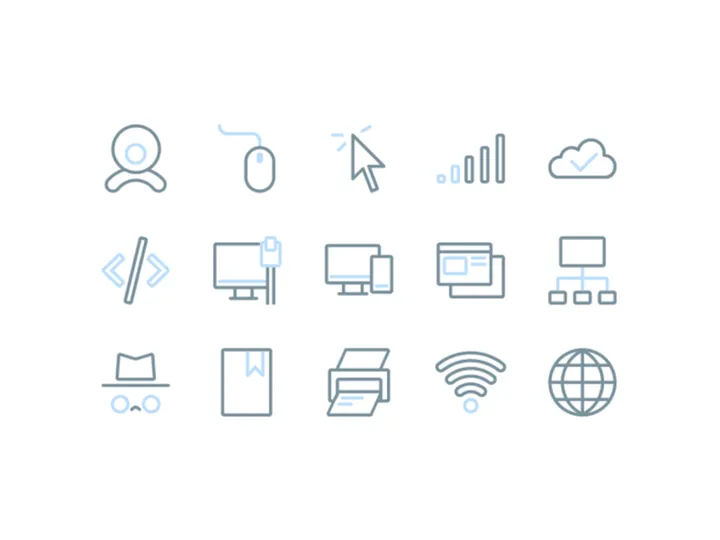


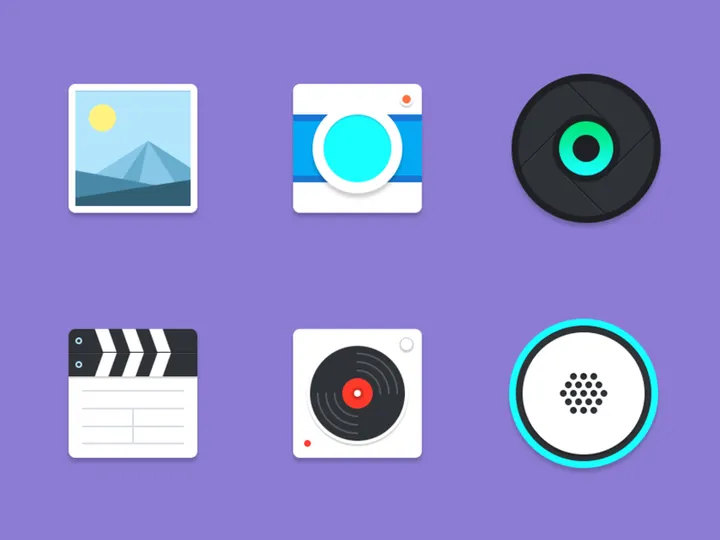
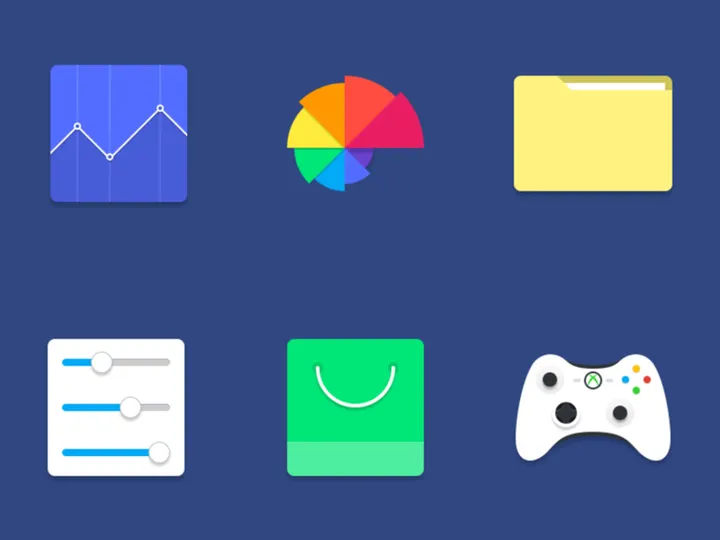

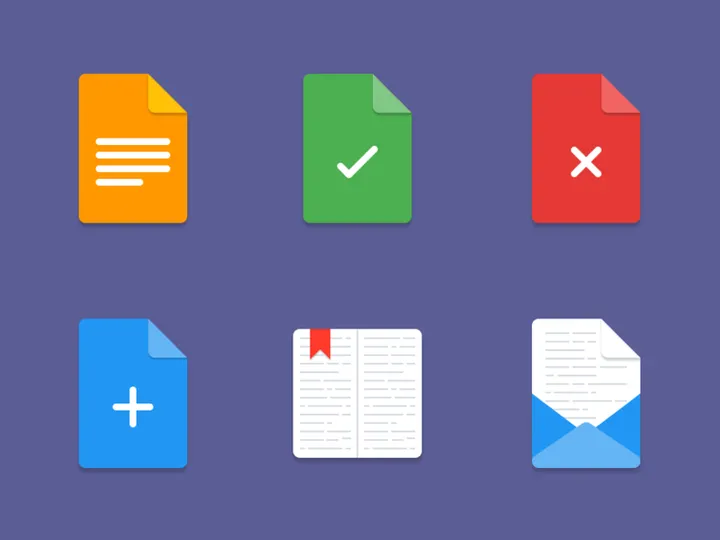
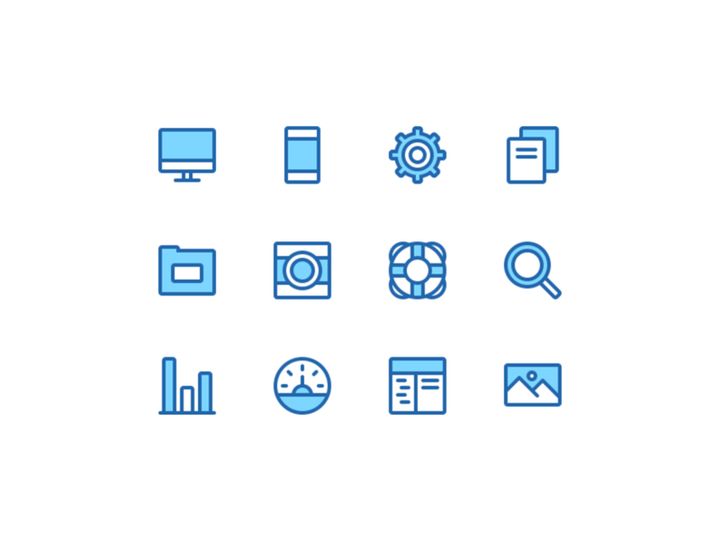
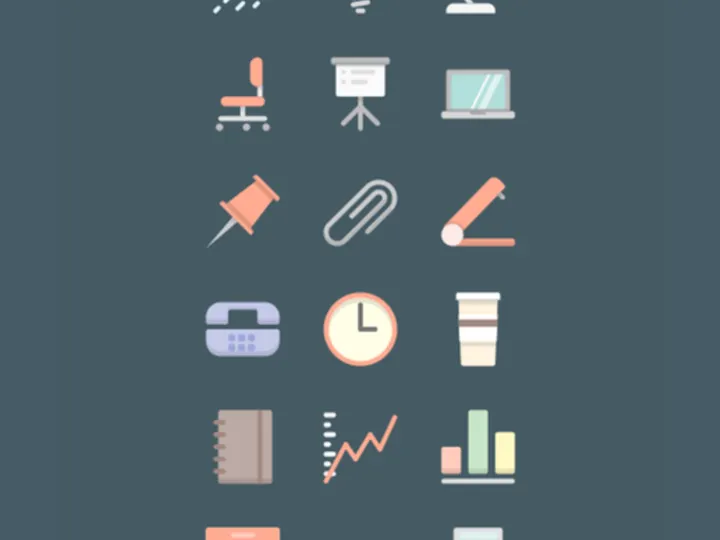



Try Our Free Resources
Download any of these for free - no account required
Why Photoshop for Icons?
Adobe Photoshop has long been a cornerstone of digital design, and its versatility extends powerfully into the world of icon creation and editing. While originally developed as a raster graphics editor, Photoshop has evolved into a comprehensive tool that supports both pixel-perfect precision and scalable vector workflows—making it an ideal platform for designing, modifying, and implementing icons across web, mobile, and desktop applications.
One of the key reasons designers choose Photoshop for icons is its robust layer system. With layers, designers can separate icon elements, apply non-destructive effects like drop shadows and gradients, and toggle visibility for easy editing. Smart Objects further enhance this workflow by allowing icons to be scaled without losing quality and edited independently, preserving original source data. This is especially useful when working with icon sets that must appear crisp at multiple sizes.
Photoshop also offers advanced selection tools, precise alignment options, and customizable brushes—features that streamline the process of creating consistent, polished icons. Its integration with Adobe Creative Cloud enables seamless syncing of assets, styles, and libraries across devices. Designers can save icon styles as presets and reuse them across projects, ensuring visual consistency and reducing repetitive tasks.
At EpicPxls, we recognize the importance of tools that support efficient, high-quality design. That’s why our curation of over 307+ icon resources is meticulously filtered to ensure full compatibility with Photoshop’s capabilities. Whether you’re adjusting transparency, applying layer styles, or exporting assets in multiple formats, these resources are optimized to work flawlessly within the Photoshop environment. From PSD files with layered compositions to vector-based icons ready for customization, the 307+ resources available through EpicPxls empower designers to create professional-grade icons without friction.
Top Icons Picks for Photoshop
With such a vast selection of icons available, choosing the right ones for your project can be overwhelming. To help streamline your workflow, we’ve highlighted top picks across different user needs—all fully compatible with Photoshop and part of the 307+ curated resources on EpicPxls. These selections balance usability, quality, and creative flexibility, ensuring every designer finds something valuable.
Best for Beginners
If you're just starting out with icon design in Photoshop, simplicity and clarity are key. The best beginner-friendly resources are those that come with clear layer structures, labeled folders, and intuitive file organization. Look for PSD files that include editable vectors, color-coded layers, and included documentation. Many of the beginner-optimized sets in our collection feature drag-and-drop icons, pre-sized canvases, and built-in grids to help maintain alignment and consistency. These resources reduce the learning curve and allow new users to focus on learning core Photoshop skills while producing professional results.
Best for Professionals
Experienced designers need tools that support advanced workflows and high-volume output. The top-tier resources in our 307+ collection offer multi-format exports, customizable color themes, and scalable vector shapes embedded within PSDs. These icon kits often include dozens—or even hundreds—of variations, state-specific icons (like active, disabled, or hover), and integration-ready templates for UI/UX projects. Many also support automation through actions or scripts, enabling rapid prototyping and design system development. With professional-grade precision and modular design principles, these resources are ideal for enterprise-level applications and design systems built in Photoshop.
Best Free Options
High-quality doesn’t have to mean high cost. Among the 307+ resources curated by EpicPxls, numerous free icon sets deliver exceptional value without compromising on design integrity. These free options are often released under permissive licenses, allowing use in both personal and commercial projects. They typically include essential UI elements like navigation icons, social media symbols, file types, and common action buttons—all crafted with clean lines and consistent stroke weights. While they may not offer the expansive breadth of premium packs, free icons from trusted sources provide a solid foundation for quick projects, prototypes, or budget-conscious workflows. Always verify licensing details, and rest assured that every free resource on EpicPxls has been vetted for compatibility, clarity, and Photoshop readiness.
Photoshop vs Other Tools for Icons
While several design tools support icon creation, Photoshop remains a top choice for many designers due to its comprehensive feature set and widespread adoption. Unlike tools focused solely on vector editing, Photoshop uniquely blends raster and vector capabilities, allowing for richly detailed icons that include textures, gradients, and blending modes—elements often required in modern UI design. This hybrid approach gives Photoshop an edge when creating visually complex or stylized icons that go beyond flat, minimalist aesthetics.
Another advantage lies in the Photoshop ecosystem. Designers can leverage Libraries to store and sync icons across projects, use Actions to automate repetitive tasks like resizing or exporting, and integrate with other Adobe apps for extended functionality. These features create a seamless, scalable workflow—especially valuable when managing large icon systems or collaborating across teams.
When it comes to format compatibility, Photoshop supports a wide range of file types essential for icon development. From native PSDs with editable layers to export options like PNG, SVG (with limitations), and PDF, designers can prepare assets for web, apps, and print with precision. While some tools may offer tighter SVG support, Photoshop’s strength is in its flexibility—handling both pixel-based and vector-based icon work with equal competence. With over 307+ resources on EpicPxls specifically formatted for Photoshop, users gain access to assets that maximize these advantages, ensuring smooth integration and efficient editing right from the start.
Setting Up Icons in Photoshop
Getting started with icons in Photoshop is straightforward when you follow a structured setup process. Whether you're importing a single icon or integrating an entire library, these steps will ensure your assets are organized, accessible, and ready for use.
- Download and Extract the Resource: Begin by downloading your chosen icon pack from a trusted source like EpicPxls. Most packs come in ZIP format—extract the contents to a dedicated folder on your computer for easy access.
- Verify File Format Compatibility: Ensure the icons are provided in PSD, PNG, or AI (placed as Smart Objects) format. PSD files are ideal as they preserve layers, vectors, and effects. Check that the resolution and size meet your project requirements.
- Open or Import into Photoshop: To use an entire set, open the PSD file directly in Photoshop. For individual icons, drag and drop PNG or SVG files into your canvas, or use File > Place Embedded to insert vector-based assets as Smart Objects.
- Organize Layers and Groups: Once imported, review the layer structure. Rename layers, group related icons, and color-code folders for clarity. Use layer comps to save different icon states or visibility combinations.
- Save to Creative Cloud Libraries (Optional): For quick access across projects, drag icons into the Libraries panel in Photoshop. This allows you to reuse icons without reopening original files—perfect for UI design systems.
- Test and Export: Before finalizing, test your icons at various sizes and backgrounds. Use Export As or Generate > Image Assets to export multiple formats and resolutions efficiently. Save your working file to preserve layers for future edits.
Managing a large collection—such as the 307+ resources available on EpicPxls—requires consistent naming, folder hierarchies, and periodic audits to remove unused or outdated assets. Consider creating a master icon directory with subfolders by category (e.g., social, navigation, settings) to maintain long-term usability.
Photoshop Workflow Tips
Maximizing efficiency in Photoshop goes beyond knowing where tools are—it’s about building smart, repeatable workflows. When working with icons, small optimizations can lead to significant time savings, especially when handling large sets or collaborating with others. The 307+ resources curated by EpicPxls are designed to integrate smoothly into these advanced workflows, enabling designers to focus on creativity rather than logistics.
Organizing Icons Libraries
A well-organized icon library is essential for fast retrieval and consistent design. Use Photoshop’s Creative Cloud Libraries to store frequently used icons, colors, and styles. Group icons by function (e.g., “User Actions,” “File Types”) and tag them for searchability. For local storage, maintain a hierarchical folder system on your drive and sync it with cloud services for backup. Consider creating a master PSD file that acts as a visual catalog—this makes it easy to browse and copy icons into active projects.
Batch Operations
When dealing with large icon sets, manual editing isn’t practical. Use Photoshop’s Actions panel to record repetitive tasks like resizing, recoloring, or adding effects. Once recorded, apply these actions to multiple files using the Batch command under the File > Automate menu. This is especially useful for converting entire icon packs to a new color scheme or preparing assets for different screen densities (e.g., 1x, 2x, 3x). Combine this with Image Processor to export dozens of icons in various formats simultaneously—saving hours of manual labor.
Collaboration Best Practices
When working in teams, consistency and clarity are critical. Establish shared naming conventions for layers and files—such as “icon-settings-blue-48px.psd”—to avoid confusion. Use version control or cloud sync tools to ensure everyone accesses the latest files. Share Creative Cloud Libraries with team members so everyone uses the same icon references. When curating assets, rely on trusted sources like EpicPxls to ensure all team members work with compatible, high-quality resources. Document usage guidelines, such as stroke weight standards or corner radius values, to maintain design harmony across deliverables. With the 307+ resources available, teams can quickly align on a shared visual language, accelerating project timelines and reducing revision cycles.
Why Download from EpicPxls?
Commercial License
Use in personal and commercial projects
No Account Required
Download free resources instantly
Quality Curated
Every resource is reviewed for quality
Preview Files
See preview images on each item page before downloading
Who Uses These Icons?
Professionals and teams who benefit most from our collection
UI/UX Designers
Speed up your workflow with ready-to-use icons for Photoshop. Perfect for prototyping and client presentations.
Developers
Get production-ready assets without design skills. Export in any format for web and mobile apps.
Startups & Agencies
Save design budget with affordable premium icons. Commercial license included.
Marketing Teams
Create professional campaigns faster. All icons are optimized for social media and ads.
Icons for Photoshop FAQCommon questions about these resources
Simple, Transparent Pricing
Get unlimited access to all premium resources
Yearly
- 20 downloads per month
- All file formats
- Commercial license
Lifetime
- Unlimited downloads forever
- All file formats
- Commercial license
Earn 85% and
more on all sales
Upload your products and put them up
for sale at whatever price you want.


