Free Icons: 493+ Vector Icon Sets
EpicPxls offers 200+ curated icons, all with a commercial license and editable source files (Figma, Sketch, PSD). Yes, all 200+ resources in this collection are completely free to download. No account or credit card required.
Last updated February 12, 2026
Discover 493+ handpicked free icons ready for your projects.
Trusted by designers at leading companies
Top Icons
Handpicked resources from our curated collection
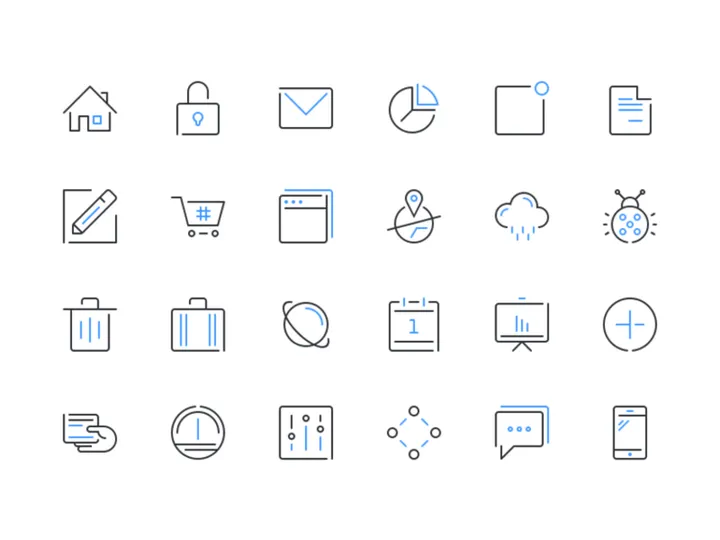
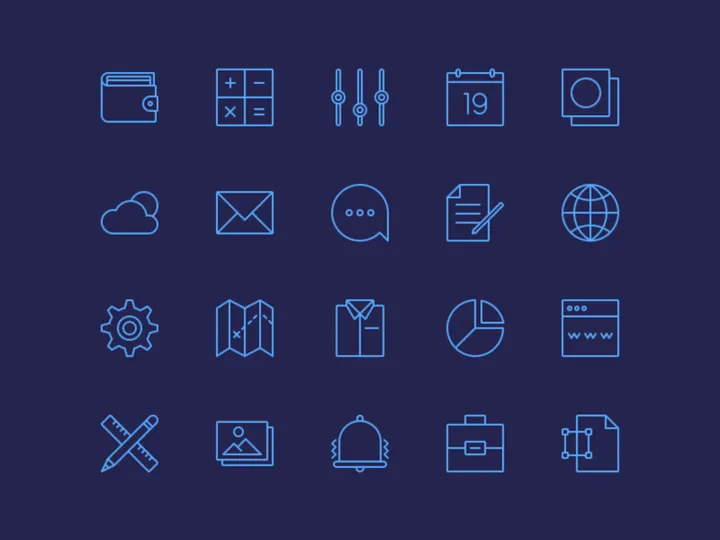
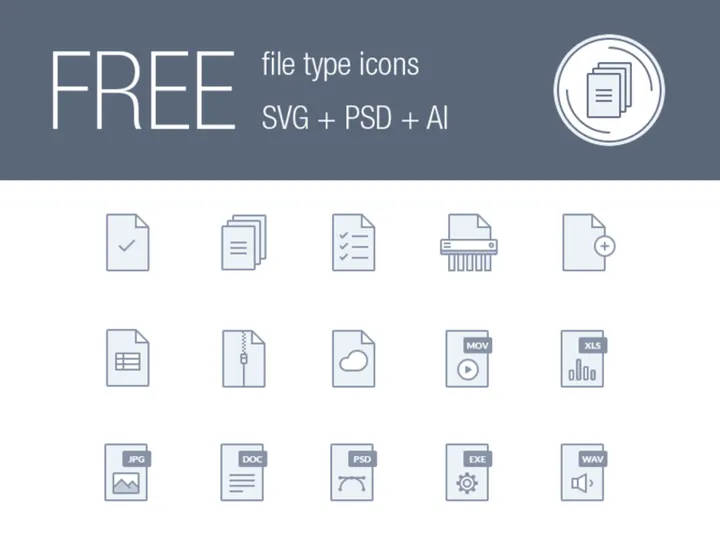


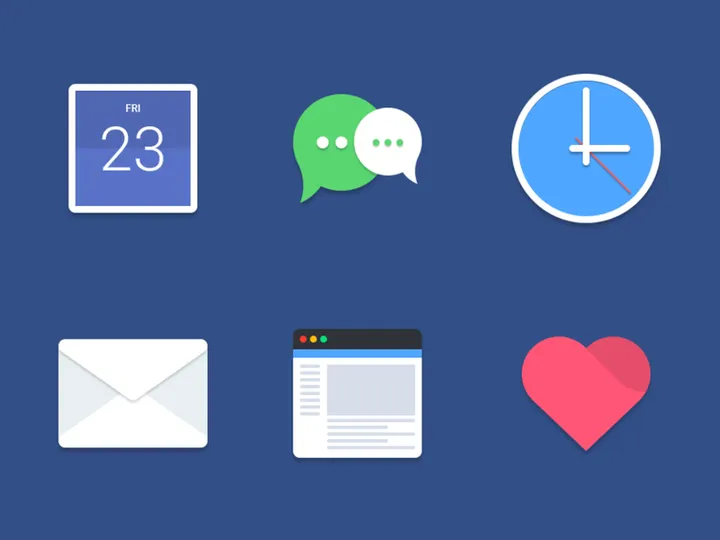


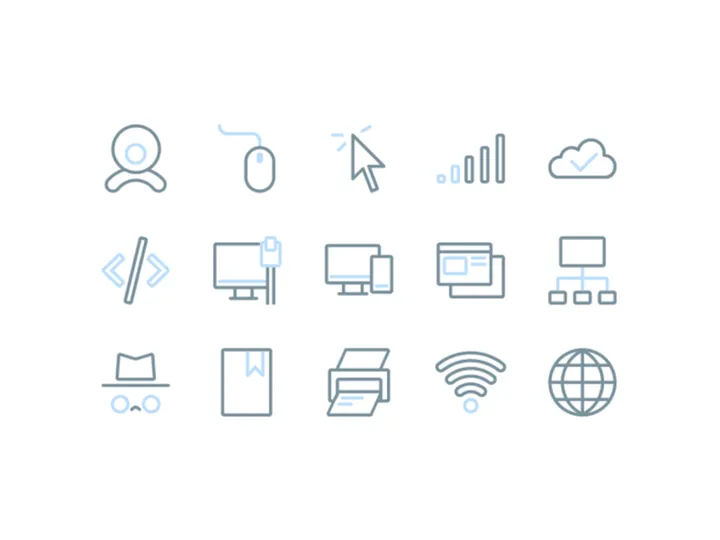


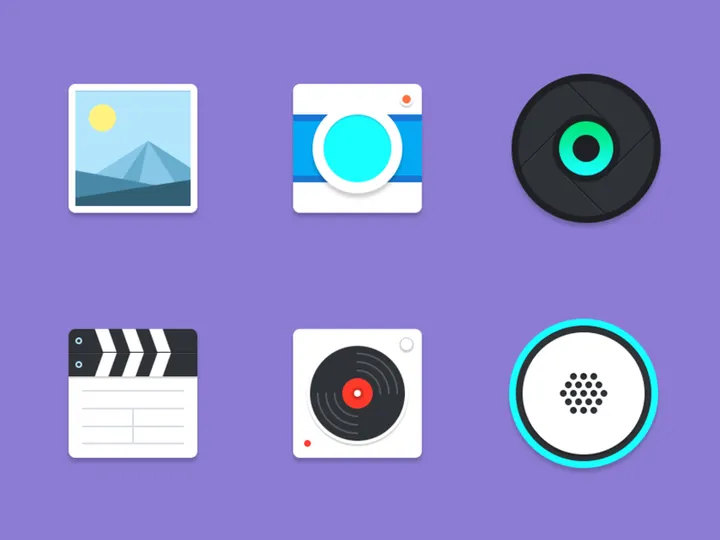
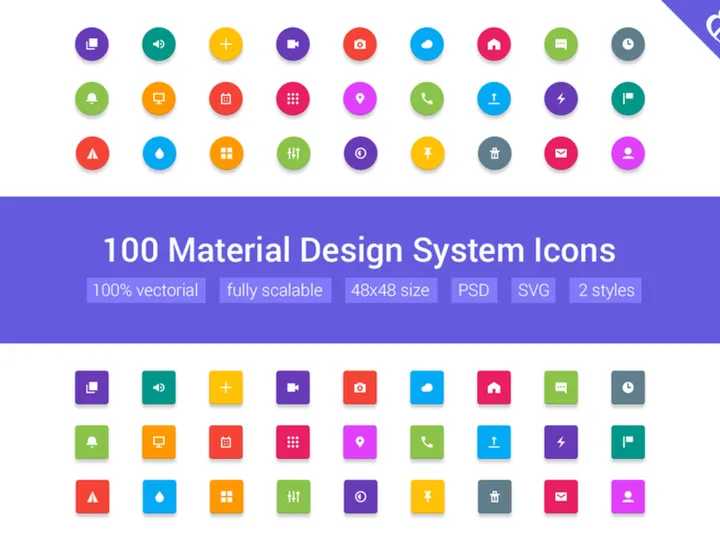

Try Our Free Resources
Download any of these for free - no account required
Free vs Premium Icons: What's the Difference?
When it comes to selecting icons for your design projects, you're often faced with a choice: go free or invest in premium. Both options have their strengths, and the right decision depends largely on your project’s scope, timeline, and budget. Free icons offer an accessible way for designers, developers, and small businesses to access quality visuals without upfront costs. They’re ideal for prototyping, personal websites, internal tools, or startup MVPs where budget constraints are real. Many free icon sets, especially those available on platforms like EpicPxls, are professionally designed, well-structured, and come with modern aesthetics that rival premium offerings.
However, premium icons typically go further in consistency, variety, and technical refinement. They’re often part of expansive design systems with hundreds of matching icons, multiple weights, and full customization support. Premium sets are also more likely to include detailed documentation, accessibility features, and responsive design considerations. These advantages make them better suited for large-scale commercial products, enterprise applications, or brands that require a polished, unified visual language.
Quality expectations differ accordingly. With free icons, you may encounter slight inconsistencies in stroke width, perspective, or alignment—especially when mixing sets from different creators. Premium icons are usually vetted for precision and scalability, ensuring they look sharp across devices and screen sizes. That said, the 493+ free resources available on EpicPxls are carefully curated to maintain high visual and technical standards, making them a reliable choice for many professional applications.
In short, free icons are perfect when you need speed, affordability, and solid design. Premium icons make sense when your project demands pixel-perfect uniformity, extensive customization, or advanced licensing flexibility. Understanding this balance helps you make smarter choices without overspending or compromising on quality.
What's Included in Free Icons
File Formats
Most free icon sets, including the 493+ resources available on EpicPxls, come in multiple vector and raster formats to suit a wide range of use cases. The most common format is SVG (Scalable Vector Graphics), which is ideal for web development due to its resolution independence and small file size. SVG icons scale perfectly on any screen, from mobile devices to 4K displays, without losing clarity. Many sets also include PNG files in various sizes (e.g., 16x16, 32x32, 64x64, 128x128, 256x256), making them suitable for apps, dashboards, or platforms that don’t support vector graphics.
In addition, some free downloads offer AI (Adobe Illustrator) or EPS files, allowing designers to edit icons in professional vector software. These formats are especially helpful when you need to tweak paths, colors, or strokes for brand alignment. While not every free set includes these advanced formats, the top-tier selections on EpicPxls ensure you get versatile file types that support both development and design workflows.
Customization Options
One of the biggest advantages of free vector icons is the ability to customize them. You can typically change colors, resize without quality loss, and modify individual elements such as stroke width or corner radius. With SVG or AI files, designers can ungroup elements and reconfigure icons to better match a project’s visual style. However, limitations exist. Most free licenses prohibit reselling the icon as-is or distributing it as part of a competing product. You also can’t claim ownership of the original design, even after modifications.
Some free icons are built with simplicity in mind, meaning they may lack advanced features like multiple line weights or alternate views. While you can customize the basics—color, size, and minor shape adjustments—complex redesigns may require design expertise or a switch to premium assets with deeper customization support.
License Coverage
Crucially, many free icons now come with permissive licenses that allow commercial use. This means you can use them in client work, SaaS platforms, mobile apps, and even physical products without legal risk—provided you follow the license terms. The 493+ free icon sets on EpicPxls are selected specifically for their clear, business-friendly licensing. Most operate under Creative Commons Zero (CC0), public domain, or similar open licenses, which waive copyright and allow unrestricted use. Always review the included license file, but with these resources, you can confidently integrate icons into commercial projects without attribution requirements in most cases.
How to Download Free Icons
- Navigate to the EpicPxls icons collection page, where you’ll find the full library of 493+ free vector icon sets organized by category, style, and use case.
- Browse or search for the icon set that matches your design needs. Each set includes a preview grid so you can see every icon before downloading.
- Click the “Download” button on your chosen set. No signup or email capture is required—free icons are available instantly to all users.
- Once downloaded, extract the ZIP file using any standard archive tool. Inside, you’ll find icons in multiple formats (SVG, PNG, AI, etc.) along with a license document and, in some cases, a style guide.
- Import the icons into your project—whether it’s a Figma design, a web app, or a print layout—and begin customizing as needed. The clean vector structure ensures easy integration across platforms.
With EpicPxls, the entire process is streamlined for efficiency and transparency. You don’t need to create an account, agree to spammy newsletters, or wait for confirmation emails. Every free icon set is ready to use the moment you download it, empowering designers and developers to move fast without compromise.
License Explained: Using Free Icons Commercially
One of the most common concerns designers have about free icons is whether they can be used in commercial projects. The answer, for the 493+ resources on EpicPxls, is a confident yes—under clear and flexible licensing terms. These icons are selected not only for their design quality but also for their legal usability in real-world business environments. Let’s break down what you can do in different scenarios.
Personal Projects
Free icons are perfect for personal websites, portfolios, hobby apps, or learning exercises. You can use them to build mockups, experiment with UI design, or enhance blog graphics. Since no commercial gain is involved, the usage is straightforward and unrestricted. Most sets don’t require attribution, but it’s always good practice to check the included license file for specific terms.
Client Work
Yes, you can use these free icons in client projects. Whether you're designing a website for a local business, a branding package for a startup, or a dashboard for a nonprofit, the permissive licenses on EpicPxls allow you to deliver polished results without extra licensing fees. This makes free icons a powerful tool for freelancers and agencies looking to maintain quality while keeping costs low. Just ensure the icons are integrated as part of a larger design—never resold as standalone assets.
Commercial Products
You can also use these icons in commercial software, mobile apps, SaaS platforms, and digital products available for purchase. The key condition is that the icon must not be the primary value of the product. For example, you can use a free icon in your task management app’s interface, but you can’t compile the icons into a new icon pack and sell it as your own. Redistribution in original form is generally prohibited. However, as long as the icons are part of a larger creative work, they’re safe to use—even in monetized environments. This level of flexibility is rare in the free design resource space, making the 493+ sets on EpicPxls a standout choice for entrepreneurs and product teams.
Getting More from Free Icons
Combining Free Resources
One powerful strategy is combining multiple free icon sets to create a comprehensive design system. While no single free set may cover every use case, layering resources from the 493+ options on EpicPxls can give you a broad and cohesive library. The key is visual consistency—choose sets with similar stroke weights, corner radii, and design philosophy. For instance, pair a minimalist line icon set with a matching outline-style UI kit to maintain harmony across your interface. Tools like Figma or Sketch allow you to standardize colors and sizing, helping blended sets feel like a unified system.
Customization Techniques
Free icons don’t have to stay “as-is.” With basic vector editing skills, you can adapt them to better fit your brand. Change line thickness, adjust fill colors, convert strokes to outlines, or merge shapes to create new icons. For example, if you need a “video call” icon and only have separate camera and microphone icons, you can layer and combine them into a new composite. SVG files are especially easy to manipulate in code or design tools. Just remember: customization is allowed, but repackaging and reselling the original icons is not.
When to Upgrade to Premium
While free icons are incredibly capable, there comes a point when upgrading makes sense. If your project demands pixel-perfect consistency across hundreds of icons, multiple weights (light, regular, bold), or advanced features like animated variants, a premium set may be worth the investment. Premium icons also often come with dedicated support, regular updates, and extended licensing for large teams or enterprise use. For startups or solopreneurs, free icons from EpicPxls provide an excellent foundation. But as your product scales, premium assets can ensure long-term design integrity and reduce maintenance overhead. Think of free icons as your launchpad—and premium as the upgrade for growth.
Why Download from EpicPxls?
Commercial License
Use in personal and commercial projects
No Account Required
Download free resources instantly
Quality Curated
Every resource is reviewed for quality
Preview Files
See Figma and Photoshop files before downloading
Who Uses These Icons?
Professionals and teams who benefit most from our collection
UI/UX Designers
Speed up your workflow with ready-to-use icons for design tools. Perfect for prototyping and client presentations.
Developers
Get production-ready assets without design skills. Export in any format for web and mobile apps.
Startups & Agencies
Save design budget with affordable premium icons. Commercial license included for client work.
Marketing Teams
Create professional campaigns faster. All icons are optimized for social media and ads.
Icons FAQCommon questions about these resources
Simple, Transparent Pricing
Get unlimited access to all premium resources
Yearly
- 20 downloads per month
- All file formats
- Commercial license
Lifetime
- Unlimited downloads forever
- All file formats
- Commercial license
Ready to Get Started?
Access 4,442+ free design resources today.
Browse Free ResourcesView Premium PlansEarn 85% and
more on all sales
Upload your products and put them up
for sale at whatever price you want.


