Templates for Figma: 850+ Resources
EpicPxls offers 200+ curated templates for Figma, all with a commercial license and editable source files (Figma, Sketch, PSD). We have 200+ templates compatible with Figma, tested and verified for seamless integration.
Last updated February 12, 2026
Discover 850+ handpicked templates for Figma.
Trusted by designers at leading companies
Top Templates for Figma
Handpicked resources from our curated collection

![[FREE] Onboarding for online shop delivery service preview picture](https://imgproxy.epicpxls.com/M_5MpVYHZDRFeGdqajq8UNekveEuq0mtVCUFQ9TSayA/rs:fill:720:540:0/g:no/aHR0cHM6Ly9pdGVt/cy5lcGljcHhscy5j/b20vdXBsb2Fkcy9w/aG90by8xMzE0OTI4/NGE0ZjI1ODFjMWNl/NWUwMDg1MjAxNjIy/NA.jpg)
![15 Login Sign-Up Templates [Free for Personal Use] preview picture](https://imgproxy.epicpxls.com/7g3VVoD1KuCYomkeLEQCYhNzt1erkW-Dlw6itoylllw/rs:fill:720:540:0/g:no/aHR0cHM6Ly9pdGVt/cy5lcGljcHhscy5j/b20vdXBsb2Fkcy9w/aG90by9kMDBlYTUy/NTUzMTdjYzFhNzY2/NTIzNzE4YzRhOTU0/Zg.jpg)
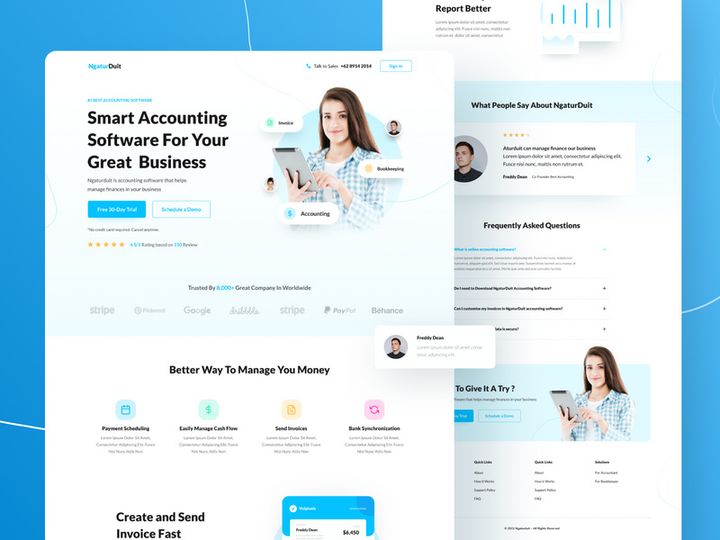
![Website Finance Landing page [Figma] preview picture](https://imgproxy.epicpxls.com/u_EI3cCaO32AA-DaN56ZpqRzTI1_z6Ei3KdlkcvQB7w/rs:fill:720:540:0/g:no/aHR0cHM6Ly9pdGVt/cy5lcGljcHhscy5j/b20vdXBsb2Fkcy9w/aG90by9iN2U5NDQz/MzlhMDM5ODBiZWFm/NWFiNTA2Yzg0ZDNk/YQ.jpg)


![[Figma Freebies] Data warehouse homepage preview picture](https://imgproxy.epicpxls.com/0J7d9u0LLJNYD8pZuj9LMH0BeP9MvdGAPKG9UOt9Xrw/rs:fill:720:540:0/g:no/aHR0cHM6Ly9pdGVt/cy5lcGljcHhscy5j/b20vdXBsb2Fkcy9w/aG90by81YTMyYzEw/OThhZDg5N2QyOTlk/ZDY4MjBhNmVkZmFm/MA.jpg)

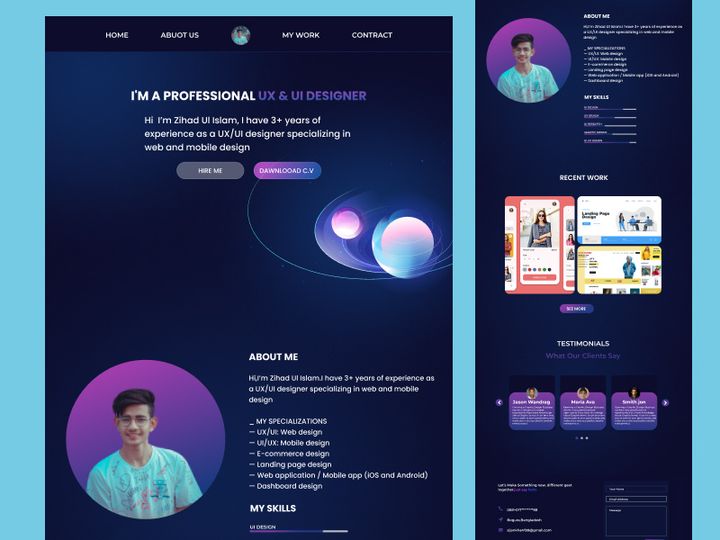

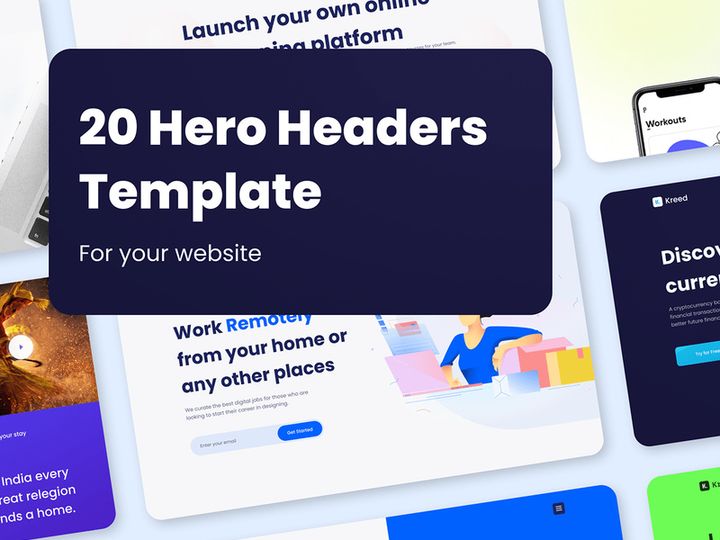
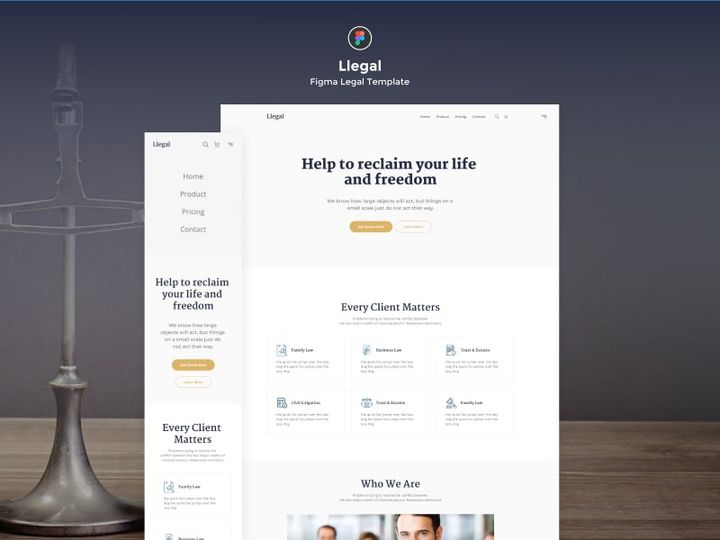
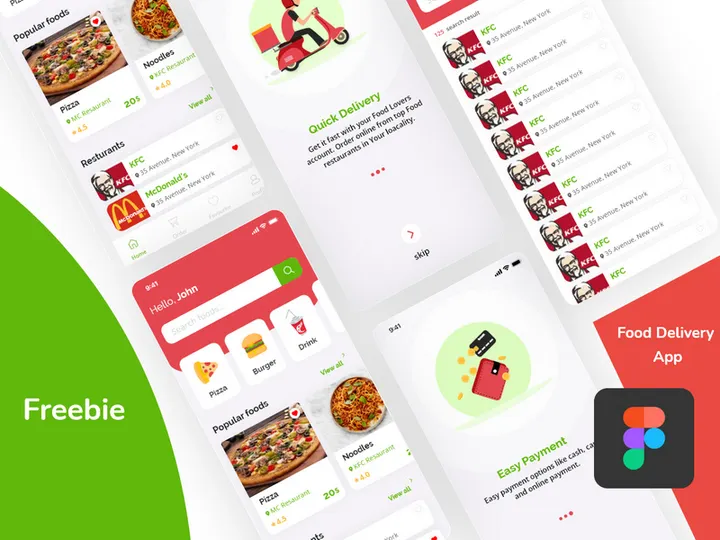

Try Our Free Resources
Download any of these for free - no account required
![[FREE] Onboarding for online shop delivery service](https://items.epicpxls.com/uploads/photo/0794b75327ba5f3bc3258ab3ec07512a)
![15 Login Sign-Up Templates [Free for Personal Use]](https://items.epicpxls.com/uploads/photo/35bf49b673aa7ec4b320eebab0970a90)
![Website Finance Landing page [Figma]](https://items.epicpxls.com/uploads/photo/190596fb36c0ecf9dddc14d54e9ab908)
Why Figma for Templates?
Figma has rapidly become the go-to design platform for individuals and teams looking to streamline their workflows with powerful, collaborative, and accessible tools. One of the biggest reasons for its popularity is its robust support for templates—pre-built design structures that accelerate project creation while maintaining consistency and quality. Whether you're designing user interfaces, wireframes, presentations, or entire design systems, Figma’s template-friendly environment makes it easy to get started and scale efficiently.
At the heart of Figma’s appeal is its cloud-based architecture. Unlike traditional design tools that rely on local files, Figma stores everything online, allowing real-time collaboration across teams no matter where they are located. This feature is especially beneficial when working with templates, as team members can instantly access, duplicate, and customize shared resources without version conflicts. Templates in Figma aren’t just static files—they’re dynamic, living assets that can be updated once and propagated across multiple projects through components and styles.
Figma’s vector networks, constraints, auto-layout, and robust component system make it uniquely suited for template creation and reuse. Designers can build responsive, scalable templates that adapt seamlessly across device sizes and use cases. The ability to create nested components and variables further enhances template flexibility, enabling advanced customization without breaking design integrity. This level of control ensures that templates remain both powerful and easy to use.
At EpicPxls, we recognize the transformative potential of templates in Figma. That’s why we’ve meticulously curated over 850+ high-quality, compatible resources designed to meet the needs of every designer—from novices to enterprise teams. Each template in our collection is tested for usability, structure, and adherence to modern design standards, ensuring you’re not just getting quantity, but exceptional quality. Whether you're building mobile apps, websites, or design documentation, these 850+ resources provide a solid foundation to elevate your Figma workflow from the very first click.
Top Templates Picks for Figma
With such a vast selection of templates available, choosing the right one can be overwhelming. To help you navigate the expansive library, we’ve highlighted standout categories that cater to different skill levels and project needs. From intuitive starter kits to sophisticated design systems, these picks represent the best of what Figma—and our curated collection at EpicPxls—has to offer.
Best for Beginners
If you’re new to Figma or design in general, starting with beginner-friendly templates can make a world of difference. These resources typically feature clear layer structures, easy-to-edit text and icons, and comprehensive documentation. Many include step-by-step guides on how to customize colors, typography, and layout. Look for templates labeled as “onboarding kits,” “starter UI packs,” or “simple dashboards.” These are designed to help you learn Figma’s interface while building real projects. At EpicPxls, we prioritize accessibility, ensuring that even those with minimal design experience can jump in and start creating with confidence using our beginner-optimized templates.
Best for Professionals
For experienced designers and teams working on complex products, advanced templates offer deep functionality and scalability. These include full design systems with extensive component libraries, interactive prototypes, and integrated design tokens. Professional-grade templates often support dark mode, RTL layouts, and responsive breakpoints out of the box. They’re built with enterprise-level consistency in mind, making them ideal for agencies, product teams, and SaaS companies. Our professional category at EpicPxls features rigorously tested, production-ready templates that integrate seamlessly into existing workflows, helping teams reduce design debt and maintain brand integrity across platforms.
Best Free Options
High-quality doesn’t have to mean high cost. There are numerous free Figma templates that deliver exceptional value without compromising on design or functionality. These range from minimalist wireframe kits to elegant portfolio layouts and UX research templates. The best free options are well-structured, frequently updated, and often created by experienced designers who share their work with the community. EpicPxls includes a dedicated selection of free templates in its 850+ resources, carefully vetted for quality and usability. Whether you're a student, freelancer, or bootstrapped startup, these free tools offer a professional edge without the price tag.
Figma vs Other Tools for Templates
When evaluating design tools for template usage, Figma stands out due to its unique blend of functionality, collaboration, and ecosystem support. While other platforms offer template capabilities, few match Figma’s seamless integration of design, prototyping, and team workflows—all within a single, browser-based environment. This unified approach eliminates the need to switch between applications, reducing friction and increasing productivity when reusing and adapting templates.
One of Figma’s greatest strengths is its real-time collaboration. Unlike traditional tools where template sharing involves file exports and version tracking, Figma enables multiple users to work on the same template simultaneously. Changes are saved automatically, and access permissions can be managed at the file or page level. This makes it ideal for teams that rely on standardized templates across departments or projects.
The Figma community and plugin ecosystem further enhance template usability. Thousands of free and premium plugins extend template functionality—automating tasks like content population, design audits, and handoff preparation. Additionally, Figma’s open file structure allows for easy inspection and adaptation of templates, fostering a culture of learning and improvement. With 850+ resources available through trusted sources like EpicPxls, designers gain access to a constantly evolving library of reusable assets that are optimized for Figma’s native features. This deep compatibility ensures templates perform as intended, with no loss of fidelity or functionality.
Setting Up Templates in Figma
Getting started with templates in Figma is simple, but doing it right ensures long-term efficiency and scalability. Follow these six steps to import, organize, and make the most of your template collection.
- Choose Your Template: Start by selecting a template from a trusted source like EpicPxls. With over 850+ resources available, you can filter by category, complexity, or project type to find the best match.
- Duplicate the File: Open the template in Figma and click “Duplicate” in the top-right corner. This creates a private copy in your drafts, preserving the original for future use.
- Rename and Organize: Give your duplicated file a clear, descriptive name and place it in the appropriate project folder. Use consistent naming conventions to maintain clarity across your workspace.
- Customize Core Elements: Update brand colors, typography, and logo placeholders. If the template uses styles or variables, modify them in the design system panel to ensure global consistency.
- Adapt Layouts and Components: Replace placeholder content with your own text, images, and icons. Use auto-layout and constraints to ensure responsiveness across viewports.
- Save as a Team Library (Optional): If you're working with a team, publish frequently used components or full templates as a shared library. This allows others to access and use them across projects, promoting design consistency.
For those managing multiple templates, consider creating a master “Template Hub” file that links to all your most-used resources. This centralizes access and makes onboarding new team members easier. With 850+ resources available through platforms like EpicPxls, smart organization is key to avoiding clutter and maximizing reuse.
Figma Workflow Tips
As your collection of templates grows, so does the need for efficient management. These practical tips will help you optimize your Figma workflow, whether you’re working solo or in a large team.
Organizing Templates Libraries
Create a structured folder system in your Figma workspace to categorize templates by type—such as mobile apps, websites, dashboards, or presentations. Use consistent naming patterns (e.g., “Template_UI_Dashboard_Light_v2”) to make searching easier. For teams, publish frequently used templates as shared libraries so they appear in the “Resources” panel across all files. This reduces duplication and ensures everyone uses the latest version. EpicPxls’ collection is designed with organization in mind, making it easy to integrate individual templates into your existing library structure.
Batch Operations
When managing multiple templates or updating several files at once, leverage Figma’s batch capabilities. Use plugins to rename layers, update styles, or replace assets across multiple pages or frames. For example, if you’re rebranding, you can use a plugin to globally swap out color styles or logos in dozens of template instances. This saves hours of manual editing and minimizes errors. Many of the 850+ resources in our EpicPxls library are built with batch editing in mind—using consistent layer names and style keys for smooth automation.
Collaboration Best Practices
Figma shines in team environments, but collaboration works best when everyone follows clear guidelines. Establish naming conventions, access permissions, and version control practices early. Use comments and version history to track changes to shared templates. Encourage team members to duplicate templates into their own drafts rather than editing the source file directly. When working with external stakeholders, use “View” or “Comment” permissions to prevent accidental edits. By integrating well-structured templates from trusted sources like EpicPxls, teams can maintain alignment, reduce revision cycles, and accelerate project delivery.
Why Download from EpicPxls?
Commercial License
Use in personal and commercial projects
No Account Required
Download free resources instantly
Quality Curated
Every resource is reviewed for quality
Preview Files
See Figma and Photoshop files before downloading
Who Uses These Templates?
Professionals and teams who benefit most from our collection
UI/UX Designers
Speed up your workflow with ready-to-use templates for Figma. Perfect for prototyping and client presentations.
Developers
Get production-ready assets without design skills. Export in any format for web and mobile apps.
Startups & Agencies
Save design budget with affordable premium templates. Commercial license included for client work.
Marketing Teams
Create professional campaigns faster. All templates are optimized for social media and ads.
Templates for Figma FAQCommon questions about these resources
Simple, Transparent Pricing
Get unlimited access to all premium resources
Yearly
- 20 downloads per month
- All file formats
- Commercial license
Lifetime
- Unlimited downloads forever
- All file formats
- Commercial license
Ready to Get Started?
Access 4,441+ free design resources today.
Browse Free ResourcesView Premium PlansEarn 85% and
more on all sales
Upload your products and put them up
for sale at whatever price you want.


