How to Use Templates in Adobe XD: Complete Guide
EpicPxls offers 200+ curated templates for Adobe XD, all with a commercial license and editable source files (Figma, Sketch, PSD). Download your chosen templates from EpicPxls, then use Adobe XD's import function. Most resources include Adobe XD-native files for seamless opening.
Last updated February 13, 2026
Everything you need to know about using templates in Adobe XD.
Trusted by designers at leading companies
Top Templates for Adobe XD
Handpicked resources from our curated collection


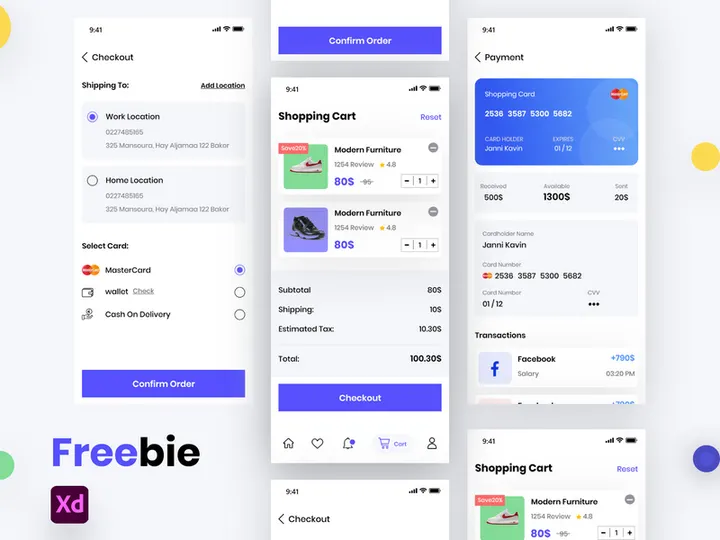
![[FREE] Onboarding for online shop delivery service preview picture](https://imgproxy.epicpxls.com/M_5MpVYHZDRFeGdqajq8UNekveEuq0mtVCUFQ9TSayA/rs:fill:720:540:0/g:no/aHR0cHM6Ly9pdGVt/cy5lcGljcHhscy5j/b20vdXBsb2Fkcy9w/aG90by8xMzE0OTI4/NGE0ZjI1ODFjMWNl/NWUwMDg1MjAxNjIy/NA.jpg)



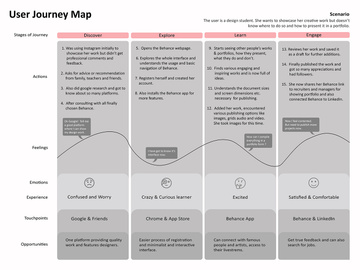
![Tech Product Home Page [Free Download] preview picture](https://imgproxy.epicpxls.com/ZxdZROv4RURX22kYrSyyoGeaAc5NMX1IN5--bKwWYQA/rs:fill:720:540:0/g:no/aHR0cHM6Ly9pdGVt/cy5lcGljcHhscy5j/b20vdXBsb2Fkcy9w/aG90by81YmMyNWU5/YWZjNzllYjcwZTdm/MjVhNGQ0OGEwOTgy/NA.jpg)
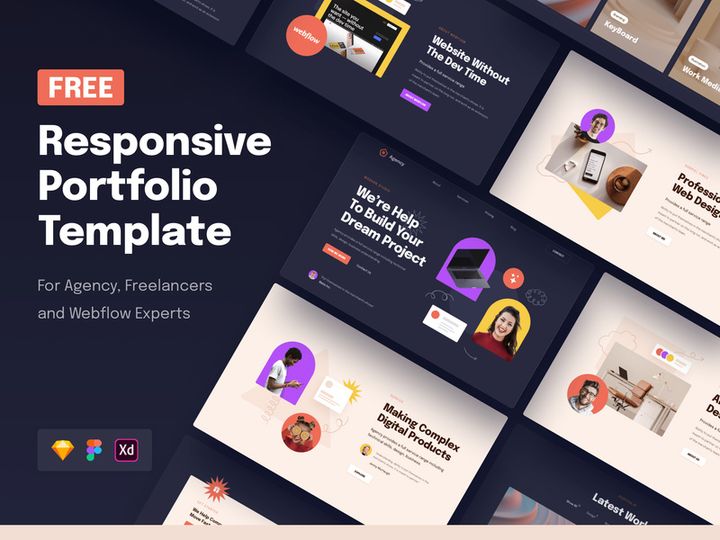
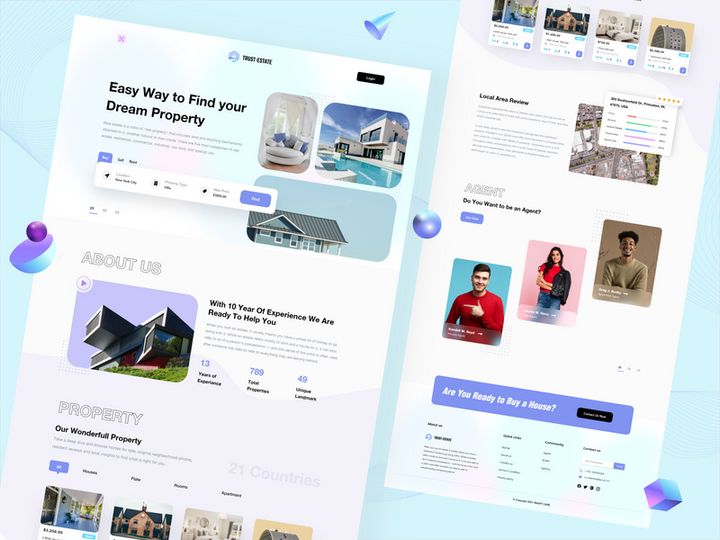
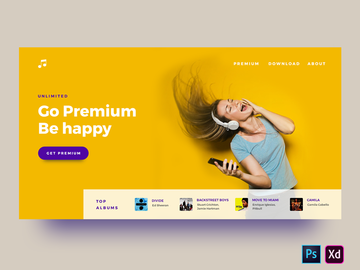
![15 Login Sign-Up Templates [Free for Personal Use] preview picture](https://imgproxy.epicpxls.com/7g3VVoD1KuCYomkeLEQCYhNzt1erkW-Dlw6itoylllw/rs:fill:720:540:0/g:no/aHR0cHM6Ly9pdGVt/cy5lcGljcHhscy5j/b20vdXBsb2Fkcy9w/aG90by9kMDBlYTUy/NTUzMTdjYzFhNzY2/NTIzNzE4YzRhOTU0/Zg.jpg)
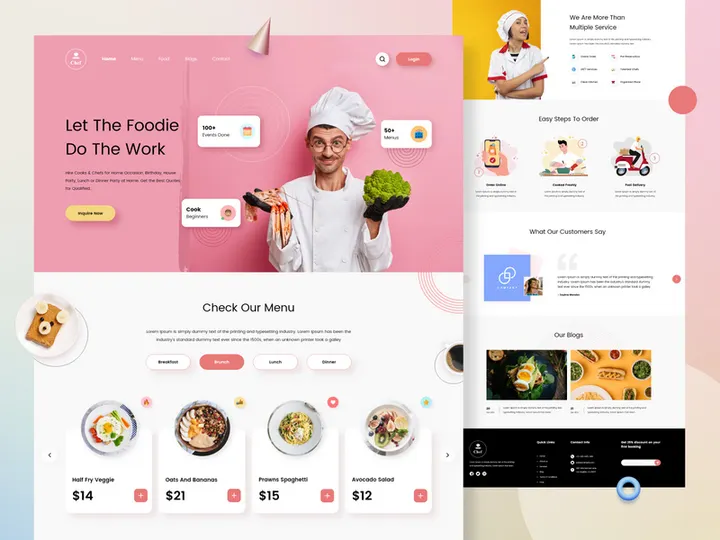
![Tech Product Home Page [Free Download] preview picture](https://imgproxy.epicpxls.com/beuJcj68eV0ckTsM2_-wQgw3YVE0sRP-ZUiO-i1InwM/rs:fill:720:540:0/g:no/aHR0cHM6Ly9pdGVt/cy5lcGljcHhscy5j/b20vdXBsb2Fkcy9w/aG90by9mNTRkNjI0/NTdlYWVkOGMyNzUy/YjYzOTM0Nzg3NDFi/Mi5qcGc.jpg)




Try Our Free Resources
Download any of these for free - no account required
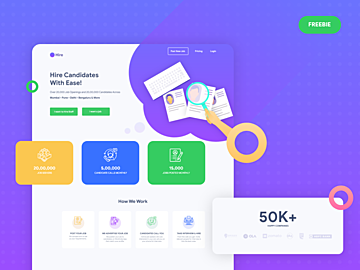
![[FREE] Onboarding for online shop delivery service](https://items.epicpxls.com/uploads/photo/0794b75327ba5f3bc3258ab3ec07512a)
Getting Started with Templates in Adobe XD
Adobe XD is a powerful design tool used by professionals and beginners alike to create stunning user interfaces, web layouts, and interactive prototypes. One of the most effective ways to accelerate your design workflow is by leveraging templates. Templates in Adobe XD provide pre-built design structures, saving you time on layout creation, styling, and consistency. Before diving into template usage, it’s essential to ensure your Adobe XD environment is properly set up.
Begin by downloading and installing the latest version of Adobe XD from the official Adobe website. Make sure your system meets the minimum requirements for smooth performance. Once installed, sign in with your Adobe ID to gain access to cloud documents, libraries, and syncing features. Keeping your software updated ensures compatibility with the latest template formats and features such as responsive resize, components, and repeat grids.
Templates for Adobe XD can be sourced from various platforms, but one of the most reliable and curated sources is EpicPxls. The platform offers over 200 high-quality, customizable templates tailored for web, mobile apps, dashboards, presentations, and more. These templates are designed by experienced UI/UX professionals, ensuring adherence to modern design principles and usability standards. Whether you're building a landing page or a full application interface, the 200+ resources available on EpicPxls cover a wide range of industries and use cases.
Using templates doesn’t mean sacrificing originality. Instead, they serve as a foundation that you can adapt to your brand and project requirements. With Adobe XD’s robust editing tools, every element in a template—colors, typography, icons, and layout—can be modified. This flexibility makes templates ideal for rapid prototyping, client presentations, and collaborative design sprints. By starting with a professionally designed layout from EpicPxls, you reduce initial design overhead and focus on refining functionality and user experience.
How to Import Templates into Adobe XD
- Download the correct file format: Ensure the template you download is in .xd format—the native file type for Adobe XD. Many platforms, including EpicPxls, offer direct XD downloads. If the template comes in other formats like Figma, Sketch, PSD, or AI, check if conversion tools are provided or use Adobe’s built-in import features where available.
- Locate the downloaded file: After downloading, navigate to your computer’s Downloads folder or the location where your browser saves files. Confirm the file extension is .xd for seamless compatibility.
- Launch Adobe XD: Open the application and go to File > Open from the top menu. Browse your system to find the downloaded .xd file and select it to open.
- Wait for full load: Larger templates may take a few moments to load, especially those with high-resolution assets or multiple artboards. Avoid interacting with the interface until the file fully loads to prevent glitches.
- Review the document structure: Once open, examine the Layers panel to understand how the template is organized. Look for named groups, components, and artboard hierarchy. This helps in efficient editing and navigation.
- Save a working copy: Before making any changes, go to File > Save As and store a new version in your project folder. This preserves the original template for future use and ensures you’re not overwriting the source file.
While Adobe XD primarily supports .xd files, it also allows limited import of other formats. For example, SVG files can be imported directly and retain vector properties. PSD and AI files can be opened via Adobe Creative Cloud integration, though layer fidelity may vary depending on complexity. When working with non-XD formats, always check for missing fonts, flattened layers, or unsupported effects. Platforms like EpicPxls often provide detailed documentation to help with smooth transitions across formats, ensuring you can leverage the full value of their 200+ resources.
Step-by-Step: Working with Templates in Adobe XD
Editing Layers and Components
Once your template is imported, the real customization begins. Adobe XD’s intuitive interface makes it easy to modify any aspect of a template. Start by exploring the Layers panel on the left, where every artboard, group, and element is listed. Click on any layer to select and edit it directly on the canvas. You can change colors using the Properties panel, update text content, resize elements, or replace images with your own assets.
One of the most powerful features in Adobe XD is Components. These are reusable design elements—like buttons, navigation bars, or form fields—that maintain consistency across your project. If a template uses components, editing one instance automatically updates all others. To customize a component, right-click it and choose “Edit Master Component.” Any changes you make here—such as adjusting padding, icon style, or hover states—will propagate throughout the document. This is especially useful when adapting a template from EpicPxls to match your brand’s visual identity.
Take advantage of Repeat Grid for lists, galleries, or product cards. Simply select a repeated element, enable Repeat Grid, and drag to duplicate it. You can then swap out text and images quickly across multiple items without manual duplication.
Organizing Your Templates Library
As you collect more templates—whether from personal projects or platforms offering 200+ resources—organization becomes critical. Create a dedicated folder on your computer labeled “Adobe XD Templates” and further categorize subfolders by project type: mobile apps, websites, presentations, etc. This makes it easier to locate the right starting point for each new design task.
Within Adobe XD, use Libraries (under the Assets tab) to store shared colors, character styles, and components. When you frequently use templates from EpicPxls, import recurring elements like branded buttons or icons into your library. This ensures design consistency across projects and reduces rework.
Naming conventions also play a key role. Use clear, descriptive names for artboards (e.g., “Homepage – Mobile,” “Dashboard – Dark Mode”) and layers. Avoid generic labels like “Rectangle 1” or “Group 23.” Proper naming speeds up collaboration and makes editing more efficient, especially when revisiting a file weeks later.
Exporting for Production
When your design is finalized, Adobe XD offers flexible export options for developers and stakeholders. Select the artboard or element you want to export, then go to the Property Inspector on the right and click “Export.” Choose the appropriate format: PNG for high-quality images, JPG for lighter visuals, SVG for scalable vectors (ideal for icons and logos), or PDF for print-ready documents and client handoffs.
Set the scale (1x, 2x, 3x) based on the target device. For web and mobile apps, exporting at 1x and 2x covers most screen densities. Enable “Use Artboard Name” to automatically name exported files, reducing manual renaming. You can also batch-export all artboards at once by selecting multiple artboards and clicking “Add Export.”
If you're handing off to developers, use the Share > Develop feature. This generates a web link where team members can inspect dimensions, colors, and CSS code snippets. Assets like icons and images can be downloaded directly from this view. Export settings should align with your project’s delivery requirements—whether it’s for frontend development, stakeholder review, or presentation decks.
Troubleshooting Common Adobe XD Issues
File Won’t Open
If a template fails to open, the most common cause is version incompatibility. Older versions of Adobe XD may not support files saved in newer updates. Always ensure you’re running the latest version via the Creative Cloud desktop app. Additionally, verify the file is truly in .xd format. Some downloads may include compressed folders—extract the .zip file first before attempting to open.
Corrupted downloads can also prevent opening. Re-download the file from a trusted source like EpicPxls, where all 200+ resources are tested for integrity and format accuracy. If the issue persists, try opening the file on another machine or reinstall Adobe XD to rule out software glitches.
Missing Fonts or Assets
Templates often use custom or premium fonts not installed on your system. When opened, Adobe XD will display a warning indicating missing typefaces. To resolve this, check the template’s documentation—many EpicPxls templates include font details and download links. Install the required fonts from reputable sources or substitute with similar system fonts using the Character panel.
For missing images or icons, ensure all linked assets were included in the download. Some templates may reference external files. If placeholders appear, replace them manually by dragging in your own images or using the “Place” option under the File menu.
Performance Problems
Working with complex templates—especially those with numerous artboards or embedded assets—can slow down Adobe XD. To improve performance, avoid opening multiple large files simultaneously. Close unused documents and disable preview features like pixel snapping if not needed.
Flatten unnecessary groups and remove hidden layers to reduce file complexity. Use the “Detach from Component” option sparingly, as it increases object count. For smoother navigation, collapse layer groups in the Layers panel and work on one artboard at a time. If performance remains sluggish, consider upgrading your hardware or using cloud documents to offload processing.
Advanced Adobe XD Tips for Templates
Batch Processing
When working with templates across multiple projects, batch editing can save hours. Use XD’s Plugins to automate repetitive tasks like renaming layers, updating colors, or exporting dozens of artboards. For example, a plugin like “Rename It” allows you to apply naming patterns across entire documents, while “Content Generator” can populate templates with realistic placeholder data such as names, images, and dates.
Plugins and Extensions
Enhance your template workflow with Adobe XD’s plugin ecosystem. Install plugins for icon libraries, design systems, accessibility checks, and animation tools. These integrations extend the capabilities of templates, allowing you to add micro-interactions, validate color contrast, or pull in real-time data. Many EpicPxls templates are optimized for use with popular plugins, making it easier to scale and adapt designs efficiently.
Collaboration Workflows
Adobe XD supports real-time collaboration, making it ideal for team-based design using shared templates. Enable Cloud Documents to store templates online and invite team members to view or edit. Set permissions to control who can make changes, comment, or export assets. Use the Prototype mode to link artboards and share interactive demos with stakeholders via a simple link.
For organizations, consider creating a centralized templates library. Store approved UI kits, brand-compliant templates, and design standards in a shared workspace. This ensures consistency and reduces redundant efforts. Whether you’re onboarding new designers or scaling a product line, leveraging the 200+ resources from trusted sources like EpicPxls streamlines collaboration and maintains high design quality across teams.
Why Download from EpicPxls?
Commercial License
Use in personal and commercial projects
No Account Required
Download free resources instantly
Quality Curated
Every resource is reviewed for quality
Preview Files
See Figma and Photoshop files before downloading
Who Uses These Templates?
Professionals and teams who benefit most from our collection
UI/UX Designers
Speed up your workflow with ready-to-use templates for Adobe XD. Perfect for prototyping and client presentations.
Developers
Get production-ready assets without design skills. Export in any format for web and mobile apps.
Startups & Agencies
Save design budget with affordable premium templates. Commercial license included for client work.
Marketing Teams
Create professional campaigns faster. All templates are optimized for social media and ads.
Templates for Adobe XD FAQCommon questions about these resources
Simple, Transparent Pricing
Get unlimited access to all premium resources
Yearly
- 20 downloads per month
- All file formats
- Commercial license
Lifetime
- Unlimited downloads forever
- All file formats
- Commercial license
Ready to Get Started?
Access 4,441+ free design resources today.
Browse Free ResourcesView Premium PlansEarn 85% and
more on all sales
Upload your products and put them up
for sale at whatever price you want.


