Icons for PDF: 210+ Resources
EpicPxls offers 200+ curated icons for PDF, all with a commercial license and editable source files (Figma, Sketch, PSD). We have 200+ icons compatible with PDF, tested and verified for seamless integration.
Last updated February 12, 2026
Discover 210+ handpicked icons for PDF.
Trusted by designers at leading companies
Top Icons for PDF
Handpicked resources from our curated collection
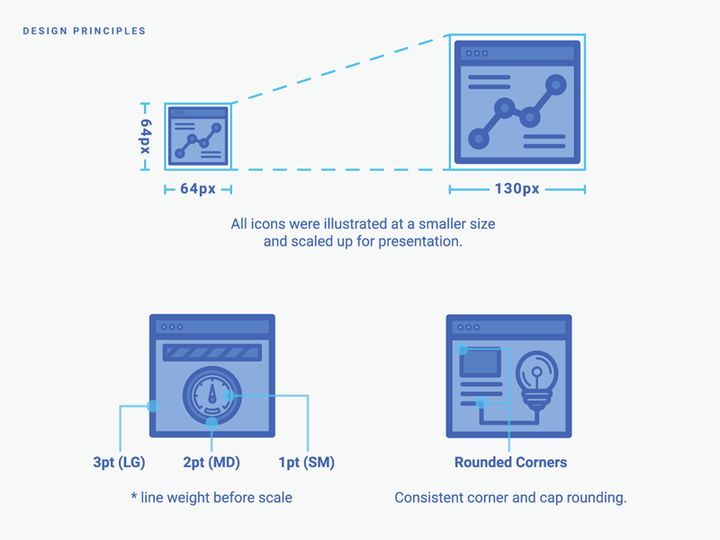
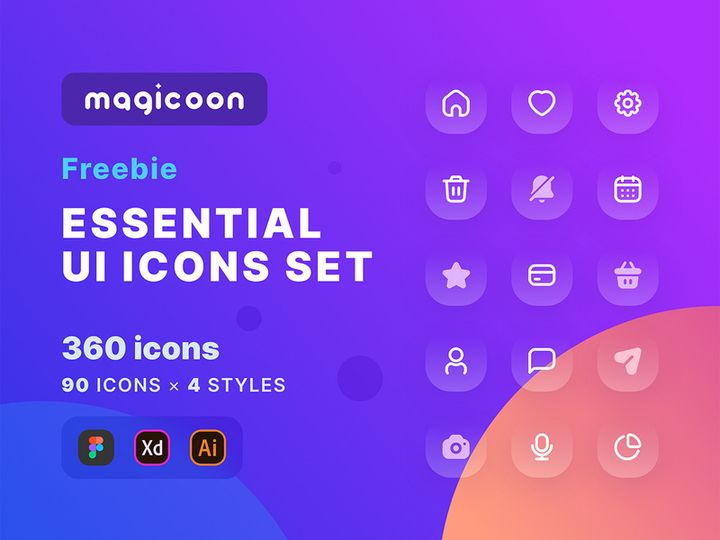
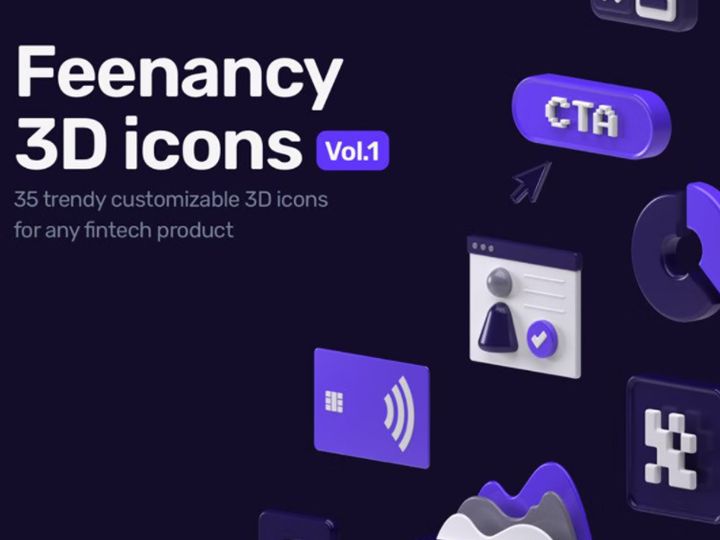

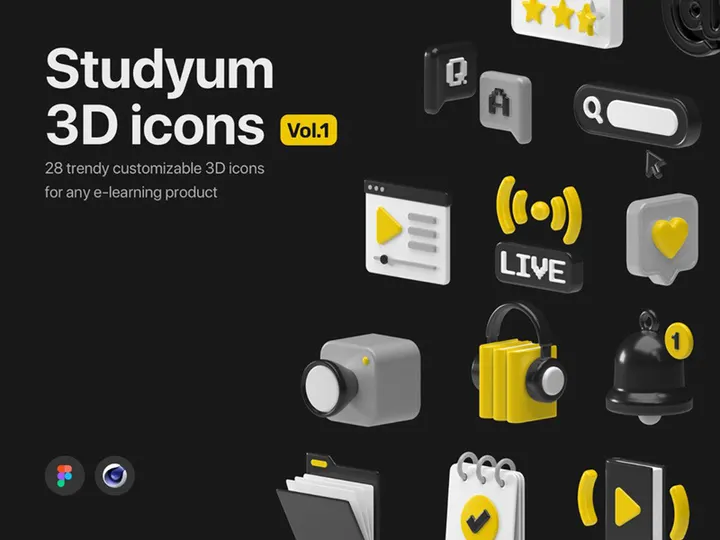


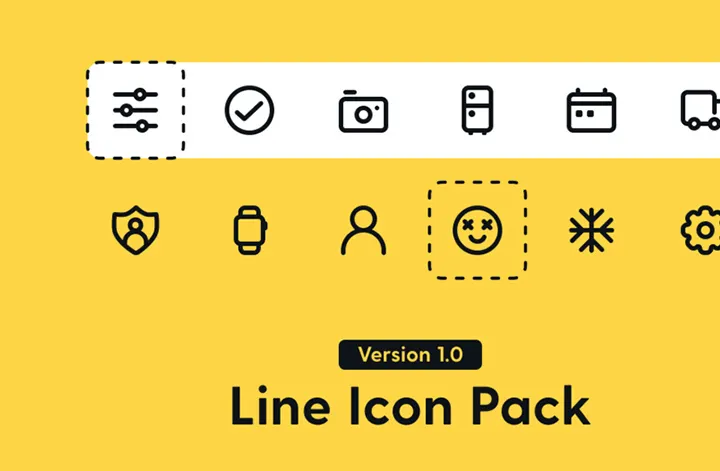


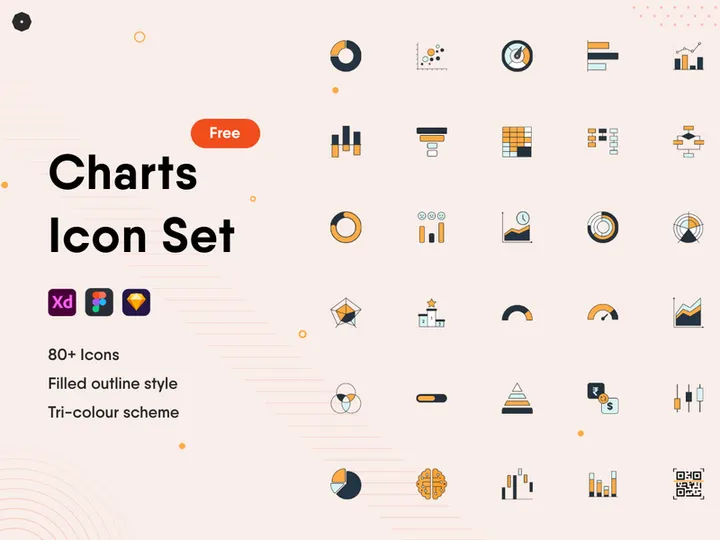


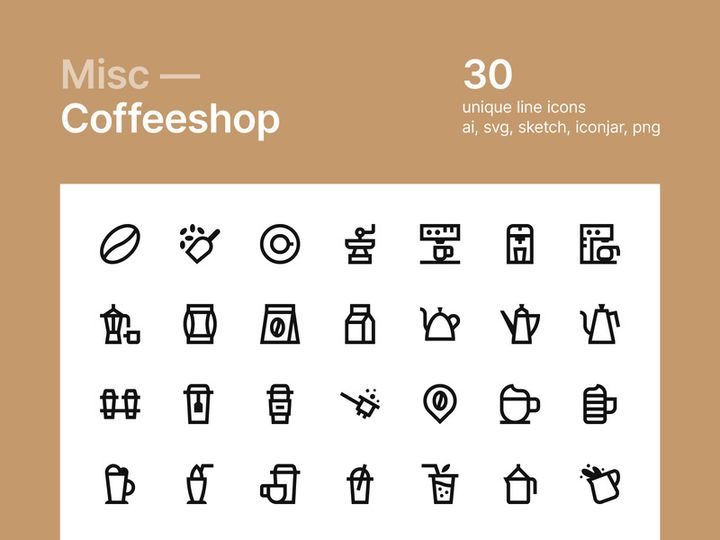

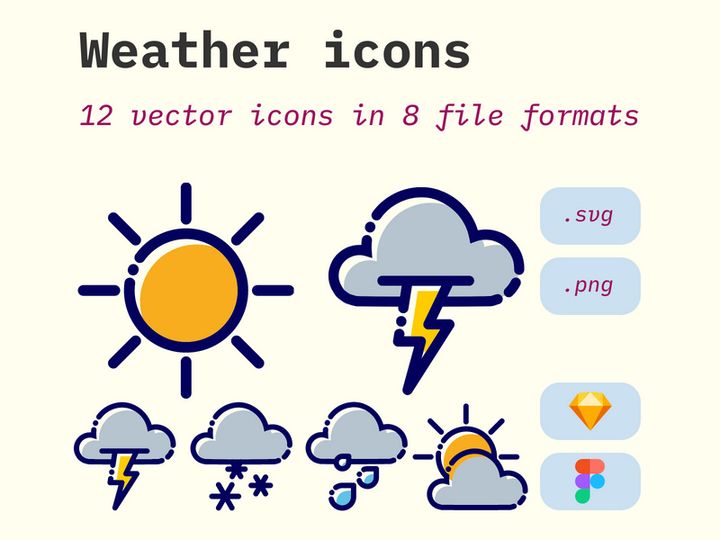
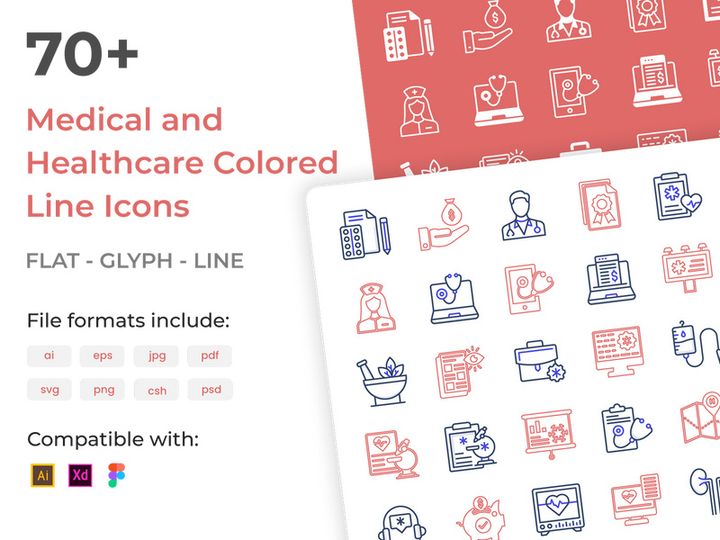
Try Our Free Resources
Download any of these for free - no account required
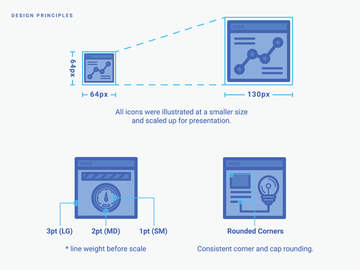
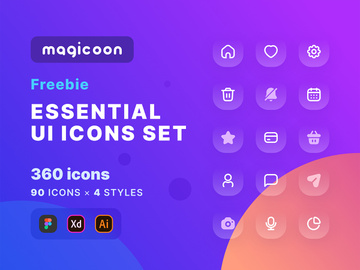
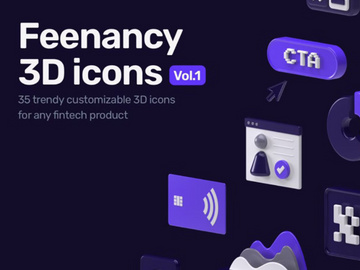
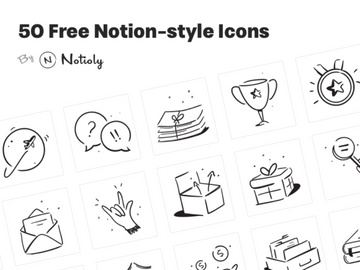
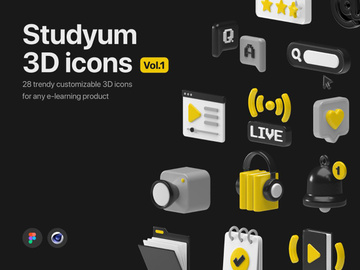
Why PDF for Icons?
PDF has long been recognized as a universal format for document sharing, but its growing role in digital design workflows—particularly in handling icons—has made it a surprisingly powerful tool for creatives. While vector formats like SVG and AI dominate icon design, the PDF format offers unique advantages that make it ideal for storing, organizing, and distributing icon sets. One of the biggest strengths of PDF is its cross-platform compatibility. Whether you're using Windows, macOS, or Linux, virtually every device can open and view a PDF without requiring specialized software. This universality ensures that icon libraries remain accessible to designers, developers, and stakeholders alike, regardless of their preferred tools.
Another compelling feature of PDF is its ability to preserve vector quality. Icons embedded in PDFs retain their scalability and sharpness, making them perfect for use in both print and digital projects. Unlike raster formats that degrade when resized, PDF-based icons can be scaled infinitely without losing fidelity. Additionally, PDF supports layers, annotations, and embedded fonts—features that enhance workflow efficiency when managing complex icon sets. Designers can include multiple icon variations, color themes, and usage guidelines within a single file, reducing clutter and simplifying access.
At EpicPxls, we recognize the immense value of PDF in icon curation and distribution. That’s why we’ve assembled a comprehensive collection of over 210+ high-quality icon resources specifically optimized for PDF use. Our team carefully evaluates each submission for clarity, scalability, and usability, ensuring that every icon set meets professional standards. From minimalist line icons to detailed glyph collections, our 210+ resources cater to a wide range of design needs. Whether you're building a UI kit, designing a presentation, or preparing assets for development handoff, PDF provides a reliable, consistent, and efficient way to work with icons—and EpicPxls makes it easy to find the perfect match.
Top Icons Picks for PDF
With so many icon resources available in PDF format, choosing the right ones can make a significant difference in your design workflow. Whether you're just starting out or you're a seasoned professional, having access to well-structured, cleanly designed icons can save time and elevate your projects. From intuitive layouts to advanced customization options, the best PDF icon sets combine functionality with aesthetic appeal. Below, we've curated a selection of standout picks from our 210+ resources, categorized to suit different user needs and experience levels.
Best for Beginners
If you're new to working with icons in PDF format, simplicity and clarity are key. Look for icon sets that come with clear labeling, consistent styling, and straightforward organization. Many beginner-friendly PDF icon packs include grids or index pages that allow you to quickly locate and reference specific icons. These resources often use monochrome or dual-tone designs, minimizing complexity while maintaining visual impact. At EpicPxls, we highlight several entry-level icon libraries that include helpful legends, usage tips, and sample layouts—making it easy to get started without prior experience. These sets are ideal for educators, small business owners, or anyone creating presentations and simple graphics.
Best for Professionals
For advanced users, the best PDF icon resources offer precision, scalability, and extensive customization. Professional-grade icon sets often include multiple weights (light, regular, bold), alternate glyphs, and layered compositions that support detailed editing in vector software. These icons are typically organized by category—such as navigation, social media, or file management—enabling rapid integration into complex UI/UX projects. Many of the premium packs in our 210+ resources feature accessibility annotations, color contrast ratios, and responsive design considerations, ensuring compliance with modern standards. Designers working on enterprise applications, dashboards, or branding systems will appreciate the depth and flexibility these professional PDF icon libraries provide.
Best Free Options
High-quality doesn’t have to mean high cost. There are numerous free icon sets available in PDF format that deliver excellent value without compromising on design integrity. These resources are perfect for students, freelancers, or startups operating on tight budgets. Many of the free icons curated by EpicPxls include full licensing clarity, allowing for commercial use with proper attribution. They often feature clean lines, balanced proportions, and thoughtful spacing—hallmarks of professional design. While they may not offer the same breadth as premium collections, these free options are more than sufficient for prototyping, personal projects, or light client work. By leveraging the best free PDF icon packs, you can maintain efficiency and creativity without overspending.
PDF vs Other Tools for Icons
When it comes to managing and distributing icons, several file formats compete for attention—SVG, PNG, AI, EPS, and of course, PDF. Each has its strengths, but PDF stands out for its balance of versatility, accessibility, and reliability. Unlike SVG, which excels in web-based applications but can struggle with rendering consistency across older browsers, PDF ensures uniform display across virtually all devices and operating systems. This makes it especially useful for sharing icon libraries with non-technical team members or clients who may not have access to design software.
Compared to raster formats like PNG, PDF preserves vector data, meaning icons can be scaled to any size without pixelation. This is critical for multi-device projects where icons must appear crisp on everything from mobile screens to large-format prints. While AI and EPS files offer similar vector capabilities, they require specific applications like Adobe Illustrator to edit, limiting accessibility. PDF, on the other hand, can be viewed with free tools like Adobe Acrobat Reader, Preview, or web-based viewers, making it more inclusive.
The PDF ecosystem also supports metadata, bookmarks, and embedded thumbnails—features that enhance navigation within large icon libraries. These built-in organizational tools allow designers to create interactive catalogs with clickable indexes, usage examples, and version notes. Format compatibility is another advantage: PDFs can be easily converted to other formats when needed, but they maintain their integrity during the process. With 210+ resources available through EpicPxls, you’ll find that PDF strikes the ideal balance between functionality and ease of use, making it a preferred choice for icon storage and distribution across diverse workflows.
Setting Up Icons in PDF
Getting started with icons in PDF format is a straightforward process, especially when you follow a structured workflow. Whether you're importing a single icon or managing an entire library, these steps will help you organize your resources efficiently and make the most of the format’s capabilities.
- Download and Verify the Resource: Begin by downloading your chosen icon set from a trusted source like EpicPxls. Ensure the PDF is not corrupted by opening it in a viewer to confirm all pages and icons are intact.
- Inspect the Structure: Review the document layout. Many high-quality PDF icon packs include a table of contents, index, or categorized sections. Take note of how icons are grouped—by theme, function, or style—as this will inform your organization strategy.
- Extract Icons as Needed: Use a vector editing tool like Adobe Illustrator, Affinity Designer, or Inkscape to open the PDF. Select individual icons or groups and copy them into your working document. Some PDFs allow direct export of vector paths, preserving scalability.
- Organize in Your Project: Create dedicated layers or artboards for icons within your design file. Label them clearly (e.g., “Navigation Icons,” “Social Media”) to maintain clarity, especially in collaborative environments.
- Customize for Use: Adjust colors, stroke weights, or sizes to match your project’s design system. Because PDF icons are vector-based, these modifications won’t affect quality.
- Document Usage Guidelines: If you’re sharing the icons with a team, consider creating a companion PDF that outlines naming conventions, spacing rules, and approved variations. This ensures consistency across deliverables.
For those managing large icon collections, consider creating a master PDF catalog that links to individual icon files or sections. This approach streamlines access and reduces duplication. With over 210+ resources available through EpicPxls, adopting a systematic setup process will help you stay organized and productive, no matter the scale of your project.
PDF Workflow Tips
Working efficiently with icons in PDF format requires more than just technical know-how—it also involves smart organization and collaboration strategies. By refining your workflow, you can reduce redundancy, improve consistency, and speed up project delivery. Here are three essential tips to maximize your productivity when using PDF-based icon libraries.
Organizing Icons Libraries
A well-structured icon library saves time and minimizes confusion. Start by categorizing your PDF icon sets by use case—such as UI components, branding elements, or presentation graphics. Use descriptive file names (e.g., “EpicPxls-UI-Icons-Pack.pdf”) and store them in clearly labeled folders. Consider creating a master index PDF that includes thumbnails and hyperlinks to each resource, enabling quick navigation. If you frequently use certain icons, extract and compile them into a custom “favorites” PDF for rapid access. This level of organization is especially valuable when managing the 210+ resources available through EpicPxls, ensuring you can locate the right icon in seconds.
Batch Operations
When dealing with multiple icon sets, batch processing can dramatically improve efficiency. Use tools that support batch PDF import or export to apply changes across several files at once—such as resizing, color replacement, or metadata updates. For example, if you need to convert a series of PDF icon packs to another format for development handoff, automated conversion tools can handle the task in minutes. Similarly, some design applications allow you to import multiple PDF pages as separate assets, letting you extract dozens of icons in a single session. These batch operations are essential when scaling your workflow across large projects or design systems.
Collaboration Best Practices
PDFs are ideal for sharing icon assets with team members who may not have access to specialized design tools. To facilitate smooth collaboration, always include a usage guide within the PDF—detailing licensing terms, recommended sizes, and color palettes. Use comments or annotations to highlight specific icons or provide feedback. When working in teams, maintain a centralized repository (cloud-based or local) where all approved PDF icon resources are stored. This prevents version conflicts and ensures everyone uses the same assets. By leveraging the universal accessibility of PDF and the curated quality of EpicPxls’ 210+ resources, teams can maintain design consistency and accelerate project timelines without compromising on quality.
Why Download from EpicPxls?
Commercial License
Use in personal and commercial projects
No Account Required
Download free resources instantly
Quality Curated
Every resource is reviewed for quality
Preview Files
See Figma and Photoshop files before downloading
Who Uses These Icons?
Professionals and teams who benefit most from our collection
UI/UX Designers
Speed up your workflow with ready-to-use icons for PDF. Perfect for prototyping and client presentations.
Developers
Get production-ready assets without design skills. Export in any format for web and mobile apps.
Startups & Agencies
Save design budget with affordable premium icons. Commercial license included for client work.
Marketing Teams
Create professional campaigns faster. All icons are optimized for social media and ads.
Icons for PDF FAQCommon questions about these resources
Simple, Transparent Pricing
Get unlimited access to all premium resources
Yearly
- 20 downloads per month
- All file formats
- Commercial license
Lifetime
- Unlimited downloads forever
- All file formats
- Commercial license
Ready to Get Started?
Access 4,442+ free design resources today.
Browse Free ResourcesView Premium PlansEarn 85% and
more on all sales
Upload your products and put them up
for sale at whatever price you want.


