Fonts for PDF: 269+ Resources
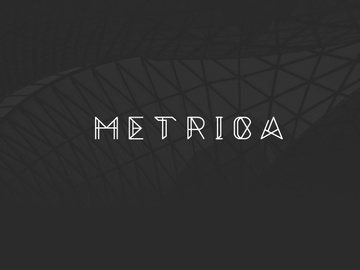
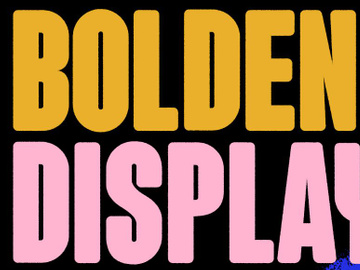
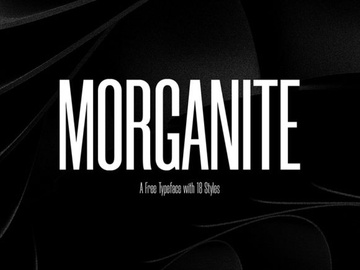
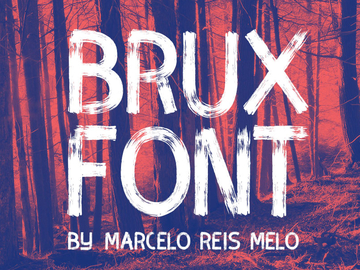
EpicPxls offers 200+ curated fonts for PDF, all with a commercial license and editable source files (Figma, Sketch, PSD). We have 200+ fonts compatible with PDF, tested and verified for seamless integration.
Last updated February 12, 2026
Discover 269+ handpicked fonts for PDF.
Trusted by designers at leading companies
Top Fonts for PDF
Handpicked resources from our curated collection
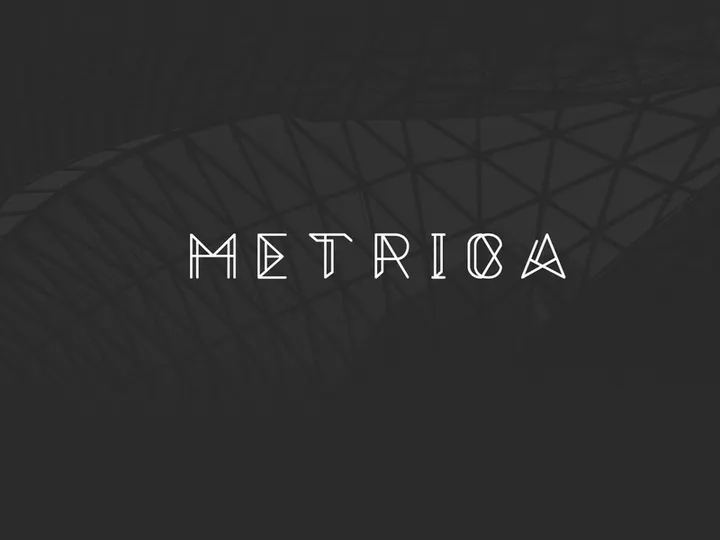
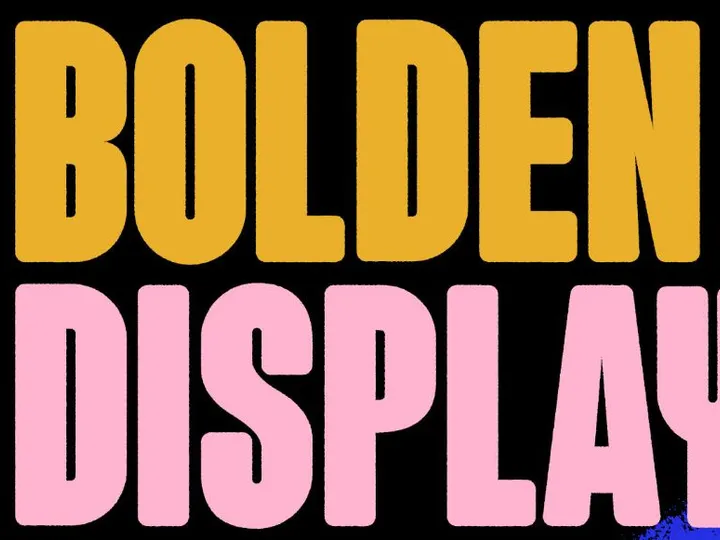

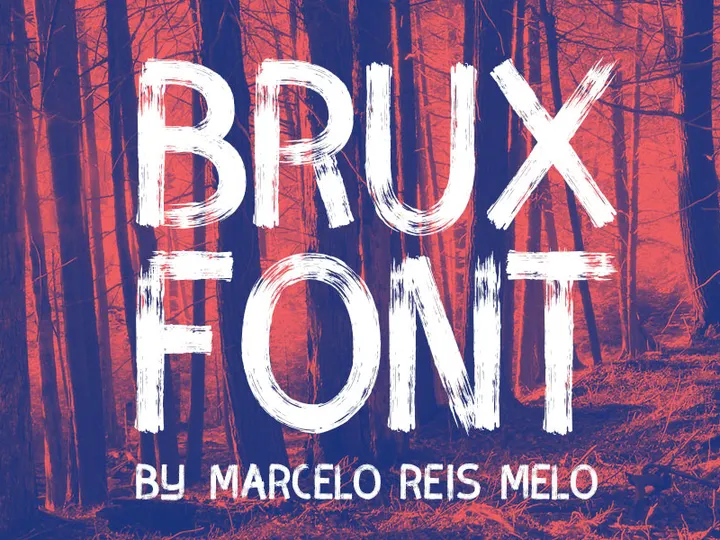



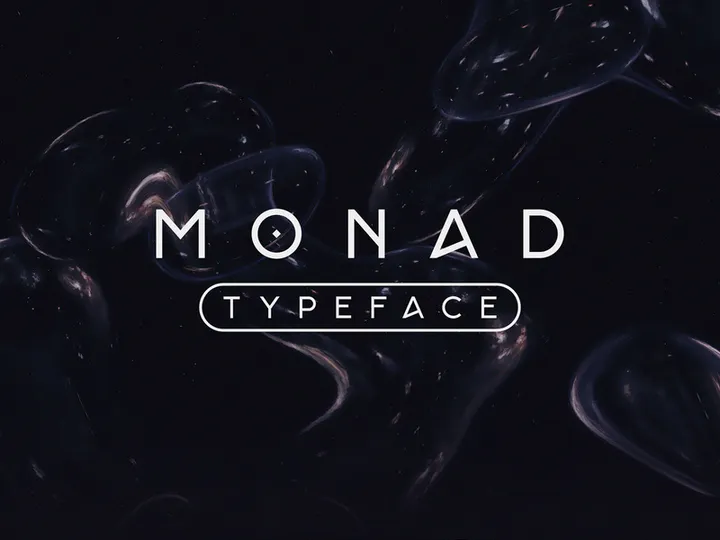

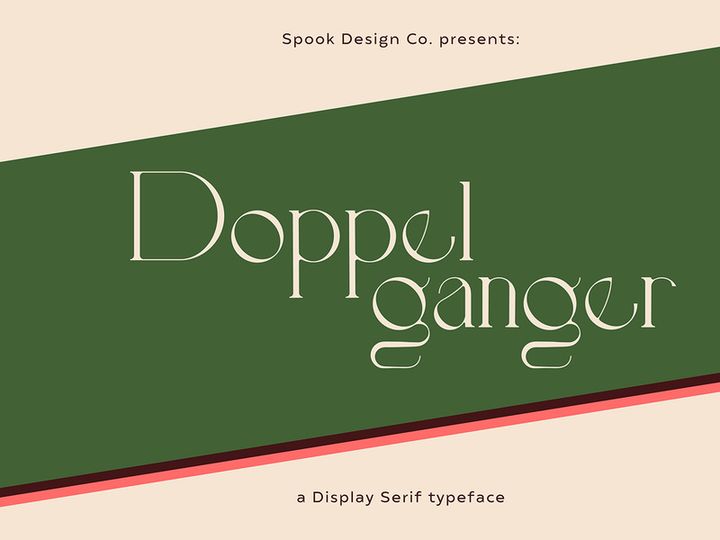


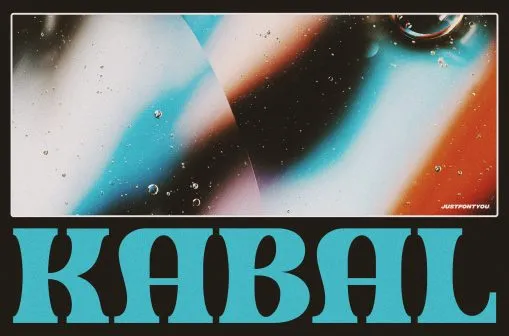
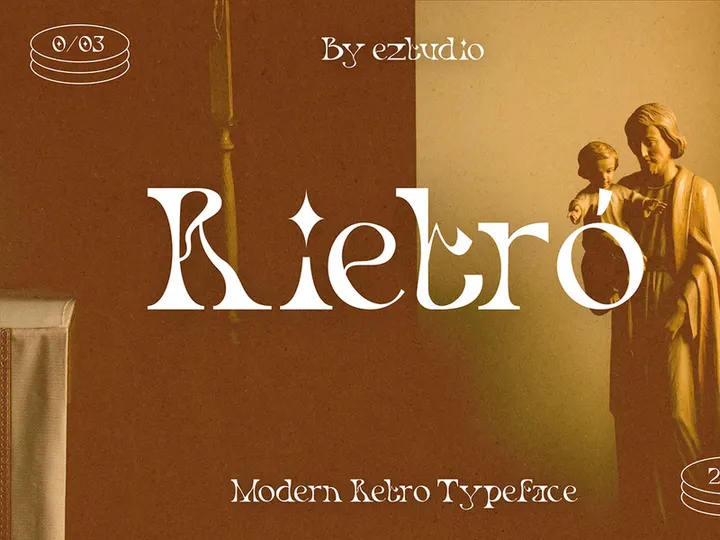
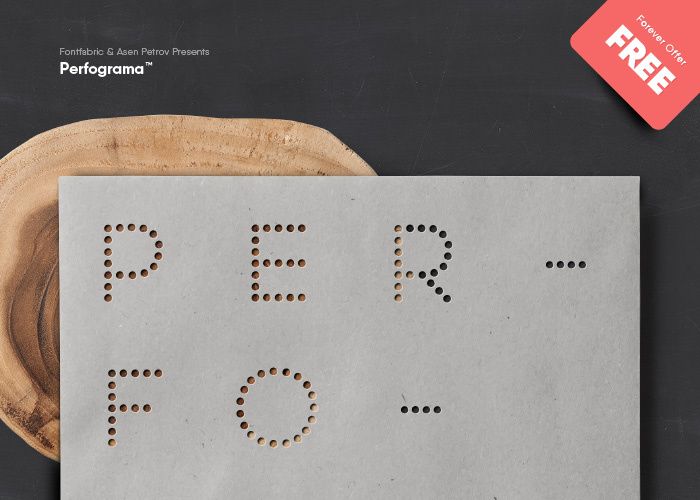



Try Our Free Resources
Download any of these for free - no account required
Why PDF for Fonts?
PDF has become a cornerstone format for handling fonts, especially in design, publishing, and document creation. Its enduring popularity stems from a combination of reliability, portability, and precision. When working with fonts, consistency across devices and platforms is critical—and the PDF format delivers exactly that. Unlike other file types that may render fonts differently depending on the system, PDFs preserve typographic integrity by embedding fonts directly into the document. This ensures that what you design is exactly what others see, regardless of whether they're viewing the file on Windows, macOS, or mobile devices.
One of the key features that make PDF ideal for font workflows is its support for font embedding. This allows designers and typographers to include custom typefaces without worrying about missing fonts when the document is shared. Whether you're working with TrueType (TTF), OpenType (OTF), or Type 1 fonts, PDF maintains the original quality and spacing. Additionally, PDFs support advanced typographic features like ligatures, kerning, and glyph substitution—important for professional-grade typography.
Another strength lies in PDF’s compatibility with major design software such as Adobe Illustrator, InDesign, and even open-source tools like LibreOffice and Scribus. This broad integration makes it easy to export font samples, create specimen sheets, or distribute font licenses in a universally accessible format. At EpicPxls, we recognize the importance of seamless font integration, which is why our curation of over 269+ resources includes only those that are PDF-compatible, well-documented, and optimized for real-world use. Our team rigorously tests each font resource to ensure it performs flawlessly when embedded or referenced in PDF workflows, giving users confidence in every download. With EpicPxls, you’re not just getting fonts—you’re getting a reliable ecosystem designed for clarity, consistency, and creative freedom.
Top Fonts Picks for PDF
Best for Beginners
If you're just starting out with typography in PDF documents, simplicity and readability are key. Beginner-friendly fonts are typically clean, legible, and come with comprehensive documentation to help you understand licensing, character sets, and usage guidelines. Fonts like Open Sans, Lato, and Roboto are excellent entry points, offering web-safe readability and excellent rendering in PDF exports. Many of these beginner options are also available in PDF specimen sheets, making it easy to preview styles, weights, and special characters before use. At EpicPxls, our selection includes beginner-focused bundles that package easy-to-install fonts with sample PDF guides and tutorials, ensuring a smooth learning curve.
Best for Professionals
For seasoned designers and typographers, advanced features matter. Professional-grade fonts often include extended character sets (including Cyrillic, Greek, and IPA symbols), multiple optical sizes, and robust OpenType features such as stylistic alternates, small caps, and swashes. These fonts shine when embedded in high-quality PDF publications like magazines, annual reports, and branding portfolios. Fonts such as Proxima Nova, Source Serif Pro, and Freight Text are standout choices known for their precision and elegance. Our 269+ resources include premium font families optimized for PDF embedding, complete with detailed metadata and compatibility notes. These are ideal for users who demand typographic excellence and need fonts that maintain fidelity across print and digital outputs.
Best Free Options
High-quality doesn’t have to mean high cost. There are numerous free fonts that perform exceptionally well in PDF environments. Google Fonts, for instance, offers a wide range of open-source typefaces that can be legally embedded in PDFs with proper licensing. Fonts like Montserrat, Playfair Display, and Raleway are not only visually striking but also engineered for clarity at various sizes. At EpicPxls, we’ve curated a dedicated subset of our 269+ resources to highlight top-tier free fonts that are safe for commercial use, well-structured for PDF integration, and backed by strong community support. These options allow students, startups, and independent creators to access professional typography without budget constraints.
PDF vs Other Tools for Fonts
When comparing PDF to other formats and tools for font management and usage, several distinct advantages emerge. While applications like font managers, web-based preview tools, or design software offer real-time font manipulation, PDF stands out for its stability and universality. Unlike editable document formats such as DOCX or INDD, PDFs lock in typographic choices, preventing unintended font substitutions or layout shifts. This makes PDF the preferred format for final deliverables, client approvals, and archival purposes.
One of the unique strengths of the PDF ecosystem is its ability to embed fonts securely. Other formats may reference system fonts, leading to inconsistencies when shared across devices. In contrast, PDF ensures that every character appears exactly as intended. Additionally, PDF supports metadata tagging and digital rights management (DRM), making it ideal for distributing licensed font specimens or usage guides without risking misuse.
From a compatibility standpoint, PDF is unmatched. It works seamlessly across operating systems and devices without requiring additional software beyond a basic PDF reader. This broad accessibility, combined with strong typographic support, positions PDF as more than just a document format—it's a reliable container for font data. Whether you're sharing a font sample book, a branding guideline PDF, or a multi-language typeset document, the format ensures your typographic vision remains intact. With curated collections like the 269+ resources available at EpicPxls, users gain access to fonts specifically optimized for this powerful ecosystem, maximizing both performance and creative potential.
Setting Up Fonts in PDF
- Download and Verify Resources: Begin by downloading your chosen fonts from a trusted source. At EpicPxls, all 269+ font resources are verified for PDF compatibility, licensing clarity, and file integrity to ensure a hassle-free experience.
- Install Fonts on Your System (Optional): If you plan to use the fonts in design software before exporting to PDF, install them on your operating system. On Windows, right-click the font file and select "Install." On macOS, use Font Book to add the font to your library.
- Use Design Software to Embed Fonts: Open your preferred design or word processing tool (e.g., Adobe InDesign, Microsoft Word, or Canva). Create your document using the desired font, then export or save it as a PDF. Ensure the "Embed Fonts" option is enabled in the PDF export settings.
- Check Font Embedding Permissions: Not all fonts allow embedding. If a font is restricted, the PDF may substitute it or display a warning. Always verify the font’s license—our curated collection at EpicPxls filters out fonts with restrictive embedding policies.
- Verify Embedded Fonts in the Final PDF: Open the generated PDF in Adobe Acrobat or another PDF viewer. Go to File > Properties > Fonts to confirm that your fonts are listed and embedded (either fully or subsetted).
- Organize and Archive: Save both the original font files and the final PDF in a structured folder system. Label them clearly with font name, version, and usage context to streamline future access and collaboration.
Managing a large font collection can quickly become overwhelming. A best practice is to use naming conventions and subfolders (e.g., "Serif," "Handwritten," "Free," "Premium") to categorize your downloads. For teams, consider maintaining a shared digital library where approved PDF-compatible fonts are stored and documented. This reduces duplication and ensures brand consistency. With 269+ resources thoughtfully organized by style, license, and use case, EpicPxls simplifies the setup process, letting you focus on design rather than logistics.
PDF Workflow Tips
Organizing Fonts Libraries
An efficient font library begins with structure. Whether you're managing a personal collection or a team-wide resource pool, categorization is essential. Group fonts by type—such as sans-serif, serif, display, script, and monospace—and further subdivide by use case (e.g., "Branding," "Web UI," "Print Media"). Use consistent file naming: "FontName_Type_License.pdf" makes it easy to identify contents at a glance. Consider creating a master PDF index that showcases thumbnail samples of each font along with key details like license type, language support, and embedding permissions. This index becomes a quick-reference guide for anyone on your team. At EpicPxls, we provide downloadable PDF catalogs with every major font bundle, helping users build organized, searchable libraries from day one.
Batch Operations
When working with large font collections, batch processing can save significant time. Use tools that allow bulk PDF generation from font files—for example, creating specimen sheets for 50 fonts simultaneously. Scripts or automated design workflows (via Adobe ExtendScript or similar) can apply consistent layouts, margins, and text samples across multiple fonts. You can also batch-convert font documentation into standardized PDF formats for archiving. Ensure that each generated PDF includes embedded fonts and metadata such as copyright information, version, and author. This not only preserves quality but also supports compliance. The 269+ resources available through EpicPxls are designed with batch workflows in mind—many come in ZIP bundles with ready-to-use templates, making large-scale font management efficient and scalable.
Collaboration Best Practices
Sharing font resources across teams requires clarity and consistency. Always distribute fonts in PDF format when showcasing typography options—this prevents accidental editing and maintains visual fidelity. Include a cover page with usage guidelines: which weights are approved for headings, body text, or logos. When collaborating on a project, agree on a core set of PDF-embedded fonts to avoid version conflicts. Use cloud storage with access controls to share approved font PDFs, and maintain a changelog if updates are made. Avoid sending individual font files unless necessary; instead, link to a central repository like EpicPxls where team members can download verified, license-compliant resources. Clear communication, standardized formats, and reliable sourcing ensure that everyone stays aligned—both creatively and legally.
Why Download from EpicPxls?
Commercial License
Use in personal and commercial projects
No Account Required
Download free resources instantly
Quality Curated
Every resource is reviewed for quality
Preview Files
See Figma and Photoshop files before downloading
Who Uses These Fonts?
Professionals and teams who benefit most from our collection
UI/UX Designers
Speed up your workflow with ready-to-use fonts for PDF. Perfect for prototyping and client presentations.
Developers
Get production-ready assets without design skills. Export in any format for web and mobile apps.
Startups & Agencies
Save design budget with affordable premium fonts. Commercial license included for client work.
Marketing Teams
Create professional campaigns faster. All fonts are optimized for social media and ads.
Fonts for PDF FAQCommon questions about these resources
Simple, Transparent Pricing
Get unlimited access to all premium resources
Yearly
- 20 downloads per month
- All file formats
- Commercial license
Lifetime
- Unlimited downloads forever
- All file formats
- Commercial license
Ready to Get Started?
Access 4,441+ free design resources today.
Browse Free ResourcesView Premium PlansEarn 85% and
more on all sales
Upload your products and put them up
for sale at whatever price you want.


