How to Use Wireframes in Sketch: Complete Guide
EpicPxls offers 11+ curated wireframes for Sketch, all with a commercial license and editable source files (Figma, Sketch, PSD). Download your chosen wireframes from EpicPxls, then use Sketch's import function. Most resources include Sketch-native files for seamless opening.
Last updated February 13, 2026
Everything you need to know about using wireframes in Sketch.
Trusted by designers at leading companies
Top Wireframes for Sketch
Handpicked resources from our curated collection
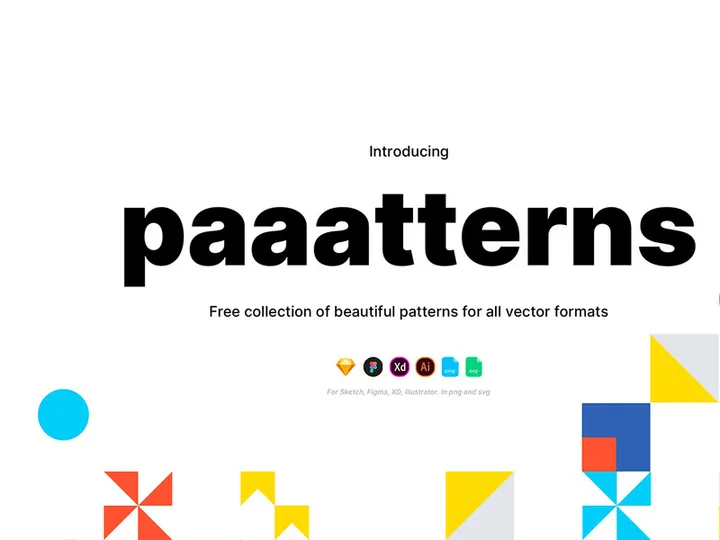
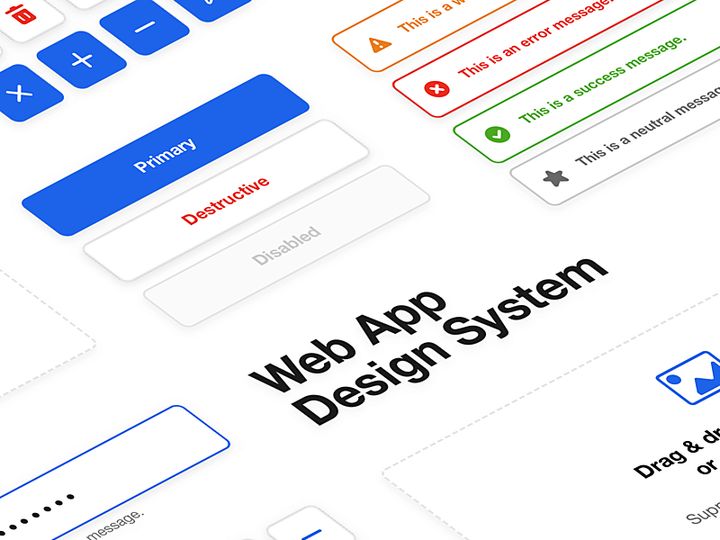
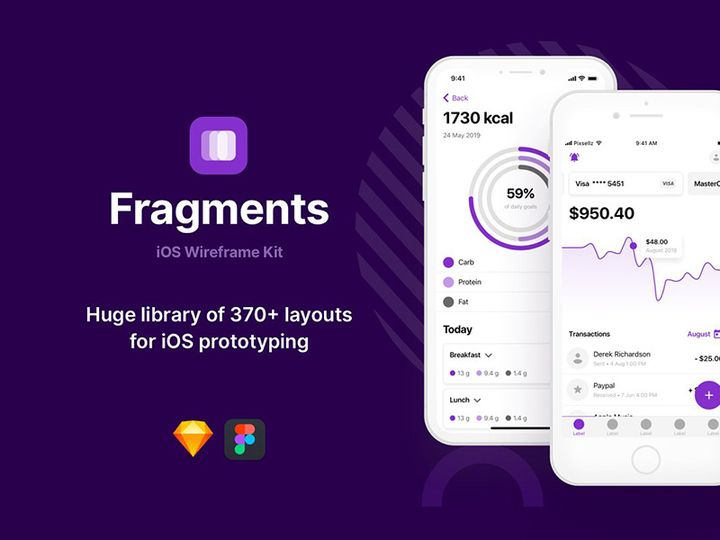

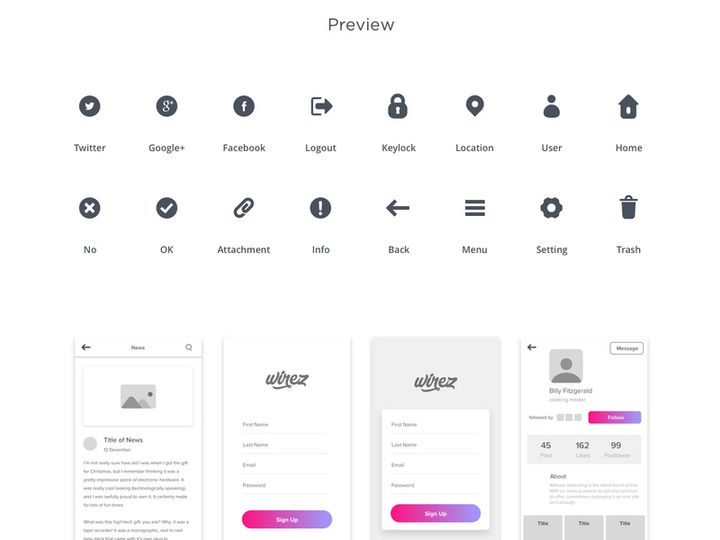
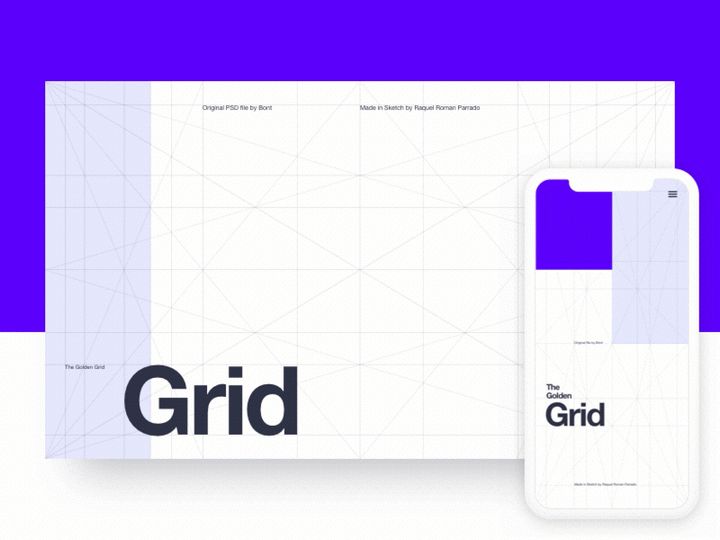
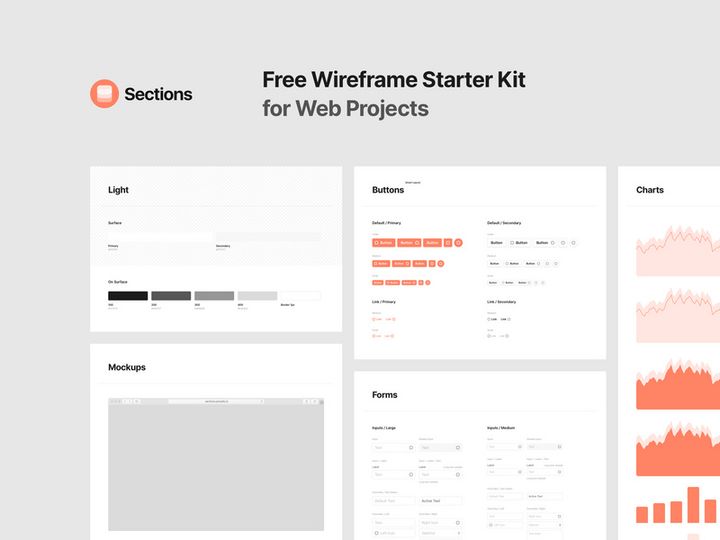
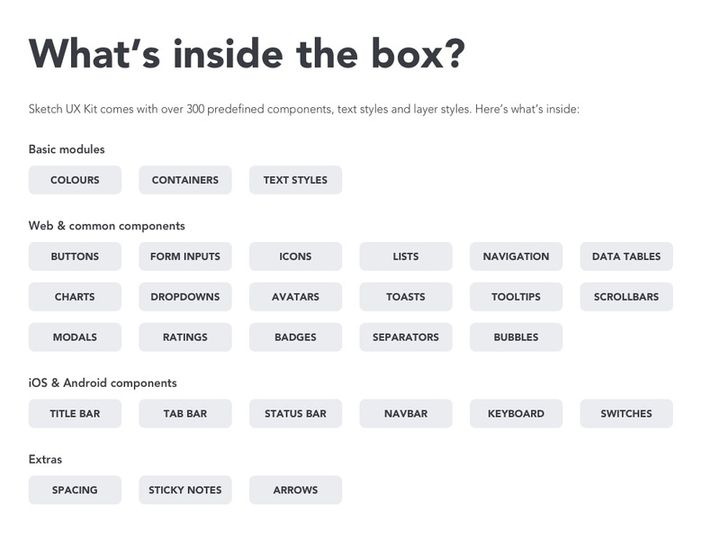
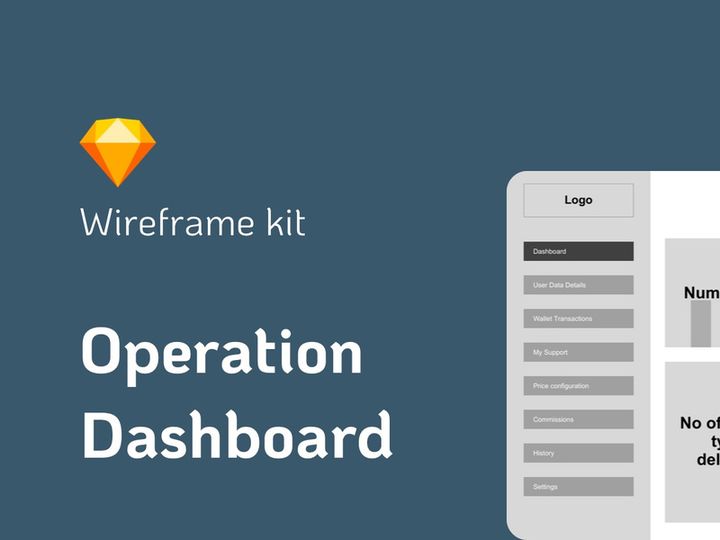
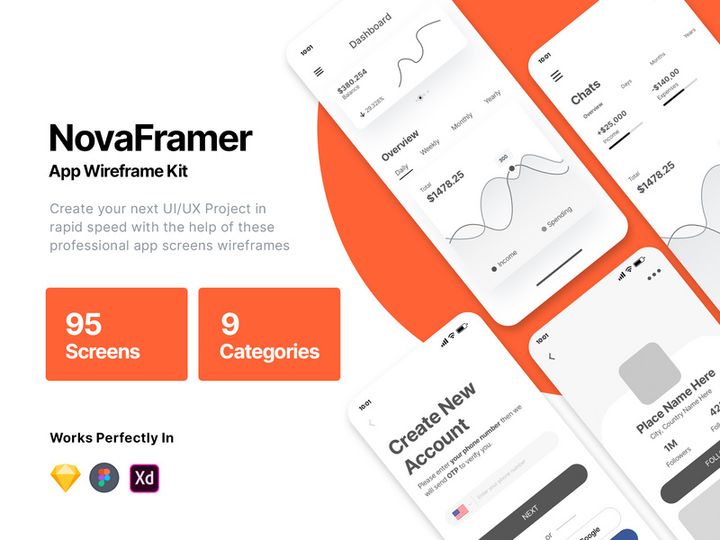
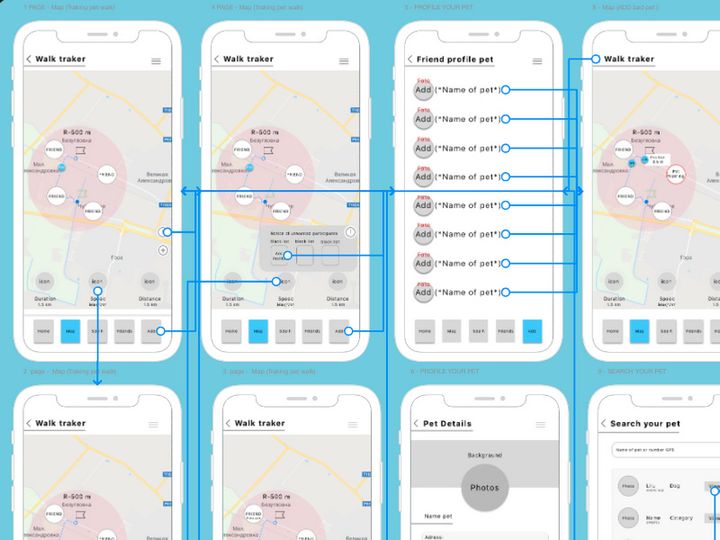
Try Our Free Resources
Download any of these for free - no account required
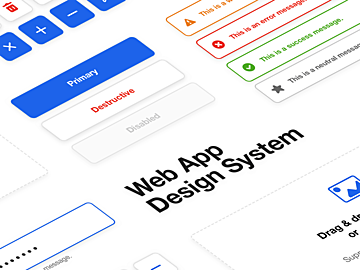

Getting Started with Wireframes in Sketch
Sketch has become a go-to design tool for UI/UX professionals, particularly when it comes to creating and refining wireframes efficiently. Before diving into wireframing, ensure you have the latest version of Sketch installed on a macOS device, as Sketch is exclusively available for macOS. A stable internet connection is also recommended for downloading assets and syncing plugins. Once installed, familiarize yourself with Sketch’s interface—its vector-based canvas, layers panel, inspector, and symbols system are essential for effective wireframing.
To begin using wireframes in Sketch, you'll need access to high-quality, Sketch-compatible wireframe templates. These templates streamline the design process by providing pre-built components such as buttons, navigation bars, form fields, and layout grids. One of the best sources for such resources is EpicPxls, a platform offering a wide selection of professionally designed wireframe kits tailored for Sketch. These kits are structured with organized layers and reusable components, making them ideal for rapid prototyping.
EpicPxls features over 11+ resources specifically optimized for Sketch, including mobile app wireframes, web dashboards, e-commerce layouts, and responsive UI kits. These resources are crafted with usability and scalability in mind, enabling designers to jumpstart projects without starting from scratch. Whether you're working on early-stage ideation or client-ready mockups, leveraging these ready-made assets can significantly cut down design time. Additionally, the resources are regularly updated to align with Sketch’s latest features, ensuring compatibility and performance. By integrating tools from EpicPxls into your workflow, you gain access to a robust foundation for building consistent, clean, and professional wireframes in Sketch.
How to Import Wireframes into Sketch
- Download the correct file format: Ensure the wireframe resource you download is in Sketch format (.sketch). Many design platforms offer multi-format downloads, so select the Sketch version when available. If you're sourcing from EpicPxls, all 11+ resources are provided with native Sketch support for seamless integration.
- Locate the downloaded file: After downloading, navigate to your Downloads folder or the designated save location. Double-click the .sketch file to open it directly in Sketch. If Sketch doesn’t launch automatically, right-click the file, choose “Open With,” and select Sketch from the list.
- Verify file integrity: Once opened, take a moment to review the document structure. Check the layers panel for organized groups and symbols. Well-structured wireframes from trusted sources like EpicPxls will have clearly labeled artboards and reusable components.
- Import from other formats (if needed): If you're working with a PSD, AI, or SVG file, Sketch can import these, though with some limitations. For PSD and AI files, Sketch supports basic layer and group import, but complex effects may not translate perfectly. SVG files import cleanly, especially if they’re well-structured.
- Handling Figma files: While Sketch cannot directly open Figma (.fig) files, you can use third-party conversion tools or export layers from Figma as SVGs and import them into Sketch. However, for optimal workflow, start with native Sketch files whenever possible.
- Integrate into your project: After importing, you can drag and drop wireframe components into your existing Sketch documents. Use the “Detach from Symbol” option if you want to customize individual elements without affecting the master symbol.
By following these steps, you’ll ensure a smooth import process and maintain the integrity of your wireframe assets. Always keep an eye on file compatibility and source high-quality templates to minimize post-import adjustments.
Step-by-Step: Working with Wireframes in Sketch
Editing Layers and Components
One of Sketch’s greatest strengths is its symbol and component system, which makes editing wireframes fast and consistent. Once a wireframe is imported, you can customize any element by selecting it on the canvas or in the layers panel. Double-click a symbol to edit its master instance, and all instances across your document will update automatically—ideal for global changes like button styles or navigation layouts. To modify individual elements without affecting others, right-click and choose “Detach from Symbol.”
Use Sketch’s vector editing tools to reshape rectangles, lines, and icons common in wireframes. Adjust fill colors, borders, and opacity directly from the inspector panel. Text layers can be edited in place—simply click and type to replace placeholder content. For responsive adjustments, leverage Sketch’s “Resize” tool to scale components proportionally while maintaining alignment. Organized wireframe kits from EpicPxls make this process intuitive, with clearly grouped layers and meaningful naming conventions that reduce confusion during edits.
Organizing Your Wireframes Library
As your design projects grow, managing multiple wireframe resources becomes crucial. Create a dedicated Sketch file as your master wireframe library, importing components from each of the 11+ resources you’ve collected. Use Pages within Sketch to separate categories—e.g., “Mobile,” “Web,” “Admin Panels”—and label artboards descriptively (e.g., “Login Screen – V2”).
Take advantage of Sketch’s “Symbols” page to store reusable UI elements like headers, footers, and form components. This centralizes your assets and ensures consistency across projects. Additionally, use color variables and text styles to standardize typography and branding elements. Regularly audit and update your library to remove outdated components. By maintaining a clean, well-documented wireframe library, you enhance efficiency and collaboration, especially when working within teams.
Exporting for Production
When your wireframes are finalized, Sketch offers flexible export options for various delivery formats. Select an artboard or layer, then navigate to the “Make Exportable” section in the inspector. Choose the appropriate format: PNG for high-fidelity mockups, PDF for print or client presentations, and SVG for scalable web graphics. For responsive designs, export at multiple resolutions (1x, 2x) to support different screen densities.
Set naming conventions for exported assets to streamline handoff—for example, “login-screen@2x.png.” You can also batch-export multiple artboards by selecting them and enabling export for each. If you’re sharing wireframes with developers, consider using Sketch’s built-in “Share” feature to generate a link with inspectable layers, measurements, and assets. This ensures smooth transitions from wireframe to development phase. Wireframe kits from trusted sources like EpicPxls are often pre-optimized for export, minimizing rework before delivery.
Troubleshooting Common Sketch Issues
File Won't Open
If a Sketch file fails to open, the most common cause is version incompatibility. Sketch frequently updates its file format, so older versions may not support newer documents. Always keep your Sketch app updated via the Mac App Store or the official Sketch website. Conversely, if you're using a newer version and need to share with someone on an older version, use the “Save as Compatible Version” option under File > Export > Save as Previous Version. Also, ensure the file wasn’t corrupted during download—re-download from the original source, such as EpicPxls, if necessary.
Missing Fonts or Assets
When fonts appear as fallbacks or show warnings, it means the required typeface isn’t installed on your system. Sketch displays a notification when fonts are missing—click “Find and Replace” to substitute them temporarily. For permanent resolution, download and install the specified font. Many wireframe kits use common system fonts like San Francisco (macOS) or open-source alternatives like Inter or Roboto, which are freely available. Assets like icons or images may also be missing if they were linked externally. Reimport or replace them using Sketch’s “Replace Image” function, or check the resource documentation for asset sources.
Performance Problems
Large Sketch files with multiple artboards and symbols can slow down performance. To improve speed, detach unnecessary symbols, flatten groups that don’t require editing, and remove hidden or unused layers. Use “Clean Document” under the Plugins menu (or install it if missing) to automatically remove unused symbols and layers. Split large projects into multiple Sketch files—for example, separate wireframes by user flow or platform. If you're using resource-heavy kits from the 11+ collection on EpicPxls, consider importing only the components you need rather than the entire file. This modular approach keeps your workspace lightweight and responsive.
Advanced Sketch Tips for Wireframes
Batch Processing
When managing multiple wireframes, batch processing can save significant time. Use Sketch’s “Rename It” plugin to rename layers, symbols, or artboards in bulk using rules and patterns. For example, prefix all button symbols with “btn/” for better organization. Similarly, the “Mass Export” plugin allows you to export dozens of artboards with custom naming and sizing rules, ideal for delivering comprehensive wireframe documentation. You can also use native Sketch features like “Duplicate” with smart layer inheritance to replicate screens with minor variations—perfect for creating user flow sequences quickly.
Plugins and Extensions
Enhance your wireframing workflow with Sketch plugins. “Symbol Instance Renamer” helps keep your layers panel tidy when working with repeated components. “Contrast” checks text readability against backgrounds—useful even in low-fidelity wireframes. “Sketch Runner” acts as a command palette, letting you search and access symbols, pages, and tools instantly. Always install plugins from trusted sources via Sketch’s official plugin directory. Many of the 11+ wireframe resources from EpicPxls are designed to work seamlessly with popular plugins, maximizing their utility in real-world projects.
Collaboration Workflows
For team environments, establish clear collaboration protocols. Use Sketch’s cloud-based sharing to create a central document accessible to all team members. Assign roles—designers edit master symbols, while junior team members work on instance customization. Implement version control by naming files with dates or version numbers (e.g., “Wireframes_v3_2025.sketch”). Integrate feedback loops by sharing inspectable links with stakeholders, allowing comments directly on artboards. When using shared wireframe libraries, standardize naming, spacing, and grid systems across the team. Consider syncing your library with EpicPxls updates to ensure everyone uses the latest components. This structured approach fosters consistency, reduces errors, and accelerates project timelines.
Why Download from EpicPxls?
Commercial License
Use in personal and commercial projects
No Account Required
Download free resources instantly
Quality Curated
Every resource is reviewed for quality
Preview Files
See Figma and Photoshop files before downloading
Who Uses These Wireframes?
Professionals and teams who benefit most from our collection
UI/UX Designers
Speed up your workflow with ready-to-use wireframes for Sketch. Perfect for prototyping and client presentations.
Developers
Get production-ready assets without design skills. Export in any format for web and mobile apps.
Startups & Agencies
Save design budget with affordable premium wireframes. Commercial license included.
Marketing Teams
Create professional campaigns faster. All wireframes are optimized for social media and ads.
Wireframes for Sketch FAQCommon questions about these resources
Simple, Transparent Pricing
Get unlimited access to all premium resources
Yearly
- 20 downloads per month
- All file formats
- Commercial license
Lifetime
- Unlimited downloads forever
- All file formats
- Commercial license
Ready to Get Started?
Access 4,442+ free design resources today.
Browse Free ResourcesView Premium PlansEarn 85% and
more on all sales
Upload your products and put them up
for sale at whatever price you want.


