How to Use Templates in Sketch: Complete Guide
EpicPxls offers 200+ curated templates for Sketch, all with a commercial license and editable source files (Figma, Sketch, PSD). Download your chosen templates from EpicPxls, then use Sketch's import function. Most resources include Sketch-native files for seamless opening.
Last updated February 13, 2026
Everything you need to know about using templates in Sketch.
Trusted by designers at leading companies
Top Templates for Sketch
Handpicked resources from our curated collection




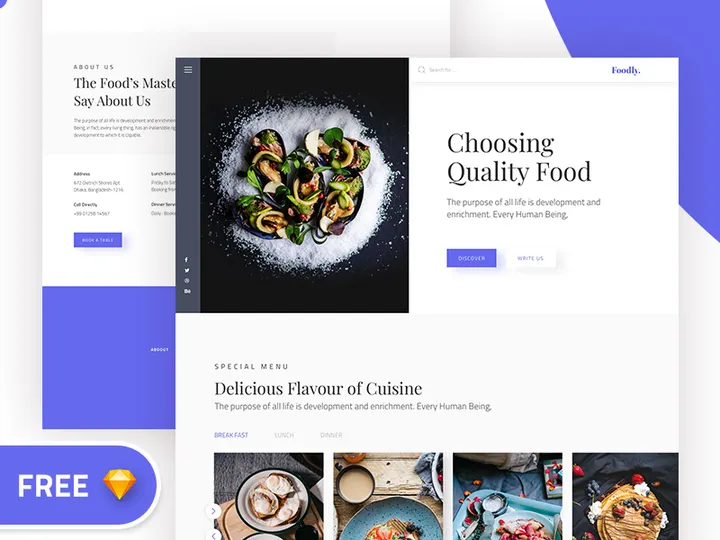

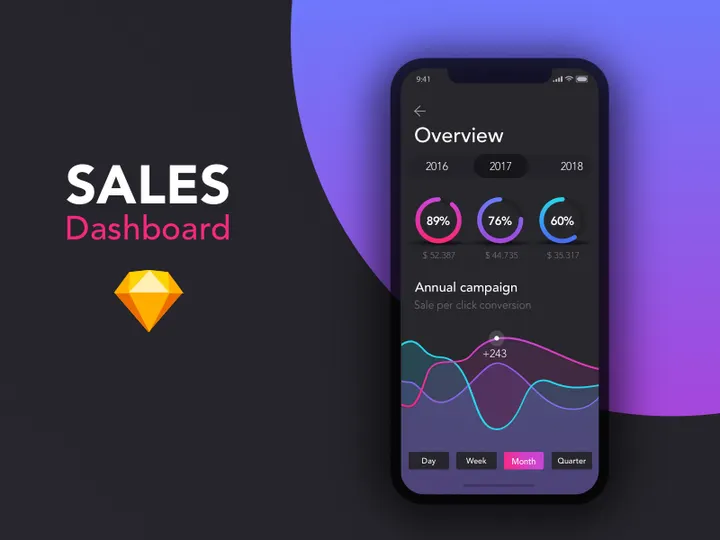
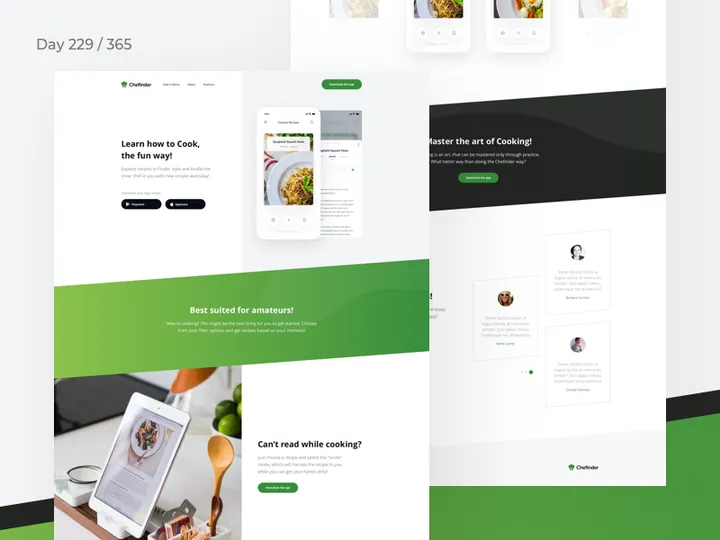
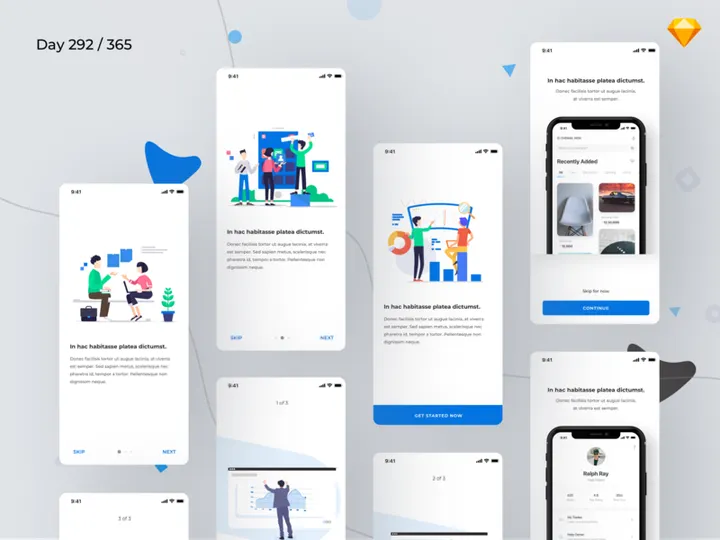
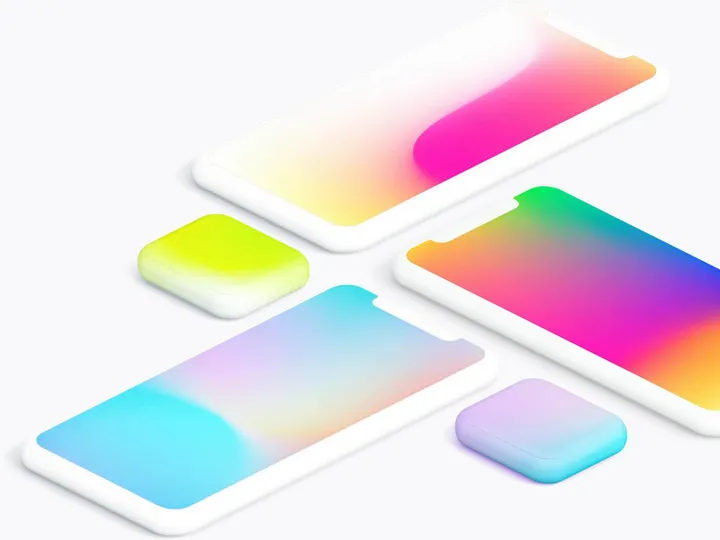
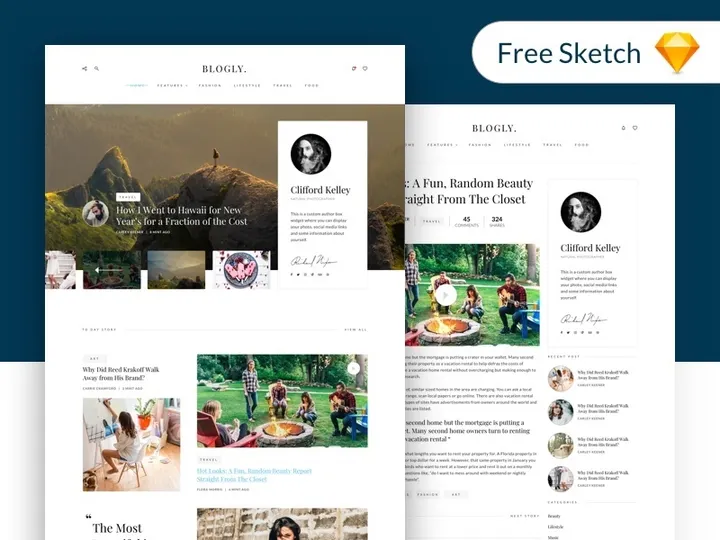
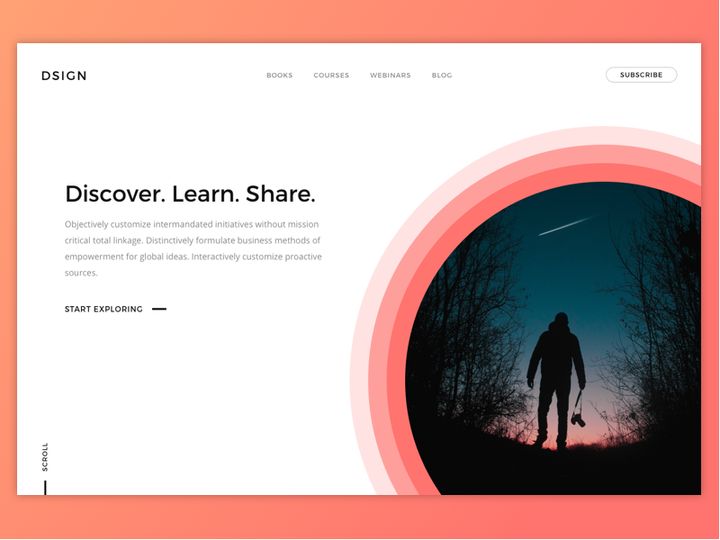

![[FREE] Onboarding for online shop delivery service preview picture](https://imgproxy.epicpxls.com/M_5MpVYHZDRFeGdqajq8UNekveEuq0mtVCUFQ9TSayA/rs:fill:720:540:0/g:no/aHR0cHM6Ly9pdGVt/cy5lcGljcHhscy5j/b20vdXBsb2Fkcy9w/aG90by8xMzE0OTI4/NGE0ZjI1ODFjMWNl/NWUwMDg1MjAxNjIy/NA.jpg)
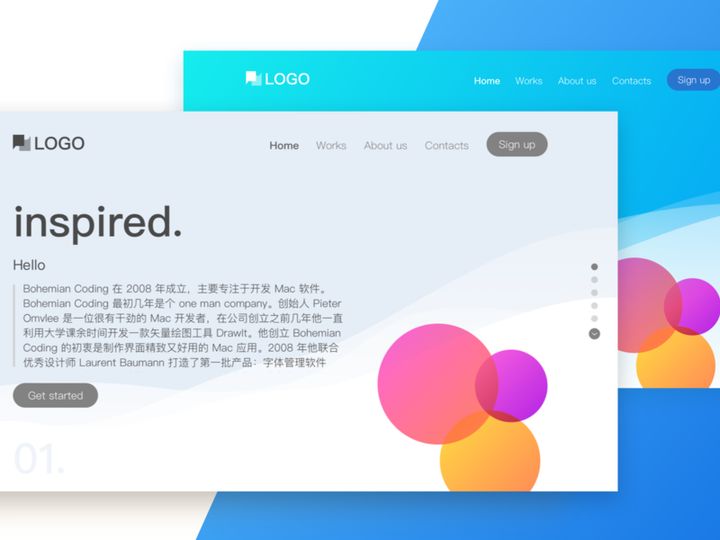



Try Our Free Resources
Download any of these for free - no account required

Getting Started with Templates in Sketch
Before diving into the creative possibilities that templates offer in Sketch, it's essential to ensure your environment is properly set up. Sketch is a powerful vector-based design tool widely used by UI/UX designers for creating interfaces, prototypes, and high-fidelity mockups. To get started, make sure you're running the latest version of Sketch on macOS, as the app is currently exclusive to Apple devices. You can download Sketch directly from their official website and install it with a few simple steps. Once installed, launching the app gives you access to a clean, intuitive interface designed for speed and precision.
One of the biggest advantages of using Sketch is its compatibility with a vast ecosystem of templates, which can significantly accelerate your design workflow. To begin using templates, you’ll need to source them from trusted providers that offer Sketch-native file formats (.sketch). Many design marketplaces and resource platforms curate high-quality templates tailored for Sketch’s unique structure, including artboards, symbols, and shared styles. Among the most reliable sources is EpicPxls, which offers a growing collection of over 200+ professionally designed templates for websites, mobile apps, dashboards, and more. These resources are optimized for Sketch and regularly updated to align with current design trends and system requirements.
The 200+ resources available on EpicPxls span various industries and use cases—from startup landing pages to enterprise SaaS platforms—ensuring that designers at any level can jumpstart their projects. Whether you're building a prototype from scratch or refining an existing product, starting with a well-structured template saves time and maintains design consistency. With your Sketch environment ready and a library of compatible templates at your fingertips, you're prepared to import and customize professional-grade designs with ease.
How to Import Templates into Sketch
- Choose the Right Template Source: Begin by selecting a reliable platform like EpicPxls to download templates designed specifically for Sketch. Always verify that the file format is .sketch to ensure full compatibility and access to layers, symbols, and styles.
- Download the Template File: After selecting your desired template, click the download button and save the .sketch file to your preferred location—typically your Downloads or Design Projects folder. Avoid extracting or modifying the file unless instructed, as Sketch files are self-contained.
- Open Sketch and Initiate Import: Launch Sketch and go to File > Open from the menu bar. Navigate to where you saved the .sketch file, select it, and click “Open.” Sketch will load the document with all layers and artboards intact.
- Verify File Integrity: Once opened, inspect the Layers panel to confirm that all groups, symbols, and text styles are present. If elements appear flattened or missing, it may indicate a version mismatch or corrupted download—re-download if necessary.
- Handle Non-Sketch File Types (If Applicable): While Sketch primarily works with .sketch files, you may occasionally receive templates in other formats like PSD, AI, SVG, or Figma. These require conversion. For PSD and AI files, import via File > Import to bring in vector layers, though complex effects may not translate perfectly. SVGs can be dragged directly onto the canvas for use as icons or illustrations. Note: Figma files must be manually recreated or converted using third-party tools, as direct import isn't supported.
- Save a Working Copy: After successful import, immediately save a new version of the file under a different name using File > Save As. This preserves the original template for future reuse and prevents accidental overwrites.
Following these steps ensures a smooth onboarding process when bringing external designs into your Sketch workspace. With the right file format and careful handling, templates become a reliable foundation for rapid prototyping and consistent design execution. The 200+ resources on EpicPxls are all delivered in Sketch-ready format, minimizing import issues and maximizing usability.
Step-by-Step: Working with Templates in Sketch
Editing Layers and Components
Once a template is successfully imported, the real customization begins. Sketch’s layered structure makes it easy to modify every aspect of a design. In the Layers panel on the left, you’ll see a hierarchical view of artboards, groups, symbols, and individual elements. Start by selecting text layers and updating placeholder content with your own copy. Use the Inspector panel on the right to adjust font size, color, spacing, and alignment to match your brand guidelines. For buttons, icons, and UI components, leverage Sketch’s Symbols feature—double-click a symbol to edit it globally across all instances. This is especially useful when updating navigation bars, form fields, or footer sections that repeat across multiple screens.
Vector shapes and illustrations can be resized, recolored, or reshaped using Sketch’s vector editing tools. Unlock any grouped elements if needed, and use Boolean operations to merge or subtract shapes for custom designs. Replace stock images by dragging and dropping your own assets into image placeholders—Sketch automatically resizes them to fit. By understanding how layers and symbols are organized within a template, you maintain design integrity while adapting the layout to your specific needs.
Organizing Your Templates Library
As you collect more templates—especially from a rich source like EpicPxls—effective organization becomes crucial. Create a dedicated folder on your computer named “Sketch Templates” and subdivide it by category: mobile apps, websites, dashboards, presentations, etc. Within Sketch, use the Pages feature to separate different versions or projects within a single .sketch file. For example, keep your original template on Page 1 and develop iterations on Page 2 and beyond.
Use descriptive names for artboards (e.g., “Homepage – Desktop,” “Login Flow – Mobile”) to make navigation easier. Apply color labels to layers and groups to visually distinguish sections like headers, footers, or modals. Consider creating a master library of reusable symbols and text styles that you can import into new projects. This ensures consistency across designs and reduces duplication. With over 200+ resources available, a well-organized system allows you to quickly locate and deploy the right template for any project.
Exporting for Production
When your design is finalized, Sketch offers robust export options for delivering assets to developers or stakeholders. Select the artboard or layer you want to export, then open the Export section in the Inspector. Choose the appropriate format: PNG for high-quality raster images, JPG for photographs, SVG for scalable vector graphics (ideal for icons and logos), and PDF for print or client presentations.
Set the resolution based on the target platform—1x for standard screens, 2x for Retina displays, and 3x for high-density mobile devices. You can export multiple scales simultaneously by checking the boxes next to each resolution. For web and mobile development, use the “Make Exportable” option on individual layers or groups to generate precise assets like buttons, icons, or avatars. Sketch also supports exporting entire artboards as responsive slices, which can be shared via Sketch Cloud or handed off using developer tools. Proper export settings ensure your designs translate accurately from concept to implementation.
Troubleshooting Common Sketch Issues
File Won't Open
If a Sketch template fails to open, the most common cause is version incompatibility. Older versions of Sketch may not support files created in newer releases. Always ensure you’re running the latest version of Sketch via the Mac App Store or the official website. Conversely, if a file was saved in a much older version, Sketch will prompt you to upgrade the file format—proceed with caution, as this change is irreversible. Additionally, confirm that the file extension is .sketch and not corrupted during download. Re-download the file from a trusted source like EpicPxls if issues persist.
Missing Fonts or Assets
Another frequent issue is missing fonts. When a template uses a typeface not installed on your system, Sketch will substitute it with a default font, potentially disrupting the layout. To resolve this, check the Inspector for highlighted text layers showing “Font Not Found.” The template documentation or file description usually lists required fonts, often available via Google Fonts or paid foundries. Download and install these fonts, then restart Sketch to restore the correct typography. For missing images or linked assets, verify that all external files were included in the download package, especially if the template uses linked images rather than embedded ones.
Performance Problems
Large templates with numerous artboards, high-resolution images, or complex vectors can slow down Sketch. To improve performance, detach or remove unused artboards and symbols. Flatten or simplify overly complex vector paths using the “ Flatten ” function under the Path menu. Avoid excessive use of blur or shadow effects, as these are resource-intensive. If working on a team project, consider breaking the file into smaller, modular .sketch files—one for each major section—and link them using Libraries or external references. This keeps individual files lightweight and responsive.
Advanced Sketch Tips for Templates
Batch Processing
When working with multiple templates or artboards, batch processing can save significant time. Use Sketch’s built-in “Rename It” plugin or similar tools to rename layers or symbols in bulk—ideal when standardizing component names across a design system. You can also apply shared styles or symbols to multiple layers at once by selecting them and choosing a style from the Inspector. For exporting, create a consistent naming convention and use Sketch’s multi-export feature to generate all required assets simultaneously, reducing manual effort.
Plugins and Extensions
Enhance your template workflow with Sketch plugins. Tools like “Symbol Organizer” help manage large libraries, while “Clean Sketch” removes unused styles and layers to optimize file size. “Automate” offers macros for repetitive tasks such as aligning elements, generating color palettes, or exporting slices. Install plugins via Sketch’s Plugin Manager to extend functionality without leaving the app. These tools integrate seamlessly with templates from EpicPxls, making it easier to maintain consistency and efficiency across projects.
Collaboration Workflows
For teams, establishing a shared templates library streamlines collaboration. Use Sketch’s Library feature to publish a central .sketch file containing approved symbols, text styles, and color variables. Team members can link to this library, ensuring everyone uses the same design components. When a symbol is updated in the library, all linked instances across files are notified and can be refreshed. This is particularly effective when managing large-scale projects with multiple contributors. Combine this with version control practices—such as naming conventions and cloud backups—to maintain clarity and reduce conflicts. With access to 200+ resources, teams can standardize their design language while accelerating project delivery.
Why Download from EpicPxls?
Commercial License
Use in personal and commercial projects
No Account Required
Download free resources instantly
Quality Curated
Every resource is reviewed for quality
Preview Files
See Figma and Photoshop files before downloading
Who Uses These Templates?
Professionals and teams who benefit most from our collection
UI/UX Designers
Speed up your workflow with ready-to-use templates for Sketch. Perfect for prototyping and client presentations.
Developers
Get production-ready assets without design skills. Export in any format for web and mobile apps.
Startups & Agencies
Save design budget with affordable premium templates. Commercial license included for client work.
Marketing Teams
Create professional campaigns faster. All templates are optimized for social media and ads.
Templates for Sketch FAQCommon questions about these resources
Simple, Transparent Pricing
Get unlimited access to all premium resources
Yearly
- 20 downloads per month
- All file formats
- Commercial license
Lifetime
- Unlimited downloads forever
- All file formats
- Commercial license
Ready to Get Started?
Access 4,441+ free design resources today.
Browse Free ResourcesView Premium PlansEarn 85% and
more on all sales
Upload your products and put them up
for sale at whatever price you want.


