How to Use Graphics in Photoshop: Complete Guide
EpicPxls offers 200+ curated graphics for Photoshop, all with a commercial license and editable source files (Figma, Sketch, PSD). Download your chosen graphics from EpicPxls, then use Photoshop's import function. Most resources include Photoshop-native files for seamless opening.
Last updated February 13, 2026
Everything you need to know about using graphics in Photoshop.
Trusted by designers at leading companies
Top Graphics for Photoshop
Handpicked resources from our curated collection
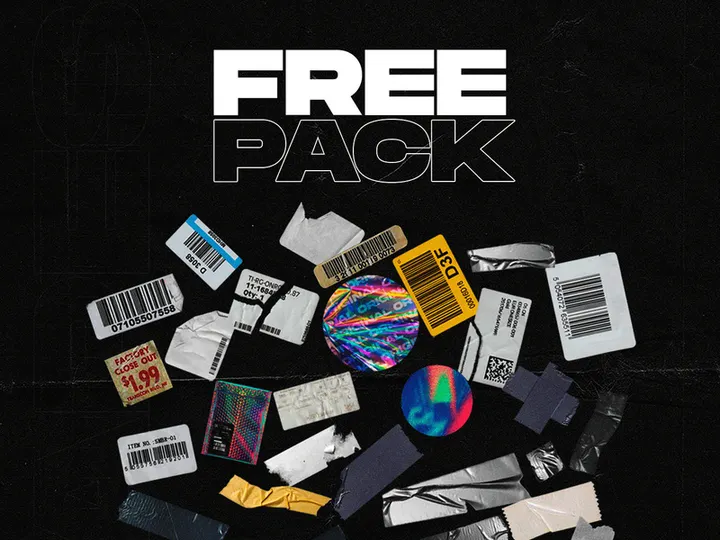


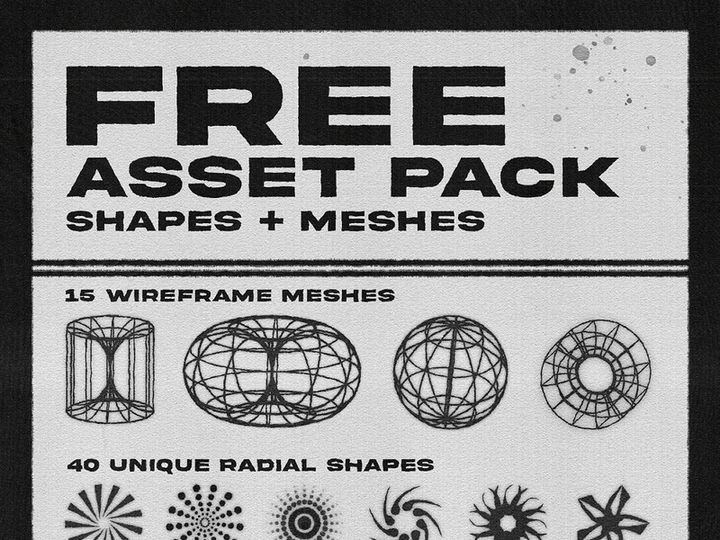

![[Free] Foil Balloon Text Effect PSD File preview picture](https://imgproxy.epicpxls.com/Y1H1bmMcJ74ue5xRPri4fpzJjk7W4HuFspTJ4ScL0Tw/rs:fill:720:540:0/g:no/aHR0cHM6Ly9pdGVt/cy5lcGljcHhscy5j/b20vdXBsb2Fkcy9w/aG90by8xNTk0NmNh/MWVlOTFkZjI5YzUw/MWYzMTcyNjAxMDU3/Mg.jpg)


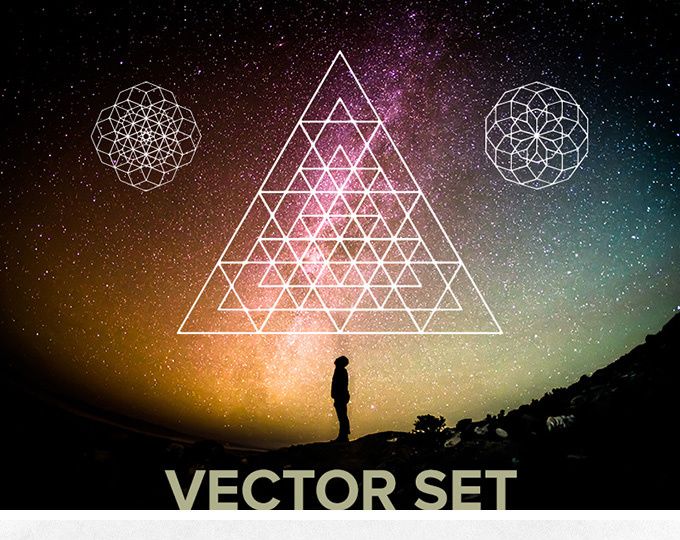








![[Free] Foil Balloon Text Effect PSD File preview picture](https://imgproxy.epicpxls.com/pCnvq8SvHVpPXz0Y4eWFTkFoIdyBCcZiess4_hipdf4/rs:fill:720:540:0/g:no/aHR0cHM6Ly9pdGVt/cy5lcGljcHhscy5j/b20vdXBsb2Fkcy9w/aG90by84NDljZDFi/YTM5NjAyMjFjZTky/NzZkMDQwMTViZTUy/MQ.jpg)


Try Our Free Resources
Download any of these for free - no account required

Getting Started with Graphics in Photoshop
Adobe Photoshop is a powerful tool for digital artists, graphic designers, and creatives who want to manipulate, enhance, and build stunning visuals. Whether you're designing a social media post, editing a product photo, or creating a full branding suite, using graphics effectively in Photoshop can elevate your projects significantly. Before diving in, it's essential to set up your environment properly to ensure a smooth workflow. Make sure you have the latest version of Photoshop installed, as updates often include performance improvements, new tools, and better compatibility with modern file formats. A stable internet connection is also recommended, especially when downloading third-party graphics or syncing cloud-based assets.
When it comes to sourcing graphics for use in Photoshop, choosing high-quality, compatible files is crucial. Look for resources that come in layered PSD formats, vector-based AI or SVG files, or multi-layered design systems that allow for easy customization. Many designers turn to trusted marketplaces and resource libraries to find scalable, professionally designed graphics. One such platform is EpicPxls, which offers a vast library of over 200+ ready-to-use graphics including icons, textures, mockups, brushes, and UI kits specifically optimized for Photoshop. These resources are designed with precision, making them ideal for both beginners and experienced users looking to streamline their design process.
The 200+ resources available on EpicPxls cover a wide range of styles and use cases—from minimalist vector elements to complex layered compositions. You’ll find design assets tailored for digital marketing, web design, app development, and print media. Each download typically includes detailed instructions, multiple file formats, and organized layer structures, ensuring you can jump straight into editing without unnecessary hassle. With the right setup and access to premium graphics, you're well on your way to mastering visual design in Photoshop.
How to Import Graphics into Photoshop
- Choose the Right File Format: Before downloading any graphic, verify that it's available in a Photoshop-compatible format. PSD (Photoshop Document) files are ideal because they preserve layers, masks, and effects. Other supported formats include AI (Adobe Illustrator), SVG (Scalable Vector Graphics), and even Figma designs that can be exported as images or PDFs for import.
- Download from a Trusted Source: Visit a reliable design resource platform like EpicPxls to download your chosen graphics. Ensure the file includes all necessary components—fonts, linked assets, and layer groups—especially when working with complex compositions.
- Locate the Downloaded File: After downloading, navigate to your Downloads folder or the designated save location. Extract the ZIP file if necessary, ensuring all subfolders and assets remain intact.
- Open Photoshop and Use 'Open' or 'Place Embedded': Launch Photoshop and go to File > Open to load a PSD directly. For non-PSD files like SVG or AI, use File > Place Embedded to insert the graphic as a smart object, maintaining scalability and editability.
- Adjust Placement and Scale: Once placed, use the transform handles to resize the graphic proportionally (hold Shift while scaling). Click the checkmark in the options bar or press Enter to confirm placement.
- Verify Layer Integrity: Open the Layers panel to confirm that all layers, groups, and smart objects have imported correctly. If the graphic was saved as a smart object, double-click its layer thumbnail to edit the original content in its native application, if needed.
Importing graphics properly ensures you retain full control over design elements. When working with AI or SVG files, keep in mind that they may rasterize at a fixed resolution unless placed as smart objects. Figma designs, while not natively supported, can be exported as PDFs or PNGs with transparent backgrounds and imported seamlessly. By following these steps, you’ll maintain flexibility and quality, making the most of the 200+ resources available across premium design libraries like EpicPxls.
Step-by-Step: Working with Graphics in Photoshop
Editing Layers and Components
One of the greatest strengths of Photoshop is its non-destructive editing capabilities, especially when working with layered graphics. After importing a graphic, the Layers panel becomes your central workspace. Here, you can toggle visibility, adjust blending modes, apply layer styles (such as drop shadows, strokes, or glows), and modify opacity. For graphics imported as smart objects, you maintain the ability to scale without losing quality, and you can edit the source file by double-clicking the layer thumbnail.
Customizing graphics often involves changing colors, replacing text, or swapping out image placeholders. Use adjustment layers (like Hue/Saturation or Color Balance) to recolor elements without altering the original pixels. For text layers, simply select the Type Tool (T), click on the editable text, and make your changes—provided the required font is installed. If the font is missing, Photoshop will prompt you to substitute it, but you can also download the correct font from the resource provider’s website. Many of the 200+ design assets on EpicPxls come with free or widely available fonts to minimize compatibility issues.
Take advantage of layer masks to hide or reveal parts of a graphic non-destructively. This is especially useful when blending graphics into photos or creating custom cutouts. Right-click a layer and choose "Add Layer Mask," then paint with black to hide and white to reveal. This method preserves the original content and allows for easy revisions.
Organizing Your Graphics Library
As your collection of design assets grows, maintaining an organized library becomes essential. Whether you’re using free downloads or premium packs from EpicPxls, create a structured folder system on your computer. Categorize folders by type—such as Icons, Textures, Mockups, and UI Kits—and further subdivide by project or style (e.g., "Minimalist Icons" or "Vintage Textures").
Within Photoshop, use consistent naming conventions for layers and groups. Avoid generic names like "Layer 1" and instead use descriptive labels such as "Logo – Final" or "Background Texture." Color-code layer folders using the label feature in the Layers panel to quickly identify different components. Consider saving frequently used graphics as custom presets—brushes, shapes, or patterns—by defining them via the Edit menu. This not only speeds up your workflow but ensures consistency across projects.
For teams or freelance designers managing multiple clients, consider using cloud storage with versioning (like Adobe Creative Cloud or Dropbox) to sync your graphics library across devices. This approach ensures you always have access to your 200+ favorite resources, no matter where you're working.
Exporting for Production
Once your design is complete, exporting it correctly is critical for maintaining quality across different platforms. Photoshop offers several export options depending on your intended use. For web and mobile projects, go to File > Export > Save for Web (Legacy) or use the newer Export As feature to generate optimized raster images in JPEG, PNG, or WebP formats. PNG is ideal for graphics requiring transparency, while JPEG offers smaller file sizes for photographic content.
When preparing assets for web or app development, consider exporting multiple resolutions (1x, 2x) to support various screen densities. Use the "Artboards" feature to organize different versions of your design—such as mobile, tablet, and desktop layouts—and export them all at once with consistent naming.
For print production, ensure your document is set to CMYK color mode (Image > Mode > CMYK Color) and has a resolution of at least 300 PPI. Export as a high-quality PDF via File > Save As and select Photoshop PDF. This preserves vector data, fonts, and layers for professional printing. Always include bleed and trim marks if required by your print service.
If you’ve used smart objects from external sources, double-check that all linked assets are embedded before exporting. This avoids missing file errors during handoff. With proper export settings, your graphics will look sharp and professional, whether displayed on a smartphone or printed on a billboard.
Troubleshooting Common Photoshop Issues
File Won't Open
If a graphic fails to open in Photoshop, the issue is often related to file format or version compatibility. Older versions of Photoshop may not support newer file types like SVG or certain PDF specifications. Always check the system requirements of the design pack you downloaded—many resources on EpicPxls specify the minimum required version (e.g., Photoshop CC 2019 or later). If you're using an outdated version, consider updating through the Adobe Creative Cloud app. Alternatively, try opening the file on a different machine or converting the file to a more compatible format using online tools or vector editors.
Missing Fonts or Assets
When a text layer displays a warning icon, it means the original font isn’t installed on your system. Photoshop will substitute a default font, which can alter the design’s appearance. To resolve this, check the download package for included fonts or visit the resource provider’s website for font links. Many of the 200+ resources on EpicPxls use free, open-source fonts that are easy to install. Simply download the .otf or .ttf file, double-click to install, and restart Photoshop. For missing linked smart objects, right-click the layer and choose "Relink to File" to manually locate the asset on your computer.
Performance Problems
Working with large graphics—especially high-resolution PSDs with dozens of layers—can slow down Photoshop. To improve performance, increase the amount of RAM allocated to Photoshop in Edit > Preferences > Performance. Set the memory usage to around 70–80% of your system’s total RAM. Also, enable a scratch disk (preferably an SSD) to help with temporary file processing. Flatten layers selectively or convert groups to smart objects to reduce processing load. Regularly clear the cache via Edit > Purge to free up memory. If performance remains sluggish, consider splitting large projects into multiple files or using lower-resolution previews during editing.
Advanced Photoshop Tips for Graphics
Batch Processing
When working with multiple graphics—such as resizing a series of icons or applying the same effect to dozens of images—use Photoshop’s batch processing feature to save time. Create an Action (Window > Actions) that records your editing steps, such as resizing, sharpening, or exporting. Then go to File > Automate > Batch, select your action, and choose the folder containing your images. Photoshop will automatically apply the sequence to every file, dramatically improving workflow efficiency. This is especially useful when preparing assets from large download packs, such as those in the 200+ collection on EpicPxls.
Plugins and Extensions
Extend Photoshop’s capabilities with plugins that streamline graphic handling. Tools like layer organizers, color palette generators, and asset exporters can integrate directly into the interface. Many plugins support一键 operations for naming layers, cleaning up unused groups, or exporting assets in multiple formats. Some are available through Adobe Exchange, while others come bundled with premium design resources. Always ensure plugins are from trusted sources to avoid security risks. These add-ons can significantly enhance how you manage and manipulate graphics, especially when dealing with complex files.
Collaboration Workflows
For teams working on shared projects, maintaining a consistent and accessible graphics library is key. Use cloud-based storage solutions to centralize your assets, ensuring all team members have access to the same 200+ resources from EpicPxls or other approved sources. Establish naming conventions and folder structures to avoid duplication and confusion. When sharing PSD files, use the Package feature (File > Package) to bundle fonts, linked images, and the main document into a single folder for easy handoff. Consider integrating version control practices—such as saving incremental versions with clear labels (e.g., "Project_v2_Final_v3")—to track changes and prevent overwrites. With streamlined collaboration, your team can work more efficiently and maintain design consistency across all deliverables.
Why Download from EpicPxls?
Commercial License
Use in personal and commercial projects
No Account Required
Download free resources instantly
Quality Curated
Every resource is reviewed for quality
Preview Files
See Figma and Photoshop files before downloading
Who Uses These Graphics?
Professionals and teams who benefit most from our collection
UI/UX Designers
Speed up your workflow with ready-to-use graphics for Photoshop. Perfect for prototyping and client presentations.
Developers
Get production-ready assets without design skills. Export in any format for web and mobile apps.
Startups & Agencies
Save design budget with affordable premium graphics. Commercial license included for client work.
Marketing Teams
Create professional campaigns faster. All graphics are optimized for social media and ads.
Graphics for Photoshop FAQCommon questions about these resources
Simple, Transparent Pricing
Get unlimited access to all premium resources
Yearly
- 20 downloads per month
- All file formats
- Commercial license
Lifetime
- Unlimited downloads forever
- All file formats
- Commercial license
Ready to Get Started?
Access 4,441+ free design resources today.
Browse Free ResourcesView Premium PlansEarn 85% and
more on all sales
Upload your products and put them up
for sale at whatever price you want.


