How to Use Mockups in Photoshop: Complete Guide
EpicPxls offers 200+ curated mockups for Photoshop, all with a commercial license and editable source files (Figma, Sketch, PSD). Download your chosen mockups from EpicPxls, then use Photoshop's import function. Most resources include Photoshop-native files for seamless opening.
Last updated February 13, 2026
Everything you need to know about using mockups in Photoshop.
Trusted by designers at leading companies
Top Mockups for Photoshop
Handpicked resources from our curated collection

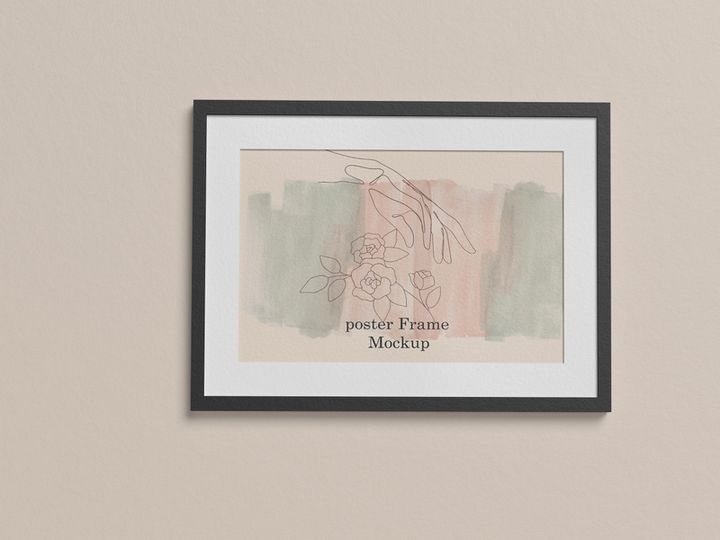

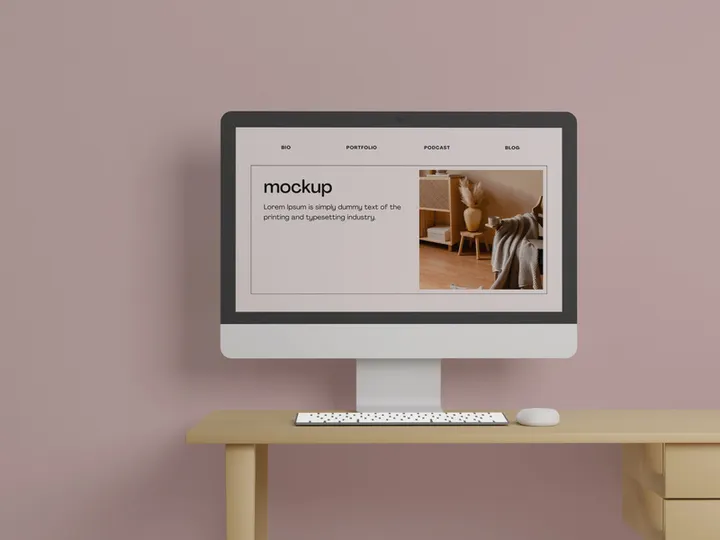
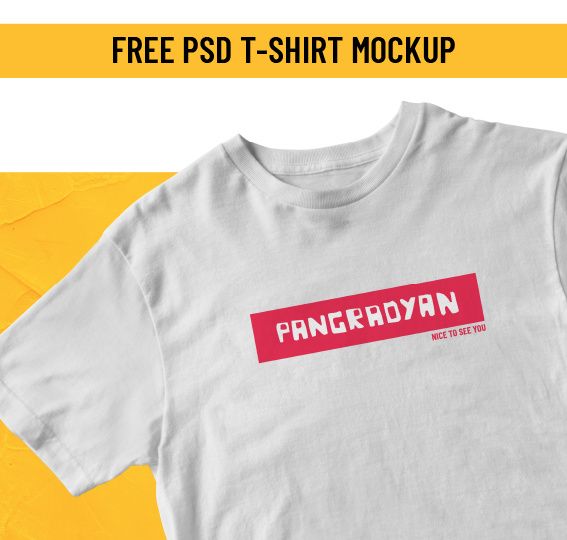
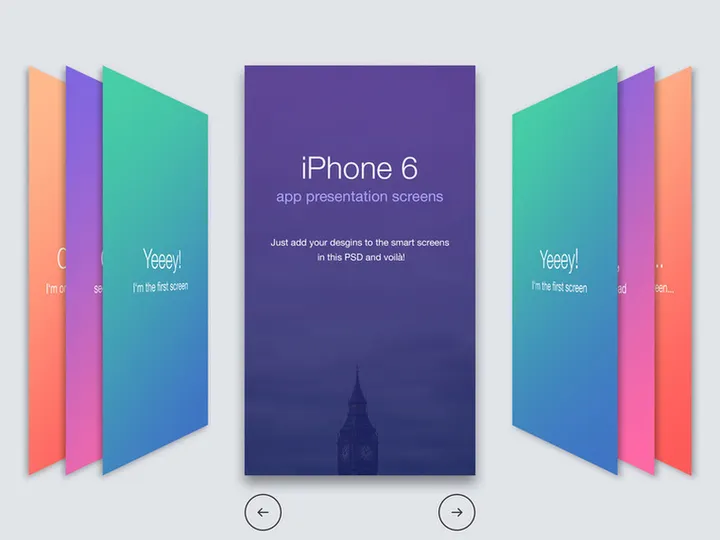


![Dualshock 4 [ FREE PSD] preview picture](https://imgproxy.epicpxls.com/q7ZSRzMhwBO8H4iIQr8alioQGSymid8y6Py9f1DLQjQ/rs:fill:720:540:0/g:no/aHR0cHM6Ly9pdGVt/cy5lcGljcHhscy5j/b20vdXBsb2Fkcy9w/aG90by9hYTAyOGIx/MWVlNzdhZGM0NWQx/NTYyOGE3MDU2OWI0/NS5wbmc.jpg)



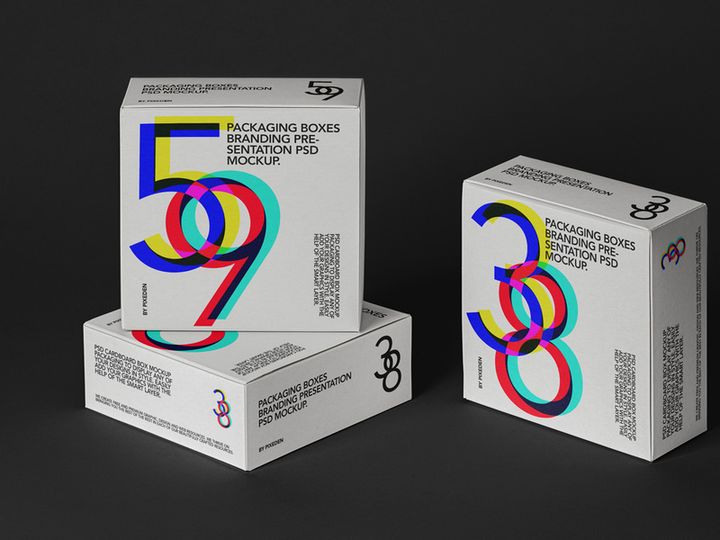
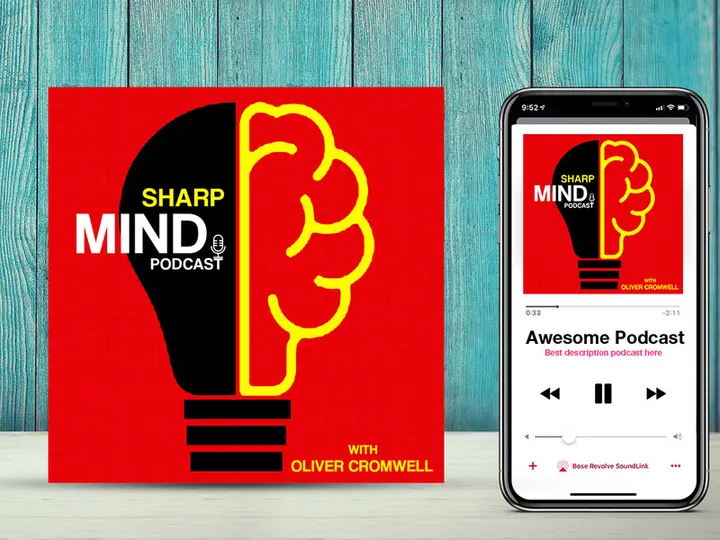

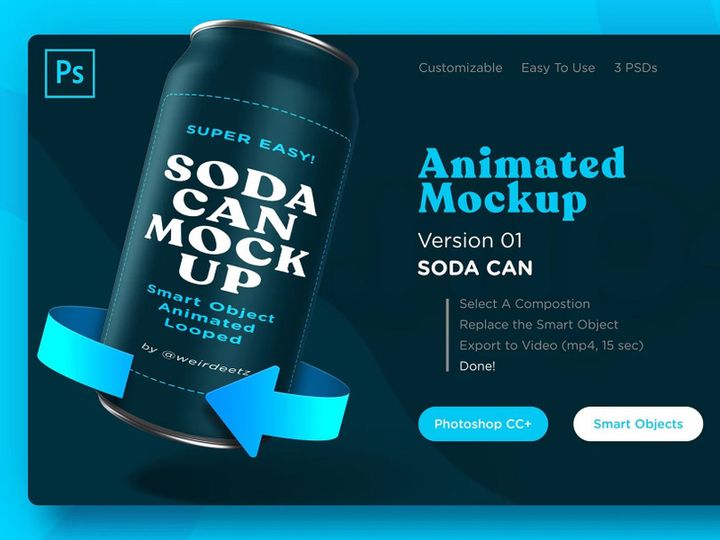
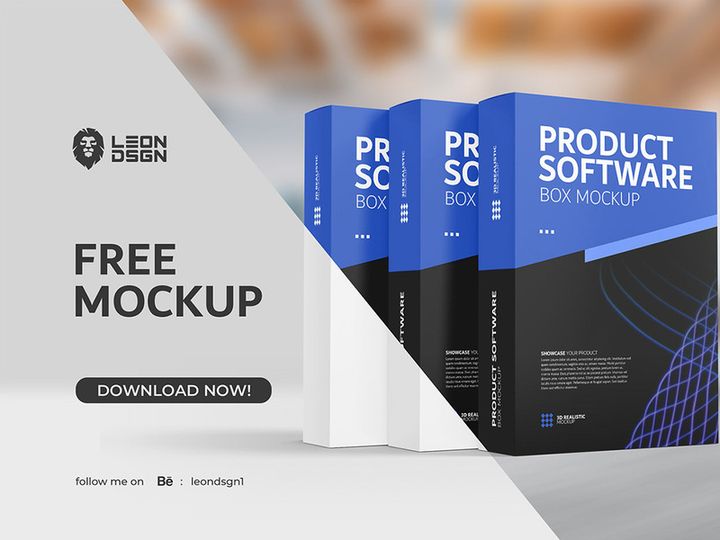

![[FREE] Mockup Sticker preview picture](https://imgproxy.epicpxls.com/dcLt4fkjZ_E5oBbsisXijbJ79nOv7aegmTQw2BSlwuM/rs:fill:720:540:0/g:no/aHR0cHM6Ly9pdGVt/cy5lcGljcHhscy5j/b20vdXBsb2Fkcy9w/aG90by9kYWEwYWVj/NTlkOWE2OTk5MjI2/NjBjZDUwYTkxMGQ1/Yw.jpg)
Try Our Free Resources
Download any of these for free - no account required

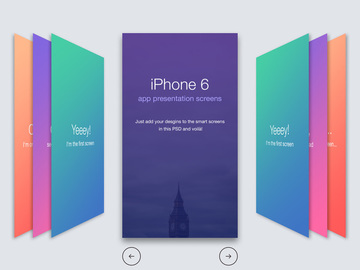
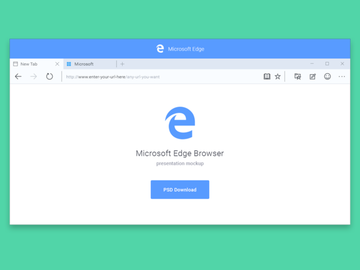
Getting Started with Mockups in Photoshop
Mockups are essential tools for designers, offering a realistic preview of how digital and physical designs will appear in real-world contexts. Whether you're presenting a website on a laptop, a logo on a business card, or an app interface on a smartphone, mockups help bridge the gap between concept and final product. Adobe Photoshop, with its powerful layer system and design flexibility, is one of the most popular platforms for working with mockups. To get started, ensure you have a stable version of Photoshop installed—preference is given to the latest Creative Cloud version for optimal compatibility and feature support.
Before diving into mockup usage, it’s important to verify that your system meets the software requirements. A modern processor, at least 8GB of RAM (16GB recommended), and a graphics card compatible with Photoshop will ensure smooth performance, especially when handling high-resolution mockups. Once your environment is set up, the next step is sourcing high-quality mockups. Look for sources that offer layered PSD files designed specifically for Photoshop, as these allow for maximum customization and editing freedom.
One of the best places to find premium mockups is EpicPxls, which hosts over 200 professionally designed mockup templates. These resources span a wide range of categories, including device mockups, packaging, apparel, stationery, and user interface designs. Each mockup is meticulously crafted with smart objects, organized layers, and non-destructive editing capabilities, making integration into your workflow seamless. With 200+ resources available, designers can easily find templates that match their specific project needs, whether for client presentations, portfolio showcases, or development handoffs. Starting with well-structured mockups from trusted sources like EpicPxls significantly reduces setup time and enhances design accuracy.
How to Import Mockups into Photoshop
- Download the Correct File Format: Always ensure you're downloading a mockup file compatible with Photoshop. The preferred format is PSD (Photoshop Document), as it preserves layers, smart objects, and effects. Some platforms may offer ZIP files containing multiple formats—extract the PSD version for full editing capabilities in Photoshop.
- Unzip the Downloaded File: Most mockup packages come in compressed ZIP format. Use your operating system’s built-in extraction tool or a utility like WinZip or 7-Zip to extract the contents. Look for the .PSD file inside the extracted folder.
- Open Photoshop and Navigate to File > Open: Launch Photoshop and go to the top menu. Click “File,” then select “Open.” Browse to the location where you extracted the mockup file and select the PSD.
- Verify Layer Integrity: Once opened, check the Layers panel (Window > Layers) to ensure all components are intact. Well-designed mockups will have clearly labeled groups, smart objects, and adjustment layers for easy navigation.
- Handle Linked Smart Objects: If the mockup uses smart objects for design insertion, double-click the smart object thumbnail to open it in a new tab. Replace your design here, save, and return to the main file to see the update automatically reflected.
- Prepare for Cross-Platform Files: While PSD is ideal, you may occasionally receive mockups in AI (Adobe Illustrator), SVG, or even Figma formats. For AI or EPS files, open them directly in Photoshop—though some vector fidelity may vary. For Figma designs, export as PNG or PSD first, then import into Photoshop. Always verify resolution and layer separation before proceeding.
By following these steps, you ensure a smooth import process and maintain full control over the mockup’s editable components. With 200+ resources on EpicPxls available in PSD format, designers can quickly find and integrate ready-to-use templates with minimal friction.
Step-by-Step: Working with Mockups in Photoshop
Editing Layers and Components
Once your mockup is successfully imported, the real customization begins. Photoshop’s layered architecture allows you to modify individual elements without affecting the overall structure. Start by exploring the Layers panel, where mockups typically include labeled groups such as “Background,” “Device Frame,” and “Smart Object – Insert Design Here.” The key to efficient editing is using smart objects. These allow you to embed your design (e.g., a website layout or app screen) into a placeholder, which automatically conforms to perspective, shadows, and textures within the mockup.
To edit a smart object, simply double-click its thumbnail in the Layers panel. This opens a new document where you can paste or design your content. Once saved, the main mockup updates instantly with your design in context. You can also adjust layer styles—such as drop shadows, gradients, or overlays—to fine-tune lighting and realism. For mockups with multiple insertion points (e.g., a billboard and a phone screen in the same scene), repeat the process for each smart object. Always work non-destructively by duplicating layers before making changes, preserving the original file integrity.
Organizing Your Mockups Library
With access to 200+ resources from platforms like EpicPxls, maintaining an organized library is crucial. Create a dedicated folder structure on your local drive or cloud storage, categorized by use case—e.g., “Devices,” “Packaging,” “App Screens,” “Print Media.” Within each folder, store the original PSD files and any customized versions separately (e.g., “Original” and “Edited”).
Use consistent naming conventions such as “iPhone-15-Pro-App-Mockup_v1.psd” to make files easily searchable. Leverage Photoshop’s File > Scripts > Image Processor to batch-rename or convert files when needed. Additionally, consider using Adobe Bridge to preview and tag mockups visually. A well-structured library not only saves time during projects but also enhances collaboration and version control.
Exporting for Production
Once your mockup is finalized, proper exporting ensures your design is ready for presentation or production. For digital use—such as client emails, web portfolios, or social media—export as a high-quality JPEG or PNG. Go to File > Export > Export As or use Save for Web (Legacy) for optimized file sizes. Choose PNG if transparency is needed; JPEG for smaller sizes with slight compression.
For print deliverables—like brochures or packaging mockups—export in TIFF or high-resolution PDF format with CMYK color mode and at least 300 DPI. Always preserve layers if the file will be handed off to a printer or collaborator. Use File > Save As and select the appropriate format. For interactive prototypes or developer handoffs, consider exporting individual screen states or using Photoshop’s Generate > Image Assets feature to auto-export layered elements. This ensures clarity and precision across all delivery channels.
Troubleshooting Common Photoshop Issues
File Won't Open
If a mockup fails to open in Photoshop, the most likely causes are version incompatibility or file corruption. Older versions of Photoshop may not support features used in newer PSD files, such as advanced layer effects or 3D elements. Always check the file’s creation details—many resources on EpicPxls specify the minimum required Photoshop version. If possible, update to the latest Creative Cloud version. Alternatively, try opening the file on another machine or request a backward-compatible version from the provider. If the file is corrupted, re-download it from the source, ensuring the download completes fully before extraction.
Missing Fonts or Assets
Some mockups include custom fonts for labels, titles, or branding elements. If Photoshop displays a “Missing Fonts” warning, it means the type layers reference fonts not installed on your system. The software will substitute them, potentially altering the layout. To resolve this, check the mockup’s documentation or folder for included font files. Install them via your operating system’s font manager. If fonts aren’t provided, use Photoshop’s Match Font feature (right-click text layer > “Find Font”) to identify similar system fonts. For missing assets like icons or textures, ensure all linked files are in the same directory—especially if the mockup uses embedded or linked smart objects.
Performance Problems
High-resolution mockups, especially those with multiple smart objects and effects, can strain Photoshop’s performance. If the application runs slowly or crashes, try these optimizations: First, increase Photoshop’s memory allocation via Edit > Preferences > Performance (aim for 70–80% of available RAM). Second, disable unnecessary panels and background applications. Third, flatten non-essential layers temporarily—though avoid flattening smart objects you plan to edit. Use Layer > Smart Objects > Convert to Linked to offload large assets to external files, reducing document size. Lastly, save frequently and consider working on a duplicate file to prevent data loss during extended sessions.
Advanced Photoshop Tips for Mockups
Batch Processing
When working with multiple mockups—such as showcasing a single design across various devices—batch processing can save hours. Use Photoshop’s Actions panel (Window > Actions) to record repetitive tasks like inserting designs into smart objects, adjusting shadows, or exporting. Once recorded, apply the action to a folder of mockups via File > Automate > Batch. This is especially useful when updating client presentations or creating A/B variations. With 200+ resources at your disposal, automation ensures consistency and efficiency across large-scale projects.
Plugins and Extensions
Enhance your mockup workflow with trusted Photoshop plugins. Tools like GuideGuide help create precise layout grids, while LayerMonkey speeds up layer organization. For mockup-specific enhancements, look for plugins that generate realistic reflections, ambient occlusion, or depth maps automatically. These can add professional polish without manual effort. Many premium mockups from EpicPxls are designed to work seamlessly with such extensions, maximizing visual impact with minimal input.
Collaboration Workflows
Design teams benefit greatly from standardized mockup workflows. Establish a shared library—on a network drive or cloud service—where all team members can access approved mockup templates. Use naming conventions and version control (e.g., v1, v2, final) to avoid confusion. For remote collaboration, leverage Adobe Creative Cloud Libraries to sync assets, colors, and character styles across devices. When sharing PSD files, use File > Package to bundle fonts, links, and documentation. This ensures recipients have everything needed to edit the mockup without missing components. Centralizing your 200+ resources through structured collaboration tools boosts productivity and maintains brand consistency across projects.
Why Download from EpicPxls?
Commercial License
Use in personal and commercial projects
No Account Required
Download free resources instantly
Quality Curated
Every resource is reviewed for quality
Preview Files
See Figma and Photoshop files before downloading
Who Uses These Mockups?
Professionals and teams who benefit most from our collection
UI/UX Designers
Speed up your workflow with ready-to-use mockups for Photoshop. Perfect for prototyping and client presentations.
Developers
Get production-ready assets without design skills. Export in any format for web and mobile apps.
Startups & Agencies
Save design budget with affordable premium mockups. Commercial license included for client work.
Marketing Teams
Create professional campaigns faster. All mockups are optimized for social media and ads.
Mockups for Photoshop FAQCommon questions about these resources
Simple, Transparent Pricing
Get unlimited access to all premium resources
Yearly
- 20 downloads per month
- All file formats
- Commercial license
Lifetime
- Unlimited downloads forever
- All file formats
- Commercial license
Ready to Get Started?
Access 4,441+ free design resources today.
Browse Free ResourcesView Premium PlansEarn 85% and
more on all sales
Upload your products and put them up
for sale at whatever price you want.


