Mockups for Illustrator: 21+ Resources
EpicPxls offers 21+ curated mockups for Illustrator, all with a commercial license and editable source files (Figma, Sketch, PSD). We have 21+ mockups compatible with Illustrator, tested and verified for seamless integration.
Last updated February 12, 2026
Discover 21+ handpicked mockups for Illustrator.
Trusted by designers at leading companies
Top Mockups for Illustrator
Handpicked resources from our curated collection
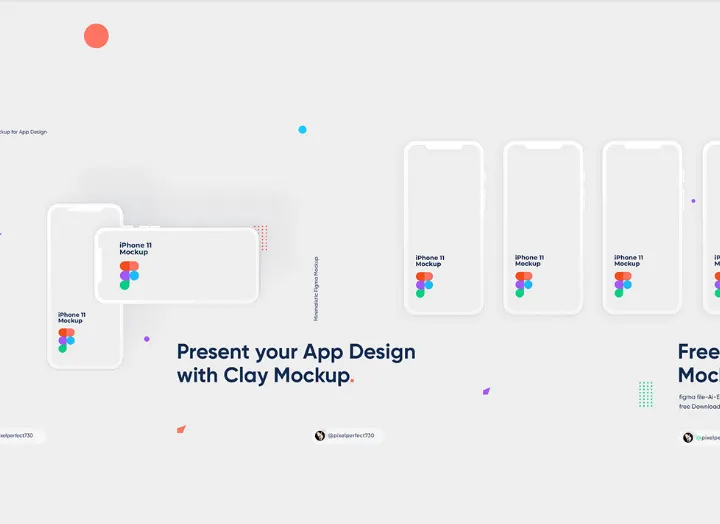
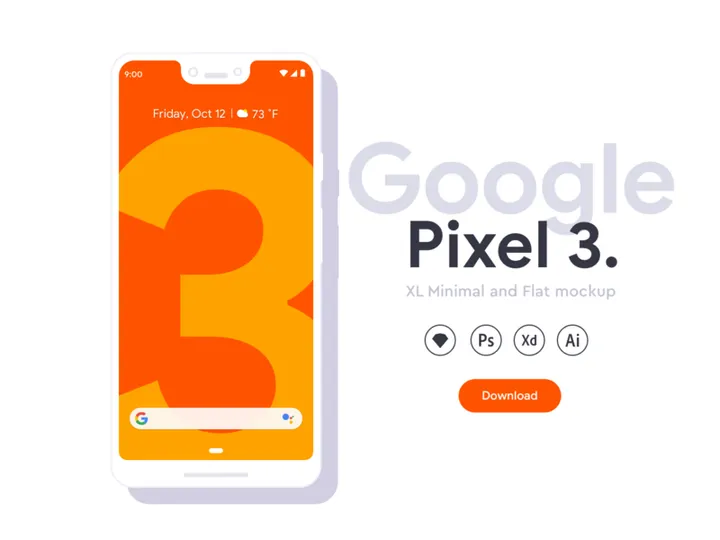
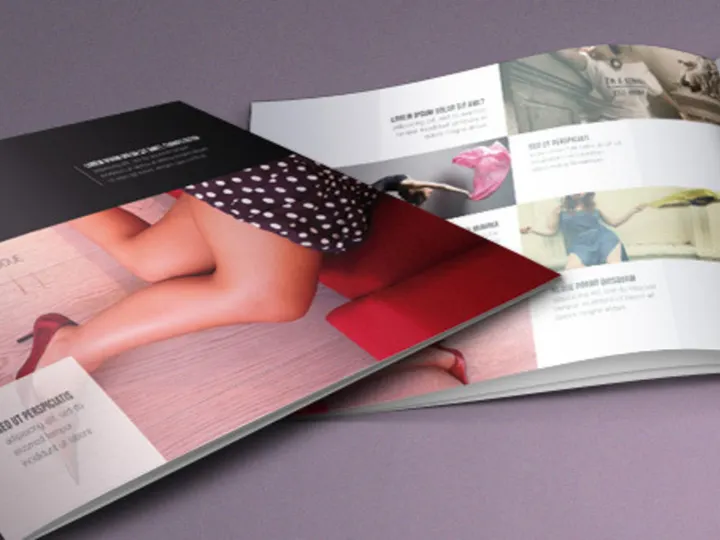
![XXL Mockup Pack [Flat Design / Outline Design] preview picture](https://imgproxy.epicpxls.com/ZIpwkGJw6d4peEy8Ud9aaCsYjUUtOuRfRO8yFvQloCw/rs:fill:720:540:0/g:no/aHR0cHM6Ly9pdGVt/cy5lcGljcHhscy5j/b20vdXBsb2Fkcy9w/aG90by8xMTBhNzM1/ZWIzM2I1NjAwMGQ3/OWE0YzkyOGU5MGZm/ZC5qcGc.jpg)
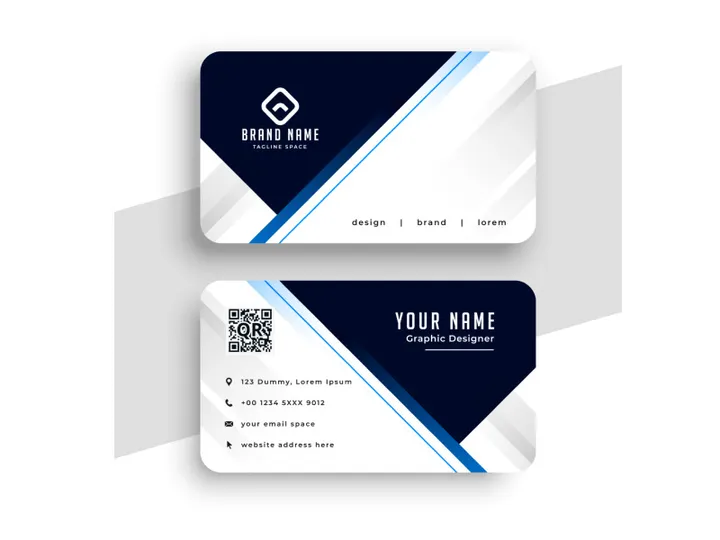
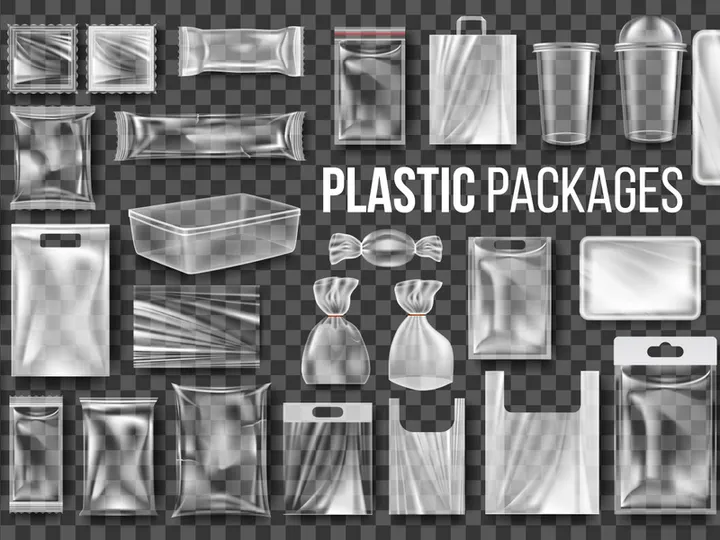
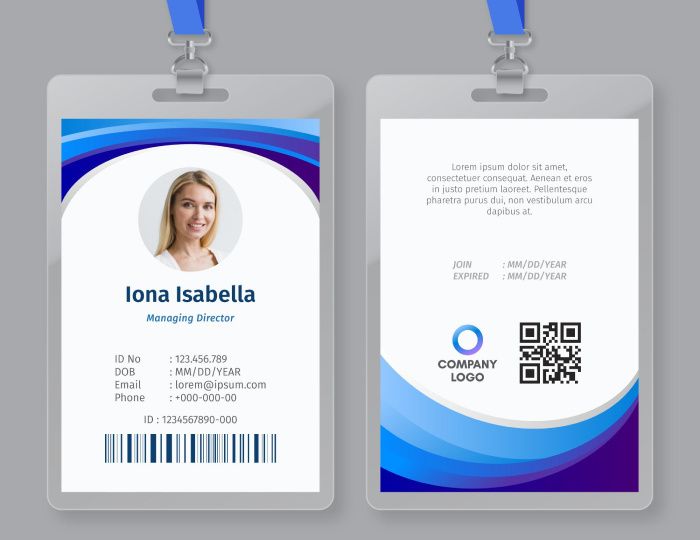


Try Our Free Resources
Download any of these for free - no account required
Why Illustrator for Mockups?
Adobe Illustrator has long been a cornerstone of the digital design ecosystem, especially when it comes to creating and using mockups. Its vector-based framework makes it a powerful tool for crafting scalable, high-resolution visuals that maintain clarity at any size—a crucial requirement for professional mockups. Designers across branding, packaging, apparel, and digital product industries rely on Illustrator for its precision, flexibility, and seamless integration with other Adobe Creative Cloud applications.
One of the main reasons Illustrator stands out for mockup design is its robust layering system. This allows designers to embed smart objects, replace content non-destructively, and maintain organized compositions—key features when working with complex mockup templates. Features like Artboards enable multiple mockup variations within a single file, streamlining client presentations and design iterations. Additionally, Illustrator’s support for linked assets and dynamic symbols enhances efficiency, especially when updating branding elements across multiple mockup scenes.
Beyond functionality, Illustrator’s compatibility with a wide range of file types—including PSD, AI, EPS, and SVG—makes it easy to integrate mockups from various sources. Whether you're working with 3D packaging renders, apparel templates, or stationery mockups, Illustrator provides consistent performance and control. The software's precision tools, such as the Pen tool, Pathfinder, and Clipping Masks, empower designers to customize mockups with pixel-perfect accuracy.
At EpicPxls, we understand the importance of tool-specific compatibility when curating design assets. That’s why our selection of 21+ resources focuses exclusively on Illustrator-ready mockups—ensuring each template is optimized for vector workflows, layer organization, and clean smart object integration. These resources are tested for performance, ease of use, and scalability, making them ideal for both independent creators and design teams. Whether you're mocking up a logo on a business card or visualizing a full brand rollout, Illustrator offers the structure and versatility needed for professional results—and EpicPxls delivers the assets to make it happen seamlessly.
Top Mockups Picks for Illustrator
With dozens of mockup resources available, selecting the right ones for your Illustrator workflow can make a significant difference in productivity and output quality. We’ve curated a hand-selected collection of over 21 high-performing mockup templates, each designed to work flawlessly within Illustrator’s environment. These resources span multiple use cases, skill levels, and design goals, ensuring every designer finds something valuable.
Best for Beginners
- Minimal Branding Mockup Kit: A beginner-friendly pack featuring editable business cards, letterheads, and envelopes with intuitive layer labels and step-by-step guides.
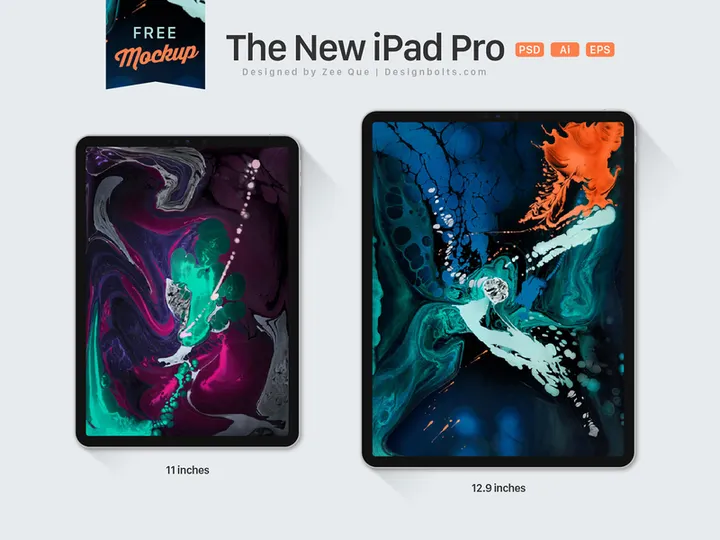
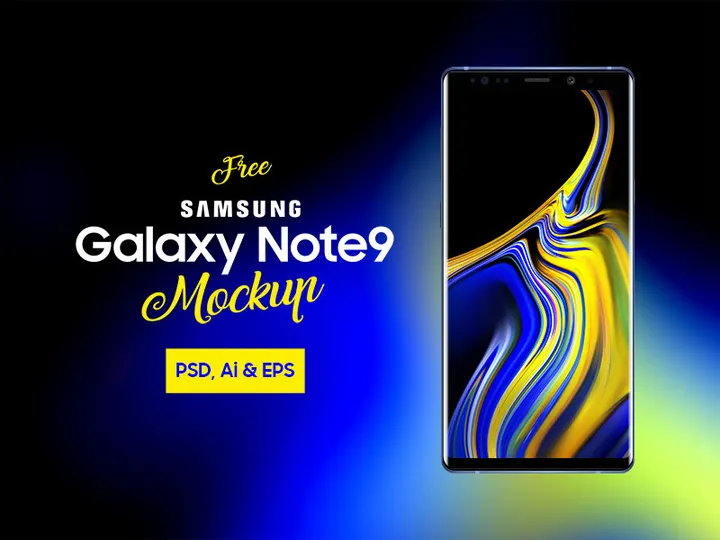
- Logo on Device Mockups: Simple drag-and-drop templates for placing logos on smartphones, tablets, and laptops, perfect for new designers building portfolios.
- Stationery Presentation Pack: Includes fully layered Illustrator files with organized folders, making it easy to swap in designs without disrupting the scene.
These resources reduce the learning curve with clear documentation, clean layer structures, and non-destructive editing capabilities—ideal for those just getting started with mockups in Illustrator.
Best for Professionals
- Premium Packaging Suite: A comprehensive set of 3D box, bottle, and pouch mockups with advanced shading, realistic textures, and multi-angle views.
- Brand Identity Scene Generator: Offers customizable office environments with branded stationery, signage, and digital screens—perfect for client presentations.
- Luxury Apparel Mockups: High-fidelity t-shirt, tote bag, and hoodie templates with fabric draping effects and smart object integration.
These kits are designed for agencies and freelancers who demand photorealistic results and efficient workflows. Many include dynamic shadows, ambient lighting layers, and global color swatches for consistent branding across multiple assets.
Best Free Options
- Free Business Card Mockup: A fully editable AI file with smart object support and print-ready dimensions.
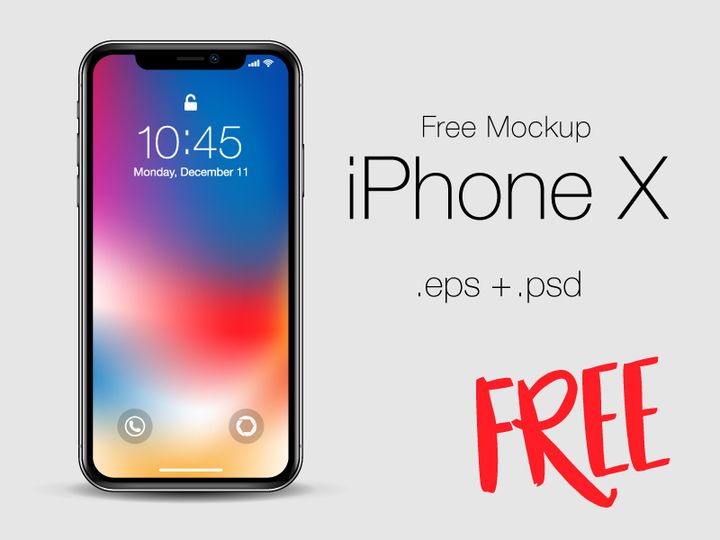
- Smartphone Screen Mockup: Allows designers to showcase app interfaces with one-click content replacement.
- Minimal Notebook Mockup: Ideal for stationery brands, with clean lines and easy customization.
EpicPxls highlights several high-quality free resources within the 21+ collection, proving that professional-grade mockups don’t always require a financial investment. These free picks are thoroughly vetted for compatibility, resolution, and usability—ensuring they deliver real value without compromise.
Illustrator vs Other Tools for Mockups
While several design tools support mockups, Illustrator offers a unique blend of precision, scalability, and integration that sets it apart. Unlike raster-based programs such as Photoshop, Illustrator’s vector foundation allows for infinite scaling without quality loss—critical when preparing mockups for print or high-resolution displays. This makes it particularly effective for logo presentations, brand guidelines, and packaging design, where consistency across sizes is essential.
Illustrator also excels in structured design workflows. Its advanced layer management, consistent artboard system, and support for reusable symbols streamline the process of building and modifying mockups. While other tools may offer quicker photo manipulation or 3D rendering, Illustrator provides superior control over typography, shapes, and alignment—elements that are fundamental in professional mockups. The ability to link external assets and update them globally across multiple artboards enhances efficiency, especially in large-scale branding projects.
Another advantage lies in format compatibility. Illustrator works seamlessly with EPS, PDF, and SVG files, making it easy to import and export mockup components across platforms. Smart object support—when paired with linked PSD files—allows for hybrid workflows where raster textures are managed externally while vector layouts remain in Illustrator. This flexibility ensures that designers aren’t locked into one file type or workflow.
EpicPxls carefully evaluates each of the 21+ resources for Illustrator-specific optimization. This means checking for proper layer naming, vector masking, and smart object functionality, ensuring every mockup performs reliably within the Illustrator ecosystem. While other tools have their strengths, Illustrator remains the top choice for designers who prioritize precision, scalability, and professional polish in their mockup presentations.
Setting Up Mockups in Illustrator
Getting started with mockups in Illustrator is straightforward when you follow a structured setup process. Whether you're working with a single template or managing a library of 21+ resources, proper organization ensures a smooth and efficient workflow. Below are six essential steps to import, configure, and use mockup files effectively.
- Download and Extract Files: Begin by downloading your chosen mockup from a trusted source like EpicPxls. Most packs come in ZIP format—extract them to a dedicated folder on your hard drive for easy access.
- Open the AI File in Illustrator: Launch Adobe Illustrator and use File > Open to navigate to your extracted mockup. Choose the main .AI file, which typically contains all artboards and layers.
- Locate Smart Object or Editable Layers: Once opened, explore the Layers panel. Look for folders labeled “Your Design Here,” “Replace This Layer,” or similar indicators. These usually contain smart objects or clipping masks where your artwork will be inserted.
- Insert Your Design: Double-click the smart object thumbnail to open it in a new tab. Paste or place your artwork, save, and return to the main file. Your design will automatically update in context.
- Adjust Positioning and Scaling: Use the Selection and Transform tools to fine-tune alignment. Hold Shift to maintain proportions and ensure your design fits naturally within the mockup scene.
- Export for Presentation: Once satisfied, export your final mockup via File > Export > Export As. Choose PNG for web use or PDF for print-ready deliverables. Use Artboards to export multiple views at once.
For designers managing large collections, consider creating a master folder labeled “Illustrator Mockups” with subfolders by category—such as Packaging, Apparel, and Stationery. This structure makes it easier to locate specific templates quickly. EpicPxls recommends saving frequently used mockups as templates (.AIT) to accelerate future projects. With consistent setup practices, even complex mockup workflows become fast and repeatable.
Illustrator Workflow Tips
Maximizing Illustrator’s capabilities goes beyond just using mockups—it’s about optimizing how you organize, process, and share your work. A well-structured workflow not only saves time but also improves the quality and consistency of your final presentations. Here are three key areas to focus on for a smoother mockup experience.
Organizing Mockups Libraries
Create a centralized library structure on your local drive or cloud storage. Use clear naming conventions such as “Apparel_Mockup_TShirt_Front.ai” to make files searchable. Within Illustrator, leverage the Libraries panel (Window > Libraries) to store commonly used colors, logos, and mockup components. This allows you to drag and drop assets across projects without reopening files. EpicPxls’ 21+ resources are designed with consistent naming and layering, making them easy to integrate into any library system.
Batch Operations
When working with multiple mockups, use Actions (Window > Actions) to automate repetitive tasks. Record steps like “Place Design,” “Resize to Fit,” and “Export as PNG” to apply them across dozens of files with a single click. Combine this with Adobe Bridge for batch renaming and metadata tagging. This is particularly useful when generating product catalogs or client presentation decks where uniformity is key.
Collaboration Best Practices
When sharing Illustrator mockup files with team members or clients, always package the project (File > Package) to include fonts, linked images, and instructions. Use layer visibility and color-coding to guide collaborators through complex files. For remote teams, consider exporting mockups as PDFs with multiple artboards for easy review. EpicPxls ensures all 21+ resources come with clear documentation and organized layers, reducing back-and-forth and improving team efficiency. By following these workflow tips, you’ll transform mockup creation from a tedious task into a streamlined, professional process.
Why Download from EpicPxls?
Commercial License
Use in personal and commercial projects
No Account Required
Download free resources instantly
Quality Curated
Every resource is reviewed for quality
Preview Files
See Figma and Photoshop files before downloading
Who Uses These Mockups?
Professionals and teams who benefit most from our collection
UI/UX Designers
Speed up your workflow with ready-to-use mockups for Illustrator. Perfect for prototyping and client presentations.
Developers
Get production-ready assets without design skills. Export in any format for web and mobile apps.
Startups & Agencies
Save design budget with affordable premium mockups. Commercial license included.
Marketing Teams
Create professional campaigns faster. All mockups are optimized for social media and ads.
Mockups for Illustrator FAQCommon questions about these resources
Simple, Transparent Pricing
Get unlimited access to all premium resources
Yearly
- 20 downloads per month
- All file formats
- Commercial license
Lifetime
- Unlimited downloads forever
- All file formats
- Commercial license
Ready to Get Started?
Access 4,442+ free design resources today.
Browse Free ResourcesView Premium PlansEarn 85% and
more on all sales
Upload your products and put them up
for sale at whatever price you want.


