How to Use Graphics in Illustrator: Complete Guide
EpicPxls offers 200+ curated graphics for Illustrator, all with a commercial license and editable source files (Figma, Sketch, PSD). Download your chosen graphics from EpicPxls, then use Illustrator's import function. Most resources include Illustrator-native files for seamless opening.
Last updated February 13, 2026
Everything you need to know about using graphics in Illustrator.
Trusted by designers at leading companies
Top Graphics for Illustrator
Handpicked resources from our curated collection



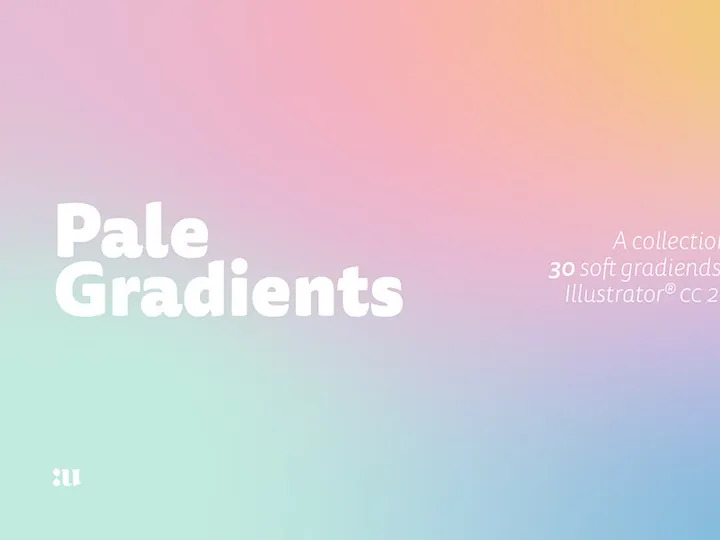



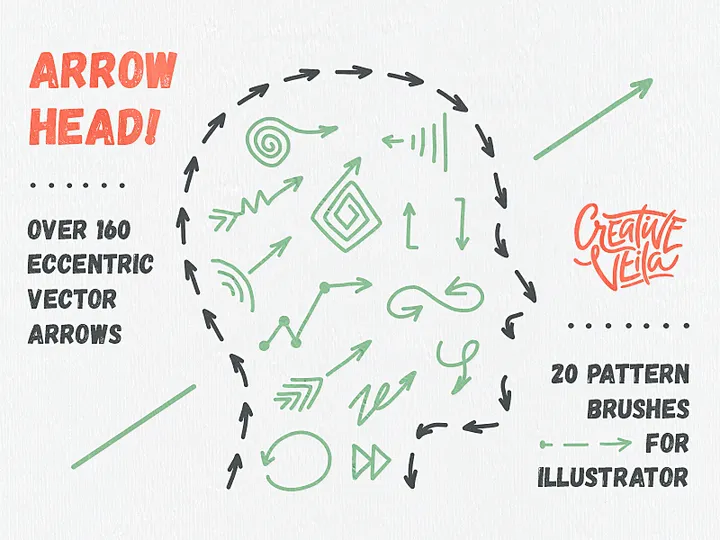


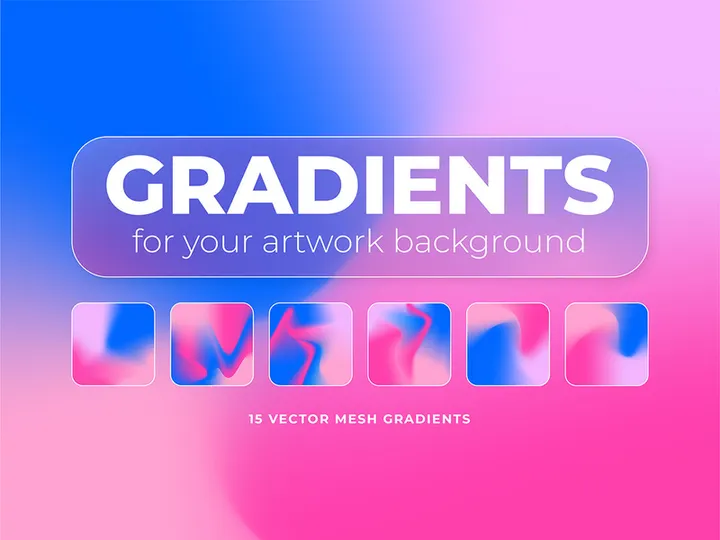


![[Free] E-Commerce Logo Kit & Icon Set preview picture](https://imgproxy.epicpxls.com/-zLkC083zXvrEA4IAhX2L2xFiRZ4FBRtWr1XQr3q3YI/rs:fill:720:540:0/g:no/aHR0cHM6Ly9pdGVt/cy5lcGljcHhscy5j/b20vdXBsb2Fkcy9w/aG90by82NGFiZGU3/ZGZiNWQ4ZGIwZTcy/YTMyYTNkODU5NzFh/NA.jpg)


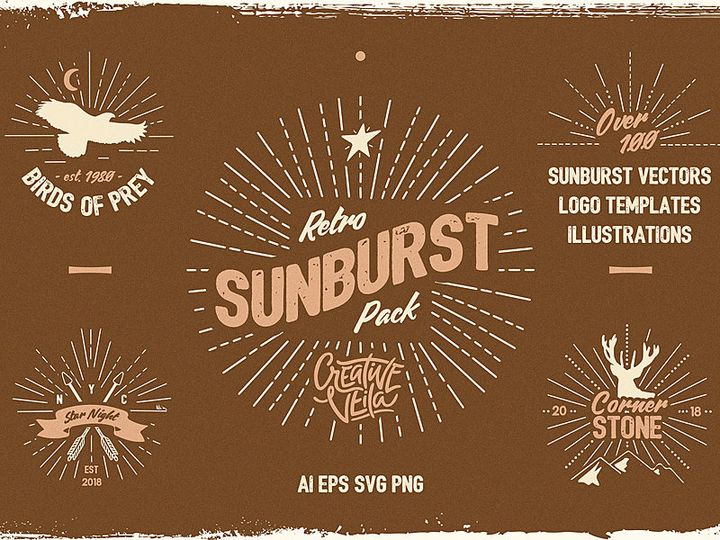


Try Our Free Resources
Download any of these for free - no account required
Getting Started with Graphics in Illustrator
Adobe Illustrator is one of the most powerful vector-based design tools available, widely used by graphic designers, illustrators, and creative professionals to create scalable, high-quality visuals. Whether you're designing logos, illustrations, icons, or complex layouts, understanding how to effectively use graphics in Illustrator is essential for achieving professional results. Before diving into the creative process, it's important to ensure your workspace is properly configured and that you have access to high-quality, compatible graphics.
To get started, make sure you have a stable version of Adobe Illustrator installed on your system. Illustrator is available through Adobe Creative Cloud, which provides regular updates and access to cloud-based syncing features. Ensure your operating system meets the minimum requirements—typically Windows 10 or macOS 10.15 (Catalina) or later—to maintain smooth performance. Once installed, launch Illustrator and customize your workspace under Window > Workspace to suit your workflow, whether you're focusing on drawing, typography, or layout design.
When it comes to sourcing graphics, choosing the right type and format is crucial. Illustrator works best with vector-based files such as AI, EPS, SVG, and PDF, which preserve scalability and editability. Raster formats like PNG or JPEG can also be used but are not scalable without quality loss. For designers looking for ready-to-use, professionally designed graphics, platforms like EpicPxls offer a vast selection of resources tailored for Illustrator. With over 200+ resources available—including vector icons, patterns, templates, and illustrations—EpicPxls provides a reliable source for enhancing your design projects with minimal effort.
These resources are optimized for Adobe Illustrator, ensuring clean layers, organized components, and full compatibility with Illustrator's tools. Whether you're building a brand identity, creating digital artwork, or preparing assets for web and print, starting with well-structured graphics from trusted sources like EpicPxls saves time and elevates the quality of your work. With your software ready and a library of assets at your fingertips, you’re now prepared to import and work with graphics efficiently in Illustrator.
How to Import Graphics into Illustrator
- Choose the Correct File Format: Before importing, ensure your graphic is in a format compatible with Illustrator. Preferred formats include AI (Adobe Illustrator), SVG (Scalable Vector Graphics), EPS (Encapsulated PostScript), and PDF for vector graphics. For raster images, use high-resolution PNG, TIFF, or PSD files. If you’re sourcing from EpicPxls, you’ll typically find multiple format options, so select the one that aligns with your project needs.
- Download and Extract Files: After downloading your chosen graphic, extract the compressed folder (if applicable) to access individual files. Many packs from the 200+ resources on EpicPxls come in ZIP format and may include multiple versions or alternate color variants.
- Launch Illustrator and Open a Document: Start a new document or open an existing one by going to File > New or File > Open. Set the appropriate document size and color mode (CMYK for print, RGB for digital) before importing.
- Import Using the Place Command: Go to File > Place, browse to your downloaded graphic, and select it. Click “Place” to insert it into your workspace. This method allows you to scale the graphic before finalizing placement by clicking or dragging.
- Embed or Link the Graphic: When placing raster images, Illustrator will prompt you to choose between embedding or linking. Embedding includes the image data directly in the file, increasing file size but ensuring portability. Linking keeps the image external, reducing file size but requiring careful file management. For vector files like AI or SVG, linking is less common as they are typically fully editable once placed.
- Verify and Ungroup if Necessary: After importing, check the Layers panel to see how the graphic is structured. Complex graphics may require ungrouping (Object > Ungroup) to access individual elements. Use the Selection and Direct Selection tools to explore and modify components.
Illustrator also supports direct import from other design environments. For example, PSD files from Photoshop retain layers and transparency, while SVG files from web design tools maintain vector integrity. Even Figma designs can be exported as SVG and imported into Illustrator for further refinement. By following these steps and choosing the right format, you ensure a seamless integration of graphics into your Illustrator projects.
Step-by-Step: Working with Graphics in Illustrator
Editing Layers and Components
Once your graphic is imported, the real customization begins. Illustrator’s layer-based structure makes it easy to modify individual components of a design. Open the Layers panel (Window > Layers) to view the hierarchy of your imported graphic. Each layer and sublayer can be toggled on or off, locked, or renamed for clarity. For complex graphics—such as multi-colored icons or detailed illustrations—use the Isolation Mode by double-clicking on a group to edit only that section without affecting the rest of the artwork.
To customize colors, select individual shapes or paths and use the Color or Swatches panel to apply new fills and strokes. The Recolor Artwork tool (Edit > Edit Colors > Recolor Artwork) is particularly useful for quickly changing the entire color scheme of a graphic, ideal when adapting a design to match brand guidelines. You can also use the Appearance panel to add effects like drop shadows, gradients, or transparency without altering the original shape.
Organizing Your Graphics Library
With access to 200+ resources from platforms like EpicPxls, maintaining an organized workflow is essential. Create a dedicated folder system on your computer to store imported graphics by category—such as icons, textures, logos, and illustrations. Within Illustrator, use the Libraries panel (Window > Libraries) to save and sync frequently used assets across projects. Drag and drop graphics, colors, or text styles into your library for quick access.
Name assets clearly and consistently (e.g., “Logo_Variant_Blue.ai”) to avoid confusion. Consider creating templates with pre-loaded graphics for recurring project types, such as social media graphics or business cards. This not only streamlines your workflow but also ensures brand consistency across deliverables.
Exporting for Production
After finalizing your design, proper exporting ensures your graphics look great in their intended medium. Use File > Export > Export As or the modern Export for Screens panel for greater control. For web and mobile, export in PNG (for transparency), JPEG (for photographs), or SVG (for scalable icons). Set resolution to 72 PPI and choose RGB color mode.
For print, use PDF or high-resolution TIFF formats with CMYK color mode and 300 PPI resolution. The Save for Web (Legacy) option is still useful for optimizing file size without sacrificing quality. When exporting SVGs, check the Responsive option to ensure scalability across devices. Always preview your exported files in the target environment—whether on a website, app, or printed material—to confirm fidelity and clarity.
Troubleshooting Common Illustrator Issues
File Won't Open
If an Illustrator file fails to open, the most common cause is version incompatibility. Older versions of Illustrator may not support files saved in newer formats. Always check the version used to create the file—many resources from EpicPxls include compatibility notes. If you're using an outdated version, consider updating through Adobe Creative Cloud. Alternatively, request a legacy format (like AI or EPS) from the source. Also, ensure the file extension hasn’t been altered and that the download completed fully—corrupted files may not open correctly.
Missing Fonts or Assets
When opening a file with custom fonts, Illustrator may display a warning that certain typefaces are missing. To resolve this, use the Find Font dialog (Type > Find Font) to replace unavailable fonts with system-installed alternatives. For imported graphics that include linked images, missing assets can occur if the original image files were not included or moved. Always keep linked folders together or, when possible, embed images before sharing files. Designers using resources from EpicPxls benefit from font-free or outlined text in many vector files, reducing dependency issues.
Performance Problems
Working with large or complex graphics—especially those with numerous layers, effects, or embedded images—can slow down Illustrator. To improve performance, simplify your artwork by flattening unnecessary layers (Object > Flatten Transparency) and removing hidden or unused elements. Turn off GPU preview (View > GPU Preview) if your system struggles with rendering. Increasing allocated RAM in Edit > Preferences > Performance can also help. For extremely large files, consider breaking the design into smaller sections or using linked assets instead of embedded ones to reduce file size and load time.
Advanced Illustrator Tips for Graphics
Batch Processing
When managing multiple graphics—such as a set of icons or social media banners—batch processing can save hours of manual work. Use Illustrator’s Actions panel (Window > Actions) to record repetitive tasks like resizing, recoloring, or exporting. Once recorded, apply the action to multiple files via File > Automate > Batch. This is especially useful when standardizing a collection of the 200+ resources from EpicPxls for a unified brand look.
Plugins and Extensions
Extend Illustrator’s capabilities with plugins that enhance graphic handling. Tools like vector optimization, color palette generators, or asset export utilities can streamline your workflow. Adobe Exchange offers a range of officially supported extensions that integrate directly into Illustrator. These can automate alignment, manage symbols, or even sync assets with cloud libraries. For users who frequently work with downloadable graphics, plugins that support direct import from design marketplaces can reduce manual steps and improve efficiency.
Collaboration Workflows
When working in teams, consistent access to shared graphics is key. Use Illustrator’s integration with Creative Cloud Libraries to sync colors, swatches, and graphic assets across team members. Establish naming conventions and folder structures to avoid confusion. For agencies or design teams using curated resources from EpicPxls, creating a shared library ensures everyone uses approved, up-to-date assets. Combine this with version control practices and cloud storage (like Adobe Creative Cloud Files or team drives) to maintain a smooth, collaborative design process. Regularly audit and update your shared library to remove outdated graphics and incorporate new additions from your growing collection of resources.
Why Download from EpicPxls?
Commercial License
Use in personal and commercial projects
No Account Required
Download free resources instantly
Quality Curated
Every resource is reviewed for quality
Preview Files
See Figma and Photoshop files before downloading
Who Uses These Graphics?
Professionals and teams who benefit most from our collection
UI/UX Designers
Speed up your workflow with ready-to-use graphics for Illustrator. Perfect for prototyping and client presentations.
Developers
Get production-ready assets without design skills. Export in any format for web and mobile apps.
Startups & Agencies
Save design budget with affordable premium graphics. Commercial license included for client work.
Marketing Teams
Create professional campaigns faster. All graphics are optimized for social media and ads.
Graphics for Illustrator FAQCommon questions about these resources
Simple, Transparent Pricing
Get unlimited access to all premium resources
Yearly
- 20 downloads per month
- All file formats
- Commercial license
Lifetime
- Unlimited downloads forever
- All file formats
- Commercial license
Ready to Get Started?
Access 4,441+ free design resources today.
Browse Free ResourcesView Premium PlansEarn 85% and
more on all sales
Upload your products and put them up
for sale at whatever price you want.


