How to Use Templates in Illustrator: Complete Guide
EpicPxls offers 200+ curated templates for Illustrator, all with a commercial license and editable source files (Figma, Sketch, PSD). Download your chosen templates from EpicPxls, then use Illustrator's import function. Most resources include Illustrator-native files for seamless opening.
Last updated February 13, 2026
Everything you need to know about using templates in Illustrator.
Trusted by designers at leading companies
Top Templates for Illustrator
Handpicked resources from our curated collection

![Hang Tag Template Set [Free Download] preview picture](https://imgproxy.epicpxls.com/aAweHrJ1cfiiBNiWURsvMQyTQyNPSMQRqWTGfNhuNBQ/rs:fill:720:540:0/g:no/aHR0cHM6Ly9pdGVt/cy5lcGljcHhscy5j/b20vdXBsb2Fkcy9w/aG90by8zMDlkNmQy/NjhiMWE3YTdkY2Vj/YWY4MmJlYmEyNTM1/Mg.jpg)

![[FREE] Onboarding for online shop delivery service preview picture](https://imgproxy.epicpxls.com/M_5MpVYHZDRFeGdqajq8UNekveEuq0mtVCUFQ9TSayA/rs:fill:720:540:0/g:no/aHR0cHM6Ly9pdGVt/cy5lcGljcHhscy5j/b20vdXBsb2Fkcy9w/aG90by8xMzE0OTI4/NGE0ZjI1ODFjMWNl/NWUwMDg1MjAxNjIy/NA.jpg)




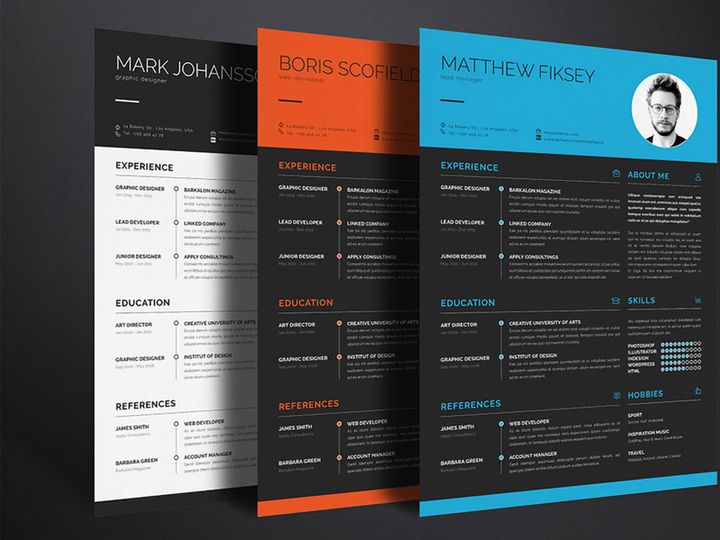
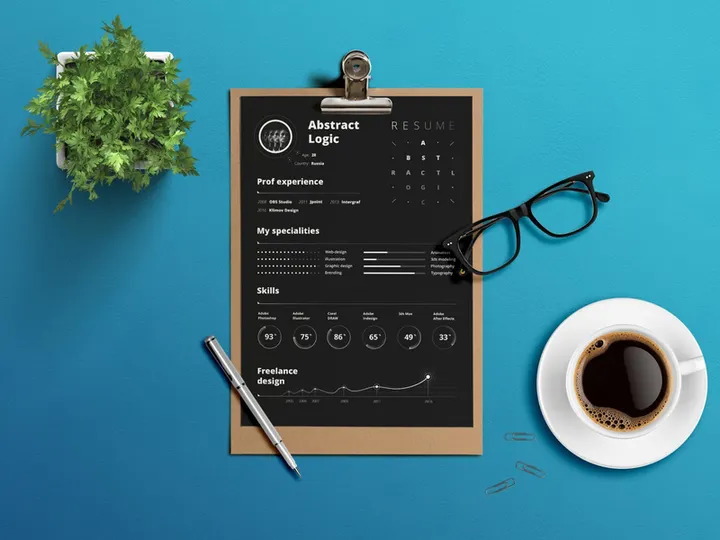
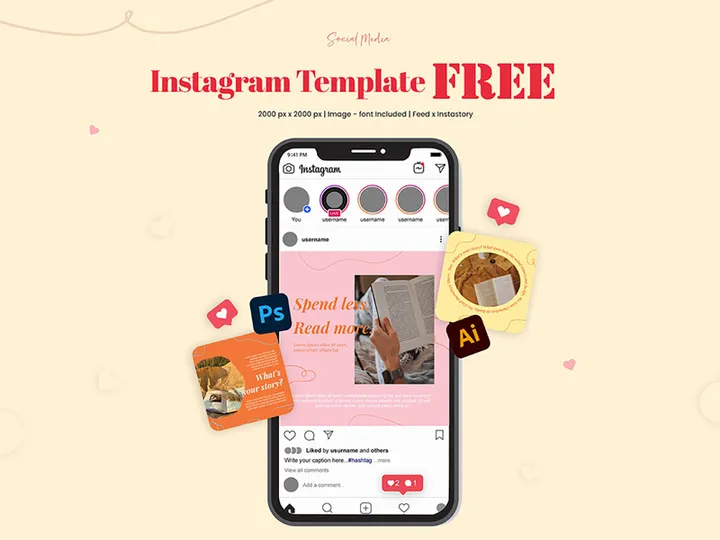

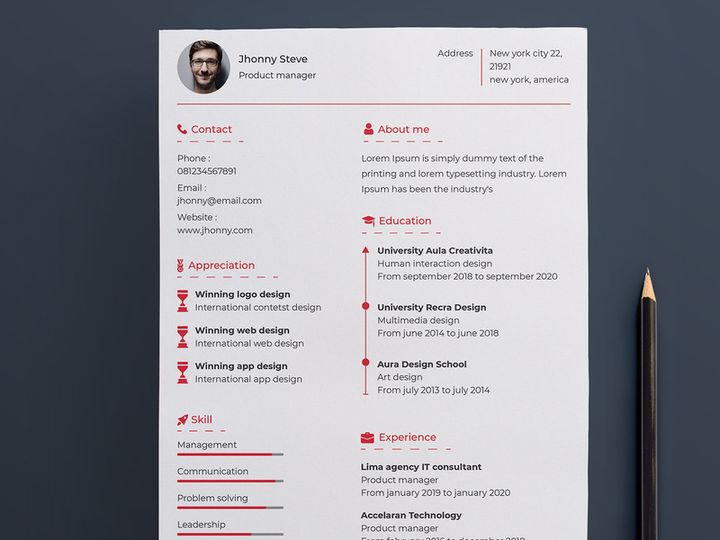




Try Our Free Resources
Download any of these for free - no account required
![Hang Tag Template Set [Free Download]](https://items.epicpxls.com/uploads/photo/e8ddab0598931d6a0a9bc5c5a085738a)
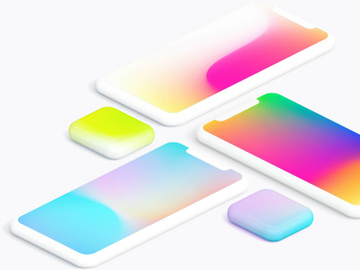
![[FREE] Onboarding for online shop delivery service](https://items.epicpxls.com/uploads/photo/0794b75327ba5f3bc3258ab3ec07512a)
Getting Started with Templates in Illustrator
Adobe Illustrator is a powerful vector graphics editor widely used by designers, illustrators, and creative professionals to produce scalable artwork for print, web, and mobile applications. One of the most efficient ways to accelerate your design workflow is by using templates. Templates provide pre-built layouts, color schemes, typography, and design elements that you can quickly customize, saving time and maintaining consistency across projects. Whether you're designing logos, social media graphics, or print materials, templates serve as an excellent starting point.
Before diving into templates, ensure you have the latest version of Adobe Illustrator installed and activated on your system. Illustrator is available through Adobe Creative Cloud, which also provides automatic updates, cloud storage, and integration with other Adobe apps. A stable internet connection is recommended, especially when downloading larger template files or syncing cloud-based assets. Make sure your system meets the minimum requirements for running Illustrator smoothly, including sufficient RAM and GPU support for handling complex vector files.
Templates compatible with Illustrator come in various formats, including native .AI files, .SVG, .PDF, and layered .PSD files. You can find high-quality, professionally designed templates from trusted sources such as EpicPxls, which offers a curated library of over 200 resources tailored for Illustrator users. These 200+ resources span multiple categories such as branding kits, social media templates, business cards, and UI design frameworks. Each template is crafted with scalability and editability in mind, making them ideal for both beginners and experienced designers. With EpicPxls, you can easily search, preview, and download templates that align with your project needs, ensuring compatibility and quality right from the start.
Using templates not only enhances productivity but also helps maintain design consistency, especially when working on brand-related projects. Whether you're creating a single flyer or managing a full marketing campaign, integrating templates into your Illustrator workflow can dramatically reduce repetitive tasks and design errors.
How to Import Templates into Illustrator
- Choose the Right Template Format: Begin by downloading a template that is compatible with Illustrator. The ideal format is .AI (Adobe Illustrator), but .SVG, .PDF, and layered .PSD files also work well. If you're sourcing from EpicPxls, most templates are available in multiple formats, allowing you to pick the one that suits your workflow.
- Download the Template File: After selecting your desired template, download it to your preferred location—usually your Downloads or Projects folder. Ensure the file is fully downloaded and not corrupted during transfer.
- Launch Adobe Illustrator: Open Illustrator and go to File > Open. Navigate to the folder where you saved the template file and select it. For .ZIP files (common when templates include multiple assets), extract the contents first before opening.
- Review File Compatibility: If the file was created in a newer version of Illustrator, you may receive a warning. While you can still open it, some features might not render correctly. Whenever possible, use the same or a newer Illustrator version than the one used to create the template.
- Handle Non-AI Files: For PSD (Photoshop) files, Illustrator will prompt you with import options. Choose to preserve layers and text to maintain editability. For SVG files, ensure that embedded raster images are properly linked and scalable elements remain vector-based.
- Verify Template Integrity: Once opened, inspect the Layers panel to ensure all elements are present. Check for missing fonts, broken links, or flattened layers. If the template includes assets like images or icons, confirm that all external files are linked or embedded correctly.
Pro tip: When working with Figma or Sketch templates, use export plugins or converters to generate SVG or PDF versions before importing into Illustrator. While direct import isn’t supported, these formats preserve most of the design structure. Always review imported templates thoroughly to ensure alignment, color accuracy, and layer organization before beginning customization.
Step-by-Step: Working with Templates in Illustrator
Editing Layers and Components
Once a template is successfully imported, the next step is customization. Illustrator’s Layers panel is essential for navigating and modifying template components. Most well-structured templates—especially those from EpicPxls—use clearly labeled layers and sub-layers, making it easy to locate text, shapes, icons, and background elements. Start by locking layers you don’t intend to edit to avoid accidental changes.
To edit text, simply select the Type tool and click on any text box. Update headlines, body copy, or contact information to match your project. If fonts are missing, Illustrator will alert you and suggest alternatives. You can replace them manually or install the original fonts for accurate rendering. For vector shapes, use the Selection or Direct Selection tool to adjust colors, resize elements, or modify anchor points. Right-click on color swatches in the template to reassign them using global colors for consistent branding.
Templates often include smart objects or symbols, especially in UI and web design kits. Double-click to edit a symbol globally, and all instances will update automatically. This is particularly useful for buttons, icons, and recurring interface elements. Always group related elements and name layers descriptively to keep your file organized as you make changes.
Organizing Your Templates Library
With access to 200+ resources and the potential to accumulate even more, maintaining an organized templates library is crucial. Create a dedicated folder on your local drive or cloud storage (e.g., Adobe Creative Cloud Files, Google Drive) labeled “Illustrator Templates.” Inside, use subfolders to categorize templates by project type—such as “Social Media,” “Print,” “Logos,” or “UI Kits.”
Consider maintaining a master spreadsheet or text file that lists each template, its source (e.g., EpicPxls), file name, version, and usage rights. This helps prevent duplication and ensures compliance with licensing terms. For frequently used templates, save customized versions as “Template – [Project Name]” to preserve the original for future use.
Additionally, use Illustrator’s Libraries panel (Window > Libraries) to store reusable assets like logos, color palettes, and graphic elements pulled from templates. These cloud-synced libraries can be accessed across devices and even shared with team members, streamlining future design tasks.
Exporting for Production
After customizing your template, the final step is exporting it in the appropriate format for its intended use. Illustrator offers a range of export options under File > Export > Export As or Export for Screens for multiple assets.
For web and mobile use, export as PNG (for transparency and high quality), JPEG (for photographs), or SVG (for scalable vector graphics). Use the Export for Screens feature to generate multiple sizes (1x, 2x) for responsive design. Ensure color mode is set to RGB and resolution is at least 72 PPI.
For print materials like brochures or business cards, use PDF (Preserve Illustrator Editing Capabilities) with CMYK color mode and 300 PPI resolution. Include crop marks and bleed if required by your printer. You can also export as high-resolution TIFF for raster-based printing needs.
Always perform a test export and preview the file in its intended environment—whether on a website, mobile app, or printed proof—to confirm colors, alignment, and clarity. Keep a record of export settings for consistency across similar projects.
Troubleshooting Common Illustrator Issues
File Won't Open
If a template fails to open in Illustrator, the most common cause is version incompatibility. Older versions of Illustrator cannot always open files saved in newer formats. To resolve this, check the file’s version metadata or ask the provider (like EpicPxls) for a backward-compatible version. Alternatively, use Adobe’s online file converter or open the file on a machine with a newer Illustrator version and resave it in an older format (e.g., Illustrator 2010).
Another issue is file corruption during download. Re-download the template and verify the file size matches the expected size. If the file is in .ZIP format, use a reliable extraction tool to avoid incomplete unzipping.
Missing Fonts or Assets
When opening a template, Illustrator may display a warning about missing fonts. Click on the Find Font option in the dialog to replace them with available fonts. To preserve the original look, download and install the recommended fonts—many are available through Adobe Fonts, Google Fonts, or the template provider’s documentation.
If images or linked assets are missing, go to Window > Links to see broken links. Re-link each asset by browsing to its original location or re-downloading the full template package. Some templates from the 200+ resources on EpicPxls include embedded assets, which minimizes this issue.
Performance Problems
Large templates with numerous layers, high-res images, or complex vector paths can slow down Illustrator. To improve performance, simplify paths where possible using Object > Path > Simplify. Rasterize complex effects or shadows if they don’t require vector editing. Close unused documents and increase Illustrator’s memory usage via Edit > Preferences > Performance.
Consider breaking large templates into smaller components or using Artboards to manage different sections separately. Regularly save and restart Illustrator to clear cache and prevent crashes.
Advanced Illustrator Tips for Templates
Batch Processing
When working with multiple template-based designs—such as a series of social media posts or product labels—use Illustrator’s Actions panel (Window > Actions) to automate repetitive tasks. Record actions like resizing artboards, applying effects, or exporting in specific formats. Then, apply these actions to multiple files using File > Automate > Batch. This saves significant time, especially when handling the 200+ resources available through curated platforms like EpicPxls.
Plugins and Extensions
Enhance your template workflow with Illustrator plugins. Tools like VectorScribe, Phantasm, and Fontself offer advanced vector editing, color adjustment, and font creation capabilities. Many are available through the Adobe Exchange marketplace. For template users, plugins that support batch renaming, layer organization, and export presets can drastically improve efficiency. Some templates from EpicPxls are optimized to work seamlessly with popular extensions, providing a smoother customization experience.
Collaboration Workflows
For teams using shared templates, collaboration is key. Use Adobe Creative Cloud Libraries to sync colors, graphics, and text styles across team members. Set up a shared folder structure where approved templates are stored and version-controlled. When multiple designers work on the same template, establish naming conventions and layer organization standards to minimize confusion.
Consider using File > Package to bundle a template with all its fonts, links, and assets before sharing. This ensures that collaborators receive a complete, ready-to-edit file. For remote teams, cloud storage integration with Illustrator allows real-time updates and feedback, making it easier to maintain consistency across large-scale projects.
Why Download from EpicPxls?
Commercial License
Use in personal and commercial projects
No Account Required
Download free resources instantly
Quality Curated
Every resource is reviewed for quality
Preview Files
See Figma and Photoshop files before downloading
Who Uses These Templates?
Professionals and teams who benefit most from our collection
UI/UX Designers
Speed up your workflow with ready-to-use templates for Illustrator. Perfect for prototyping and client presentations.
Developers
Get production-ready assets without design skills. Export in any format for web and mobile apps.
Startups & Agencies
Save design budget with affordable premium templates. Commercial license included.
Marketing Teams
Create professional campaigns faster. All templates are optimized for social media and ads.
Templates for Illustrator FAQCommon questions about these resources
Simple, Transparent Pricing
Get unlimited access to all premium resources
Yearly
- 20 downloads per month
- All file formats
- Commercial license
Lifetime
- Unlimited downloads forever
- All file formats
- Commercial license
Ready to Get Started?
Access 4,442+ free design resources today.
Browse Free ResourcesView Premium PlansEarn 85% and
more on all sales
Upload your products and put them up
for sale at whatever price you want.


