How to Use Apps in Figma: Complete Guide
EpicPxls offers 132+ curated apps for Figma, all with a commercial license and editable source files (Figma, Sketch, PSD). Download your chosen apps from EpicPxls, then use Figma's import function. Most resources include Figma-native files for seamless opening.
Last updated February 13, 2026
Everything you need to know about using apps in Figma.
Trusted by designers at leading companies
Top Apps for Figma
Handpicked resources from our curated collection


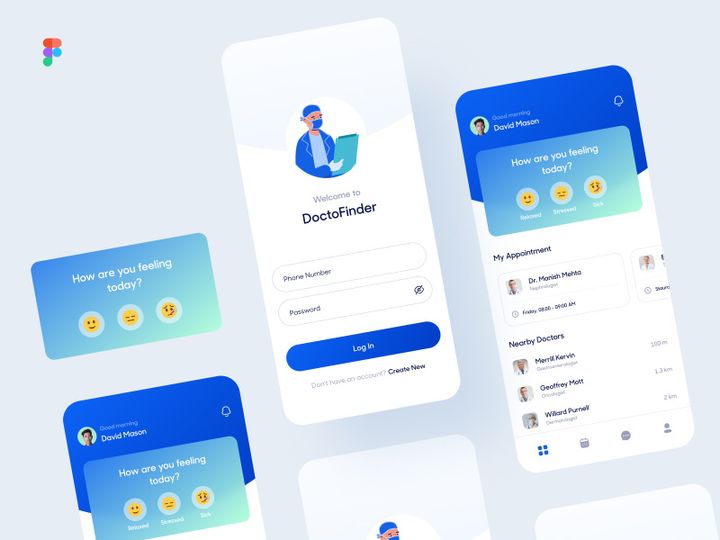
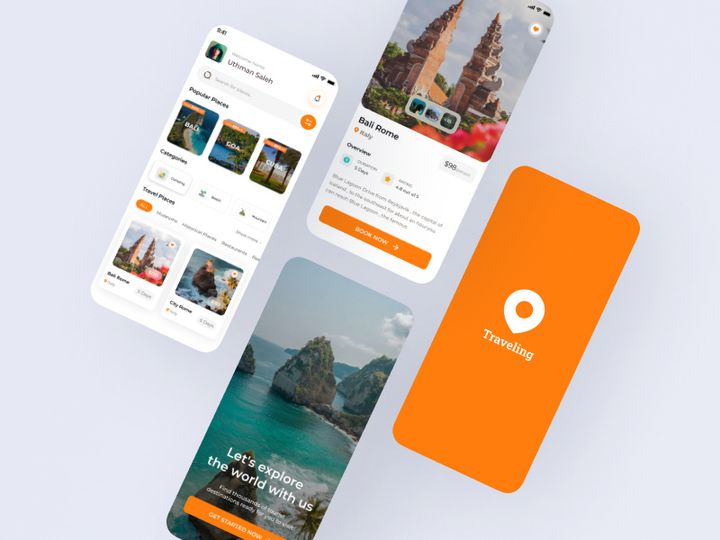
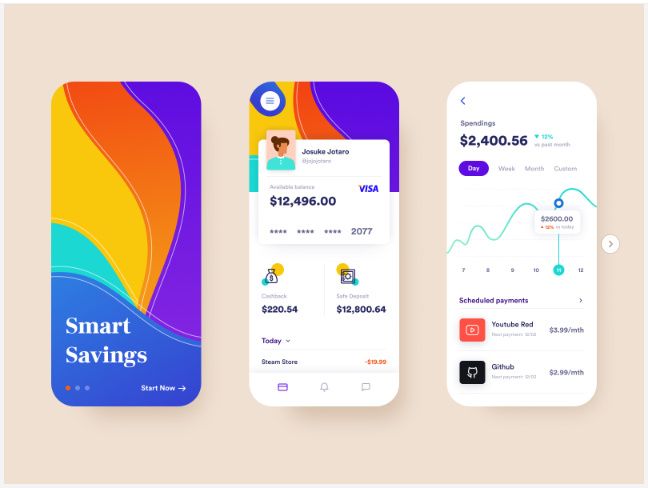
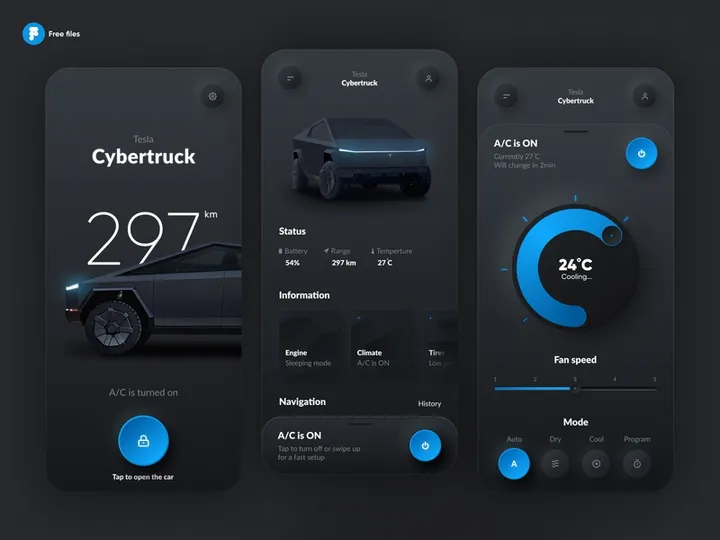
![Rockit (E-Scooter Dashboard) [FREE] preview picture](https://imgproxy.epicpxls.com/7NYMX9X-kXgx6FfJno8WU8ZpmBjySOWMLxrZGcsyoOM/rs:fill:720:540:0/g:no/aHR0cHM6Ly9pdGVt/cy5lcGljcHhscy5j/b20vdXBsb2Fkcy9w/aG90by85ODgzOWY0/ZmY0OTk4NWJhNDNi/MzkyZjgxM2IzZmM5/Mw.jpg)
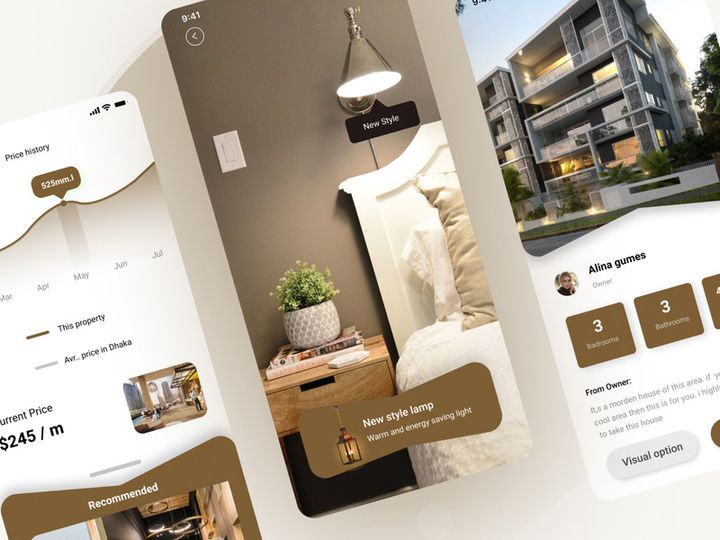
![[Freebie] Covid-19 Information App preview picture](https://imgproxy.epicpxls.com/9mwt9FL0DcIbfjFqg_ESHtAeZvR7NHlaywoWNeEyc3c/rs:fill:720:540:0/g:no/aHR0cHM6Ly9pdGVt/cy5lcGljcHhscy5j/b20vdXBsb2Fkcy9w/aG90by85YzlkMjUx/YTIxOGI1ZTI3MmI5/MGZkYWVhNmUwZjk2/Zg.jpg)
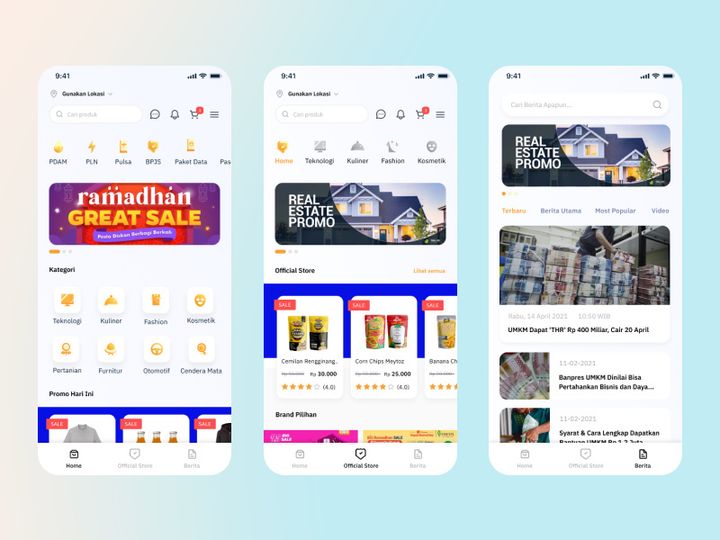
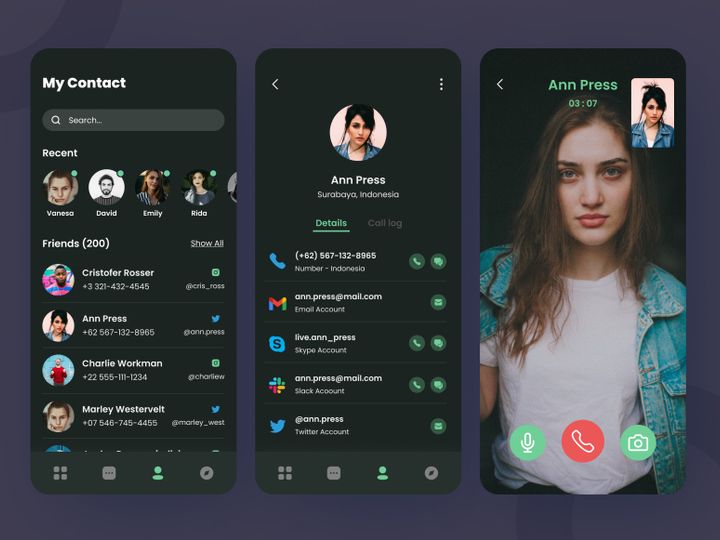

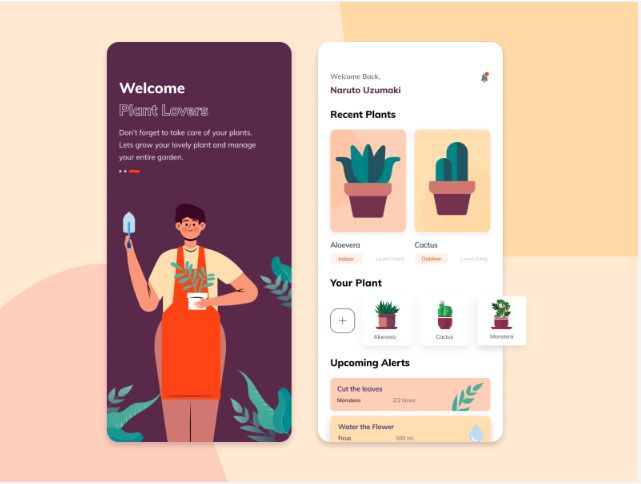

![NFT App Design [Figma] preview picture](https://imgproxy.epicpxls.com/KLwXAfyMC-wb9lxWtKUxdZqn8-LfEpXHKIVnIeCSbto/rs:fill:720:540:0/g:no/aHR0cHM6Ly9pdGVt/cy5lcGljcHhscy5j/b20vdXBsb2Fkcy9w/aG90by8zNTZhZTli/MDY3MjgyOWE5NjJl/ZTU4ZTc5NGY1N2Y3/YQ.jpg)


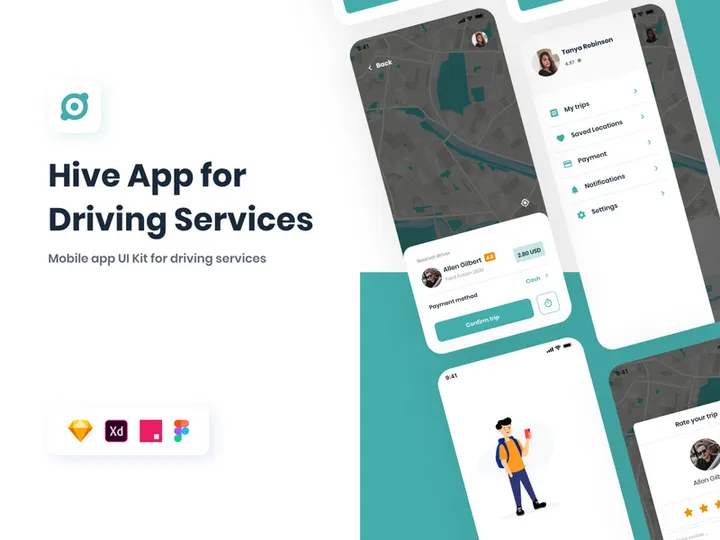
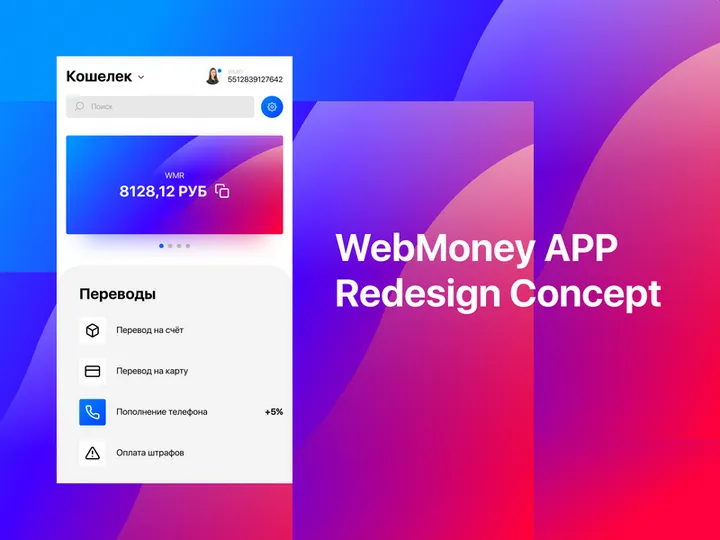
Try Our Free Resources
Download any of these for free - no account required
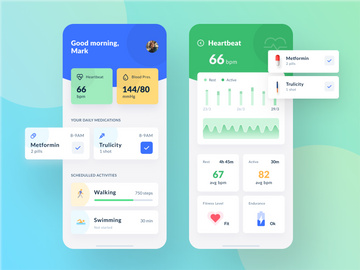
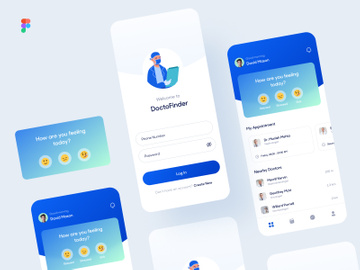
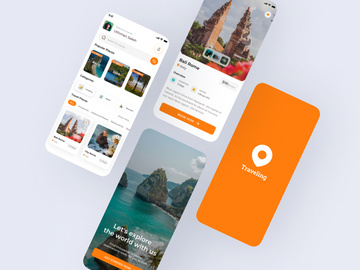
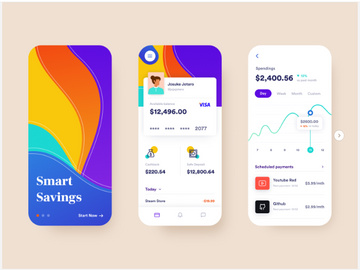
Getting Started with Apps in Figma
Integrating apps into your Figma design workflow can significantly boost productivity, streamline collaboration, and enhance the visual quality of your projects. Before diving into the world of Figma apps, it’s essential to ensure you have the right setup. First, you’ll need a Figma account—either a free personal plan or a professional team plan, both of which support app integration. Access Figma through the web at figma.com or download the desktop app for macOS and Windows for faster performance and offline capabilities. A stable internet connection is recommended, especially when syncing team libraries or loading large app-based resources.
Once your environment is ready, the next step is discovering apps compatible with Figma. Unlike standalone applications, “apps” in Figma typically refer to ready-made design resources, UI kits, templates, or plugin-powered tools that enhance functionality. These resources can be found directly in the Figma Community, through design marketplaces, or specialized platforms like EpicPxls, which curates high-quality, Figma-optimized assets. With over 131+ resources available across categories like mobile apps, dashboards, and SaaS interfaces, EpicPxls is a trusted destination for designers seeking production-ready components and design systems.
These Figma-compatible apps are typically shared as .fig files or embedded via Figma Community links, making them easy to import directly into your projects. Many include interactive components, auto-layout features, and variant-based structures that align with modern design practices. Whether you're building a prototype from scratch or refining an existing interface, leveraging these pre-built apps allows you to focus more on innovation and less on repetitive tasks. With access to 131+ resources on platforms like EpicPxls, you’ll find everything from dark-mode UI kits to onboarding flows and animated micro-interactions—all designed to integrate seamlessly within Figma’s ecosystem.
How to Import Apps into Figma
- Create a New or Open an Existing Figma Project: Log in to your Figma account and navigate to your dashboard. Either start a new file or open an existing design project where you want to integrate the app resource.
- Download the App Resource: Visit a trusted source like EpicPxls and locate the app or UI kit you'd like to use. Ensure the download option specifies Figma compatibility—usually available as a .fig file. Avoid formats like PSD or AI unless you plan to convert them, as they require additional steps.
- Import the .fig File: In your Figma project, click “File” in the top-left menu, then select “Import…” from the dropdown. Choose the downloaded .fig file from your device. Figma will process and embed the content directly into your current file or open it in a new tab, depending on your selection.
- Handle Alternative File Types: If you're working with SVG, PSD, or AI files, Figma supports basic import functionality. However, complex layer structures or effects may not translate perfectly. For SVGs, ensure they're optimized and use simple paths. For Adobe formats, consider converting key elements to vector paths before importing to preserve scalability.
- Verify Embedded Components: Once imported, open the Layers panel to inspect the structure. Check for organized groups, named components, and auto-layout settings. Well-designed Figma apps from sources like EpicPxls typically include clear naming conventions and component variants for easy access.
- Link to a Team Library (Optional): If you're working with a team, consider publishing the imported app components as a shared library. Go to “Assets” > “Libraries,” enable the file, and invite team members. This allows centralized updates and consistent usage across multiple projects.
By following these steps, you ensure a smooth integration of external apps into your Figma environment. Always verify that the file version matches your Figma app version to avoid compatibility glitches, and check for any embedded fonts or image dependencies that may need re-linking after import.
Step-by-Step: Working with Apps in Figma
Editing Layers and Components
Once an app resource is imported into Figma, customization is straightforward thanks to Figma’s robust component and variant system. Begin by exploring the Layers panel to understand how the app is structured—most well-designed resources separate screens, components, and states into logical groups. Select any UI element, such as a button or card, and double-click to enter isolation mode for focused editing.
To modify a component, right-click and choose “Detach Instance” if you want to break the link and make unique changes. However, for consistent design updates, consider editing the main component in the “Assets” panel. This ensures all instances across your file update automatically. Use the Properties panel on the right to adjust colors, typography, padding, and corner radii. If the app includes variants (e.g., different button states or input fields), leverage the component properties panel to toggle between states without manual duplication.
Auto-layout is often pre-applied in high-quality Figma apps, especially those from EpicPxls. This allows buttons to resize dynamically with text changes or lists to expand vertically as items are added. You can edit auto-layout settings by selecting a frame and adjusting spacing, padding, and alignment. This feature is crucial for responsive design and ensures your app adaptations remain scalable and maintainable.
Organizing Your Apps Library
As you accumulate more app resources—especially when using 131+ resources from curated platforms—organization becomes key. Create a dedicated Figma file or project folder labeled “Design System” or “App Components” to serve as your central library. Within this file, categorize imported apps by function: navigation, forms, modals, dashboards, etc.
Use Figma’s page system to separate different app categories. For example, dedicate one page to mobile app screens and another to web components. Apply consistent naming conventions such as “Button / Primary / Default” or “Card / User Profile / Compact” to make searching easier. Utilize the “Favorites” feature in the Assets panel to pin the most frequently used components for quick access.
If you're on a team plan, publish your organized file as a shared library. This allows all team members to pull in approved components, reducing design drift and ensuring brand consistency. Regularly audit your library by archiving outdated versions and updating components to reflect new design standards. A well-structured apps library not only saves time but also improves collaboration and project scalability.
Exporting for Production
When your design is finalized, Figma offers powerful export options tailored to developers and production environments. Select the frame or layer you wish to export, then navigate to the “Export” section in the right-hand Properties panel. Choose the appropriate format: PNG for high-quality raster images, JPG for photographic content, and SVG for scalable vector graphics—ideal for icons and logos.
For web and mobile development, exporting at multiple scales is crucial. Figma allows you to export at 1x, 2x, and 3x resolutions simultaneously. For instance, a mobile app icon can be exported as @1x (72px), @2x (144px), and @3x (216px) to support various screen densities. Use the “Constraints” and “Smart Animate” features during design to ensure exported assets behave correctly in responsive layouts.
For developer handoff, leverage Figma’s “Inspect” tab, which automatically generates CSS, iOS, and Android code snippets based on your design. This includes color values, font styles, spacing, and even component variants. Developers can copy these directly into their codebase, reducing misinterpretation and speeding up implementation. When working with complex apps, consider exporting entire screens as PDFs for stakeholder review or documentation purposes. Always verify asset integrity—especially transparency and color profiles—before final delivery.
Troubleshooting Common Figma Issues
File Won't Open
If a Figma app file fails to open, the most common cause is version or format incompatibility. Ensure you’re using the most recent version of the Figma desktop app or browser (Chrome, Edge, or Firefox recommended). Files shared from older versions of Figma may not load properly if they contain deprecated features. If you're trying to open a non-.fig file like PSD or AI, Figma’s import support is limited—complex layer effects, masks, or embedded fonts may not translate. In such cases, open the file in its native software first, flatten layers if necessary, and export as SVG or PDF before re-importing into Figma.
Missing Fonts or Assets
Another frequent issue is missing fonts. When you import a Figma app, text layers may default to fallback fonts if the original typeface isn’t installed on your system. Figma displays a warning in the toolbar indicating which fonts need to be loaded. Click “Resolve” to see available options. If the font is available via Figma’s font connector (e.g., Google Fonts, Adobe Fonts), link your account and sync the required typeface. For custom or premium fonts, ensure you have the proper license and install them locally. Similarly, missing images or embedded assets may appear as broken links—re-upload them directly in Figma or contact the resource provider if the file was corrupted during download.
Performance Problems
Large Figma files, especially those bundling multiple app screens or high-resolution images, can slow down performance. To improve responsiveness, detach unnecessary component instances, compress or replace large image fills, and avoid deeply nested groups. Use “Simplify Selection” under the Arrange menu to reduce path complexity in vector objects. For teams, consider splitting massive files into smaller, modular files linked via component libraries. This reduces load times and makes collaboration smoother. If performance persists, try using Figma in a private browser window to rule out extension conflicts.
Advanced Figma Tips for Apps
Batch Processing
When working with multiple app screens or components, batch editing can save hours. Use Figma’s “Find and Replace” plugin or built-in search (Ctrl/Cmd + F) to locate all instances of a specific color, text style, or component. For example, if you need to update a primary brand color across 50 buttons, select one instance, right-click, and choose “Select All with Same Style.” Then apply the new color in bulk. Auto-layout combined with variants enables batch resizing and re-labeling, making it easy to scale design systems efficiently.
Plugins and Extensions
Enhance your app integration with Figma plugins that automate repetitive tasks. Use plugins like “Content Reel” to populate app screens with realistic placeholder text, images, and avatars. “Unsplash” and “Iconify” let you insert high-quality media directly into your designs. For developers, “Anima” and “Figmify” help generate responsive code from Figma components. Plugins can be accessed via the “Resources” menu > “Plugins” > “Find more plugins in Community.” Always review plugin permissions and source credibility—many top-rated tools are optimized for use with resources from platforms like EpicPxls.
Collaboration Workflows
For teams using multiple apps across projects, establishing a shared workflow is essential. Designate a “Library Owner” responsible for maintaining the central component file. Set up version control by using file naming conventions like “AppKit_v2.1” and leveraging Figma’s version history to track changes. Use comments to request feedback on specific app components and resolve threads once updates are made. Integrate Figma with project management tools like Slack or Jira to notify teams of library updates. When incorporating 131+ resources from external sources, document which assets are approved for use to maintain compliance and design consistency. With clear collaboration practices, your team can leverage Figma apps at scale—turning design systems into powerful, reusable tools.
Why Download from EpicPxls?
Commercial License
Use in personal and commercial projects
No Account Required
Download free resources instantly
Quality Curated
Every resource is reviewed for quality
Preview Files
See Figma and Photoshop files before downloading
Who Uses These Apps?
Professionals and teams who benefit most from our collection
UI/UX Designers
Speed up your workflow with ready-to-use apps for Figma. Perfect for prototyping and client presentations.
Developers
Get production-ready assets without design skills. Export in any format for web and mobile apps.
Startups & Agencies
Save design budget with affordable premium apps. Commercial license included for client work.
Marketing Teams
Create professional campaigns faster. All apps are optimized for social media and ads.
Apps for Figma FAQCommon questions about these resources
Simple, Transparent Pricing
Get unlimited access to all premium resources
Yearly
- 20 downloads per month
- All file formats
- Commercial license
Lifetime
- Unlimited downloads forever
- All file formats
- Commercial license
Ready to Get Started?
Access 4,441+ free design resources today.
Browse Free ResourcesView Premium PlansEarn 85% and
more on all sales
Upload your products and put them up
for sale at whatever price you want.


