How to Use Icons in PDF: Complete Guide
EpicPxls offers 200+ curated icons for PDF, all with a commercial license and editable source files (Figma, Sketch, PSD). Download your chosen icons from EpicPxls, then use PDF's import function. Most resources include PDF-native files for seamless opening.
Last updated February 13, 2026
Everything you need to know about using icons in PDF.
Trusted by designers at leading companies
Top Icons for PDF
Handpicked resources from our curated collection



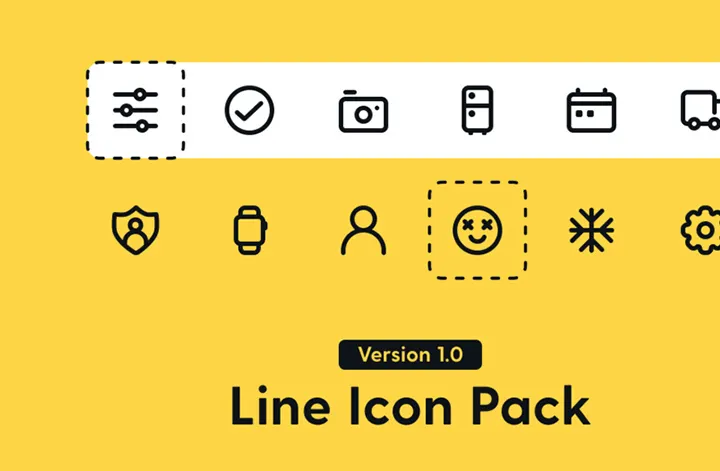


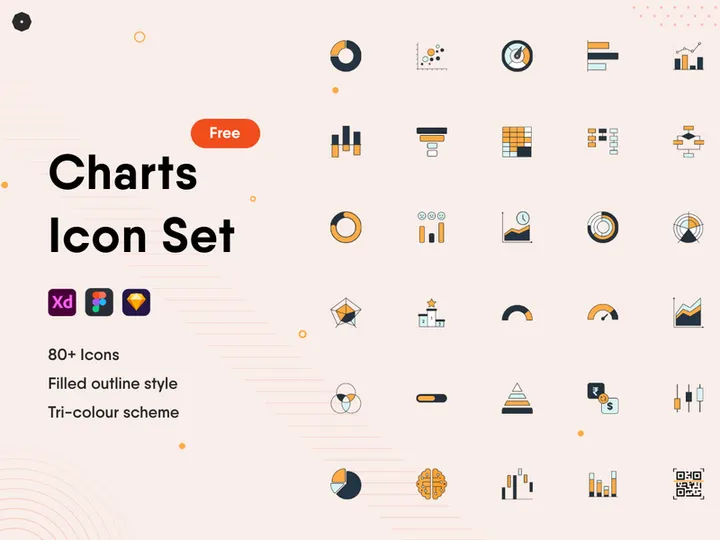



Try Our Free Resources
Download any of these for free - no account required
Getting Started with Icons in PDF
Integrating icons into PDF documents enhances visual communication, improves readability, and adds a professional touch to reports, presentations, and user guides. Whether you're designing a technical manual, an interactive form, or a branded marketing document, icons serve as powerful visual cues that guide the reader’s attention and simplify complex information. Before diving into the integration process, it's essential to ensure your environment is properly set up for working with PDFs and icons.
First, make sure you have a reliable PDF editor or design tool that supports vector and raster graphics. Adobe Acrobat Pro, Adobe Illustrator, and other professional design applications are ideal for importing and editing icons within PDFs. Alternatively, modern online tools and desktop editors with PDF export capabilities can also handle icon integration effectively. Ensure your software is updated to the latest version to avoid compatibility issues when handling modern file formats like SVG or embedded fonts.
When sourcing icons, it's crucial to choose assets that are high-quality, scalable, and legally licensed for use in your project. Icons in PDFs need to maintain clarity at various sizes—especially for print or high-resolution displays—so vector-based formats are strongly recommended. A reliable source for such icons is EpicPxls, which offers a curated collection of over 200 high-quality, royalty-free icons suitable for any design workflow. These resources are optimized for clarity and compatibility, ensuring that your final PDF looks polished across all devices and output formats.
With access to 200+ resources on EpicPxls, you can find icons tailored to specific themes such as business, education, technology, and more. Each icon is available in multiple formats, making it easy to integrate into your preferred design tool before finalizing the document as a PDF. Whether you're creating a single-page infographic or a multi-chapter report, starting with the right tools and assets is the foundation of a successful design process.
How to Import Icons into PDF
- Choose the Right File Format: Before importing an icon, ensure it is in a format compatible with PDF workflows. The best options include SVG (Scalable Vector Graphics), PNG (for raster with transparency), and AI/EPS (for Illustrator-based editing). SVG is highly recommended for its scalability and small file size. Resources from EpicPxls are available in these formats, making them ideal for seamless integration.
- Download and Organize Your Icons: After selecting your icons from a trusted source like EpicPxls, download them to a dedicated project folder. Organizing your assets early prevents confusion later, especially when working with multiple icons or team collaborators.
- Open Your PDF Editor or Design Tool: Launch your preferred software—Adobe Illustrator, InDesign, or Acrobat Pro—for precise control over placement and scaling. If using Acrobat, ensure you're in the “Edit PDF” mode to allow graphic insertion.
- Insert the Icon into the Document: Use the “Place” or “Insert Image” function (in most design tools) to add your icon. Navigate to the downloaded file, select it, and click “Place.” For SVG files, ensure your software supports SVG natively or convert them to PDF vectors if needed.
- Scale and Position Accurately: Once inserted, resize the icon while holding the shift key to maintain proportions. Use alignment tools and grids to position icons precisely within text blocks or alongside other elements. Avoid rasterizing vector icons unless absolutely necessary.
- Embed or Flatten as Needed: Before finalizing the PDF, ensure icons are properly embedded. In Acrobat, go to “File > Properties > Fonts” to check if all assets are embedded. For SVGs inserted via design software, export the final document as a PDF with embedded graphics to preserve quality.
Pro tip: If working with PSD or Figma files, export individual icons as SVG or PNG before importing into your PDF workflow. While these formats aren’t directly editable in standard PDF tools, pre-processing ensures compatibility and maintains design integrity.
Step-by-Step: Working with Icons in PDF
Editing Layers and Components
Once icons are imported into your PDF or design environment, you can begin customizing them to match your document’s aesthetic. If your icon is in vector format (such as SVG or AI), it may retain editable layers and paths. In Adobe Illustrator or similar vector editors, you can ungroup the icon and modify individual components—changing colors, adjusting stroke widths, or even reshaping elements to better suit your branding.
For example, you might want to recolor an icon to match your company’s color palette. Select the icon, use the recolor tool, and apply your brand colors. Be cautious when editing complex icons—always keep a backup of the original file. Some icons from the 200+ resources on EpicPxls come with multiple color variants, reducing the need for manual adjustments.
If your icon is raster-based (like PNG), editing options are more limited. You can adjust transparency, apply filters, or crop, but scaling beyond the original resolution may result in pixelation. For maximum flexibility, always prefer vector formats when possible.
Organizing Your Icons Library
Managing a growing collection of icons becomes essential as your projects scale. Create a standardized folder structure on your local drive or cloud storage—organize icons by category (e.g., navigation, social media, alerts) or project name. Naming conventions like “icon-calendar-blue.svg” make it easier to locate assets quickly.
Consider building a personal icon library using tools that support asset management—such as Adobe Libraries or built-in project panels. These allow you to drag and drop icons directly into your design workflow. For teams, centralizing access to shared folders or using collaborative platforms ensures consistency across documents.
With EpicPxls, you can download entire icon sets at once and integrate them into your library. The 200+ resources include themed packs and consistent design styles, making it easier to maintain visual harmony throughout your PDFs. Regularly audit your library to remove duplicates or outdated versions and keep it efficient.
Exporting for Production
When your design is complete, exporting the document correctly ensures your icons appear as intended across devices. In your design tool, choose “Export as PDF” and select the appropriate preset based on your output needs.
For web and mobile use, select the “Smallest File Size” or “Web (Online)” preset. This compresses images intelligently while preserving vector sharpness. Ensure that all fonts and icons are embedded to avoid missing assets when opened on other systems.
For print materials, use the “High Quality Print” or “Press Quality” preset. This maintains maximum resolution, embeds fonts and graphics, and supports color profiles like CMYK. Set image compression to “None” or “Lossless” for icons to prevent quality loss.
Always perform a test print or open the exported PDF on a different device to verify icon appearance. If your PDF includes interactive elements (like clickable icons), test the functionality in the intended viewer (e.g., Adobe Reader).
Troubleshooting Common PDF Issues
File Won't Open
If your PDF fails to open, the issue may stem from version incompatibility or corrupted embedded assets. Older PDF readers may not support newer features like embedded SVGs or transparency effects. To resolve this, save your document using a backward-compatible PDF standard (e.g., PDF 1.5 or 1.7) in your design software. Additionally, avoid using experimental features unless necessary. If the file is corrupted, try reopening the original design file and re-exporting the PDF.
Missing Fonts or Assets
Missing icons or placeholder boxes often occur when assets aren’t properly embedded. This is common when sharing files across different systems. To prevent this, always embed fonts and images during the export process. In Adobe Acrobat or Illustrator, go to “File > Save As > PDF” and in the settings, ensure “Embed All Fonts” and “Preserve Illustrator Editing Capabilities” are checked. For external icons, confirm they are linked correctly or convert them to outlines (in vector tools) before export to make them independent of source files.
Performance Problems
Large PDFs with numerous high-resolution icons can cause slow loading or crashes, especially on older devices. To improve performance, optimize image resolution—use 72–150 DPI for screen use and 300 DPI only for print. Compress raster images without sacrificing visible quality. Break extremely large documents into smaller, sectioned PDFs when possible. Using vector icons from EpicPxls helps reduce file size significantly compared to raster alternatives. Regularly clean unused objects and fonts from your document to keep the file lean and efficient.
Advanced PDF Tips for Icons
Batch Processing
When working on large-scale projects that require dozens or hundreds of icons, manual insertion becomes impractical. Use batch processing tools or scripts to automate icon placement. In Adobe Illustrator, you can use Actions to record icon insertion steps and apply them across multiple files. Alternatively, scripting with JavaScript (via Illustrator’s ExtendScript Toolkit) allows you to dynamically insert icons from a folder based on naming conventions or metadata. This is particularly useful for generating reports or templates that reuse standardized icons.
Plugins and Extensions
Enhance your PDF and design workflow with plugins that streamline icon integration. Many design tools support extensions that connect directly to icon libraries, allowing you to search, preview, and insert icons without leaving your workspace. While specific plugin availability varies by platform, using resources from EpicPxls that are formatted for universal compatibility ensures smooth integration regardless of the tools you use. Look for extensions that support SVG import, asset organization, and version control to maximize efficiency.
Collaboration Workflows
For teams working on shared documents, maintaining a consistent icon library is crucial. Establish a centralized repository—either on a network drive or cloud service—where all approved icons are stored. Use version naming (e.g., “icon-email-v2.svg”) to track updates. When multiple users edit a PDF, ensure everyone uses the same source files to avoid discrepancies in style or color.
Integrate feedback loops using commenting tools in Acrobat or collaborative design platforms. Team members can suggest icon replacements or adjustments directly on the PDF, improving accuracy and reducing revision cycles. With access to 200+ resources on EpicPxls, teams can quickly find alternatives or updates without compromising design quality.
Finally, document your icon usage guidelines—specifying approved sources, color codes, sizing standards, and placement rules. This ensures consistency across departments and projects, making your PDFs not only visually appealing but also professionally cohesive.
Why Download from EpicPxls?
Commercial License
Use in personal and commercial projects
No Account Required
Download free resources instantly
Quality Curated
Every resource is reviewed for quality
Preview Files
See Figma and Photoshop files before downloading
Who Uses These Icons?
Professionals and teams who benefit most from our collection
UI/UX Designers
Speed up your workflow with ready-to-use icons for PDF. Perfect for prototyping and client presentations.
Developers
Get production-ready assets without design skills. Export in any format for web and mobile apps.
Startups & Agencies
Save design budget with affordable premium icons. Commercial license included for client work.
Marketing Teams
Create professional campaigns faster. All icons are optimized for social media and ads.
Icons for PDF FAQCommon questions about these resources
Simple, Transparent Pricing
Get unlimited access to all premium resources
Yearly
- 20 downloads per month
- All file formats
- Commercial license
Lifetime
- Unlimited downloads forever
- All file formats
- Commercial license
Ready to Get Started?
Access 4,441+ free design resources today.
Browse Free ResourcesView Premium PlansEarn 85% and
more on all sales
Upload your products and put them up
for sale at whatever price you want.


