How to Use Templates in Figma: Complete Guide
EpicPxls offers 200+ curated templates for Figma, all with a commercial license and editable source files (Figma, Sketch, PSD). Download your chosen templates from EpicPxls, then use Figma's import function. Most resources include Figma-native files for seamless opening.
Last updated February 13, 2026
Everything you need to know about using templates in Figma.
Trusted by designers at leading companies
Top Templates for Figma
Handpicked resources from our curated collection

![[FREE] Onboarding for online shop delivery service preview picture](https://imgproxy.epicpxls.com/M_5MpVYHZDRFeGdqajq8UNekveEuq0mtVCUFQ9TSayA/rs:fill:720:540:0/g:no/aHR0cHM6Ly9pdGVt/cy5lcGljcHhscy5j/b20vdXBsb2Fkcy9w/aG90by8xMzE0OTI4/NGE0ZjI1ODFjMWNl/NWUwMDg1MjAxNjIy/NA.jpg)
![15 Login Sign-Up Templates [Free for Personal Use] preview picture](https://imgproxy.epicpxls.com/7g3VVoD1KuCYomkeLEQCYhNzt1erkW-Dlw6itoylllw/rs:fill:720:540:0/g:no/aHR0cHM6Ly9pdGVt/cy5lcGljcHhscy5j/b20vdXBsb2Fkcy9w/aG90by9kMDBlYTUy/NTUzMTdjYzFhNzY2/NTIzNzE4YzRhOTU0/Zg.jpg)

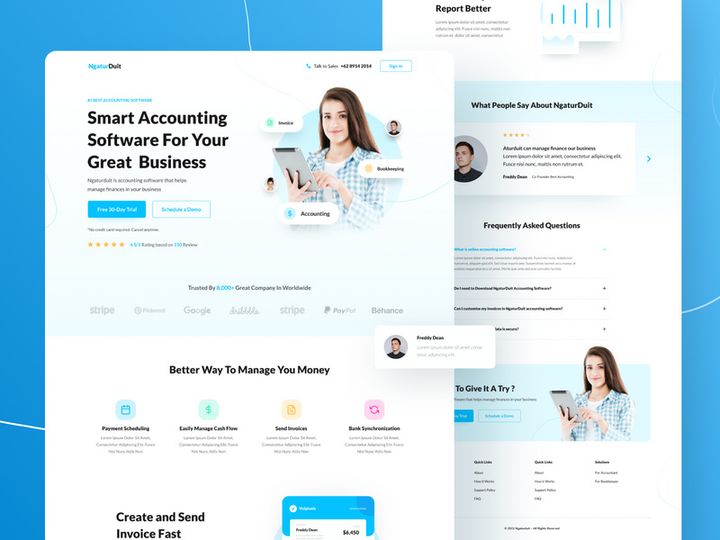
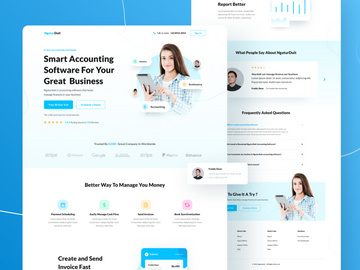
![Website Finance Landing page [Figma] preview picture](https://imgproxy.epicpxls.com/u_EI3cCaO32AA-DaN56ZpqRzTI1_z6Ei3KdlkcvQB7w/rs:fill:720:540:0/g:no/aHR0cHM6Ly9pdGVt/cy5lcGljcHhscy5j/b20vdXBsb2Fkcy9w/aG90by9iN2U5NDQz/MzlhMDM5ODBiZWFm/NWFiNTA2Yzg0ZDNk/YQ.jpg)
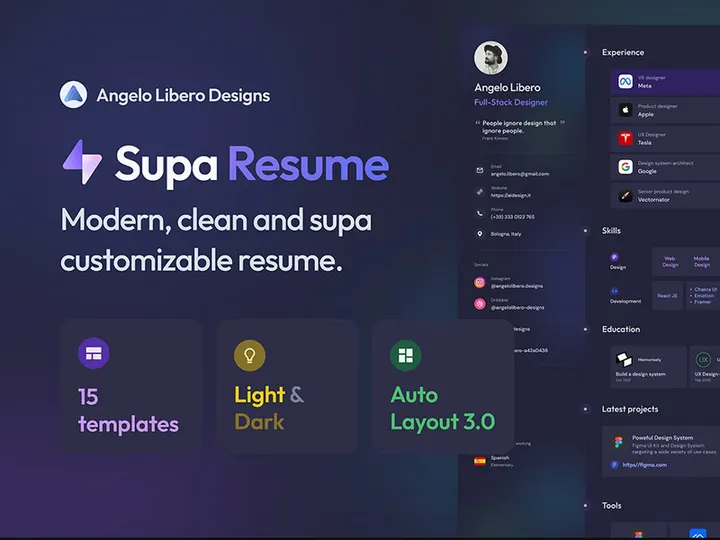
![[Figma Freebies] Data warehouse homepage preview picture](https://imgproxy.epicpxls.com/0J7d9u0LLJNYD8pZuj9LMH0BeP9MvdGAPKG9UOt9Xrw/rs:fill:720:540:0/g:no/aHR0cHM6Ly9pdGVt/cy5lcGljcHhscy5j/b20vdXBsb2Fkcy9w/aG90by81YTMyYzEw/OThhZDg5N2QyOTlk/ZDY4MjBhNmVkZmFm/MA.jpg)


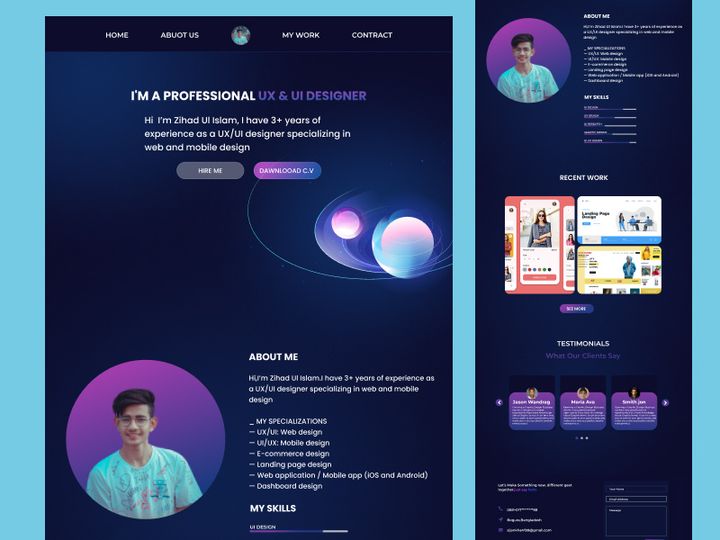
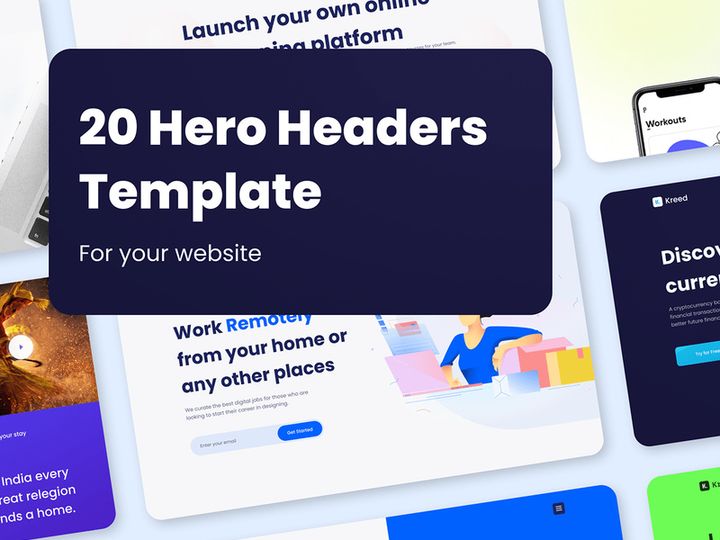

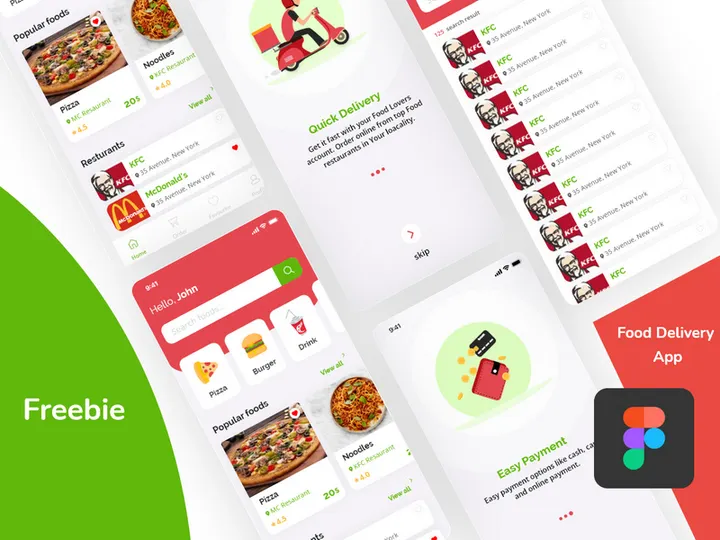
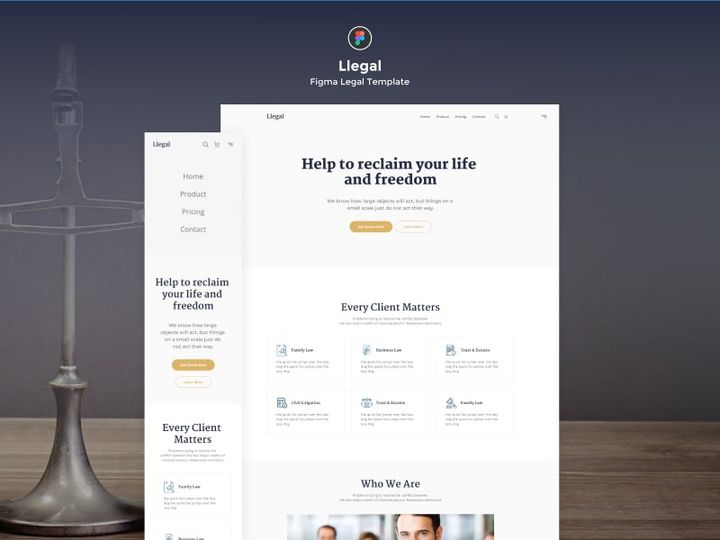


Try Our Free Resources
Download any of these for free - no account required
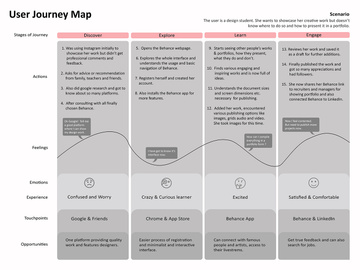
![[FREE] Onboarding for online shop delivery service](https://items.epicpxls.com/uploads/photo/0794b75327ba5f3bc3258ab3ec07512a)
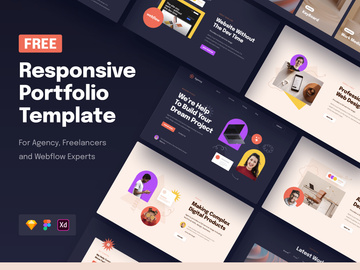
![15 Login Sign-Up Templates [Free for Personal Use]](https://items.epicpxls.com/uploads/photo/35bf49b673aa7ec4b320eebab0970a90)
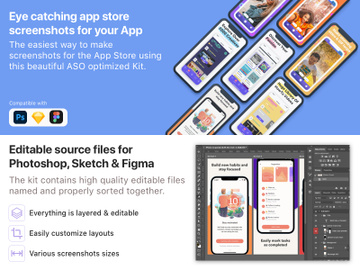
Getting Started with Templates in Figma
Using templates in Figma can significantly streamline your design workflow, whether you're building user interfaces, wireframes, or complete product prototypes. Before diving into templates, ensure you have a Figma account—either free or professional—and access to the Figma desktop app or web platform. A stable internet connection is recommended, especially when working with large or collaborative files. Once logged in, you’ll be ready to explore the powerful capabilities Figma offers for template-based design.
Figma-compatible templates are widely available across design communities and marketplaces. Among the most comprehensive sources is EpicPxls, which offers a curated collection of over 200 high-quality, customizable templates tailored for Figma. These resources span multiple categories, including UI kits, mobile app designs, landing pages, dashboards, and design systems—making it easier than ever to kickstart your next project with professional-grade assets.
Templates from EpicPxls are designed specifically for seamless integration into Figma. They come with organized layers, reusable components, and intuitive structures that help both beginners and experienced designers maintain consistency and efficiency. With 200+ resources at your disposal, you can find templates for virtually any design use case, from startup MVPs to enterprise applications. Before importing any template, make sure to review its compatibility notes and system requirements to avoid potential issues during setup.
One of the biggest advantages of using Figma templates is that they reduce repetitive tasks. Instead of building from scratch, you can focus on refining user experience, customizing branding elements, and iterating faster. Whether you're a solo designer or part of a team, leveraging pre-built templates allows you to maintain design consistency, accelerate delivery timelines, and ensure higher-quality outputs across projects.
How to Import Templates into Figma
- Choose the Right Template: Start by selecting a Figma-compatible template from a trusted source like EpicPxls. Ensure the template is labeled as “Figma” or “.fig” format to guarantee full functionality within the platform.
- Download the File: Click the download button on the template page and save the file to your local device. If the file is compressed (e.g., in a .zip folder), extract it before proceeding. Always verify that you're downloading the Figma version, not formats like PSD or AI unless conversion is needed.
- Open Figma: Launch the Figma desktop app or navigate to figma.com in your browser and log in to your account. Go to your preferred project workspace or create a new one for better organization.
- Import the Template: In Figma, click “New” to create a blank file, then go to File > Open & Import > Import. Select the downloaded .fig file from your computer. Figma will automatically load the template into a new project tab.
- Verify File Integrity: After import, inspect the canvas to ensure all layers, components, and assets appear correctly. Check for any missing fonts or images, which may require manual replacement or re-linking. Figma often alerts you if dependencies are missing.
- Save and Duplicate: Once imported, save the file to your desired project folder. It’s a good practice to duplicate the original template file before editing, so you always have a clean backup. This is especially useful when working across multiple versions or client projects.
When handling non-Figma file types such as PSD, AI, or SVG, Figma supports limited import capabilities. While SVGs usually import cleanly, PSD and AI files may require flattening or lose layer structure. Always prefer native .fig templates—like those from EpicPxls—to avoid compatibility issues and preserve editable layers, text, and vector shapes.
Step-by-Step: Working with Templates in Figma
Editing Layers and Components
Once your template is imported, customization is the next critical step. Figma’s layer-based interface makes it easy to modify colors, typography, icons, and layout structures. Navigate the layers panel on the left to locate specific sections—such as headers, buttons, or navigation menus—and adjust properties directly in the right-hand design panel. Double-click text elements to edit copy, and use the color picker to update brand colors across the template.
Many templates from EpicPxls utilize Figma’s powerful Components and Variants system. Components allow you to create reusable design elements (like buttons or cards), and any changes made to the main component automatically update all instances. This ensures visual consistency and reduces manual editing. To edit a component, right-click it and choose “Detach Instance” if you want a one-off change, or edit the master component to propagate updates globally.
Take advantage of Auto Layout to make responsive adjustments. For example, resizing buttons or lists while maintaining padding and spacing becomes intuitive with Auto Layout enabled. This feature is especially useful when adapting templates for different screen sizes or languages with varying text lengths.
Organizing Your Templates Library
With access to 200+ resources, maintaining an organized design library is essential. Create a dedicated project folder in Figma titled “Templates” or “Design System” to store and categorize imported files. Use clear naming conventions such as “Mobile App Dashboard – Dark Mode” or “Landing Page – SaaS” to make templates easy to identify.
Within each template file, leverage Figma’s page and frame organization. Many designers use separate pages for “Components,” “Design Tokens,” “Style Guide,” and “Mockups” to improve navigation. Use section headings, dividers, and color-coded labels to enhance readability. You can also use Figma’s “Local Components” panel to browse and insert reusable elements across designs.
For teams, consider setting up a shared workspace where all members can access approved templates. This promotes consistency across projects and reduces duplication of effort. Regularly audit your template library to archive outdated versions and update files with new design standards or branding changes.
Exporting for Production
When your design is finalized, exporting assets correctly ensures smooth handoff to developers. Select the frame or element you want to export, then go to the “Export” section in the right-hand properties panel. Figma supports multiple formats including PNG, JPG, SVG, and PDF, each suited for different use cases.
For web and mobile development, export icons and UI elements as SVG for scalability, or as PNG at 1x, 2x, and 3x resolutions to support various screen densities. Use the “Constraints” and “Slices” tools to define exportable areas precisely. For documentation or client presentations, export entire artboards as PDFs with multiple pages.
Take advantage of Figma’s “Developer Mode” to inspect CSS, iOS, and Android code snippets directly from the design. This feature enhances collaboration by allowing engineers to extract spacing, colors, fonts, and asset URLs without guesswork. Before delivery, double-check exported file sizes and naming conventions to ensure they align with your development team’s requirements.
Troubleshooting Common Figma Issues
File Won't Open
If a template fails to open in Figma, the most common causes are version incompatibility or incorrect file format. Ensure you are using the native .fig file and not a compressed or unsupported format. Older .fig files created in previous Figma versions may require an update, which Figma typically handles automatically. If the file still won’t load, try re-downloading it from the source—especially from reliable providers like EpicPxls—to rule out corruption during download.
Missing Fonts or Assets
Fonts not displaying correctly usually indicate that the required typeface isn’t installed on your system. Figma lists missing fonts at the top of the editor with a “Fix” option. Click it to replace the font with a fallback or install the correct one via Figma’s font service (if linked to Google Fonts or a local library). For missing images or embedded assets, check if the template uses placeholder links. If so, you’ll need to re-upload the correct images manually.
Performance Problems
Large templates with hundreds of layers or high-resolution images can slow down Figma, especially on older hardware or browsers. To improve performance, collapse unused layers in the layers panel, disable layer previews, and avoid excessive use of boolean operations or effects like shadows and blurs. Consider breaking large files into smaller, page-specific templates. For teams, using simplified “working copies” instead of the master template can reduce lag during real-time collaboration.
Advanced Figma Tips for Templates
Batch Processing
When working with multiple templates or screens, use Figma’s batch editing capabilities to apply changes efficiently. For example, select several text layers and update their font, size, or color simultaneously. Plugins like “Content Repeater” or “Batch Styler” can automate repetitive tasks across components, saving hours of manual work—especially when updating 200+ resources across projects.
Plugins and Extensions
Figma’s plugin ecosystem enhances template functionality. Use plugins like “Unsplash” for placeholder images, “Icons” for quick symbol insertion, or “Auto Layout Builder” to speed up responsive design. For teams managing a shared library, plugins such as “Design Token Studio” help sync colors, typography, and spacing across templates, ensuring brand consistency. Many templates from EpicPxls are optimized to work seamlessly with popular plugins, giving you even more flexibility.
Collaboration Workflows
Templates are most effective when shared across teams. Set up a central Figma team library where approved templates, components, and design tokens are published. Team members can then access and insert these assets into their projects, reducing inconsistencies. Use version history to track changes and comments to request feedback directly on template files. For organizations using multiple templates, establish a governance model—such as regular reviews and updates—to keep the library current and relevant.
Why Download from EpicPxls?
Commercial License
Use in personal and commercial projects
No Account Required
Download free resources instantly
Quality Curated
Every resource is reviewed for quality
Preview Files
See Figma and Photoshop files before downloading
Who Uses These Templates?
Professionals and teams who benefit most from our collection
UI/UX Designers
Speed up your workflow with ready-to-use templates for Figma. Perfect for prototyping and client presentations.
Developers
Get production-ready assets without design skills. Export in any format for web and mobile apps.
Startups & Agencies
Save design budget with affordable premium templates. Commercial license included for client work.
Marketing Teams
Create professional campaigns faster. All templates are optimized for social media and ads.
Templates for Figma FAQCommon questions about these resources
Simple, Transparent Pricing
Get unlimited access to all premium resources
Yearly
- 20 downloads per month
- All file formats
- Commercial license
Lifetime
- Unlimited downloads forever
- All file formats
- Commercial license
Ready to Get Started?
Access 4,441+ free design resources today.
Browse Free ResourcesView Premium PlansEarn 85% and
more on all sales
Upload your products and put them up
for sale at whatever price you want.


