How to Use Fonts in Illustrator: Complete Guide
EpicPxls offers 120+ curated fonts for Illustrator, all with a commercial license and editable source files (Figma, Sketch, PSD). Download your chosen fonts from EpicPxls, then use Illustrator's import function. Most resources include Illustrator-native files for seamless opening.
Last updated February 13, 2026
Everything you need to know about using fonts in Illustrator.
Trusted by designers at leading companies
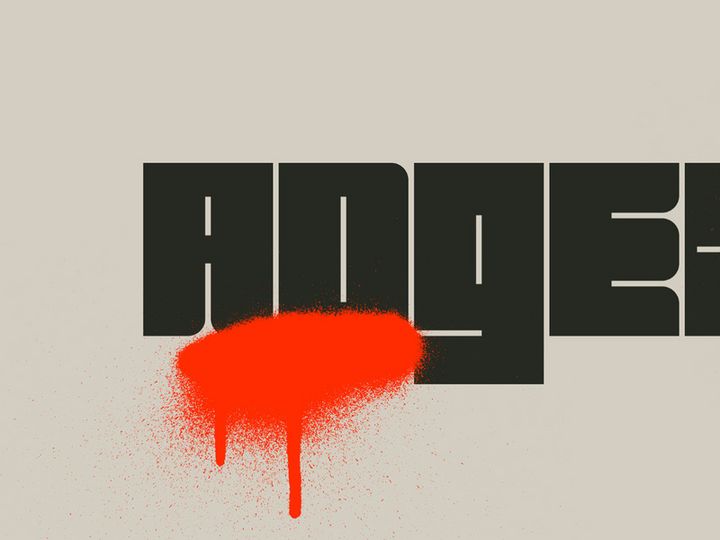
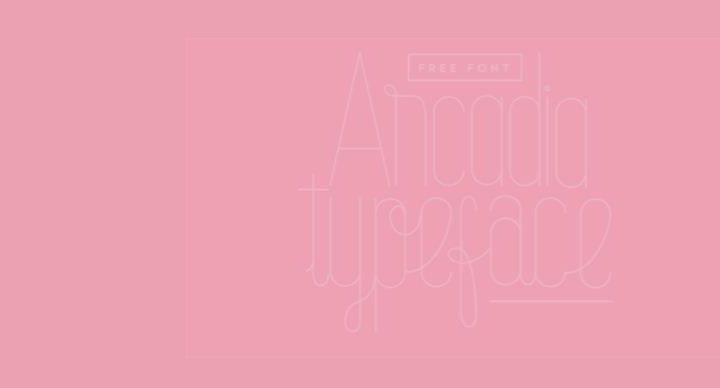
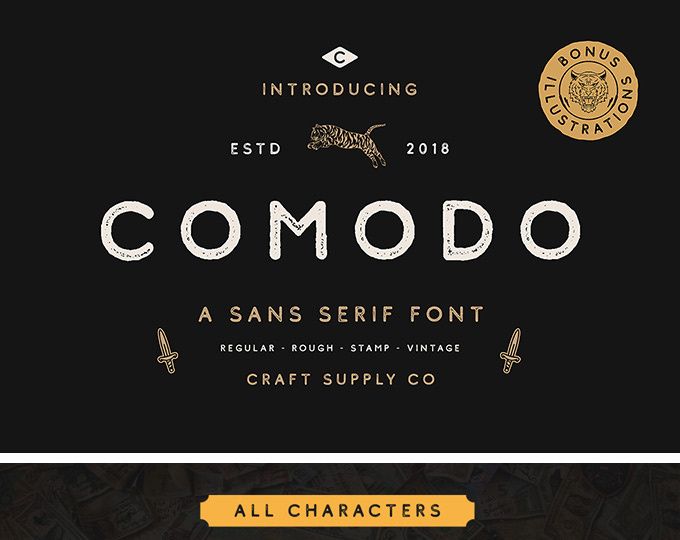
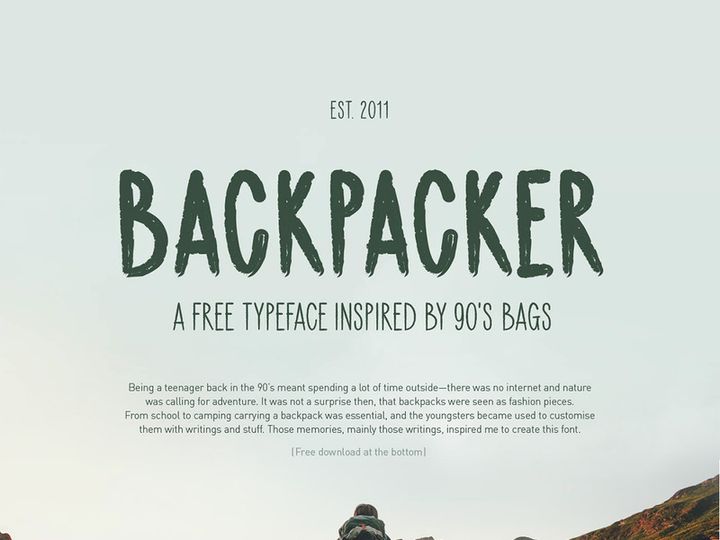
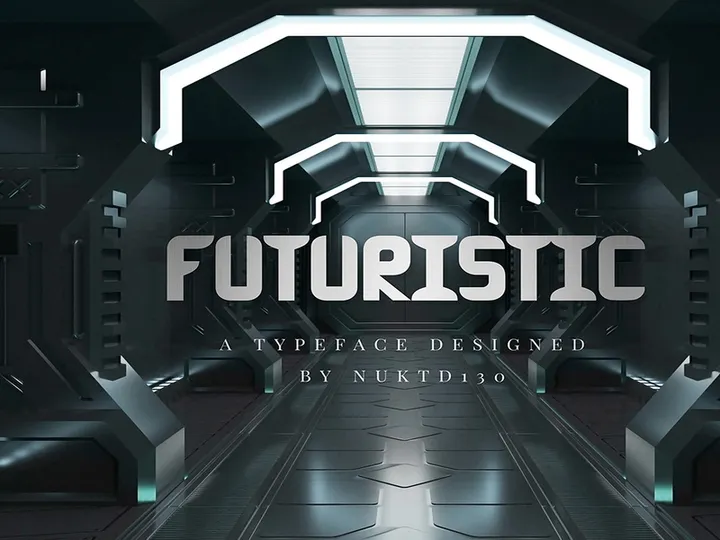
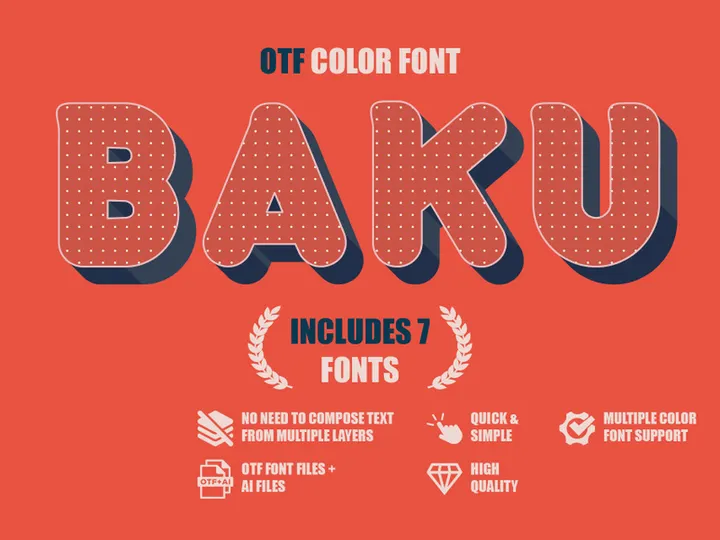
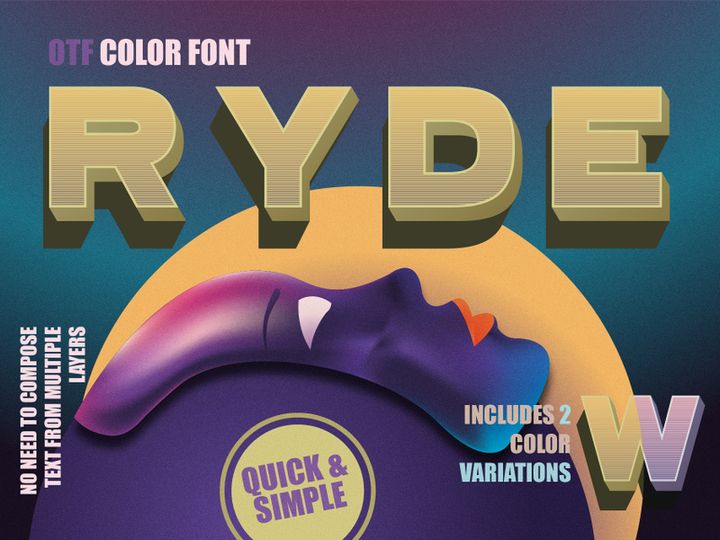
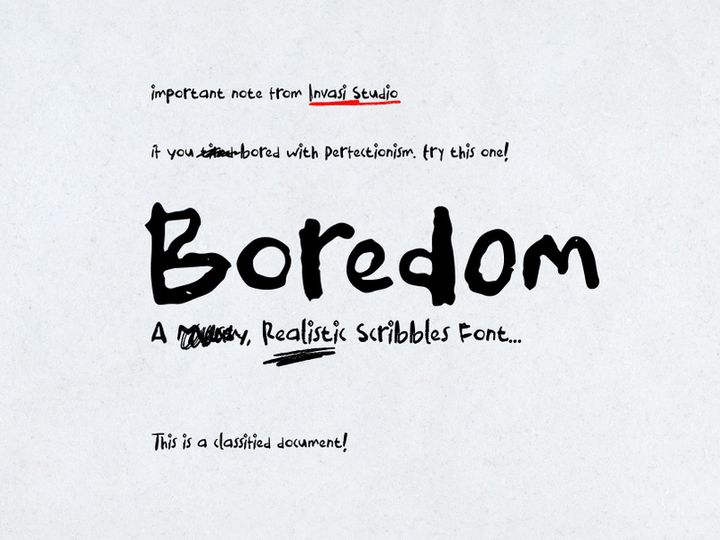
Top Fonts for Illustrator
Handpicked resources from our curated collection






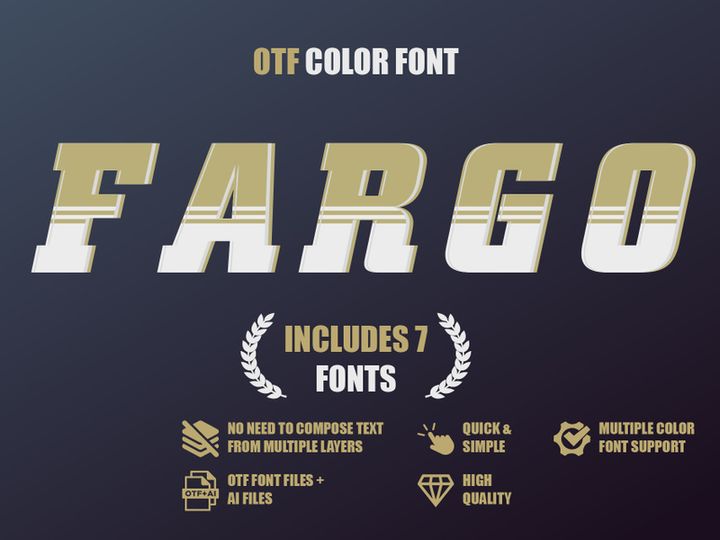
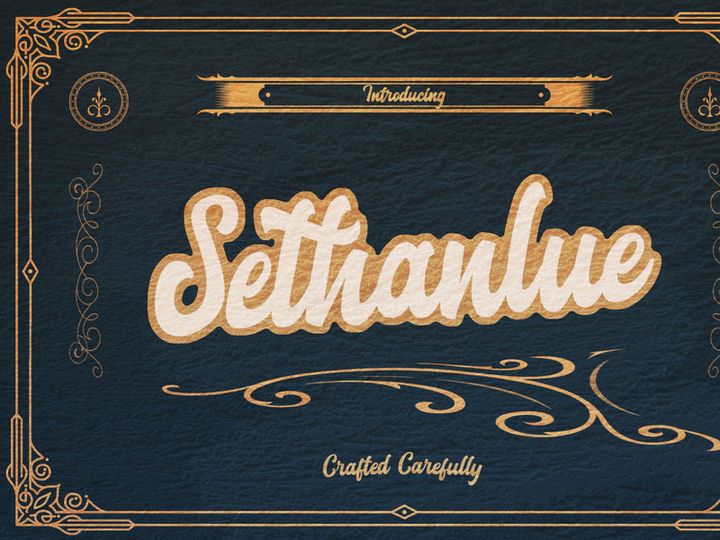
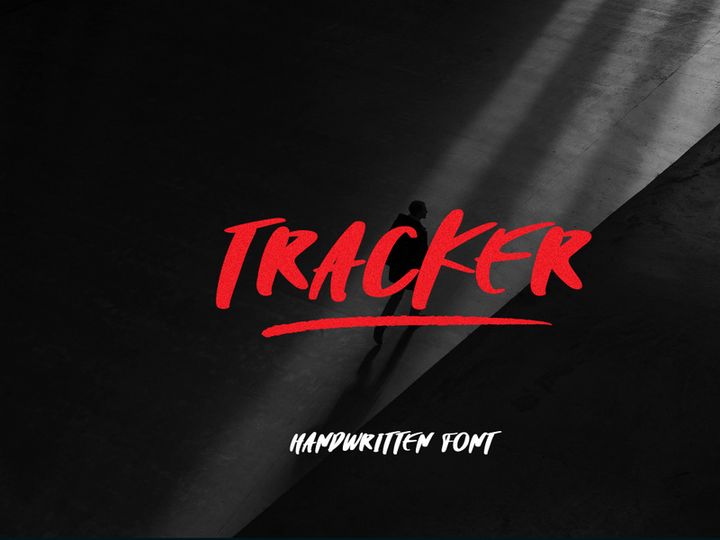

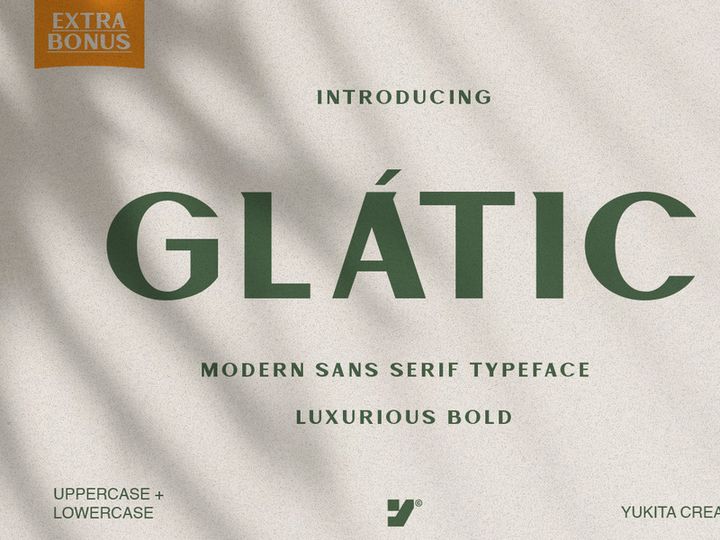
Try Our Free Resources
Download any of these for free - no account required



Getting Started with Fonts in Illustrator
Adobe Illustrator is a powerful vector-based design tool used by creatives across industries to craft logos, typography, illustrations, and more. One of the most critical elements in any design project is the choice of font. Typography can define a brand's personality, improve readability, and elevate visual appeal. Before diving into how to use fonts effectively in Illustrator, it’s important to have the right setup and resources in place.
To get started, ensure that you have the latest version of Adobe Illustrator installed on your system. Illustrator supports both Windows and macOS, and keeping the software updated ensures compatibility with modern font formats and enhanced performance. Once Illustrator is installed, launch the application and familiarize yourself with the workspace, especially the Character and Paragraph panels, which are central to font management.
When it comes to sourcing fonts, not all typefaces are created equal. Illustrator supports a wide range of font formats, including OpenType (.otf), TrueType (.ttf), and Type 1 (though deprecated). You can find high-quality fonts from trusted design marketplaces, independent foundries, and curated platforms like EpicPxls, which offers a growing collection of over 120+ design resources, including fonts tailored for creative professionals. These fonts are carefully selected for quality, versatility, and licensing clarity, making them safe to use in both personal and commercial projects.
Whether you're designing a logo, a poster, or a digital illustration, having access to diverse and well-structured fonts can make a significant difference. The 120+ resources available on EpicPxls include decorative, script, sans-serif, and display fonts, ensuring you’ll find the perfect match for any design aesthetic. With your software ready and your font library in mind, you’re now prepared to import and use fonts seamlessly within Illustrator.
How to Import Fonts into Illustrator
- Download the Correct Font File Format: Begin by downloading a font in a format compatible with Illustrator—preferably OpenType (.otf) or TrueType (.ttf). These formats support advanced typographic features like ligatures, alternate characters, and kerning. If you're sourcing from EpicPxls, ensure you're downloading the desktop font version for use in Illustrator.
- Install the Font on Your Operating System: Double-click the downloaded font file and click “Install” (Windows) or “Install Font” (macOS). This makes the font available system-wide, including in Illustrator. Alternatively, use a font management application like Adobe Fonts, Suitcase Fusion, or FontBase to streamline installation and organization.
- Launch or Restart Illustrator: After installation, restart Illustrator if it was open. New fonts are loaded at startup, so a restart ensures the font appears in your font menu.
- Verify Font Availability: Open the Character panel (Window > Type > Character) and locate the font dropdown. Begin typing the font name to quickly find it in the list. If the font doesn’t appear, double-check the installation or look for any naming conflicts with existing fonts.
- Use Fonts from Project Files (PSD, AI, SVG, etc.): When opening design files from other formats—such as PSD (Photoshop), AI (Illustrator), or SVG—check if fonts are embedded or outlined. If fonts are missing, Illustrator will prompt you to substitute them. To preserve design integrity, install the required fonts or convert text to outlines (Type > Create Outlines) if you don’t have editing rights.
- Handle Figma or Other Platform Imports: While Figma uses web fonts by default, exporting designs to Illustrator may require manual font replacement. Match the original font style using your installed library or find a close alternative from the 120+ resources on EpicPxls. Always confirm licensing before substituting fonts in client projects.
Pro Tip: Avoid installing too many fonts at once, as this can slow down Illustrator’s startup and font menu performance. Use font activation tools to load only what you need for a given project.
Step-by-Step: Working with Fonts in Illustrator
Editing Layers and Components
Once a font is active in your Illustrator project, you can begin customizing it to suit your design needs. Start by selecting your text with the Type Tool (T). Use the Character panel to adjust font size, leading, kerning, and tracking. Illustrator also supports OpenType features such as swashes, stylistic alternates, and small caps—accessible via Type > OpenType in the top menu.
To modify individual characters, convert text to outlines using Type > Create Outlines (Ctrl+Shift+O / Cmd+Shift+O). This turns text into vector shapes, allowing you to manipulate anchor points, apply gradients, or combine letters with other shapes using the Pathfinder panel. Be cautious: once text is outlined, it can no longer be edited as text, so keep a duplicate layer with live text for future edits.
For dynamic typography, consider using Area Type (click inside a shape) or Path Type (click on a drawn path) to wrap text around curves or within containers. These tools are especially useful for badge designs, circular logos, and editorial layouts.
Organizing Your Fonts Library
With access to 120+ high-quality resources from platforms like EpicPxls, managing your fonts efficiently is crucial. Overloading Illustrator with unused fonts can lead to slower performance and cluttered menus. Use a font manager to activate only the fonts relevant to your current project.
Create naming conventions for font families—e.g., “BrandSans-Bold”, “ScriptHand-Regular”—to make them easier to identify. You can also group related fonts into collections, such as “Logo Fonts”, “Body Text”, or “Display Headers”, based on their use case. Within Illustrator, save font combinations as Character Styles for consistent application across text elements.
For teams, consider setting up a shared font repository using cloud storage or a dedicated font server. Ensure all team members have the same fonts installed to avoid document inconsistency. Always verify licensing, especially when using fonts from creative marketplaces, to ensure commercial usage is permitted.
Exporting for Production
When your design is complete, exporting with the correct settings ensures your fonts render properly across different platforms. For print, export as PDF (File > Save As > Adobe PDF) with the “Preserve Illustrator Editing Capabilities” option enabled. Make sure fonts are either embedded or outlined to prevent substitution during printing.
For web and mobile use, consider exporting assets as SVG or PNG. SVG files preserve vector quality and are ideal for responsive websites, but they require outlined text to maintain appearance if the user doesn’t have the font installed. To outline text, select it and go to Type > Create Outlines before exporting.
If you’re handing off files to developers, provide a style guide that includes font names, sizes, colors, and spacing. Alternatively, convert key typographic elements to vectors and export them as individual assets. When using fonts from EpicPxls, refer to the included license to confirm redistribution rights—most allow embedding in digital products, but restrictions may apply for web font usage.
Troubleshooting Common Illustrator Issues
File Won't Open
If an Illustrator file fails to open, the issue may stem from version incompatibility. Older versions of Illustrator cannot open files saved in newer formats. To resolve this, save the file in a legacy format (e.g., Illustrator 10 or CS6) from the original system, or ask the sender to export as a compatible AI or PDF version. Additionally, ensure the file isn’t corrupted by opening it on another machine or using Illustrator’s recovery mode.
Missing Fonts or Assets
When opening a file, Illustrator may display a “Missing Fonts” warning. This occurs when the document uses fonts not installed on your system. To fix this, use the Find Font dialog (Type > Find Font) to replace missing fonts with available ones. For exact matches, download and install the required font—especially if it’s part of a known library like the 120+ resources on EpicPxls. If the font is unavailable, choose a visually similar alternative and adjust tracking or size to preserve layout integrity.
Note: If text has been converted to outlines in the original file, no font substitution is needed, as the text is no longer dependent on a typeface.
Performance Problems
Large Illustrator files with extensive text layers or embedded fonts can slow down performance. To improve speed, outline text that no longer needs editing, and remove unused fonts from the document via the Document Fonts folder in the file’s directory. Reduce the number of active fonts in your system, and avoid using high-resolution effects on text layers.
Consider breaking complex designs into multiple files, linking assets externally where possible. Regularly save and optimize your file (File > Save As > select “Reduce File Size”) to maintain smooth operation.
Advanced Illustrator Tips for Fonts
Batch Processing
For designers managing multiple projects, batch processing can save significant time. Use Actions (Window > Actions) to record repetitive font-related tasks, such as applying a specific font style, converting text to outlines, or exporting layers. Once recorded, apply the action to multiple documents using File > Automate > Batch. This is especially useful when standardizing typography across branding materials or social media templates.
Plugins and Extensions
Extend Illustrator’s font capabilities with plugins that enhance typography workflows. Tools like Fontself Maker allow you to turn custom lettering into usable fonts, while others integrate with cloud font libraries for real-time access. Some extensions help identify font families used in imported artwork or suggest pairings based on style. While Illustrator’s native tools are robust, these add-ons can streamline font selection and customization, particularly when working with expansive libraries like the 120+ resources on EpicPxls.
Collaboration Workflows
Working in teams requires consistent font management. Establish a shared font folder on a network drive or cloud service (e.g., Dropbox, Google Drive) where all team members can access approved fonts. Use a shared Character Styles library to maintain uniform typography across documents.
When sending files, package them (File > Package) to include fonts, links, and assets. This ensures recipients have everything needed to open the file correctly. For remote teams, create a font usage guide detailing which fonts are approved for specific projects—especially when leveraging curated collections from sources like EpicPxls. Clear communication and standardized workflows prevent font conflicts and ensure brand consistency across all deliverables.
Why Download from EpicPxls?
Commercial License
Use in personal and commercial projects
No Account Required
Download free resources instantly
Quality Curated
Every resource is reviewed for quality
Preview Files
See Figma and Photoshop files before downloading
Who Uses These Fonts?
Professionals and teams who benefit most from our collection
UI/UX Designers
Speed up your workflow with ready-to-use fonts for Illustrator. Perfect for prototyping and client presentations.
Developers
Get production-ready assets without design skills. Export in any format for web and mobile apps.
Startups & Agencies
Save design budget with affordable premium fonts. Commercial license included for client work.
Marketing Teams
Create professional campaigns faster. All fonts are optimized for social media and ads.
Fonts for Illustrator FAQCommon questions about these resources
Simple, Transparent Pricing
Get unlimited access to all premium resources
Yearly
- 20 downloads per month
- All file formats
- Commercial license
Lifetime
- Unlimited downloads forever
- All file formats
- Commercial license
Ready to Get Started?
Access 4,441+ free design resources today.
Browse Free ResourcesView Premium PlansEarn 85% and
more on all sales
Upload your products and put them up
for sale at whatever price you want.


