How to Use Fonts in HTML: Complete Guide
EpicPxls offers 200+ curated fonts for HTML, all with a commercial license and editable source files (Figma, Sketch, PSD). Download your chosen fonts from EpicPxls, then use HTML's import function. Most resources include HTML-native files for seamless opening.
Last updated February 13, 2026
Everything you need to know about using fonts in HTML.
Trusted by designers at leading companies
Top Fonts for HTML
Handpicked resources from our curated collection
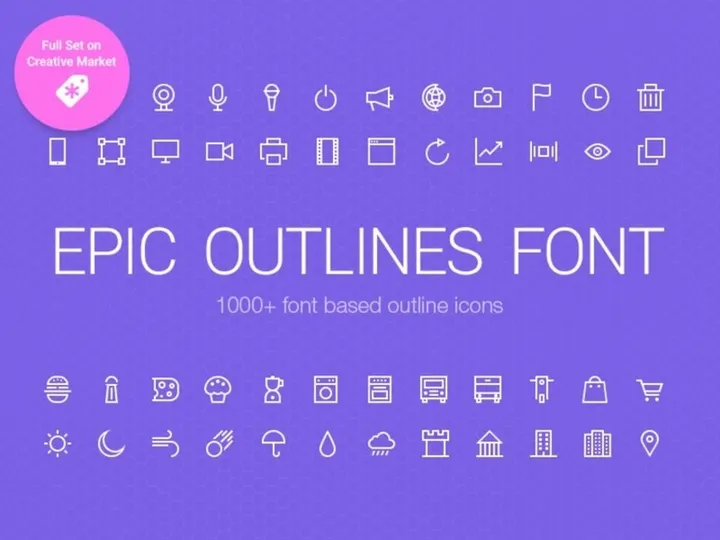
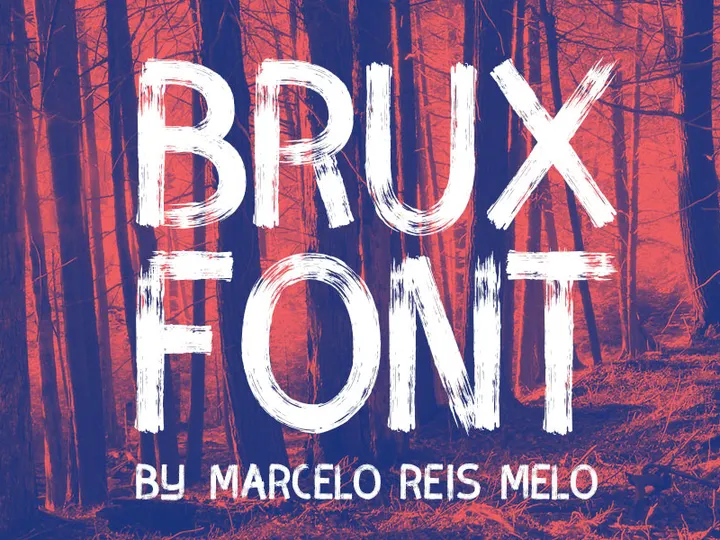


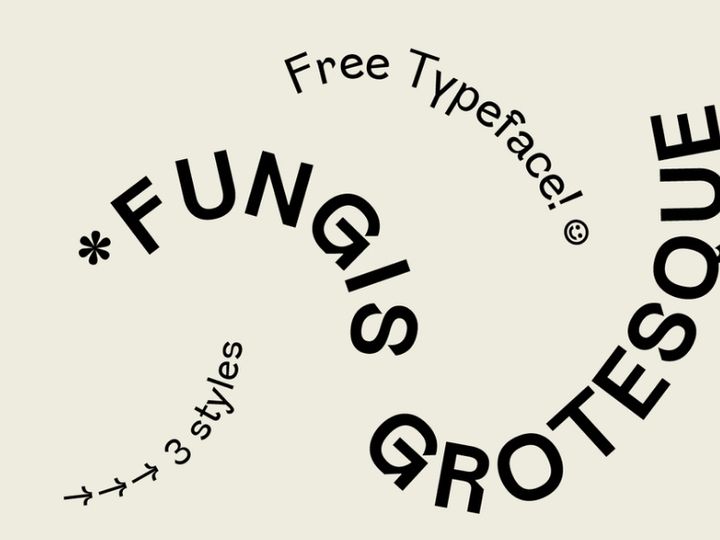
![[Free] Essential Duotone Icon-Font Pack preview picture](https://imgproxy.epicpxls.com/1ImG1LMMPtr9L9_6DSUK1T5M9snESJrA4wRWiHuT1oE/rs:fill:720:540:0/g:no/aHR0cHM6Ly9pdGVt/cy5lcGljcHhscy5j/b20vdXBsb2Fkcy9w/aG90by9jM2I2ODdk/N2Y3MmRlMTNkZDMy/YjM2ZmI2NTk3MjE1/MQ.jpg)




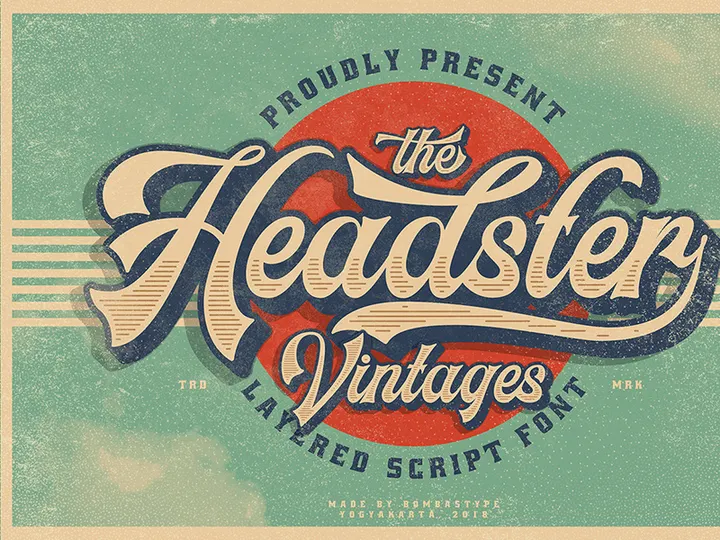


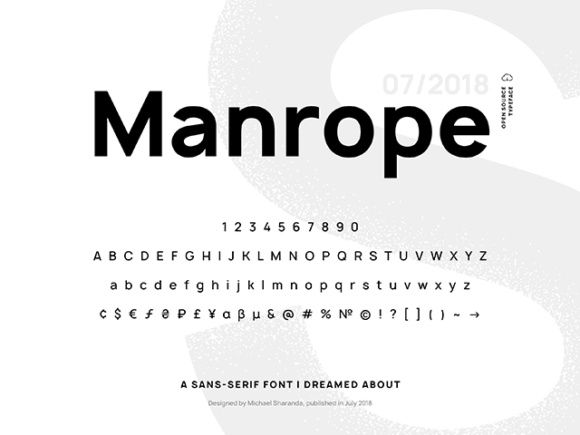

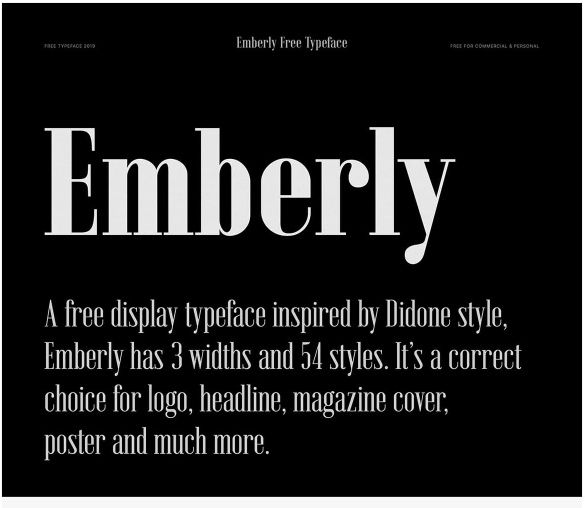
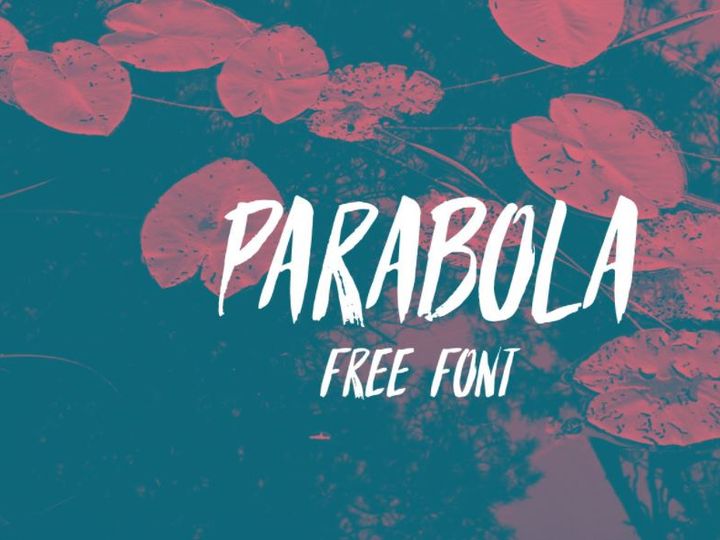
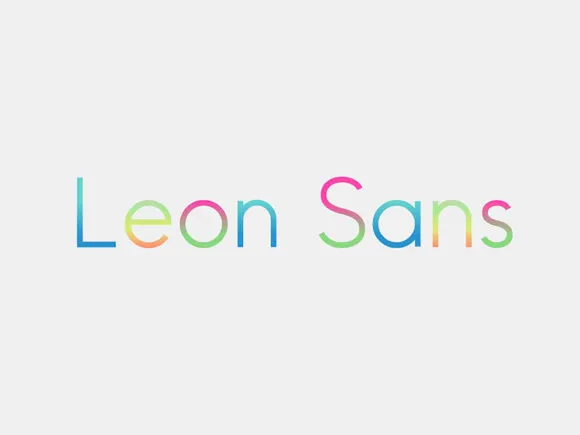

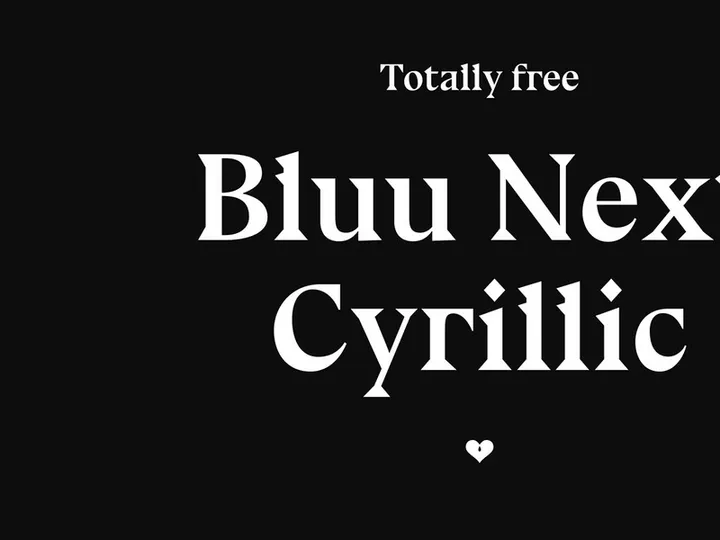


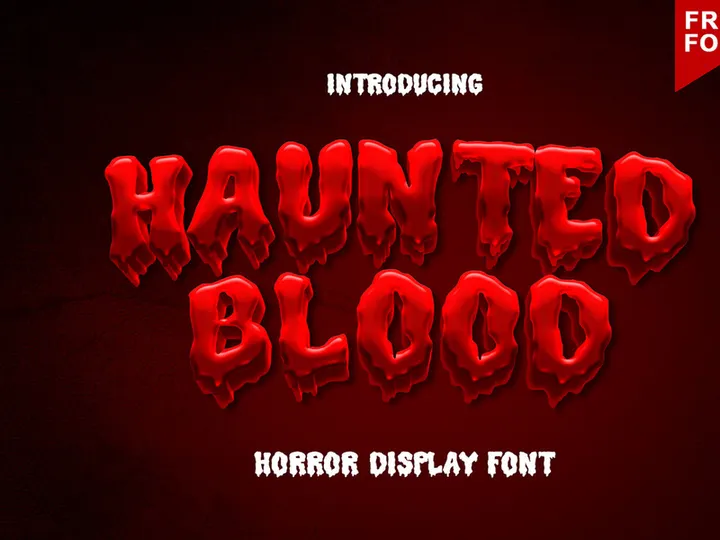
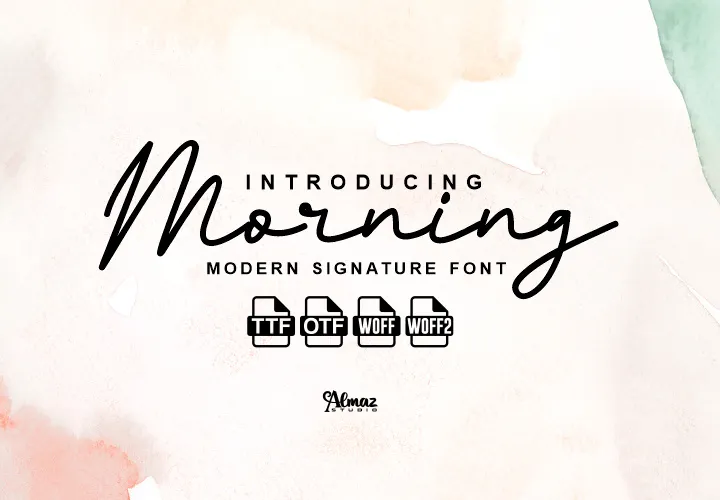
Try Our Free Resources
Download any of these for free - no account required


![[Free] Essential Duotone Icon-Font Pack](https://items.epicpxls.com/uploads/photo/61b60e1b67855ce7a45bf86a786ce58c)
Getting Started with Fonts in HTML
Integrating fonts into HTML is a foundational aspect of web design that significantly impacts readability, user experience, and brand identity. Before diving into font implementation, ensure you have a basic understanding of HTML and CSS, as well as a code editor such as VS Code or Sublime Text to write and test your code. You’ll also need a modern web browser—like Chrome, Firefox, or Safari—to preview your work and debug any issues.
When working with fonts in HTML, it's essential to use web-safe or web-optimized font formats. While system fonts like Arial or Times New Roman are readily available, custom fonts allow for greater design flexibility. These fonts can be sourced from reputable providers, including open-source platforms and commercial libraries. One such platform is EpicPxls, which offers a curated collection of over 200 high-quality, web-ready resources, including fonts designed specifically for digital use. These resources are optimized for performance, licensing compliance, and cross-browser compatibility, making them ideal for developers and designers alike.
The 200+ resources available on EpicPxls include variable fonts, sans-serif, serif, display, and monospace typefaces, each categorized for quick access. Whether you're building a personal blog, a corporate website, or a web application, selecting the right font can elevate your project’s aesthetic and functional value. Before importing any font, verify its license to ensure it permits web embedding. Most modern fonts come with clear usage terms, especially those distributed through trusted platforms. With the right tools and resources in place, you're ready to begin importing and applying fonts directly into your HTML documents using CSS.
How to Import Fonts into HTML
- Select the Right Font Format: For optimal web performance, use modern font formats such as WOFF2 (Web Open Font Format 2), which offers superior compression and broad browser support. WOFF, TTF (TrueType), and OTF (OpenType) are also usable but less efficient. Always prioritize WOFF2 when possible.
- Download or Link the Font Files: Download the font files from a trusted source like EpicPxls, ensuring you receive the correct web-ready formats. Alternatively, use a hosted font service via a CSS
@importor<link>tag if the font is available online. - Host the Font Files Locally: Place the downloaded font files in a dedicated directory within your project, such as
/fonts/. This keeps your assets organized and simplifies path referencing in CSS. - Declare the Font in CSS Using @font-face: In your stylesheet, use the
@font-facerule to define the font family and specify the source files. Include multiple formats for fallback support. Example:@font-face { font-family: 'CustomFont'; src: url('/fonts/customfont.woff2') format('woff2'), url('/fonts/customfont.woff') format('woff'); font-weight: normal; font-style: normal; font-display: swap; - Apply the Font to HTML Elements: Once declared, use the
font-familyproperty in your CSS to apply the font to elements likebody,h1, orp. Always include a fallback stack (e.g., sans-serif) in case the custom font fails to load. - Test Across Devices and Browsers: Open your HTML page in multiple browsers and devices to verify that the font renders correctly. Use developer tools to monitor loading behavior and check for console errors related to font fetching.
While formats like PSD, AI, or Figma files aren't directly used for HTML font integration, they often accompany font resources as design mockups. These can guide your implementation by showing how the font should appear in context. Convert any text layers in these files to web-safe equivalents and extract font names and styles for accurate reproduction in HTML. Always ensure downloaded font packages include the necessary web formats and avoid trying to extract fonts directly from design files, as this can lead to licensing or technical issues.
Step-by-Step: Working with Fonts in HTML
Editing Layers and Components
Once a font is successfully imported, you can begin customizing its appearance across your web project. Use CSS properties such as font-size, font-weight, line-height, letter-spacing, and color to fine-tune typography for different components. For example, headings might use a bold weight with increased letter spacing, while body text benefits from moderate line height for readability.
Variable fonts—available in the 200+ resources on EpicPxls—offer even greater control. These single font files contain multiple design variations (like weight, width, and slant), allowing dynamic adjustments via CSS. Use the font-variation-settings property to access these axes. For instance:
h1 {
  font-family: 'VariableFont';
  font-variation-settings: 'wght' 700, 'wdth' 110;
}
This approach reduces HTTP requests and enhances performance compared to loading multiple static font files.
When styling interactive elements like buttons or navigation links, consider font behavior during hover or focus states. Subtle changes in weight or color can improve user feedback without compromising accessibility.
Organizing Your Fonts Library
As your projects grow, managing multiple fonts becomes critical. Create a consistent naming convention for font files (e.g., fontname-regular.woff2, fontname-bold.woff2) and maintain a centralized /fonts/ directory. Use a fonts.css file to declare all @font-face rules, making it easier to reuse across projects or update paths globally.
Document font usage per project, noting which typefaces are used for headings, body text, and UI elements. This helps maintain design consistency, especially in team environments. Platforms like EpicPxls simplify this process by offering categorized, searchable font libraries with downloadable kits that include CSS snippets and file organization guidance. Leverage tags, collections, and preview tools to streamline selection and avoid duplication.
Consider using CSS custom properties (variables) to manage font families across your stylesheet:
:root {
  --font-heading: 'DisplayFont', sans-serif;
  --font-body: 'SerifFont', serif;
}
h1 { font-family: var(--font-heading); }
p { font-family: var(--font-body); }
This modular approach improves maintainability and scalability.
Exporting for Production
Before deploying your website, optimize font assets for production. Start by subsetting fonts—removing unused characters (like Cyrillic or symbols) if your content is in Latin script. Tools like Font Squirrel’s Generator or google-webfonts-helper can automate subsetting and generate efficient @font-face code.
Compress WOFF2 files to minimize load times. Enable HTTP/2 and GZIP or Brotli compression on your server to further reduce transfer size. Use font-display: swap; in your @font-face rule to ensure text remains visible during font loading, preventing invisible text (FOIT) issues.
For responsive websites, test font rendering across devices. Mobile screens may require larger font sizes or simplified typefaces for legibility. Avoid using too many font weights or families, as each adds latency. A typical project should use no more than 2–3 font families with 2–4 weights combined.
When exporting for print (e.g., via HTML-to-PDF tools), ensure fonts are embedded correctly. Convert text to outlines if necessary, or use services that support web font embedding in PDFs. For mobile apps using web views, package fonts within the app bundle and reference them via local paths to avoid network dependency.
Troubleshooting Common HTML Issues
File Won't Open
If a font file fails to load, check the file format and browser compatibility. Older browsers may not support WOFF2, so include a WOFF fallback. Verify file paths in the @font-face rule—relative paths are common culprits. Use browser developer tools (Network tab) to see if the font file returns a 404 error. Also, ensure the MIME type is correctly set on your server (e.g., font/woff2 for WOFF2 files).
Missing Fonts or Assets
Missing fonts often occur when linking to external resources that are offline or restricted by CORS (Cross-Origin Resource Sharing). Host fonts on your own domain whenever possible. If using a CDN, confirm the URL is correct and accessible. For local projects, ensure all font files are included in your deployment package. When downloading from EpicPxls, double-check that the ZIP file contains all necessary formats and that no files were blocked by antivirus software.
Performance Problems
Large font files can delay page rendering and hurt Core Web Vitals. Diagnose this using Lighthouse or PageSpeed Insights. To fix, use font subsetting, serve WOFF2 only to supporting browsers, and preload critical fonts:
<link rel="preload" href="/fonts/heading.woff2" as="font" type="font/woff2" crossorigin>Avoid loading entire font families if only one or two weights are used. Prioritize system fonts for body text when custom fonts aren’t essential, and consider using the
font-display property to control loading behavior and improve perceived performance.
Advanced HTML Tips for Fonts
Batch Processing
When working on large-scale projects with multiple fonts, automate font optimization using build tools like Webpack, Gulp, or Grunt. Scripts can convert TTF files to WOFF2, subset characters based on language, and generate CSS automatically. This streamlines integration and ensures consistency across 200+ resources or design systems.
Plugins and Extensions
Enhance your workflow with code editor plugins that provide syntax highlighting for @font-face rules or auto-complete for font-family names. Browser extensions can detect fonts used on any webpage, helping you analyze competitors or verify your own implementation. Some tools integrate directly with platforms like EpicPxls, enabling one-click downloads and local previews of font resources.
Collaboration Workflows
In team environments, maintain a shared font library using version control (e.g., Git) or cloud storage. Document which fonts are approved for use and their licensing terms. Use design tokens to standardize typography across CSS, JavaScript, and design tools. For remote teams, consider a centralized configuration file that defines all typographic styles, ensuring developers and designers stay aligned. When multiple members contribute to a project, clear communication about font updates prevents version conflicts and broken styles. With the 200+ resources available, teams can create comprehensive style guides that reference specific fonts from trusted sources, reducing decision fatigue and ensuring brand consistency.
Why Download from EpicPxls?
Commercial License
Use in personal and commercial projects
No Account Required
Download free resources instantly
Quality Curated
Every resource is reviewed for quality
Preview Files
See Figma and Photoshop files before downloading
Who Uses These Fonts?
Professionals and teams who benefit most from our collection
UI/UX Designers
Speed up your workflow with ready-to-use fonts for HTML. Perfect for prototyping and client presentations.
Developers
Get production-ready assets without design skills. Export in any format for web and mobile apps.
Startups & Agencies
Save design budget with affordable premium fonts. Commercial license included for client work.
Marketing Teams
Create professional campaigns faster. All fonts are optimized for social media and ads.
Fonts for HTML FAQCommon questions about these resources
Simple, Transparent Pricing
Get unlimited access to all premium resources
Yearly
- 20 downloads per month
- All file formats
- Commercial license
Lifetime
- Unlimited downloads forever
- All file formats
- Commercial license
Ready to Get Started?
Access 4,441+ free design resources today.
Browse Free ResourcesView Premium PlansEarn 85% and
more on all sales
Upload your products and put them up
for sale at whatever price you want.


