How to Use Apps in Adobe XD: Complete Guide
EpicPxls offers 200+ curated apps for Adobe XD, all with a commercial license and editable source files (Figma, Sketch, PSD). Download your chosen apps from EpicPxls, then use Adobe XD's import function. Most resources include Adobe XD-native files for seamless opening.
Last updated February 13, 2026
Everything you need to know about using apps in Adobe XD.
Trusted by designers at leading companies
Top Apps for Adobe XD
Handpicked resources from our curated collection

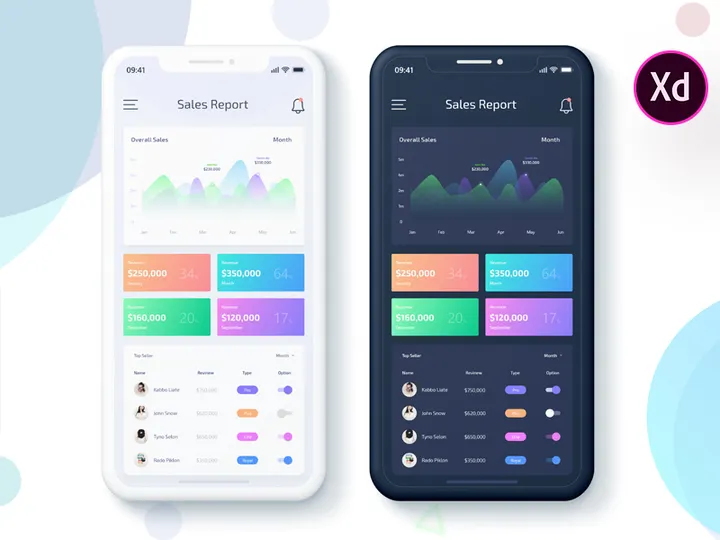
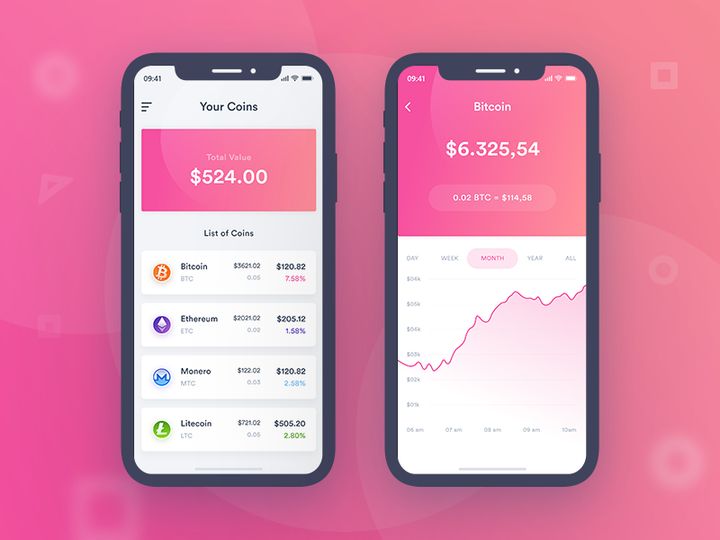

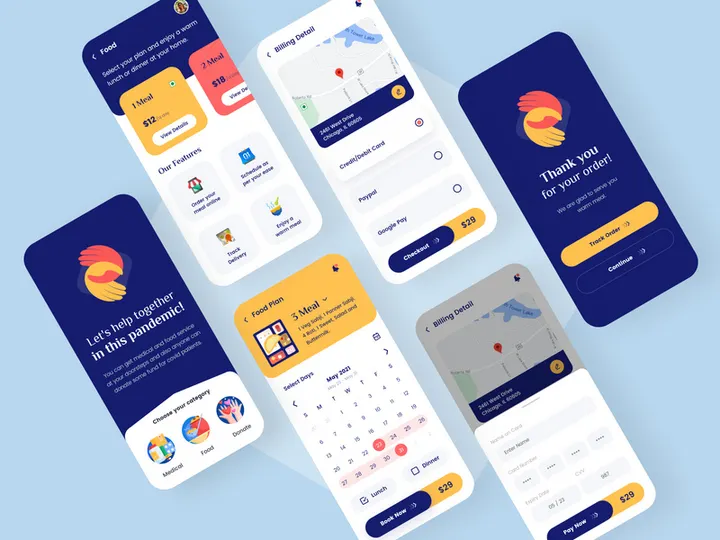

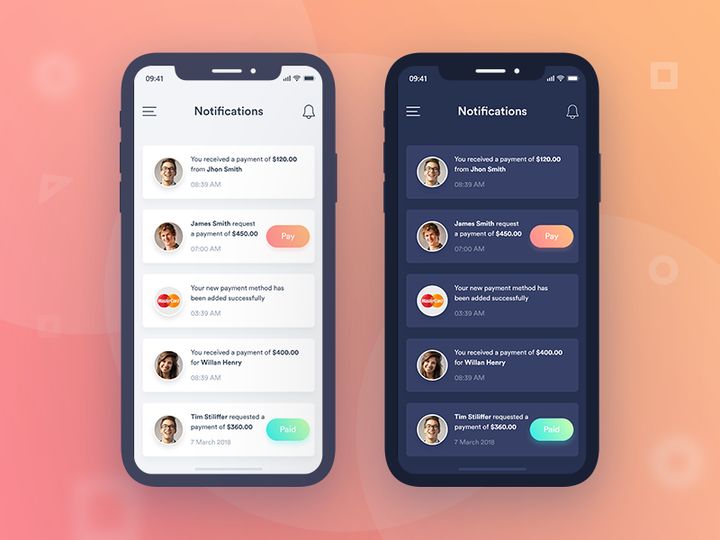



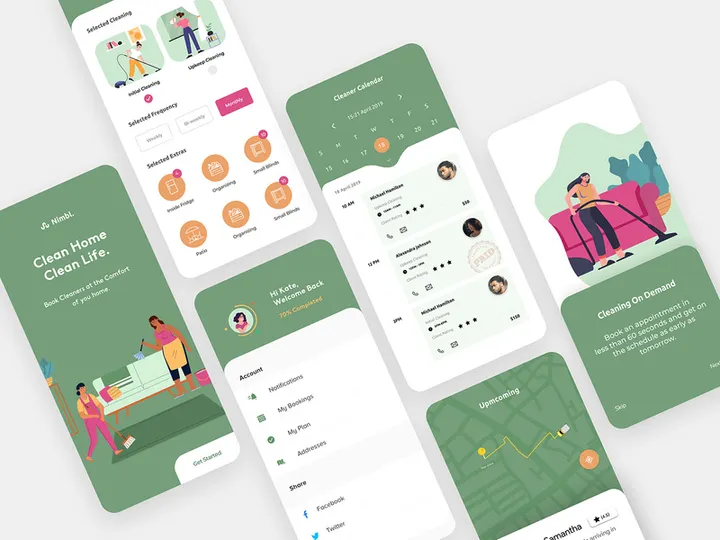
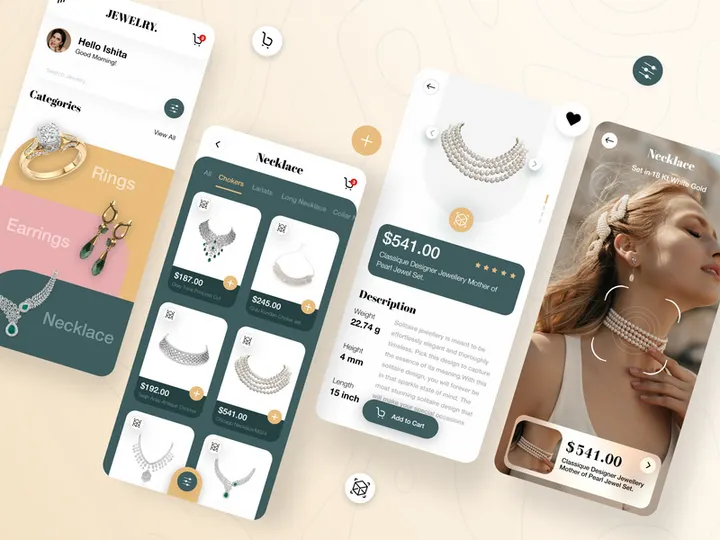
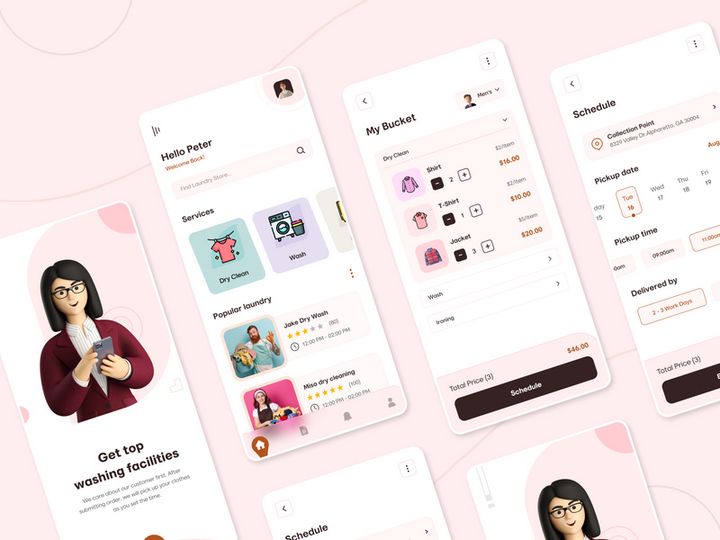
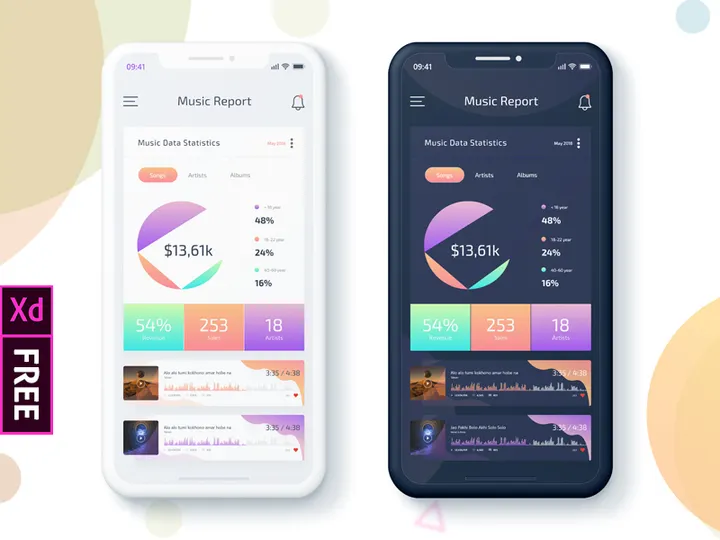
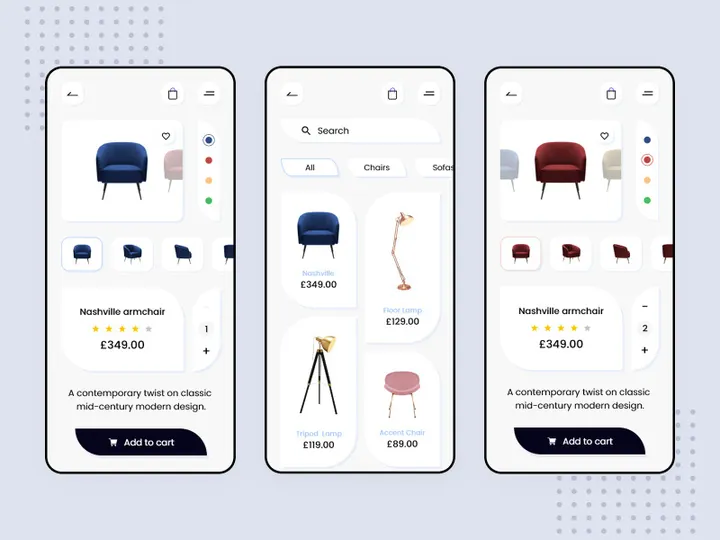
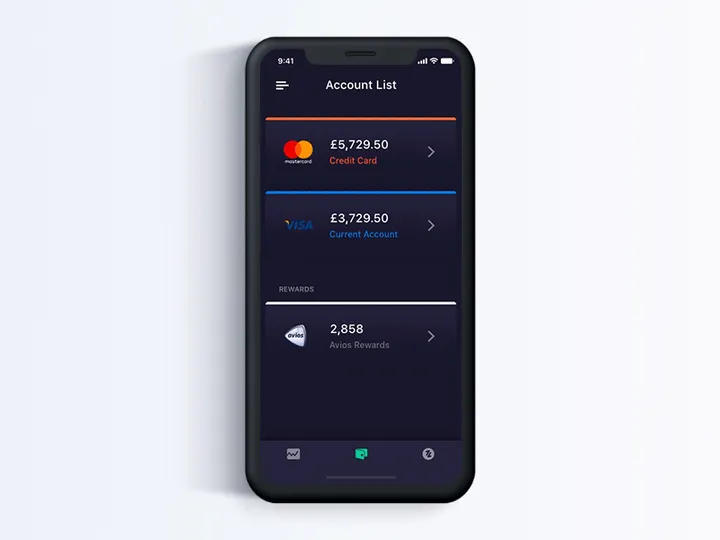
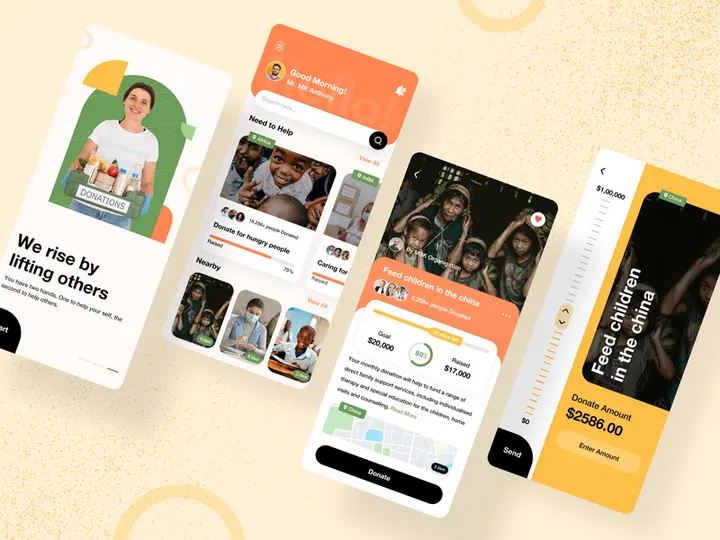

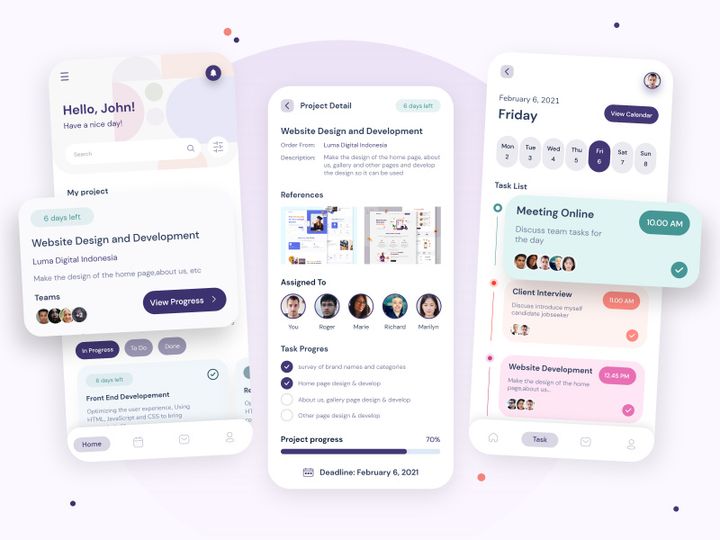
Try Our Free Resources
Download any of these for free - no account required
Getting Started with Apps in Adobe XD
Adobe XD has become a go-to platform for designers looking to create intuitive, high-fidelity app and web interfaces with speed and precision. One of its most powerful features is the ability to integrate third-party apps and design resources directly into your workflow. Whether you're building a mobile application, designing a responsive website, or prototyping a new digital product, apps in Adobe XD can drastically reduce design time and improve overall consistency. Before diving in, it's essential to ensure your setup is optimized for success.
To get started, make sure you have the latest version of Adobe XD installed on your system. The software is available for both macOS and Windows, and can be downloaded through the Adobe Creative Cloud application. A stable internet connection is recommended, especially when downloading large design resources or syncing cloud-based assets. Additionally, having an active Adobe ID grants you access to cloud documents, libraries, and community-driven integrations that enhance your design capabilities.
When it comes to finding apps compatible with Adobe XD, the ecosystem is rich and continuously expanding. Adobe’s official plugin manager provides access to a wide array of tools, but for pre-built UI kits, icon sets, and app templates, platforms like EpicPxls offer a curated collection tailored for real-world design needs. EpicPxls hosts over 200+ high-quality resources specifically optimized for Adobe XD, enabling designers to jumpstart projects with professionally crafted components. These resources include mobile app templates, dashboard UIs, onboarding flows, and design systems—all built with XD’s vector and component-based architecture in mind.
Exploring the 200+ resources available on EpicPxls not only accelerates your workflow but also ensures design consistency across projects. Each resource is designed to be easily customizable, allowing you to tweak colors, typography, and layout without starting from scratch. With the right setup and access to premium assets, Adobe XD becomes more than just a design tool—it transforms into a comprehensive design environment where apps and integrations enhance creativity and efficiency.
How to Import Apps into Adobe XD
- Choose the Right Resource: Begin by selecting an app or design kit from a trusted source like EpicPxls. Ensure the file is labeled as compatible with Adobe XD. Most resources will be available in .xd format, but some may include additional formats for broader compatibility.
- Download the Correct File Format: Look for the Adobe XD (.xd) file in the download package. While some kits may also include PSD, AI, SVG, or Figma files, always use the .xd file for optimal integration. This ensures that layers, components, and artboards are preserved as intended.
- Unzip the Downloaded File: Most design resources come in a compressed .zip folder. Extract the contents to a designated folder on your computer. Keep related assets like documentation, fonts, or icons in the same directory for easy reference.
- Launch Adobe XD: Open Adobe XD either through the Creative Cloud app or directly from your desktop. If you're working on a cloud document, make sure you're signed into your Adobe account to enable syncing and collaboration features.
- Import the File: Go to File > Open and navigate to the extracted .xd file. Click "Open" to load the app design into XD. The file will appear as a new document with all artboards, layers, and components intact.
- Verify and Adjust: Once imported, review the design structure. Check layer organization, component states, and artboard alignment. If you're importing non-XD files like SVGs or PSDs, use File > Place to insert them into your XD canvas. Note that imported vector graphics may need minor adjustments to fit XD’s editing tools, such as reapplying strokes or optimizing paths.
For formats like SVG or AI, Adobe XD maintains vector fidelity, allowing you to scale elements without quality loss. However, complex PSD layers may flatten or lose blend modes, so it's best to use native XD files when possible. The 200+ resources on EpicPxls are optimized for seamless import, minimizing conversion issues and saving time during setup.
Step-by-Step: Working with Apps in Adobe XD
Editing Layers and Components
Once your app design is imported into Adobe XD, customization is both intuitive and powerful. The Layers panel on the right side of the interface allows you to navigate through artboards, groups, and individual elements. Each component—such as buttons, navigation bars, or cards—can be edited independently. Double-clicking a component enters isolation mode, letting you modify its internal structure without affecting instances elsewhere.
Adobe XD’s Repeat Grid feature is especially useful when working with lists or galleries within app designs. Simply select a repeated element, enable Repeat Grid, and drag to duplicate it across the layout. You can then update text or images across all instances with a single edit. To maintain consistency, leverage the Assets panel to reuse colors, character styles, and components across your project. When using resources from EpicPxls, you’ll often find these assets pre-defined, making it easier to apply brand-specific changes at scale.
Organizing Your Apps Library
As your collection of app designs grows, maintaining an organized library becomes crucial. Create a dedicated folder on your local drive or cloud storage for all XD-related assets. Within Adobe XD, use naming conventions for artboards (e.g., “Login – Light,” “Profile – Dark”) to simplify navigation. Group related components under clear layer names and use color labels in the Layers panel to differentiate sections such as headers, modals, or footers.
Consider creating a master library document where you store reusable components from various kits, including those from the 200+ resources on EpicPxls. This central repository can be linked to multiple projects via Creative Cloud Libraries, ensuring design consistency across teams and deliverables. You can also export frequently used symbols as UI kits for future use.
Exporting for Production
When your app design is finalized, Adobe XD offers robust export options for development handoff. Select any artboard or element, then click the Export button in the right-hand properties panel. Choose the desired format—typically PNG for static assets, SVG for scalable icons, or PDF for print documentation. For mobile apps, exporting at 1x, 2x, and 3x scales ensures crisp rendering across devices.
Enable the Minify option when exporting SVGs to reduce file size without losing quality. You can also generate CSS, Swift, or Android code snippets directly from XD to assist developers. Use the Share for Development feature to create a public or private link containing all specs, assets, and exportable resources. This streamlines collaboration and reduces back-and-forth between design and engineering teams. When working with complex app layouts from EpicPxls, take advantage of pre-labeled layers and export tags to speed up the delivery process.
Troubleshooting Common Adobe XD Issues
File Won't Open
If an Adobe XD file fails to open, the most common cause is version incompatibility. Older versions of XD may not support features used in newer .xd files, especially those created with recent updates. Always keep Adobe XD updated through Creative Cloud. If you're trying to open a file created in a newer version, ask the provider—such as EpicPxls—to confirm version requirements or offer a backward-compatible export. Additionally, ensure the file wasn’t corrupted during download by re-downloading and re-extracting the archive.
Missing Fonts or Assets
When fonts don’t appear correctly, it’s usually because they aren't installed on your system. Adobe XD displays missing fonts with a warning icon and substitutes them with defaults. To fix this, check the resource’s documentation (often included in the download from EpicPxls) for required fonts. Most kits use free, widely available typefaces like Roboto, Open Sans, or Inter, which can be downloaded from Google Fonts or Adobe Fonts. Activate them via Creative Cloud or manually install the font files. For missing images or linked assets, verify that all files were extracted and that relative paths are preserved.
Performance Problems
Large app files with numerous artboards, high-resolution images, or complex vectors can slow down Adobe XD. To improve performance, break large documents into smaller, module-specific files—such as separating onboarding flows from dashboard screens. Rasterize heavy vector effects or unused artboards if they’re not being edited. Use the Purge Unused Resources option under the Edit menu to clean up hidden layers and duplicate assets. When working with expansive kits from the 200+ resources on EpicPxls, consider importing only the artboards you need using the Copy/Paste method between documents to reduce load times.
Advanced Adobe XD Tips for Apps
Batch Processing
When dealing with multiple app screens or icons, batch processing can save significant time. While Adobe XD doesn’t have native batch export for all layers, you can use plugins to automate repetitive tasks. For example, plugins can rename layers in bulk, apply consistent effects, or export dozens of artboards with predefined settings. You can also create templates with standardized export configurations to apply across projects. This is particularly helpful when preparing assets from comprehensive kits found among the 200+ resources on EpicPxls.
Plugins and Extensions
Extend Adobe XD’s functionality with plugins that enhance app design workflows. From icon generators and grid systems to accessibility checkers and translation tools, plugins streamline complex tasks. Access them via Plugins > Discover Plugins in the top menu. Install only trusted, frequently updated tools to avoid conflicts. Many plugins integrate directly with design systems, allowing you to auto-generate buttons, forms, or color palettes based on your brand guidelines. When using pre-built app resources, plugins can help adapt layouts for different screen sizes or export assets in developer-friendly formats.
Collaboration Workflows
For team-based app projects, Adobe XD supports real-time collaboration through cloud documents. Invite team members to edit or comment on shared files, ensuring everyone stays aligned. Use version history to revert to earlier states if needed. To maintain consistency across a shared apps library, sync component updates through Creative Cloud Libraries. When your team uses resources from EpicPxls, designate a lead designer to manage the master library and distribute approved updates. This prevents duplication and ensures all members are working with the latest design tokens, components, and UI patterns. With proper workflows, teams can efficiently scale app design systems across multiple products and platforms.
Why Download from EpicPxls?
Commercial License
Use in personal and commercial projects
No Account Required
Download free resources instantly
Quality Curated
Every resource is reviewed for quality
Preview Files
See Figma and Photoshop files before downloading
Who Uses These Apps?
Professionals and teams who benefit most from our collection
UI/UX Designers
Speed up your workflow with ready-to-use apps for Adobe XD. Perfect for prototyping and client presentations.
Developers
Get production-ready assets without design skills. Export in any format for web and mobile apps.
Startups & Agencies
Save design budget with affordable premium apps. Commercial license included for client work.
Marketing Teams
Create professional campaigns faster. All apps are optimized for social media and ads.
Apps for Adobe XD FAQCommon questions about these resources
Simple, Transparent Pricing
Get unlimited access to all premium resources
Yearly
- 20 downloads per month
- All file formats
- Commercial license
Lifetime
- Unlimited downloads forever
- All file formats
- Commercial license
Ready to Get Started?
Access 4,441+ free design resources today.
Browse Free ResourcesView Premium PlansEarn 85% and
more on all sales
Upload your products and put them up
for sale at whatever price you want.


