Apps for Sketch: 50+ Resources
EpicPxls offers 52+ curated apps for Sketch, all with a commercial license and editable source files (Figma, Sketch, PSD). We have 52+ apps compatible with Sketch, tested and verified for seamless integration.
Last updated February 12, 2026
Discover 50+ handpicked apps for Sketch.
Trusted by designers at leading companies
Top Apps for Sketch
Handpicked resources from our curated collection


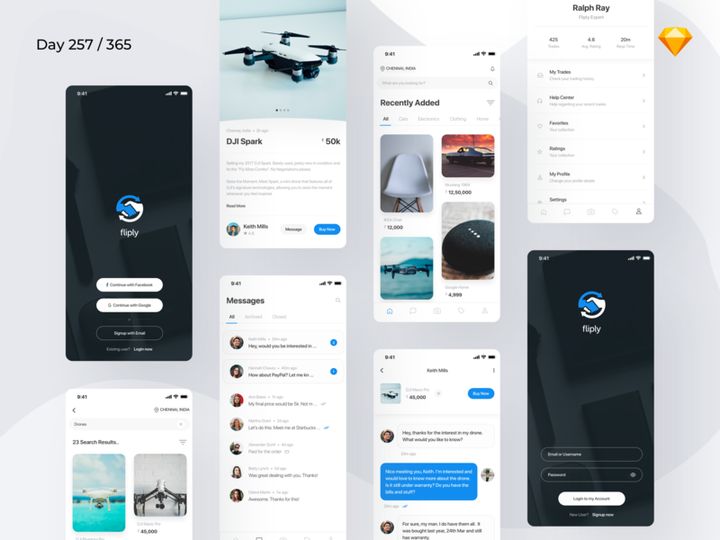
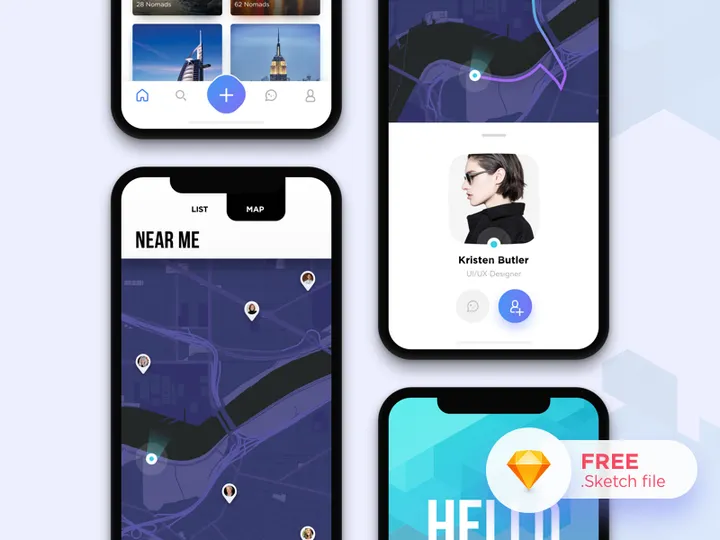
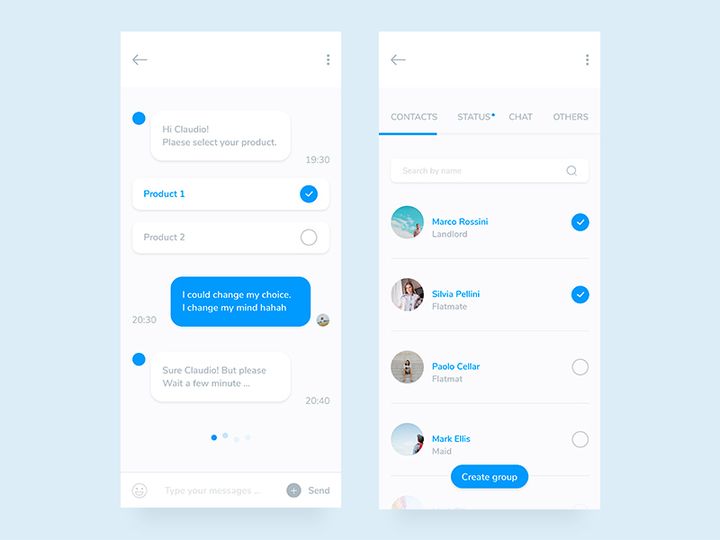


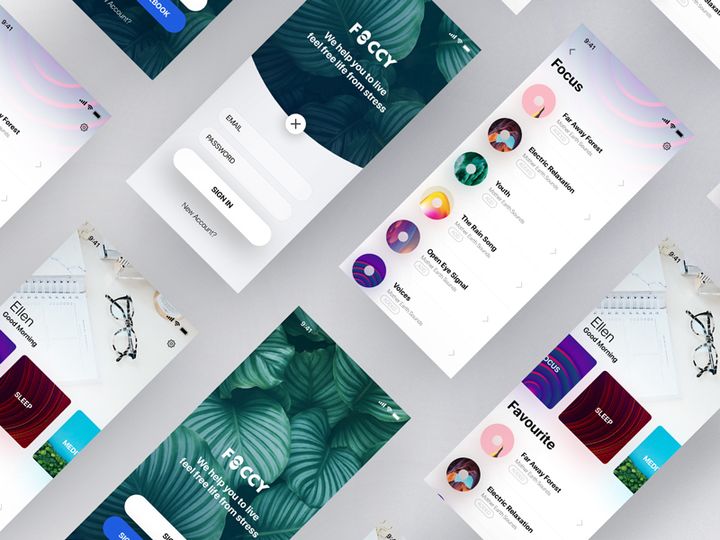
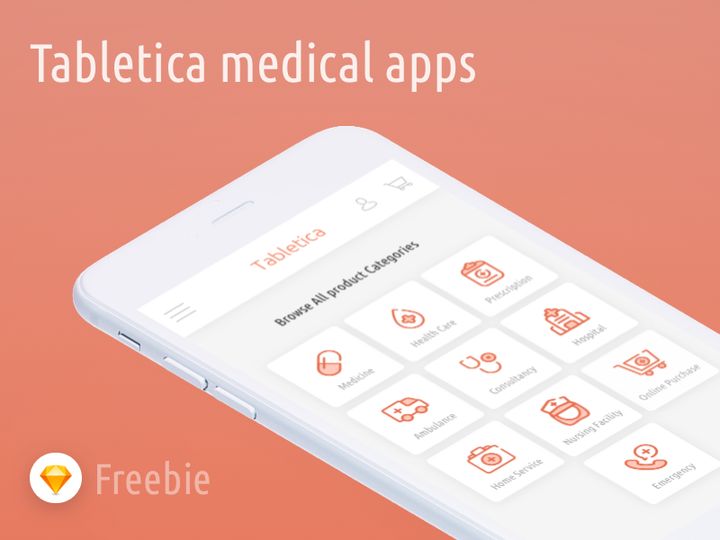
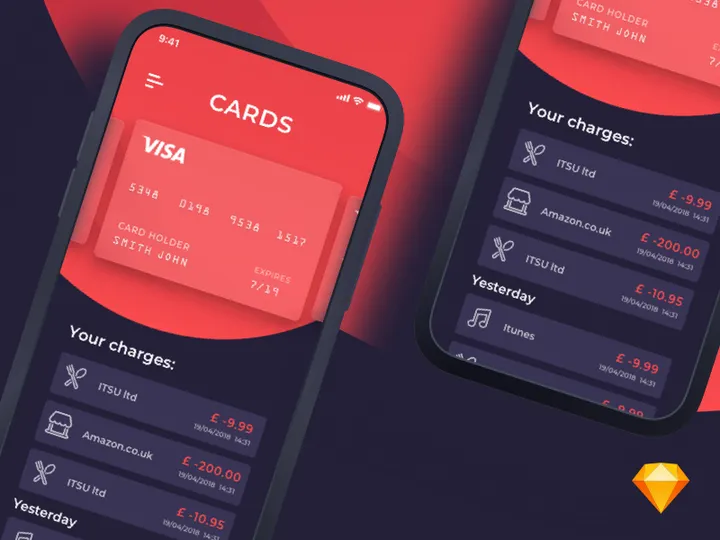
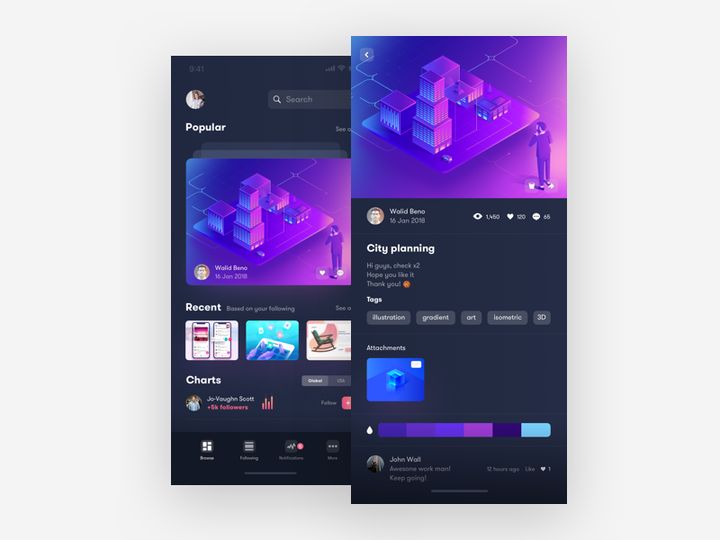
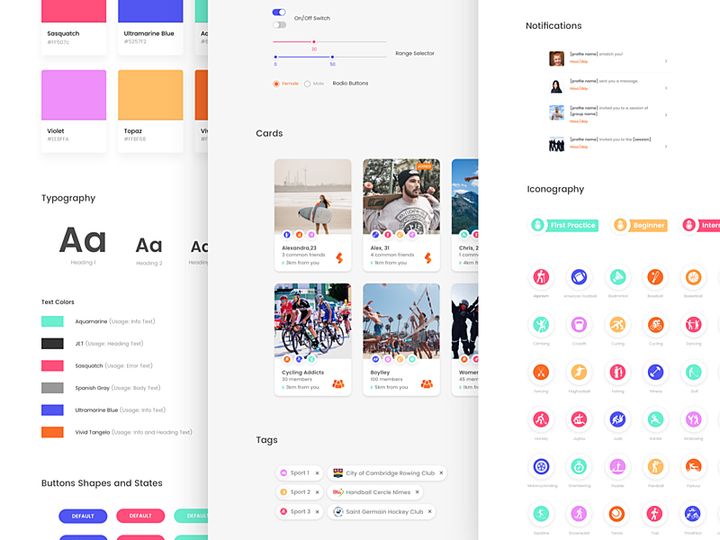
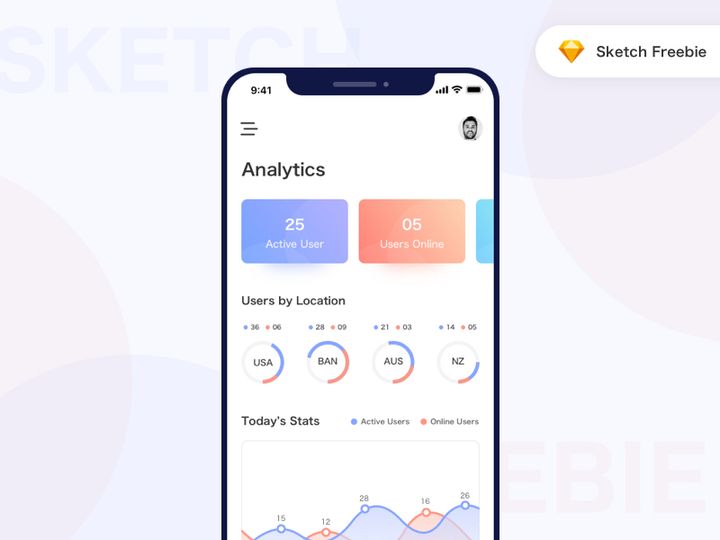
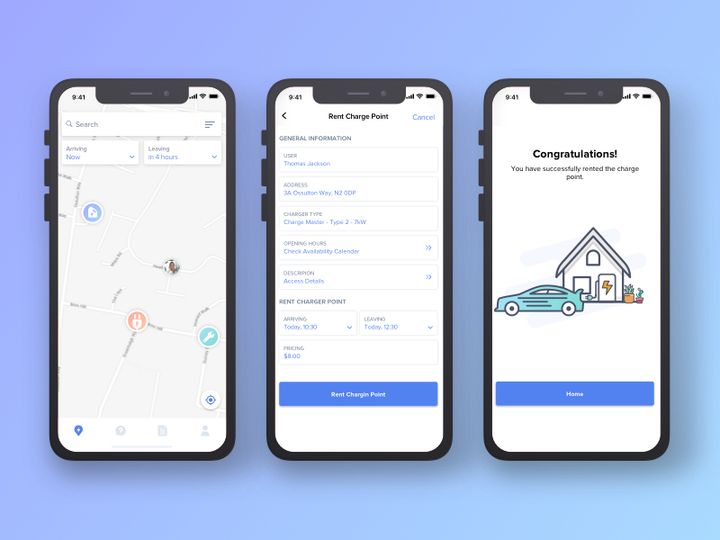

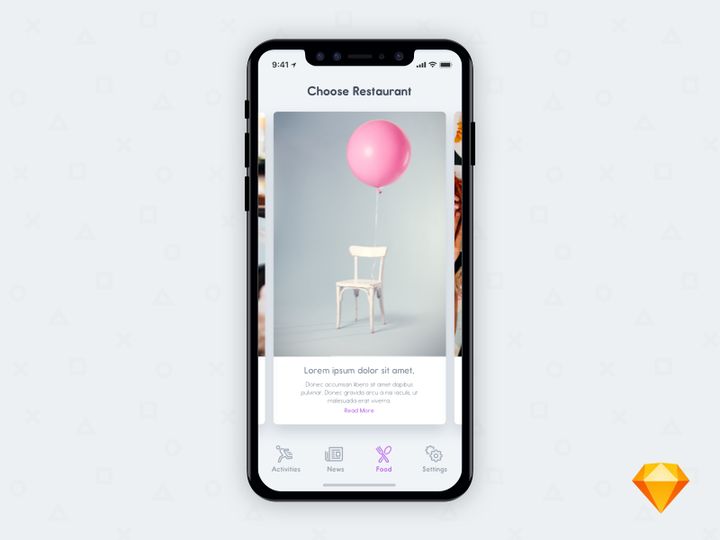

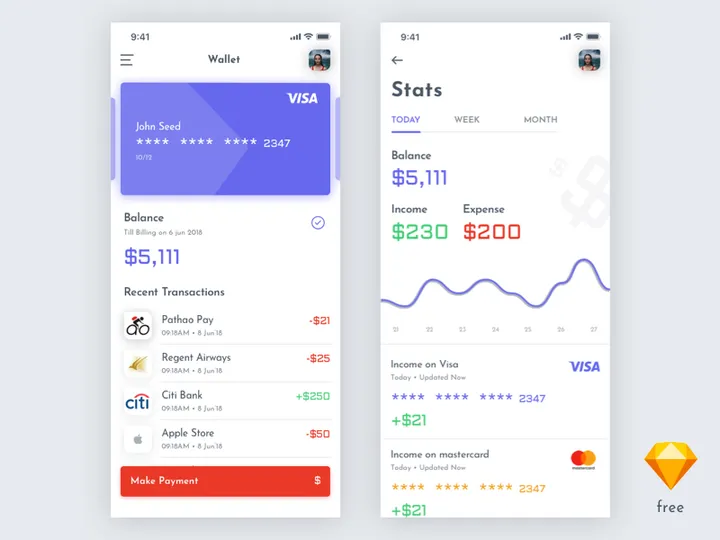

Try Our Free Resources
Download any of these for free - no account required
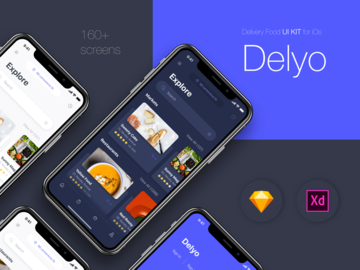
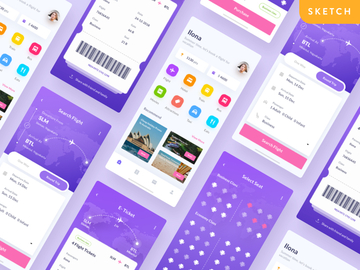
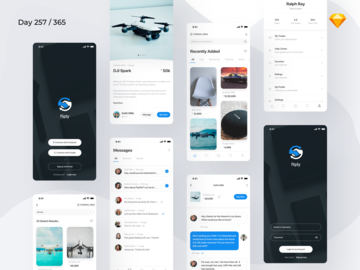
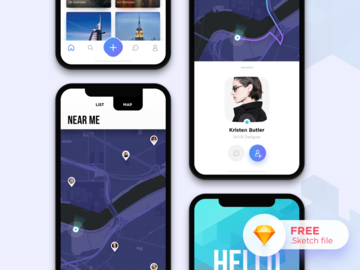
Why Sketch for Apps?
Sketch has become one of the leading design tools for digital product creation, especially when it comes to app design. Its vector-based interface, intuitive layout, and powerful features make it a top choice for designers building mobile and web applications. With a streamlined workspace tailored for screen design, Sketch allows creators to focus on user experience, interface consistency, and pixel-perfect precision—critical components in modern app development.
One of Sketch’s standout strengths is its symbol and component system, which enables designers to create reusable UI elements such as buttons, navigation bars, and form fields. This ensures design consistency across screens and dramatically speeds up the workflow. With features like nested symbols, overrides, and shared styles, Sketch makes it easy to maintain a scalable design system—perfect for complex app projects that evolve over time.
Another reason Sketch excels in app design is its robust plugin and integration ecosystem. Designers can extend Sketch’s functionality with tools that automate repetitive tasks, import real data, or sync designs with developer handoff platforms. This flexibility supports agile workflows and enhances collaboration between designers, developers, and product managers.
At EpicPxls, we understand the importance of high-quality, compatible design resources. That’s why we’ve curated over 50+ expertly selected apps for Sketch, ensuring every resource is optimized for performance, usability, and design fidelity. Our team evaluates each asset for resolution, organization, and compatibility with the latest Sketch versions, so you can trust that every download enhances your workflow without technical hiccups. Whether you’re designing a fitness app, social platform, or enterprise tool, our 50+ resources provide the foundation you need to build faster and smarter in Sketch.
Top Apps Picks for Sketch
Finding the right tools and resources can significantly impact your design efficiency and output quality. With so many options available, it’s essential to choose apps for Sketch that align with your skill level, project requirements, and workflow needs. To simplify your search, we’ve categorized our top picks from the 50+ resources curated by EpicPxls. From beginner-friendly kits to professional-grade design systems, there’s something for every designer.
Best for Beginners
If you're just starting with Sketch or app design in general, simplicity and clarity are key. Look for resources that come with well-structured layers, clear naming conventions, and comprehensive documentation. Beginner-friendly apps for Sketch often include pre-built screens, onboarding flows, and common UI patterns like login forms and dashboards. These kits help new users understand layout principles, spacing, and component reuse without feeling overwhelmed. Many of the beginner options in our 50+ resources collection feature intuitive artboard organization and tooltips, making them ideal for learning Sketch’s core functionality while building real-world app interfaces.
Best for Professionals
Experienced designers need tools that support complex workflows, responsive design, and team collaboration. The professional-grade apps in our curated list offer advanced features such as dynamic components, auto-layout capabilities (via compatible plugins), and integration-ready design tokens. These resources often follow Material Design or iOS Human Interface Guidelines, ensuring pixel-perfect alignment with platform standards. With modular systems and extensive component libraries, professionals can rapidly prototype and iterate on high-fidelity designs. EpicPxls prioritizes resources that support scalability and developer handoff, making them ideal for agency work, enterprise apps, or fast-moving product teams.
Best Free Options
High-quality doesn’t have to mean high cost. Among the 50+ resources we’ve curated, several standout free apps for Sketch deliver exceptional value. These include open-source UI kits, community-contributed templates, and lightweight component libraries perfect for side projects, startups, or learning purposes. While free options may have fewer screens or limited customization, many are regularly updated and built with clean, modern aesthetics. At EpicPxls, we carefully vet each free resource to ensure it meets our standards for usability and design integrity, so you get reliable tools without spending a dime.
Sketch vs Other Tools for Apps
When designing digital applications, choosing the right tool can shape your entire workflow. Sketch stands out for its focused approach to interface design, offering a lightweight, performance-optimized environment tailored specifically for app and screen-based projects. Unlike broader design suites, Sketch prioritizes vector editing, symbol reuse, and artboard management—features that directly support the iterative nature of app development.
The Sketch ecosystem offers unique advantages, particularly in collaboration and integration. With built-in sharing, version history (via Sketch Cloud), and seamless plugin support, teams can maintain consistent design systems and streamline feedback loops. The platform’s plugin architecture allows for deep customization, enabling designers to automate tasks like exporting assets, generating color palettes, or syncing with developer tools—all within the same workspace.
Another critical factor is format compatibility. Sketch files (.sketch) are widely supported across handoff tools and design-sharing platforms, making it easy to transition from concept to development. While other tools may offer cross-functional capabilities, Sketch’s tight focus on UI/UX for apps gives it an edge in precision and efficiency. For designers who prioritize clean, scalable interfaces and a smooth transition to production, Sketch remains a top contender. With 50+ resources carefully selected for compatibility and performance, EpicPxls ensures you’re equipped with tools that maximize Sketch’s inherent strengths.
Setting Up Apps in Sketch
Getting started with apps for Sketch is straightforward, but proper setup ensures long-term efficiency, especially when managing multiple projects or large design systems. Whether you're importing a single UI kit or integrating a full component library, following a structured process helps maintain organization and performance. Here’s how to set up apps in Sketch effectively:
- Download and Install: Begin by downloading your chosen app resource from a trusted source like EpicPxls. Ensure the file is in .sketch format and compatible with your version of Sketch.
- Open the File: Launch Sketch and open the downloaded .sketch file. Take a moment to explore the artboards, symbols, and layer structure to understand how the resource is organized.
- Extract Useful Components: Identify reusable elements such as buttons, icons, or navigation bars. Use Sketch’s “Create Symbol” function to convert them into reusable components for your project.
- Import into Your Project: Use Sketch’s “Insert from” menu to import symbols from the resource file into your active project. Alternatively, copy and paste artboards while preserving layer integrity.
- Organize in Libraries: For frequent use, convert the app resource into a Sketch Library. Go to Preferences > Libraries, click “Add Library,” and select your .sketch file. This allows you to access symbols across all your projects.
- Update and Maintain: If the resource receives updates, re-import the library file to sync changes. Keep a backup of your original download and document any customizations you make.
When managing large collections from the 50+ resources available, consider categorizing libraries by function—such as “Authentication Flows,” “Dashboard Kits,” or “Mobile Components.” This makes it easier to locate assets quickly and reduces clutter. EpicPxls recommends labeling files clearly and maintaining a master resource folder on your drive for easy access and version control.
Sketch Workflow Tips
Efficiency in Sketch comes from disciplined organization, smart use of built-in features, and consistent collaboration practices. As your collection of apps for Sketch grows—especially with access to 50+ resources—it’s crucial to maintain a workflow that scales with your projects. These best practices will help you stay productive, reduce redundancy, and ensure high-quality deliverables.
Organizing Apps Libraries
Keep your design system manageable by organizing libraries into logical groups. Use naming conventions like “App/Component/Button – Primary” to make symbols searchable. Within Sketch, leverage nested symbols and override options to build flexible components. Store your most frequently used resources in a dedicated folder and link them as Sketch Libraries for universal access. EpicPxls suggests reviewing your library structure quarterly to remove outdated kits and consolidate duplicates.
Batch Operations
When working with multiple screens or components, batch operations save significant time. Use plugins like “Batch Symbol Swap” or “Rename It” to update dozens of elements at once. For example, if you’re switching color themes across an app, apply a global style change instead of editing each symbol manually. Similarly, use Sketch’s “Export” panel to generate all required assets in one go, specifying scales and formats for iOS and Android. These efficiencies are especially valuable when leveraging expansive resources like the 50+ apps curated by EpicPxls.
Collaboration Best Practices
Collaboration in Sketch thrives when teams follow consistent workflows. Use shared libraries to ensure everyone accesses the same components. Enable Sketch Cloud to share prototypes, collect feedback, and track changes. When working with developers, export assets with clear naming and include design specs using integrated tools. Regular sync-ups to review the component library help maintain alignment. By building on high-quality apps for Sketch from trusted sources like EpicPxls, teams reduce friction and focus on innovation rather than rework.
Why Download from EpicPxls?
Commercial License
Use in personal and commercial projects
No Account Required
Download free resources instantly
Quality Curated
Every resource is reviewed for quality
Preview Files
See Figma and Photoshop files before downloading
Who Uses These Apps?
Professionals and teams who benefit most from our collection
UI/UX Designers
Speed up your workflow with ready-to-use apps for Sketch. Perfect for prototyping and client presentations.
Developers
Get production-ready assets without design skills. Export in any format for web and mobile apps.
Startups & Agencies
Save design budget with affordable premium apps. Commercial license included.
Marketing Teams
Create professional campaigns faster. All apps are optimized for social media and ads.
Apps for Sketch FAQCommon questions about these resources
Simple, Transparent Pricing
Get unlimited access to all premium resources
Yearly
- 20 downloads per month
- All file formats
- Commercial license
Lifetime
- Unlimited downloads forever
- All file formats
- Commercial license
Ready to Get Started?
Access 4,442+ free design resources today.
Browse Free ResourcesView Premium PlansEarn 85% and
more on all sales
Upload your products and put them up
for sale at whatever price you want.


