How to Use Apps in Illustrator: Complete Guide
EpicPxls offers 13+ curated apps for Illustrator, all with a commercial license and editable source files (Figma, Sketch, PSD). Download your chosen apps from EpicPxls, then use Illustrator's import function. Most resources include Illustrator-native files for seamless opening.
Last updated March 31, 2026
Everything you need to know about using apps in Illustrator.
Trusted by designers at leading companies
Top Apps for Illustrator
Handpicked resources from our curated collection
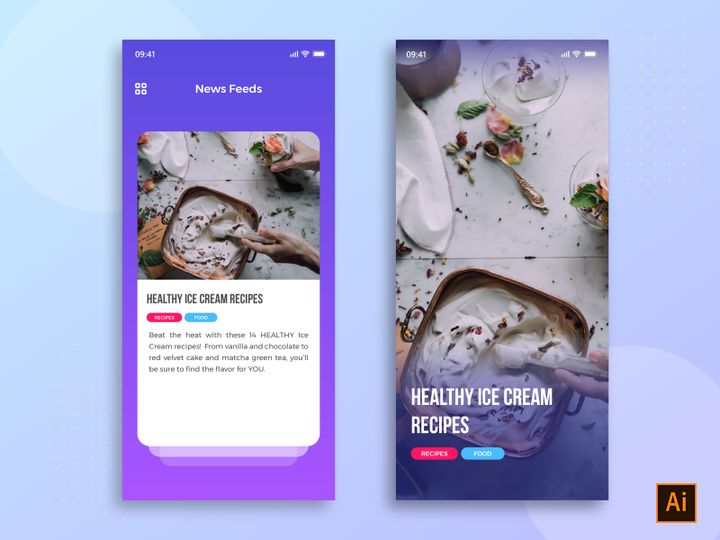

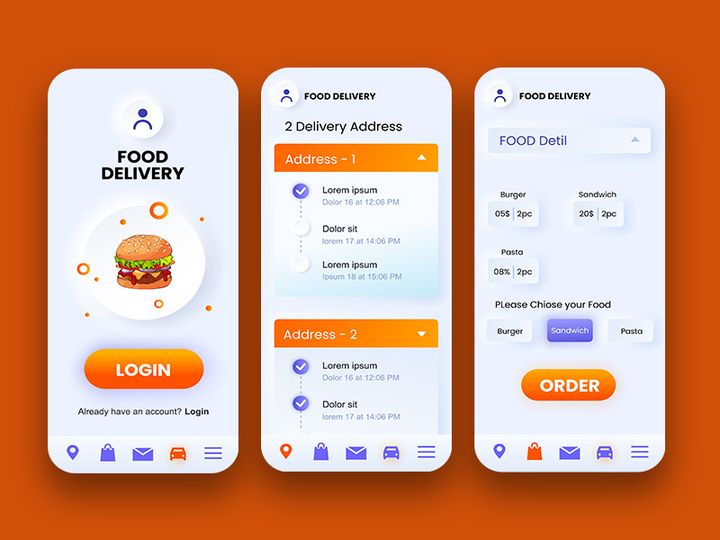
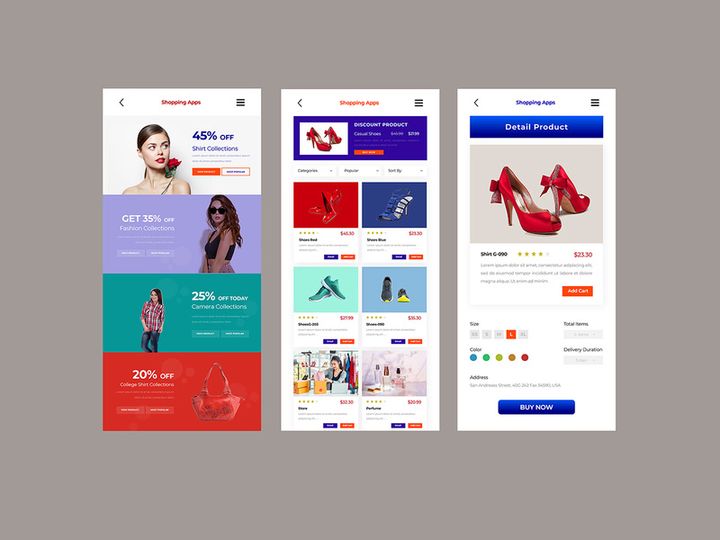
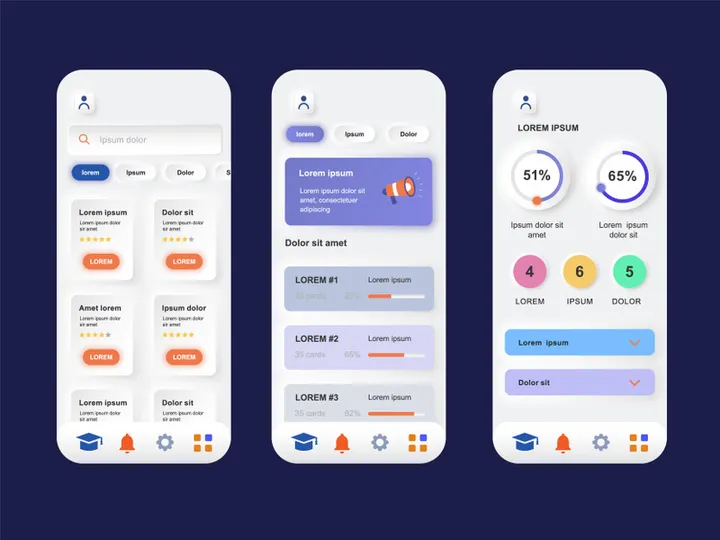



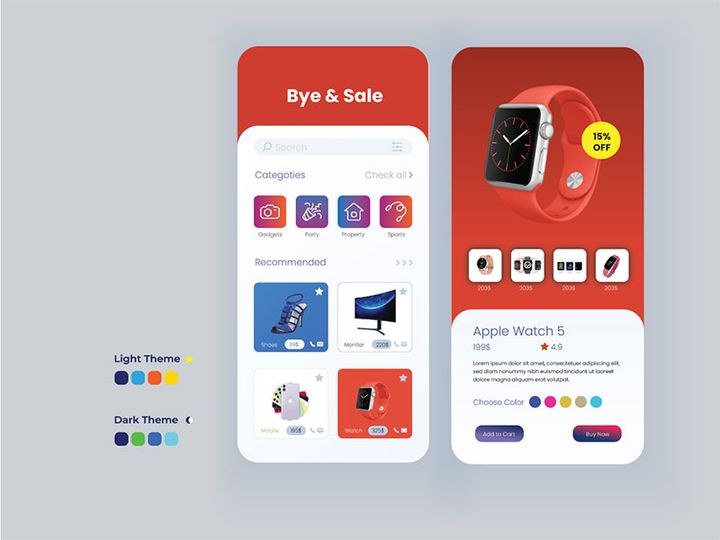
Try Our Free Resources
Download any of these for free - no account required
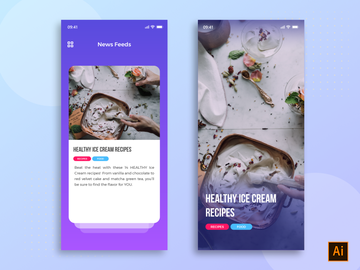
Getting Started with Apps in Illustrator
Adobe Illustrator is a powerful vector design tool widely used by professionals for creating scalable graphics, from logos and illustrations to full app interfaces. With the growing demand for digital products, designers are increasingly using Illustrator to prototype and design apps. To streamline this process, integrating ready-made app resources into your workflow can significantly boost productivity and creativity. Before diving into how to use apps in Illustrator, it's essential to ensure you have the necessary setup and access to quality resources.
To get started, you’ll need a current version of Adobe Illustrator installed on your system—ideally Illustrator 2020 or later for optimal compatibility with modern file formats and features. Make sure your software is updated through the Creative Cloud desktop app to access the latest enhancements and stability improvements. A stable internet connection is also recommended, especially when downloading third-party app assets or integrating cloud-based plugins.
When searching for app-compatible design elements, it's crucial to source files specifically built for Illustrator or that support vector formats such as AI, SVG, or EPS. Many design marketplaces offer app templates, UI kits, icons, and component libraries, but quality and compatibility can vary. One trusted destination for high-quality, professionally crafted resources is EpicPxls, which provides a curated collection of 14+ resources tailored for digital designers. These include app templates, mobile UI kits, dashboard layouts, and modular design systems—all optimized for seamless use in Illustrator.
The 14+ resources available on EpicPxls are designed to help both beginners and experienced designers jumpstart their projects. Whether you're building a fitness app, a fintech dashboard, or a social media interface, these kits come with organized layers, reusable components, and smart guides to simplify customization. By leveraging these pre-built assets, you can focus more on innovation and user experience rather than reinventing interface elements from scratch. With the right tools and resources in place, you're now ready to import and work with app designs directly in Illustrator.
How to Import Apps into Illustrator
- Choose the Right Resource: Begin by selecting an app design resource from a trusted provider like EpicPxls. Ensure the download includes Illustrator-compatible formats such as .AI, .SVG, or .PDF. Some packages may also include Figma or Sketch files, so verify that an Illustrator version is available.
- Download and Extract Files: After purchase or download, extract the compressed folder (usually .ZIP) to a designated project directory. Keep the folder structure intact, as it often contains assets like icons, fonts, and documentation that support the main Illustrator file.
- Launch Illustrator and Open the File: Open Adobe Illustrator and go to File > Open. Navigate to the extracted folder and select the .AI file. Click “Open” to load the app design into the workspace. Illustrator will preserve layers, groups, and vector properties for full editability.
- Handle Linked Assets: If the file uses linked images or external assets, Illustrator may prompt you to relink missing files. Use the “Links” panel (Window > Links) to update paths if necessary. Embedded assets will appear automatically.
- Import Other File Types: For non-AI files like SVG or PDF, use File > Place to insert them into your current document. For PSD files from Photoshop, open them directly in Illustrator to retain layers (though some raster elements may not be editable as vectors).
- Verify Compatibility and Scale: After importing, check for any warning messages about font substitutions or missing features. Ensure the artboard size matches your target device (e.g., iPhone, Android, tablet). Use the Transform panel to resize proportionally if needed, maintaining pixel-perfect alignment for app design accuracy.
When working with files from different platforms—such as Figma exports—be aware that complex effects like shadows or blurs may not translate perfectly. Always review the imported layout closely and adjust strokes, fills, and alignment as needed. By following these steps, you ensure a smooth integration of app resources into Illustrator, setting a solid foundation for customization and development.
Step-by-Step: Working with Apps in Illustrator
Editing Layers and Components
Once your app design is imported, the real work begins: customization. Illustrator’s layer system is central to efficiently modifying app components. Open the Layers panel to explore the structure of the imported file. Well-organized resources from sources like EpicPxls typically group elements by screen, component type (buttons, icons, navigation bars), or functionality, making it easier to locate and edit specific parts.
Double-click a layer or group to enter isolation mode, allowing you to edit individual components without affecting surrounding elements. Use the Appearance panel to modify strokes, fills, and effects non-destructively. For reusable elements like buttons or cards, consider converting them into symbols via the Symbols panel. This allows you to update one instance and have changes reflect across all duplicates—a major time-saver when designing multi-screen apps.
Leverage Illustrator’s vector tools to recolor interfaces, resize elements, or create variants (e.g., dark mode versions). The Recolor Artwork tool is particularly useful for quickly applying new color schemes across an entire app UI. Text can be edited directly with the Type tool, but always check for font licensing and availability to avoid display issues.
Organizing Your Apps Library
As you accumulate multiple app resources—especially from collections offering 14+ resources—organization becomes critical. Create a dedicated project folder on your system with subfolders for assets, source files, exports, and documentation. Within Illustrator, use consistent layer naming conventions (e.g., “Screen/Home/Header/Button”) to maintain clarity.
Consider building a master library of reusable components. Use the CC Libraries panel to drag and store frequently used icons, color swatches, typography styles, and UI elements. These can be synced across devices and accessed in future projects, promoting consistency across your app designs. For teams, shared libraries enable standardized design systems and reduce redundancy.
Regularly audit your library by archiving outdated files and updating components to reflect design changes. This practice ensures your toolkit remains efficient and relevant, especially when iterating on app designs or launching new versions.
Exporting for Production
When your app design is finalized, exporting correctly is key to ensuring assets function properly in development. Illustrator supports multiple export workflows, but the best approach depends on your target platform—web, mobile, or print.
For digital apps, use File > Export > Export As to generate raster and vector assets. Choose formats like PNG for high-quality icons and buttons, SVG for scalable vector graphics (ideal for responsive web interfaces), and PDF for print-ready documentation or client presentations. When exporting PNGs, set the resolution to 72 PPI for standard screens or 144 PPI for retina displays.
To export multiple assets efficiently, use the Asset Export panel. Select individual artboards or layer groups, assign file names and formats, and batch-export everything at once. This is especially useful when preparing design handoff packages containing buttons, icons, and screen mockups. Always verify file sizes to ensure they meet performance standards—large assets can slow down app loading times.
Include a style guide or readme file with exported assets, detailing color codes, font sizes, and spacing. This helps developers implement your design accurately and maintains consistency across platforms.
Troubleshooting Common Illustrator Issues
File Won't Open
If an app design file fails to open in Illustrator, the most common cause is version incompatibility. Older versions of Illustrator may not support features used in newer .AI files. Always check the file’s version requirements—many resources on EpicPxls specify the minimum Illustrator version needed. When in doubt, request a backward-compatible version from the provider or update your software via Creative Cloud.
Another issue arises when downloading files in unsupported formats. Ensure the file extension is .AI, .SVG, .PDF, or .EPS. If you receive a .PSD or .FIG (Figma) file, you may need to convert it first using the appropriate software before importing into Illustrator.
Missing Fonts or Assets
When opening an app template, Illustrator may display warnings about missing fonts. These occur when the original designer used a typeface not installed on your system. To resolve this, check the resource’s documentation—many 14+ resource packs include font lists or even free alternative suggestions. You can also use the Find Font dialog (Type > Find Font) to replace missing fonts with available ones.
Missing linked images or assets can be fixed through the Links panel. If files were moved or deleted, relink them by browsing to the correct location in your project folder. To avoid this in the future, embed all images before sharing files or archiving projects.
Performance Problems
Large app files with complex layers and effects can slow down Illustrator. To improve performance, simplify paths using Object > Path > Simplify, and ungroup unnecessary elements. Hide or collapse layers you’re not actively editing to reduce visual clutter and processing load.
Consider splitting large projects into multiple files by screen or module. This makes navigation easier and reduces lag. Also, disable GPU performance warnings if you’re on a stable system—go to Preferences > Performance and adjust the settings to balance speed and quality.
Advanced Illustrator Tips for Apps
Batch Processing
When working with multiple app screens or variations (e.g., light/dark modes), batch processing saves time. Use Actions (Window > Actions) to record repetitive tasks like resizing, recoloring, or exporting. Once recorded, apply the action to a series of files via File > Automate > Batch. This is ideal for generating consistent asset sets across different themes or device sizes.
Plugins and Extensions
Extend Illustrator’s functionality with plugins designed for UI and app design. Tools that automate spacing, alignment, or icon generation can streamline workflows significantly. Many 14+ resource packs integrate well with these extensions, enabling dynamic updates across symbols and components. Explore the Adobe Exchange marketplace to find trusted plugins that enhance precision and efficiency in app design projects.
Collaboration Workflows
For team environments, establishing a clear collaboration workflow is essential. Use EpicPxls’ well-structured resources as a foundation for shared design systems. Store commonly used components in a team CC Library so all members access the same buttons, icons, and styles. Implement version naming (e.g., “App_v1.2.ai”) and use cloud storage with version history to avoid overwrites.
When handing off designs, export PDFs with layers visible or use tools that generate annotated specs. This ensures smooth communication between designers and developers, reducing revision cycles and accelerating app production.
Why Download from EpicPxls?
Commercial License
Use in personal and commercial projects
No Account Required
Download free resources instantly
Quality Curated
Every resource is reviewed for quality
Preview Files
See Figma and Photoshop files before downloading
Who Uses These Apps?
Professionals and teams who benefit most from our collection
UI/UX Designers
Speed up your workflow with ready-to-use apps for Illustrator. Perfect for prototyping and client presentations.
Developers
Get production-ready assets without design skills. Export in any format for web and mobile apps.
Startups & Agencies
Save design budget with affordable premium apps. Commercial license included for client work.
Marketing Teams
Create professional campaigns faster. All apps are optimized for social media and ads.
Apps for Illustrator FAQCommon questions about these resources
Simple, Transparent Pricing
Get unlimited access to all premium resources
Yearly
- 20 downloads per month
- All file formats
- Commercial license
Lifetime
- Unlimited downloads forever
- All file formats
- Commercial license
Ready to Get Started?
Access 4,441+ free design resources today.
Browse Free ResourcesView Premium PlansEarn 85% and
more on all sales
Upload your products and put them up
for sale at whatever price you want.


