Apps for Illustrator: 14+ Resources
EpicPxls offers 13+ curated apps for Illustrator, all with a commercial license and editable source files (Figma, Sketch, PSD). We have 13+ apps compatible with Illustrator, tested and verified for seamless integration.
Last updated March 31, 2026
Discover 14+ handpicked apps for Illustrator.
Trusted by designers at leading companies
Top Apps for Illustrator
Handpicked resources from our curated collection
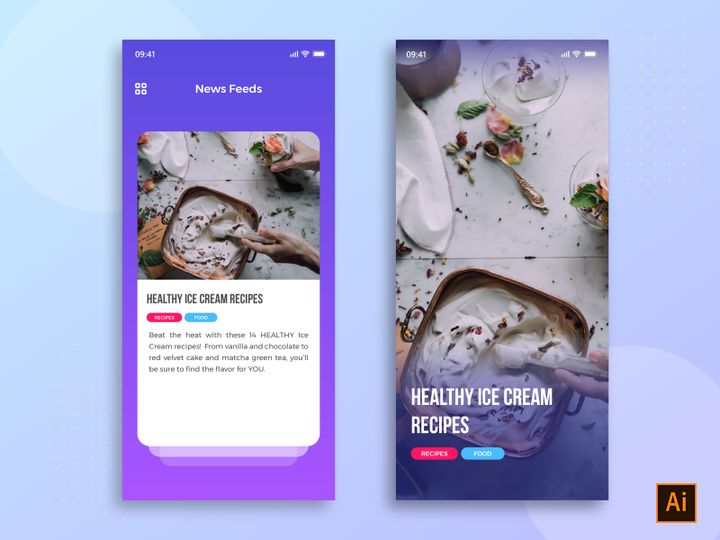

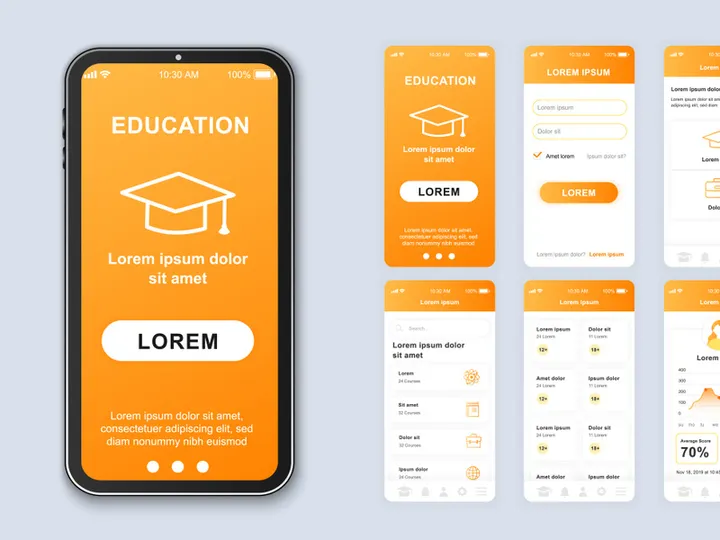
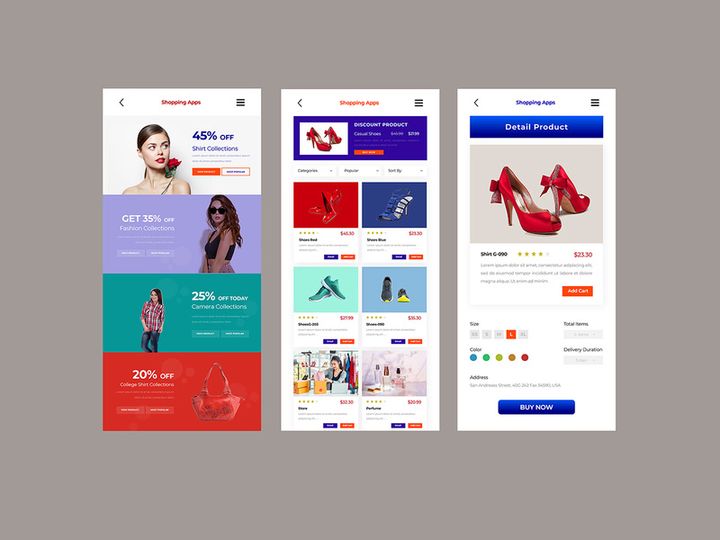
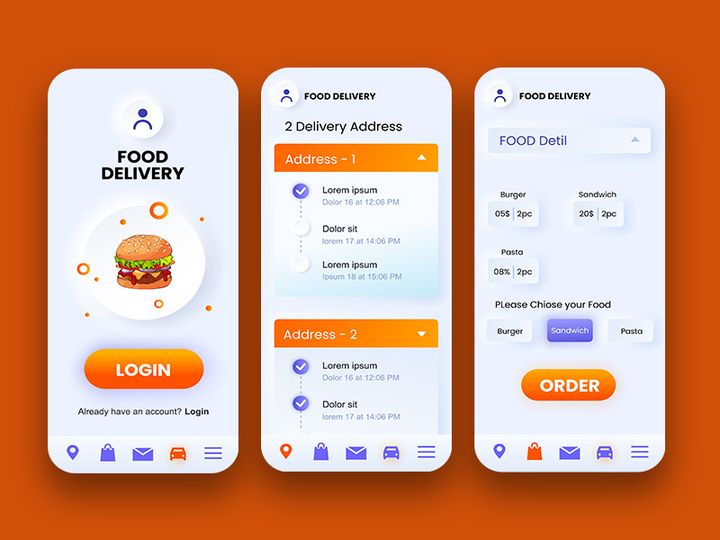



Try Our Free Resources
Download any of these for free - no account required
Why Illustrator for Apps?
Adobe Illustrator has long been a cornerstone in the world of digital design, especially when it comes to creating assets for apps. Its vector-based foundation makes it an ideal platform for developing scalable, high-resolution graphics that maintain clarity across various screen sizes and resolutions—a critical requirement in today’s diverse mobile and web application landscape. Whether you're designing icons, UI components, or full-screen mockups, Illustrator provides the precision and flexibility needed to bring app interfaces to life with pixel-perfect accuracy.
One of the key reasons Illustrator stands out for app design is its robust set of vector tools. The Pen Tool, Shape Builder, and Pathfinder enable designers to craft intricate, clean shapes that form the backbone of modern app interfaces. Features like Artboards allow multiple screens to be designed within a single file, streamlining the workflow for app prototyping. Additionally, the ability to create and reuse symbols, along with dynamic recoloring options, ensures consistency and efficiency throughout the design process. These capabilities are further enhanced by support for global colors, typography styles, and scalable strokes, all of which are essential when maintaining design systems for complex applications.
At EpicPxls, we recognize the importance of integrating powerful external resources into Illustrator to maximize productivity. That’s why we’ve curated a collection of 14+ resources specifically designed to enhance Illustrator’s native functionality for app creators. From plugin integrations to customizable UI kits and icon libraries, these tools are vetted for compatibility, ease of use, and design quality. By combining Illustrator’s industry-leading vector capabilities with purpose-built add-ons, designers can accelerate their workflow, maintain brand consistency, and deliver polished app designs faster. Whether you’re building a startup MVP or contributing to an enterprise-level product, Illustrator’s ecosystem—amplified by the right tools—offers a compelling advantage in the competitive world of app development.
Top Apps Picks for Illustrator
With so many resources available, selecting the right tools to complement your Illustrator workflow can make a significant difference in both efficiency and output quality. At EpicPxls, we’ve evaluated dozens of integrations and curated a list of the most effective 14+ resources tailored for app design. These tools enhance everything from initial concepting to final export, ensuring designers at every level can find the right fit for their needs. Whether you're just starting out or leading a design team on a complex project, these top picks are designed to elevate your Illustrator experience.
Best for Beginners
If you're new to app design in Illustrator, simplicity and clarity are key. Opt for resources that offer intuitive interfaces, clear documentation, and ready-to-use templates. Tools like lightweight UI kits with drag-and-drop components allow beginners to quickly assemble screens without deep technical knowledge. Look for options that include tooltips, guided setup processes, and video tutorials—these features reduce the learning curve and help build confidence. Many beginner-friendly apps integrate seamlessly with Illustrator’s existing tools, enabling new users to focus on creativity rather than complex workflows.
Best for Professionals
For experienced designers, advanced functionality and customization are top priorities. The best professional-grade resources offer deep integration with Illustrator’s layer and symbol systems, support for design tokens, and automation features like batch exports and style syncing. These tools often include comprehensive component libraries, responsive grid systems, and support for dark mode variants—essential for enterprise-level app projects. High-end resources also provide version control compatibility and team collaboration features, making them ideal for design systems used across large organizations.
Best Free Options
High-quality doesn’t have to mean high cost. There are several free apps and plugins that deliver exceptional value without compromising on functionality. These include minimalist icon sets, open-source UI kits, and lightweight automation tools that streamline repetitive tasks. While free resources may have fewer features than premium versions, many are actively maintained and regularly updated. At EpicPxls, we’ve highlighted several free options within our 14+ resources that offer professional-grade assets and are perfect for indie developers, students, or teams working within tight budgets.
Illustrator vs Other Tools for Apps
When designing apps, choosing the right design environment is crucial. While several tools cater to UI and UX design, Illustrator remains a preferred choice for many due to its unmatched vector precision and scalability. Unlike raster-based programs, Illustrator ensures that every element—from tiny icons to full-screen layouts—remains crisp at any resolution. This is especially important when exporting assets for multiple device densities, such as @1x, @2x, and @3x displays common in modern apps.
Illustrator’s ecosystem offers unique advantages that set it apart. Its deep integration with other Adobe Creative Cloud applications allows for seamless transitions between design, prototyping, and asset export. Additionally, the ability to work with layers, groups, and symbols in a structured way makes it easier to manage complex app interfaces. While some tools focus solely on screen-based design with built-in prototyping, Illustrator excels in delivering production-ready assets with meticulous control over paths, strokes, and typography.
Another key consideration is format compatibility. Illustrator natively supports AI, SVG, PDF, and EPS files, making it easy to share assets with developers or import third-party graphics. Many app-focused plugins and libraries are built specifically for Illustrator’s environment, ensuring smooth performance and reliable results. At EpicPxls, we prioritize resources that leverage these strengths, ensuring the 14+ resources we recommend are not only powerful but also fully compatible with Illustrator’s core functionalities. This focus on integration and fidelity makes Illustrator a smart long-term investment for app designers who value precision and flexibility.
Setting Up Apps in Illustrator
Integrating new resources into Illustrator is a straightforward process when you follow a structured approach. Whether you're installing plugins, loading UI kits, or importing icon libraries, proper setup ensures smooth performance and easy access during your design workflow. Below is a step-by-step guide to help you import, organize, and begin using the 14+ resources curated by EpicPxls.
- Download the Resource: Begin by downloading the app or asset pack from a trusted source. Ensure the file format is compatible with your version of Illustrator (common formats include .ai, .ccx, .zxp, or .zip).
- Install Plugins (if applicable): For plugin-based tools, use the Adobe Extension Manager or drag the .zxp file into Illustrator’s “Add-ons” panel to install. Restart Illustrator if prompted.
- Load Libraries or Panels: After installation, access the resource via Window > Extensions or Window > Libraries. Some tools appear as floating panels or sidebars within the interface.
- Import UI Kits or Templates: For design kits, open the .ai file and copy desired components into your working file. Alternatively, save symbols to the Symbols panel for reuse.
- Organize Your Assets: Create folders in the Libraries panel to categorize icons, buttons, and other elements. Name layers and groups clearly to maintain consistency.
- Test Functionality: Place a few components on an artboard, adjust colors using global swatches, and verify that interactive features (like dynamic symbols) work as expected.
Tips for managing large collections include using consistent naming conventions, leveraging metadata tags, and periodically archiving unused assets. This keeps your workspace efficient and collaboration-ready. With the right setup, the 14+ resources from EpicPxls can become an integral part of your daily workflow, saving time and boosting creative output.
Illustrator Workflow Tips
Maximizing your efficiency in Illustrator involves more than just knowing the tools—it’s about building a sustainable workflow that supports creativity, consistency, and collaboration. By refining how you manage assets, automate tasks, and work with others, you can significantly reduce production time and improve design quality. These best practices are especially valuable when working with app-focused projects that require precision and scalability.
Organizing Apps Libraries
A well-structured library is the foundation of an efficient workflow. Use Illustrator’s Libraries panel to store and categorize frequently used elements such as icons, buttons, form fields, and navigation bars. Create sub-libraries for different app modules (e.g., onboarding, dashboard, settings) to make assets easy to locate. Apply tags and color labels to further enhance searchability. At EpicPxls, we recommend syncing libraries to Creative Cloud so they’re accessible across devices and team members.
Batch Operations
Saving time on repetitive tasks is crucial when designing multi-screen apps. Use Illustrator’s Actions panel to record and replay common operations like resizing artboards, exporting assets, or applying effects. For example, create an action that scales icons to multiple sizes and exports them as PNGs for different screen densities. Combine this with the Export for Screens feature to process multiple artboards at once. These batch operations ensure consistency and dramatically reduce manual effort, especially when updating design systems or preparing developer handoffs.
Collaboration Best Practices
When working in teams, clarity and consistency are essential. Establish a shared naming convention for layers, groups, and symbols to avoid confusion. Use linked assets and cloud libraries so all team members access the latest versions of UI components. Enable version history in Creative Cloud to track changes and revert when necessary. For app projects, consider breaking large files into modular components that can be worked on independently. By integrating these practices, your team can maintain a cohesive design language while scaling efficiently—whether you're using a single resource or the full suite of 14+ resources curated by EpicPxls.
Why Download from EpicPxls?
Commercial License
Use in personal and commercial projects
No Account Required
Download free resources instantly
Quality Curated
Every resource is reviewed for quality
Preview Files
See Figma and Photoshop files before downloading
Who Uses These Apps?
Professionals and teams who benefit most from our collection
UI/UX Designers
Speed up your workflow with ready-to-use apps for Illustrator. Perfect for prototyping and client presentations.
Developers
Get production-ready assets without design skills. Export in any format for web and mobile apps.
Startups & Agencies
Save design budget with affordable premium apps. Commercial license included.
Marketing Teams
Create professional campaigns faster. All apps are optimized for social media and ads.
Apps for Illustrator FAQCommon questions about these resources
Simple, Transparent Pricing
Get unlimited access to all premium resources
Yearly
- 20 downloads per month
- All file formats
- Commercial license
Lifetime
- Unlimited downloads forever
- All file formats
- Commercial license
Ready to Get Started?
Access 4,442+ free design resources today.
Browse Free ResourcesView Premium PlansEarn 85% and
more on all sales
Upload your products and put them up
for sale at whatever price you want.


