Themes for Photoshop: 71+ Resources
EpicPxls offers 71+ curated themes for Photoshop, all with a commercial license and editable source files (Figma, Sketch, PSD). We have 71+ themes compatible with Photoshop, tested and verified for seamless integration.
Last updated February 12, 2026
Discover 71+ handpicked themes for Photoshop.
Trusted by designers at leading companies
Top Themes for Photoshop
Handpicked resources from our curated collection





![HappyBox – Landing Page Template [Personal Use License] preview picture](https://imgproxy.epicpxls.com/f4DCUD9EmEuhPIVAUAWBhM-Cto4k3dv0gSKpujV1qeA/rs:fill:720:540:0/g:no/aHR0cHM6Ly9pdGVt/cy5lcGljcHhscy5j/b20vdXBsb2Fkcy9w/aG90by82MDM1YzU5/NGQ3M2Q4ODFkYWZj/NjU0ODk2ZGQ2YzEx/ZA.jpg)
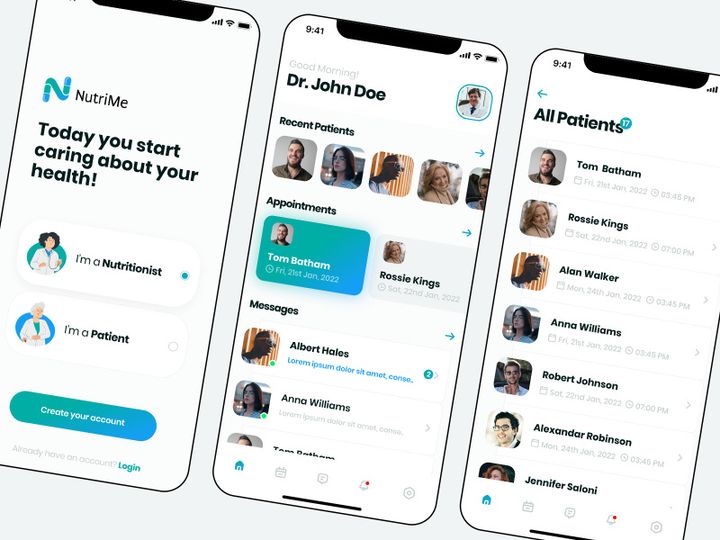
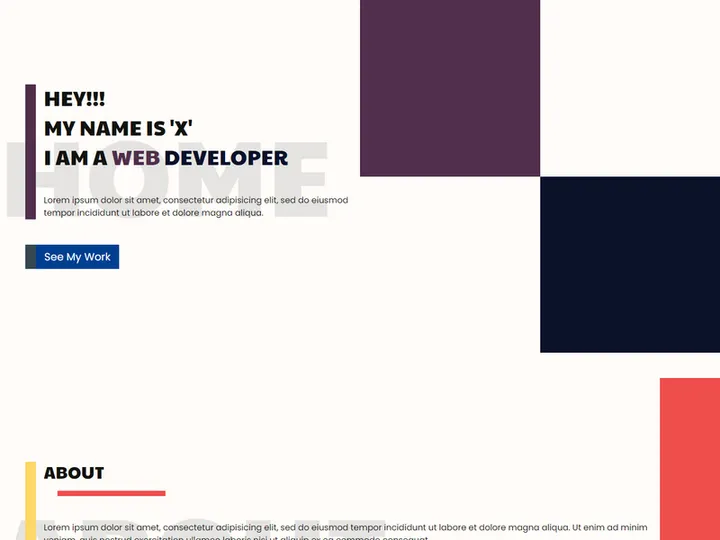
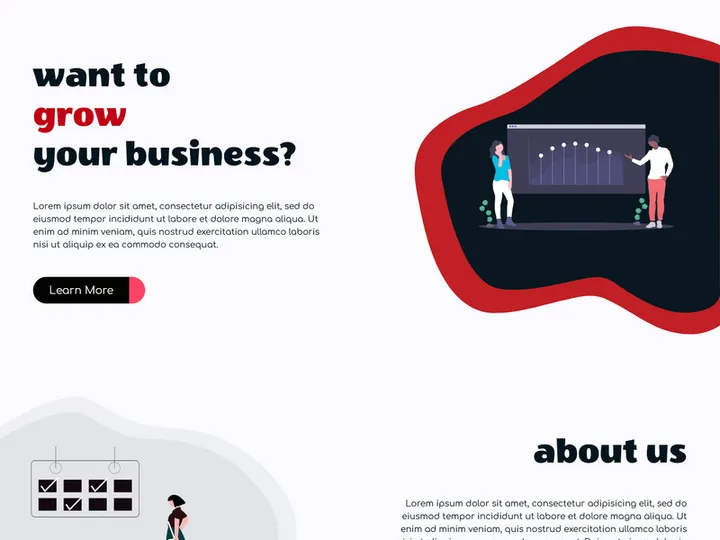

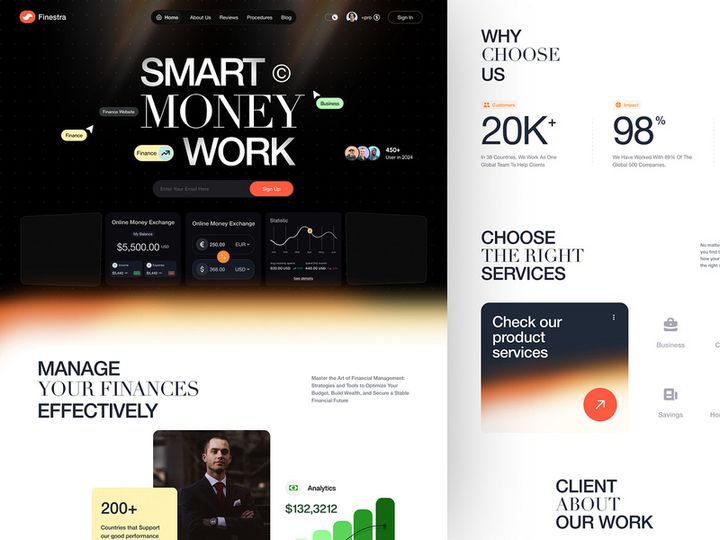


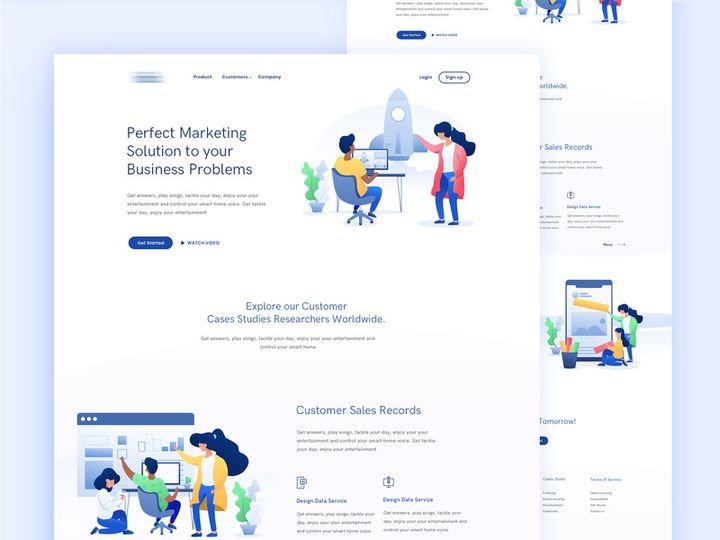
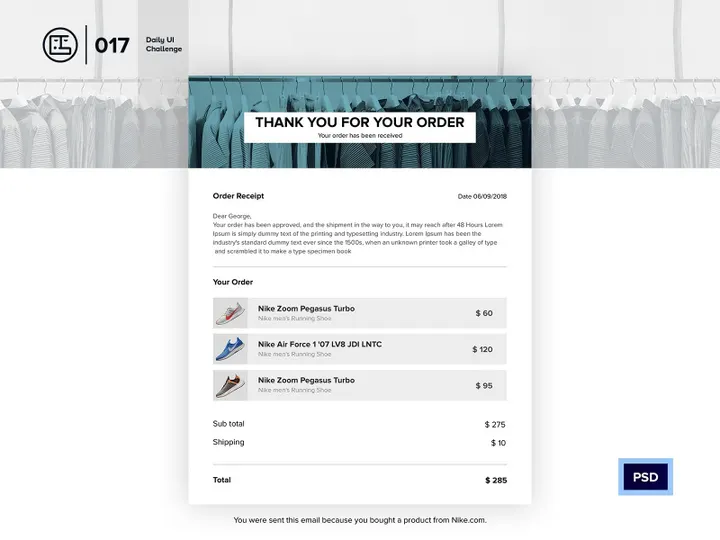
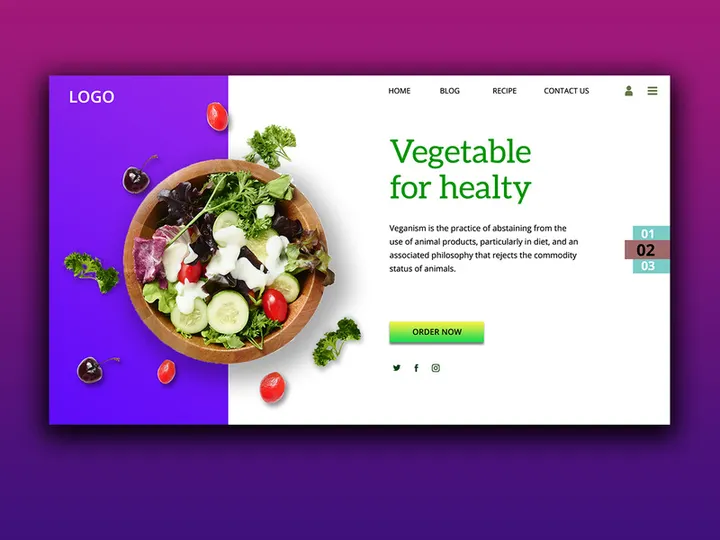
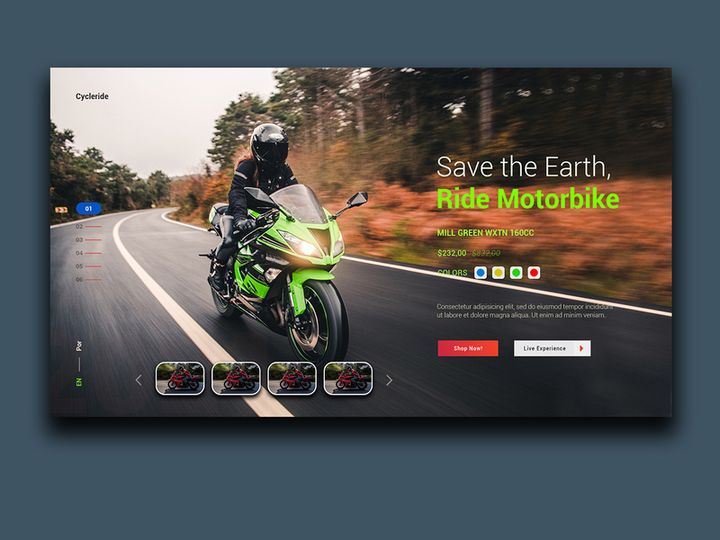

Try Our Free Resources
Download any of these for free - no account required

Why Photoshop for Themes?
Adobe Photoshop has long been the industry standard for digital design, and its capabilities extend powerfully into the realm of theme creation and customization. Whether you're designing themes for websites, mobile apps, user interfaces, or digital art collections, Photoshop offers an unmatched combination of precision, flexibility, and creative control. Its layered workflow, non-destructive editing tools, and extensive plugin ecosystem make it an ideal platform for developing and refining visual themes with depth and consistency.
One of the main reasons designers turn to Photoshop for themes is its robust support for layer styles, smart objects, and adjustment layers. These features allow for the creation of reusable design elements, consistent color schemes, and scalable templates—core components of any well-structured theme. With advanced masking, blending options, and typography tools, designers can craft visually rich experiences that maintain coherence across different screens and devices. Photoshop's integration with Adobe Color also simplifies palette development, enabling designers to extract and apply harmonious color schemes directly within their theme projects.
At EpicPxls, we recognize the power of Photoshop in theme design, which is why we’ve carefully curated a collection of over 71+ high-quality, Photoshop-compatible theme resources. These include customizable UI kits, dark and light mode templates, gradient packs, icon sets, and complete design systems—all optimized for seamless use in Photoshop. Our goal is to empower designers at every level by providing accessible, well-documented, and production-ready assets that streamline the theme development process. Each resource in our 71+ collection is tested for compatibility, performance, and design integrity, ensuring you can focus on creativity without technical distractions.
Top Themes Picks for Photoshop
With so many theme resources available, it can be overwhelming to choose the right ones for your skill level and project needs. To help you get started quickly and effectively, we’ve highlighted standout categories from our curated library of 71+ Photoshop theme assets. Whether you’re just beginning your design journey or working on high-stakes professional projects, there’s something in this collection tailored to your requirements. Our selections at EpicPxls are designed to balance usability, aesthetic quality, and technical performance, ensuring you can bring your vision to life efficiently.
Best for Beginners
If you're new to theme design, starting with intuitive and well-documented resources is key. Our beginner-friendly picks include drag-and-drop UI kits with clear layer naming, pre-built color swatches, and straightforward customization instructions. These kits often feature dark mode and light mode variants, helping you understand contrast, typography hierarchy, and spacing principles. Many also come with video tutorials or step-by-step guides, making it easy to learn as you build. These accessible tools lower the learning curve and help new designers create polished results from day one.
Best for Professionals
For experienced designers, we offer advanced theme resources with modular components, dynamic symbols, and extensive customization options. These kits support complex workflows, including responsive design systems, style guides, and multi-screen prototypes. Built with scalability in mind, they integrate seamlessly into larger design ecosystems and support collaboration through consistent naming conventions and organized layer structures. Features like variable fonts, auto-layout suggestions, and integrated grid systems make these resources ideal for enterprise-level projects and design teams.
Best Free Options
Not all high-quality theme resources require a financial investment. Our selection of free Photoshop themes includes carefully vetted assets that don’t compromise on quality. From minimalist dashboard templates to sleek mobile UI themes, these free downloads offer real value for personal projects, portfolios, or learning exercises. Each free resource in our 71+ collection meets the same standards for clarity and usability as our premium offerings, ensuring you get professional-grade tools without the cost. EpicPxls is committed to supporting the design community by making powerful tools accessible to everyone.
Photoshop vs Other Tools for Themes
While several design tools support theme creation, Photoshop remains a top choice for many designers due to its depth of control and long-standing industry presence. Unlike more streamlined or specialized applications, Photoshop offers pixel-perfect precision, making it especially valuable when crafting detailed visual themes that require fine-tuned adjustments. Its maturity as a platform means that countless tutorials, community forums, and third-party resources are available to support theme development, reducing the time needed to troubleshoot or learn new techniques.
Photoshop’s ecosystem provides unique advantages when working with themes. The ability to work with high-resolution assets, manage complex layer hierarchies, and apply non-destructive effects ensures that themes remain flexible and editable throughout the design process. Additionally, Photoshop’s support for PSD files allows for seamless integration with other Adobe applications, enabling smooth transitions between image editing, vector work, and prototyping stages. This continuity is especially beneficial when themes need to be adapted across different media or output formats.
When it comes to format compatibility, Photoshop excels in handling a wide range of file types, including layered PSDs, PNGs with transparency, SVG imports, and smart object integration. This versatility ensures that themes can be easily shared, updated, and repurposed across projects. The 71+ resources available through EpicPxls are all optimized for these formats, guaranteeing that you can import, modify, and export your theme work without compatibility issues. Whether you're creating a simple color palette or a full-fledged interface theme, Photoshop provides the tools and flexibility to do it right.
Setting Up Themes in Photoshop
Getting started with themes in Photoshop is a straightforward process when you follow a systematic approach. Whether you're using resources from EpicPxls or another trusted source, proper setup ensures that your themes remain organized, reusable, and easy to navigate. Below is a step-by-step guide to help you import, configure, and begin using your theme assets effectively within Photoshop.
- Download Your Theme Resource: Begin by downloading your chosen theme from a reliable source. Ensure it’s compatible with your version of Photoshop. The 71+ resources at EpicPxls are tested for broad compatibility across recent versions.
- Unzip the File (If Applicable): Most theme packs come in compressed formats like .zip or .rar. Extract the contents to a designated folder on your computer for easy access.
- Open the PSD File in Photoshop: Launch Photoshop and open the main .PSD file from the extracted folder. This file typically contains all layers, groups, and smart objects associated with the theme.
- Explore the Layer Structure: Take time to review the layer panel. Look for labeled sections such as Colors, Typography, Components, and Backgrounds. Well-organized resources will have clear naming conventions and grouped layers.
- Install Associated Assets (If Needed): Some themes include custom fonts, gradients, or patterns. Install fonts via your operating system, and load gradients or swatches through Photoshop’s Swatches or Gradient panels.
- Save as a Template (Optional): To preserve the original, go to File > Save As and save a working copy. Consider saving it as a .PSB or .PSD template for future projects to maintain consistency across designs.
For those managing multiple themes, creating a dedicated folder structure on your hard drive can significantly improve workflow efficiency. Consider organizing by project type, color scheme, or client name. By following these steps, you’ll be able to start using any of the 71+ resources from EpicPxls with confidence and ease.
Photoshop Workflow Tips
Maximizing your efficiency in Photoshop goes beyond simply knowing where tools are—it’s about building smart, repeatable workflows that support creativity and consistency. When working with themes, small optimizations can lead to significant time savings, especially when managing large libraries or collaborating with others. Here are three essential tips to enhance your Photoshop experience and get the most out of your theme projects.
Organizing Themes Libraries
As your collection of theme resources grows, maintaining an organized library becomes crucial. Create a master folder named “Photoshop Themes” and subdivide it by categories such as “Dark Mode,” “Mobile UI,” “Web Templates,” or “Free Resources.” Within each subfolder, keep the original .PSD files, documentation, and any associated assets like fonts or icons. You can also use Photoshop’s Presets Manager to save and categorize custom swatches, gradients, and styles for quick recall. This system ensures that you can locate and reuse theme elements across projects without duplication or confusion.
Batch Operations
When applying a theme across multiple images or design elements, batch processing can save hours of manual work. Use Photoshop’s Actions panel to record repetitive tasks—such as applying color overlays, adjusting brightness, or exporting in specific formats—and then run them across multiple files using the Batch function under the File > Automate menu. For example, if you’re converting a set of icons to match a new dark theme, record an action that changes blend modes and color fills, then apply it to an entire folder. This is especially useful when working with the 71+ resources from EpicPxls that include scalable components designed for reuse.
Collaboration Best Practices
When working in teams, consistency is key to maintaining a unified theme. Establish shared conventions for layer naming, color labels, and group structure before beginning a project. Use embedded notes or designated “Instructions” layers to explain how theme components should be used. When sharing PSD files, flatten only non-essential layers and preserve smart objects to allow teammates to edit content non-destructively. Consider using cloud storage with version control to track changes and avoid overwrites. Platforms like EpicPxls help support collaboration by offering themes with standardized structures and clear documentation, making it easier for multiple designers to work from the same visual language.
Why Download from EpicPxls?
Commercial License
Use in personal and commercial projects
No Account Required
Download free resources instantly
Quality Curated
Every resource is reviewed for quality
Preview Files
See Figma and Photoshop files before downloading
Who Uses These Themes?
Professionals and teams who benefit most from our collection
UI/UX Designers
Speed up your workflow with ready-to-use themes for Photoshop. Perfect for prototyping and client presentations.
Developers
Get production-ready assets without design skills. Export in any format for web and mobile apps.
Startups & Agencies
Save design budget with affordable premium themes. Commercial license included for client work.
Marketing Teams
Create professional campaigns faster. All themes are optimized for social media and ads.
Themes for Photoshop FAQCommon questions about these resources
Simple, Transparent Pricing
Get unlimited access to all premium resources
Yearly
- 20 downloads per month
- All file formats
- Commercial license
Lifetime
- Unlimited downloads forever
- All file formats
- Commercial license
Ready to Get Started?
Access 4,441+ free design resources today.
Browse Free ResourcesView Premium PlansEarn 85% and
more on all sales
Upload your products and put them up
for sale at whatever price you want.


