How to Use Themes in Figma: Complete Guide
EpicPxls offers 35+ curated themes for Figma, all with a commercial license. Formats vary by item, and each listing shows its files. Download your chosen themes from EpicPxls, then use Figma's import function. Check each listing for the files it includes.
Last updated February 15, 2026
Everything you need to know about using themes in Figma.
Trusted by designers at leading companies
Top Themes for Figma
Handpicked resources from our curated collection


![HappyBox – Landing Page Template [Personal Use License] preview picture](https://imgproxy.epicpxls.com/f4DCUD9EmEuhPIVAUAWBhM-Cto4k3dv0gSKpujV1qeA/rs:fill:720:540:0/g:no/aHR0cHM6Ly9pdGVt/cy5lcGljcHhscy5j/b20vdXBsb2Fkcy9w/aG90by82MDM1YzU5/NGQ3M2Q4ODFkYWZj/NjU0ODk2ZGQ2YzEx/ZA.jpg)


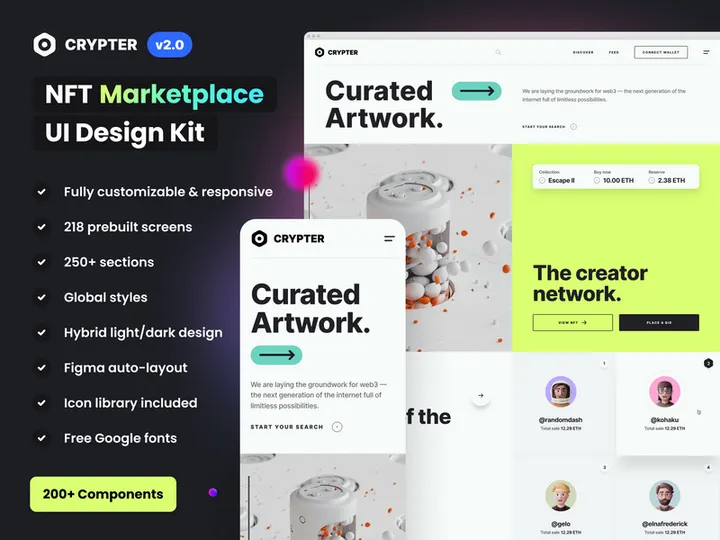
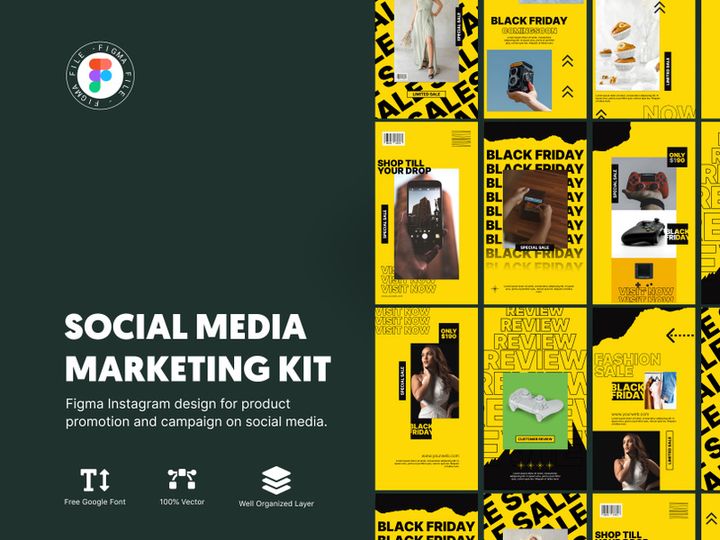
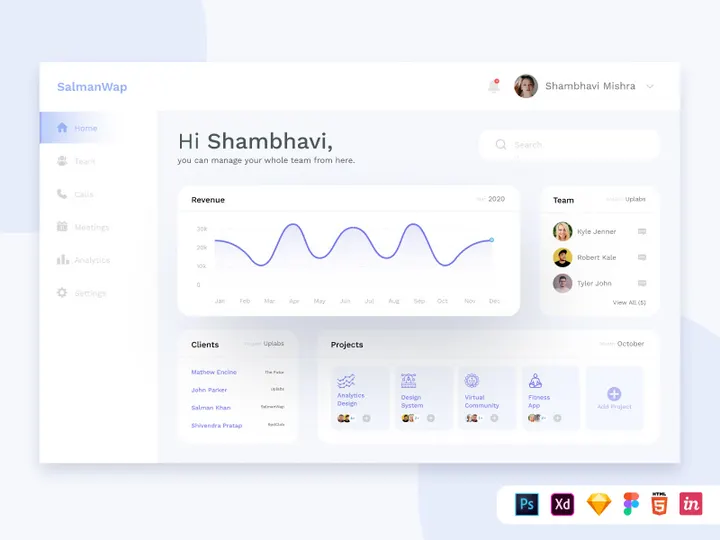
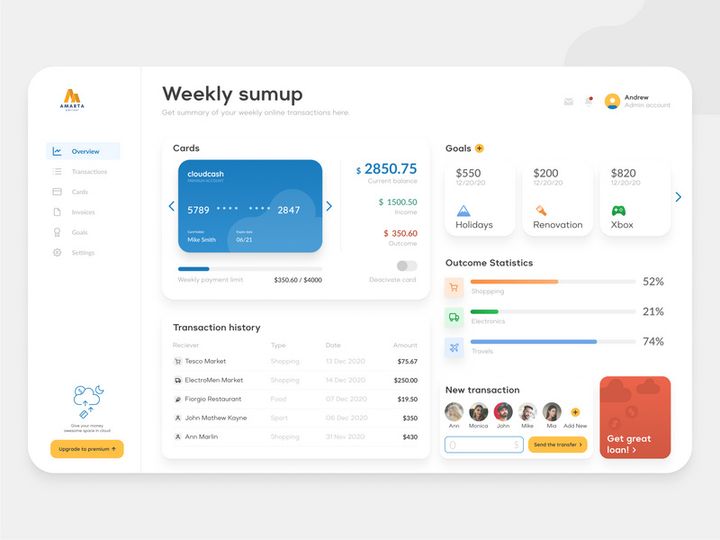


Try Our Free Resources
Download any of these for free - no account required
![HappyBox – Landing Page Template [Personal Use License]](https://items.epicpxls.com/uploads/photo/1c535d770288e193401c434fc0f770c4)
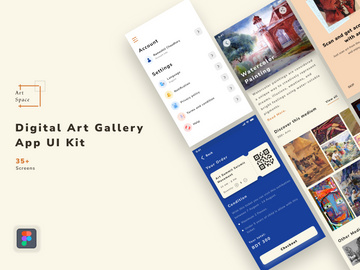
Getting Started with Themes in Figma
Themes are a powerful tool in Figma that help designers maintain consistency, speed up workflows, and create cohesive user experiences across projects. Whether you're designing a website, mobile app, or branding materials, themes allow you to standardize colors, typography, spacing, and component styles. Before diving into using themes, it’s important to ensure you have the right setup in place. First, make sure you have a free or professional Figma account. Figma is a cloud-based design tool, so no heavy software installation is required—just access it through your web browser or download the desktop app for smoother performance. A modern browser like Chrome or Firefox is recommended for optimal functionality.
Once your Figma environment is ready, the next step is sourcing high-quality themes. Many designers turn to curated design marketplaces to find themes that are compatible with Figma. One such trusted platform is EpicPxls, which offers a wide selection of professionally designed themes tailored for Figma users. With over 35+ resources available, including UI kits, design systems, and customizable theme packs, EpicPxls provides versatile options suitable for startups, agencies, and freelance designers alike. These resources are often created with scalability in mind, making them ideal for both prototyping and production-level design work.
When browsing themes on EpicPxls, look for those labeled as Figma-compatible to ensure seamless integration. Most themes come with organized layers, auto-layout components, and well-documented style guides. This structure enables users to quickly adapt the theme to their brand or project needs. Additionally, many of the 35+ resources on EpicPxls include dark and light mode variants, responsive components, and accessibility-ready color palettes. By selecting a well-structured theme from a reliable source like EpicPxls, you set a strong foundation for efficient and visually consistent design work in Figma.
How to Import Themes into Figma
- Download the correct file format: When acquiring a theme from a provider like EpicPxls, ensure you select the Figma (.fig) file option if available. While some resources may also include formats like PSD, AI, or SVG, only the .fig file will retain full editability within Figma, including layers, styles, and components.
- Unzip the downloaded file (if necessary): Most theme packages come in a compressed .zip folder. Extract the contents to access the .fig file along with any supporting documentation, fonts, or asset files.
- Open Figma and go to your dashboard: Log in to your Figma account and navigate to your project space. Click on “New” and then select “Import” from the dropdown menu, or simply drag and drop the .fig file directly into your Figma workspace.
- Wait for the file to process: Figma will upload and convert the file. Larger theme files with many components may take a few moments. A progress bar will appear at the top of the screen—avoid closing the tab during this process.
- Verify imported content: Once the file opens, inspect the layers panel to ensure all components, frames, and styles are intact. Check the “Styles” tab in the right-hand properties panel to confirm colors, text styles, and effects have been imported correctly.
- Save and organize: Rename the file to something descriptive (e.g., “Brand Theme - [Project Name]”) and move it into an appropriate project folder. This helps maintain a clean, searchable workspace—especially if you’re working with multiple themes from sources like EpicPxls.
While Figma supports importing other formats like SVG or PDF, native .fig files offer the best experience. If you only have a PSD or AI file, consider converting it using third-party tools or reaching out to the provider—many EpicPxls themes are available in multiple formats, with Figma-native versions updated regularly. Always double-check the theme’s documentation to understand its structure and any installation notes before proceeding.
Step-by-Step: Working with Themes in Figma
Editing Layers and Components
Once a theme is imported into Figma, customization is key to aligning it with your brand or project goals. Start by exploring the layers panel to understand how the theme is structured. Most professionally designed themes, especially those from EpicPxls, use organized groups, named layers, and auto-layout components for easy editing. To modify colors, open the “Local Styles” panel and edit the existing color styles—any components using those styles will update automatically. The same applies to text styles: changing a base text style (e.g., “Heading 1”) will propagate across all instances in the file.
Components are the backbone of efficient theming in Figma. These reusable elements—like buttons, cards, or navigation bars—can be edited in the master component, and changes will reflect in all instances. Use the “Detached Instance” option only if you need a one-off variation. For deeper customization, dive into component variants, which allow you to toggle between states (e.g., primary/secondary buttons) within a single component. This feature is widely used in the 35+ resources available on EpicPxls, enabling designers to create dynamic, interactive prototypes with minimal effort.
Organizing Your Themes Library
As your design system grows, managing multiple themes becomes essential. Create a dedicated Figma project titled “Design System” or “Themes Library” to centralize all theme files. Within this project, use clear naming conventions (e.g., “Theme - E-Commerce Dark,” “UI Kit - Admin Dashboard”) and add descriptions to files to clarify their purpose. Figma’s team libraries are especially useful here—publish your most-used themes as shared libraries so team members can access consistent styles across projects.
Consider versioning your themes by duplicating and labeling updates (e.g., “v1.1 - Updated Typography”). This prevents breaking changes in active projects. Also, maintain a “Sandbox” file where you can experiment with theme modifications before pushing updates to the library. With over 35+ resources from EpicPxls and other sources, organization is critical to avoid duplication and confusion. Use Figma’s tagging and search features to quickly locate specific themes or components when needed.
Exporting for Production
When your design is finalized, exporting assets correctly ensures smooth handoff to developers. Figma allows you to export individual layers, groups, or entire frames in multiple formats. Select the element you want to export, then go to the “Export” section in the right-hand panel. Common formats include PNG for static images, SVG for scalable icons, and PDF for print or documentation. For web and mobile apps, SVG and PNG at 1x, 2x, and 3x resolutions are typically required.
To maintain theme consistency, export design tokens (like colors and fonts) using Figma’s “Copy as CSS” feature or integrate with developer handoff tools. Many themes from EpicPxls include a “Developer Guide” frame that outlines spacing scales, color hex codes, and typography hierarchy for easy reference. You can also generate a style guide page within Figma and export it as a PDF to share with stakeholders. Always double-check export settings—especially for responsive components—to ensure assets render correctly across devices.
Troubleshooting Common Figma Issues
File Won't Open
If a theme file fails to open in Figma, the most common causes are version incompatibility or file corruption. Ensure you’re using the latest version of the Figma desktop app or refresh your browser if using the web version. Some older .fig files may not support newer Figma features, so check if the provider offers an updated version. If you're importing a non-Figma file (like PSD or AI), be aware that Figma's conversion process is limited—complex layer effects or fonts may not transfer correctly. Always download the native Figma format when available, especially from trusted sources like EpicPxls.
Missing Fonts or Assets
Fonts are a frequent point of failure when importing themes. If text appears in a fallback font, it means the original font isn’t installed on your system or isn’t available in Figma. Check the theme’s documentation (often included in the download from EpicPxls) for a list of required fonts. Most themes use Google Fonts or widely available typefaces like Inter, Roboto, or SF Pro. Install these fonts on your computer or use Figma’s font substitution feature to map missing fonts to available ones. For icons or images, verify that all linked assets are embedded—external links may break during transfer.
Performance Problems
Large theme files with hundreds of components can slow down Figma, especially on lower-end devices. To improve performance, avoid opening every page at once. Instead, duplicate only the frames or components you need into a new file. Use Figma’s “Clean Unused Styles” plugin to remove redundant color and text styles. Also, disable preview thumbnails in the layers panel for faster rendering. If you're working with one of the more comprehensive 35+ resources from EpicPxls, consider splitting the file into smaller, topic-specific files (e.g., “Buttons & Forms,” “Navigation”) to reduce load times and improve collaboration.
Advanced Figma Tips for Themes
Batch Processing
When managing multiple theme files or updating several components across a library, manual editing can be time-consuming. Use Figma’s batch editing capabilities to make global changes efficiently. For example, you can select all instances of a button component and update their fill color or padding at once. For even greater control, use the “Find and Replace” plugin to update text styles or layer names across pages. This is especially useful when rebranding or migrating to a new design system across the 35+ resources in your collection.
Plugins and Extensions
Figma’s plugin ecosystem enhances theme management significantly. Plugins like “Tokens Studio” or “Style Organizer” help sync design tokens across files and maintain consistency in large-scale projects. “Iconify” and “Unsplash” allow quick insertion of themed assets directly within your design. Many EpicPxls themes are optimized for use with popular plugins, enabling faster prototyping and styling. Explore Figma’s plugin directory to find tools that automate repetitive tasks and enrich your theme workflows.
Collaboration Workflows
For teams, shared themes improve design consistency and reduce redundancy. Publish your main theme as a team library in Figma so all members can access up-to-date components and styles. Set permissions to control who can edit the library versus who can only use it. Use comments and version history to track changes and provide feedback. When integrating new themes from EpicPxls, run a team onboarding session to review component usage and naming conventions. This ensures everyone follows the same standards, making collaboration seamless and scalable across projects.
Why Download from EpicPxls?
Commercial License
Use in personal and commercial projects
No Account Required
Download free resources instantly
Quality Curated
Every resource is reviewed for quality
Preview Files
See preview images on each item page before downloading
Who Uses These Themes?
Professionals and teams who benefit most from our collection
UI/UX Designers
Speed up your workflow with ready-to-use themes for Figma. Perfect for prototyping and client presentations.
Developers
Get production-ready assets without design skills. Export in any format for web and mobile apps.
Startups & Agencies
Save design budget with affordable premium themes. Commercial license included.
Marketing Teams
Create professional campaigns faster. All themes are optimized for social media and ads.
Themes for Figma FAQCommon questions about these resources
Simple, Transparent Pricing
Get unlimited access to all premium resources
Yearly
- 20 downloads per month
- All file formats
- Commercial license
Lifetime
- Unlimited downloads forever
- All file formats
- Commercial license
Earn 85% and
more on all sales
Upload your products and put them up
for sale at whatever price you want.


