Themes for Illustrator: 25+ Resources
EpicPxls offers 25+ curated themes for Illustrator, all with a commercial license and editable source files (Figma, Sketch, PSD). We have 25+ themes compatible with Illustrator, tested and verified for seamless integration.
Last updated February 12, 2026
Discover 25+ handpicked themes for Illustrator.
Trusted by designers at leading companies
Top Themes for Illustrator
Handpicked resources from our curated collection
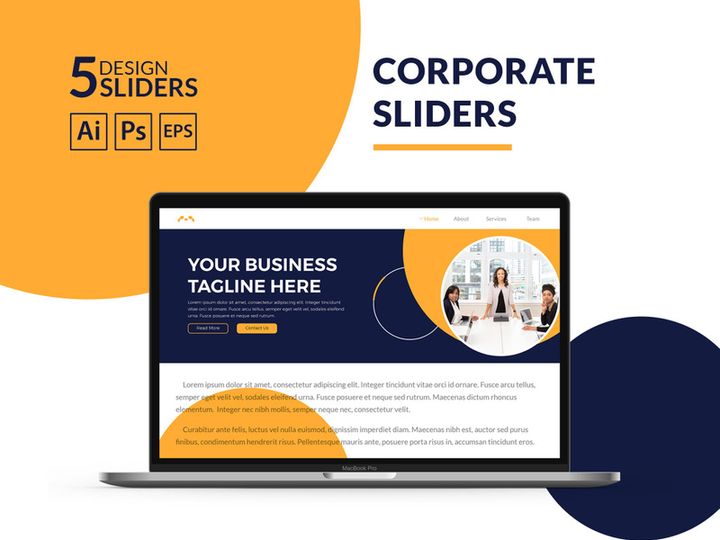
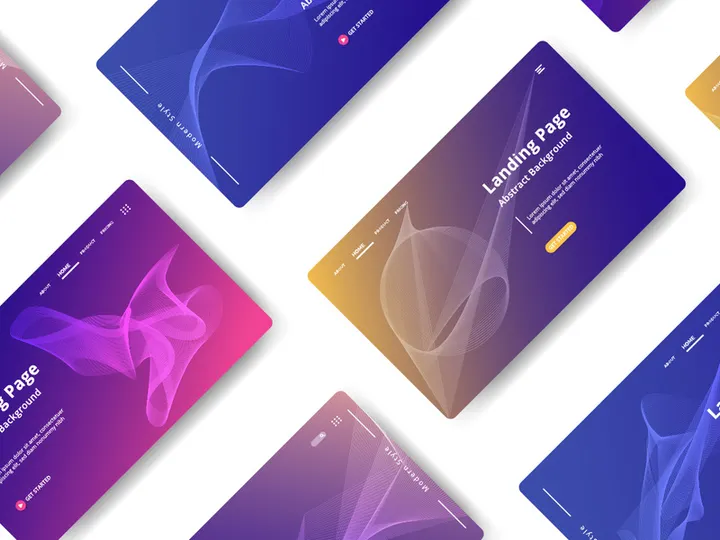
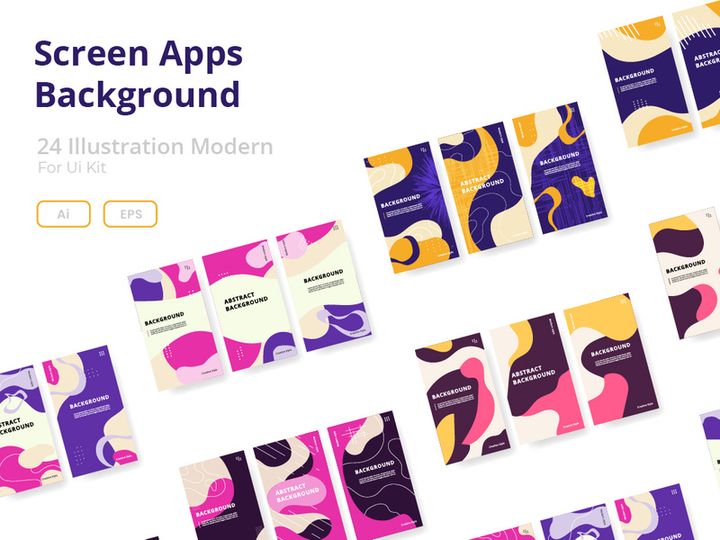
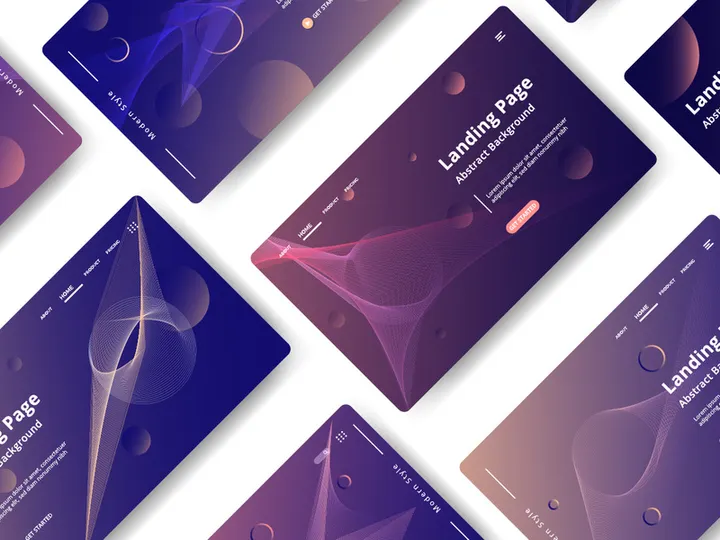

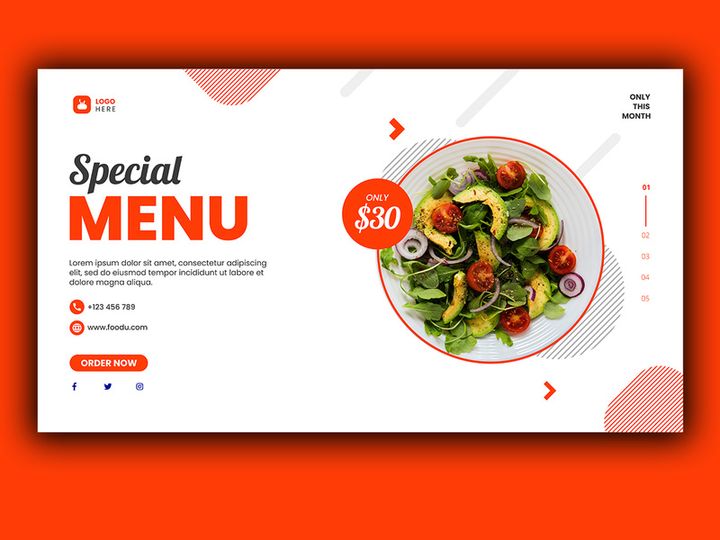
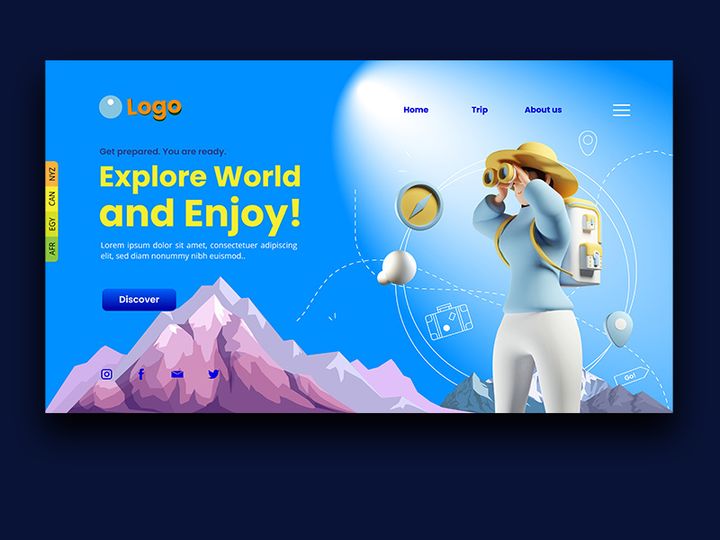
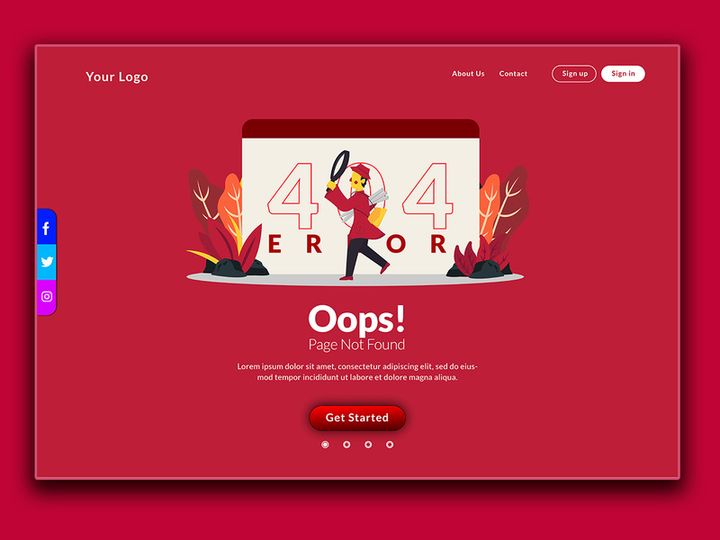
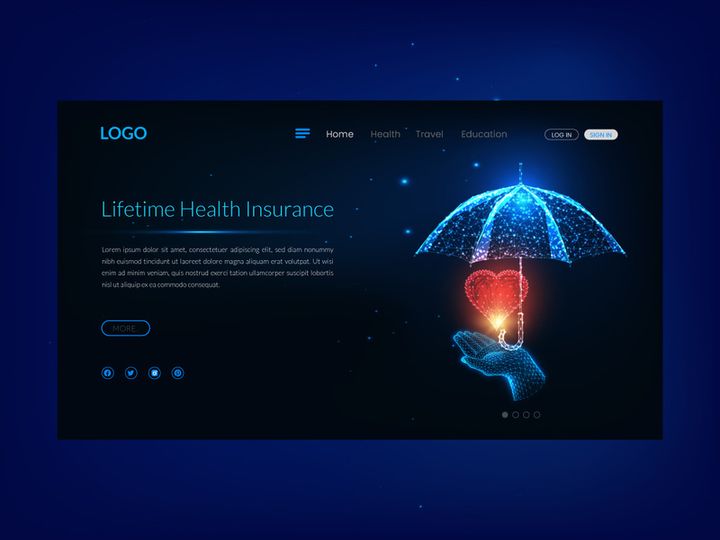
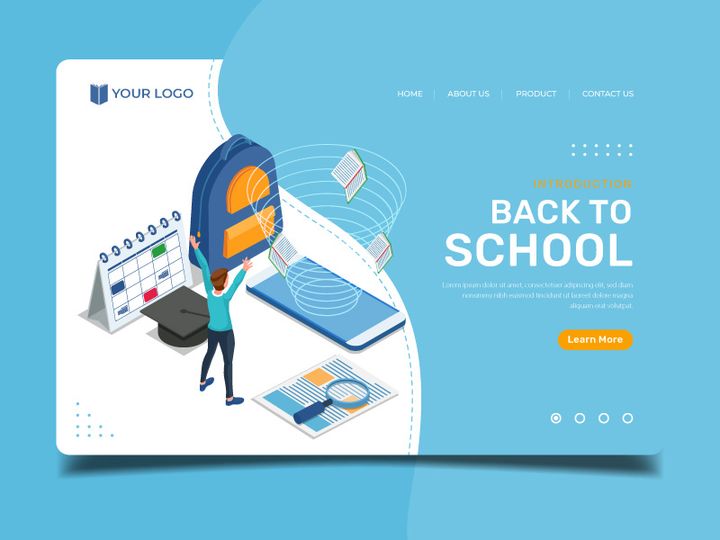
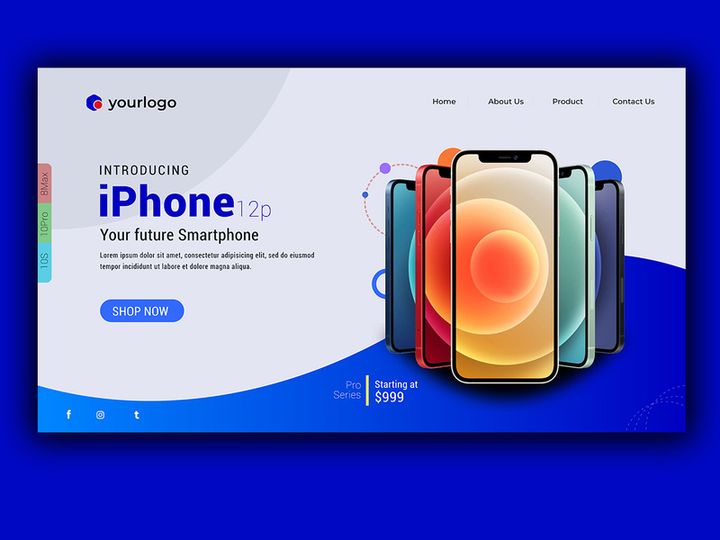
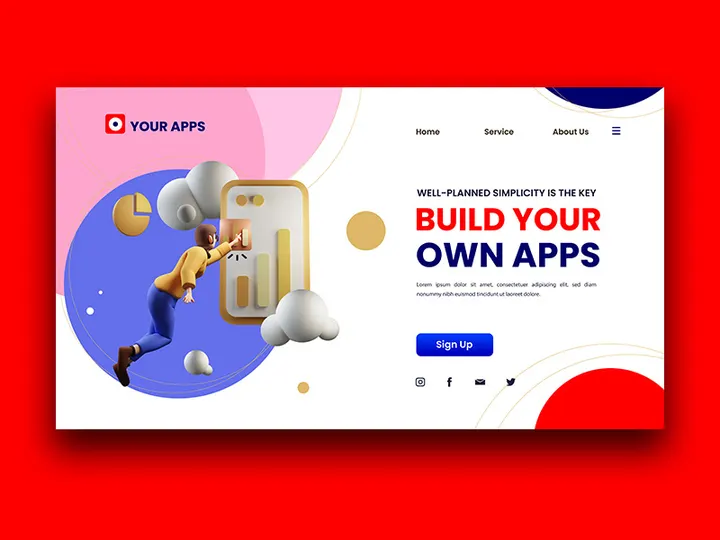
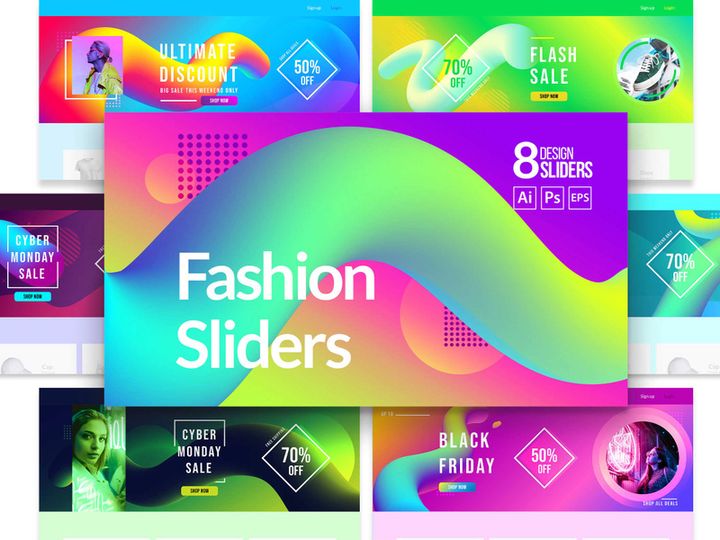
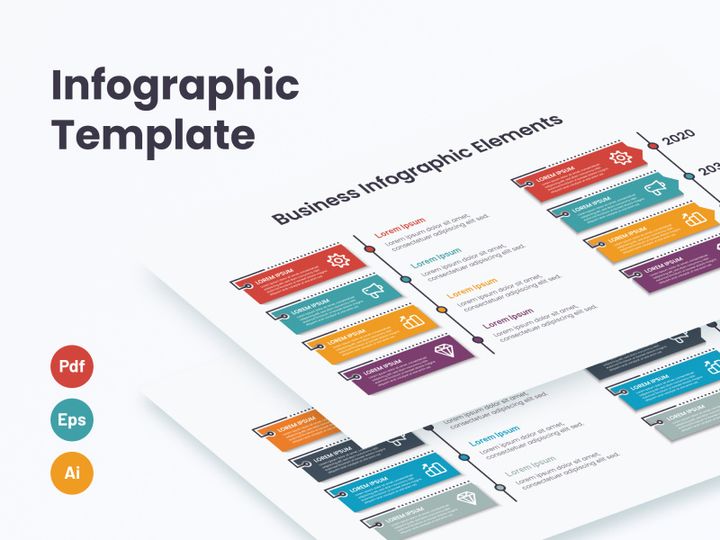
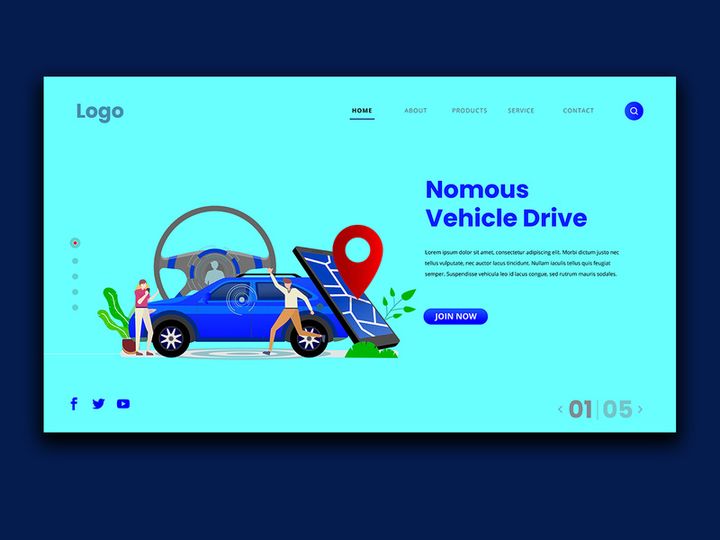
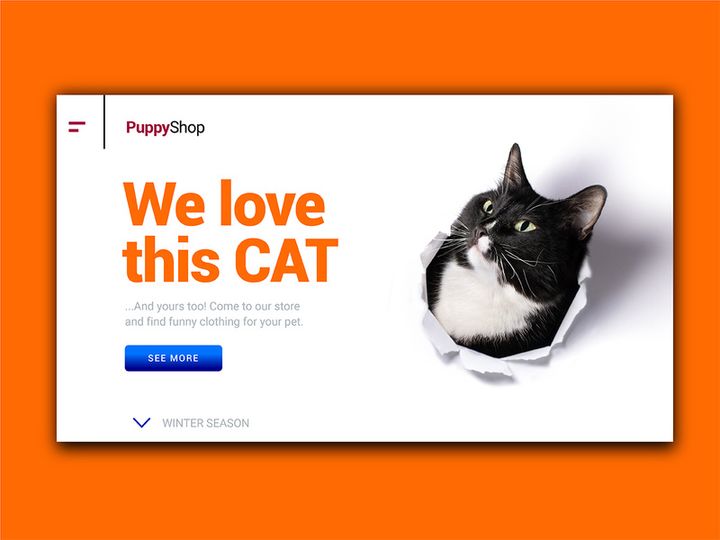
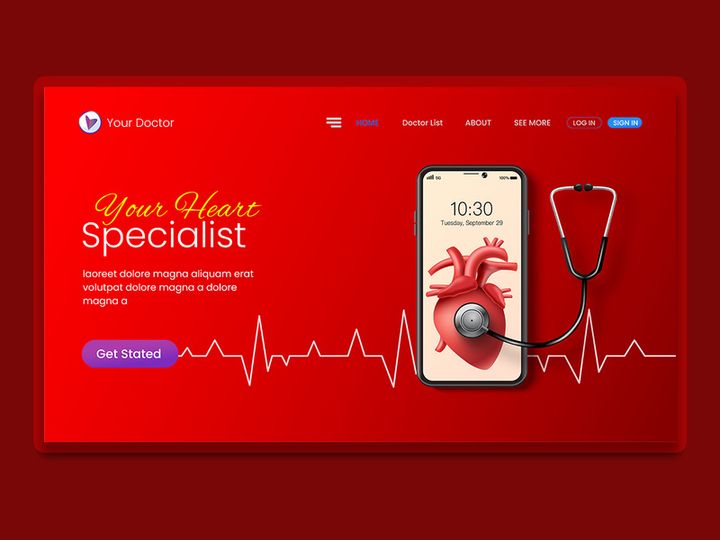
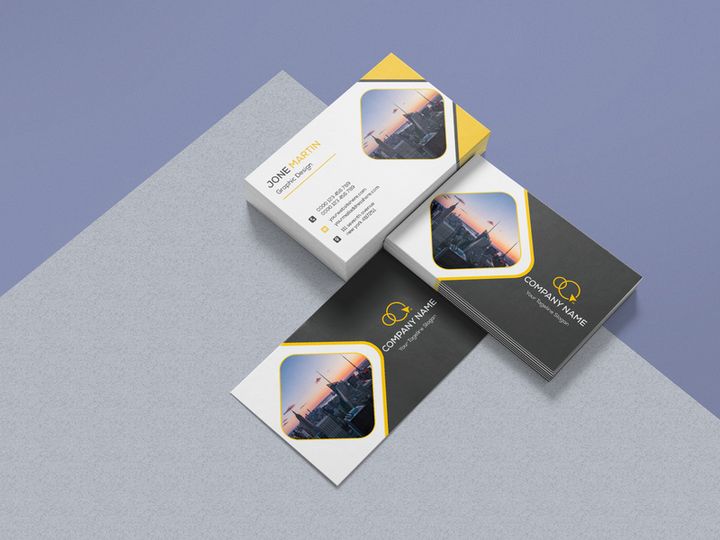
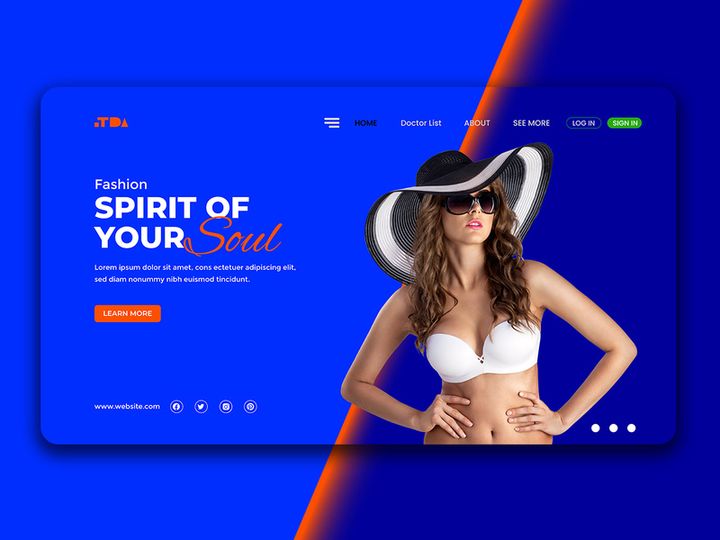
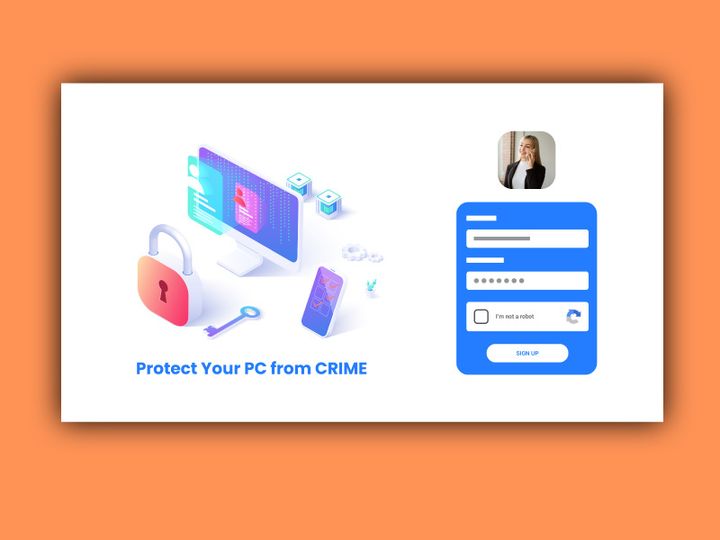
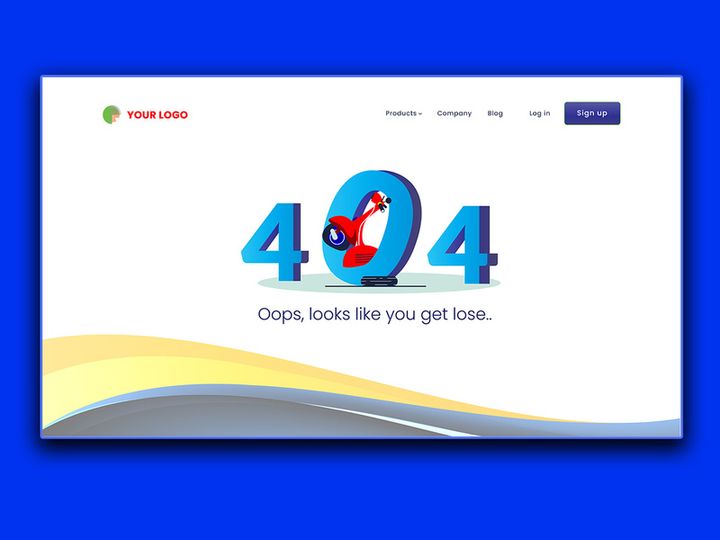
Try Our Free Resources
Download any of these for free - no account required
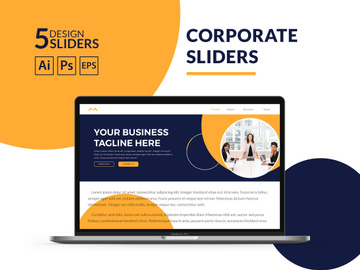
Why Illustrator for Themes?
Adobe Illustrator stands as a premier vector graphics editor, widely recognized for its precision, scalability, and robust design capabilities—making it an ideal platform for developing and applying themes. Whether you're crafting branding packages, UI/UX design systems, or marketing assets, Illustrator offers unparalleled control over color palettes, typography, and graphic elements that define cohesive visual themes. Its vector-based foundation ensures that themes remain crisp and resolution-independent across all media, from mobile screens to large-format print.
One of the key strengths of Illustrator for theme development lies in its Swatches, Graphic Styles, and Libraries panels, which allow designers to save, organize, and reuse color schemes, fonts, effects, and symbols efficiently. This systematized approach streamlines the creation of consistent, professional-grade themes across multiple projects. Features like Global Colors and Live Color adjustments empower users to modify entire theme palettes with a single click, saving hours during revisions and brand updates. Additionally, support for CC Libraries enables seamless syncing across devices and integration with other Adobe Creative Cloud applications.
At EpicPxls, we understand the importance of quality and compatibility when selecting theme resources. That’s why our team carefully curates over 25+ Illustrator-compatible theme packs, ensuring each one is optimized for performance, ease of use, and creative flexibility. These resources include professionally designed color swatches, pre-built style sets, font pairings, and themed graphic assets—all crafted to enhance your workflow. Whether you’re building a minimalist corporate identity or a vibrant digital illustration series, Illustrator’s ecosystem, combined with EpicPxls’ handpicked 25+ resources, provides a powerful foundation for theme-driven design.
Top Themes Picks for Illustrator
Selecting the right theme resources can dramatically improve both the speed and quality of your design process. With so many options available, it helps to have a guide to the best Illustrator themes tailored to different skill levels and project needs. Below, we highlight top picks across three essential categories to help you find the perfect match for your creative goals.
Best for Beginners
If you're new to Illustrator or exploring theme-based design for the first time, it’s essential to start with intuitive and well-documented resources. Beginner-friendly theme packs often include clear naming conventions, organized layers, and step-by-step guides to help users understand how to apply and modify elements. Look for theme collections that come with tutorial videos or user manuals, as these can significantly reduce the learning curve. At EpicPxls, we prioritize accessibility, offering beginner-oriented theme kits that feature drag-and-drop swatches, preset color harmonies, and sample project files to accelerate your mastery of Illustrator’s theming tools.
Best for Professionals
For seasoned designers, professional-grade themes deliver advanced features such as dynamic color groups, layered effects, and integration with design systems. These resources are typically built with scalability in mind and may include support for multiple output formats, brand guidelines, and modular components. Premium theme packs often leverage Illustrator’s advanced scripting and styling capabilities, allowing for rapid prototyping and large-scale design consistency. The 25+ resources curated by EpicPxls include several pro-level theme suites designed for agencies and freelance experts who demand precision, efficiency, and aesthetic excellence in their workflows.
Best Free Options
High-quality themes don’t always have to come with a price tag. There are numerous free theme resources available that offer excellent value without sacrificing functionality or design integrity. These free packs often focus on specific aesthetics—like retro, modern, or nature-inspired themes—and are perfect for side projects, personal branding, or experimentation. While free themes may have fewer customization options than paid versions, many still include essential swatches, clean vector graphics, and organized layers. EpicPxls regularly updates its collection to include standout free Illustrator themes, ensuring that designers at every level can access the 25+ resources needed to create stunning, on-brand visuals.
Illustrator vs Other Tools for Themes
When it comes to creating and managing design themes, Adobe Illustrator offers a unique blend of precision, flexibility, and industry-standard compatibility that sets it apart from other design applications. While many tools support basic theming features, Illustrator’s deep integration of vector editing, color management, and asset reuse makes it especially powerful for developing comprehensive, scalable design systems. Unlike raster-based programs that limit resolution and editability, Illustrator ensures that themes remain fully editable and infinitely scalable—critical for multi-platform branding and responsive design.
The Illustrator ecosystem excels in its ability to maintain consistency across complex projects. Tools like the Recolor Artwork feature and Global Colors allow users to update entire theme palettes in seconds, a capability that is less refined in many alternative platforms. Furthermore, Illustrator’s support for AI, EPS, PDF, and SVG formats ensures seamless sharing and compatibility with both print and digital workflows. This format versatility means themes created in Illustrator can be easily adapted for web, mobile, packaging, and promotional materials without loss of quality.
Another advantage is the rich plugin and resource ecosystem. With access to thousands of curated theme packs—including the 25+ resources verified by EpicPxls—designers can quickly implement professional-grade aesthetics without starting from scratch. These resources are built specifically for Illustrator’s architecture, ensuring optimal performance and full feature compatibility. Whether you're developing a monochrome editorial theme or a full-color brand identity, Illustrator’s specialized toolset and broad format support make it the preferred choice for theme-centric design work.
Setting Up Themes in Illustrator
Integrating themes into your Illustrator workflow is a straightforward process when you follow best practices for importing and organizing assets. Proper setup ensures that your themes are easy to access, modify, and apply across multiple projects. Below is a step-by-step guide to help you get started with the 25+ resources available through trusted sources like EpicPxls.
- Download and Unzip Theme Files: Begin by downloading your chosen theme pack from a reliable source. Most theme resources come as ZIP files containing AI files, swatches, or library assets. Extract the contents to a dedicated folder on your computer for easy access.
- Open the Sample AI File (if provided): Many theme packs include a demonstration file that showcases how colors, fonts, and styles are applied. Open this file to preview the theme and explore its structure.
- Load Swatches into Your Document: Go to the Swatches panel, click the menu icon, and choose “Open Swatch Library” > “Other Library.” Navigate to the theme’s ACO or AI swatch file and load it. The colors will appear in a dedicated panel for use.
- Import Graphic Styles and Symbols: If the theme includes custom effects or symbols, open the Graphic Styles and Symbols panels and import the corresponding libraries using the panel menus.
- Save to Creative Cloud Libraries: For cross-device access, drag key swatches, colors, and vector elements into your CC Library. This allows you to use them in other Adobe apps and future projects seamlessly.
- Test and Apply the Theme: Create a test composition using the imported colors, fonts, and styles to ensure everything functions as expected. Adjust global colors if needed and save the document as a template for future use.
To manage large theme collections effectively, consider creating subfolders for categories like “Corporate,” “Vintage,” or “Seasonal.” This organizational strategy, combined with consistent naming conventions, makes it easier to locate and reuse the 25+ resources you’ll accumulate over time. EpicPxls recommends backing up your custom theme libraries regularly to avoid data loss and streamline team collaboration.
Illustrator Workflow Tips
Maximizing efficiency in Illustrator goes beyond simply applying themes—it involves smart organization, automation, and collaboration strategies that elevate your entire design process. By refining your workflow, you can save time, reduce errors, and maintain visual consistency across all your projects. Here are key tips to help you get the most out of your theme-based designs.
Organizing Themes Libraries
A well-structured library is the backbone of a smooth design workflow. Use Illustrator’s CC Libraries panel to create separate folders for different theme types—such as “Brand Identities,” “Social Media Kits,” or “Illustration Packs.” Within each, store coordinated color groups, text styles, logos, and icons. Naming your assets clearly (e.g., “Ocean_Blue – Global Swatch”) enhances searchability. If you're using multiple theme packs from the 25+ resources curated by EpicPxls, tagging them with keywords like “minimalist” or “vibrant” can further speed up access during high-pressure projects.
Batch Operations
When working with large-scale design systems or client portfolios, batch processing can save hours of manual labor. Use Illustrator’s Actions panel to record repetitive tasks like applying a specific theme’s color palette, resizing elements, or exporting assets. Once recorded, these actions can be applied across multiple files with a single click. For example, you can create an action that swaps default colors with your theme’s swatches, then exports the file as a PDF and PNG. This is especially useful when updating branding across dozens of templates. Pair this with the consistency of professionally built theme resources, and you’ll achieve uniformity at scale.
Collaboration Best Practices
When working in teams, maintaining theme integrity is crucial. Share CC Libraries with team members instead of individual files to ensure everyone uses the same assets. Establish naming standards and version control for theme updates—especially when modifying global colors or styles. Consider documenting your theme guidelines in a shared drive, including usage examples and font licenses. If your team uses resources from EpicPxls, take advantage of the detailed metadata and instructions included with the 25+ resources to minimize confusion and onboarding time. Clear communication and centralized asset management will keep your collaborative projects on-brand and on schedule.
Why Download from EpicPxls?
Commercial License
Use in personal and commercial projects
No Account Required
Download free resources instantly
Quality Curated
Every resource is reviewed for quality
Preview Files
See Figma and Photoshop files before downloading
Who Uses These Themes?
Professionals and teams who benefit most from our collection
UI/UX Designers
Speed up your workflow with ready-to-use themes for Illustrator. Perfect for prototyping and client presentations.
Developers
Get production-ready assets without design skills. Export in any format for web and mobile apps.
Startups & Agencies
Save design budget with affordable premium themes. Commercial license included for client work.
Marketing Teams
Create professional campaigns faster. All themes are optimized for social media and ads.
Themes for Illustrator FAQCommon questions about these resources
Simple, Transparent Pricing
Get unlimited access to all premium resources
Yearly
- 20 downloads per month
- All file formats
- Commercial license
Lifetime
- Unlimited downloads forever
- All file formats
- Commercial license
Ready to Get Started?
Access 4,441+ free design resources today.
Browse Free ResourcesView Premium PlansEarn 85% and
more on all sales
Upload your products and put them up
for sale at whatever price you want.


