Apps for Figma: 131+ Resources
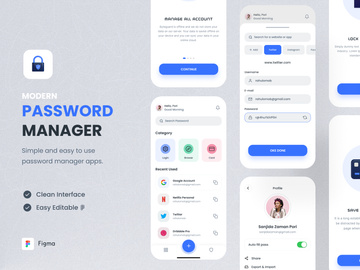
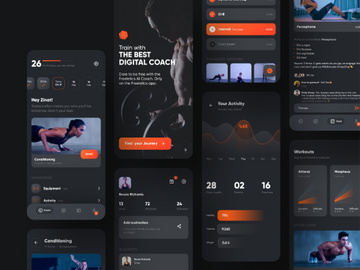
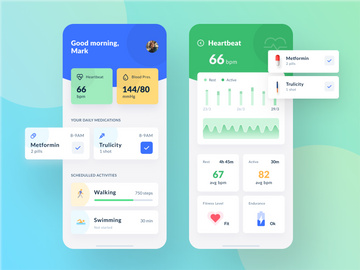
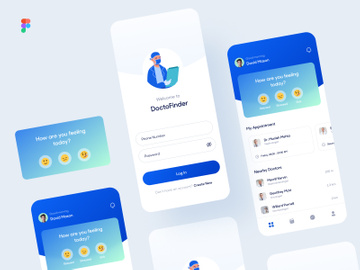
EpicPxls offers 132+ curated apps for Figma, all with a commercial license and editable source files (Figma, Sketch, PSD). We have 132+ apps compatible with Figma, tested and verified for seamless integration.
Last updated February 12, 2026
Discover 131+ handpicked apps for Figma.
Trusted by designers at leading companies
Top Apps for Figma
Handpicked resources from our curated collection


![Rockit (E-Scooter Dashboard) [FREE] preview picture](https://imgproxy.epicpxls.com/7NYMX9X-kXgx6FfJno8WU8ZpmBjySOWMLxrZGcsyoOM/rs:fill:720:540:0/g:no/aHR0cHM6Ly9pdGVt/cy5lcGljcHhscy5j/b20vdXBsb2Fkcy9w/aG90by85ODgzOWY0/ZmY0OTk4NWJhNDNi/MzkyZjgxM2IzZmM5/Mw.jpg)
![[Freebie] Covid-19 Information App preview picture](https://imgproxy.epicpxls.com/9mwt9FL0DcIbfjFqg_ESHtAeZvR7NHlaywoWNeEyc3c/rs:fill:720:540:0/g:no/aHR0cHM6Ly9pdGVt/cy5lcGljcHhscy5j/b20vdXBsb2Fkcy9w/aG90by85YzlkMjUx/YTIxOGI1ZTI3MmI5/MGZkYWVhNmUwZjk2/Zg.jpg)

![NFT App Design [Figma] preview picture](https://imgproxy.epicpxls.com/KLwXAfyMC-wb9lxWtKUxdZqn8-LfEpXHKIVnIeCSbto/rs:fill:720:540:0/g:no/aHR0cHM6Ly9pdGVt/cy5lcGljcHhscy5j/b20vdXBsb2Fkcy9w/aG90by8zNTZhZTli/MDY3MjgyOWE5NjJl/ZTU4ZTc5NGY1N2Y3/YQ.jpg)

Try Our Free Resources
Download any of these for free - no account required
Why Figma for Apps?
Figma has emerged as a leading design platform for app development, empowering teams to create, prototype, and collaborate seamlessly within a single, cloud-based environment. Its popularity stems from a powerful combination of real-time collaboration, intuitive interface design tools, and robust plugin and app ecosystem—all tailored to meet the evolving demands of modern app creation. Whether you're designing a mobile application, a web-based dashboard, or a cross-platform experience, Figma provides the flexibility and precision needed to bring ideas to life efficiently.
One of the standout features of Figma for app design is its vector network and constraint-based layout system, which allows designers to build responsive interfaces that adapt to various screen sizes and orientations. This is crucial when designing apps for multiple devices, where consistency across platforms is key. Additionally, Figma’s component libraries and auto-layout functionality streamline the creation of reusable UI elements such as buttons, navigation bars, and form fields, significantly reducing design time and ensuring visual harmony.
The platform's real-time collaboration capabilities enable developers, designers, and stakeholders to work together simultaneously, regardless of location. Comments, version history, and live prototyping further enhance team efficiency and feedback loops. For app-specific workflows, Figma supports integration with developer handoff tools, design systems, and third-party apps that extend its functionality—making it an ideal hub for end-to-end app development.
At EpicPxls, we recognize the importance of high-quality, compatible resources in accelerating design workflows. That’s why we meticulously curate over 131+ Figma-compatible apps, templates, and design assets—ensuring each resource meets strict standards for usability, performance, and design accuracy. These curated tools help designers jumpstart projects, maintain consistency, and focus more on innovation rather than reinvention. With Figma’s growing ecosystem and support for community-driven content, accessing powerful tools has never been easier—especially when guided by a trusted source like EpicPxls.
Top Apps Picks for Figma
With over 131+ resources available, selecting the right apps for your Figma workflow can be overwhelming. To help you navigate this rich ecosystem, we’ve highlighted top-tier picks categorized by skill level and budget. These selections are based on functionality, user experience, and integration depth, ensuring you get the most value whether you're just starting out or leading a professional design team.
Best for Beginners
- UI Kits Starter Pack: A beginner-friendly collection featuring pre-built screens, icons, and common components for iOS and Android apps. Perfect for learning Figma’s component system and auto-layout.
- Onboarding Flow Designer: Simplifies the creation of user onboarding sequences with drag-and-drop templates and interactive hotspots.
- Color Palette Generator: Automatically generates harmonious color schemes based on brand inputs, helping new designers maintain visual consistency.
These apps are well-documented and include tooltips, tutorials, and sample files—making them ideal for those getting acquainted with app design in Figma. EpicPxls ensures each recommended beginner tool includes clear instructions and responsive support.
Best for Professionals
- Design System Manager: Enables teams to sync and version-control entire design systems across projects, with automated token syncing and audit logs.
- Interactive Prototype Analyzer: Provides heatmaps and user flow analytics directly within Figma, helping refine app navigation before development.
- Developer Handoff Optimizer: Enhances code export by generating clean, platform-specific snippets (Swift, Kotlin, CSS) with spacing and typography metadata.
These advanced tools integrate deeply with Figma’s API, offering automation, cross-platform sync, and performance tracking. Professionals will appreciate the precision and scalability these apps bring to complex app projects.
Best Free Options
- Material Design Components: Official Google-backed library with fully customizable Material 3 elements for Android apps.
- Iconify for Figma: Grants access to over 100,000 open-source icons from popular sets like FontAwesome and Heroicons.
- Content Reel: Populates designs with realistic placeholder text, avatars, and data to speed up mockup creation.
Despite being free, these apps deliver professional-grade functionality and are regularly updated. EpicPxls highlights these resources as essential tools that don’t compromise on quality—proving you don’t need to pay to access powerful Figma capabilities. When exploring the 131+ resources we’ve curated, many of the most impactful tools come at no cost.
Figma vs Other Tools for Apps
When designing apps, choosing the right tool can significantly impact workflow efficiency, team collaboration, and final output quality. Figma stands out in the crowded design software landscape due to its cloud-native architecture, real-time collaboration, and expansive ecosystem of plugins and integrations tailored specifically for app development. Unlike desktop-bound alternatives, Figma operates entirely in the browser, enabling instant access from any device without sacrificing performance or feature depth.
One of Figma’s unique advantages is its unified workspace for design, prototyping, and developer handoff. This eliminates the need to switch between multiple tools during the app development lifecycle. Teams can build interactive prototypes with realistic transitions, define user flows, and share them with stakeholders—all within the same file. Developers can inspect designs, extract assets, and view spacing and color values without leaving the canvas, streamlining communication and reducing errors.
The Figma ecosystem also supports a vast library of community-built apps and templates, many of which are optimized for mobile and web app workflows. These resources enhance core functionality, allowing designers to automate repetitive tasks, generate content dynamically, and maintain design consistency at scale. Format compatibility is another strength: Figma files can be easily shared via link, exported in multiple formats (SVG, PNG, PDF), and integrated with Jira, Slack, and other project management platforms.
At EpicPxls, we focus exclusively on Figma-compatible resources because of this unmatched synergy between design flexibility and technical robustness. The 131+ resources we curate are selected not only for their individual quality but also for how well they integrate within Figma’s ecosystem—ensuring seamless performance and long-term usability for app creators at every level.
Setting Up Apps in Figma
Integrating apps into your Figma workflow is a straightforward process that can dramatically enhance your design capabilities. Whether you're installing a plugin, importing a UI kit, or connecting to a third-party service, following a structured setup approach ensures smooth implementation and optimal performance. Below is a step-by-step guide to help you import, organize, and begin using apps effectively in Figma.
- Open Your Figma Project: Navigate to the file where you want to use the app or create a new design file dedicated to app development.
- Access the Plugins Menu: Click the puzzle piece icon in the toolbar or go to Menu > Plugins > Browse Plugins to explore available apps.
- Search and Install: Use keywords like “app design,” “UI kit,” or “mobile prototype” to find relevant tools. Click “Run” to install or use the plugin directly.
- Import Design Resources: For template-based apps, download the .fig file from trusted sources like EpicPxls and drag it into your Figma workspace. Use “Duplicate to” to save it in your team library.
- Organize Within Projects: Create dedicated pages for components, screens, and prototypes. Use naming conventions and folders to keep assets structured and searchable.
- Connect and Test: Run the app or plugin within your design file. Test its features—such as auto-generation, syncing, or exporting—and verify that it performs as expected.
When managing large collections of apps and resources, it’s important to establish a maintenance routine. Regularly update plugins, archive unused components, and audit your team libraries to prevent clutter. Consider using Figma’s team library feature to centralize approved components and ensure consistency across app projects. With over 131+ resources available through platforms like EpicPxls, having a clear organizational strategy will help you leverage these tools without overwhelming your workflow. Remember to bookmark frequently used apps and create starter templates to accelerate future projects.
Figma Workflow Tips
Maximizing productivity in Figma requires more than just knowing the tools—it’s about establishing smart workflows that support scalability, consistency, and team collaboration. By refining how you manage and interact with your app design resources, you can reduce redundancy, improve handoff quality, and deliver polished products faster. Here are three essential practices every Figma user should adopt.
Organizing Apps Libraries
Create a centralized library for all reusable app components—buttons, navigation bars, modals, icons, and input fields. Use Figma’s “Publish to Team Library” feature to make these available across projects. Apply clear naming conventions (e.g., “Btn/Primary/Default”) and organize components into logical categories. This ensures that everyone on the team uses the same elements, reducing design drift and speeding up iteration. When sourcing from collections like the 131+ resources curated by EpicPxls, import only the components you need and customize them to match your brand guidelines before publishing.
Batch Operations
Leverage plugins that support bulk editing to make global changes efficiently. For instance, use a “Rename Layers” plugin to standardize layer names across dozens of screens or a “Swap Fonts” tool to update typography system-wide. Batch operations are especially valuable when updating legacy app designs or applying brand refreshes. You can also use auto-layout and component variants to create scalable systems where changes propagate automatically—minimizing manual adjustments and reducing error rates.
Collaboration Best Practices
Encourage team-wide use of comments, status labels, and version history to maintain transparency. Set up shared files with defined roles (viewer, editor, admin) to control access and prevent conflicts. Use prototype sharing links to gather feedback from stakeholders without granting full edit rights. Schedule regular design reviews within Figma to walk through user flows and validate decisions collaboratively. When integrating third-party apps—especially those from trusted curation platforms like EpicPxls—ensure all team members are trained on their functionality to avoid underutilization.
Why Download from EpicPxls?
Commercial License
Use in personal and commercial projects
No Account Required
Download free resources instantly
Quality Curated
Every resource is reviewed for quality
Preview Files
See Figma and Photoshop files before downloading
Who Uses These Apps?
Professionals and teams who benefit most from our collection
UI/UX Designers
Speed up your workflow with ready-to-use apps for Figma. Perfect for prototyping and client presentations.
Developers
Get production-ready assets without design skills. Export in any format for web and mobile apps.
Startups & Agencies
Save design budget with affordable premium apps. Commercial license included.
Marketing Teams
Create professional campaigns faster. All apps are optimized for social media and ads.
Apps for Figma FAQCommon questions about these resources
Simple, Transparent Pricing
Get unlimited access to all premium resources
Yearly
- 20 downloads per month
- All file formats
- Commercial license
Lifetime
- Unlimited downloads forever
- All file formats
- Commercial license
Ready to Get Started?
Access 4,440+ free design resources today.
Browse Free ResourcesView Premium PlansEarn 85% and
more on all sales
Upload your products and put them up
for sale at whatever price you want.


