How to Use Apps in Sketch: Complete Guide
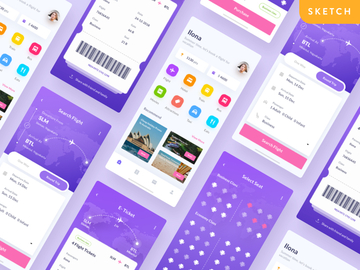
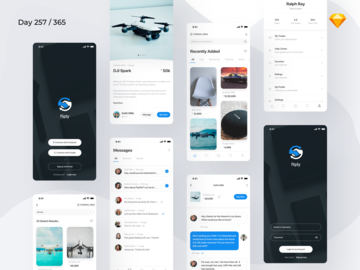
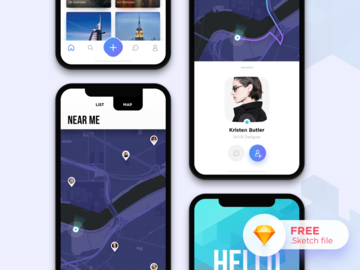
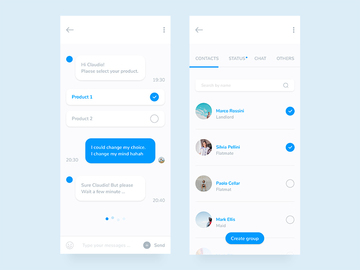
EpicPxls offers 52+ curated apps for Sketch, all with a commercial license and editable source files (Figma, Sketch, PSD). Download your chosen apps from EpicPxls, then use Sketch's import function. Most resources include Sketch-native files for seamless opening.
Last updated February 13, 2026
Everything you need to know about using apps in Sketch.
Trusted by designers at leading companies
Top Apps for Sketch
Handpicked resources from our curated collection


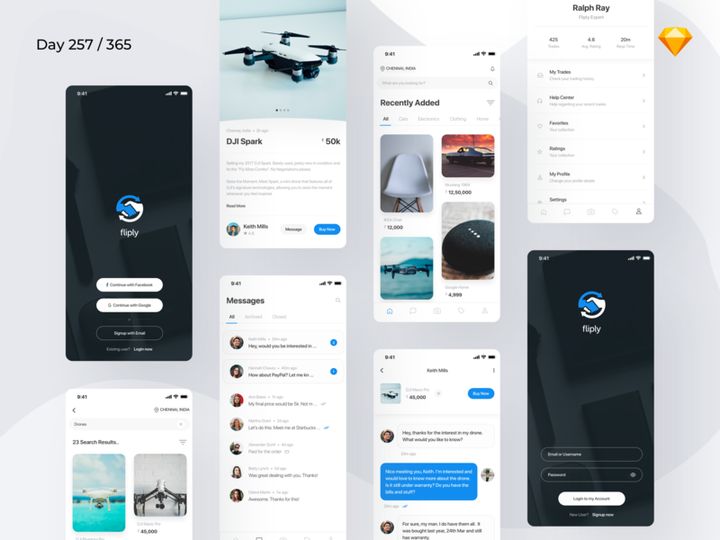
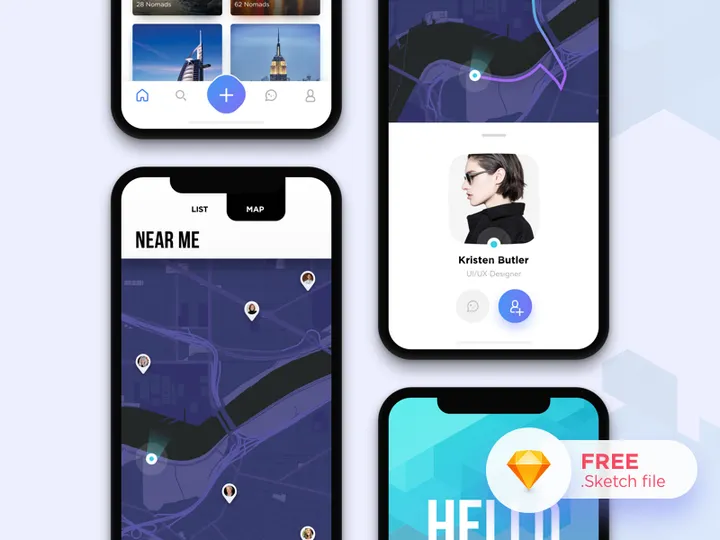
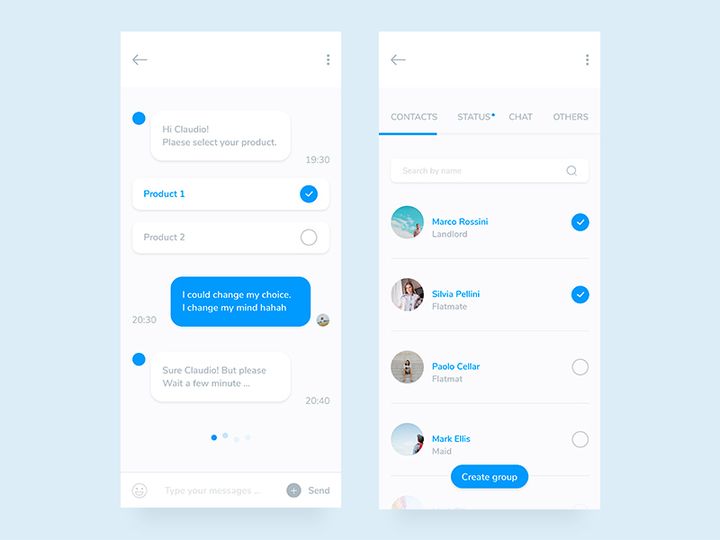


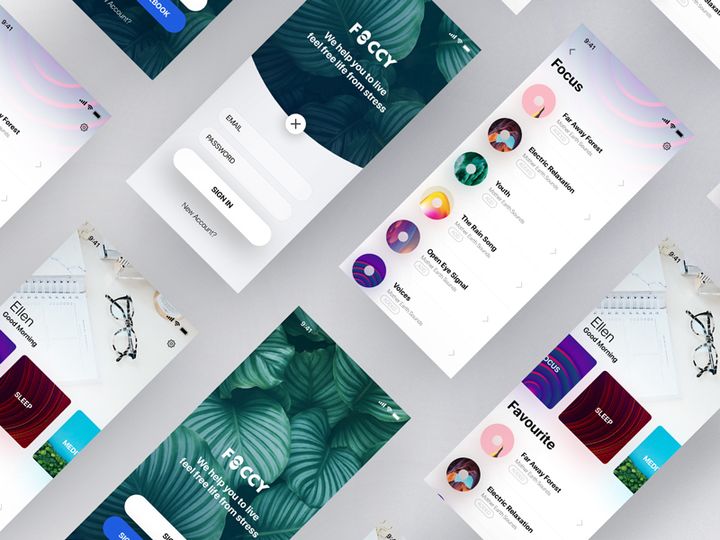
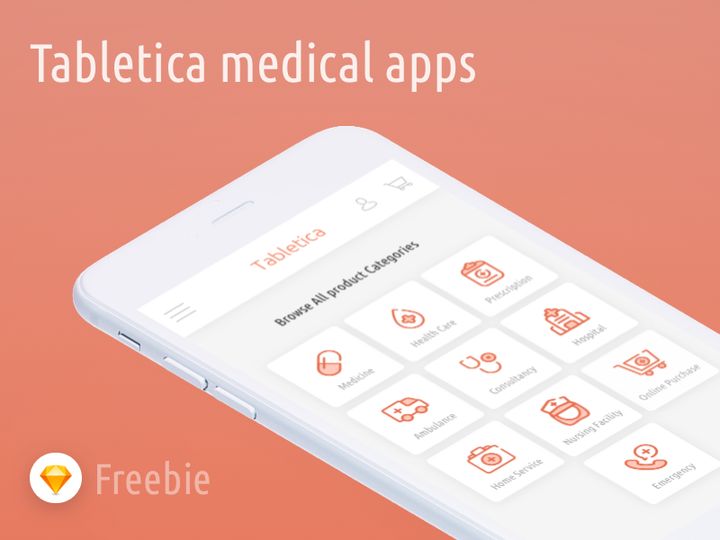
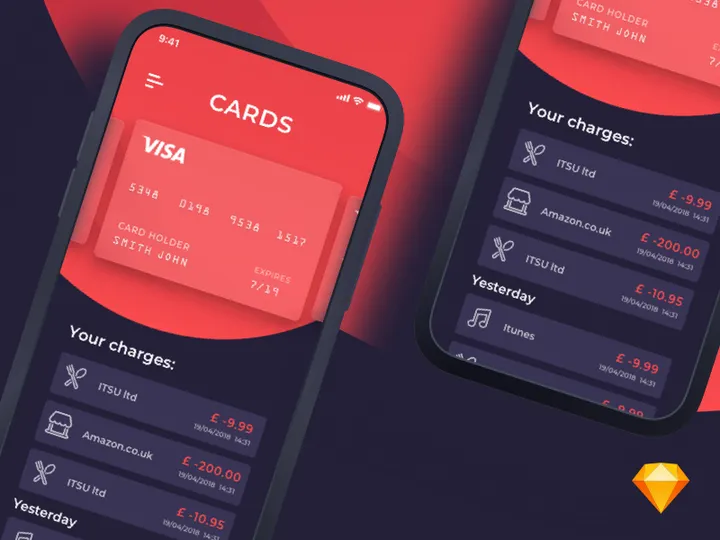
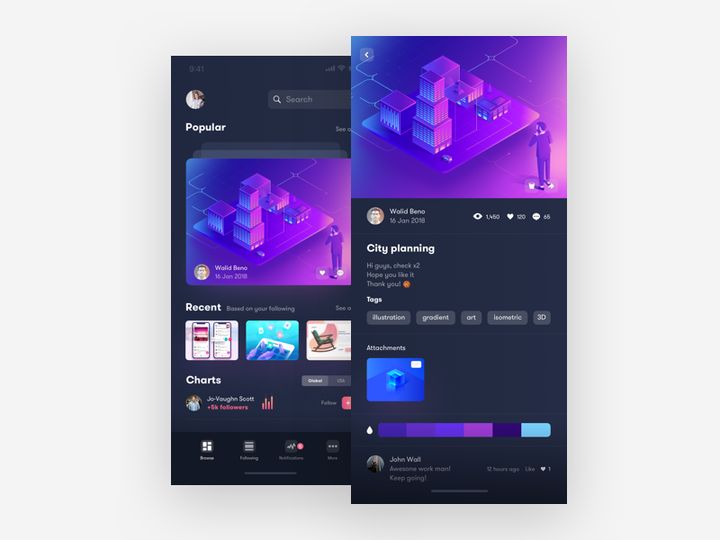
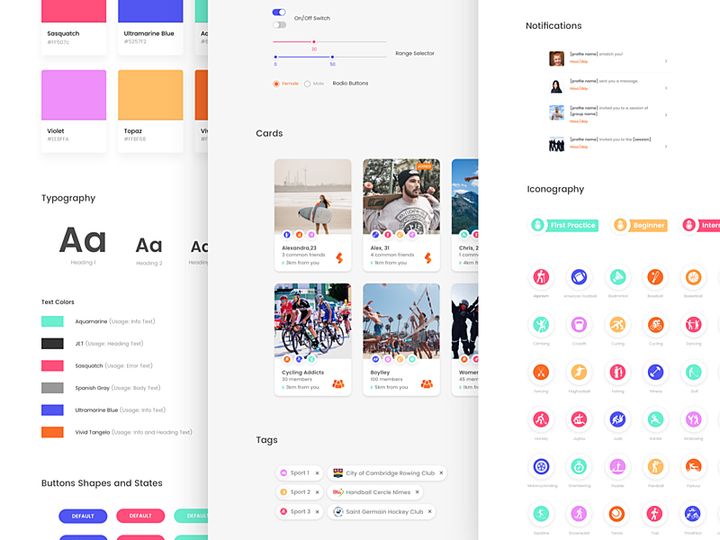
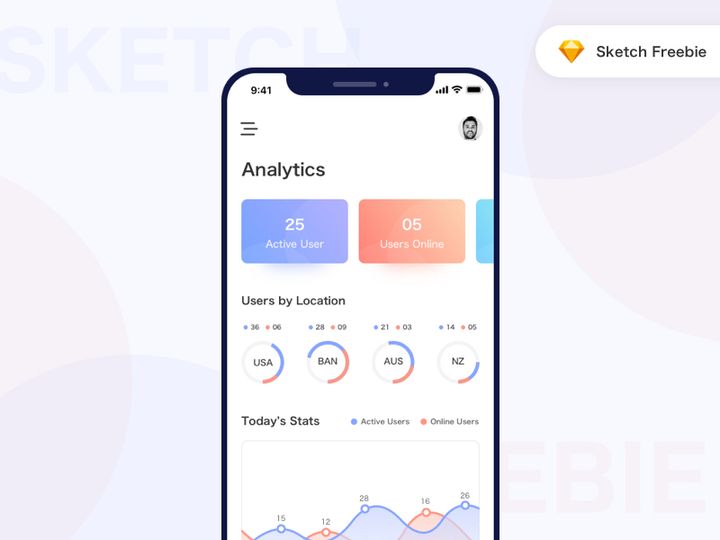
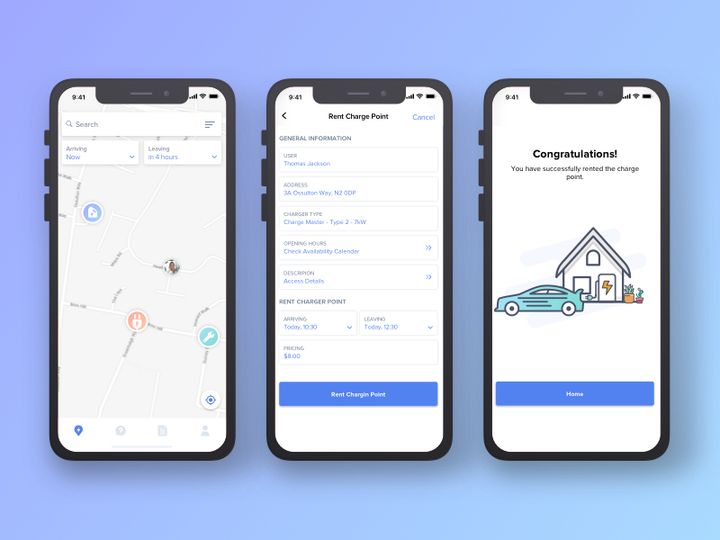

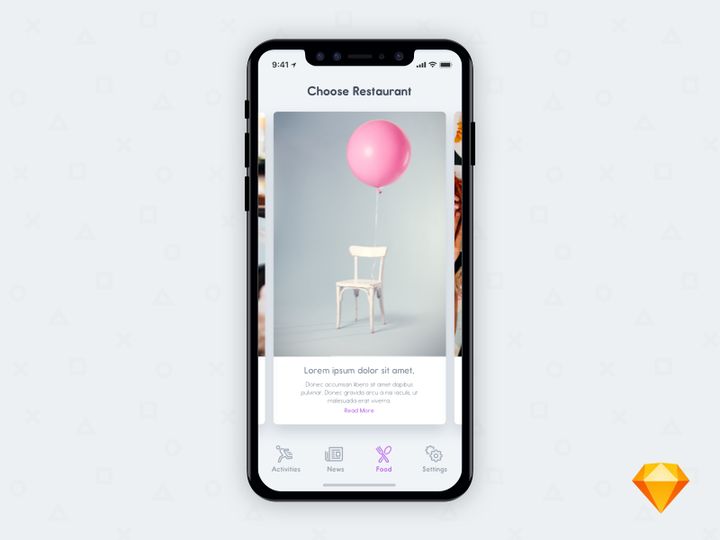

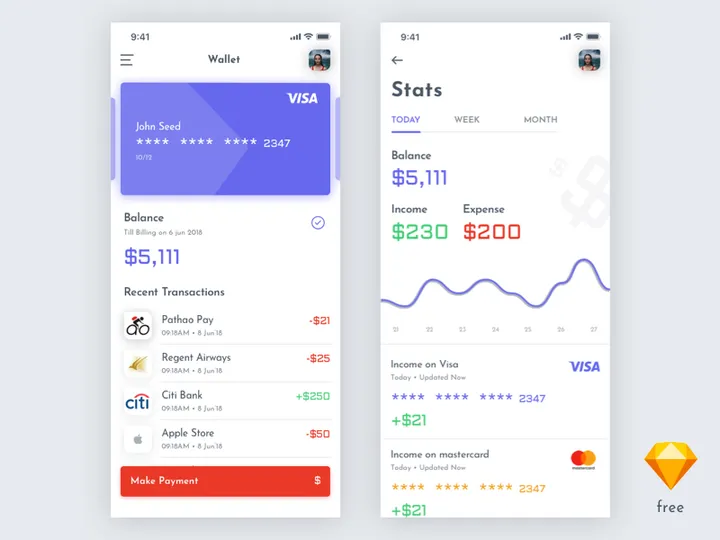
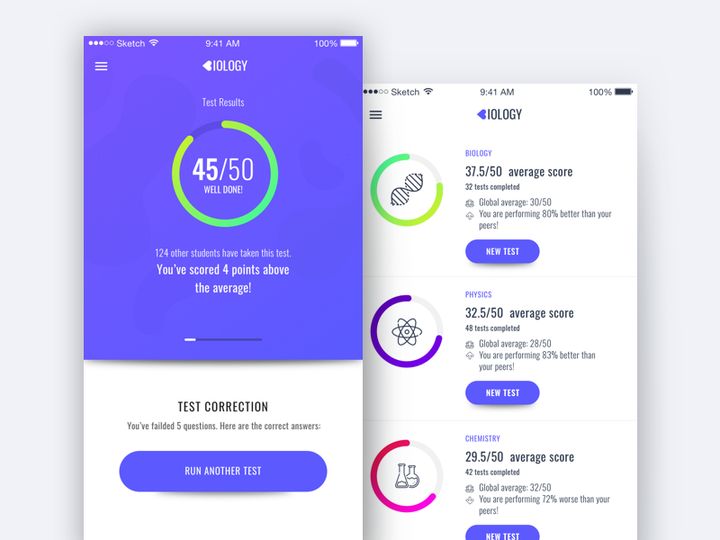
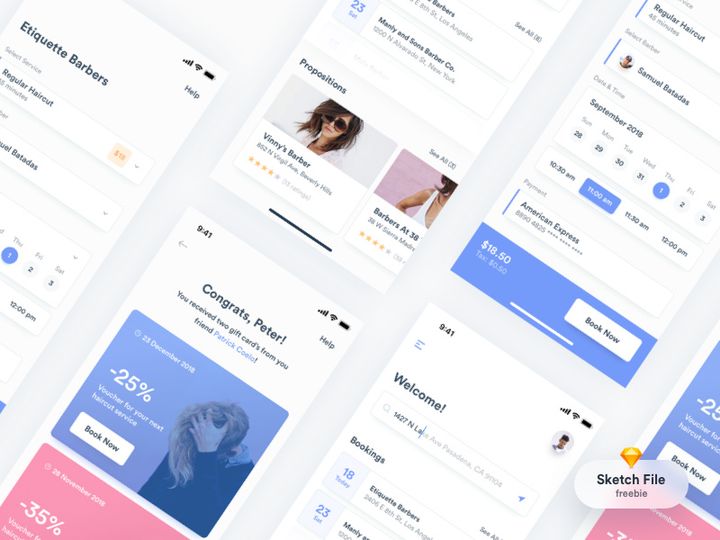
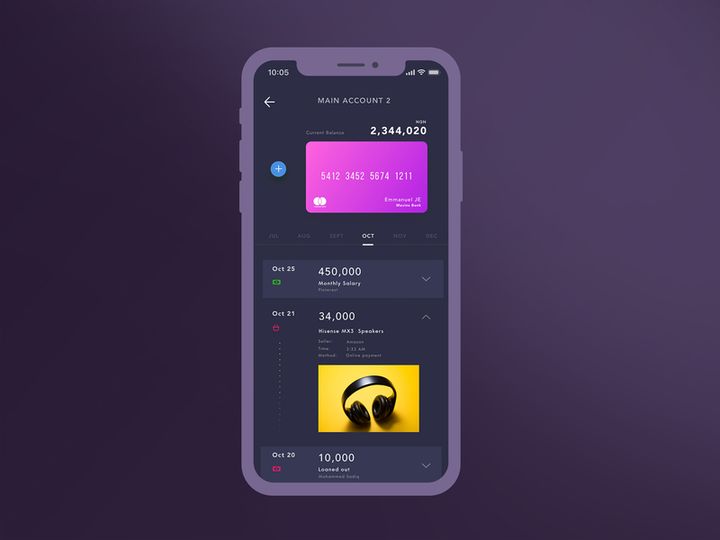

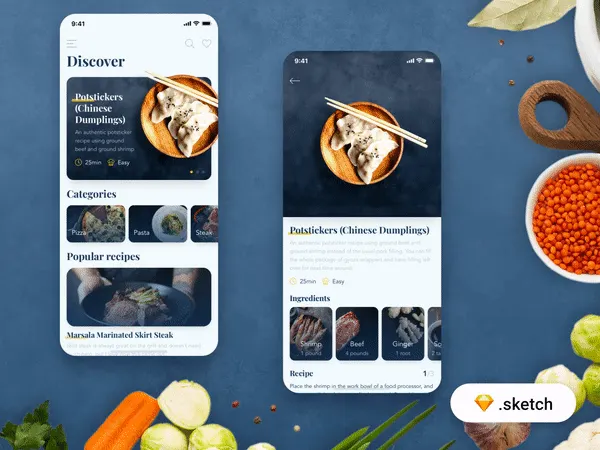
Try Our Free Resources
Download any of these for free - no account required

Getting Started with Apps in Sketch
Sketch has become a go-to design tool for UI/UX professionals, especially when it comes to app design. Its vector-based interface, symbol system, and plugin ecosystem make it ideal for creating scalable, consistent, and production-ready app interfaces. Before diving into using apps in Sketch, it's important to ensure your environment is set up correctly. First, make sure you're running the latest version of Sketch, available exclusively for macOS. Older versions may not support newer features or file formats, which can lead to compatibility issues when importing external design resources.
To begin using apps in Sketch, you’ll need a licensed copy of the app installed on your Mac. While Sketch itself doesn’t run on Windows or mobile devices, its cloud integration allows for seamless collaboration and handoff. Once installed, you can start exploring third-party resources designed specifically for Sketch. Many designers look for app templates, UI kits, and design systems that streamline the creation of mobile and web applications. A reliable source for these materials is EpicPxls, which offers a curated collection of 50+ high-quality design assets compatible with Sketch. These resources include everything from onboarding screens and dashboard layouts to complete app design systems with dark mode variants and responsive components.
The beauty of using pre-built apps in Sketch lies in their flexibility and time-saving potential. Whether you're designing a fitness app, a social media platform, or a productivity tool, having a solid starting point accelerates your workflow. EpicPxls ensures all its Sketch-compatible files are well-organized, layered, and annotated, making them easy to modify. With over 50+ resources available, including wireframes, icon sets, and component libraries, you’ll find tools that match your project’s scope and design language. Getting started is as simple as downloading a file and importing it into your Sketch workspace—setting the stage for rapid prototyping and polished output.
How to Import Apps into Sketch
- Locate a Trusted Source: Begin by visiting a reputable design marketplace like EpicPxls, which hosts over 50+ Sketch-ready app templates and UI kits. Choose a resource that matches your project needs—whether it's a full mobile app flow or a set of reusable components.
- Download the Correct File Format: Ensure you download the file labeled for Sketch (usually a .sketch file). Some packages may include additional formats like PSD, AI, or Figma for cross-platform use, but always opt for the native .sketch version to preserve layers, symbols, and text styles.
- Unzip the Downloaded File: Most resources come in a compressed .zip folder. Double-click to extract the contents. Inside, you’ll typically find the .sketch file along with documentation, font lists, and sometimes exportable assets like icons or logos.
- Launch Sketch and Open the File: Open Sketch and go to File > Open, then navigate to your extracted .sketch file. Click to open it. Sketch will load the document with all layers, artboards, and symbols intact.
- Verify Imported Content: Once opened, review the Layers panel to confirm that all groups, symbols, and artboards have imported correctly. Check for any missing fonts or raster images that may need re-linking. Sketch will usually prompt you if fonts are missing.
- Adapt for Your Workflow: After successful import, consider duplicating the original file as a backup. Then begin customizing the app layout by renaming artboards, updating colors, or replacing placeholder content. If the file includes shared styles or symbol overrides, take advantage of these to maintain consistency across your design.
It's worth noting that while Sketch primarily works with its native format, it can indirectly handle other file types. For instance, PSD or AI files can be opened in Adobe software and exported as SVG or PNG for placement in Sketch, though layer fidelity may be reduced. Figma files require conversion via third-party tools or manual recreation. To ensure the best results, always use Sketch-native files when possible—especially when working with complex app interfaces that rely on symbols and constraints.
Step-by-Step: Working with Apps in Sketch
Editing Layers and Components
One of the most powerful aspects of using apps in Sketch is the ability to customize every element with precision. Once an app template is imported, you can begin editing individual layers, text blocks, icons, and symbols. Select any element on the canvas to modify its fill, stroke, shadow, or blending mode using the right-hand inspector panel. Text layers can be updated with your brand fonts or localized content, and Sketch’s text styling system allows you to create and apply reusable text styles across multiple screens.
Components—known as Symbols in Sketch—are central to efficient app design. A well-structured app template will include reusable buttons, navigation bars, cards, and form elements as Symbols. To edit a Symbol, simply double-click it to enter isolation mode, make your changes (such as adjusting color or icon), and those updates will propagate across all instances in your document. This ensures consistency and reduces manual editing. You can also detach a Symbol instance to make unique changes when needed, though this breaks the link to the master.
For advanced customization, use Sketch’s Override panel to swap out images, text, or nested Symbols without leaving the main artboard. This is particularly useful when designing dynamic screens like user profiles or product listings. With over 50+ resources available on EpicPxls, many of which are built with robust Symbol libraries, you can quickly assemble new app flows by dragging and dropping pre-designed components into your project.
Organizing Your Apps Library
As your collection of app designs grows, maintaining an organized library becomes crucial. Start by structuring your Sketch files with clear naming conventions. Use prefixes like “App-Login,” “App-Dashboard,” or “Components-Buttons” to make artboards easy to locate. Group related artboards into Pages within your Sketch document—for example, “Onboarding,” “User Flow,” and “Settings”—to keep your workspace navigable.
Take advantage of Sketch’s Layer List to organize groups and Symbols hierarchically. Collapse sections you’re not actively working on to reduce visual clutter. If you’re using multiple templates from different sources, consider creating a master library file where you import and standardize components across projects. This centralizes your design system and ensures UI consistency.
For teams or frequent users, bookmark your most-used resources from EpicPxls and download them into a dedicated folder on your drive. Tag or label them by category (e.g., “E-commerce,” “Health & Fitness”) to speed up future access. Regularly archive outdated files and update your library with newer versions to maintain compatibility with the latest Sketch features.
Exporting for Production
Once your app design is finalized, exporting assets for development is a streamlined process in Sketch. Select the layers, artboards, or symbols you want to export, then navigate to the Make Exportable section in the right-hand panel. Click the + button to add export formats. Common choices include PNG for static previews, SVG for scalable icons, and PDF for print or documentation purposes.
Set the resolution for each export—1x for standard screens, 2x for retina displays, and 3x for high-density mobile devices like iPhones. For mobile apps, exporting assets at 2x and 3x ensures crisp visuals across devices. You can also export entire artboards as PDFs for client presentations or handoff documents.
Sketch supports automated naming and destination folders, so you can organize exports by screen type or component category. For example, export all button states to a “/buttons” subfolder with names like “btn-primary-active@2x.png.” This level of control makes it easier for developers to integrate designs into code. Additionally, consider using Sketch’s “Share” feature to generate a link for stakeholders, allowing them to view specs, copy CSS, and download assets directly—ideal for remote collaboration.
Troubleshooting Common Sketch Issues
File Won't Open
If a Sketch file fails to open, the most common cause is version incompatibility. Files created in newer versions of Sketch cannot be opened in older ones. Always ensure your Sketch app is up to date via the Mac App Store. If you're working with a file from EpicPxls or another source, check the documentation for the required Sketch version. In some cases, the provider may offer a legacy version for backward compatibility. If the file is corrupted, try opening a backup or re-downloading it from the original source.
Missing Fonts or Assets
When fonts don’t appear correctly, Sketch will display a warning and substitute them with a default typeface. To resolve this, identify the required fonts listed in the resource’s documentation—many 50+ resources on EpicPxls include a font guide or link to free alternatives. Download and install the fonts on your system, then restart Sketch. The app will automatically detect and apply the correct typefaces. For missing images or linked assets, ensure the entire folder structure was preserved during extraction. Sketch sometimes loses image references if files are moved after import.
Performance Problems
Large app files with numerous artboards and high-resolution images can slow down Sketch. To improve performance, regularly detach unused Symbols, flatten unnecessary groups, and remove hidden or off-canvas layers. Use the “Clean Document” feature (found under Plugins > Clean Unused Symbols) to purge redundant assets. Consider splitting massive projects into multiple Sketch files—such as one per feature or screen group—to maintain responsiveness. If you're working with complex animations or embedded bitmaps, rasterize only what’s necessary and optimize image sizes before import.
Advanced Sketch Tips for Apps
Batch Processing
When designing apps with multiple similar screens—such as a list of cards or user profiles—use Sketch’s ability to duplicate and batch-edit elements efficiently. Create one master artboard, then duplicate it using Alt + Drag. Update each instance using Symbol overrides or text changes. For even greater speed, use plugins like “Rename It” or “Batch Export” to apply naming conventions or export dozens of screens at once. This is especially useful when working with comprehensive kits from EpicPxls, where consistency across 50+ screens is essential.
Plugins and Extensions
Sketch’s plugin ecosystem enhances its functionality for app design. Install plugins like Sketch Runner for quick navigation, Automate for repetitive tasks, or Measure for developer handoff. These tools integrate seamlessly into your workflow, saving time on alignment, spacing, and documentation. Many plugins are available through Sketch’s official plugin directory and can be managed under Plugins > Manage Plugins. Always ensure plugins are updated to avoid conflicts with the latest Sketch version.
Collaboration Workflows
For teams working on shared app projects, establishing a clear collaboration workflow is key. Use Sketch Cloud to publish and share design versions with stakeholders. Set up a central library file containing approved components, colors, and text styles, and distribute it to team members. When using external resources like those from EpicPxls, standardize which versions of the 50+ resources you adopt to prevent design drift. Combine this with a naming convention and version control strategy to ensure everyone stays aligned. Regular sync-ups and design reviews help maintain quality and coherence throughout the app development lifecycle.
Why Download from EpicPxls?
Commercial License
Use in personal and commercial projects
No Account Required
Download free resources instantly
Quality Curated
Every resource is reviewed for quality
Preview Files
See Figma and Photoshop files before downloading
Who Uses These Apps?
Professionals and teams who benefit most from our collection
UI/UX Designers
Speed up your workflow with ready-to-use apps for Sketch. Perfect for prototyping and client presentations.
Developers
Get production-ready assets without design skills. Export in any format for web and mobile apps.
Startups & Agencies
Save design budget with affordable premium apps. Commercial license included.
Marketing Teams
Create professional campaigns faster. All apps are optimized for social media and ads.
Apps for Sketch FAQCommon questions about these resources
Simple, Transparent Pricing
Get unlimited access to all premium resources
Yearly
- 20 downloads per month
- All file formats
- Commercial license
Lifetime
- Unlimited downloads forever
- All file formats
- Commercial license
Ready to Get Started?
Access 4,442+ free design resources today.
Browse Free ResourcesView Premium PlansEarn 85% and
more on all sales
Upload your products and put them up
for sale at whatever price you want.


