Widgets for Illustrator: 11+ Resources
EpicPxls offers 11+ curated widgets for Illustrator, all with a commercial license and editable source files (Figma, Sketch, PSD). We have 11+ widgets compatible with Illustrator, tested and verified for seamless integration.
Last updated February 12, 2026
Discover 11+ handpicked widgets for Illustrator.
Trusted by designers at leading companies
Top Widgets for Illustrator
Handpicked resources from our curated collection
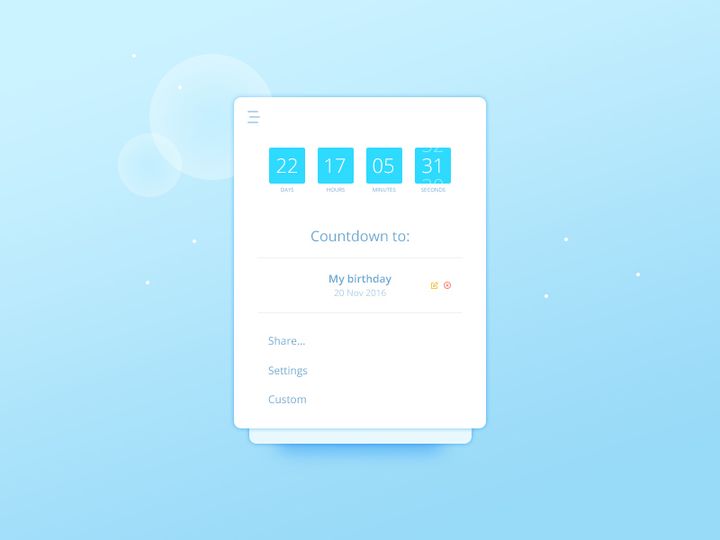
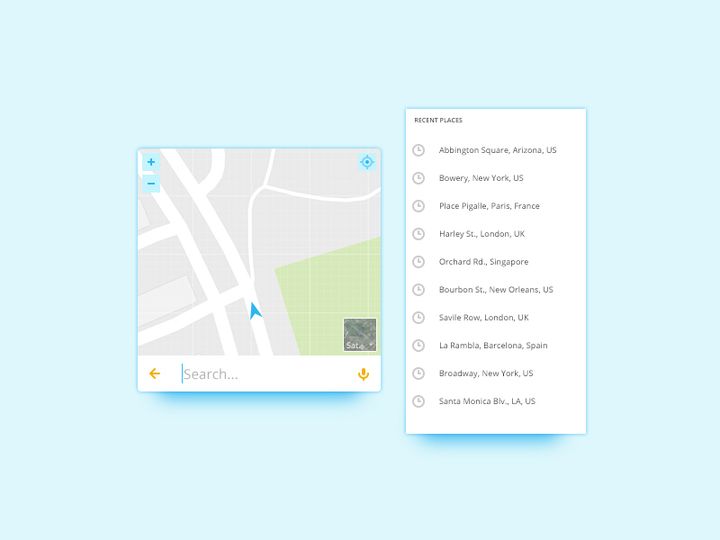
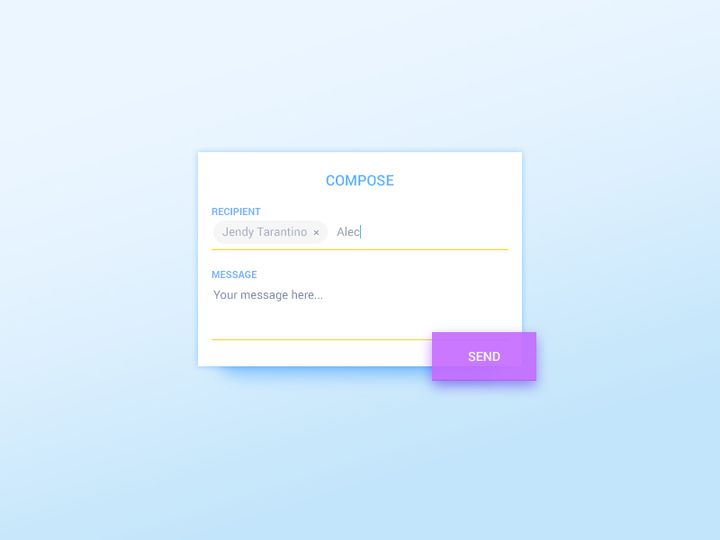
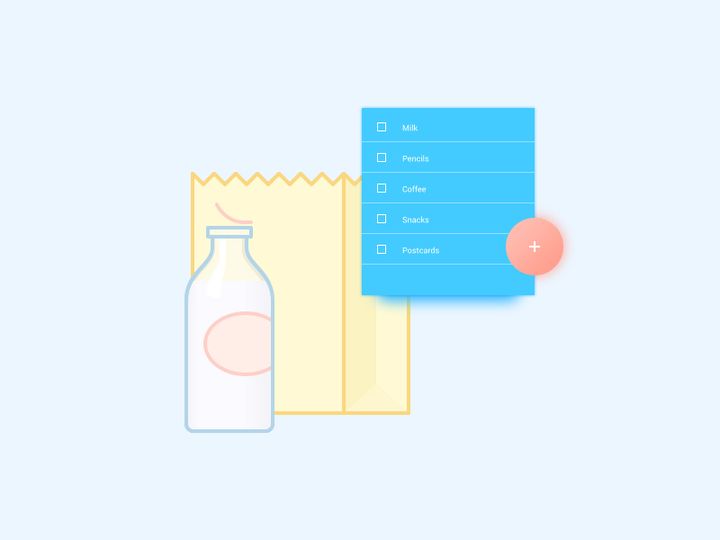
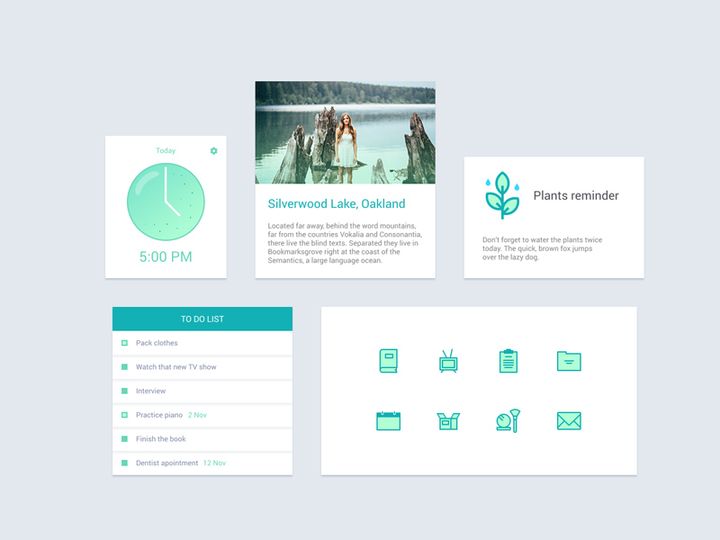
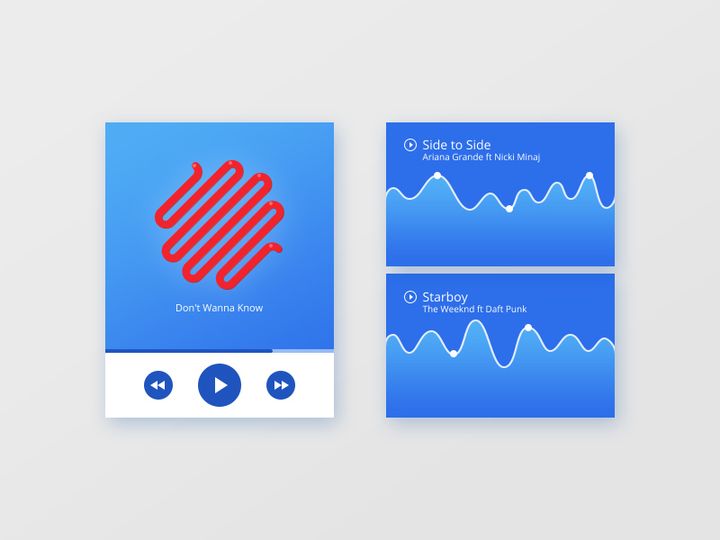
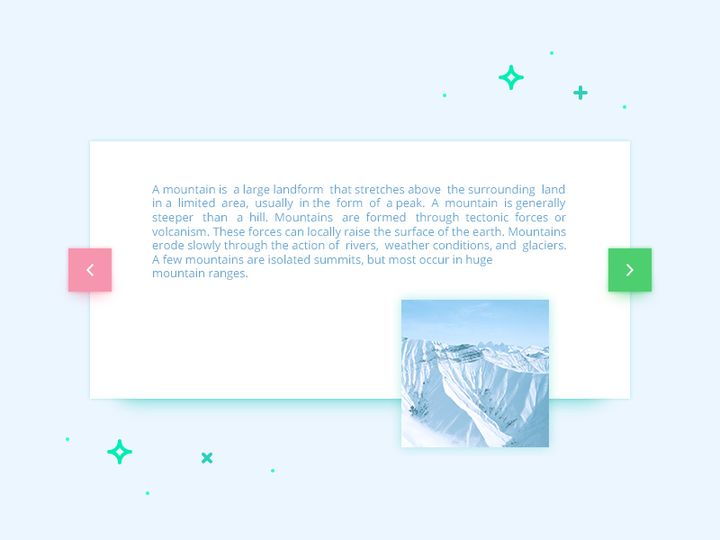

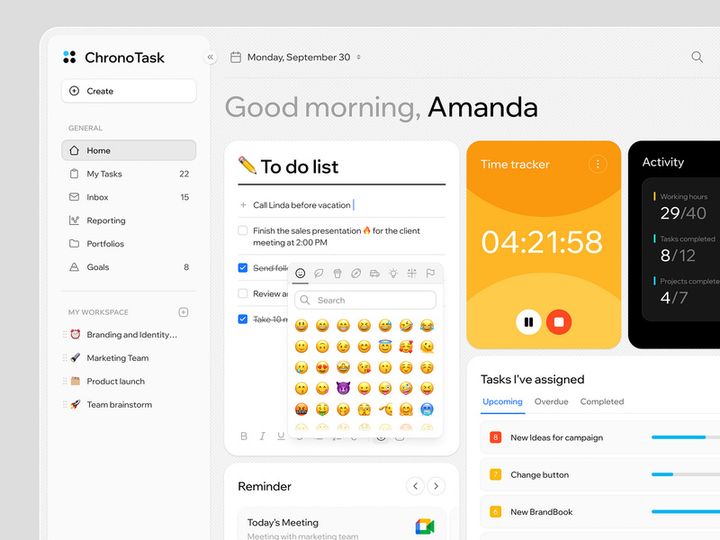


Try Our Free Resources
Download any of these for free - no account required
Why Illustrator for Widgets?
Adobe Illustrator has long been the go-to vector design platform for digital creators, and its utility extends powerfully into the world of widget design. Whether you're crafting interface elements for mobile apps, designing UI components for web platforms, or building scalable assets for interactive prototypes, Illustrator offers a precision-driven environment ideal for creating and managing widgets. Widgets—small, functional graphical components such as buttons, toggles, sliders, and icons—require clean lines, scalability, and consistency, all of which are native strengths of Illustrator’s vector-based workflow.
One of the primary reasons designers choose Illustrator for widget creation is its robust vector tools. Unlike raster-based programs, Illustrator allows widgets to be scaled infinitely without any loss in quality, making them perfect for responsive designs across multiple screen sizes and resolutions. The application’s alignment and snapping tools, combined with grids and guides, ensure pixel-perfect accuracy, which is critical when designing consistent UI elements. Additionally, features like Symbols, Layers, and the Appearance panel streamline the process of reusing and modifying widgets efficiently across large projects.
Another advantage is Illustrator’s compatibility with other Adobe Creative Cloud applications. Designers can easily export widgets for use in After Effects, XD, or Photoshop, enabling seamless integration into broader design workflows. The ability to save assets in SVG, PDF, or EPS formats ensures cross-platform usability while preserving editability. Illustrator also supports custom brushes, swatches, and graphic styles—key assets when building cohesive widget libraries.
At EpicPxls, we understand the importance of reliable, high-quality design tools. That’s why we’ve curated over 11+ resources specifically tailored for widget creation in Illustrator. Each resource is tested for compatibility, usability, and design integrity, ensuring that whether you're a novice or a seasoned professional, you’ll find tools that elevate your workflow. From customizable UI kits to intelligent widget templates, our collection empowers designers to build faster, smarter, and with greater consistency—all within the trusted Illustrator ecosystem.
Top Widgets Picks for Illustrator
Finding the right widgets for Illustrator can dramatically speed up your design process, improve consistency, and reduce repetitive tasks. With countless options available, it’s essential to choose resources that match your skill level, project needs, and design goals. Below, we’ve broken down the top picks based on accessibility, functionality, and value. All of these selections are part of the 11+ resources handpicked by EpicPxls for their quality and Illustrator compatibility.
Best for Beginners
If you're just starting out with widget design in Illustrator, simplicity and clarity are key. Look for resources that come with clear documentation, intuitive layer structures, and pre-built examples. Beginner-friendly widget packs often include labeled layers, organized folders, and step-by-step usage guides. At EpicPxls, we recommend starter kits that feature basic UI elements like buttons, checkboxes, and input fields—designed with clean vectors and easy-to-edit colors and text. These kits help new users learn best practices while producing professional-looking results from day one.
Best for Professionals
Experienced designers demand advanced functionality, scalability, and integration capabilities. The top-tier widget resources offer dynamic Symbols, reusable components, and support for global swatches and styles. These packs are engineered for efficiency, allowing pros to automate repetitive tasks and maintain brand consistency across large-scale projects. Look for kits with modular architecture, responsive design templates, and compatibility with modern design systems. The professional-grade options in our 11+ resources list are crafted to meet enterprise-level standards, enabling faster prototyping and seamless collaboration.
Best Free Options
High-quality doesn’t always mean high cost. There are several excellent free widget packs available that don’t compromise on design or functionality. These resources are perfect for students, freelancers on a budget, or teams testing new workflows. The best free widgets include essential UI components, are fully editable, and often come with open licensing for personal and commercial use. EpicPxls highlights select free packs that have undergone rigorous review to ensure they meet professional standards—proving that affordability and quality can go hand in hand.
Illustrator vs Other Tools for Widgets
While several design tools support widget creation, Illustrator stands out for its precision, scalability, and deep integration within professional design ecosystems. Unlike tools focused solely on UI/UX prototyping, Illustrator provides unmatched control over vector shapes, strokes, and typography—critical elements when crafting pixel-perfect widgets. Its non-destructive editing features, such as Symbols and Clipping Masks, allow designers to build reusable, responsive components that maintain integrity across iterations.
One of Illustrator’s unique advantages is its ability to handle both micro and macro design tasks. You can design a single toggle switch with exacting detail, then scale up to layout entire dashboard interfaces using the same asset library. This flexibility is harder to achieve in tools limited to screen-based canvas dimensions or raster-based editing. Additionally, Illustrator’s support for multiple artboards makes it easy to organize and compare widget variations side by side—a boon for iterative design.
Format compatibility is another area where Illustrator excels. Widgets created in Illustrator can be exported to SVG, PNG, PDF, and more, ensuring they can be used across web, mobile, and print platforms. When combined with tools like Adobe XD or After Effects, Illustrator-generated widgets integrate smoothly into interactive prototypes and animations. For designers who value control, consistency, and long-term asset reuse, Illustrator remains a top choice. The 11+ resources curated by EpicPxls are all optimized for this ecosystem, ensuring seamless performance and maximum utility.
Setting Up Widgets in Illustrator
Getting started with widgets in Illustrator is straightforward when you follow a structured setup process. Whether you’re installing a free pack or integrating a premium resource, proper installation ensures your widgets remain organized, editable, and ready for use across projects.
- Download the Resource Package: Begin by downloading your chosen widget pack from a trusted source. Ensure the file is compatible with your version of Illustrator and includes necessary assets like AI files, symbols, or swatches.
- Extract the Files: Unzip the downloaded folder to a designated location, such as your Creative Cloud Libraries or a local design assets folder. Avoid leaving files in temporary directories.
- Open the Main .AI File: Launch Illustrator and open the primary file from the widget pack. This file usually contains all components on organized artboards or within the Symbols panel.
- Load Symbols and Swatches: If the pack includes custom symbols or color swatches, open the Symbols and Swatches panels, then import or load them via the panel menus. This makes them available across all your Illustrator projects.
- Save to Creative Cloud Libraries: For easy access, drag frequently used widgets into your Adobe Creative Cloud Library. This allows you to insert them into any document with a single click, even across devices.
- Test and Customize: Place a widget in a new document, adjust colors using global swatches, resize using vector handles, and verify that all elements remain crisp and editable. This confirms successful installation and readiness for use.
For teams managing large widget collections, consider creating a master template file that loads all necessary resources at startup. This reduces setup time and ensures consistency. EpicPxls recommends reviewing each of the 11+ resources in a test environment before full deployment to confirm compatibility and performance.
Illustrator Workflow Tips
Maximizing efficiency in Illustrator involves more than just knowing where tools are—it’s about building sustainable, scalable workflows. When working with widgets, small optimizations can lead to significant time savings, especially over long-term projects or team collaborations.
Organizing Widgets Libraries
Keep your widget assets structured by categorizing them in clearly labeled folders or libraries. Use consistent naming conventions such as “Button_Primary,” “Toggle_IOS,” or “Input_Field_Dark.” Within Illustrator, leverage the Layers panel to group related elements and collapse sections for clarity. For larger teams, sync widget libraries via Adobe Creative Cloud Libraries so everyone accesses the same updated components. EpicPxls suggests maintaining a master file where all approved widgets are stored and version-controlled.
Batch Operations
When updating multiple widgets—such as changing brand colors or adjusting stroke weights—use global swatches and graphic styles to apply changes in bulk. Define a color theme using global process colors so that editing one swatch updates all linked objects. Similarly, apply a graphic style to all buttons, then modify the style once to update every instance. This non-destructive approach saves hours of manual editing and reduces errors.
Collaboration Best Practices
When working in teams, ensure all members use the same version of widget resources to avoid inconsistencies. Share library files through cloud storage or Creative Cloud sync, and document usage guidelines—such as layer structure, naming rules, and export settings. Conduct periodic audits of the widget library to remove outdated components and add new ones. Teams using the 11+ resources from EpicPxls benefit from standardized templates and cross-compatible formats, making collaboration smoother and more efficient.
Why Download from EpicPxls?
Commercial License
Use in personal and commercial projects
No Account Required
Download free resources instantly
Quality Curated
Every resource is reviewed for quality
Preview Files
See Figma and Photoshop files before downloading
Who Uses These Widgets?
Professionals and teams who benefit most from our collection
UI/UX Designers
Speed up your workflow with ready-to-use widgets for Illustrator. Perfect for prototyping and client presentations.
Developers
Get production-ready assets without design skills. Export in any format for web and mobile apps.
Startups & Agencies
Save design budget with affordable premium widgets. Commercial license included.
Marketing Teams
Create professional campaigns faster. All widgets are optimized for social media and ads.
Widgets for Illustrator FAQCommon questions about these resources
Simple, Transparent Pricing
Get unlimited access to all premium resources
Yearly
- 20 downloads per month
- All file formats
- Commercial license
Lifetime
- Unlimited downloads forever
- All file formats
- Commercial license
Ready to Get Started?
Access 4,442+ free design resources today.
Browse Free ResourcesView Premium PlansEarn 85% and
more on all sales
Upload your products and put them up
for sale at whatever price you want.


