How to Use Widgets in Photoshop: Complete Guide
EpicPxls offers 19+ curated widgets for Photoshop, all with a commercial license and editable source files (Figma, Sketch, PSD). Download your chosen widgets from EpicPxls, then use Photoshop's import function. Most resources include Photoshop-native files for seamless opening.
Last updated February 13, 2026
Everything you need to know about using widgets in Photoshop.
Trusted by designers at leading companies
Top Widgets for Photoshop
Handpicked resources from our curated collection
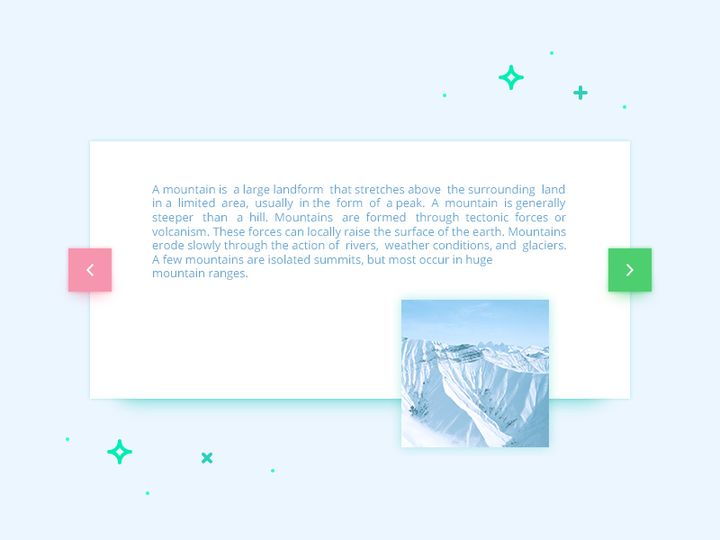
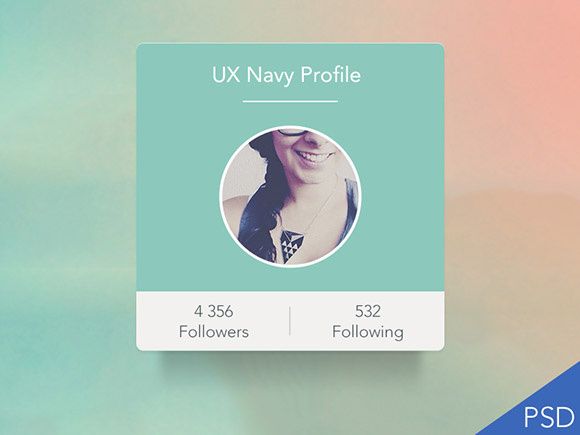
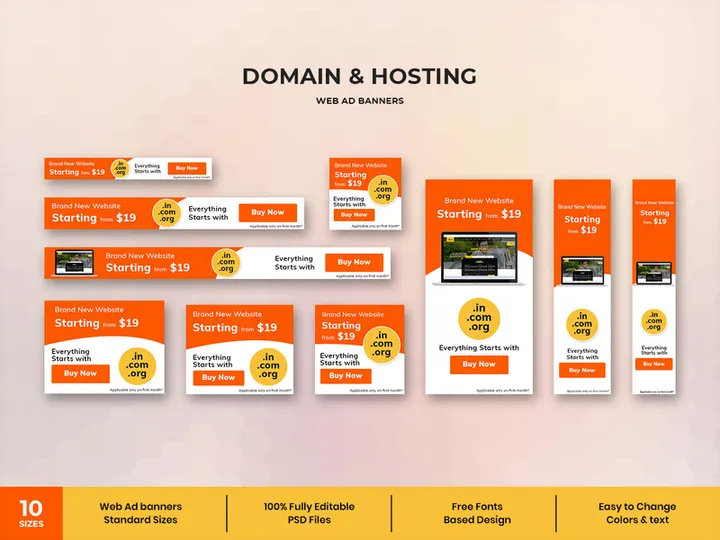
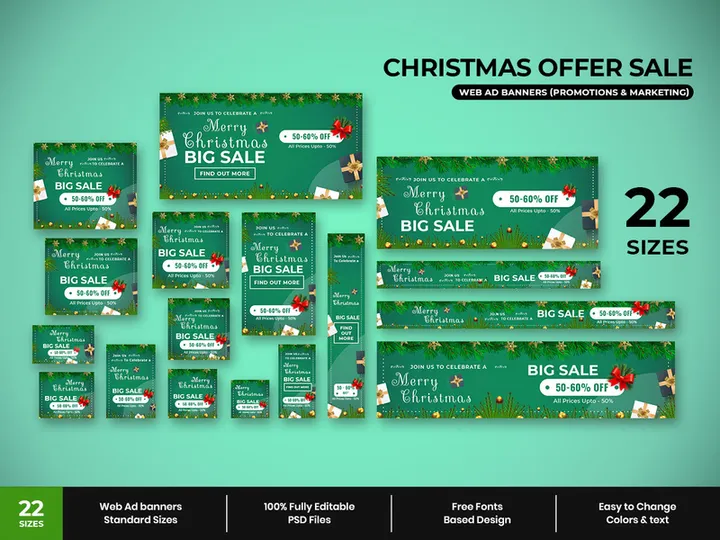

Try Our Free Resources
Download any of these for free - no account required
Getting Started with Widgets in Photoshop
Photoshop remains a cornerstone tool for designers working across web, mobile, and print media. With the growing demand for efficient workflows, widgets have emerged as powerful design assets that streamline the creation of user interfaces, dashboards, and interactive elements. A widget in Photoshop typically refers to a reusable UI component—such as buttons, sliders, cards, navigation bars, or data visualizations—that can be quickly inserted and customized within your design projects. These modular elements help maintain design consistency, reduce repetitive work, and accelerate prototyping.
Before diving into widgets, ensure you have Adobe Photoshop installed and updated to a recent version (preferably 2020 or later) to support modern layer structures, vector editing, and smart objects. While Photoshop is primarily known for photo editing, its robust vector and layer-based capabilities make it a viable platform for UI design, especially when enhanced with external widgets. You'll also benefit from having a stable internet connection to download and manage resources, as well as sufficient system RAM to handle layered PSD files efficiently.
When it comes to sourcing widgets, numerous platforms offer Photoshop-compatible assets. One of the most comprehensive collections is available through EpicPxls, which provides over 19+ professionally designed, customizable widgets tailored for seamless integration into Photoshop projects. These resources span categories like dashboard components, form elements, icons, and interactive modules—ideal for designers building web interfaces or application prototypes. The 19+ resources featured on EpicPxls are crafted with clean layer naming, organized groups, and smart object support, making them easy to adapt to your specific design needs.
Using widgets from trusted sources ensures compatibility, saves development time, and promotes design consistency across projects. Whether you're creating mockups for clients or iterating on app interfaces, incorporating widgets into your workflow can significantly enhance your productivity. With the right setup and access to quality assets, you're ready to begin importing and using widgets effectively in Photoshop.
How to Import Widgets into Photoshop
- Identify the Correct File Format: Before downloading, verify that the widget pack supports Photoshop-compatible formats. Look for files labeled as PSD (Photoshop Document), AI (Adobe Illustrator, which can be opened in Photoshop), or SVG (Scalable Vector Graphics). PSD files are ideal because they preserve layers, masks, and smart objects, enabling full customization within Photoshop.
- Download from a Trusted Source: Visit EpicPxls and browse the 19+ resources available for UI widgets. Choose a widget pack that matches your project needs—such as analytics dashboards, mobile UI kits, or form controls—and download the ZIP file to your local machine.
- Extract the Downloaded Archive: Most widget packs come compressed in ZIP format. Use your operating system’s built-in extraction tool or a third-party utility to unzip the folder. Ensure you keep the internal folder structure intact to preserve linked assets and documentation.
- Open the Widget File in Photoshop: Launch Photoshop, then go to File > Open and navigate to the extracted folder. Select the PSD or AI file and click “Open.” If it’s an AI file, Photoshop will prompt you with import options—select “Convert Layers to Objects” for maximum editability.
- Review Layer Structure: Once opened, inspect the Layers panel. Well-designed widgets, such as those in the 19+ resources from EpicPxls, will feature clearly labeled groups, smart objects, and vector shapes. This organization makes it easier to locate and modify components.
- Copy or Place into Your Project: To use the widget in another document, simply drag the desired layer or group from the widget file into your active Photoshop project. Alternatively, use Layer > Duplicate Layer and choose your target document. For non-destructive editing, consider using File > Place Embedded to insert the widget as a smart object, preserving scalability and editability.
When working with SVG files, note that Photoshop may rasterize them upon import unless opened via Adobe Illustrator first. For Figma files, which are not natively supported, you’ll need to export individual components as SVG or PNG from Figma before importing. Always check the included documentation in the widget pack for specific instructions and licensing details. By following these steps, you’ll ensure a smooth import process and retain full control over your widget assets within Photoshop.
Step-by-Step: Working with Widgets in Photoshop
Editing Layers and Components
Once a widget is imported into your Photoshop document, the real power lies in customization. Begin by exploring the Layers panel, where each widget component—such as icons, text fields, or buttons—is typically organized into named groups. Double-click on smart objects to edit them in isolation; this is especially useful for symbols or repeated elements like checkboxes or dropdown menus. Because many widgets from EpicPxls use vector shapes and shape layers, you can resize them without losing quality. Use the Direct Selection Tool (A) to tweak anchor points or adjust stroke width and color via the Properties panel.
To change text, select the Type Tool (T) and click on any text layer. Update the content to match your project, and adjust font size, color, or alignment as needed. If Photoshop prompts about missing fonts, either install the required font (often listed in the widget’s documentation) or choose a suitable replacement. For color changes, take advantage of adjustment layers like Hue/Saturation or Color Overlay to recolor multiple elements at once non-destructively. You can also use global color swatches by defining your brand colors in the Swatches panel for consistency across widgets.
Organizing Your Widgets Library
As you accumulate more widgets from the 19+ resources and other sources, maintaining an organized library becomes crucial. Create a dedicated folder on your local drive or cloud storage labeled “Photoshop Widgets” and subdivide it by category—e.g., Navigation, Forms, Data Displays. Within Photoshop, consider using a master PSD file as a widget repository, where each widget is placed on a separate artboard or document tab. Label layers clearly and use color-coding in the Layers panel for quick identification.
For team environments, share this library via cloud services and establish naming conventions (e.g., “Widget_Button_Primary_Blue”) to avoid confusion. You can also use Photoshop’s Libraries panel (accessible via Window > Libraries) to save frequently used widgets, icons, or styles for one-click access across projects. This panel syncs with your Adobe Creative Cloud account, enabling consistency even when switching devices.
Exporting for Production
When your design is finalized, proper exporting ensures your widgets are ready for development. For web and mobile projects, go to File > Export > Export As or use the newer Export As dialog for more control. Choose PNG for high-quality transparency, JPEG for photographic elements, or SVG for vector-based widgets like icons and buttons (provided they were created as vector paths). Ensure the resolution is set to 72 PPI for screens unless targeting high-DPI displays, in which case 144 or 2x assets may be needed.
For print, switch color mode to CMYK via Image > Mode > CMYK Color and export in PDF or high-resolution TIFF format at 300 PPI. Always flatten or merge layers appropriately before final export, but keep a layered PSD version as your source file. Use slice tools or artboard-based export to generate multiple assets at once—ideal when delivering a suite of widgets to developers. By following these best practices, you ensure your exported widgets meet production standards across platforms.
Troubleshooting Common Photoshop Issues
File Won't Open
If a widget file fails to open in Photoshop, the most common cause is version incompatibility. Older versions of Photoshop may not support features used in newer PSD files, such as advanced layer effects or smart object nesting. Always check the file’s version requirements—many of the 19+ resources on EpicPxls are built for Photoshop CC 2020 and later. If you're using an outdated version, consider updating through Adobe Creative Cloud. Alternatively, request a legacy version from the provider or open the file in a newer machine and resave it in a backward-compatible format (e.g., PSD with maximum compatibility enabled).
Missing Fonts or Assets
When text layers display warning icons, it means the original font isn’t installed on your system. Check the widget documentation for font names and download them from legitimate sources. If the font is unavailable, right-click the text layer and choose “Replace Font” to substitute it with a similar typeface. For missing linked assets (like embedded images), ensure all files from the downloaded ZIP are kept together. If the widget uses smart objects pointing to external files, re-link them via Layer > Smart Objects > Relink to File. To prevent this issue, convert smart objects to embedded ones using Embed in the Layers panel context menu.
Performance Problems
Large widget files, especially those with hundreds of layers or high-resolution smart objects, can slow down Photoshop. To improve performance, flatten non-essential layers, disable layer effects temporarily, or split complex widgets across multiple documents. Increase Photoshop’s memory allocation in Edit > Preferences > Performance and set the RAM usage to 70–80% if your system allows. Also, clear the cache regularly and disable unnecessary panels. Using linked smart objects instead of embedded ones can also reduce file size and improve responsiveness when managing multiple instances of the same widget.
Advanced Photoshop Tips for Widgets
Batch Processing
When working with multiple widgets or need to apply the same changes across several files, use Photoshop’s batch processing feature. Go to File > Automate > Batch and select a set of widget PSDs from a folder. You can apply actions such as resizing, color adjustment, or exporting to a specific format automatically. Record custom actions via the Actions panel (Window > Actions) to streamline repetitive tasks like renaming layers, applying shadows, or updating branding colors across your widget library.
Plugins and Extensions
Enhance your widget workflow with Photoshop plugins that support UI design. Tools that enable style management, layer organization, or automated exporting can dramatically speed up customization and delivery. While native features cover most needs, extensions can help sync design tokens, generate style guides, or export assets in multiple resolutions with naming conventions. Always download plugins from official sources to ensure stability and security.
Collaboration Workflows
For teams using shared widget libraries, establish a centralized storage system—such as a shared Creative Cloud Library or a network drive—where all members can access the latest versions. Use consistent layer naming, version numbers, and changelogs to track updates. When multiple designers work on the same project, avoid overwriting conflicts by using file versioning (e.g., “Widgets_v2.1.psd”). Encourage team members to contribute back improved widgets to the central library, fostering a collaborative design culture. With the 19+ resources from EpicPxls as a foundation, teams can build scalable, consistent UI systems that grow with their projects.
Why Download from EpicPxls?
Commercial License
Use in personal and commercial projects
No Account Required
Download free resources instantly
Quality Curated
Every resource is reviewed for quality
Preview Files
See Figma and Photoshop files before downloading
Who Uses These Widgets?
Professionals and teams who benefit most from our collection
UI/UX Designers
Speed up your workflow with ready-to-use widgets for Photoshop. Perfect for prototyping and client presentations.
Developers
Get production-ready assets without design skills. Export in any format for web and mobile apps.
Startups & Agencies
Save design budget with affordable premium widgets. Commercial license included for client work.
Marketing Teams
Create professional campaigns faster. All widgets are optimized for social media and ads.
Widgets for Photoshop FAQCommon questions about these resources
Simple, Transparent Pricing
Get unlimited access to all premium resources
Yearly
- 20 downloads per month
- All file formats
- Commercial license
Lifetime
- Unlimited downloads forever
- All file formats
- Commercial license
Ready to Get Started?
Access 4,441+ free design resources today.
Browse Free ResourcesView Premium PlansEarn 85% and
more on all sales
Upload your products and put them up
for sale at whatever price you want.


