Widgets for Photoshop: 19+ Resources
EpicPxls offers 19+ curated widgets for Photoshop, all with a commercial license and editable source files (Figma, Sketch, PSD). We have 19+ widgets compatible with Photoshop, tested and verified for seamless integration.
Last updated February 12, 2026
Discover 19+ handpicked widgets for Photoshop.
Trusted by designers at leading companies
Top Widgets for Photoshop
Handpicked resources from our curated collection
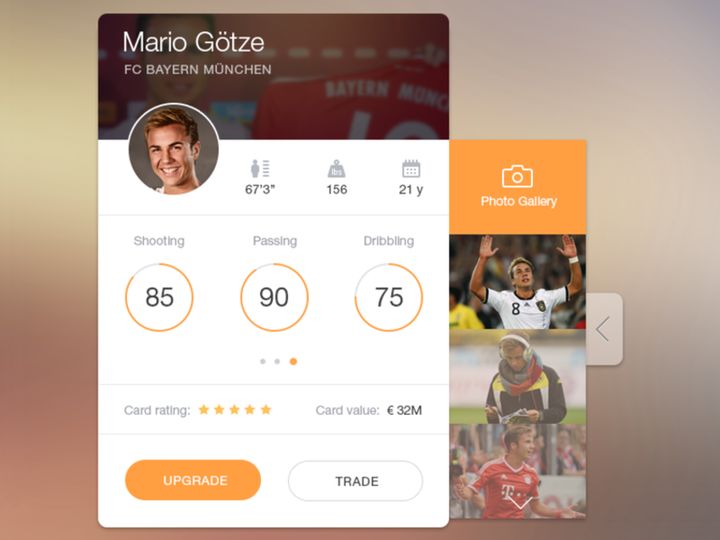
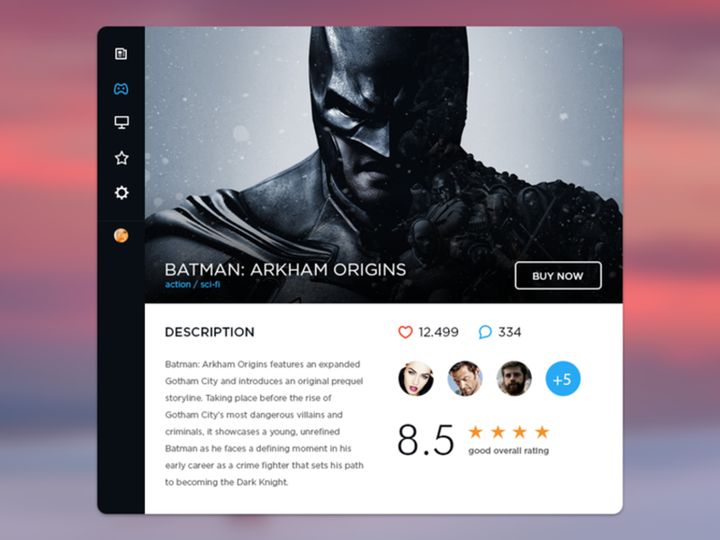
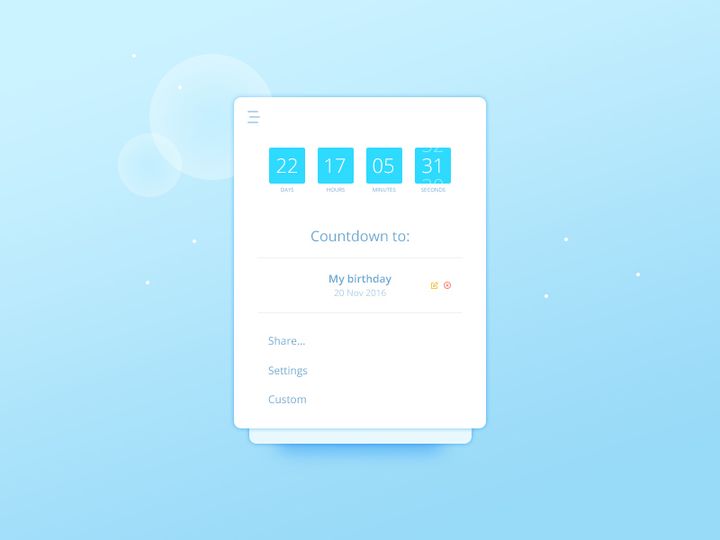
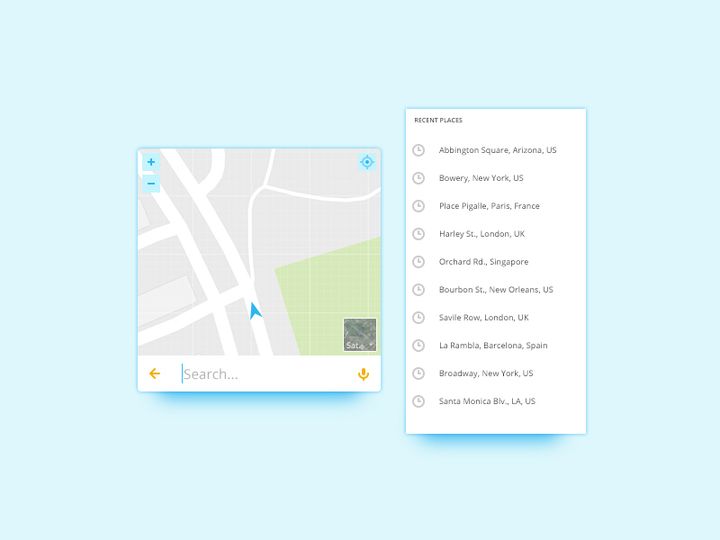
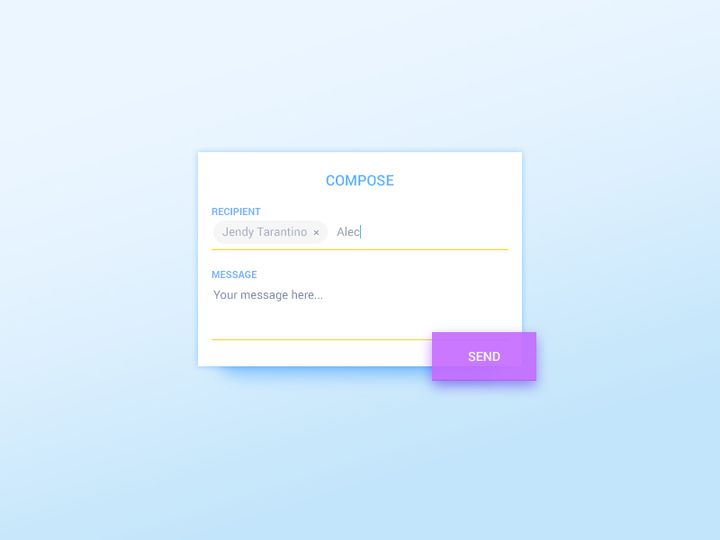
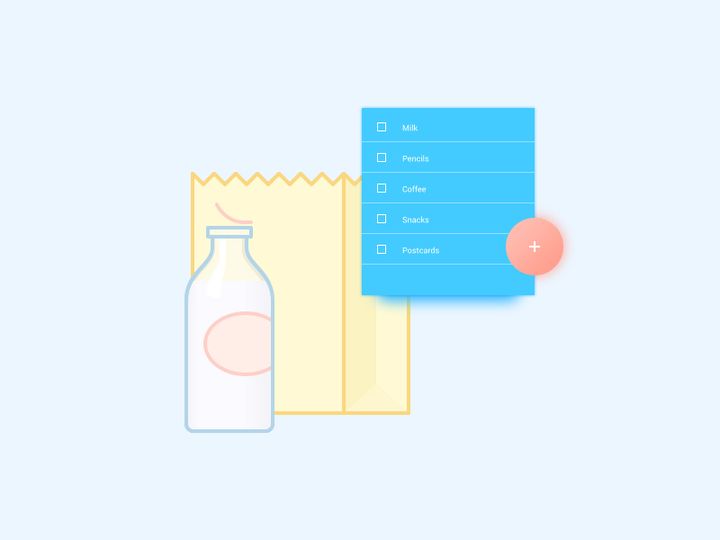
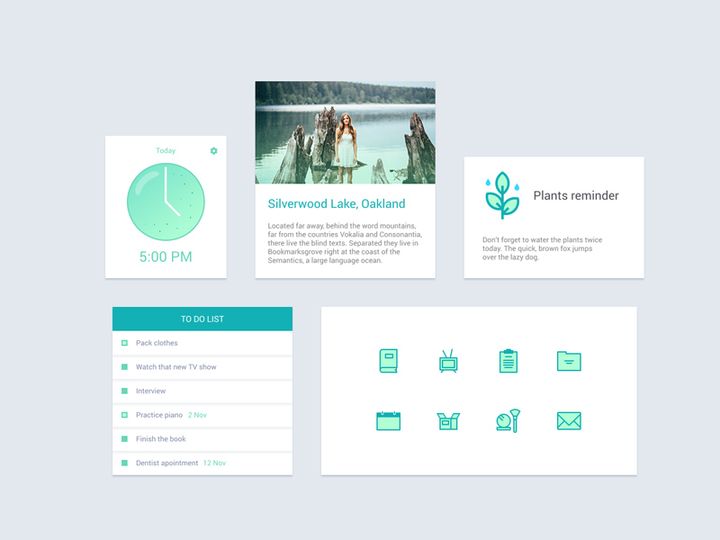
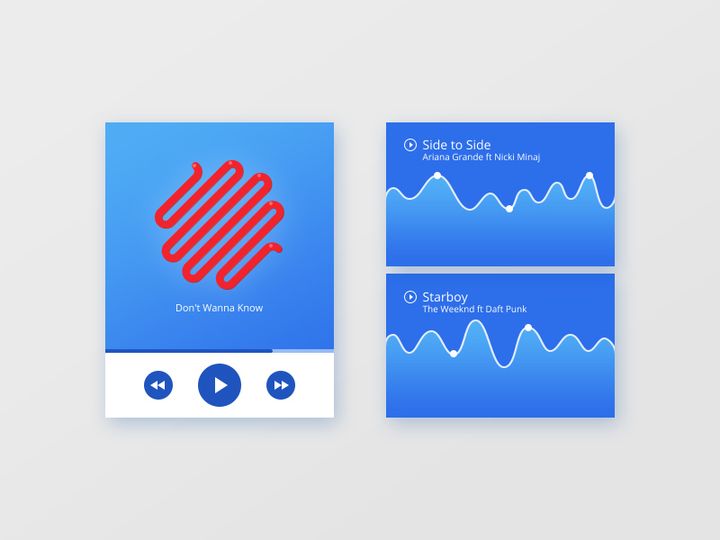
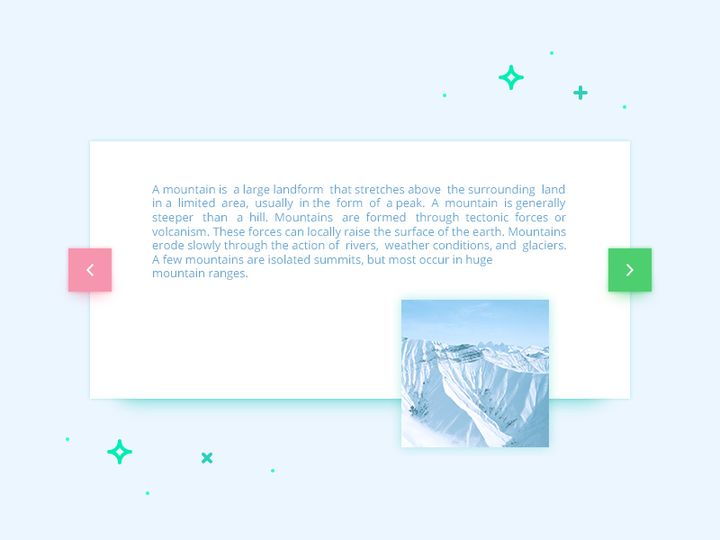

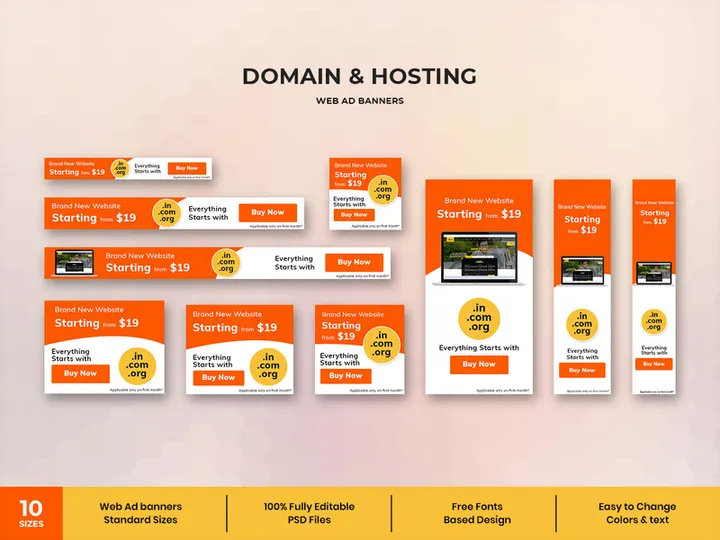
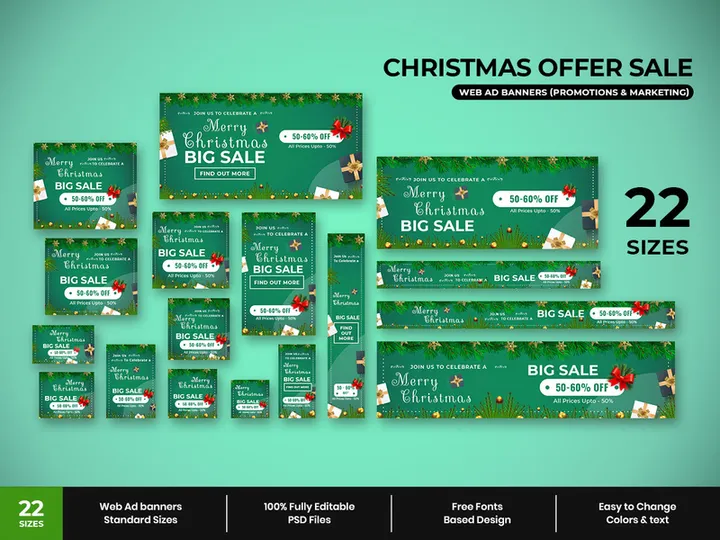
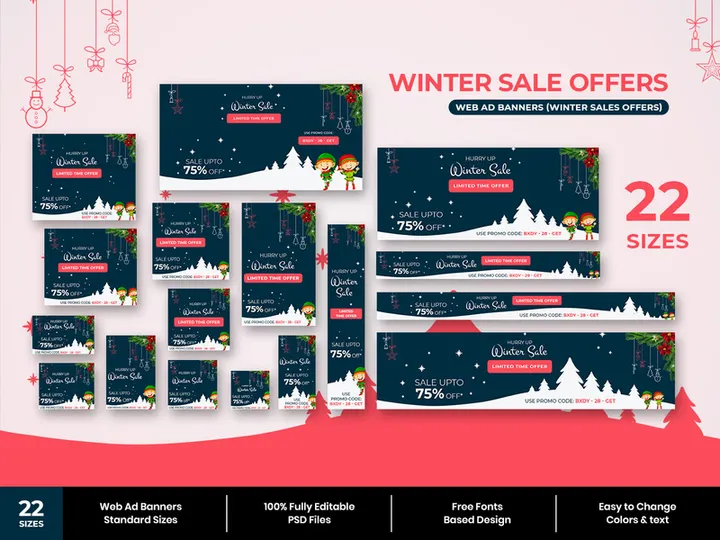
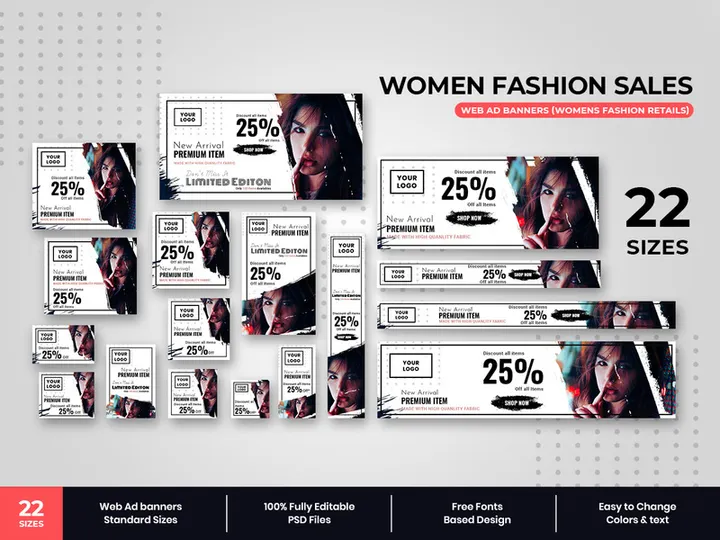

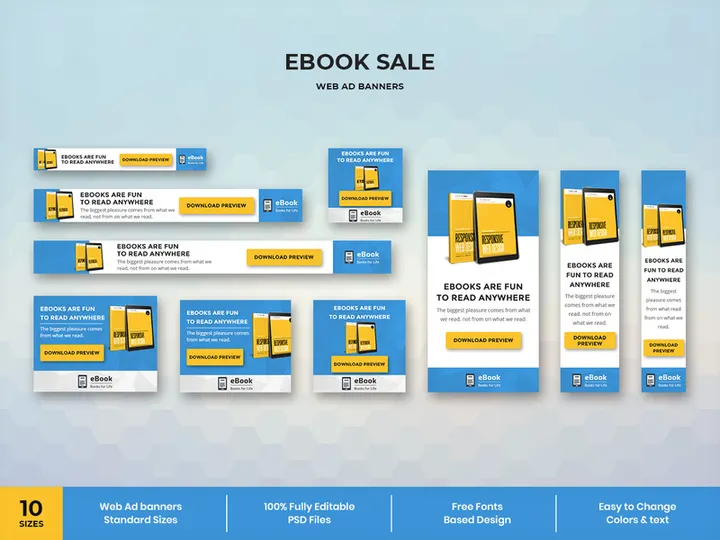
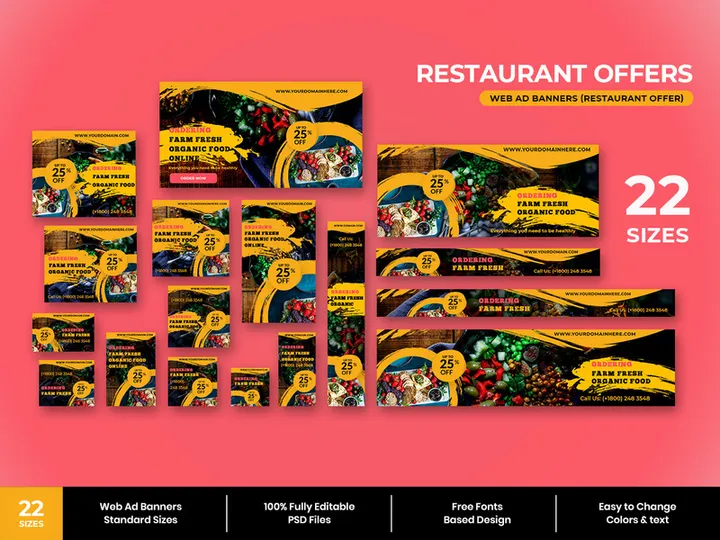
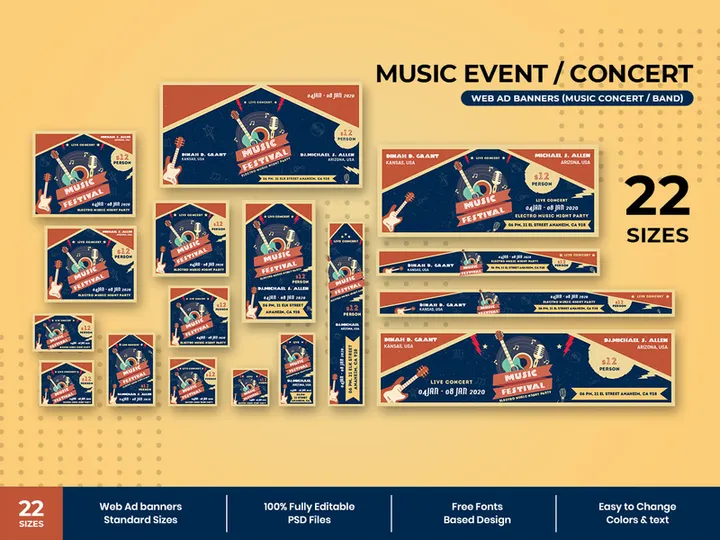
Try Our Free Resources
Download any of these for free - no account required
Why Photoshop for Widgets?
Adobe Photoshop has long been the cornerstone of digital design, and its relevance in widget creation remains unchallenged. While originally known for photo editing and graphic design, Photoshop’s evolution into a comprehensive UI/UX tool has made it an ideal platform for designing widgets—small, functional elements that enhance user interfaces across apps, dashboards, and smart devices. Designers turn to Photoshop for its precision, layer-based workflow, and powerful customization capabilities, all of which are critical when crafting scalable, pixel-perfect widgets.
One of the key reasons Photoshop stands out is its robust layer system. Widgets often consist of multiple components—icons, text, interactive states, and layered effects—and Photoshop’s non-destructive editing allows for independent manipulation of each element. With features like Smart Objects, layer styles, and adjustment layers, designers can create reusable, scalable widget templates that maintain quality across different screen sizes and resolutions. The ability to use vector shapes ensures crisp rendering, even when resizing, which is essential for responsive widget design.
Photoshop also supports a wide range of export options, including PNG, SVG, and PDF, making it easy to integrate widgets into various development environments. Its integration with other Adobe Creative Cloud tools further streamlines workflows, especially when moving from concept to prototype. Additionally, the vast plugin ecosystem expands Photoshop’s functionality, enabling automation and enhanced widget management.
At EpicPxls, we recognize the importance of reliable, high-quality resources in efficient design workflows. That’s why we’ve curated a collection of 19+ resources specifically tailored for widget creation in Photoshop. Each item is tested for compatibility, scalability, and usability, ensuring that whether you're designing for mobile apps, desktop interfaces, or smart home dashboards, you have access to tools that elevate your productivity. Our selection includes customizable UI kits, icon sets, and ready-to-use widget templates—all optimized for seamless use in Photoshop. With EpicPxls, you’re not just getting assets; you’re gaining a curated advantage in your design process.
Top Widgets Picks for Photoshop
Selecting the right widgets for Photoshop can dramatically improve your design efficiency and output quality. With so many options available, it helps to know which resources cater to different experience levels and project needs. Our team at EpicPxls has reviewed and tested over 19+ resources to bring you a handpicked selection that balances functionality, ease of use, and design excellence. Whether you're just starting out or leading a professional design team, there’s something here to match your workflow.
Best for Beginners
If you're new to widget design, simplicity and clarity are key. Look for resources that come with clear layer organization, labeled groups, and easy-to-follow documentation. Beginner-friendly widgets often include drag-and-drop elements, pre-built color themes, and guided tutorials. At EpicPxls, we recommend kits that feature intuitive folder structures and tooltips, helping you learn while you design. These resources reduce the learning curve and allow you to focus on creativity rather than technical hurdles.
Best for Professionals
Experienced designers need depth and flexibility. The top-tier widgets available through our 19+ resources collection offer advanced features such as responsive grids, dynamic components, and modular design systems. Many include support for dark mode, multiple device frames, and interactive states (hover, press, disabled). These professional-grade assets are built with scalability in mind, making them ideal for enterprise applications, SaaS platforms, or complex dashboard interfaces. With smart objects and global color swatches, you can maintain consistency across large projects without repetitive manual adjustments.
Best Free Options
High-quality doesn’t always mean high cost. Several of the free widgets curated by EpicPxls deliver exceptional value without compromising on design integrity. These include minimalist clock widgets, weather indicators, notification banners, and utility panels—all fully layered and customizable. While free resources may have fewer variants than premium packs, they’re perfect for prototyping, personal projects, or designers on a budget. We carefully vet each free option to ensure compatibility with current Photoshop versions and adherence to modern UI standards, so you can trust their reliability.
Photoshop vs Other Tools for Widgets
When it comes to designing widgets, Photoshop offers a unique blend of precision, control, and creative freedom that sets it apart from alternative tools. While other platforms may emphasize real-time collaboration or vector-based simplicity, Photoshop excels in detailed visual design, making it a preferred choice for pixel-level accuracy and rich layer effects. This level of control is especially valuable when crafting widgets that require intricate shading, gradients, or custom typography—elements that define polished, professional interfaces.
One of Photoshop’s standout advantages is its mature ecosystem. With years of development behind it, the platform supports a vast library of brushes, actions, and third-party plugins that enhance widget creation. Its compatibility with PSD, AI, SVG, and PNG formats ensures smooth transitions between design and development phases. Unlike tools that prioritize speed over detail, Photoshop allows designers to build highly customized, production-ready assets that maintain fidelity across export formats.
Another benefit is the depth of its layer and masking capabilities. Widgets often need to adapt to various states—active, inactive, loading—and Photoshop’s layer visibility toggles and smart object nesting make managing these states intuitive. Additionally, the ability to create reusable symbols through Smart Objects streamlines updates across multiple instances, a feature that remains unmatched in simplicity and reliability.
At EpicPxls, we’ve seen how these features translate into real-world efficiency. Our 19+ resources are built with Photoshop’s strengths in mind, ensuring each widget leverages the platform’s full potential. Whether you're working on mobile app widgets, desktop utilities, or embedded UI elements, Photoshop provides the tools you need to deliver high-fidelity results consistently.
Setting Up Widgets in Photoshop
Integrating widgets into your Photoshop workflow is straightforward when you follow a structured approach. Proper setup ensures your resources are accessible, organized, and ready for immediate use. Whether you're installing a single widget or managing a full library from EpicPxls, these six steps will help you get started efficiently.
- Download the Resource: Begin by downloading your chosen widget pack from a trusted source like EpicPxls. Ensure the file is in a compatible format—typically PSD, ZIP, or ATN for actions.
- Extract the Files: If the download is compressed, extract the contents to a dedicated folder on your computer. Keep the original folder structure intact to preserve layer organization and documentation.
- Import into Photoshop: Open Photoshop and go to File > Open to load the main PSD file. For widget actions or brushes, use Window > Actions or Edit > Presets > Preset Manager to load the respective files.
- Explore the Layers Panel: Once opened, review the layer structure. Well-designed widgets from our 19+ resources collection include labeled groups, color-coded folders, and Smart Objects for easy editing.
- Customize the Widget: Double-click on Smart Objects or text layers to modify content, colors, or icons. Use global swatches and layer styles to maintain visual consistency across your project.
- Save as a Template: After customization, save your file as a PSD template for future reuse. Consider creating a master library file where you store commonly used widgets for quick access.
For teams or individuals managing large collections, consider using Photoshop’s Libraries panel to sync frequently used widgets across projects. This feature, combined with consistent naming conventions, makes it easy to scale your workflow without clutter. EpicPxls recommends backing up your widget libraries regularly and documenting any customizations for team sharing.
Photoshop Workflow Tips
Maximizing your efficiency in Photoshop goes beyond just knowing where the tools are—it’s about building a sustainable, scalable workflow. When working with widgets, organization and consistency are critical, especially when managing multiple projects or collaborating with others. These best practices will help you maintain clarity and speed throughout your design process.
Organizing Widgets Libraries
Create a centralized folder structure on your drive dedicated to widget resources. Categorize by type (e.g., clocks, calendars, weather) or project to make retrieval faster. Within Photoshop, use the CC Libraries panel to store reusable elements like icons, buttons, and widget components. This allows drag-and-drop access across documents. At EpicPxls, we recommend tagging your assets clearly and using version control for updated kits to avoid confusion.
Batch Operations
When applying changes across multiple widgets—such as color shifts or style updates—use Photoshop actions to automate repetitive tasks. Record a sequence once (e.g., changing a background color or applying a shadow), then apply it to dozens of layers with a single click. This is especially useful when adapting widgets for dark mode or brand-specific themes. Actions can be saved and shared, making them a powerful addition to your toolkit.
Collaboration Best Practices
When working in teams, consistency is key. Establish a shared library using Photoshop’s cloud-based assets or a network drive with synchronized presets. Use linked Smart Objects whenever possible so that updates propagate across all instances. Document your layer naming conventions and provide a style guide if distributing widgets to developers. EpicPxls ensures all 19+ resources are team-ready, with clean layer structures and metadata to support smooth handoffs. By following these practices, you’ll reduce errors, speed up revisions, and maintain a professional standard across all deliverables.
Why Download from EpicPxls?
Commercial License
Use in personal and commercial projects
No Account Required
Download free resources instantly
Quality Curated
Every resource is reviewed for quality
Preview Files
See Figma and Photoshop files before downloading
Who Uses These Widgets?
Professionals and teams who benefit most from our collection
UI/UX Designers
Speed up your workflow with ready-to-use widgets for Photoshop. Perfect for prototyping and client presentations.
Developers
Get production-ready assets without design skills. Export in any format for web and mobile apps.
Startups & Agencies
Save design budget with affordable premium widgets. Commercial license included for client work.
Marketing Teams
Create professional campaigns faster. All widgets are optimized for social media and ads.
Widgets for Photoshop FAQCommon questions about these resources
Simple, Transparent Pricing
Get unlimited access to all premium resources
Yearly
- 20 downloads per month
- All file formats
- Commercial license
Lifetime
- Unlimited downloads forever
- All file formats
- Commercial license
Ready to Get Started?
Access 4,441+ free design resources today.
Browse Free ResourcesView Premium PlansEarn 85% and
more on all sales
Upload your products and put them up
for sale at whatever price you want.


