How to Use Widgets in Illustrator: Complete Guide
EpicPxls offers 11+ curated widgets for Illustrator, all with a commercial license. Formats vary by item, and each listing shows its files. Download your chosen widgets from EpicPxls, then use Illustrator's import function. Check each listing for the files it includes.
Last updated February 20, 2025
Everything you need to know about using widgets in Illustrator.
Trusted by designers at leading companies
Top Widgets for Illustrator
Handpicked resources from our curated collection
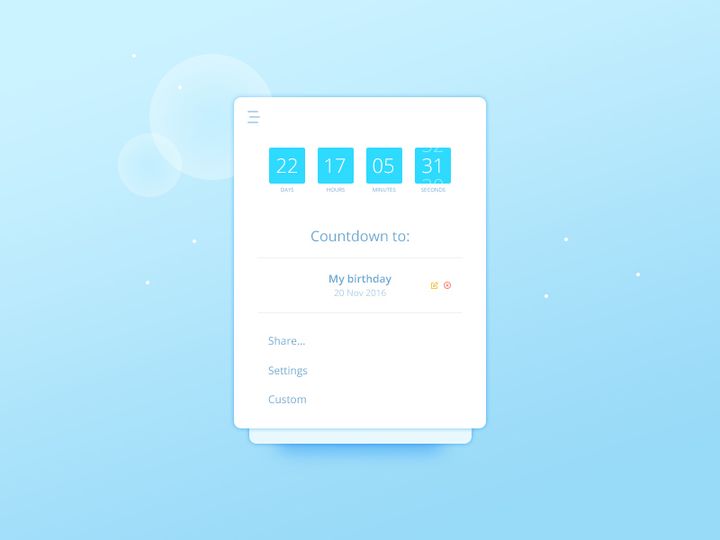
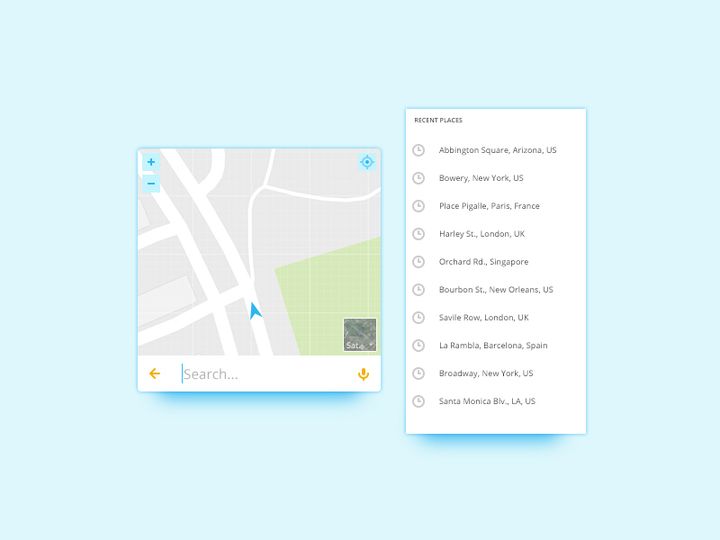
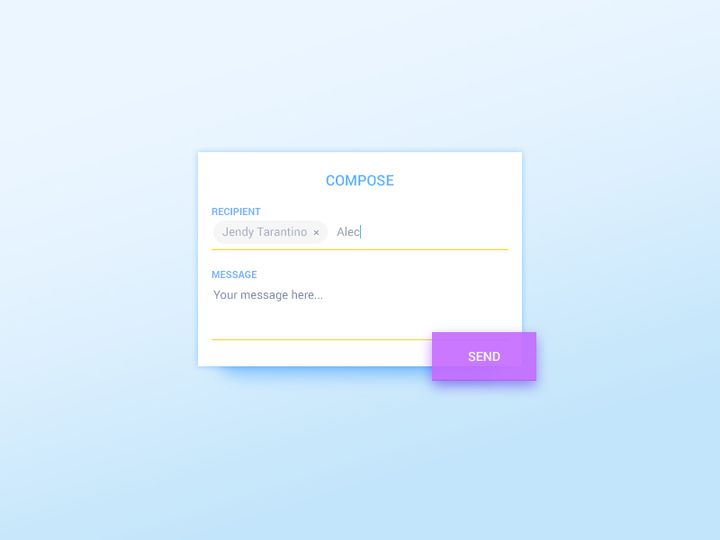
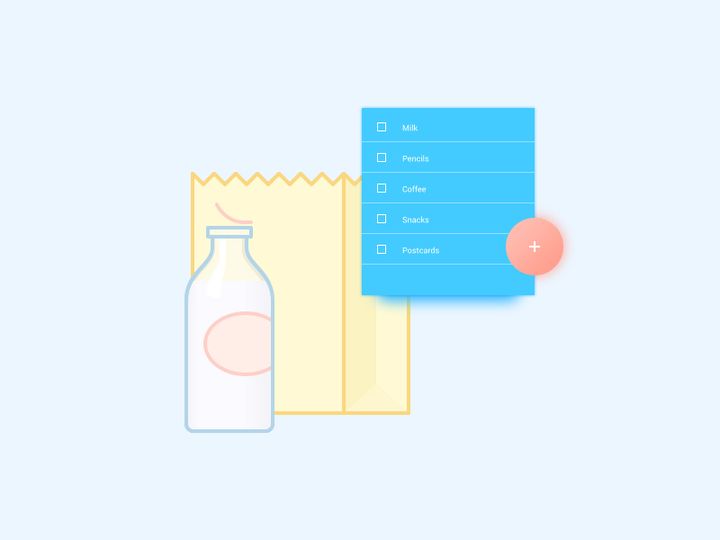



Try Our Free Resources
Download any of these for free - no account required
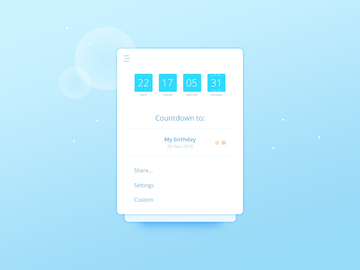
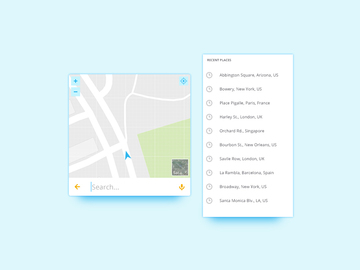
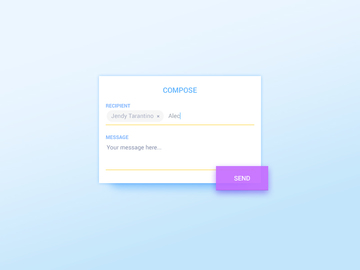
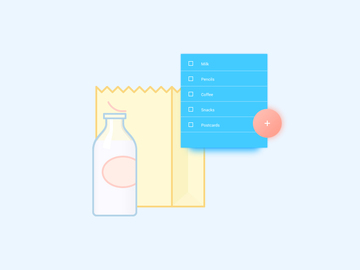
Getting Started with Widgets in Illustrator
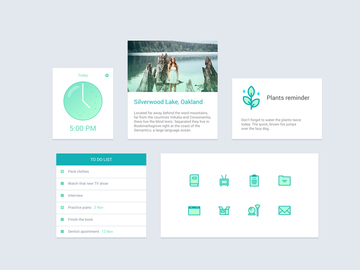
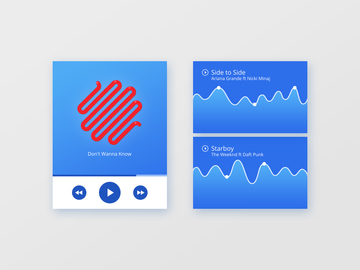
Adobe Illustrator is a powerful vector graphics editor widely used by designers for creating scalable artwork, illustrations, and user interface elements. As digital design workflows become more complex, widgets—modular, reusable design components—have emerged as essential tools for streamlining the design process. Whether you're building app interfaces, dashboards, or interactive prototypes, widgets such as buttons, sliders, icons, and navigation bars can significantly enhance productivity and consistency.
Before diving into using widgets in Illustrator, ensure you have the latest version of Adobe Illustrator installed. While most modern widget resources are compatible with Illustrator CC 2018 and later, using an up-to-date version ensures access to the latest features such as enhanced vector editing, improved typography controls, and better file compatibility. Additionally, verify that your system meets the recommended specifications for smooth performance, especially when handling large or layered widget files.
Finding high-quality widgets tailored for Illustrator is crucial for efficient design. Many online design marketplaces offer widget packs in various formats, but not all are optimized for vector editing in Illustrator. Platforms like EpicPxls provide a curated selection of professional-grade widgets that are fully compatible with Illustrator and designed with scalability and customization in mind. These resources are often delivered in AI, SVG, or PDF formats, ensuring seamless integration into your design environment.
EpicPxls hosts over 11+ resources specifically crafted for vector-based workflows, including UI kits, icon sets, and interactive widget libraries. These pre-built components are meticulously layered and named, allowing for easy navigation and editing within Illustrator’s Layers panel. Whether you're designing a mobile app interface or a responsive web dashboard, having access to a diverse set of customizable widgets can drastically reduce design time while maintaining visual coherence. With proper setup and the right resources, you're ready to begin importing and utilizing widgets effectively in your Illustrator projects.
How to Import Widgets into Illustrator
- Choose the Right File Format: When downloading widgets, ensure you select a format compatible with Illustrator. The ideal formats are AI (Adobe Illustrator), SVG (Scalable Vector Graphics), or PDF. Avoid formats like PSD unless they are specifically labeled as vector-friendly, as they may contain raster layers that limit scalability.
- Download from Trusted Sources: Visit a reliable provider such as EpicPxls and download your preferred widget pack. Make sure to read the included documentation for any special instructions or licensing details related to usage in commercial or personal projects.
- Extract the Downloaded Files: Most widget resources come in compressed ZIP or RAR format. Extract the contents to a dedicated folder on your computer. Look for files with .ai, .svg, or .pdf extensions, as these are the ones you’ll import into Illustrator.
- Open Illustrator and Create a New Document: Launch Adobe Illustrator and either open an existing project or create a new document with the appropriate artboard size for your design. This ensures your widget will scale correctly and align with your layout.
- Import the Widget File: Go to File > Open to directly open an AI or PDF widget file, or use File > Place to embed an SVG or AI file into your current document. Using “Place” is recommended when you want to maintain control over positioning and scaling within a larger composition.
- Verify and Adjust After Import: Once imported, check the Layers panel to ensure all components are intact. If you’re working with an SVG, some effects or fonts may not transfer perfectly. Expand appearances if needed and relink any missing assets. For Figma-exported widgets, ensure they were exported with vector paths and not flattened, as this affects editability in Illustrator.
By following these steps, you ensure that your widgets are correctly imported and ready for customization. With over 11+ resources available from platforms like EpicPxls, designers can quickly gather a versatile toolkit of design elements tailored for Illustrator’s robust vector environment.
Step-by-Step: Working with Widgets in Illustrator
Editing Layers and Components
One of the key advantages of using widgets in Illustrator is the ability to fully customize each element. Once imported, open the Layers panel (Window > Layers) to explore the widget’s structure. Well-designed widget resources from EpicPxls typically feature organized layers with clearly labeled groups such as “Button,” “Icon,” or “Text Field.” This hierarchical structure allows for precise editing without disrupting the overall design.
To customize a widget, select individual components using the Selection or Direct Selection tool. You can modify colors by double-clicking swatches in the widget or using the Recolor Artwork feature. For consistent branding, create and apply Global Colors so that changes propagate across all instances. Resizing is straightforward due to Illustrator’s vector nature—simply scale with the Selection tool while holding Shift to maintain proportions. If a widget contains symbols (via the Symbols panel), double-click to edit the master symbol, and all instances will update automatically.
Text elements within widgets can be edited just like any other text box. However, if you encounter missing fonts, Illustrator will notify you and substitute a default typeface. Replace these with your preferred font or download the original as specified in the widget’s documentation. For interactive widgets like sliders or toggles, use the Appearance panel to tweak strokes, effects, or opacity to match your design system.
Organizing Your Widgets Library
As you accumulate widgets from various projects and sources, maintaining an organized library becomes essential. Create a dedicated folder on your system labeled “Illustrator Widgets” and subdivide it by category—e.g., “Buttons,” “Navigation,” “Forms.” Within Illustrator, consider using Libraries (Window > Libraries) to store frequently used widgets. This cloud-based panel syncs across your Adobe apps, allowing quick drag-and-drop access during design sessions.
When saving custom widgets, use descriptive file names and include version numbers if applicable (e.g., “PrimaryButton_v2.ai”). Embed metadata such as tags and keywords to make future searches easier. For team environments, share the library via Creative Cloud Libraries to ensure design consistency. The 11+ resources available on EpicPxls can serve as a strong foundation for your library, offering professionally designed, production-ready components that adhere to modern UI standards.
Exporting for Production
Once your design is complete, exporting widgets for development or print requires careful attention to format and settings. For web and mobile applications, go to File > Export > Export As and choose formats like PNG (for raster assets), SVG (for scalable vectors), or PDF (for multi-resolution support). When exporting PNGs, select the appropriate resolution—1x, 2x, or 3x—for different screen densities.
For SVG files, ensure that fonts are converted to outlines (Type > Create Outlines) to prevent rendering issues on devices without the font installed. Use the SVG Options dialog to minimize file size by removing metadata and opting for decimal precision settings between 1–3. For print use, export widgets as PDF with crop marks and bleed if needed, and embed all fonts and images to preserve quality.
When working with developers, provide a style guide or asset manifest detailing color codes, font sizes, and spacing metrics used in your widgets. This documentation streamlines handoff and ensures accurate implementation across platforms.
Troubleshooting Common Illustrator Issues
File Won't Open
If a widget file fails to open in Illustrator, the most common cause is version incompatibility. Older versions of Illustrator cannot open files saved in newer formats. Always check the version requirements listed by the provider—many of the 11+ resources on EpicPxls are built for Illustrator CC 2019 and later. If you're using an older version, ask the provider if a backward-compatible version is available or consider upgrading your software. Additionally, ensure the file isn’t corrupted by re-downloading it and verifying the integrity of the archive.
Missing Fonts or Assets
After importing a widget, you may see a warning about missing fonts. Illustrator will substitute them, but this can alter the intended appearance. To resolve this, install the required fonts manually. Most widget packs include a “Fonts” folder or a text file listing dependencies. Alternatively, use Illustrator’s Find Font feature (Type > Find Font) to identify and replace missing typefaces. If the widget uses linked images or assets, use the Links panel to relink broken references or embed them directly into the file for portability.
Performance Problems
Large widget files with numerous layers, effects, or embedded images can slow down Illustrator. To improve performance, simplify complex paths using Object > Path > Simplify, and expand or flatten unnecessary appearances. Turn off preview for hidden layers and disable GPU performance if your system struggles with rendering. Consider breaking large widget libraries into smaller, modular files to reduce load times. Saving frequently and using Auto-Recovery options can also prevent data loss during extended editing sessions.
Advanced Illustrator Tips for Widgets
Batch Processing
When working with multiple widgets—such as a full set of icons or form elements—batch processing can save significant time. Use Illustrator’s Actions panel (Window > Actions) to record repetitive tasks like resizing, recoloring, or exporting. For example, you can create an action that scales all selected widgets to 48x48px, applies a brand color, and exports them as SVG. Then, apply this action to multiple files via File > Automate > Batch, streamlining production for large-scale UI projects.
Plugins and Extensions
Enhance your widget workflow with Illustrator plugins designed for UI/UX efficiency. Extensions like Vectorizer, Dimension, or Resize Artboards can assist in converting raster widgets to vectors, creating depth effects, or adjusting layouts dynamically. Many of these tools integrate seamlessly with cloud-based resources, including those from EpicPxls. Always download plugins from trusted sources and ensure compatibility with your Illustrator version to avoid conflicts.
Collaboration Workflows
For team-based design, maintaining a shared widgets library ensures consistency across projects. Use Adobe Creative Cloud Libraries to store and sync approved widgets, colors, and graphics. Team members can access these assets directly within Illustrator, reducing duplication and version conflicts. Establish naming conventions and update protocols—for example, tagging widgets as “Approved,” “In Review,” or “Deprecated.” When integrating new resources from the 11+ collections on EpicPxls, review and standardize them before adding to the shared library. This collaborative approach fosters efficiency and aligns design outputs across multiple contributors.
Why Download from EpicPxls?
Commercial License
Use in personal and commercial projects
No Account Required
Download free resources instantly
Quality Curated
Every resource is reviewed for quality
Preview Files
See preview images on each item page before downloading
Who Uses These Widgets?
Professionals and teams who benefit most from our collection
UI/UX Designers
Speed up your workflow with ready-to-use widgets for Illustrator. Perfect for prototyping and client presentations.
Developers
Get production-ready assets without design skills. Export in any format for web and mobile apps.
Startups & Agencies
Save design budget with affordable premium widgets. Commercial license included.
Marketing Teams
Create professional campaigns faster. All widgets are optimized for social media and ads.
Widgets for Illustrator FAQCommon questions about these resources
Simple, Transparent Pricing
Get unlimited access to all premium resources
Yearly
- 20 downloads per month
- All file formats
- Commercial license
Lifetime
- Unlimited downloads forever
- All file formats
- Commercial license
Earn 85% and
more on all sales
Upload your products and put them up
for sale at whatever price you want.


