Fonts for Illustrator: 120+ Resources
EpicPxls offers 120+ curated fonts for Illustrator, all with a commercial license and editable source files (Figma, Sketch, PSD). We have 120+ fonts compatible with Illustrator, tested and verified for seamless integration.
Last updated February 12, 2026
Discover 120+ handpicked fonts for Illustrator.
Trusted by designers at leading companies
Top Fonts for Illustrator
Handpicked resources from our curated collection
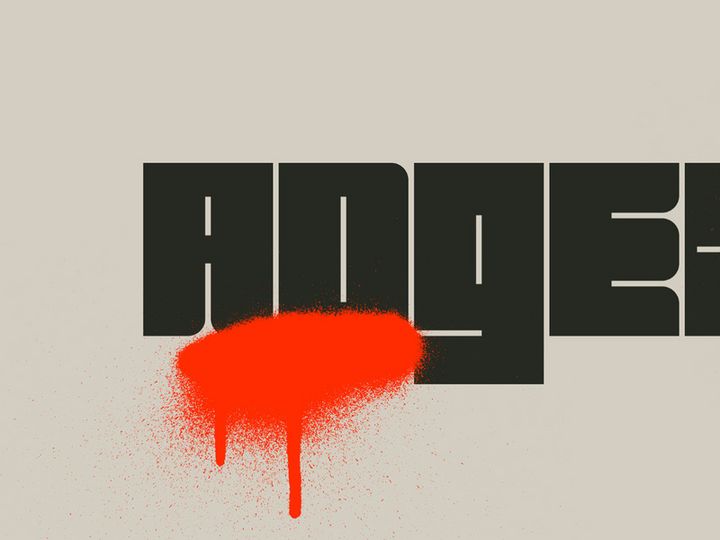

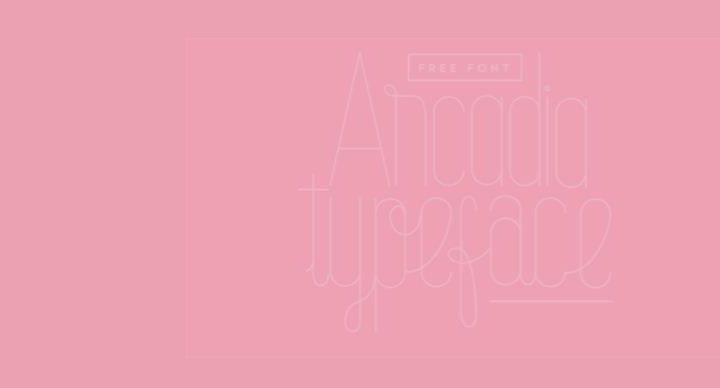
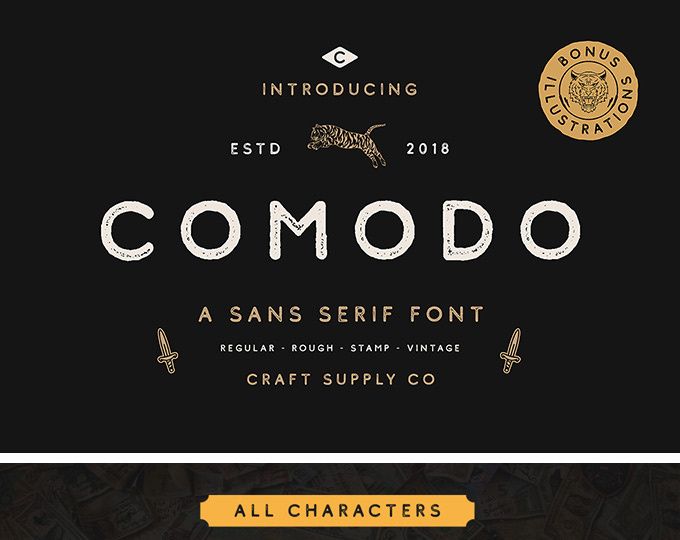


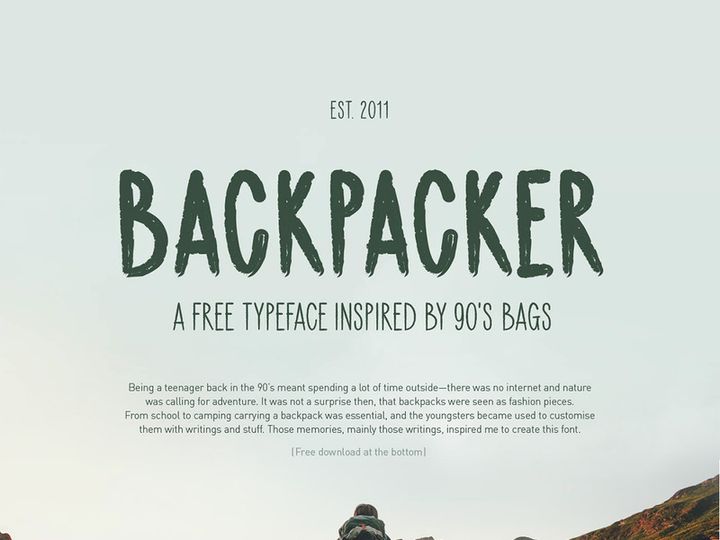
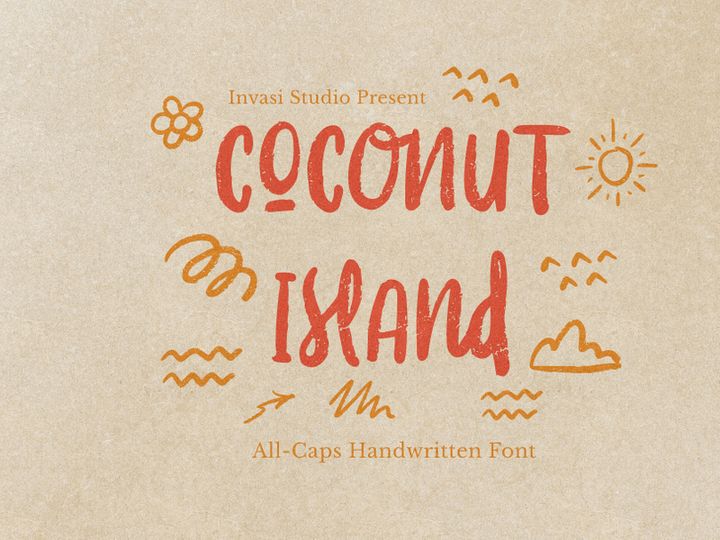
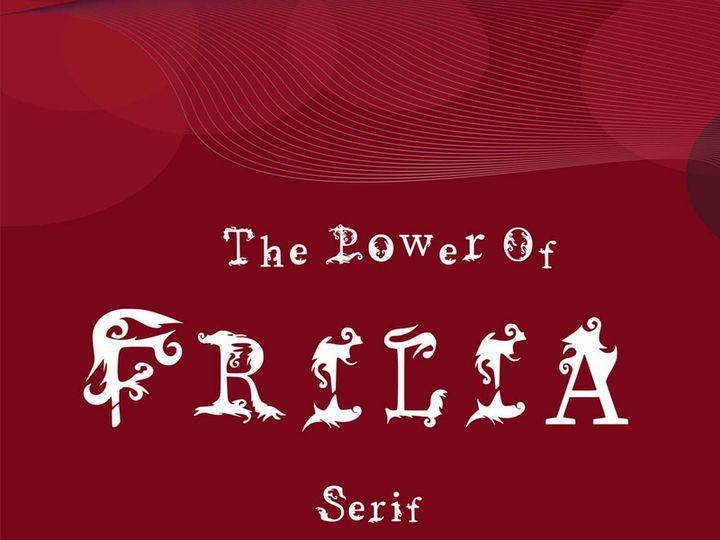
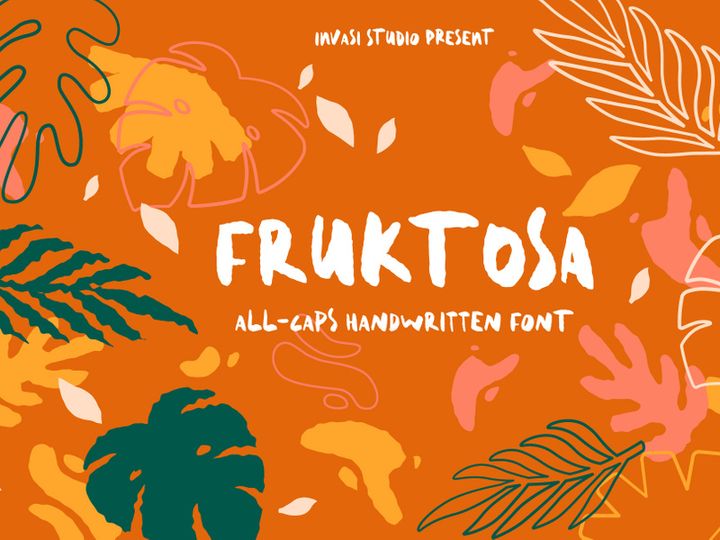
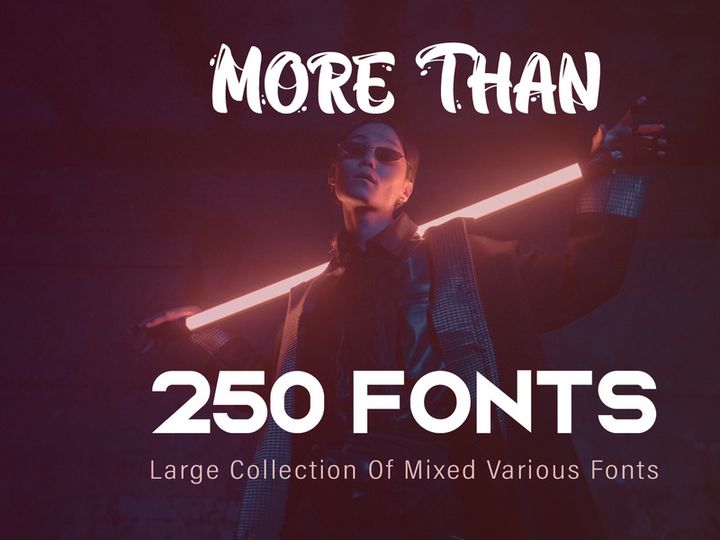
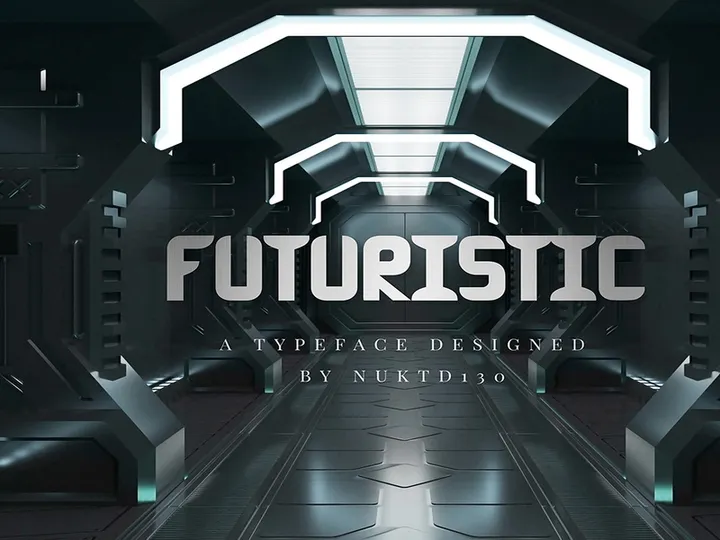
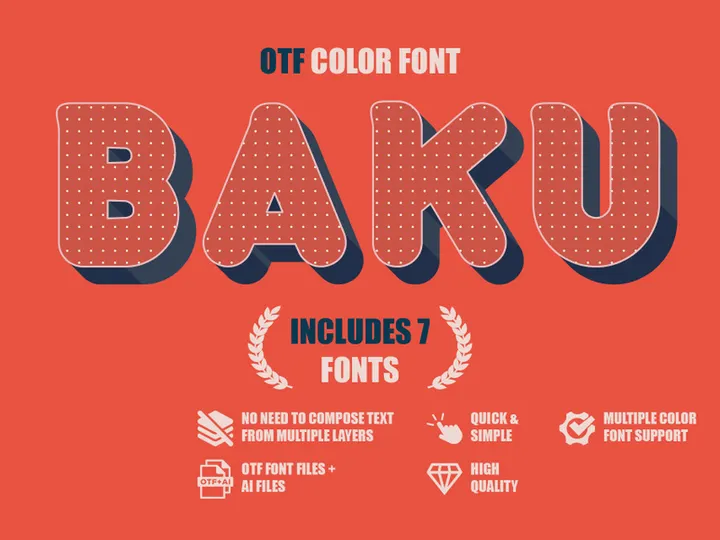

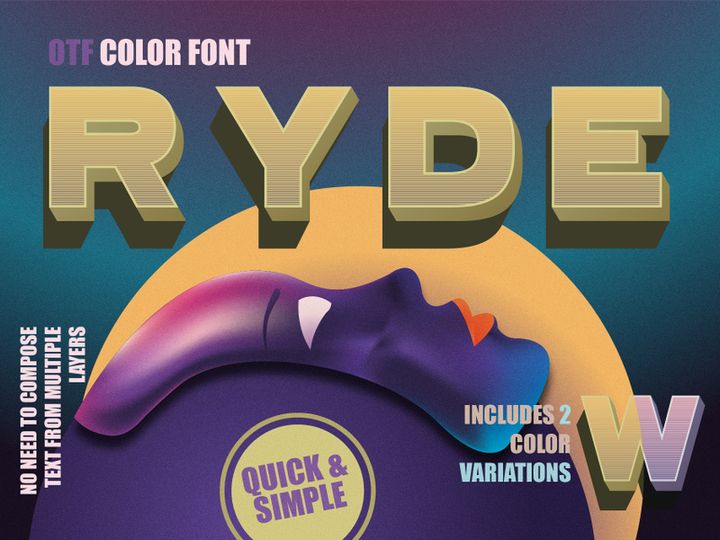

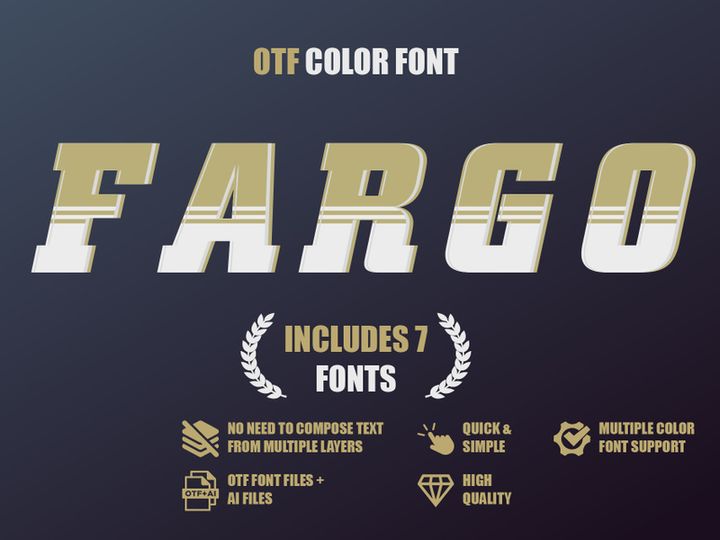
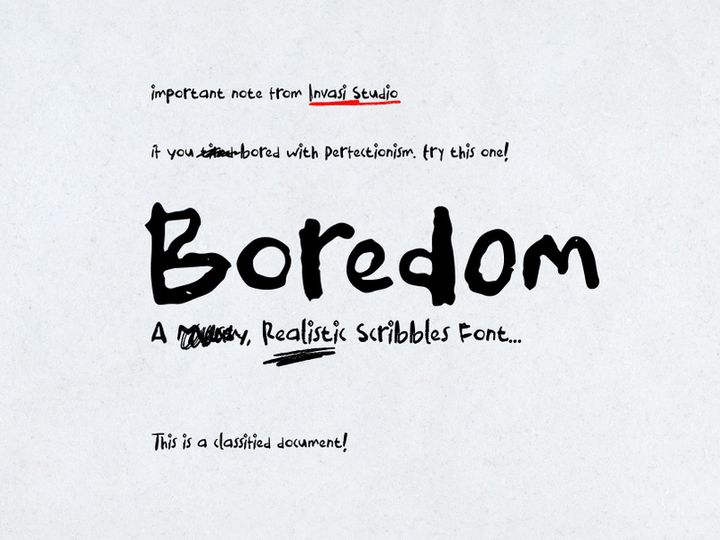

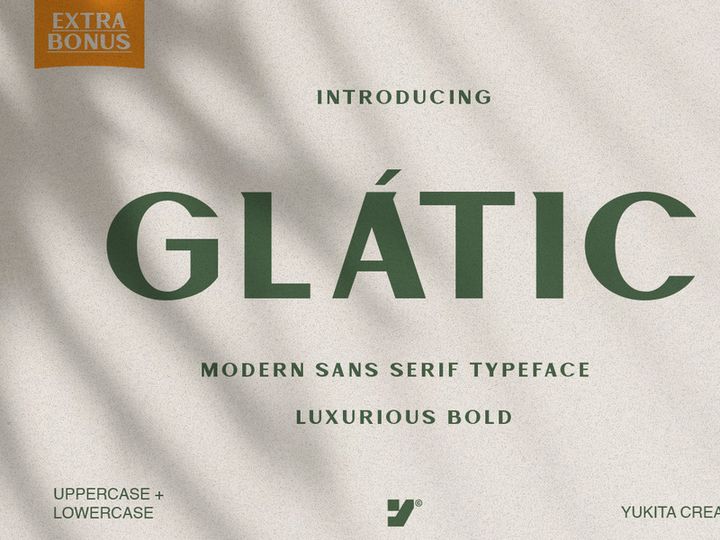
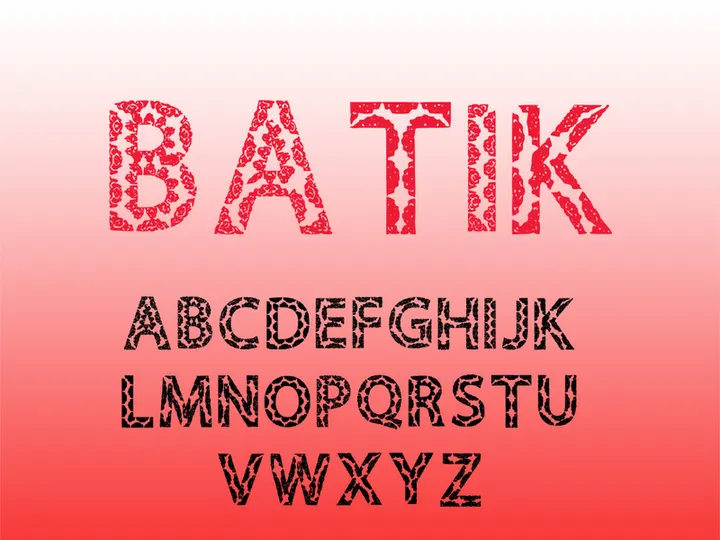

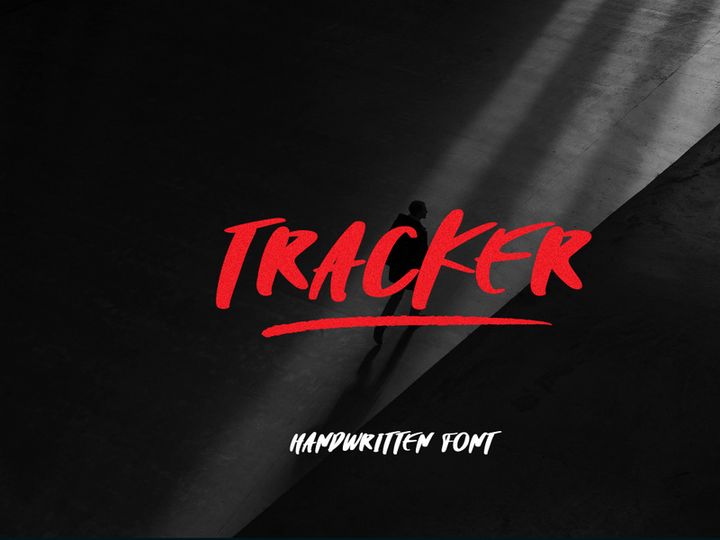
Try Our Free Resources
Download any of these for free - no account required


Why Illustrator for Fonts?
Adobe Illustrator has long been the go-to design tool for professionals and creatives who work extensively with typography. Its vector-based environment makes it uniquely suited for rendering and manipulating fonts with precision, scalability, and creative flexibility. Whether you're crafting custom lettering, designing logos, or laying out typographic posters, Illustrator provides the control needed to bring text-based designs to life without sacrificing quality.
One of the key strengths of Illustrator in font workflows is its advanced type tools. The Type on a Path feature, for instance, allows designers to wrap text around circular or custom-shaped paths seamlessly—a functionality that’s essential for badge designs, emblems, or artistic text layouts. Additionally, the ability to convert text to outlines gives full control over each glyph, enabling detailed customization, kerning adjustments, and path manipulation. This level of control is particularly valuable when designing brand identities or custom typography where every curve and line matters.
Illustrator also supports OpenType features such as ligatures, stylistic alternates, swashes, and contextual alternates, allowing designers to access the full depth of modern font resources. These features enhance typographic richness and provide a professional polish to any design. With real-time previews and robust character and paragraph styling panels, experimenting with fonts becomes both intuitive and efficient.
At EpicPxls, we recognize the importance of high-quality, Illustrator-compatible type resources. That’s why our team carefully curates over 120+ fonts that are optimized for use in Illustrator—ensuring format compatibility, design integrity, and ease of integration. From script fonts with expressive flourishes to clean sans-serifs ideal for modern layouts, our collection is built to empower both novice and expert designers. Each resource is tested for vector fidelity and OpenType functionality, making them reliable choices for any project. With a focus on quality and usability, EpicPxls continues to be a trusted source for designers seeking fonts that perform flawlessly in Illustrator.
Top Fonts Picks for Illustrator
With a vast selection of fonts available, choosing the right ones for your Illustrator projects can make a significant difference in both workflow efficiency and design outcome. Whether you’re just starting out or are a seasoned professional, selecting fonts that match your skill level and project needs is crucial. The 120+ resources curated by EpicPxls include a diverse range of typefaces tailored for different use cases and expertise levels.
Best for Beginners
For those new to Illustrator, simplicity and clarity are key. Beginner-friendly fonts often feature clean lines, consistent stroke weights, and easy-to-read letterforms. Sans-serif fonts like Montserrat, Lato, and Open Sans are excellent starting points because they’re highly legible, widely supported, and come with comprehensive style sets. These fonts integrate smoothly into Illustrator’s interface and are perfect for practicing text alignment, spacing, and hierarchy. Additionally, many of these beginner-accessible fonts are well-documented, with clear licensing and usage guidelines, helping new users avoid common pitfalls.
Best for Professionals
Advanced designers benefit from fonts that offer deep typographic functionality and stylistic versatility. Professional-grade typefaces often include extended character sets, multilingual support, and rich OpenType features. Fonts like Proxima Nova, Futura PT, and Playfair Display are favorites among experts for their refined aesthetics and adaptability across branding, editorial, and digital design. These fonts perform exceptionally well in Illustrator, where their nuanced features can be fully explored and leveraged. The ability to access alternate glyphs, numerals, and ligatures directly within Illustrator’s Glyphs panel enhances creative control and elevates the final output.
Best Free Options
High-quality free fonts are abundant, and many are perfectly suited for Illustrator projects. The curated collection at EpicPxls includes standout free resources such as Raleway, Poppins, and Cabin—fonts that deliver professional appearance without the price tag. These typefaces are often open-source or released under permissive licenses, making them ideal for personal and commercial use. When using free fonts, it’s important to verify licensing and ensure compatibility with vector workflows. The 120+ resources we offer are pre-vetted for Illustrator compatibility, so designers can trust that each font will render cleanly and scale flawlessly in any project.
Illustrator vs Other Tools for Fonts
When it comes to working with fonts, Adobe Illustrator stands apart from other design applications due to its vector-first approach and deep typographic capabilities. While other tools may offer basic text editing or raster-based rendering, Illustrator excels in environments where precision, scalability, and creative manipulation are paramount. This makes it the preferred platform for logo design, typographic art, and any project where text needs to be treated as a design element rather than just content.
One of Illustrator’s unique advantages is its seamless integration of text and vector paths. Unlike raster-based programs, where scaling text can result in pixelation, Illustrator maintains crisp, clean edges at any size. This is especially important when preparing designs for print or large-format output. The ability to convert text to outlines allows designers to modify individual letterforms, create custom shapes from type, and ensure consistent appearance across different devices and platforms.
Additionally, Illustrator supports a wide range of font formats, including OpenType (.otf), TrueType (.ttf), and Type 1 (though deprecated), ensuring broad compatibility with most modern font libraries. The software also works harmoniously with Adobe Fonts (formerly Typekit), giving users instant access to thousands of professionally designed typefaces. However, even when sourcing fonts externally, compatibility is key—some fonts may not support advanced OpenType features or may behave unexpectedly when converted to paths. That’s why the 120+ resources available through EpicPxls are specifically selected for their reliability and performance within Illustrator’s ecosystem, ensuring a smooth and productive design experience every time.
Setting Up Fonts in Illustrator
Properly installing and managing fonts is essential for a smooth workflow in Illustrator. Whether you’re adding a single typeface or integrating a large collection, following a structured approach ensures that your fonts are accessible, organized, and ready for creative use. Here’s a step-by-step guide to help you import, activate, and begin using fonts effectively in Illustrator.
- Download the font files: Obtain your font files from a trusted source. The 120+ resources available at EpicPxls are packaged in standard formats like .otf or .ttf, making them easy to install across systems.
- Install the fonts on your system: On Windows, right-click the font file and select “Install.” On macOS, double-click the file and click “Install Font” in the preview window. This makes the font available system-wide, including within Illustrator.
- Restart Illustrator: After installation, restart Adobe Illustrator to ensure the new fonts appear in the font menu. Newly installed fonts won’t be visible until the application reloads.
- Verify font availability: Create a text box and open the Character panel. Scroll through the font dropdown to confirm your new font is listed and selectable.
- Test the font: Type a sample phrase and experiment with size, weight, and spacing. If the font includes OpenType features, access them via the Glyphs panel (Window > Type > Glyphs) to explore alternate characters and ligatures.
- Organize for future use: Keep a dedicated folder for downloaded fonts, especially when working with large libraries. Naming fonts clearly and maintaining a spreadsheet of licenses and sources can save time during client projects or team collaborations.
For designers managing extensive font collections, using a font management tool can streamline activation and deactivation. However, even without third-party software, a disciplined setup process ensures that your Illustrator environment remains efficient and clutter-free. EpicPxls recommends regularly auditing your font library to remove unused or duplicate entries, which helps maintain optimal system performance and design clarity.
Illustrator Workflow Tips
Maximizing efficiency in Illustrator involves more than just knowing where the tools are—it’s about building a sustainable workflow that supports creativity and consistency. When working with fonts, organization, automation, and collaboration are key pillars that can significantly enhance productivity.
Organizing Fonts Libraries
Maintaining a well-structured font library prevents confusion and speeds up the design process. Instead of relying solely on system fonts, consider creating project-specific font sets. Use naming conventions such as “BrandName_Serif,” “Headline_Script,” or “Body_Copy” to differentiate roles. Illustrator doesn’t have a built-in font library manager, so external tools or simple folder systems can help group fonts by category—e.g., display, script, monospace, or branding. At EpicPxls, we recommend tagging fonts by style and use case during download, so you can quickly locate the right typeface when inspiration strikes.
Batch Operations
When working on multi-page documents or brand systems requiring consistent typography, batch operations save valuable time. Use Illustrator’s “Find Font” feature (Type > Find Font) to replace fonts across an entire document instantly. This is especially useful when updating a project from a placeholder font to a final brand typeface. You can also create text styles using the Paragraph and Character Styles panels, then apply them globally. For repetitive tasks like formatting headlines or captions, consider recording an action (Window > Actions) to automate the process. These small efficiencies add up, especially when managing the 120+ resources available in comprehensive font collections.
Collaboration Best Practices
Sharing Illustrator files with team members or clients requires careful attention to font handling. To avoid missing font warnings, always package your project (File > Package) before sending. This gathers all assets, including linked images and a report of used fonts. While you cannot embed fonts directly due to licensing restrictions, providing a list of required fonts—especially those from trusted sources like EpicPxls—ensures others can install them easily. For teams, consider establishing a shared font repository with approved typefaces to maintain visual consistency across all deliverables. Clear communication about font usage, licensing, and substitution options helps prevent delays and design discrepancies.
Why Download from EpicPxls?
Commercial License
Use in personal and commercial projects
No Account Required
Download free resources instantly
Quality Curated
Every resource is reviewed for quality
Preview Files
See Figma and Photoshop files before downloading
Who Uses These Fonts?
Professionals and teams who benefit most from our collection
UI/UX Designers
Speed up your workflow with ready-to-use fonts for Illustrator. Perfect for prototyping and client presentations.
Developers
Get production-ready assets without design skills. Export in any format for web and mobile apps.
Startups & Agencies
Save design budget with affordable premium fonts. Commercial license included for client work.
Marketing Teams
Create professional campaigns faster. All fonts are optimized for social media and ads.
Fonts for Illustrator FAQCommon questions about these resources
Simple, Transparent Pricing
Get unlimited access to all premium resources
Yearly
- 20 downloads per month
- All file formats
- Commercial license
Lifetime
- Unlimited downloads forever
- All file formats
- Commercial license
Ready to Get Started?
Access 4,441+ free design resources today.
Browse Free ResourcesView Premium PlansEarn 85% and
more on all sales
Upload your products and put them up
for sale at whatever price you want.


