Mockups for Photoshop: 538+ Resources
EpicPxls offers 200+ curated mockups for Photoshop, all with a commercial license and editable source files (Figma, Sketch, PSD). We have 200+ mockups compatible with Photoshop, tested and verified for seamless integration.
Last updated February 12, 2026
Discover 538+ handpicked mockups for Photoshop.
Trusted by designers at leading companies
Top Mockups for Photoshop
Handpicked resources from our curated collection

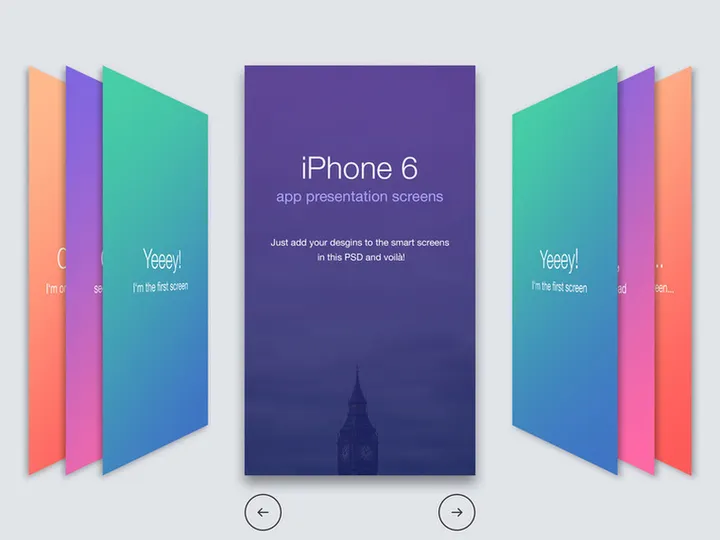


![Dualshock 4 [ FREE PSD] preview picture](https://imgproxy.epicpxls.com/q7ZSRzMhwBO8H4iIQr8alioQGSymid8y6Py9f1DLQjQ/rs:fill:720:540:0/g:no/aHR0cHM6Ly9pdGVt/cy5lcGljcHhscy5j/b20vdXBsb2Fkcy9w/aG90by9hYTAyOGIx/MWVlNzdhZGM0NWQx/NTYyOGE3MDU2OWI0/NS5wbmc.jpg)
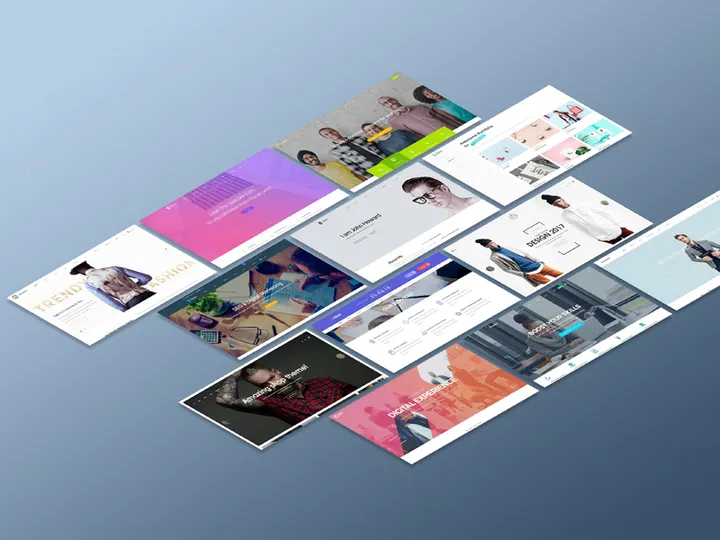


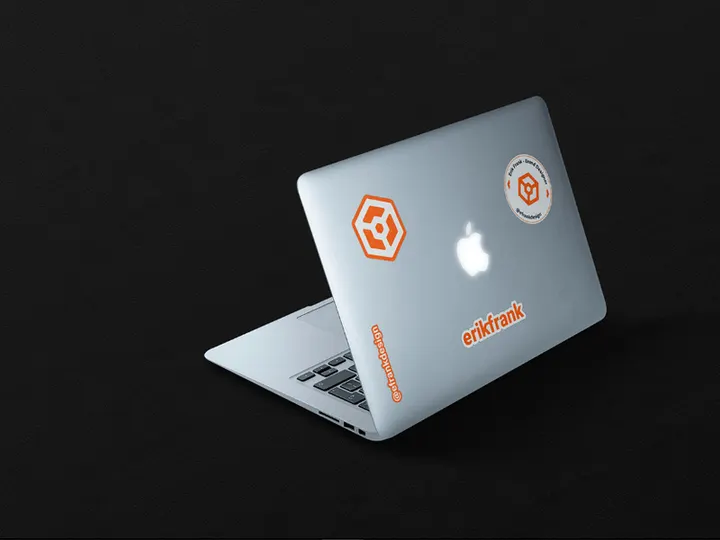

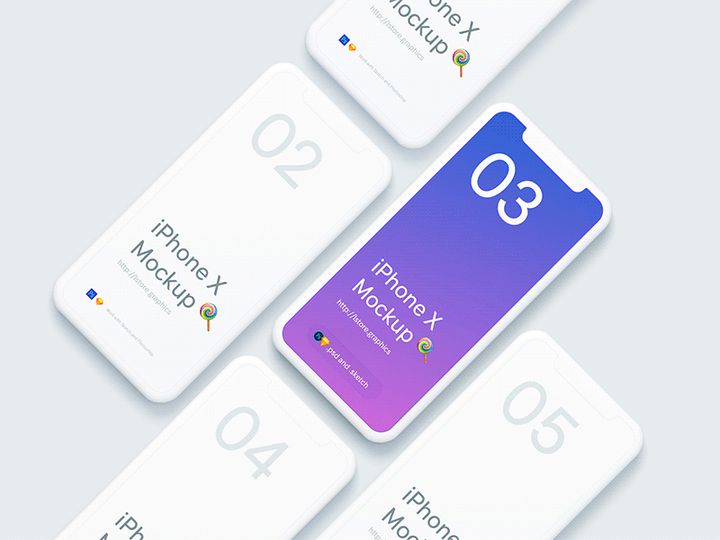


![[FREE] Mockup Sticker preview picture](https://imgproxy.epicpxls.com/dcLt4fkjZ_E5oBbsisXijbJ79nOv7aegmTQw2BSlwuM/rs:fill:720:540:0/g:no/aHR0cHM6Ly9pdGVt/cy5lcGljcHhscy5j/b20vdXBsb2Fkcy9w/aG90by9kYWEwYWVj/NTlkOWE2OTk5MjI2/NjBjZDUwYTkxMGQ1/Yw.jpg)
Try Our Free Resources
Download any of these for free - no account required
Why Photoshop for Mockups?
Photoshop remains the gold standard for designers creating and presenting mockups, thanks to its powerful toolset and long-standing dominance in the creative industry. Its intuitive interface, combined with advanced layer management and smart object functionality, makes it an ideal platform for integrating mockups into design workflows. Designers can easily insert their visuals into pre-built scenes—like smartphones, packaging, or apparel—while maintaining high resolution and realistic lighting effects. This seamless integration allows for rapid prototyping and client presentations that feel polished and professional.
One of the key strengths of Photoshop for mockups is its support for Smart Objects. This feature enables non-destructive editing, meaning your original design remains untouched when placed into a mockup. You can scale, rotate, or reposition your artwork without losing quality, and any future edits to the source file automatically update across all linked instances. This is particularly useful when iterating on branding, UI elements, or packaging designs. Additionally, Photoshop’s vast library of layer styles, blending modes, and adjustment layers allows for fine-tuning shadows, reflections, and textures to match real-world environments.
At EpicPxls, we understand the importance of compatibility and quality. That’s why our collection of 538+ resources is meticulously curated to ensure full functionality within Photoshop. Each mockup is tested for layer integrity, smart object placement, and ease of use. Whether you're working on digital interfaces, print materials, or product branding, our resources are optimized to deliver stunning visuals with minimal effort. By focusing exclusively on Photoshop-compatible files, EpicPxls empowers designers to elevate their presentations with professional-grade mockups that integrate smoothly into existing projects.
Top Mockups Picks for Photoshop
Best for Beginners
If you're new to mockups or just getting comfortable with Photoshop, starting with user-friendly resources is essential. The best beginner-friendly mockups feature clearly labeled layers, intuitive smart object insertion, and comprehensive instructions. At EpicPxls, many of the 538+ resources are designed with accessibility in mind—offering one-click design insertion and realistic backgrounds that require little to no editing. Look for mockups like blank device frames, minimalist stationery sets, or clean apparel templates that help you focus on learning the workflow without overwhelming complexity.
Best for Professionals
For experienced designers, high-end mockups with advanced layer structures and customizable environments make all the difference. Professional-grade resources often include multiple lighting options, perspective adjustments, and layered shadow effects that allow for hyper-realistic presentations. These mockups are perfect for agency work, client pitches, or portfolio pieces where attention to detail matters. Many of the premium options in our 538+ resources collection feature PSD files with dozens of editable layers, enabling full control over texture, depth, and ambient lighting. Whether you're showcasing a mobile app on a café table or a luxury perfume bottle in a studio setting, these tools deliver cinematic-quality results.
Best Free Options
Not all powerful mockups require a financial investment. EpicPxls offers a robust selection of free Photoshop mockups that don’t compromise on quality. These resources are ideal for freelancers on a budget, students, or designers testing concepts before committing to a full project. From smartphone displays to notebook covers and business card holders, our free mockups maintain the same high standards as our premium collection—complete with smart objects and layered compositions. While free options may have fewer customization features, they still provide excellent value and serve as a great entry point into professional design presentation.
Photoshop vs Other Tools for Mockups
While several design tools support mockup creation, Photoshop continues to lead in flexibility, precision, and industry adoption. Unlike vector-based programs that prioritize scalability over photorealism, Photoshop excels at blending raster graphics with real-world textures and lighting. This makes it uniquely suited for creating lifelike scenes where shadows, reflections, and material depth matter. Other platforms may offer faster rendering or simpler interfaces, but they often lack the granular control that Photoshop provides through its layer system and adjustment tools.
Another advantage of using Photoshop for mockups is the vast ecosystem of plugins, actions, and third-party resources. Designers can automate repetitive tasks, apply complex effects with one click, and access thousands of compatible assets—including the 538+ resources available at EpicPxls. The widespread use of PSD files ensures excellent format compatibility across teams and clients, reducing the risk of file corruption or missing assets. Additionally, Photoshop’s support for high-resolution outputs makes it ideal for both digital presentations and print-ready deliverables.
Ultimately, the choice of tool depends on your workflow and goals. However, for designers who prioritize realism, customization, and professional polish, Photoshop remains unmatched. Its ability to seamlessly integrate mockups into broader design projects—from UI/UX layouts to branding campaigns—makes it a cornerstone of modern creative workflows. With EpicPxls’s handpicked collection, you gain immediate access to resources that leverage the full power of the Photoshop environment.
Setting Up Mockups in Photoshop
- Download and Extract Files: Begin by downloading your chosen mockup from EpicPxls. Most resources come in .ZIP format, so extract the contents to a dedicated folder on your computer for easy access.
- Open the PSD File: Navigate to the extracted folder and double-click the .PSD file to open it in Photoshop. Ensure you’re using a compatible version (CS6 or later recommended) to avoid compatibility issues.
- Locate the Smart Object Layer: In the Layers panel, look for a layer labeled “Your Design Here,” “Replace Me,” or similar. This is typically a smart object—double-click its thumbnail to open the embedded design file.
- Insert Your Design: Paste or place your artwork into the opened smart object file. Save and close the tab; Photoshop will automatically update the mockup with your design.
- Adjust Lighting and Effects: Use adjustment layers (e.g., Levels, Curves, Hue/Saturation) to match your design’s tone with the mockup environment. You can also modify shadows or highlights for added realism.
- Export for Presentation: Once satisfied, export your final composition via File > Export > Save for Web (Legacy) or Export As for high-quality JPEG, PNG, or PNG-24 formats suitable for portfolios or client reviews.
When working with a large number of mockups—such as the expansive 538+ resources at EpicPxls—consider creating a structured folder system. Organize by category (e.g., Devices, Stationery, Apparel) and use consistent naming conventions. This makes it easier to locate specific templates during tight deadlines. Additionally, use Photoshop’s File > Scripts > Load Files into Stack feature to batch-import multiple mockups for side-by-side editing, streamlining your workflow significantly.
Photoshop Workflow Tips
Organizing Mockups Libraries
With access to hundreds of mockups, maintaining an organized library is crucial. Create a master folder named “Photoshop Mockups” and subdivide it by use case: Digital Devices, Packaging, Office Supplies, Wearables, etc. Within each subfolder, store the original .ZIP files and a duplicate of the extracted PSDs for quick access. Use descriptive file names like “iPhone-15-Pro-Mockup-Wood-Table.psd” instead of generic titles. You can also leverage Adobe Bridge to preview thumbnails and add metadata tags (e.g., “free,” “premium,” “smart-object”) for faster searching. At EpicPxls, each resource is tagged and categorized to help you build a clean, searchable archive that grows with your design needs.
Batch Operations
When applying the same design across multiple mockups—such as placing a logo on various product types—batch processing can save hours. Use Photoshop’s Actions panel to record a sequence: opening a mockup, replacing the smart object, adjusting color balance, and exporting. Once recorded, apply this action to a folder of mockups via File > Automate > Batch. This is especially useful when presenting a brand across different contexts. The 538+ resources collection is ideal for such workflows, offering diverse scenes that maintain visual consistency while showcasing versatility. Just ensure all mockups use the same smart object naming convention for seamless automation.
Collaboration Best Practices
When working in teams, clarity and compatibility are key. Always share fully layered PSD files with smart objects intact, and include a README text file if special fonts or external assets are required. Use layer groups with clear names (e.g., “Background,” “Design Insert,” “Shadows”) to help collaborators navigate the file quickly. Avoid flattening layers unless absolutely necessary. For client reviews, consider exporting annotated PDFs or using File > Export > Artboards to PDF to compile multiple mockup views into a single document. By using EpicPxls’s well-structured templates, teams can maintain consistency across projects and reduce revision cycles, making collaboration smoother and more efficient.
Why Download from EpicPxls?
Commercial License
Use in personal and commercial projects
No Account Required
Download free resources instantly
Quality Curated
Every resource is reviewed for quality
Preview Files
See Figma and Photoshop files before downloading
Who Uses These Mockups?
Professionals and teams who benefit most from our collection
UI/UX Designers
Speed up your workflow with ready-to-use mockups for Photoshop. Perfect for prototyping and client presentations.
Developers
Get production-ready assets without design skills. Export in any format for web and mobile apps.
Startups & Agencies
Save design budget with affordable premium mockups. Commercial license included for client work.
Marketing Teams
Create professional campaigns faster. All mockups are optimized for social media and ads.
Mockups for Photoshop FAQCommon questions about these resources
Simple, Transparent Pricing
Get unlimited access to all premium resources
Yearly
- 20 downloads per month
- All file formats
- Commercial license
Lifetime
- Unlimited downloads forever
- All file formats
- Commercial license
Ready to Get Started?
Access 4,441+ free design resources today.
Browse Free ResourcesView Premium PlansEarn 85% and
more on all sales
Upload your products and put them up
for sale at whatever price you want.


