How to Use Templates in Photoshop: Complete Guide
EpicPxls offers 200+ curated templates for Photoshop, all with a commercial license and editable source files (Figma, Sketch, PSD). Download your chosen templates from EpicPxls, then use Photoshop's import function. Most resources include Photoshop-native files for seamless opening.
Last updated October 05, 2026
Everything you need to know about using templates in Photoshop.
Trusted by designers at leading companies
Top Templates for Photoshop
Handpicked resources from our curated collection
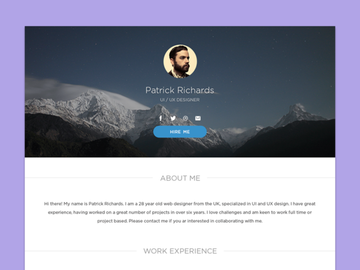
![SixtyNine Agency - Free [PSD] preview picture](https://imgproxy.epicpxls.com/TGKDjEaBn2CrqRcyasi4dzXjcMzVeWusitMO5lin6oE/rs:fill:720:540:0/g:no/aHR0cHM6Ly9pdGVt/cy5lcGljcHhscy5j/b20vdXBsb2Fkcy9w/aG90by82ZGVkOWVk/MWMxNDAxN2M3MmMw/ODlmNDliYzFkODIw/NS5wbmc.jpg)
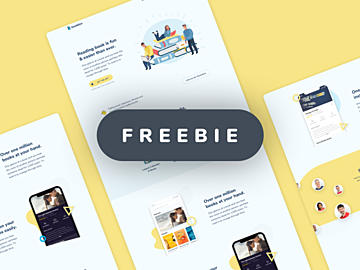
![Food Social Media Post Template [PSD] preview picture](https://imgproxy.epicpxls.com/fgSDQO0qfI2fLnnnbe7bRDJBz_4TanIQE-0LpGFO24o/rs:fill:720:540:0/g:no/aHR0cHM6Ly9pdGVt/cy5lcGljcHhscy5j/b20vdXBsb2Fkcy9w/aG90by81ODgzNzBh/MzU4MmY3ZjM3NDYz/MTVmN2YzMjE5Mzg5/Zg.jpg)








Try Our Free Resources
Download any of these for free - no account required
![SixtyNine Agency - Free [PSD]](https://items.epicpxls.com/uploads/photo/4db6253755784b97a170222d83e763a6.png)
![Food Social Media Post Template [PSD]](https://items.epicpxls.com/uploads/photo/ea43ea60679677f660c5ce9ce3ea9d87)
Getting Started with Templates in Photoshop
Adobe Photoshop is one of the most powerful tools for digital design, and using templates can dramatically speed up your workflow while maintaining professional quality. Whether you're creating social media graphics, print materials, UI designs, or marketing assets, templates offer a structured foundation that lets you focus on creativity rather than starting from scratch. Before diving into template usage, ensure you have the latest version of Photoshop installed from the Adobe Creative Cloud suite. This guarantees access to updated features, improved performance, and enhanced compatibility with modern file formats.
Photoshop supports a wide range of template formats, but the most common and fully functional is the PSD (Photoshop Document) format. This format preserves layers, masks, text, effects, and other editable components, making it ideal for customization. You can find high-quality templates across numerous design platforms, with EpicPxls standing out as a trusted source offering over 200 professionally designed, customizable templates. These resources span categories such as business cards, flyers, web banners, mobile app interfaces, and branding kits, making it easy to find the perfect match for your project.
The 200+ resources available on EpicPxls are carefully curated for usability, resolution, and design consistency. Each template is crafted to align with current design trends and industry standards, ensuring your final output looks polished and contemporary. Before downloading, check the template description for compatibility details, resolution (300 DPI for print, 72 DPI for web), and included file types. Many templates also come with documentation or tutorials to guide first-time users. Once you’ve selected a suitable template, the next step is importing it into Photoshop—where the real customization begins.
How to Import Templates into Photoshop
- Choose the Right Template File: Begin by downloading a template compatible with Photoshop. Look for files labeled as PSD (Photoshop Document) to ensure full editability. While some platforms offer AI (Adobe Illustrator), SVG, or even Figma files, these may require conversion or additional steps before use in Photoshop. On EpicPxls, all templates are available in PSD format or include a PSD version for seamless integration.
- Download and Extract the File: After purchase or download, you’ll typically receive a ZIP archive containing the template and supporting assets (fonts, images, help files). Use a standard extraction tool to unzip the folder and keep all contents together to avoid missing elements later.
- Launch Photoshop: Open Adobe Photoshop on your computer. If you're using Creative Cloud, make sure it's updated to avoid compatibility issues with newer PSD features like smart objects or advanced blending options.
- Navigate to File > Open: Click "File" in the top menu, then select "Open." Browse to the location where you extracted the template files and select the PSD file. Click "Open" to load the template into Photoshop’s workspace.
- Review the Layers Panel: Once opened, check the Layers panel (Window > Layers) to explore the template’s structure. Well-designed templates will have clearly labeled groups, folders, and layers, making it easy to identify editable areas such as text, images, and shapes.
- Handle Linked Assets if Prompted: If the template uses smart objects or linked images, Photoshop may prompt you to relink missing files. Navigate to the folder where you extracted the template assets and relink them to preserve image quality. Always keep the original template folder intact to avoid broken links.
Understanding how to import various file types is crucial. While PSDs work natively, AI files can be placed as smart objects via File > Place Embedded. SVGs may require rasterization unless used in conjunction with Photoshop’s vector tools. Figma designs need to be exported as PNG or PSD first. With the 200+ resources on EpicPxls, you’ll find that all templates are optimized for immediate use in Photoshop, minimizing conversion steps and saving time.
Step-by-Step: Working with Templates in Photoshop
Editing Layers and Components
Once your template is loaded, the real customization begins. Start by navigating to the Layers panel, where most templates are organized into labeled folders such as "Text," "Images," "Background," and "Logo." Double-click on a text layer to edit content—simply highlight the placeholder text and type your own. Be mindful of font choices; if a custom font is missing, Photoshop will substitute it, which may affect layout. You can install the recommended font (usually included in the download) or choose a compatible alternative from your system.
For image placeholders, locate the smart object layer (often labeled with a thumbnail icon). Right-click and select "Edit Contents" to open the embedded image in a new window. Replace it with your own file, save, and return to the main document—the update will appear automatically. This non-destructive editing method preserves image quality and keeps the template structure intact. You can also resize, recolor, or apply effects to shape layers and vector elements using Photoshop’s Fill, Stroke, and Layer Style options.
Organizing Your Templates Library
As you accumulate more templates—especially from a rich library like the 200+ resources on EpicPxls—organization becomes essential. Create a dedicated folder on your computer labeled "Photoshop Templates" and subdivide it by category (e.g., Social Media, Print, Web Design). Within each folder, maintain the original ZIP file and the extracted PSD along with any fonts or assets. This ensures you can re-download or reinstall components if needed.
Consider using Adobe Bridge or Lightroom to catalog your templates visually. You can add keywords, ratings, and metadata to quickly search for specific designs. Naming your files clearly (e.g., "Instagram_Post_Template_01.psd") also improves accessibility. If you modify a template significantly, save it under a new name to preserve the original for future use. This systematic approach prevents clutter and streamlines your workflow, especially when working on multiple projects simultaneously.
Exporting for Production
After finalizing your design, export it in the appropriate format for its intended use. For web and social media, go to File > Export > Export As or use Save for Web (Legacy) for more control. PNG is ideal for graphics with transparency, JPEG for photographs, and SVG if you’ve preserved vector elements. Set the resolution to 72 PPI and choose sRGB color mode for online viewing.
For print materials like brochures or business cards, use File > Save As and select TIFF or high-quality PDF. Ensure the resolution is 300 PPI, color mode is CMYK, and you’ve included a 3 mm bleed if required by the printer. Photoshop’s "Flatten Image" option should only be used if you no longer need to edit individual layers. Otherwise, keep a layered PSD version as your master file. Many templates from EpicPxls include built-in bleed guides and color profiles, so always check these before exporting.
Troubleshooting Common Photoshop Issues
File Won't Open
If a template fails to open, the most common cause is version incompatibility. Older versions of Photoshop may not support features used in newer PSD files, such as advanced layer effects or cloud documents. Always check the template’s requirements before downloading—most resources on EpicPxls specify the minimum Photoshop version needed. If you're using an outdated version, consider updating through Adobe Creative Cloud. Alternatively, try opening the file on another machine with a newer version and resave it in a backward-compatible format (e.g., Photoshop 2018).
Missing Fonts or Assets
When fonts don’t load, Photoshop displays a warning and substitutes them, potentially disrupting layout. To resolve this, install the fonts provided in the template package. Extract the font files (usually .OTF or .TTF), right-click, and select "Install" on Windows or "Install Font" on macOS. Restart Photoshop and reopen the file. If the font isn’t included, check the template’s documentation or contact support. For missing images in smart objects, right-click the layer and choose "Relink to File," then navigate to the correct image within your extracted folder.
Performance Problems
Large templates with high-resolution images or numerous layers can slow down Photoshop, especially on older hardware. To improve performance, go to Edit > Preferences > Performance and allocate more RAM to Photoshop (aim for 70–80% of available memory). Reduce the number of history states under Performance > History & Cache and increase cache levels for large documents. You can also temporarily merge or hide layers you’re not working on. Using smart objects efficiently—rather than embedding full-resolution images directly—helps maintain speed without sacrificing quality.
Advanced Photoshop Tips for Templates
Batch Processing
When working with multiple similar designs—such as a series of social media posts—use Photoshop’s batch processing to automate repetitive tasks. First, create an action by going to Window > Actions, clicking the "New Action" button, and recording your edits (e.g., resizing, adding a logo, applying a filter). Once recorded, go to File > Automate > Batch, select your action, and choose the folder containing your template variations. Photoshop will apply the same edits across all files, saving hours of manual work. This is especially useful when customizing multiple templates from the 200+ resources on EpicPxls for a cohesive campaign.
Plugins and Extensions
Enhance your template workflow with Photoshop plugins that streamline design tasks. Tools like Generator, built into Photoshop, allow automatic file exporting based on layer names. Third-party extensions can add pattern libraries, color palettes, or UI kits that integrate seamlessly with templates. Some templates come with companion plugins or scripts for one-click styling—check the documentation included with your EpicPxls download. Always install plugins from trusted sources and ensure they’re compatible with your Photoshop version to avoid crashes.
Collaboration Workflows
For team environments, managing a shared templates library ensures consistency across projects. Store your master templates in a cloud-synced folder (e.g., Adobe Creative Cloud Files, Dropbox, or Google Drive) accessible to all team members. Use clear naming conventions and version control (e.g., "Flyer_Template_v2.psd") to prevent overwrites. Consider using Adobe Creative Cloud Libraries to sync colors, graphics, and styles across devices and users. When multiple designers work on the same template, communicate layer naming standards and avoid flattening layers until final export. This collaborative approach maximizes efficiency, especially when leveraging a diverse collection like the 200+ resources available on EpicPxls.
Why Download from EpicPxls?
Commercial License
Use in personal and commercial projects
No Account Required
Download free resources instantly
Quality Curated
Every resource is reviewed for quality
Preview Files
See Figma and Photoshop files before downloading
Who Uses These Templates?
Professionals and teams who benefit most from our collection
UI/UX Designers
Speed up your workflow with ready-to-use templates for Photoshop. Perfect for prototyping and client presentations.
Developers
Get production-ready assets without design skills. Export in any format for web and mobile apps.
Startups & Agencies
Save design budget with affordable premium templates. Commercial license included.
Marketing Teams
Create professional campaigns faster. All templates are optimized for social media and ads.
Templates for Photoshop FAQCommon questions about these resources
Simple, Transparent Pricing
Get unlimited access to all premium resources
Yearly
- 20 downloads per month
- All file formats
- Commercial license
Lifetime
- Unlimited downloads forever
- All file formats
- Commercial license
Ready to Get Started?
Access 4,440+ free design resources today.
Browse Free ResourcesView Premium PlansEarn 85% and
more on all sales
Upload your products and put them up
for sale at whatever price you want.


