How to Use UI Kits in Adobe XD: Complete Guide
EpicPxls offers 200+ curated ui kits for Adobe XD, all with a commercial license and editable source files (Figma, Sketch, PSD). Download your chosen ui kits from EpicPxls, then use Adobe XD's import function. Most resources include Adobe XD-native files for seamless opening.
Last updated February 13, 2026
Everything you need to know about using ui kits in Adobe XD.
Trusted by designers at leading companies
Top UI Kits for Adobe XD
Handpicked resources from our curated collection
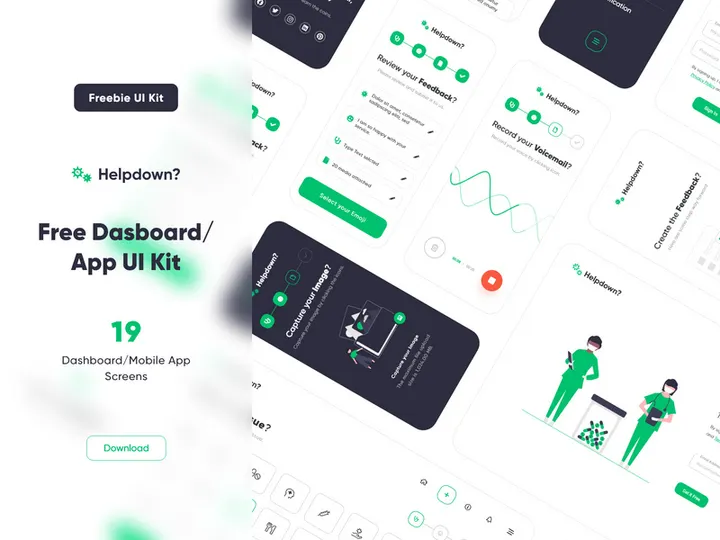
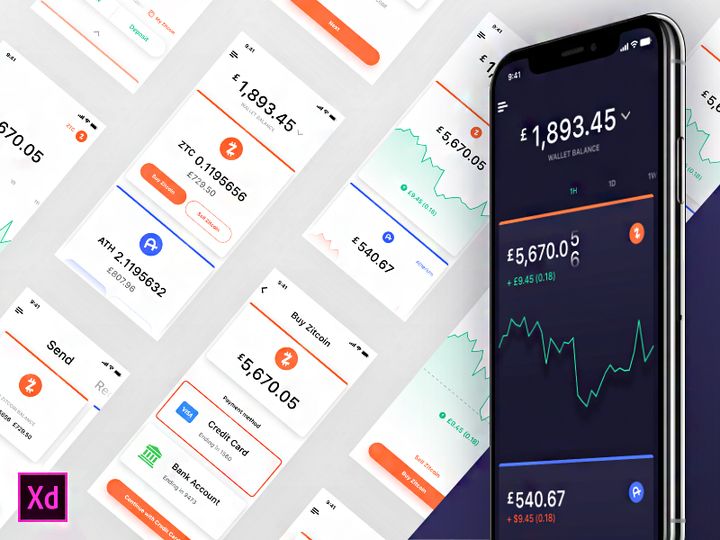


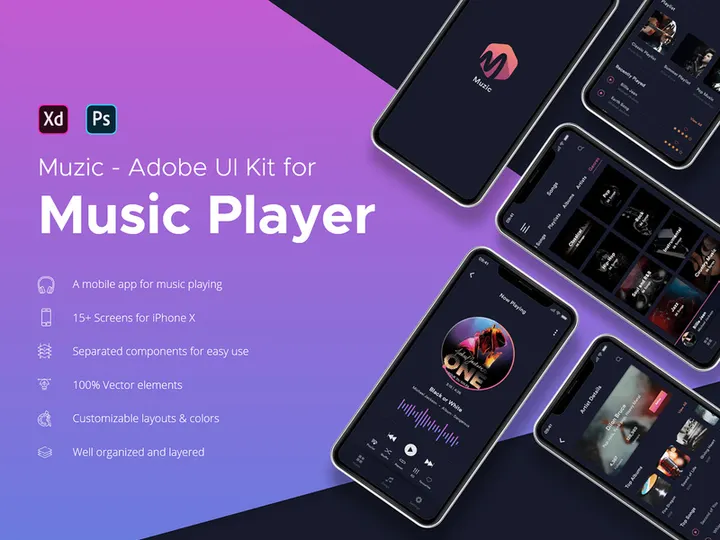
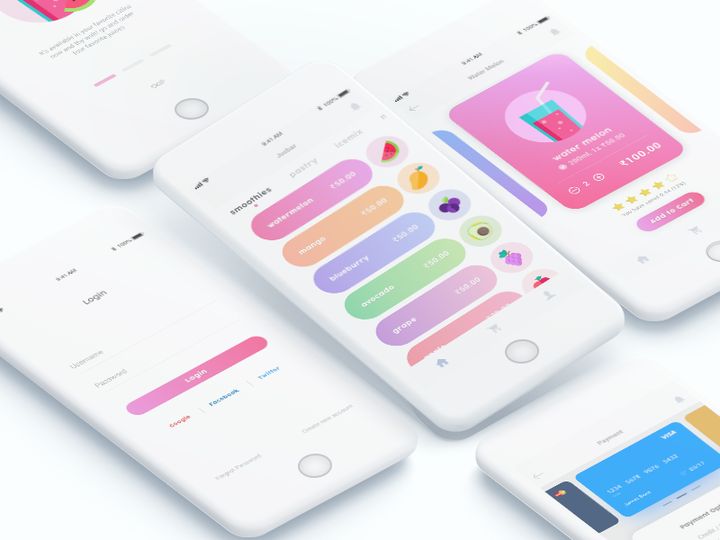
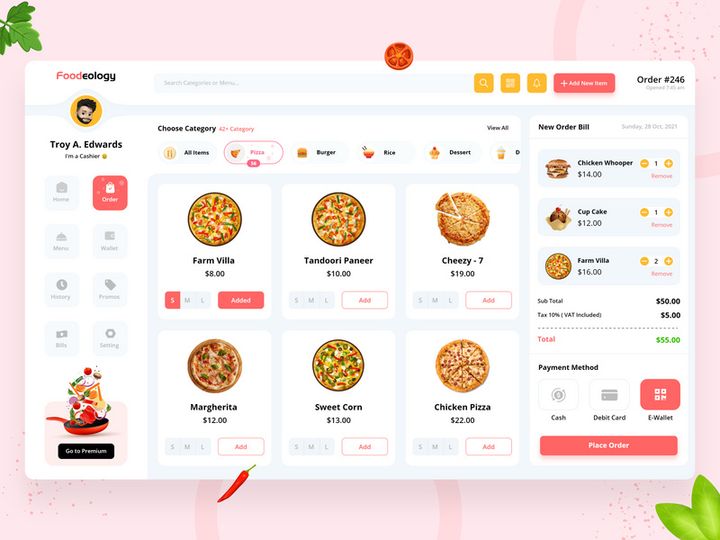
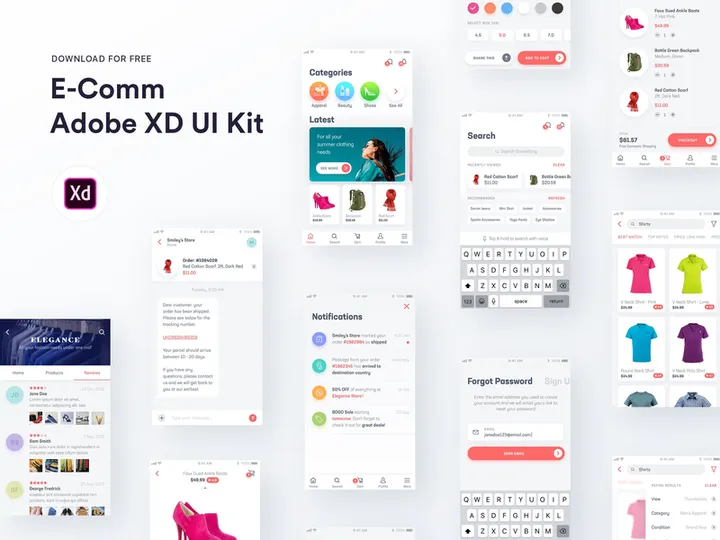
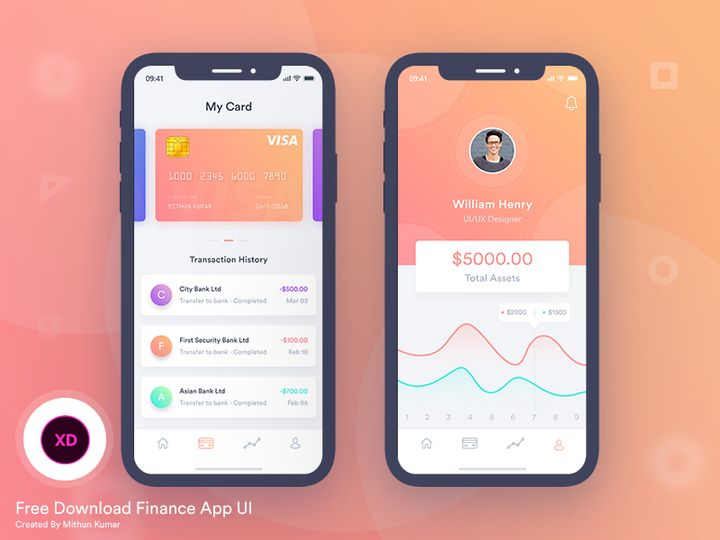
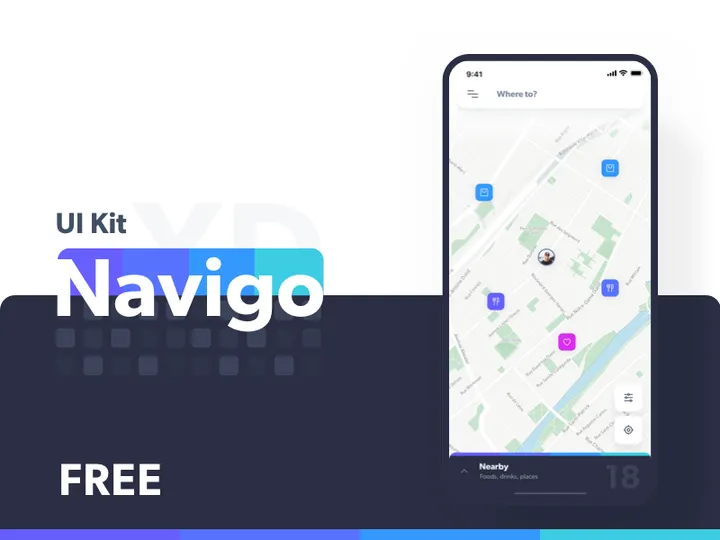
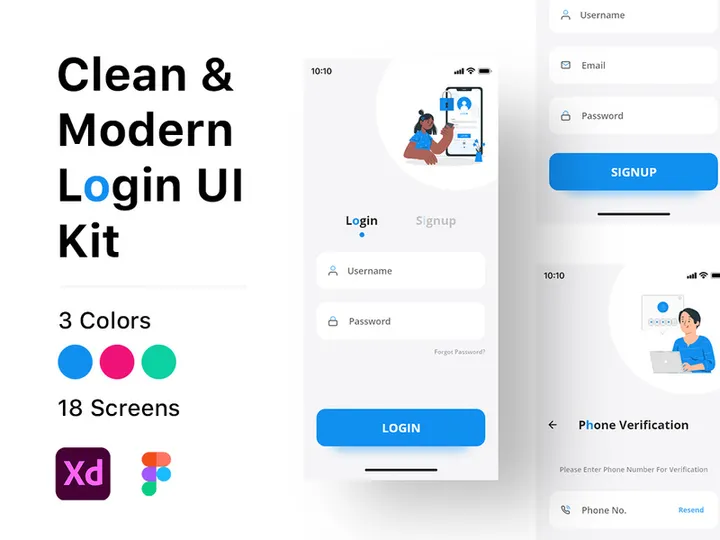
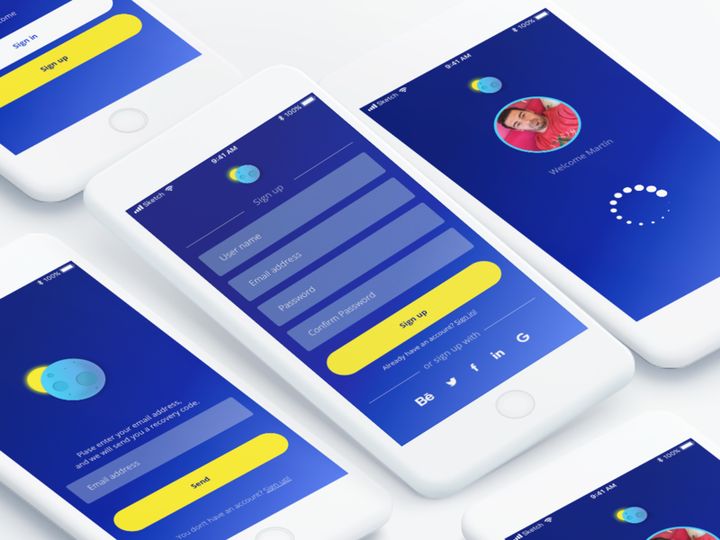



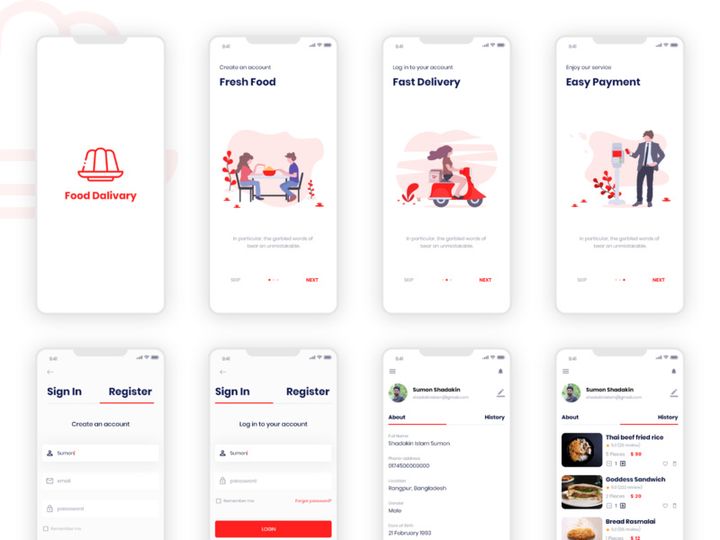


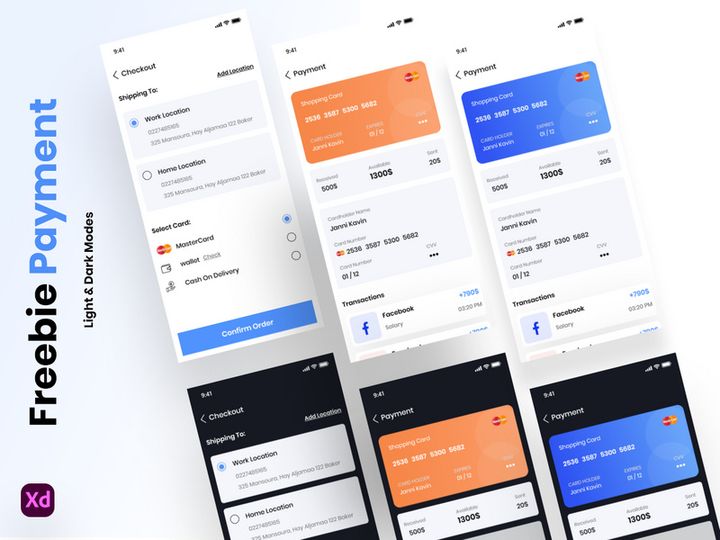
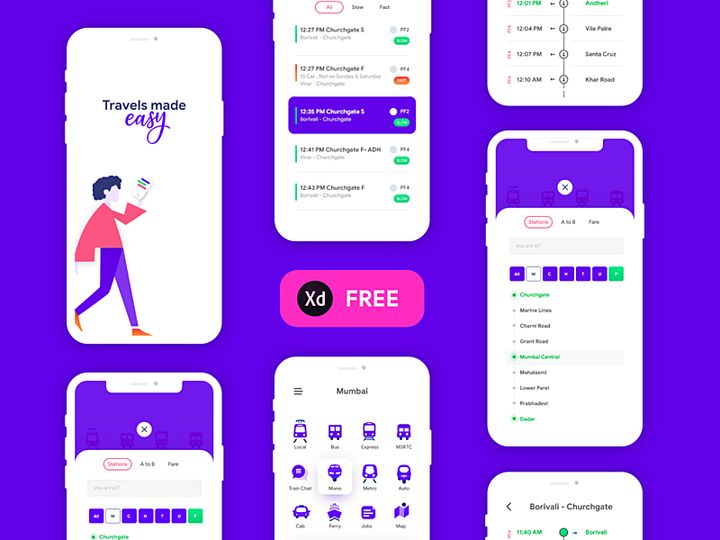

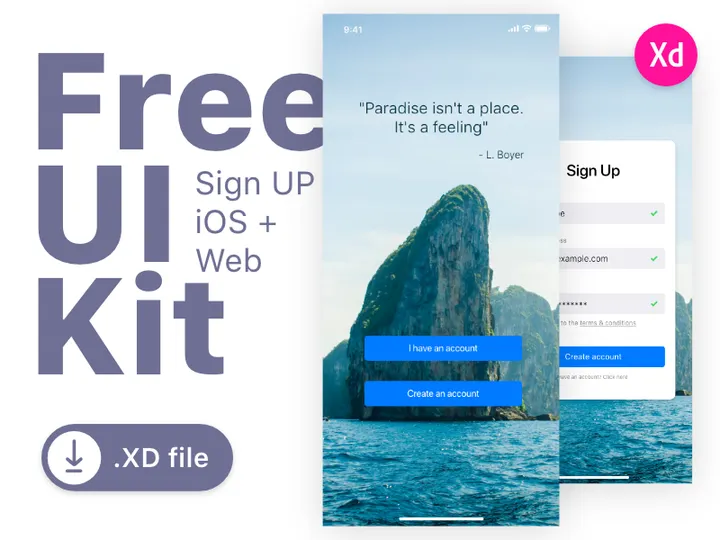
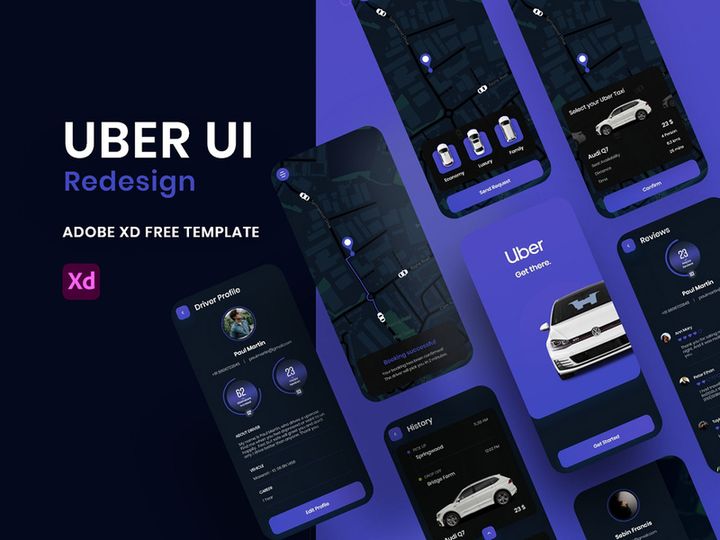
Try Our Free Resources
Download any of these for free - no account required
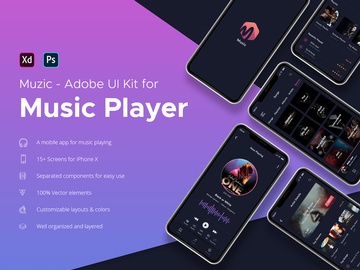
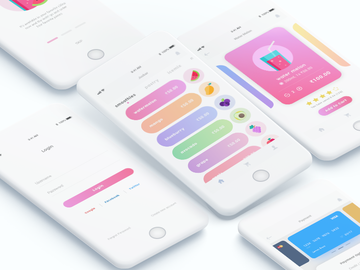
Getting Started with UI Kits in Adobe XD
Adobe XD has become a go-to design tool for UI/UX professionals, thanks to its intuitive interface, powerful prototyping features, and seamless integration with modern design workflows. One of the most effective ways to accelerate your design process is by leveraging UI kits—pre-built collections of interface elements such as buttons, forms, navigation bars, and complete screens. These kits not only save time but also ensure consistency and adherence to design standards.
Before diving into UI kits, ensure you have the latest version of Adobe XD installed. Keeping your software up to date ensures access to the newest features and compatibility with modern file formats. You can download Adobe XD directly from the official Adobe website and install it on macOS or Windows. Once installed, sign in with your Adobe ID to unlock cloud storage, plugin access, and collaboration tools.
When it comes to sourcing UI kits, look for those specifically designed or optimized for Adobe XD. Many design marketplaces offer XD-compatible kits, but EpicPxls stands out as a trusted platform hosting an extensive collection of customizable, high-quality resources. With over 200+ resources available, including mobile app templates, dashboard designs, e-commerce interfaces, and dark mode themes, EpicPxls makes it easy to find a kit that fits your project’s needs. Each kit is curated for usability, clarity, and modern design trends, ensuring you start with a strong visual foundation.
Whether you're designing a startup MVP, enterprise application, or personal portfolio site, using a UI kit can drastically reduce repetitive tasks. These kits are typically organized into reusable components, symbols, and artboards, making them easy to adapt. By starting with a well-structured UI kit from a reliable source like EpicPxls, you can focus more on innovation and user experience rather than reinventing common interface patterns.
How to Import UI Kits into Adobe XD
- Download the Correct File Format: Always ensure the UI kit you’re downloading includes native Adobe XD files (.xd). While some kits may offer multiple formats, using the .xd version ensures full compatibility with layers, components, and responsive resize features.
- Extract the Downloaded Archive: Most UI kits come in compressed formats like .zip or .rar. Use a tool like WinZip, 7-Zip, or the built-in extraction utility on your OS to unpack the files. Navigate to the extracted folder and locate the .xd file.
- Launch Adobe XD and Open the File: Open Adobe XD, click on “Open File” from the start screen, and browse to the location of the .xd file. Select it and click “Open.” The UI kit will load into your workspace.
- Verify Layer Integrity: Once opened, inspect the Layers panel on the right. A well-structured UI kit will have clearly labeled groups, components, and artboards. Look for folders like “Buttons,” “Icons,” or “Screens” to navigate easily.
- Handle Non-XD File Types (If Applicable): Some kits may include legacy formats like PSD (Photoshop), AI (Illustrator), or SVG. While Adobe XD can import SVG files directly, PSD and AI files require conversion. Import SVGs via “File > Import,” and consider using Illustrator to convert AI/PSD files to SVG before importing into XD.
- Reconnect Missing Fonts or Assets: If text layers appear in a fallback font, it means the original font isn’t installed. Check the kit’s documentation for font names and download them from trusted sources. Install the fonts on your system, then restart Adobe XD to see the correct typography.
Importing a UI kit properly sets the stage for efficient design. With over 200+ resources available across categories like fintech, healthcare, and SaaS, platforms like EpicPxls ensure you’ll find kits that not only import smoothly but also align with industry-specific design requirements.
Step-by-Step: Working with UI Kits in Adobe XD
Editing Layers and Components
Once your UI kit is imported, the real work begins—customization. Adobe XD’s component system allows you to modify design elements globally. For example, if you edit a primary button component, all instances across your artboards will update automatically. To edit a component, simply double-click it. You can change colors, text, corner radius, or add effects like shadows and gradients.
Use the Assets panel (on the left) to access all reusable components from your UI kit. Drag and drop them onto your artboards to build screens rapidly. For layers within components, unlock them if you need granular control. However, be cautious—unlocking may break the link to the master component. To re-establish the link, right-click the layer and choose “Replace” with the original component.
Many UI kits from EpicPxls include variant components—such as button states (default, hover, disabled)—organized in a single component dropdown. This makes it easy to switch between states without duplicating artboards. You can also create your own variants by selecting a component instance and clicking “Add State” in the Property Inspector.
Organizing Your UI Kits Library
As you collect more UI kits, organization becomes critical. Create a dedicated folder on your computer named “Adobe XD UI Kits” and subfolders by category (e.g., Mobile, Dashboard, E-commerce). Inside each, store the .xd files and accompanying documentation.
Within Adobe XD, use the Libraries panel to manage shared assets across projects. You can link a UI kit file as a library, making its colors, character styles, and components available in other XD documents. This is especially useful for maintaining brand consistency. To link a library, go to “File > Libraries > Link to Library” and select your UI kit file.
For teams, consider syncing libraries via Creative Cloud. This ensures all designers access the same components, reducing discrepancies. Naming conventions matter—use clear, descriptive names like “Button/Primary/Small” instead of generic labels. With over 200+ resources to choose from, a structured approach prevents overwhelm and boosts collaboration.
Exporting for Production
When your design is complete, export assets for development. Adobe XD supports multiple export formats, including PNG, JPG, SVG, and PDF. Select the element or artboard you want to export, then go to the “Export” section in the right-hand Property Inspector.
For web and mobile apps, export assets at 1x, 2x, and 3x scales to support different screen densities. SVG is ideal for icons and logos as it’s resolution-independent. Set the export filename with clear prefixes like “btn-primary@2x” to help developers identify assets quickly.
You can also generate design specs. Use the “Share” button to create a prototype link or a development handoff URL. This provides developers with CSS snippets, spacing measurements, font details, and downloadable assets—streamlining the transition from design to code. UI kits from EpicPxls often include pre-labeled layers and consistent spacing, making this handoff process faster and more accurate.
Troubleshooting Common Adobe XD Issues
File Won't Open
If a UI kit file fails to open, the most common cause is version incompatibility. Older versions of Adobe XD cannot open files saved in newer versions. Always ensure you’re running the latest update. If the file was created in a newer version, ask the provider (such as EpicPxls) if they offer a backward-compatible version or check release notes for version-specific features.
Also, confirm the file is truly an .xd format. Some zip files may contain preview images or documentation instead of the actual XD file. Always verify the presence of a .xd extension inside the extracted folder.
Missing Fonts or Assets
When text appears in the wrong font, Adobe XD is unable to locate the original typeface. UI kits often use premium or custom fonts not available by default. Check the kit’s documentation or readme file for a list of required fonts. Download and install them from legitimate sources, then restart Adobe XD.
If the font isn’t available, you can manually replace it. Select the text element, choose a system font from the font dropdown, and adjust the size and line height to maintain visual harmony. Some UI kits include fallback web-safe fonts, making this process easier.
Performance Problems
Large UI kits with hundreds of artboards and high-resolution images can slow down Adobe XD. To improve performance, close unused artboards or duplicate only the screens you need into a new file. Avoid embedding large bitmap images—use vector shapes or linked assets when possible.
Regularly save and restart Adobe XD to clear cached data. If working on a team, consider splitting the kit into smaller modules (e.g., “Onboarding Screens,” “Settings Panel”) to reduce file size and improve responsiveness.
Advanced Adobe XD Tips for UI Kits
Batch Processing
When working with multiple instances of similar components—like profile cards or product tiles—use XD’s repeat grid feature. Select a component, drag the blue handle to create copies, and XD will automatically populate them with placeholder content. Double-click inside any cell to edit text or images. This is especially useful when designing data-heavy interfaces from a UI kit, allowing rapid iteration without manual duplication.
Plugins and Extensions
Enhance your UI kit workflow with Adobe XD plugins. Access them via the “Plugins” menu or the plugin manager. Useful plugins include Content Generator for populating dummy text and images, UI Faces for realistic avatars, and Auto Animate Helper for smoother transitions. Many UI kits from EpicPxls are designed to work seamlessly with popular plugins, enabling faster prototyping and content integration.
Collaboration Workflows
For team projects, use Adobe XD’s cloud-based sharing to maintain a centralized UI kit library. Designers can link to a shared .xd file, ensuring everyone uses the same components. When updates are made to the master file, team members receive notifications to sync changes.
Set up a naming and versioning system—for example, “UI-Kit-Marketing-v2.xd”—and store it in a shared Creative Cloud folder. Use comments and version history to track changes. This collaborative approach is essential when managing large-scale projects that leverage multiple UI kits from a diverse collection like the 200+ resources available on EpicPxls.
Why Download from EpicPxls?
Commercial License
Use in personal and commercial projects
No Account Required
Download free resources instantly
Quality Curated
Every resource is reviewed for quality
Preview Files
See Figma and Photoshop files before downloading
Who Uses These Ui Kits?
Professionals and teams who benefit most from our collection
UI/UX Designers
Speed up your workflow with ready-to-use ui kits for Adobe XD. Perfect for prototyping and client presentations.
Developers
Get production-ready assets without design skills. Export in any format for web and mobile apps.
Startups & Agencies
Save design budget with affordable premium ui kits. Commercial license included for client work.
Marketing Teams
Create professional campaigns faster. All ui kits are optimized for social media and ads.
UI Kits for Adobe XD FAQCommon questions about these resources
Simple, Transparent Pricing
Get unlimited access to all premium resources
Yearly
- 20 downloads per month
- All file formats
- Commercial license
Lifetime
- Unlimited downloads forever
- All file formats
- Commercial license
Ready to Get Started?
Access 4,441+ free design resources today.
Browse Free ResourcesView Premium PlansEarn 85% and
more on all sales
Upload your products and put them up
for sale at whatever price you want.


