Icons for Sketch: 96+ Resources
EpicPxls offers 96+ curated icons for Sketch, all with a commercial license and editable source files (Figma, Sketch, PSD). We have 96+ icons compatible with Sketch, tested and verified for seamless integration.
Last updated February 12, 2026
Discover 96+ handpicked icons for Sketch.
Trusted by designers at leading companies
Top Icons for Sketch
Handpicked resources from our curated collection

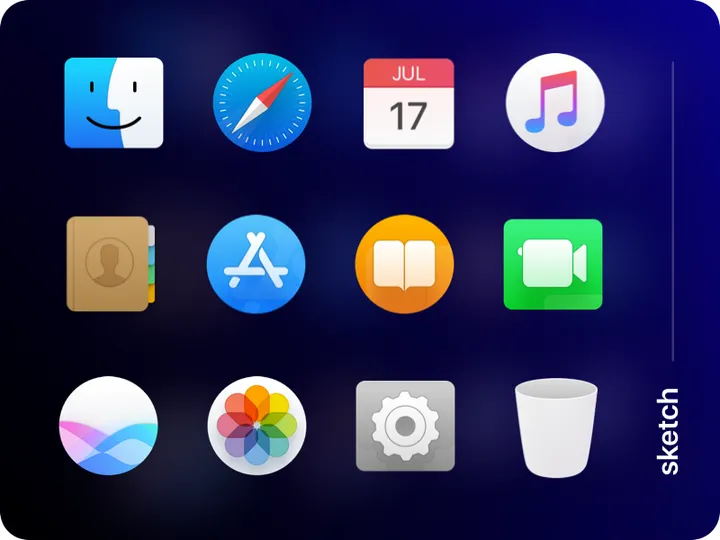


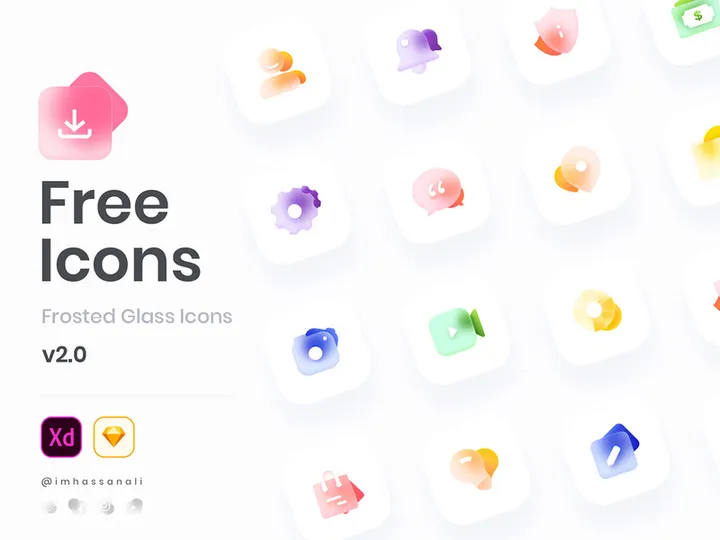

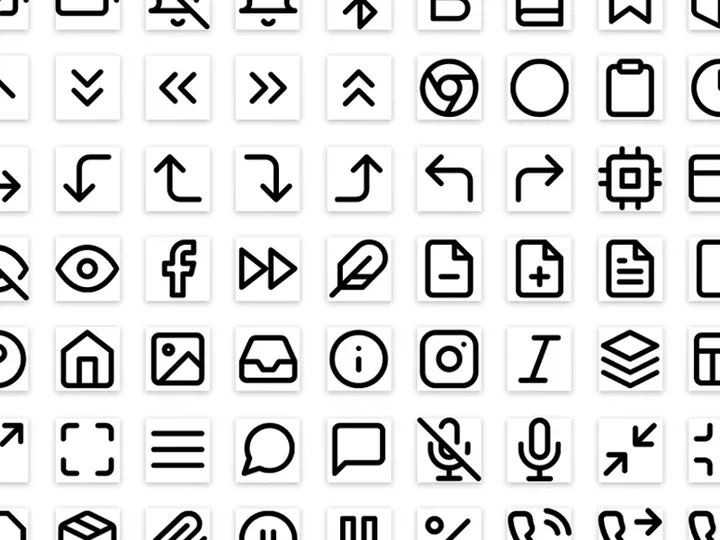
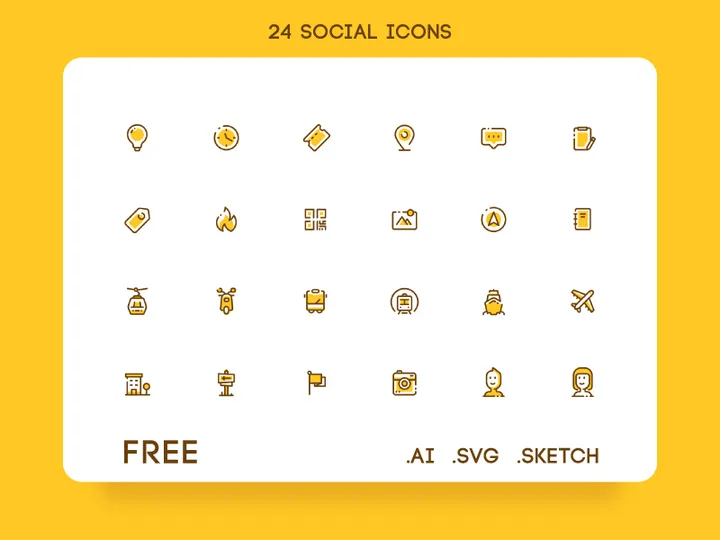
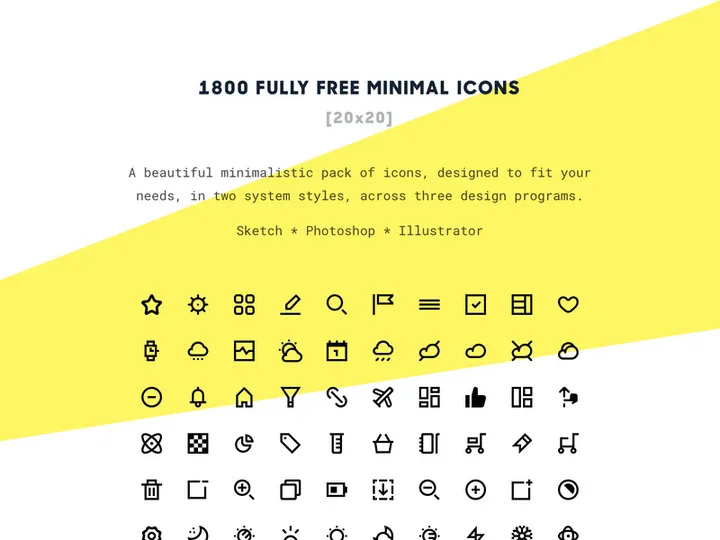
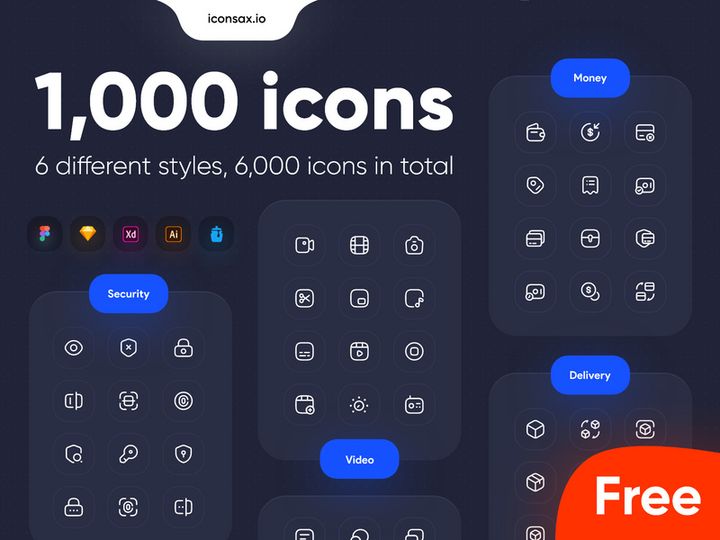

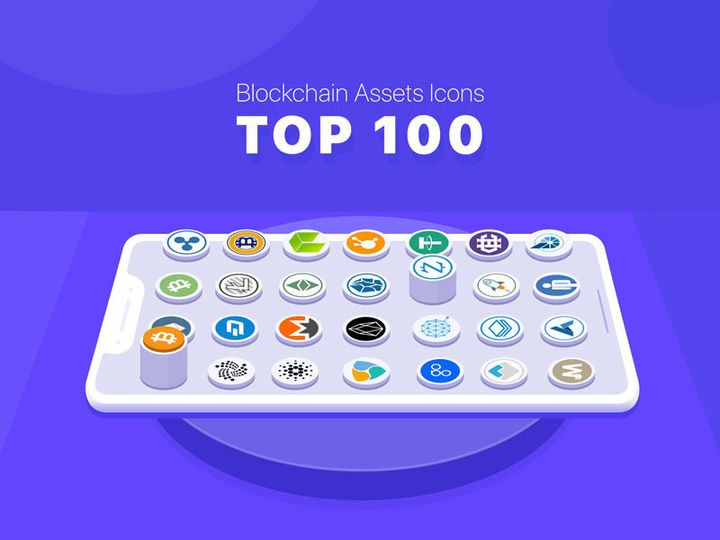
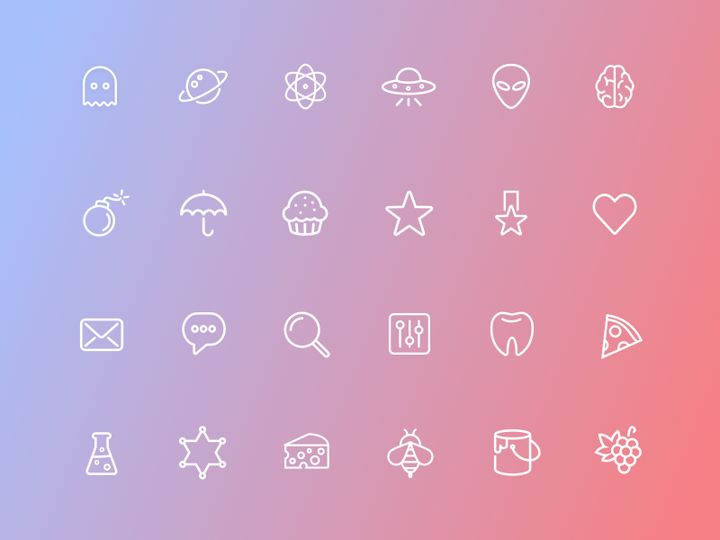

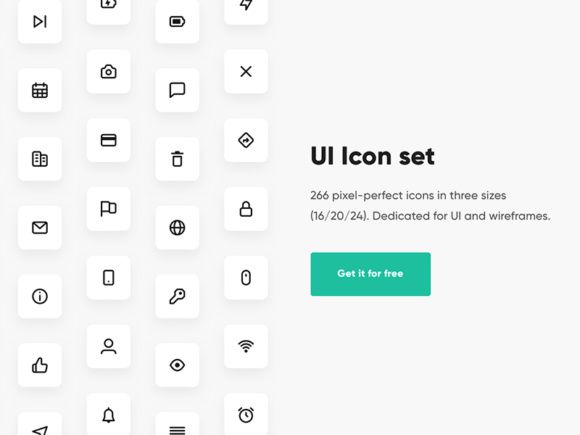

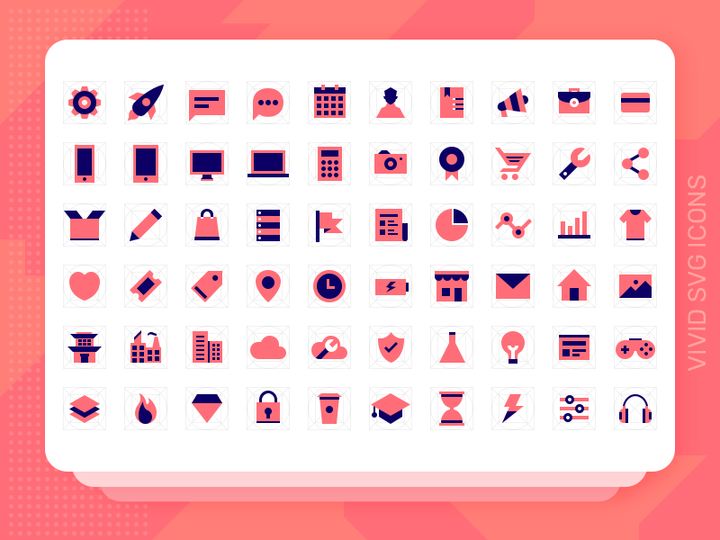

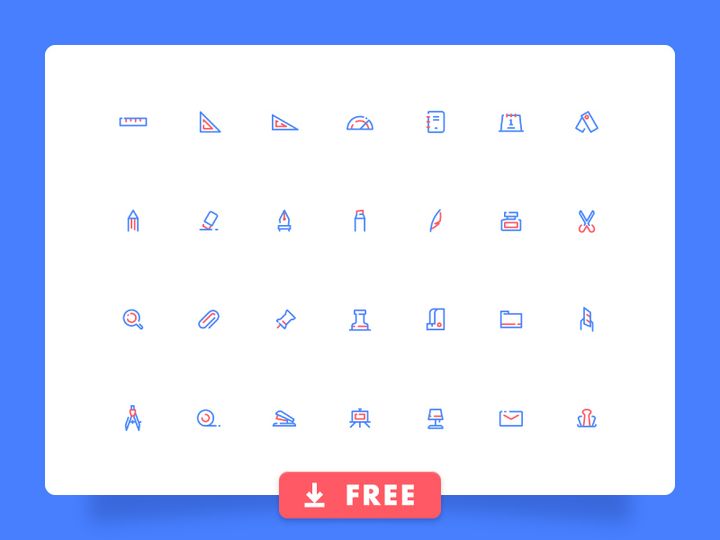

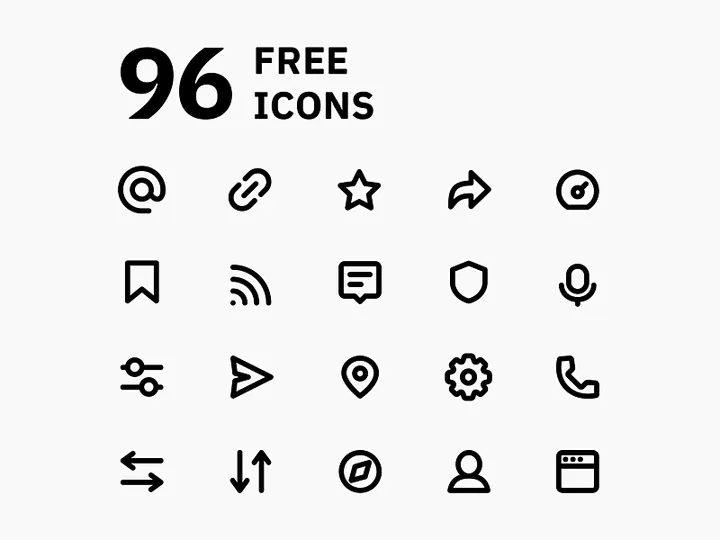
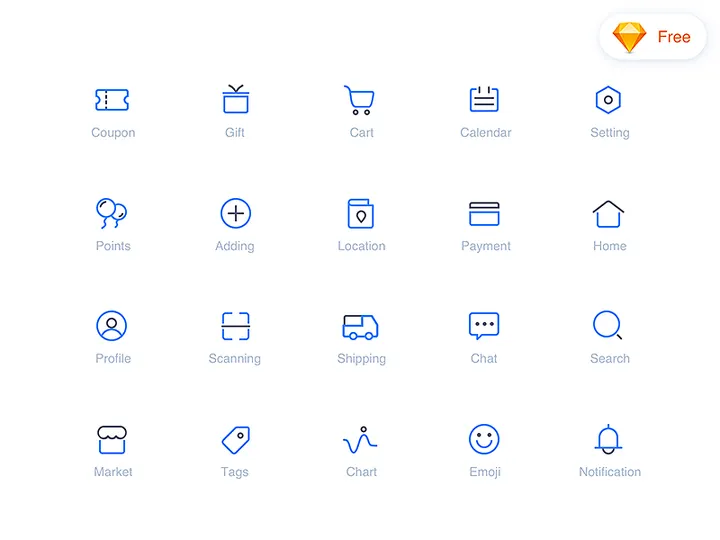
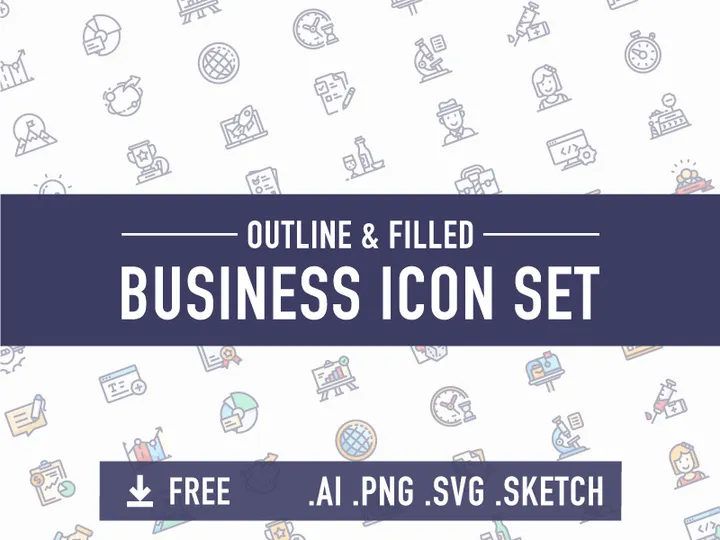
Try Our Free Resources
Download any of these for free - no account required

Why Sketch for Icons?
Sketch has become a cornerstone tool for designers worldwide, particularly when it comes to creating, managing, and implementing icons in digital product design. Its vector-based architecture makes it exceptionally well-suited for icon design, where precision, scalability, and consistency are paramount. Unlike raster-based tools, Sketch ensures that icons remain sharp at any size, making them ideal for responsive interfaces across devices and resolutions. This focus on vector editing streamlines the process of refining shapes, adjusting strokes, and maintaining pixel-perfect alignment—essential qualities for professional icon sets.
One of Sketch’s standout features for icon workflows is its Symbols system, which allows designers to create reusable components. When applied to icons, this means you can define a master icon and use instances across your artboards. Any updates to the master automatically propagate across all instances, ensuring consistency and saving time during iterations. Sketch also supports nested symbols, enabling complex icon variants (like different states or sizes) to be managed within a single library. This is particularly useful when building comprehensive icon systems for large-scale applications.
Additionally, Sketch’s robust plugin ecosystem enhances icon usability. Plugins can automate tasks like renaming, batch exporting, or organizing icon libraries, significantly improving efficiency. The platform’s integration with cloud-based design libraries via Sketch Cloud also makes sharing icon assets across teams seamless, fostering collaboration without version confusion. At EpicPxls, we recognize these strengths and have curated over 96+ high-quality, Sketch-compatible icon resources that leverage these capabilities. Each resource is tested for compatibility, scalability, and ease of integration, ensuring that whether you're building a design system or spicing up a prototype, you have access to reliable, production-ready icons. With such a vast collection available through EpicPxls, designers can find the perfect visual language to match their project needs.
Top Icons Picks for Sketch
Best for Beginners
For those just starting out in UI/UX design or diving into Sketch for the first time, simplicity and clarity are key. The best icon resources for beginners are those that come with clear documentation, intuitive file structures, and pre-sorted categories. Look for icon sets that include organized pages for different themes—such as navigation, social media, or file types—as this makes browsing and selecting icons much easier. Many beginner-friendly options also offer ready-to-use Sketch Symbols and are built with consistent stroke weights and sizing, minimizing the need for manual adjustments. These thoughtful design choices help newcomers focus on learning Sketch’s interface and workflow without getting bogged down by inconsistent assets.
Best for Professionals
Experienced designers often require more sophisticated icon solutions that integrate seamlessly into complex design systems. Professional-grade icon resources for Sketch typically include multi-weight variants, fully adjustable stroke widths, optical sizing options, and extensive state variations (like active, disabled, or hover). These sets are often part of larger design systems and come with detailed style guides, naming conventions, and version control. Advanced features like dynamic components, component overrides, and responsive resizing behaviors make these icons highly adaptable. Many are also optimized for handoff to developers, with clear export settings and design tokens. At EpicPxls, our selection of premium icon resources includes numerous professional-tier options designed for scalability, consistency, and long-term maintainability across large teams and products.
Best Free Options
High-quality doesn’t always mean high cost. There are many excellent free icon resources available for Sketch that deliver great value without compromising on design integrity. These sets often feature clean, minimalist styles, consistent grid alignment, and support for common UI patterns. While they may not include all the advanced features of paid libraries, free icons can still be production-ready and well-structured. Many are released under open-source licenses, allowing for broad usage in personal and commercial projects. When selecting free icons, pay attention to update frequency, community support, and compatibility with the latest version of Sketch. EpicPxls carefully vets each of the 96+ resources in our collection to ensure even free options meet high standards for usability and quality, making them reliable choices for any project stage.
Sketch vs Other Tools for Icons
While several design tools support icon creation and management, Sketch stands out due to its specialized focus on UI and product design. Unlike general-purpose vector editors, Sketch is built from the ground up for digital interfaces, giving it a distinct advantage when working with icons at scale. Its native support for artboards, grids, and constraints allows designers to preview icons in context, ensuring visual harmony across different screen sizes and layouts. The Symbols feature, combined with shared libraries, provides a structured way to maintain consistency—something that’s harder to achieve in less interface-oriented tools.
The Sketch ecosystem also benefits from strong format compatibility. Icon resources are typically delivered as .sketch files, which preserve layers, symbols, and organization, making them easy to import and modify. This contrasts with tools that require conversion or flattening, which can lead to loss of editability. Additionally, Sketch’s plugin architecture enables powerful extensions that streamline icon workflows—such as auto-naming layers, generating exports, or syncing with external asset managers. These integrations enhance productivity without adding complexity.
Another advantage is the thriving community of designers and developers who contribute to and rely on Sketch-based resources. This has led to a wealth of well-documented, community-tested icon libraries that are continuously updated. At EpicPxls, we tap into this ecosystem to bring you 96+ carefully selected icon resources that are not only compatible with Sketch but optimized for its unique capabilities. Whether you're designing a mobile app, a web dashboard, or a design system, Sketch provides a focused, efficient environment for working with icons—backed by a rich library of ready-to-use assets.
Setting Up Icons in Sketch
- Download and Unpack: Begin by downloading your chosen icon resource from a trusted source like EpicPxls. Most icon sets come as .zip files containing one or more .sketch documents. Extract the contents to a designated folder on your computer.
- Open the .sketch File: Launch Sketch and open the icon library file. Take a moment to explore the document structure—many sets are organized into pages or artboards by category (e.g., “Communication,” “Media,” “Settings”).
- Review Symbols and Layers: Navigate to the Symbols page to see the full list of available icons. Check that each icon is properly named and grouped. Well-structured libraries use consistent naming conventions (e.g., “icon/email” or “ui/icon-chevron-right”) to make searching easier.
- Import into Your Project: To use icons in your design, go to Insert > Insert from Shared Library if the file is saved as a library, or simply copy and paste symbols directly from the library document into your working file. For frequent use, consider adding the icon file as a shared library in Sketch preferences.
- Customize as Needed: Once inserted, you can resize, recolor, or ungroup icons to modify individual elements. Use Sketch’s style overrides or text styles if the icon includes labels or variants. Maintain consistency by sticking to your project’s design system when adjusting colors or strokes.
- Organize for Reuse: If you're building a custom set, create a dedicated Symbols page in your main document. Drag frequently used icons here and rename them according to your team’s naming scheme. This makes them easily accessible and reduces reliance on external files over time.
For teams managing large icon collections, consider using Sketch Cloud to host and sync libraries. This ensures everyone on the team has access to the latest versions without manually sharing files. With over 96+ resources available through EpicPxls, setting up a scalable icon workflow has never been easier. Whether you're starting small or building a full design system, these steps will help you integrate icons efficiently and maintain a clean, organized workspace.
Sketch Workflow Tips
Organizing Icons Libraries
A well-organized icon library is essential for maintaining efficiency and consistency. Start by categorizing icons into logical groups—such as “Navigation,” “Actions,” “Social,” or “File Types”—using separate pages or symbol folders. Use a consistent naming convention that includes both category and function (e.g., “icon-close,” “action-edit,” “social-twitter”). This makes it easier to search and locate icons using Sketch’s Insert menu. Consider creating a master library file that aggregates icons from multiple sources, including those from EpicPxls, so you have a single source of truth. Regularly audit your library to remove duplicates, outdated versions, or unused icons to keep the file lightweight and manageable.
Batch Operations
When working with large icon sets, manual edits can be time-consuming. Sketch’s plugin ecosystem offers powerful tools for batch operations. Use plugins to automate tasks like renaming layers, changing fill colors across multiple symbols, or exporting all icons at various resolutions. For example, you can quickly convert stroke-based icons to outline or fill style across an entire set, ensuring visual consistency. Another common use case is resizing all icons to fit a specific grid (e.g., 24x24px) in one go. These automation capabilities save hours of repetitive work and reduce human error, especially when preparing icons for developer handoff or design system updates. Many of the 96+ resources curated by EpicPxls are structured with batch processing in mind, making them ideal for scalable workflows.
Collaboration Best Practices
When working in teams, maintaining a unified icon system prevents visual fragmentation and streamlines communication. Use Sketch Cloud or a version-controlled design library to host your icon assets, ensuring all team members access the same, up-to-date files. Establish clear guidelines on how icons should be used—such as preferred sizes, color palettes, and spacing rules—and document them alongside the library. Encourage team members to use Symbols instead of copying and pasting raw vectors to preserve consistency. When updating icons, follow a versioning system and communicate changes through comments or release notes. By centralizing icon management and leveraging shared libraries, teams can maintain a cohesive design language across projects. With EpicPxls’ collection of professionally curated resources, you can quickly build a standardized, collaborative icon workflow that scales with your design team’s needs.
Why Download from EpicPxls?
Commercial License
Use in personal and commercial projects
No Account Required
Download free resources instantly
Quality Curated
Every resource is reviewed for quality
Preview Files
See Figma and Photoshop files before downloading
Who Uses These Icons?
Professionals and teams who benefit most from our collection
UI/UX Designers
Speed up your workflow with ready-to-use icons for Sketch. Perfect for prototyping and client presentations.
Developers
Get production-ready assets without design skills. Export in any format for web and mobile apps.
Startups & Agencies
Save design budget with affordable premium icons. Commercial license included.
Marketing Teams
Create professional campaigns faster. All icons are optimized for social media and ads.
Icons for Sketch FAQCommon questions about these resources
Simple, Transparent Pricing
Get unlimited access to all premium resources
Yearly
- 20 downloads per month
- All file formats
- Commercial license
Lifetime
- Unlimited downloads forever
- All file formats
- Commercial license
Ready to Get Started?
Access 4,442+ free design resources today.
Browse Free ResourcesView Premium PlansEarn 85% and
more on all sales
Upload your products and put them up
for sale at whatever price you want.


