How to Use Icons in Sketch: Complete Guide
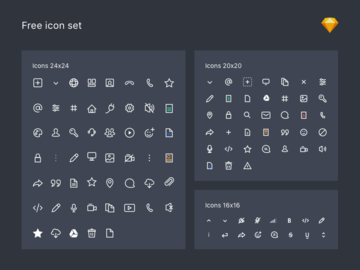
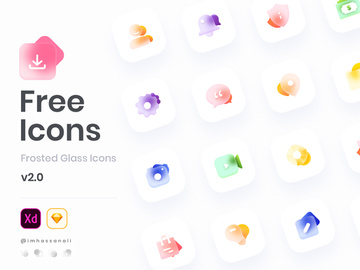
EpicPxls offers 96+ curated icons for Sketch, all with a commercial license and editable source files (Figma, Sketch, PSD). Download your chosen icons from EpicPxls, then use Sketch's import function. Most resources include Sketch-native files for seamless opening.
Last updated February 13, 2026
Everything you need to know about using icons in Sketch.
Trusted by designers at leading companies
Top Icons for Sketch
Handpicked resources from our curated collection




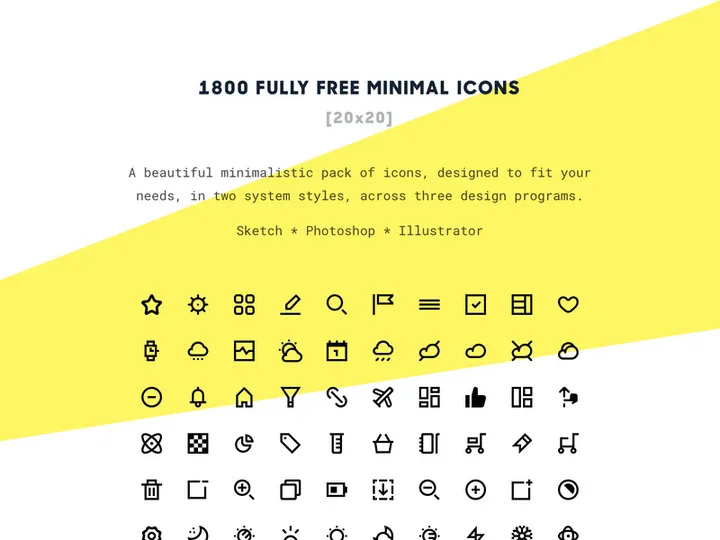
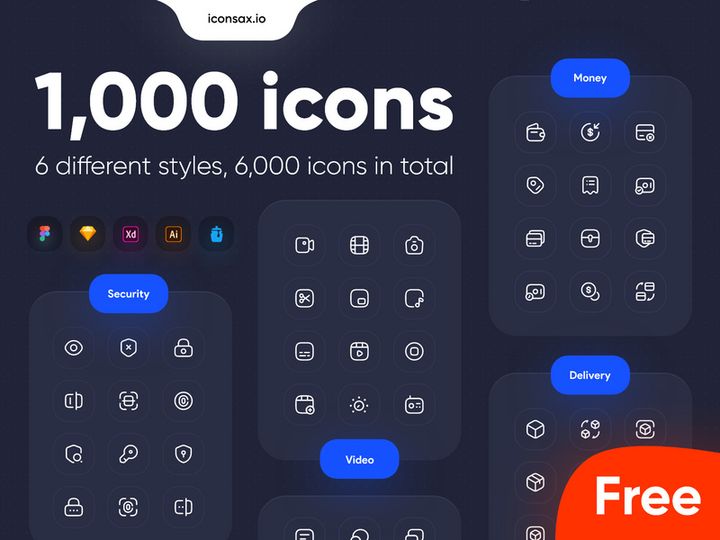

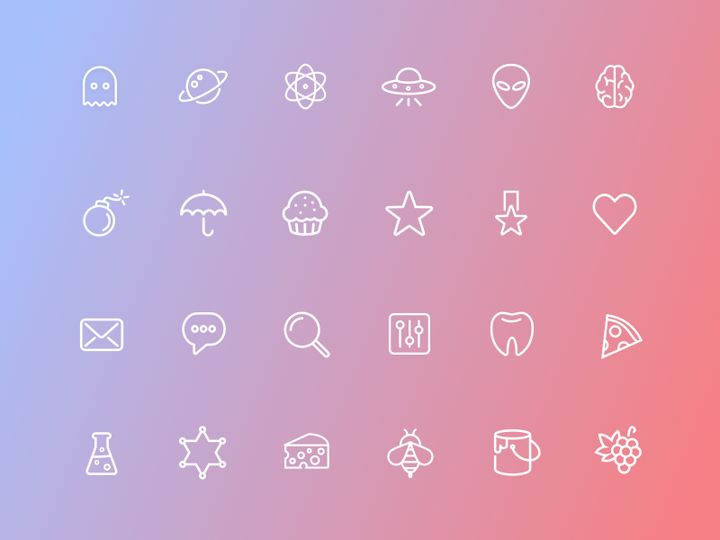

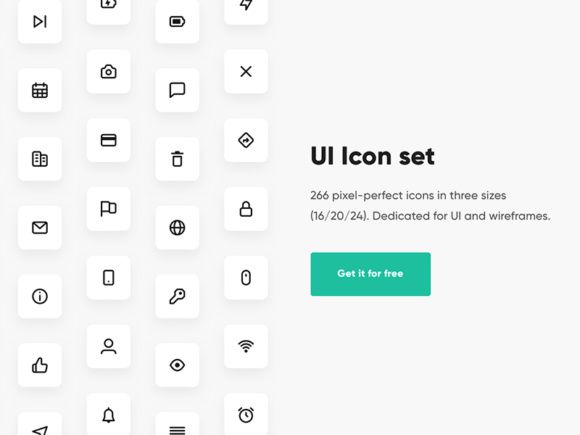




Try Our Free Resources
Download any of these for free - no account required

Getting Started with Icons in Sketch
Using icons effectively in your Sketch projects can dramatically enhance both the visual appeal and usability of your designs. Whether you're crafting user interfaces, mobile apps, or web prototypes, icons serve as powerful visual cues that guide users and streamline communication. Before diving into how to use icons in Sketch, it’s important to ensure your environment is properly set up. Sketch is a macOS-exclusive design tool, so you’ll need to be running a compatible version of macOS and have the latest version of Sketch installed from the official website. Keeping your software updated ensures you have access to the newest features, improved performance, and enhanced compatibility with external assets such as icons.
When it comes to sourcing icons for Sketch, you have a variety of options. While some designers create custom icons from scratch using Sketch’s vector tools, many prefer to use pre-designed icon sets to save time and maintain visual consistency. These icon resources are typically available in formats such as SVG, PNG, or Sketch-native files, making them easy to integrate. One of the most reliable sources for high-quality, ready-to-use icon sets is EpicPxls, which offers a curated collection of over 96+ design resources tailored to modern design needs. These resources include scalable vector icons, UI kits, and design assets that are fully compatible with Sketch, ensuring a seamless design experience.
The 96+ resources available on EpicPxls are ideal for both beginners and experienced designers. They are thoughtfully organized, come with detailed documentation, and are frequently updated to meet current design trends. From minimalist line icons to bold filled styles, these assets cover a wide range of use cases. Additionally, many of the icon sets are designed with responsiveness in mind, making them suitable for both web and mobile interfaces. By leveraging these professionally crafted icons, you can maintain design consistency across your projects while significantly reducing development time. With the right setup and access to premium resources like those on EpicPxls, you're well-equipped to start incorporating icons into your Sketch workflows efficiently.
How to Import Icons into Sketch
- Choose the right file format: When downloading icons for use in Sketch, always look for files in Sketch (.sketch), SVG, or PDF formats. These are natively supported and preserve vector quality. While formats like PSD or AI can be opened in Sketch, they may require conversion and could lose some layer structure or styling.
- Download from trusted sources: Visit platforms like EpicPxls to download high-quality, Sketch-ready icons. Ensure the icon pack includes Sketch files or SVGs to minimize compatibility issues. The 96+ resources available here include multiple file types, giving you flexibility depending on your project needs.
- Unzip the downloaded file: Most icon packs come compressed in ZIP format. Use your system’s built-in archive utility or third-party tools to extract the contents to a local folder for easy access.
- Open Sketch and create or open a document: Launch Sketch and either start a new document or open an existing project where you want to use the icons. This ensures you have a workspace ready to receive your imported assets.
- Import the icon file: Go to File > Open to directly open a .sketch file, or use File > Import to bring in SVG or PDF files. Alternatively, you can drag and drop SVG files directly onto the Sketch canvas for quick placement.
- Verify and adjust icons: Once imported, check the Layers panel to ensure all elements are properly structured. Resize or reposition as needed. If importing from AI or PSD files, you may need to ungroup layers or manually adjust paths to regain full editability.
When handling non-Sketch formats, some limitations may arise. For example, PSD files might import with flattened layers, and AI files may lose gradient or transparency effects. SVGs generally perform well but can occasionally bring in grouped layers that require ungrouping for full customization. Always test a few icons before importing entire libraries to ensure quality and consistency. By following these steps, you can reliably bring icons into Sketch and prepare them for seamless integration into your design projects.
Step-by-Step: Working with Icons in Sketch
Editing Layers and Components
One of the main advantages of using vector-based icons in Sketch is the ability to fully customize them. Once an icon is imported, you can dive into the Layers panel to explore its internal structure. Most well-designed icon sets are organized into clearly labeled groups and sublayers, making it easy to identify and modify individual elements. You can adjust colors by selecting a shape and changing its fill in the Inspector panel. Stroke weight, opacity, and corner radius are also editable, allowing you to adapt icons to match your project’s design system.
If you're working with symbols or components—Sketch’s reusable design elements—you can edit one instance and have the changes propagate across all instances. This is especially useful when maintaining consistent iconography across multiple artboards or pages. For example, if you decide to change the color scheme of your app, updating a single symbol will automatically reflect that change everywhere it’s used. To edit a symbol, double-click on it to enter isolation mode, make your adjustments, and exit to save. You can also detach an instance from its symbol if you need a one-off variation without affecting the original.
Organizing Your Icons Library
As your projects grow, so does the number of icons you collect. Organizing them effectively is crucial for long-term efficiency. A best practice is to create a dedicated “Icons” page in your Sketch document where you store all your imported or custom icons. Group them by category (e.g., navigation, social, settings) and name symbols clearly, such as “icon-home-filled” or “icon-user-outline,” to make them easy to find.
For teams, consider maintaining a shared Sketch library. You can publish your icon symbols as a Library file, which others on your team can link to. This ensures everyone uses the same versions and styles, reducing inconsistencies. Platforms like EpicPxls often provide organized symbol libraries within their 96+ resources, giving you a head start on structure and naming conventions. You can also use Sketch’s Overrides feature to allow team members to quickly swap icons or adjust properties without breaking the symbol structure.
Exporting for Production
Once your design is finalized, exporting icons correctly is essential for developers and production environments. Sketch supports multiple export formats, including PNG, SVG, and PDF. For web and mobile apps, SVG is often preferred due to its scalability and small file size. PNG is useful for raster-based outputs or when transparency is needed.
To export, select the icon or symbol and go to the Export section in the Inspector. Click the + button to add export presets. For responsive designs, create multiple scales (e.g., 1x, 2x, 3x) to support different screen densities. If exporting SVGs, ensure the “Compact” option is enabled to reduce file size, and avoid including unnecessary metadata. You can also export entire artboards or symbol pages as spritesheets for efficient frontend integration. Always double-check exported assets to confirm they render correctly across devices and browsers.
Troubleshooting Common Sketch Issues
File Won't Open
If a Sketch file containing icons fails to open, the most common cause is version incompatibility. Older versions of Sketch may not support files created in newer releases. Always ensure you’re running the latest version of Sketch through the Mac App Store or the official website. If you’re collaborating with others, agree on a shared Sketch version to avoid conflicts. Additionally, if the file was originally designed in another tool (like Figma or Adobe Illustrator), conversion issues may prevent proper import. In such cases, try opening the file on a machine with the latest Sketch update or contact the source provider—many of the 96+ resources on EpicPxls include version notes and compatibility details to help avoid these issues.
Missing Fonts or Assets
While icons are typically vector shapes and don’t rely on fonts, some icon sets use icon fonts (like FontAwesome) or linked assets. If you see placeholder boxes or missing elements, it’s likely that a required font isn’t installed on your system. Sketch will notify you of missing fonts upon opening a document. To resolve this, install the required font manually or replace text-based icons with vector alternatives. For symbol libraries that reference external assets, ensure all linked files are in the correct directory. When downloading from trusted sources like EpicPxls, most icon sets are self-contained and don’t require external dependencies, minimizing this risk.
Performance Problems
Large icon libraries or poorly optimized files can slow down Sketch, especially on older hardware. If your document becomes unresponsive, check for overly complex vector paths or excessive nested groups. Simplify paths using Sketch’s Path > Flatten or Path > Simplify tools. Also, avoid importing entire icon libraries at once—instead, bring in only the icons you need. Use Sketch’s Detach from Symbol feature sparingly, as it multiplies layer data. Regularly clean unused symbols via Layer > Remove Unused Symbols to keep your file lean. For long-term projects, consider breaking large libraries into smaller, topic-specific Sketch files to improve performance and navigation.
Advanced Sketch Tips for Icons
Batch Processing
When working with dozens or hundreds of icons, manually adjusting each one can be time-consuming. Sketch allows for batch processing through smart selection and symbol overrides. Use Select > Select All Similar Layers to quickly highlight all icons with the same fill color or name, then apply changes in bulk. You can also use the Replace function in the Overrides panel to swap multiple icons at once. For even greater efficiency, consider using naming conventions that support pattern-based selection, such as “icon-*” prefixes.
Plugins and Extensions
Sketch’s plugin ecosystem can significantly enhance your icon workflow. Plugins like Icon Font, Sketch Runner, and Symbol Organizer help you manage, search, and insert icons faster. Some plugins integrate directly with icon libraries, allowing you to browse and insert assets without leaving Sketch. While many of the 96+ resources on EpicPxls are designed for native use, plugins can help automate repetitive tasks like exporting or renaming. Always download plugins from trusted sources and ensure they’re compatible with your Sketch version to avoid instability.
Collaboration Workflows
For teams, maintaining a shared icon library is essential for consistency. Use Sketch’s Library feature to publish a master icon file that team members can link to their projects. Any updates to the library—such as adding new icons or refining existing ones—will be available to all users once they sync. Establish clear guidelines for icon naming, color usage, and symbol structure to minimize confusion. Regularly audit your library to remove outdated or unused icons. When onboarding new designers, provide documentation or templates based on resources from EpicPxls to ensure a smooth transition and adherence to brand standards.
Why Download from EpicPxls?
Commercial License
Use in personal and commercial projects
No Account Required
Download free resources instantly
Quality Curated
Every resource is reviewed for quality
Preview Files
See Figma and Photoshop files before downloading
Who Uses These Icons?
Professionals and teams who benefit most from our collection
UI/UX Designers
Speed up your workflow with ready-to-use icons for Sketch. Perfect for prototyping and client presentations.
Developers
Get production-ready assets without design skills. Export in any format for web and mobile apps.
Startups & Agencies
Save design budget with affordable premium icons. Commercial license included for client work.
Marketing Teams
Create professional campaigns faster. All icons are optimized for social media and ads.
Icons for Sketch FAQCommon questions about these resources
Simple, Transparent Pricing
Get unlimited access to all premium resources
Yearly
- 20 downloads per month
- All file formats
- Commercial license
Lifetime
- Unlimited downloads forever
- All file formats
- Commercial license
Ready to Get Started?
Access 4,441+ free design resources today.
Browse Free ResourcesView Premium PlansEarn 85% and
more on all sales
Upload your products and put them up
for sale at whatever price you want.


