Icons for Apps: 237+ Resources
EpicPxls offers 181+ curated icons, all with a commercial license and editable source files (Figma, Sketch, PSD). Purpose-built icons for app projects save time and ensure professional results with design elements tailored to app requirements.
Last updated February 12, 2026
Discover 237+ icons ideal for app design projects.
Trusted by designers at leading companies
Top Icons
Handpicked resources from our curated collection
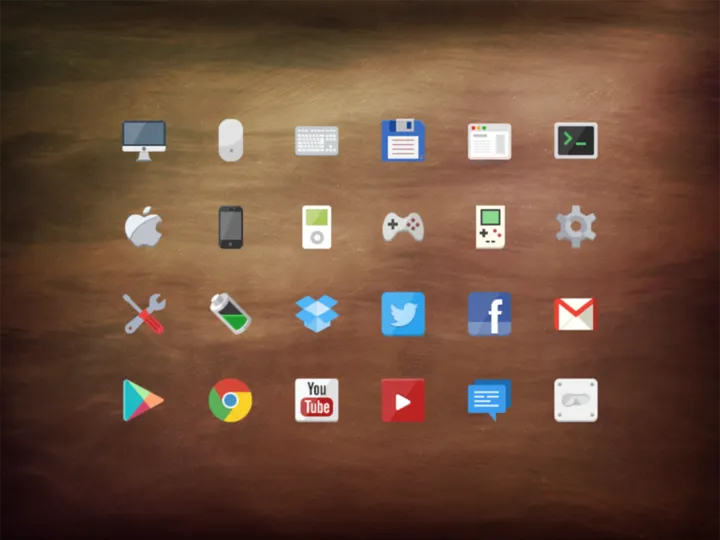

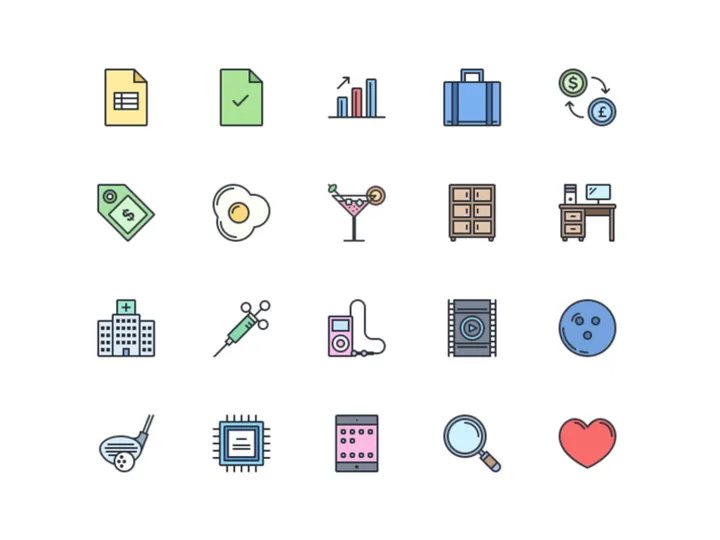
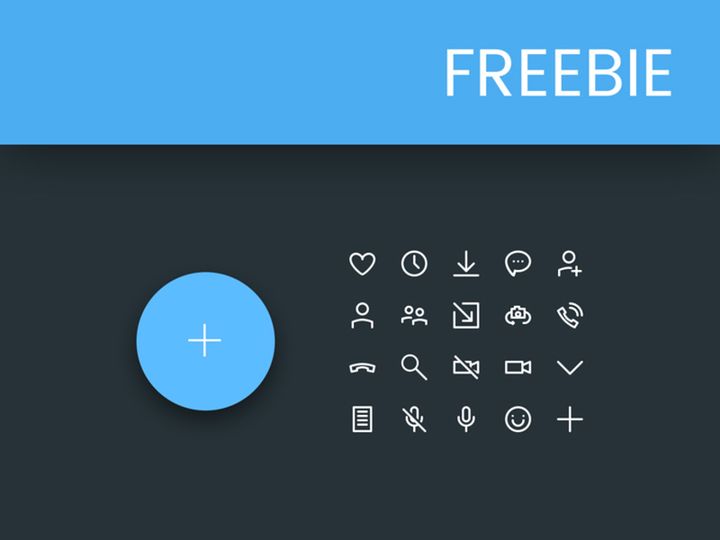
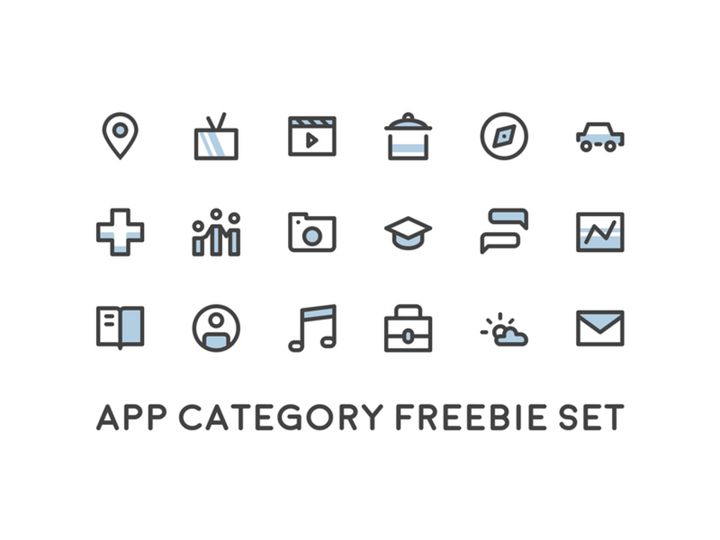
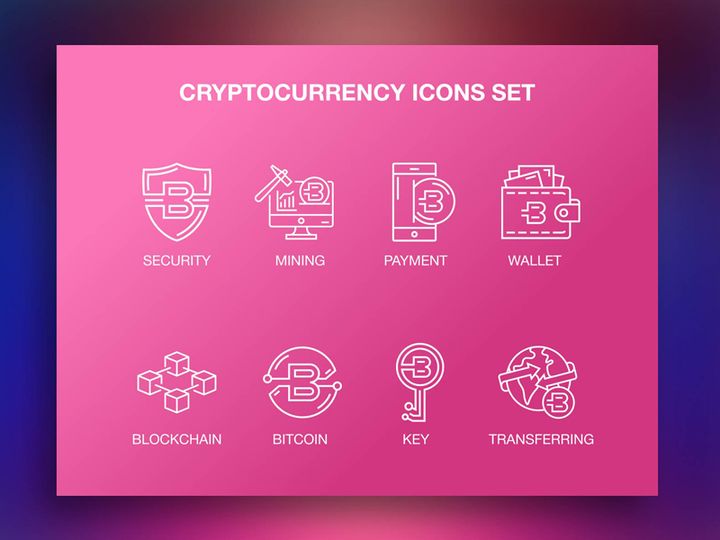

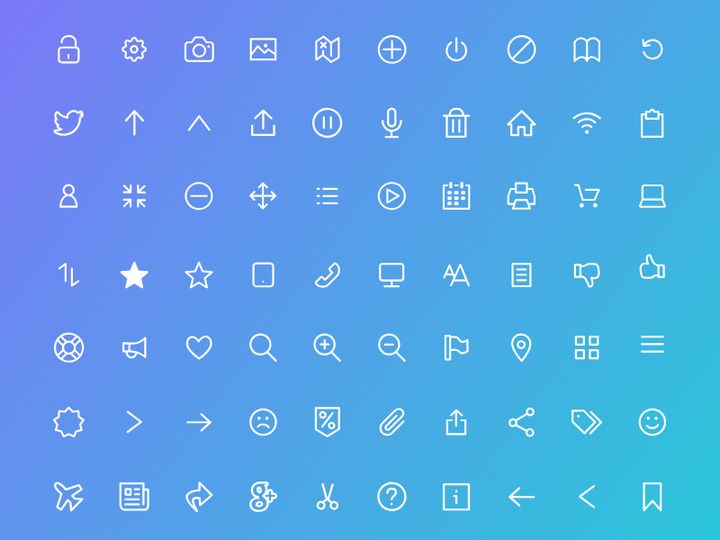


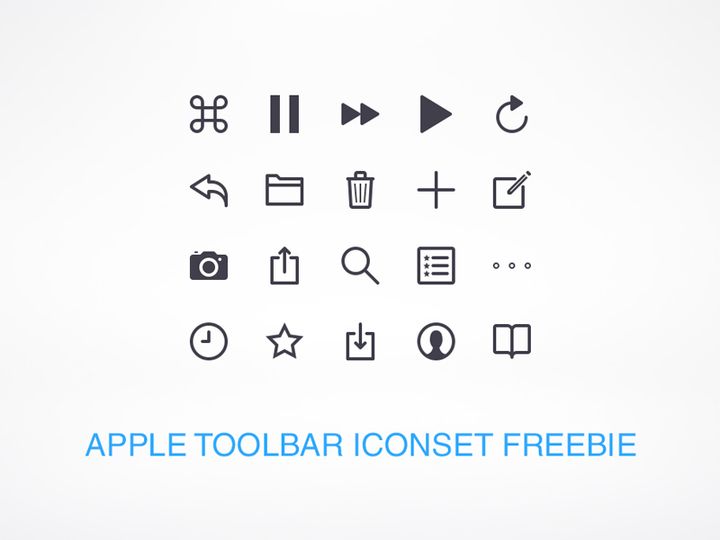
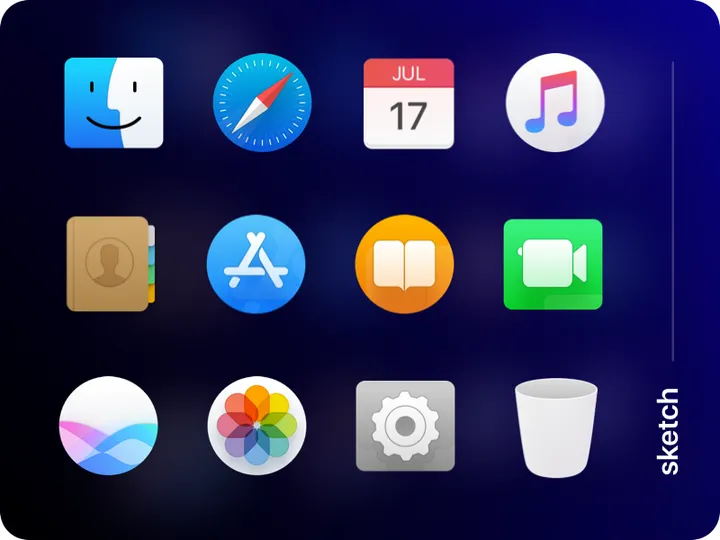


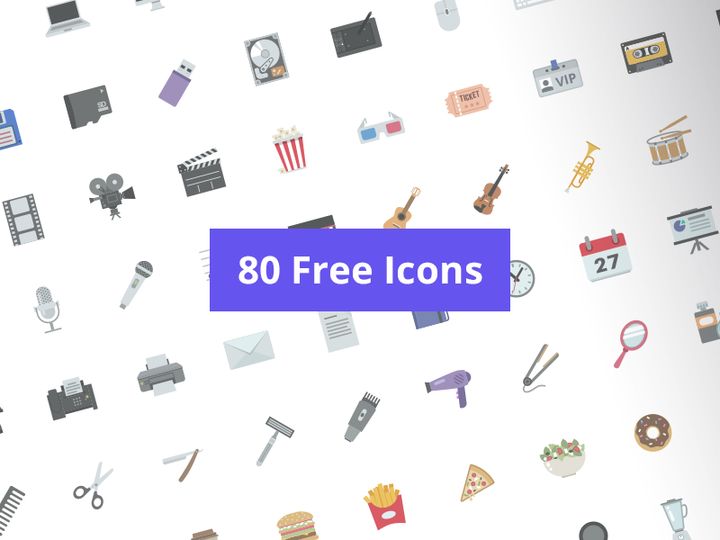

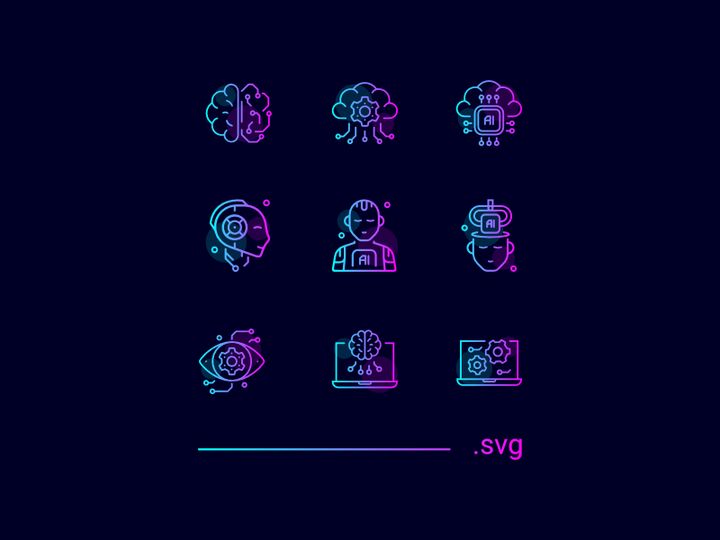
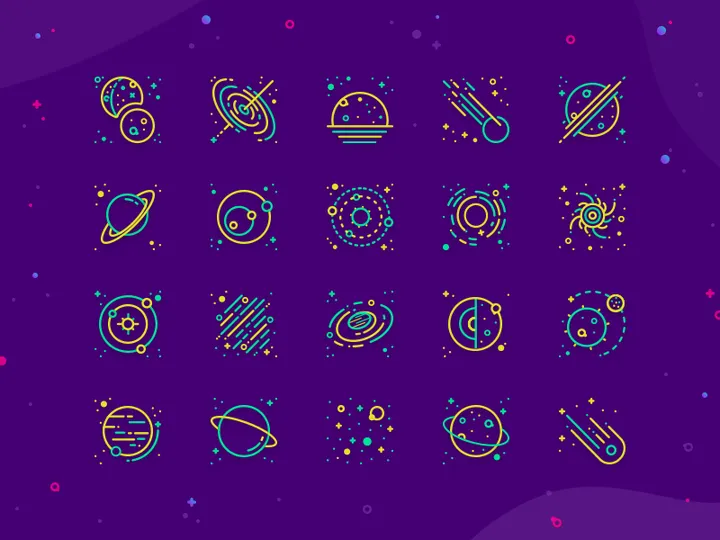

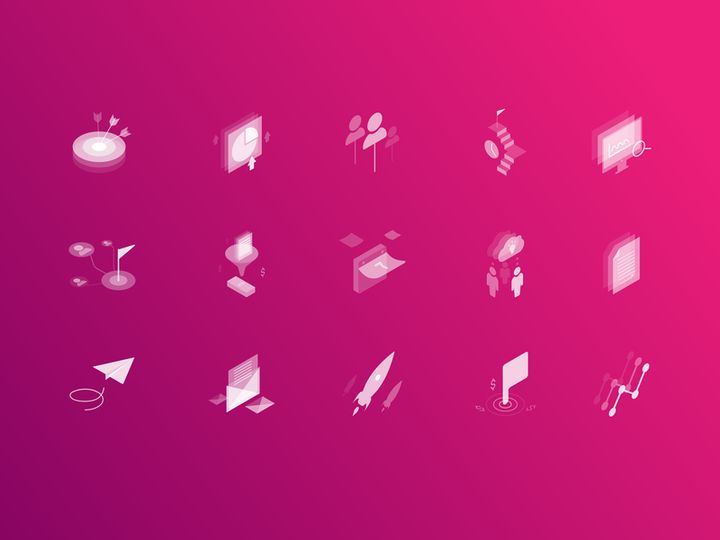
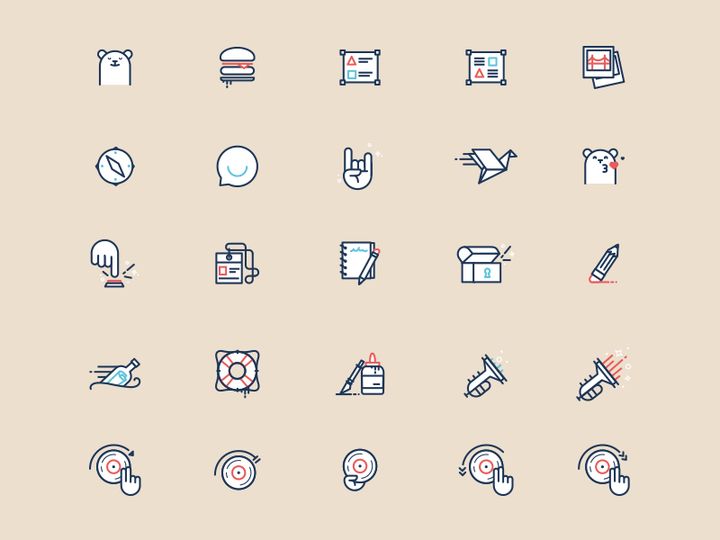
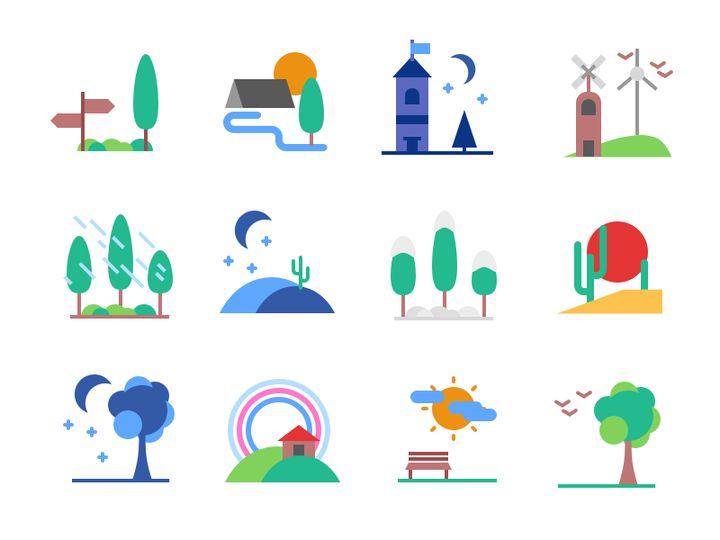
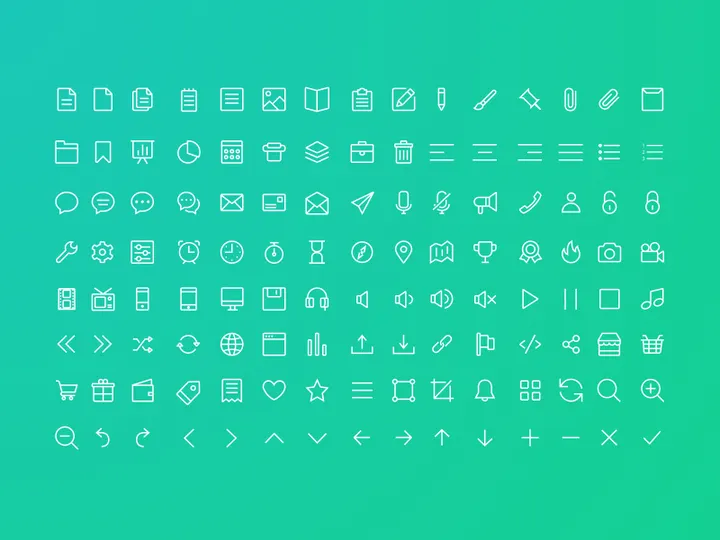
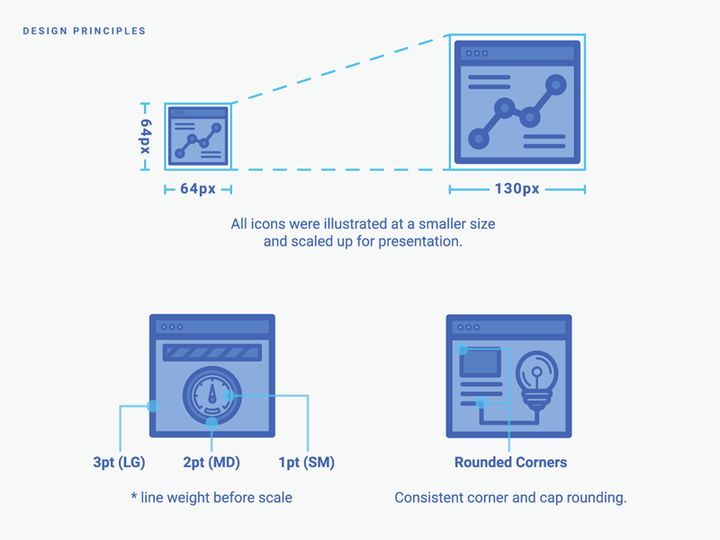
Try Our Free Resources
Download any of these for free - no account required
Why Icons for App Projects?
Icons play a crucial role in modern app design, serving as visual shortcuts that enhance usability, guide user interaction, and improve overall interface aesthetics. In fast-paced development environments, waiting to design every icon from scratch is neither practical nor efficient. That’s where pre-made icons come in—offering app designers a powerful way to accelerate the design process without sacrificing quality. By leveraging professionally designed, app-ready icons, teams can maintain a consistent look and feel across platforms while significantly reducing development time.
App design projects often follow strict guidelines—whether it’s for iOS, Android, or cross-platform applications—requiring icons that are scalable, intuitive, and functional at various sizes. From navigation menus to action buttons and status indicators, the right icons ensure users can interact with an app seamlessly. Pre-made icons eliminate the need for repetitive design work, allowing creators to focus on user experience, functionality, and innovation.
At EpicPxls, we understand the demands of app development. That’s why we’ve curated a comprehensive collection of 237+ resources specifically tailored for app design. Each icon set is selected for clarity, versatility, and compatibility with modern design systems. Whether you're building a productivity app, social platform, or fitness tracker, our handpicked icons integrate smoothly into your workflow. With a focus on usability and visual harmony, the EpicPxls library empowers designers to deliver polished, professional apps faster—without compromising on design integrity.
What App Designers Need
Essential Icon Types
Successful app design relies on a wide range of icon types that support core functionality and enhance navigation. Common categories include navigation icons such as home, search, profile, and menu—essential for guiding users through the app structure. Action icons like play, pause, delete, and share are critical for interactive elements. Status and notification icons, including Wi-Fi, battery, message alerts, and loading indicators, keep users informed. Form and input icons such as checkmarks, dropdown arrows, and calendar symbols improve form usability. Additionally, social media icons, payment method symbols, and accessibility indicators are frequently required in modern apps. Designers need access to diverse, context-specific icons that align with real-world app use cases—something the 237+ resources at EpicPxls deliver with precision.
Format Requirements
The right file format ensures icons render clearly across devices and screen densities. SVG (Scalable Vector Graphics) is ideal for app design because it maintains sharpness at any size and is easily customizable with code. PNG is widely used for raster-based icons, especially when transparency is needed, though it’s less flexible for scaling. For native iOS development, PDF assets are often preferred as they allow vector-based rendering across Apple devices. Android developers typically use XML vector drawables or multiple PNG sizes (mdpi, hdpi, xhdpi, etc.) to support different screen resolutions. When using pre-made icons, having multi-format access streamlines integration into design tools like Figma, Sketch, or Adobe XD, as well as development environments. EpicPxls provides many icons in multiple formats, ensuring seamless compatibility regardless of your app’s technical stack.
Quality Standards
Not all icons are created equal—especially in app design, where clarity and consistency are paramount. High-quality app icons should feature clean lines, balanced stroke weights, and consistent visual language across the set. Pay attention to pixel-perfect alignment, especially at small sizes, where jagged edges or misaligned elements can reduce legibility. Icons should follow platform-specific design guidelines: Material Design for Android and Human Interface Guidelines for iOS. Look for uniform corner radii, icon sizing (typically 24x24px or 48x48px for touch targets), and proper spacing. Transparency and layering should be handled carefully to avoid visual clutter. At EpicPxls, every icon in our 237+ collection is reviewed for technical precision, aesthetic coherence, and real-world usability—ensuring they meet the high standards required for professional app projects.
App Design Project Walkthrough
- Define your app’s core functions and user flow. Begin by outlining key screens and interactions. Identify where icons will be used—navigation bars, buttons, settings, alerts. This helps determine which icon types you’ll need most.
- Select a cohesive icon set from EpicPxls. Browse the 237+ resources and choose a collection that matches your app’s tone—minimalist, bold, outlined, or filled. Stick to one visual style to ensure consistency.
- Download and organize icons by category. Use folders or design system naming conventions (e.g., “navigation,” “actions,” “settings”) to keep assets manageable. Import SVGs or PNGs into your design tool based on platform needs.
- Customize icons for your brand. Adjust colors to match your app’s palette. Use primary, secondary, and disabled states appropriately. Avoid altering stroke weights or proportions, which can break visual harmony.
- Integrate icons into UI components. Place icons in navigation bars, floating action buttons, list items, and modals. Ensure touch targets are at least 44x44px for accessibility. Test spacing and alignment across screen sizes.
- Export and hand off to developers. Provide icons in required formats (SVG, PNG, PDF) along with style guides. Include usage notes—such as active vs. inactive states—to streamline implementation and maintain design integrity.
By following these steps, you can efficiently incorporate icons into your app design while maintaining a professional, user-friendly interface. Combining multiple icons from the same set ensures visual continuity, while thoughtful customization enhances brand identity. With EpicPxls’ extensive library, finding the right icons for every stage of your project becomes a seamless part of the design journey.
App Design Workflow Tips
Speed Up Your Process
Time is a critical factor in app development, and using pre-made icons is one of the most effective ways to accelerate your workflow. Instead of drafting, refining, and exporting each icon individually, you can instantly access ready-to-use assets from a reliable source like EpicPxls. This is especially useful during rapid prototyping or tight deadlines. By leveraging the 237+ resources available, designers can quickly populate wireframes and high-fidelity mockups with professional-grade icons. Many sets include comprehensive coverage—meaning you’ll likely find every symbol you need in one download. Use keyboard shortcuts, component libraries, and design tokens to further streamline insertion and styling. With pre-built assets, you gain hours back in your schedule, allowing more time for user testing, iteration, and innovation.
Maintain Consistency
One of the biggest challenges in app design is ensuring visual consistency across screens and components. Icons from different sources often vary in weight, size, and style, leading to a disjointed user experience. To avoid this, select all your icons from a single, well-designed set. EpicPxls emphasizes cohesive collections where every icon shares the same stroke width, corner radius, and optical sizing—making them work harmoniously together. Establish a design system early: define icon sizes for different contexts (e.g., 24px for toolbars, 16px for inline text), set default colors, and document usage rules. Use reusable components in your design tool to enforce standards. When consistency is baked into your workflow, the final app feels polished and intuitive, reinforcing trust and usability.
Client Presentation
Presenting your app design to clients or stakeholders requires clarity and professionalism. Use high-fidelity mockups that showcase icons in context—on buttons, menus, and interactive elements. Highlight how icons improve navigation and reduce cognitive load. Include a style guide slide that explains your icon choices, showing the source (e.g., EpicPxls), customization applied, and accessibility considerations. This demonstrates attention to detail and builds confidence in your design decisions. When clients see a cohesive, thoughtfully integrated interface, they’re more likely to approve the direction and appreciate the value of using premium, app-ready resources. Delivering a polished presentation not only wins buy-in but also positions you as a meticulous, forward-thinking designer.
App Design Inspiration
Staying inspired is essential for creating innovative and user-centered app experiences. Current trends in app design emphasize minimalism, micro-interactions, and adaptive icons that respond to user behavior. Designers are increasingly using dynamic color schemes, dark mode compatibility, and contextual iconography that changes based on state or environment. Another growing trend is the use of illustrative icons or animated icons to add personality and engagement without cluttering the interface. Top designers approach app projects with a user-first mindset, focusing on clarity, speed, and emotional resonance. They often start with icon sets that provide a solid foundation, then refine them to match brand identity and user expectations.
For those looking to elevate their app design work, resources like EpicPxls offer not just icons, but inspiration through curated, trend-aware collections. Exploring the 237+ resources can spark new ideas for layout, interaction, and visual storytelling. Follow design communities, study award-winning apps, and analyze how leading brands use icons to communicate function and emotion. By combining high-quality assets with creative vision, you can craft app experiences that are not only functional but memorable. Whether you’re designing a startup MVP or a large-scale enterprise application, the right icons are a powerful tool for making your app stand out in a crowded marketplace.
Why Download from EpicPxls?
Commercial License
Use in personal and commercial projects
No Account Required
Download free resources instantly
Quality Curated
Every resource is reviewed for quality
Preview Files
See Figma and Photoshop files before downloading
Who Uses These Icons?
Professionals and teams who benefit most from our collection
UI/UX Designers
Speed up your workflow with ready-to-use icons for design tools. Perfect for prototyping and client presentations.
Developers
Get production-ready assets without design skills. Export in any format for web and mobile apps.
Startups & Agencies
Save design budget with affordable premium icons. Commercial license included.
Marketing Teams
Create professional campaigns faster. All icons are optimized for social media and ads.
Icons FAQCommon questions about these resources
Simple, Transparent Pricing
Get unlimited access to all premium resources
Yearly
- 20 downloads per month
- All file formats
- Commercial license
Lifetime
- Unlimited downloads forever
- All file formats
- Commercial license
Ready to Get Started?
Access 4,442+ free design resources today.
Browse Free ResourcesView Premium PlansEarn 85% and
more on all sales
Upload your products and put them up
for sale at whatever price you want.


