How to Use Animation in Adobe XD: Complete Guide
EpicPxls offers 10+ curated animation for Adobe XD, all with a commercial license and editable source files (Figma, Sketch, PSD). Download your chosen animation from EpicPxls, then use Adobe XD's import function. Most resources include Adobe XD-native files for seamless opening.
Last updated February 13, 2026
Everything you need to know about using animation in Adobe XD.
Trusted by designers at leading companies
Top Animation for Adobe XD
Handpicked resources from our curated collection


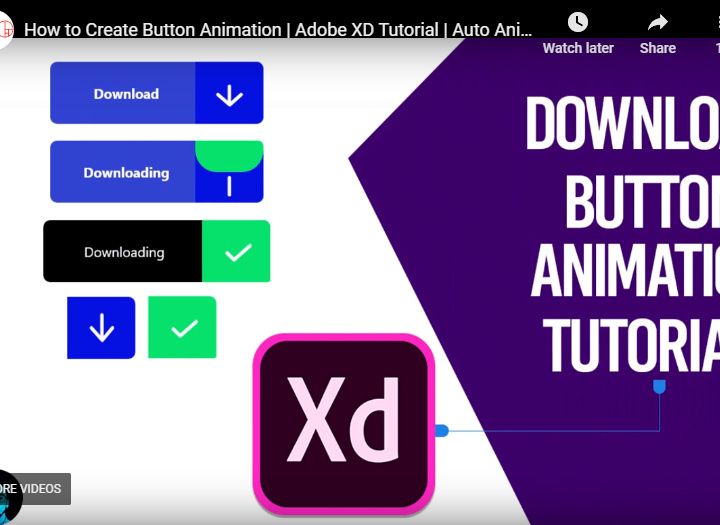

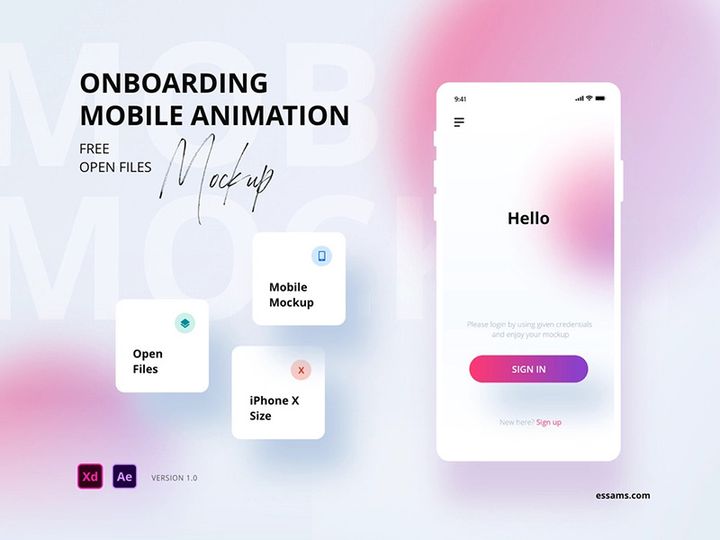
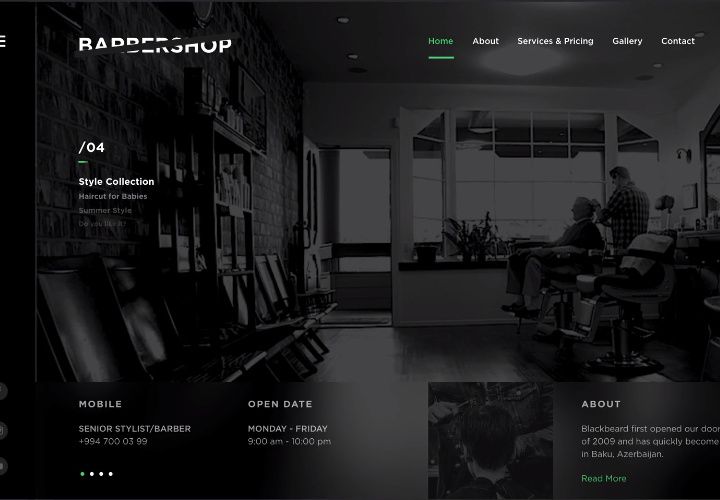



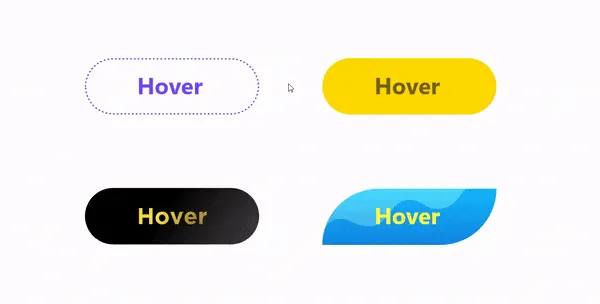
Try Our Free Resources
Download any of these for free - no account required

Getting Started with Animation in Adobe XD
Animation in Adobe XD empowers designers to create dynamic, interactive prototypes that bring ideas to life. Whether you're building a mobile app interface, a web design mockup, or a full user experience prototype, incorporating animation enhances usability and engagement. Before diving into animation, ensure you have Adobe XD installed—available for both Windows and macOS through the Adobe Creative Cloud suite. A stable internet connection and an active Adobe ID are required for installation and plugin access.
Adobe XD supports a variety of animation types, including micro-interactions, transitions, and complex motion design. While the platform allows you to build animations from scratch using its powerful auto-animate and timeline features, many designers choose to accelerate their workflow by integrating pre-built animations. These ready-to-use assets can be sourced from design marketplaces, community libraries, and premium content providers such as EpicPxls, which offers a curated collection of high-quality, professionally designed animations compatible with Adobe XD.
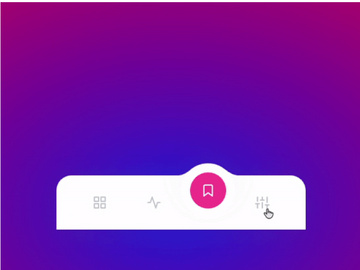
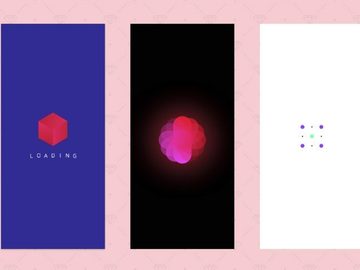
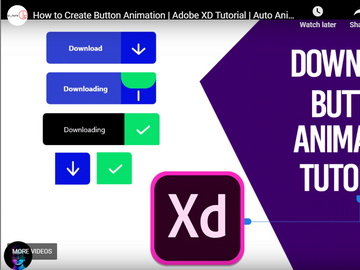
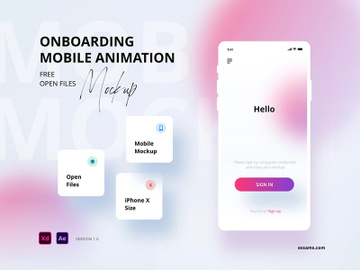
When searching for animation assets, look for files labeled specifically for Adobe XD compatibility—typically with the .xd extension. However, some resources may come in formats like SVG, PSD, or AI and can be imported with slight adjustments. EpicPxls provides over 10+ resources that are optimized for seamless integration into Adobe XD projects, including animated icons, loading spinners, onboarding sequences, and interactive buttons. These assets are designed with clean layers and organized components, making them easy to customize without disrupting your workflow.
Before importing any animation, make sure your Adobe XD version is up to date. Older versions may lack support for newer animation features or file structures. Additionally, enable auto-save and cloud sync to protect your work and streamline collaboration. With the right setup and access to a robust library of animation content, you're ready to begin enhancing your designs with motion.
How to Import Animation into Adobe XD
- Choose the Right File Format: Start by downloading animation assets that are compatible with Adobe XD. Look for .xd files when possible, especially from trusted sources like EpicPxls. These files preserve layers, components, and animation timelines. If only other formats are available, prioritize SVG for vector-based animations or PSD/AI for layered assets with editable components.
- Download and Unzip (if necessary): After downloading, check if the file is compressed in a ZIP folder. Extract it to a designated project folder on your computer. Keeping files organized from the start will save time during import and editing.
- Open Adobe XD: Launch Adobe XD and open the project where you want to import the animation. If starting fresh, create a new artboard that matches the dimensions of the animation asset for best results.
- Use File > Open or Drag-and-Drop: For native .xd files, go to File > Open and navigate to your downloaded file. Alternatively, drag the .xd file directly into the Adobe XD workspace. This opens the file in a new window—copy and paste the desired artboards or layers into your main project.
- Import Non-XD Formats: For SVG, PSD, or AI files, use File > Place to insert the asset into your artboard. Adobe XD will convert the file into editable vectors. Note that animations embedded in these formats may not transfer fully—only visual data is imported. Rebuild motion effects using XD’s auto-animate feature.
- Verify Layer Integrity: After import, check the Layers panel to ensure all elements are present and properly grouped. Rename layers if needed, and verify that states or timeline markers (if any) are intact. If the animation relies on specific components or symbols, ensure they are linked correctly for interaction design.
Tip: When working with multiple file types, consider creating a master library file where you import and organize all external animations before linking them into active projects. This maintains consistency and reduces duplication.
Step-by-Step: Working with Animation in Adobe XD
Editing Layers and Components
Once your animation is imported, you can begin customizing it to fit your design system. Adobe XD’s layer-based structure makes it easy to modify individual elements within an animation. Open the Layers panel to view all components—each frame, state, or moving element will be listed hierarchically. Select any layer to adjust color, size, position, or opacity directly on the canvas.
For reusable animations like buttons or loaders, convert key groups into components. This allows you to create multiple instances across artboards while maintaining consistency. When you edit the master component, all instances update automatically—a powerful feature when refining animation timing or styling. Use the Property Inspector to fine-tune easing curves, duration, and trigger conditions for auto-animate transitions.
If your animation was sourced from EpicPxls, you’ll often find pre-labeled layers and smart components designed for quick edits. Take advantage of this structure to speed up customization. For example, changing the color palette of an animated onboarding screen can be done by selecting all primary elements and applying a new fill color in bulk.
Organizing Your Animation Library
As your project grows, managing multiple animations becomes essential. Create a dedicated “Animations” artboard or file to serve as your central library. Group similar assets—such as micro-interactions, page transitions, and feedback states—into labeled sections. Use clear naming conventions like “Button-Hover-SlideIn” or “Loader-Pulse-Circle” to make searching easier.
Leverage Adobe XD’s Assets Panel to store reusable components and animations. Drag components into the “Components” section of the Assets Panel so they’re accessible across all documents linked to your Creative Cloud library. This is especially useful when working with a team or across multiple projects.
With over 10+ resources available from premium providers, maintaining organization prevents clutter. Consider tagging or color-coding components based on function or project phase. Regularly audit your library to remove outdated or unused animations and ensure optimal performance.
Exporting for Production
When your animated prototype is ready for handoff, Adobe XD offers flexible export options tailored to different platforms. To export individual frames or assets, select the desired element and go to File > Export. Choose formats like PNG, JPEG, or SVG depending on the use case—SVG is ideal for scalable vector animations on the web.
For developers needing animation specifications, use the Prototype mode to share interactive links. These include timing, easing, and interaction details crucial for accurate implementation. You can also generate code snippets for CSS transitions or Lottie-compatible JSON if using third-party tools downstream.
If your animation includes motion paths or complex sequences, consider exporting as a video (MP4) for stakeholder reviews. Navigate to File > Export > Video and adjust frame rate and duration. Note that video exports are for presentation only and do not retain editability.
For production handoff, ensure all fonts are synced via Adobe Fonts and assets are properly linked. Use the Share for Development feature to provide precise measurements, color codes, and asset exports—streamlining collaboration between design and development teams.
Troubleshooting Common Adobe XD Issues
File Won't Open
If an animation file fails to open in Adobe XD, the most common cause is version incompatibility. Files created in newer versions may not be backward-compatible with older installations. Always ensure you are running the latest version of Adobe XD through Creative Cloud. If you're receiving a file from a third party—such as one of the 10+ resources from EpicPxls—verify the XD version used and update your software accordingly. In rare cases, corrupted downloads can prevent opening. Re-download the file and check its integrity before attempting to open again.
Missing Fonts or Assets
When imported animations display missing fonts, it’s typically because the typefaces aren’t installed on your system. Adobe XD shows warnings in the Character panel when a font is unavailable. Resolve this by syncing the required font via Adobe Fonts—simply click the “Sync” option next to the missing font name. If the animation uses custom or third-party fonts not available in Adobe Fonts, contact the provider for licensing details or substitute with a similar typeface.
Similarly, missing linked assets—like external images or icons—can break an animation’s appearance. Use the Assets panel to identify broken links and relink them manually. When using premium resources, ensure all dependencies are included in the original download package.
Performance Problems
Large animation files with numerous layers, high-resolution images, or complex vector paths can slow down Adobe XD. To improve performance, simplify vector shapes using the Path Cleanup tool, compress embedded images, and flatten non-essential layers. Avoid overusing effects like drop shadows or blurs on animated elements, as these increase rendering load.
Break large projects into smaller files—one for core UI and another for animations—and link them via shared libraries. This modular approach enhances stability and speeds up load times. Regularly save and restart Adobe XD to clear cached data, especially after extensive editing sessions.
Advanced Adobe XD Tips for Animation
Batch Processing
When working with multiple animation assets—such as a suite of icons or notification states—use batch processing techniques to apply changes efficiently. While Adobe XD doesn’t have native batch edit tools, you can streamline updates by leveraging components. Create a master component for your base animation, then duplicate it across variations. Any change to the master (e.g., color, stroke weight) propagates to all instances. For global color or text style changes, use the Design Panel’s color and character libraries to update themes across your entire document in one click.
Plugins and Extensions
Extend Adobe XD's animation capabilities with plugins from the official Adobe Plugin Manager. Search for tools that automate repetitive tasks, such as generating frame sequences, syncing timing curves, or exporting Lottie-compatible JSON. Plugins like “Animated GIF” or “Micro-Interactions” can enhance your workflow, especially when refining subtle motions. Always download plugins from trusted sources to ensure security and compatibility. Many premium resources from EpicPxls are designed to work seamlessly with popular XD plugins, enabling enhanced customization and integration.
Collaboration Workflows
Team-based design benefits greatly from shared animation libraries. Use Adobe Creative Cloud Libraries to publish components, colors, and animations for team access. Invite collaborators to your project via Share > Share for Design, allowing real-time feedback and editing. Set up version-controlled folders where updated animations are stored and documented.
For organizations using a centralized design system, link frequently used animations—like loading indicators or swipe gestures—to a master XD file. Team members can import these via the Assets Panel, ensuring consistency across products. With over 10+ resources available for immediate use, teams can rapidly prototype and iterate without reinventing common interactions. Establish naming standards and review cycles to maintain quality and efficiency in collaborative environments.
Why Download from EpicPxls?
Commercial License
Use in personal and commercial projects
No Account Required
Download free resources instantly
Quality Curated
Every resource is reviewed for quality
Preview Files
See Figma and Photoshop files before downloading
Who Uses These Animation?
Professionals and teams who benefit most from our collection
UI/UX Designers
Speed up your workflow with ready-to-use animation for Adobe XD. Perfect for prototyping and client presentations.
Developers
Get production-ready assets without design skills. Export in any format for web and mobile apps.
Startups & Agencies
Save design budget with affordable premium animation. Commercial license included.
Marketing Teams
Create professional campaigns faster. All animation are optimized for social media and ads.
Animation for Adobe XD FAQCommon questions about these resources
Simple, Transparent Pricing
Get unlimited access to all premium resources
Yearly
- 20 downloads per month
- All file formats
- Commercial license
Lifetime
- Unlimited downloads forever
- All file formats
- Commercial license
Ready to Get Started?
Access 4,440+ free design resources today.
Browse Free ResourcesView Premium PlansEarn 85% and
more on all sales
Upload your products and put them up
for sale at whatever price you want.


