How to Use Mockups in Sketch: Complete Guide
EpicPxls offers 38+ curated mockups for Sketch, all with a commercial license and editable source files (Figma, Sketch, PSD). Download your chosen mockups from EpicPxls, then use Sketch's import function. Most resources include Sketch-native files for seamless opening.
Last updated February 13, 2026
Everything you need to know about using mockups in Sketch.
Trusted by designers at leading companies
Top Mockups for Sketch
Handpicked resources from our curated collection
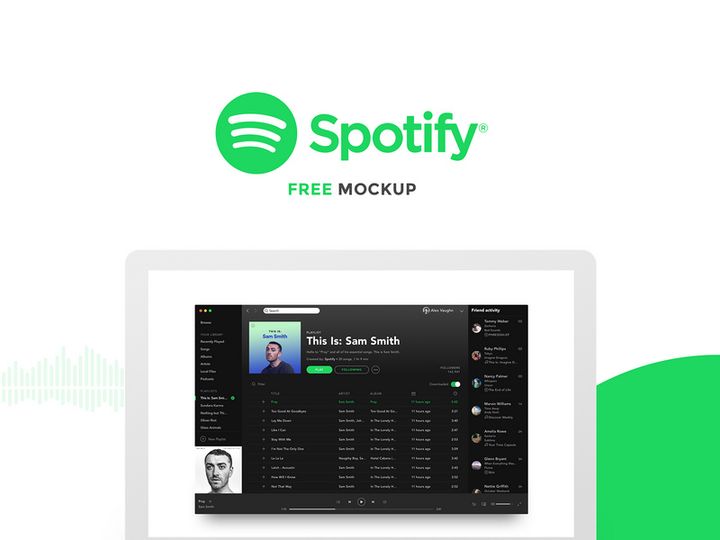
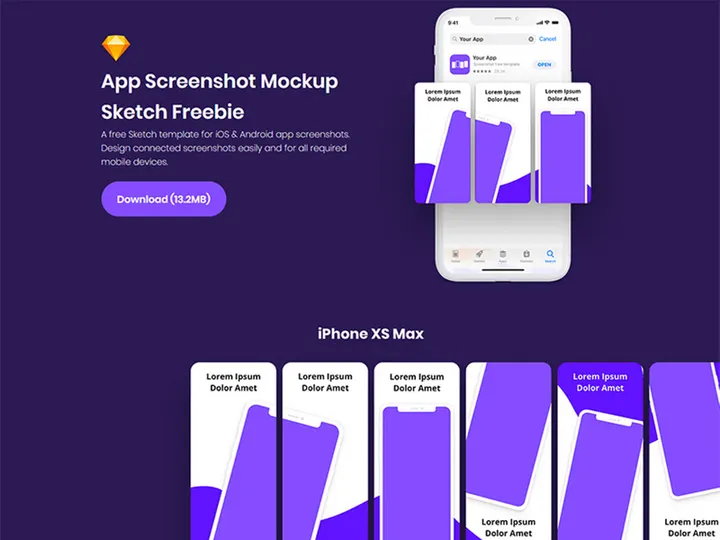
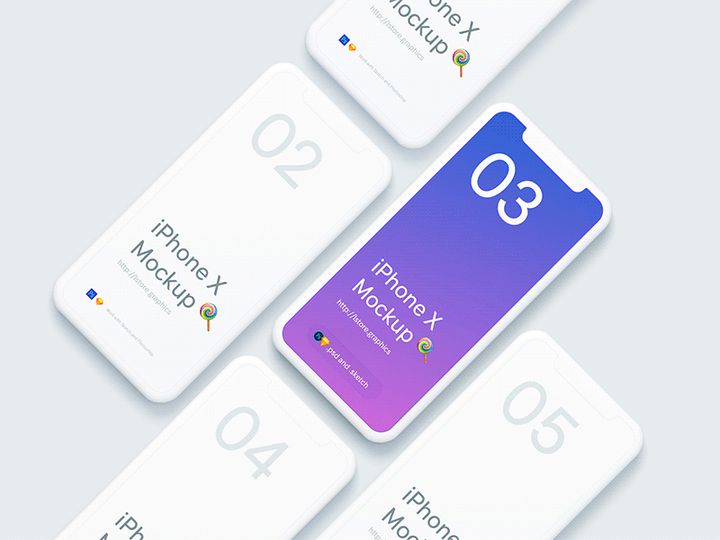
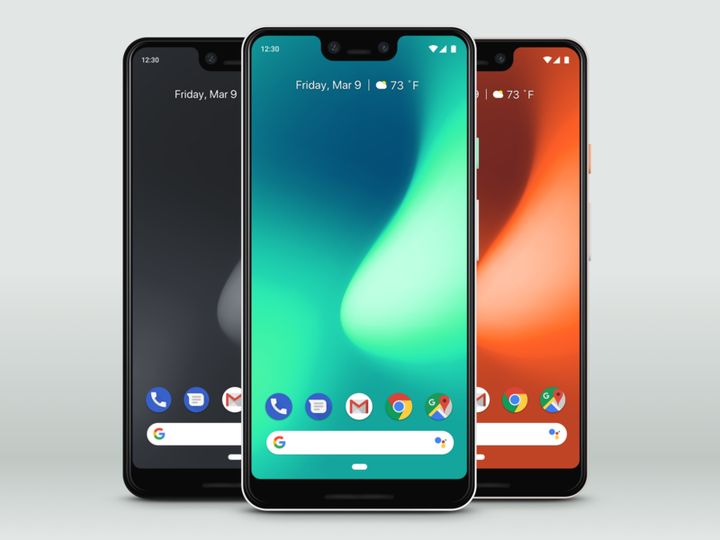
![Google Pixel Mockup [PSD, Sketch] preview picture](https://imgproxy.epicpxls.com/0S9OGY_9_ODKLxjds_PmC53SgImFi3raoTcTGolkJec/rs:fill:720:540:0/g:no/aHR0cHM6Ly9pdGVt/cy5lcGljcHhscy5j/b20vdXBsb2Fkcy9w/aG90by9jNjY0OGE4/ZGZiMTU5Zjk4NjJh/ZGJiYzcwZmNkODUx/NC5qcGc.jpg)
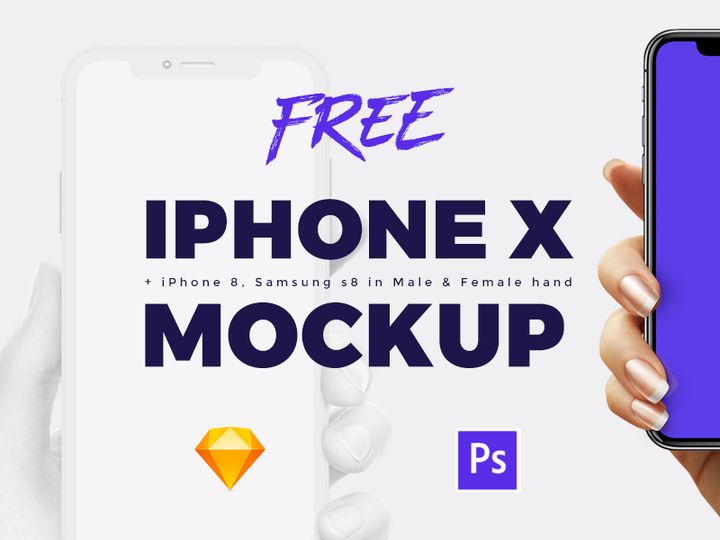

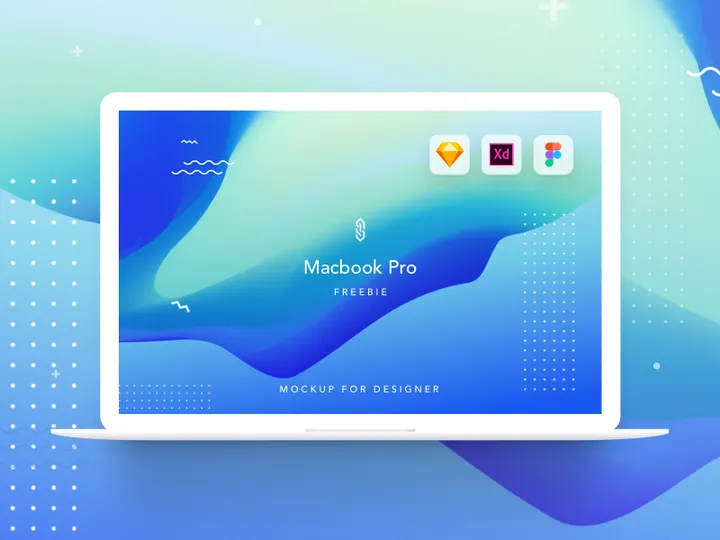
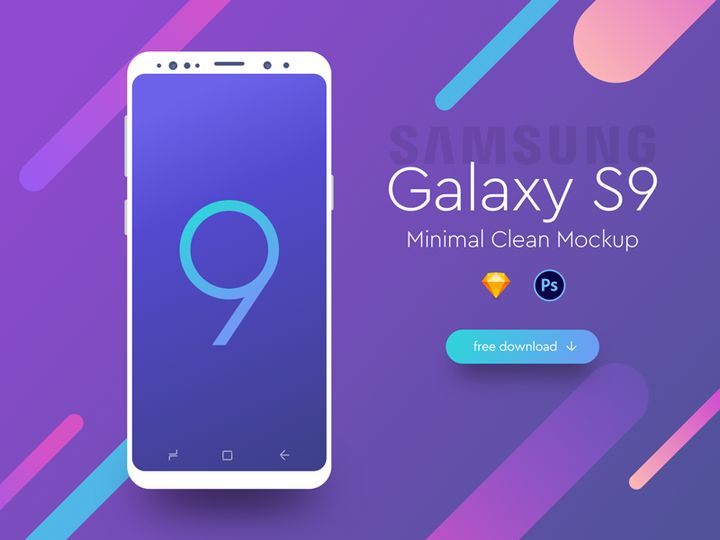
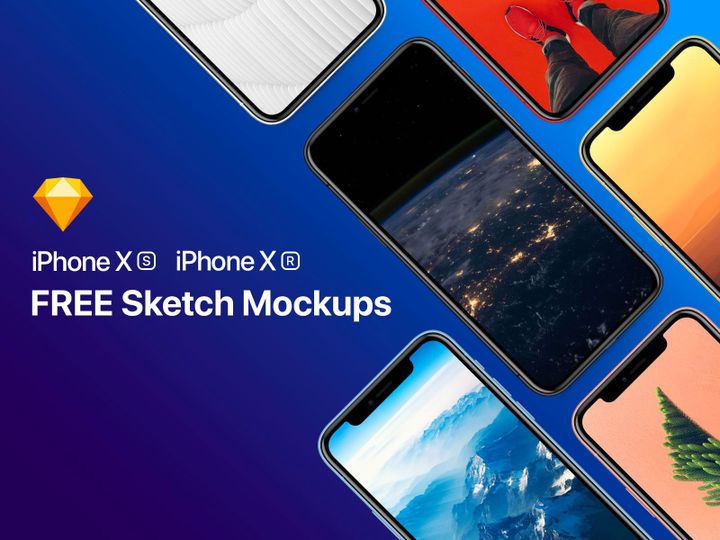
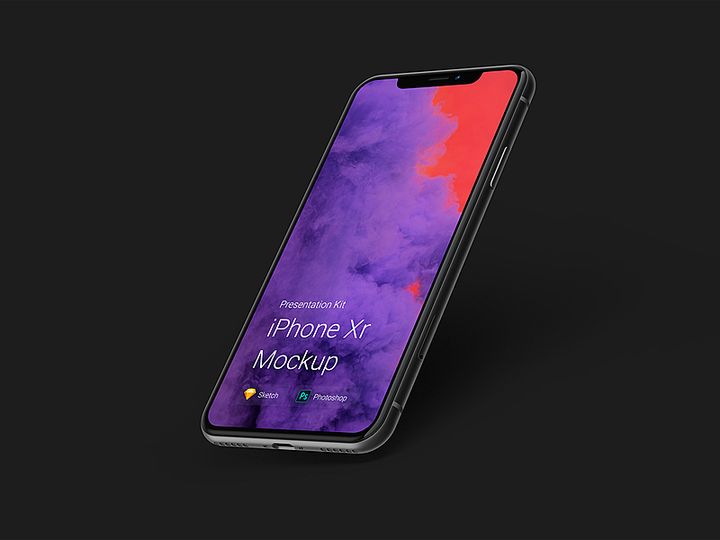
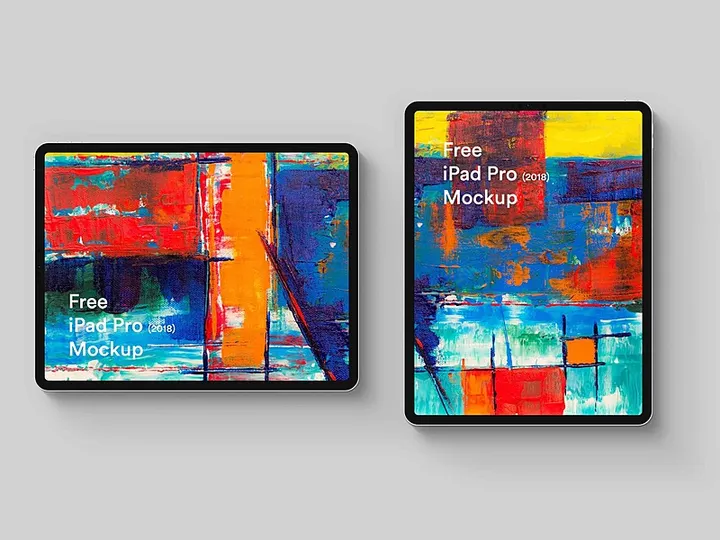
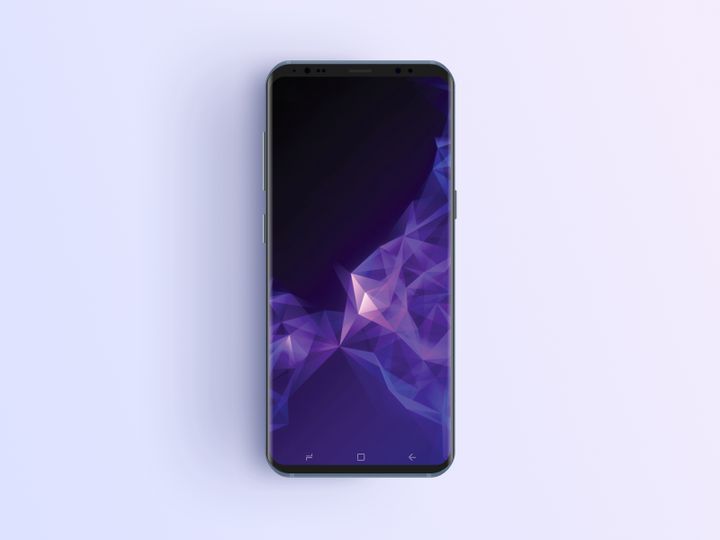
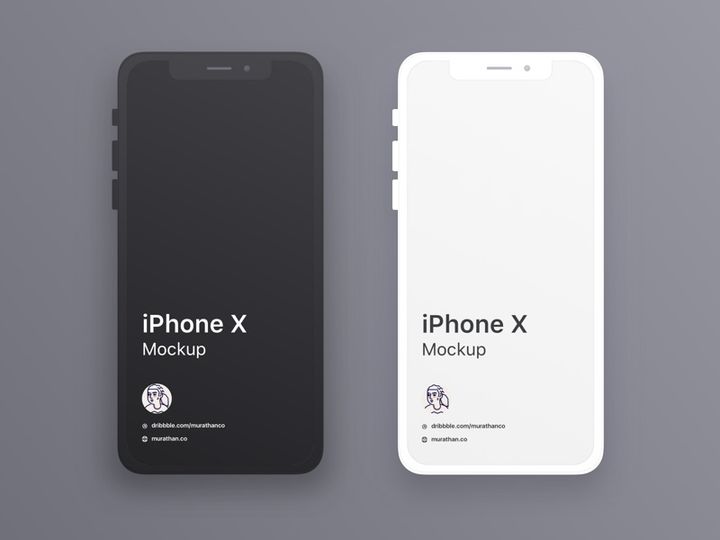

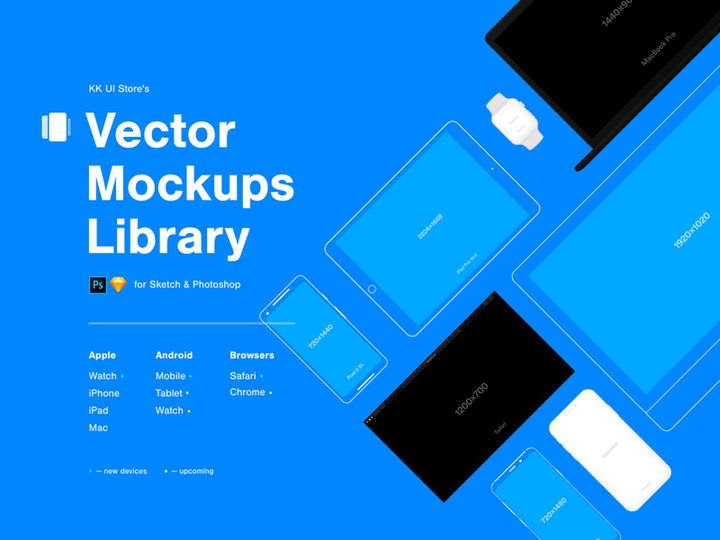
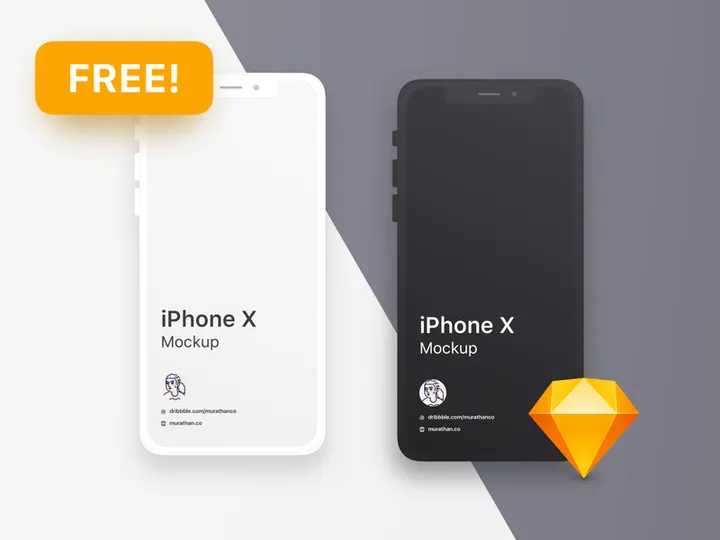
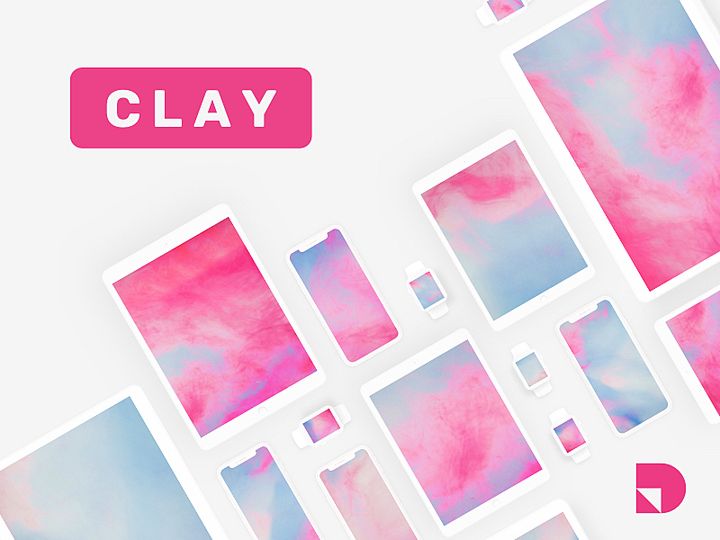
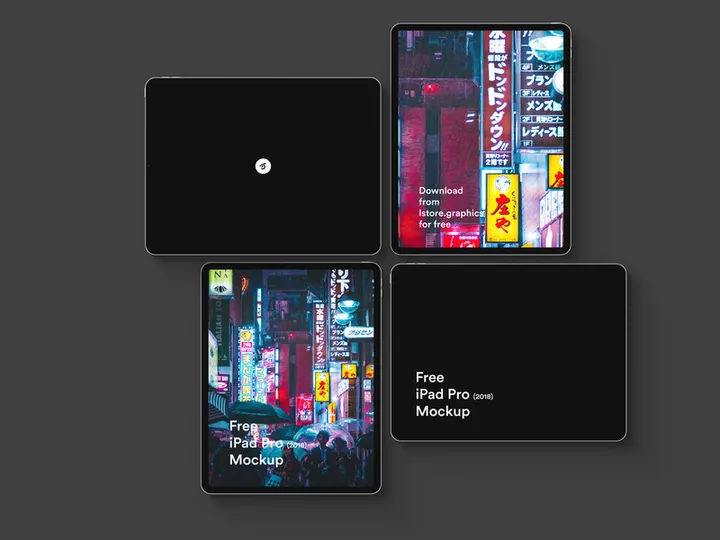
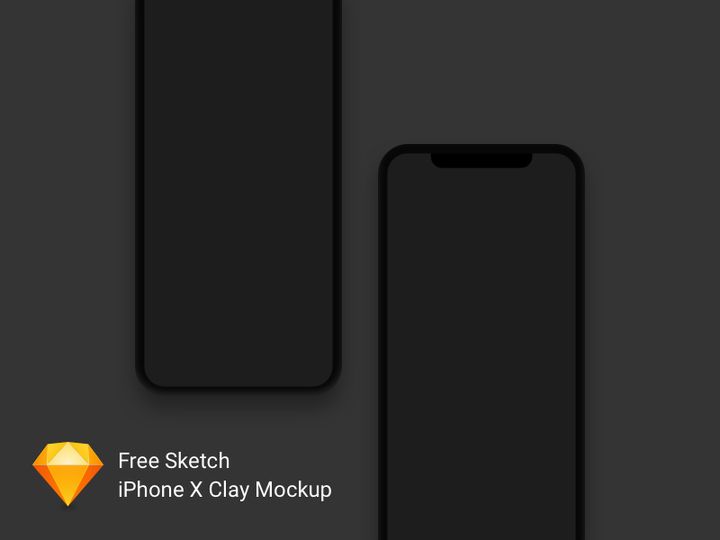
Try Our Free Resources
Download any of these for free - no account required
![Google Pixel Mockup [PSD, Sketch]](https://items.epicpxls.com/uploads/photo/32214a74cd700a539bfccf0de073e6ff.jpg)
Getting Started with Mockups in Sketch
Mockups are essential tools for designers aiming to present their UI/UX concepts in realistic contexts. Whether you're showcasing a mobile app on a smartphone or a website on a laptop screen, mockups add professionalism and clarity to your design presentations. Sketch, a popular vector-based design tool, offers seamless integration with mockup resources, making it an ideal platform for digital designers. Before diving into using mockups in Sketch, ensure you have the latest version of Sketch installed on your macOS device, as older versions may not support newer file features or plugins.
To get started, you’ll need access to high-quality mockups compatible with Sketch. Many designers turn to curated platforms like EpicPxls, which offers a diverse collection of over 38+ resources ranging from device mockups to stationery and apparel templates. These mockups are typically available in Sketch-native formats (.sketch), ensuring a smooth import and editing experience. Additionally, some resources come with integrated smart objects or pre-built artboards, streamlining your workflow and reducing setup time.
When selecting mockups, prioritize those labeled as “Sketch-compatible” or “native Sketch files” for the best results. These files are optimized for Sketch’s layer structure and symbol system, allowing for easy customization. The 38+ resources available on EpicPxls are carefully categorized by use case—such as mobile, desktop, print, and branding—making it simple to find the right mockup for your project. Before importing, ensure your Sketch preferences are set to auto-reload external changes and that you have sufficient storage space for larger mockup files. With the right setup and resources, you’re ready to enhance your designs with professional mockups directly in Sketch.
How to Import Mockups into Sketch
- Download the Correct File Format: Always ensure you’re downloading a .sketch file when possible. While some mockup providers offer PSD, AI, or Figma versions, the .sketch format ensures full compatibility with Sketch’s layer system, symbols, and artboards. If only a PSD or AI file is available, consider using conversion tools or plugins that support layer preservation during import.
- Extract the Downloaded File: Most mockups come in a compressed .zip folder. Double-click to extract the contents. Look for the .sketch file inside the extracted folder—this is the file you’ll open in Sketch.
- Open Sketch and Launch the File: Launch Sketch and go to File > Open, then navigate to the extracted .sketch file. Click “Open” to load the mockup into your workspace. If prompted about missing fonts or assets, note them for later resolution.
- Review the Layer Structure: Once opened, explore the Layers panel on the left. Well-organized mockups will have clearly named layers, groups, and symbols. Look for layers labeled “Smart Object,” “Replace Me,” or “Insert Design” — these indicate where your artwork should be placed.
- Handle Non-Sketch Formats (PSD, AI, SVG): If you’re working with a PSD or AI file, Sketch can import these, but some layer effects or vector paths may not translate perfectly. Use File > Import and select the file. For SVGs, drag and drop directly into the canvas. Always check alignment and scaling afterward.
- Integrate Figma Mockups (if needed): While Sketch doesn’t natively open Figma files, you can export individual layers or artboards from Figma as SVG or PNG and import them into Sketch. Alternatively, use third-party converters that maintain layer integrity, though direct .sketch files remain the best option for seamless integration.
By following these steps, you ensure that your mockup imports are clean, organized, and ready for customization. Resources from EpicPxls are optimized for this workflow, often including detailed instructions within the file to guide your next steps.
Step-by-Step: Working with Mockups in Sketch
Editing Layers and Components
One of the most powerful aspects of using mockups in Sketch is the ability to customize them without altering their structural integrity. After importing a mockup, locate the designated design layer—often a placeholder rectangle or labeled group. To insert your design, simply drag your artboard or exported image into the placeholder area. Right-click the layer and select Replace Image or use Sketch’s drag-and-drop feature for instant updates.
For vector-based mockups, you can directly edit colors, shapes, and shadows using Sketch’s built-in tools. Take advantage of Symbols and Shared Styles if the mockup includes them—this allows consistent changes across multiple instances. For example, if you’re using a smartphone mockup with different screen states, editing the master symbol updates all variations simultaneously. Always lock background elements and device frames to prevent accidental edits. With the 38+ resources from EpicPxls, you’ll often find pre-built symbols and organized groups that make customization intuitive and efficient.
Organizing Your Mockups Library
As your collection of mockups grows, maintaining an organized library becomes crucial. Create a dedicated folder on your computer named “Sketch Mockups” and subdivide it by category—e.g., “Mobile Devices,” “Desktop Screens,” “Print & Packaging.” Within Sketch, use Pages to separate mockup types. For example, keep all mobile mockups on one page and branding mockups on another.
Use consistent naming conventions for artboards and symbols. Instead of “Artboard 1,” name it “iPhone 15 – App Preview – Dark Mode.” This improves searchability and team collaboration. Consider creating a “Master Library” document where you store frequently used mockups. You can then link this library to other Sketch files using Linked Symbols, ensuring updates propagate across projects. The EpicPxls collection supports this workflow with cleanly layered files designed for reuse and scalability.
Exporting for Production
Once your mockup is customized, it’s time to export for presentation or handoff. Select the artboard containing your mockup and go to the Export section in the right-hand panel. Choose the appropriate format: PNG for high-quality raster images with transparency, JPG for smaller file sizes without transparency, and PDF for print-ready outputs.
For web and mobile presentations, export at 2x resolution to ensure crispness on Retina displays. Check the “Include in Export” box only for layers you want to appear—hide any guides or placeholder layers before exporting. If you’re delivering assets to developers, use Sketch’s Export feature to generate multiple sizes (1x, 2x, 3x) automatically. For animation or interactive prototypes, export individual layers or artboards and integrate them into prototyping tools. The mockups from EpicPxls are pre-optimized for these export workflows, supporting both digital and print use cases across the 38+ resources available.
Troubleshooting Common Sketch Issues
File Won't Open
If a mockup file fails to open in Sketch, the most common cause is version incompatibility. Sketch frequently updates its file format, and older versions cannot open files saved in newer versions. Always ensure you’re running the latest version of Sketch via the Mac App Store or Sketch’s official website. If you’re on a team, standardize the Sketch version across all members. Additionally, verify that the file is indeed a .sketch file and not corrupted during download. Try re-downloading the file from your source—especially if it’s from a trusted provider like EpicPxls, where files are regularly tested for integrity.
Missing Fonts or Assets
Upon opening a mockup, you may see a warning about missing fonts. Sketch displays substitute fonts, but this can affect layout and spacing. To resolve this, identify the required fonts listed in the mockup’s documentation or layer names. Many EpicPxls mockups use free, widely available fonts such as SF Pro, Inter, or Roboto, which you can download from reputable font libraries. Install the fonts on your system and restart Sketch—the correct typefaces should now appear. For missing images or linked assets, ensure that any accompanying image folders are in the same directory as the .sketch file, or relink them manually through the image properties panel.
Performance Problems
Large mockup files, especially those with high-resolution textures or complex shadows, can slow down Sketch. If you experience lag or crashes, start by detaching or flattening unnecessary layers. Avoid keeping multiple high-res mockups open in the same document—use separate files instead. Disable real-time preview features like “Show Pixels” or “Snap to Pixel” during editing to improve responsiveness. For intensive projects, consider using Sketch’s Detach from Library option on symbols to reduce file dependencies. Splitting your work across multiple Sketch files—one for design, one for mockups—can also enhance performance. The 38+ resources on EpicPxls are optimized for performance, with balanced layer counts and vector-based elements to minimize strain on your system.
Advanced Sketch Tips for Mockups
Batch Processing
When working on a design system or client presentation requiring multiple mockup variations, batch processing can save significant time. Use Sketch’s Export feature to select all relevant artboards and export them simultaneously in your desired formats and resolutions. For even greater efficiency, create a naming convention (e.g., “ProjectX-iPhone15-Dark,” “ProjectX-iPad-Light”) and apply it consistently. Some advanced users combine Sketch with automation tools or scripts to apply designs to multiple mockup templates in one go, though this requires basic scripting knowledge.
Plugins and Extensions
Sketch’s plugin ecosystem enhances mockup workflows dramatically. Install plugins like Resize Me to quickly adjust artboard sizes, or Auto Rename to standardize layer names across mockups. The Mockup Mirror plugin allows live syncing between your design artboard and a mockup frame—any change you make updates instantly in the mockup view. For those using resources from EpicPxls, plugins can help automate repetitive tasks such as applying shadows, adjusting perspective, or replacing multiple images across symbols. Always download plugins from trusted sources and keep them updated to avoid conflicts.
Collaboration Workflows
For team environments, establishing a shared mockups library ensures consistency across projects. Use Sketch’s Library feature to publish your most-used mockups as a shared library. Team members can then access and insert these mockups into their files, with updates pushed automatically when changes are made. This is particularly useful when using standardized templates from EpicPxls across multiple client projects. Combine this with cloud storage solutions like Sketch Cloud or third-party sync tools to maintain version control. Add documentation directly in the Sketch file—using text layers or notes—to guide teammates on how to use each mockup correctly. With proper setup, your team can leverage the full potential of the 38+ resources available, ensuring high-quality, on-brand presentations every time.
Why Download from EpicPxls?
Commercial License
Use in personal and commercial projects
No Account Required
Download free resources instantly
Quality Curated
Every resource is reviewed for quality
Preview Files
See Figma and Photoshop files before downloading
Who Uses These Mockups?
Professionals and teams who benefit most from our collection
UI/UX Designers
Speed up your workflow with ready-to-use mockups for Sketch. Perfect for prototyping and client presentations.
Developers
Get production-ready assets without design skills. Export in any format for web and mobile apps.
Startups & Agencies
Save design budget with affordable premium mockups. Commercial license included.
Marketing Teams
Create professional campaigns faster. All mockups are optimized for social media and ads.
Mockups for Sketch FAQCommon questions about these resources
Simple, Transparent Pricing
Get unlimited access to all premium resources
Yearly
- 20 downloads per month
- All file formats
- Commercial license
Lifetime
- Unlimited downloads forever
- All file formats
- Commercial license
Ready to Get Started?
Access 4,442+ free design resources today.
Browse Free ResourcesView Premium PlansEarn 85% and
more on all sales
Upload your products and put them up
for sale at whatever price you want.


