Mockups for Figma: 27+ Resources
EpicPxls offers 27+ curated mockups for Figma, all with a commercial license and editable source files (Figma, Sketch, PSD). We have 27+ mockups compatible with Figma, tested and verified for seamless integration.
Last updated February 12, 2026
Discover 27+ handpicked mockups for Figma.
Trusted by designers at leading companies
Top Mockups for Figma
Handpicked resources from our curated collection


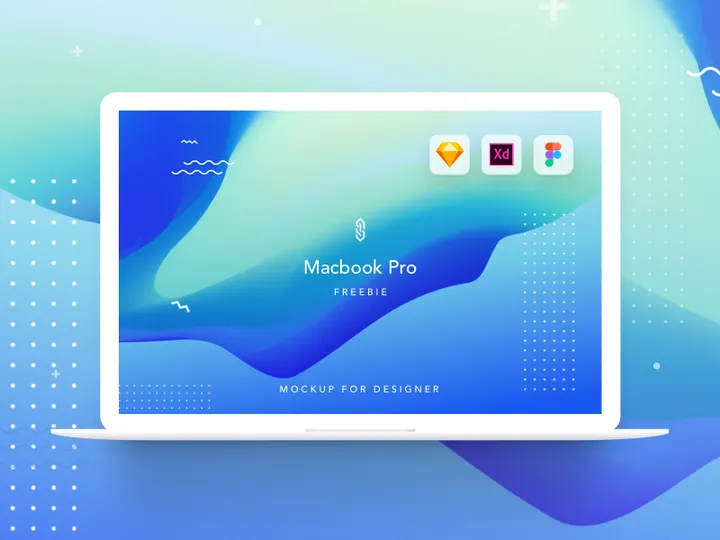
![[FREE] Glassmorphism mockup preview picture](https://imgproxy.epicpxls.com/GxpV5bx7FxCUBEPxEgIsnXvjYzw_aX1BIm1JXga3OAA/rs:fill:720:540:0/g:no/aHR0cHM6Ly9pdGVt/cy5lcGljcHhscy5j/b20vdXBsb2Fkcy9w/aG90by9mODNiMWI1/ODI3NDBjM2VhZjI2/NWIwNTJmN2E5MDgz/Zg.jpg)
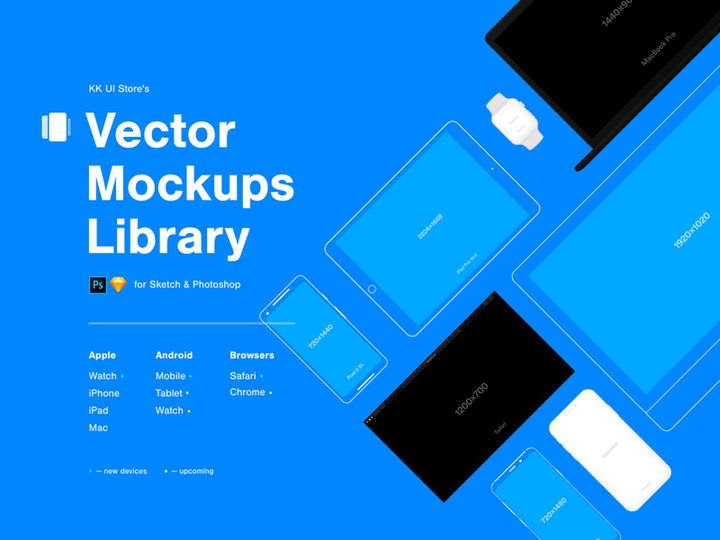
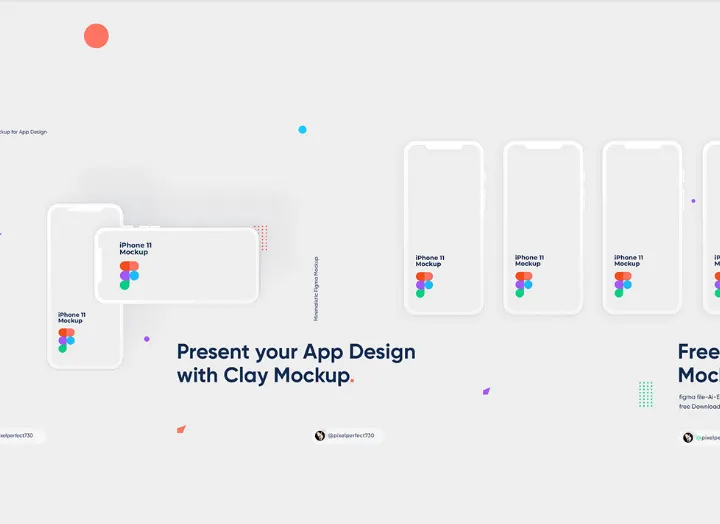
![Futuristic Device Mockup [Figma] preview picture](https://imgproxy.epicpxls.com/7sc-4_AG7MFfwF8nnSpfx3y2WQkD4KposvgBds2sun0/rs:fill:720:540:0/g:no/aHR0cHM6Ly9pdGVt/cy5lcGljcHhscy5j/b20vdXBsb2Fkcy9w/aG90by85OTgzOTdl/NWMyZDQzNTMwZjEz/ZDUyMGQ3MTI1OTdm/ZA.jpg)

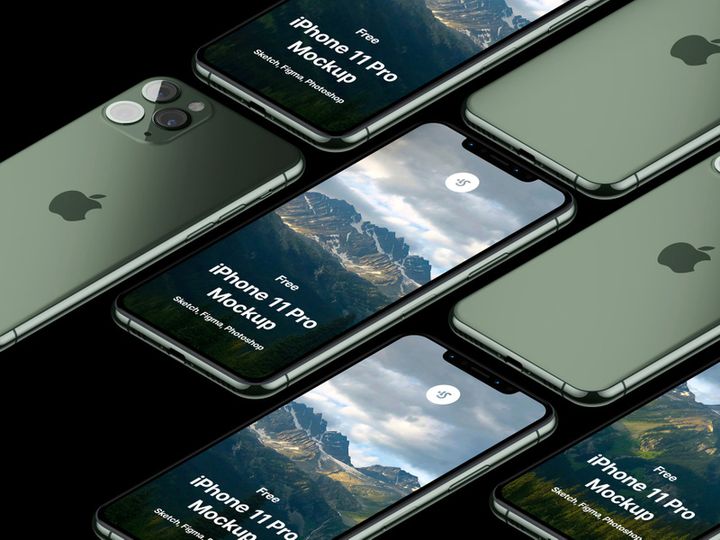
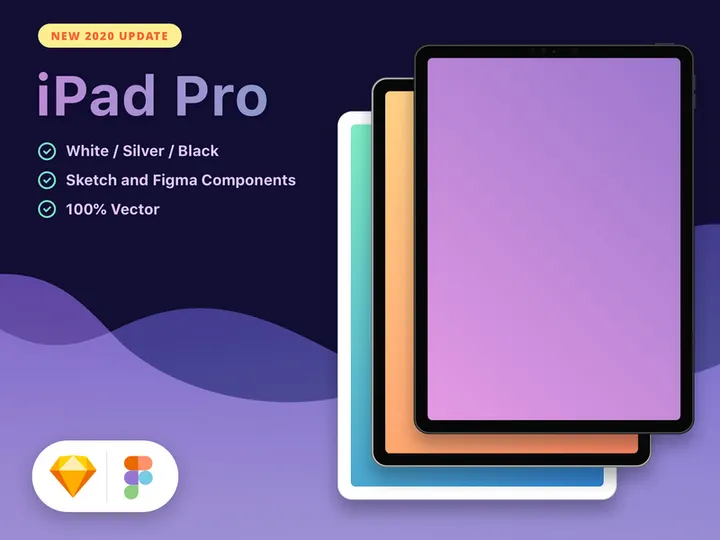
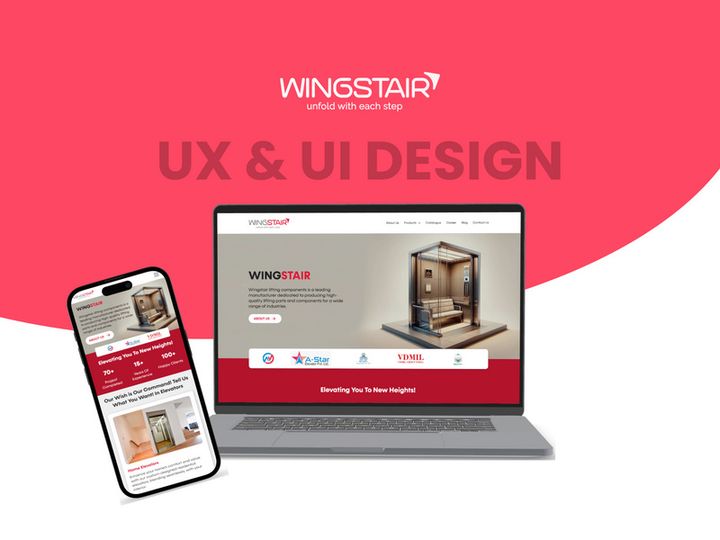
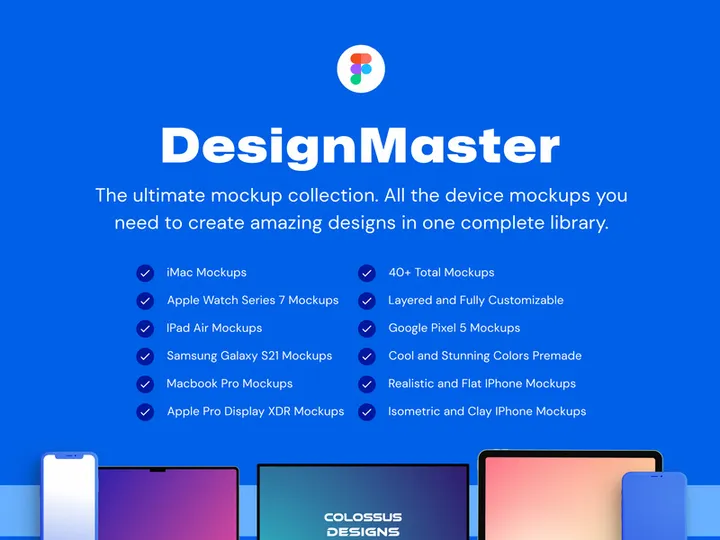
Try Our Free Resources
Download any of these for free - no account required
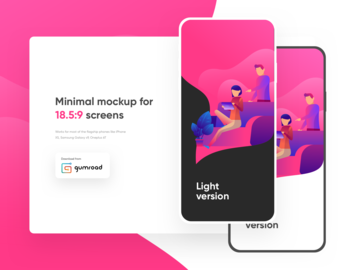
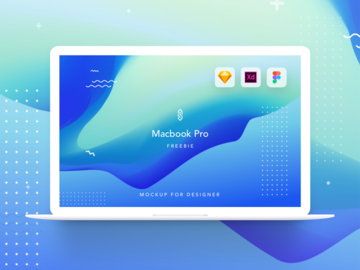
![[FREE] Glassmorphism mockup](https://items.epicpxls.com/uploads/photo/dc3d2d38a9c2ccca208a147062914227)
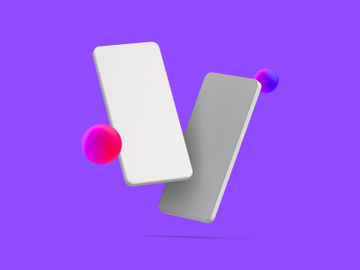
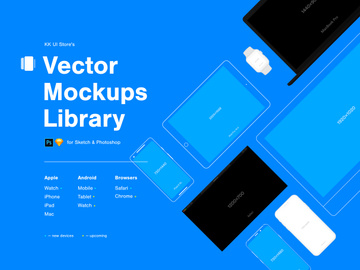
Why Figma for Mockups?
Figma has rapidly become the go-to design tool for UX/UI professionals, product teams, and independent creators — and for good reason. When it comes to creating and presenting mockups, Figma offers a seamless, collaborative, and highly efficient environment that elevates the entire design workflow. Unlike traditional design tools that require switching between applications for design, prototyping, and feedback, Figma integrates all these capabilities into one cloud-based platform. This makes mockup creation faster, more accurate, and easier to share with stakeholders.
One of Figma's standout advantages for mockups is its real-time collaboration feature. Multiple team members can work on the same mockup file simultaneously, making it ideal for remote teams and fast-paced product cycles. Designers can instantly share mockups with developers, product managers, or clients through a simple link, eliminating the need for exports or attachments. Additionally, interactive prototyping allows mockups to be more than static visuals — they can simulate real user flows, providing a richer context for feedback.
Figma’s component-based system is another game-changer. Designers can create reusable mockup frames, device templates, and smart objects that automatically adapt to new content. This modularity speeds up iteration and ensures consistency across projects. With auto-layout and constraints, inserting designs into mockups becomes a drag-and-drop process, significantly reducing manual adjustments.
At EpicPxls, we recognize the power of Figma in modern design workflows. That’s why we’ve meticulously curated a collection of 27+ resources that are fully compatible with Figma’s architecture. From device mockups to presentation templates, these tools are optimized for performance, ease of use, and visual fidelity. Whether you’re crafting app interfaces, website layouts, or branding concepts, our handpicked selection ensures you have access to high-quality mockups that integrate smoothly into your Figma projects.
Top Mockups Picks for Figma
With so many mockup resources available, it can be overwhelming to find the right fit for your skill level and project needs. To simplify your search, we’ve categorized the best Figma mockup tools into three key segments: beginners, professionals, and those seeking free, high-quality options. Each category offers unique strengths, and all are selected from our curated list of 27+ resources available through EpicPxls.
Best for Beginners
If you're new to Figma or mockup design, simplicity and clarity are key. Look for mockup kits that come with clear documentation, intuitive layer structures, and pre-built scenes. Many beginner-friendly options include labeled layers, drag-and-drop placeholders, and tutorial videos to help you get started quickly. These resources reduce the learning curve and let you focus on presenting your designs effectively without getting bogged down in technical details.
Best for Professionals
Experienced designers benefit from advanced mockup tools that offer customization, realism, and integration with larger design systems. Premium Figma mockups often feature high-resolution device renders, smart layers, shadow effects, and perspective controls. Some even include animated transitions or 3D scene capabilities. These resources are ideal for agencies, freelancers, and in-house teams that need polished, presentation-ready visuals for client pitches or stakeholder reviews.
Best Free Options
High-quality doesn’t have to mean high cost. Several of the 27+ resources curated by EpicPxls are completely free while still delivering professional-grade results. These free mockups often cover essential devices like smartphones, laptops, and tablets, and are perfect for designers on a budget or those working on personal projects. The best free options are regularly updated, community-supported, and designed with clean, modern aesthetics that reflect current design trends.
Figma vs Other Tools for Mockups
When comparing design tools for mockup creation, Figma stands out due to its cloud-native architecture and collaborative DNA. Unlike desktop-based applications that require file syncing and version management, Figma stores everything in the cloud, enabling instant access and real-time updates. This makes it exceptionally well-suited for teams that need to iterate quickly and share mockups across departments or time zones.
The Figma ecosystem also supports a rich plugin marketplace and community file sharing, which significantly enhances mockup workflows. Designers can pull in mockup scenes, apply smart replace functions, and automate repetitive tasks — all without leaving the app. This level of integration is difficult to match in other environments, especially those that treat mockups as afterthoughts rather than core design components.
Another advantage is format compatibility. Figma files are inherently vector-based and resolution-independent, ensuring that mockups look sharp on any screen or presentation medium. When combined with responsive design features, this allows mockups to adapt seamlessly across devices. While other tools may require exporting to specific formats or managing multiple file types, Figma handles everything in a unified workspace.
At EpicPxls, we prioritize resources that leverage these unique strengths. Our 27+ resources are selected not only for visual quality but also for how well they integrate with Figma’s real-time, collaborative environment. This ensures that whether you’re designing solo or with a team, your mockups are not just beautiful — they’re functional, scalable, and easy to maintain.
Setting Up Mockups in Figma
Getting started with mockups in Figma is straightforward once you know the right steps. Whether you're using a free template or a premium kit, following a consistent setup process will save time and reduce errors. Here’s a step-by-step guide to help you import, organize, and use mockup resources effectively.
- Download your mockup file from a trusted source like EpicPxls. Ensure it’s in .FIG format or comes with clear import instructions for Figma.
- Open Figma and create a new file or open an existing project where you want to insert the mockup.
- Import the mockup by dragging the .FIG file into your workspace or using the “File > Open” option. Some resources may come as a shared link — simply click “Duplicate” to add it to your drafts.
- Locate the smart object or image placeholder within the mockup. Most high-quality kits use Figma components or frames with “Replace” functionality, allowing you to drag your design directly into the frame.
- Adjust sizing and constraints to ensure your design fits naturally within the mockup. Use Figma’s constraints panel to lock positions or enable scaling based on device orientation.
- Organize and rename layers for clarity. Use descriptive names and group related elements (e.g., “iPhone 15 Mockup – Home Screen”) to make your file easier to navigate, especially when sharing with others.
For designers managing large mockup libraries, consider creating a master file dedicated to templates. This central hub can house all your frequently used devices, scenes, and branding frames. By maintaining a clean structure and using Figma’s page organization features, you can streamline access and reduce clutter across projects.
Figma Workflow Tips
Maximizing Figma’s potential for mockups goes beyond basic setup — it’s about refining your workflow for speed, consistency, and collaboration. As you work with more complex projects and larger teams, adopting best practices becomes essential. Here are three key areas to focus on for a smoother, more professional experience.
Organizing Mockups Libraries
Create a dedicated Figma file or page for your mockup library. Group mockups by category — such as mobile, desktop, wearable, or presentation scenes — and use clear naming conventions. Leverage Figma’s team library feature to publish reusable components, so your entire team can access approved mockup templates. This ensures brand consistency and reduces redundant downloads. At EpicPxls, we recommend starting with a core set of 5–10 frequently used mockups and expanding as needed.
Batch Operations
When updating multiple mockups with the same design, use Figma’s “Replace” feature in combination with components. If your mockups are built as instances of a master component, you can update all variants at once by editing the source. For non-component mockups, consider using plugins that enable batch image replacement. This is especially useful when showcasing a redesigned app across various devices or creating case study visuals.
Collaboration Best Practices
Figma shines in team environments, but effective collaboration requires structure. Always set clear permissions — use “Can Comment” for stakeholders and “Can Edit” only for active designers. Use comments to request feedback directly on mockup frames, and tag team members when input is needed. When sharing mockups externally, generate a view-only link with presentation mode enabled for a clean, distraction-free experience. By integrating these practices, your mockups become more than visuals — they become collaborative tools that drive better design decisions.
Why Download from EpicPxls?
Commercial License
Use in personal and commercial projects
No Account Required
Download free resources instantly
Quality Curated
Every resource is reviewed for quality
Preview Files
See Figma and Photoshop files before downloading
Who Uses These Mockups?
Professionals and teams who benefit most from our collection
UI/UX Designers
Speed up your workflow with ready-to-use mockups for Figma. Perfect for prototyping and client presentations.
Developers
Get production-ready assets without design skills. Export in any format for web and mobile apps.
Startups & Agencies
Save design budget with affordable premium mockups. Commercial license included for client work.
Marketing Teams
Create professional campaigns faster. All mockups are optimized for social media and ads.
Mockups for Figma FAQCommon questions about these resources
Simple, Transparent Pricing
Get unlimited access to all premium resources
Yearly
- 20 downloads per month
- All file formats
- Commercial license
Lifetime
- Unlimited downloads forever
- All file formats
- Commercial license
Ready to Get Started?
Access 4,441+ free design resources today.
Browse Free ResourcesView Premium PlansEarn 85% and
more on all sales
Upload your products and put them up
for sale at whatever price you want.


