How to Use Mockups in PDF: Complete Guide
EpicPxls offers 83+ curated mockups for PDF, all with a commercial license and editable source files (Figma, Sketch, PSD). Download your chosen mockups from EpicPxls, then use PDF's import function. Most resources include PDF-native files for seamless opening.
Last updated February 13, 2026
Everything you need to know about using mockups in PDF.
Trusted by designers at leading companies
Top Mockups for PDF
Handpicked resources from our curated collection
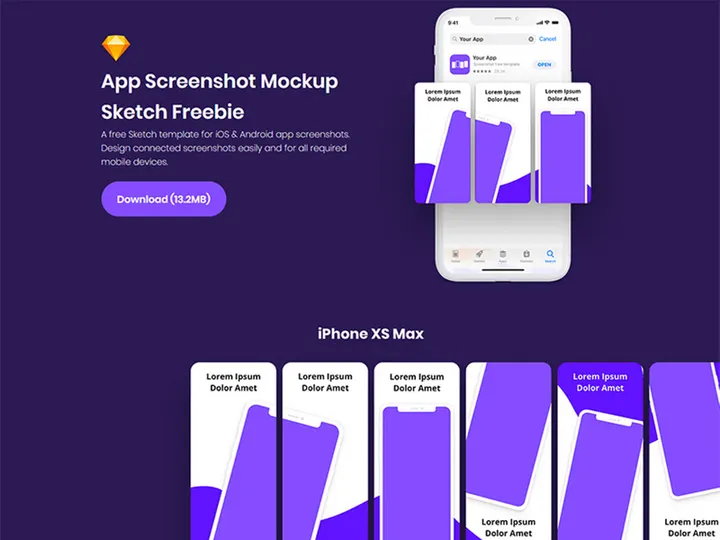
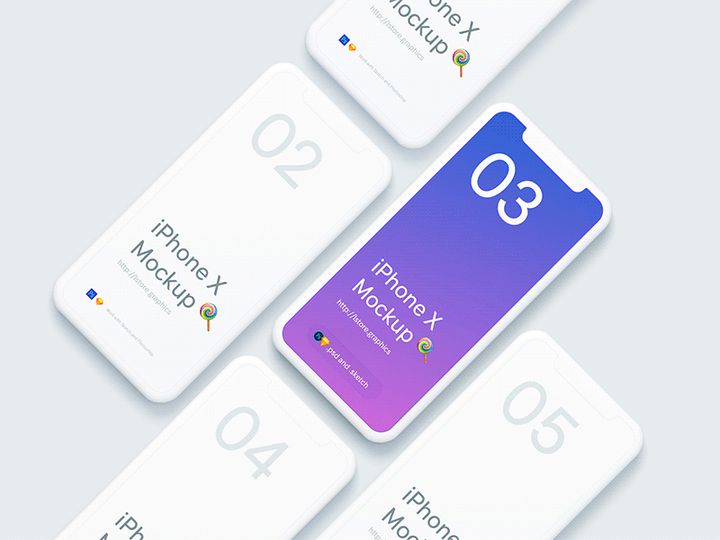
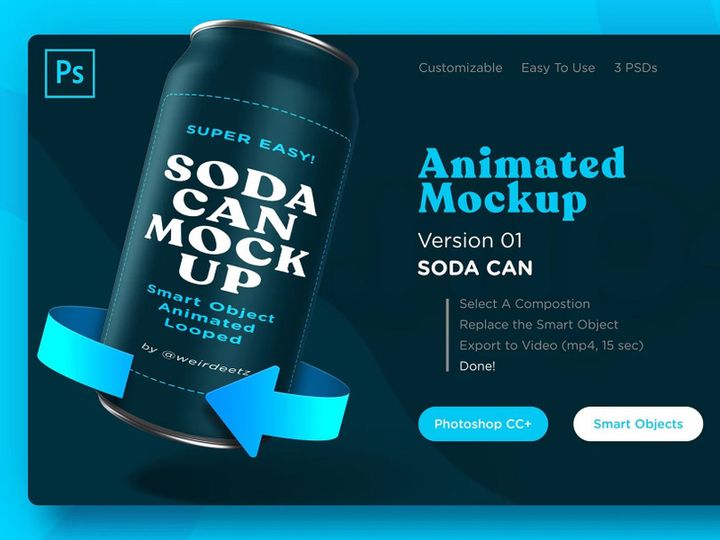
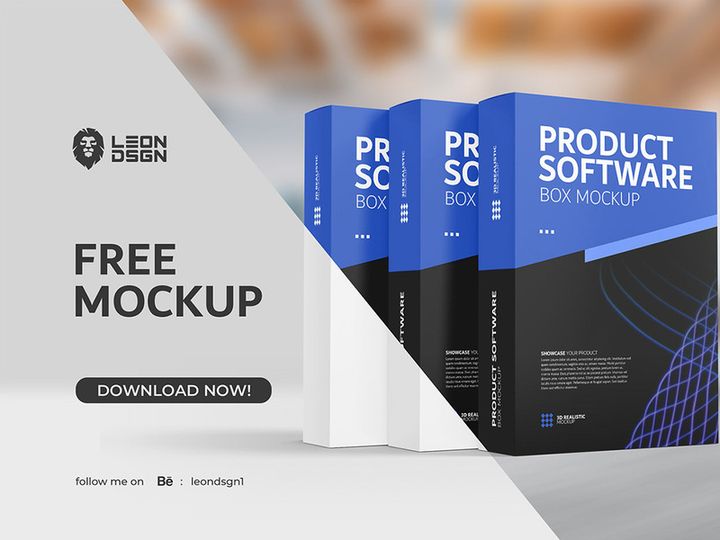



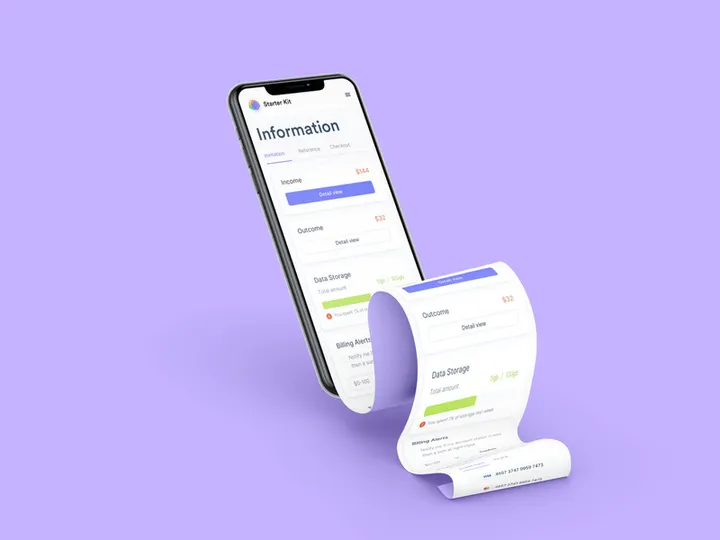


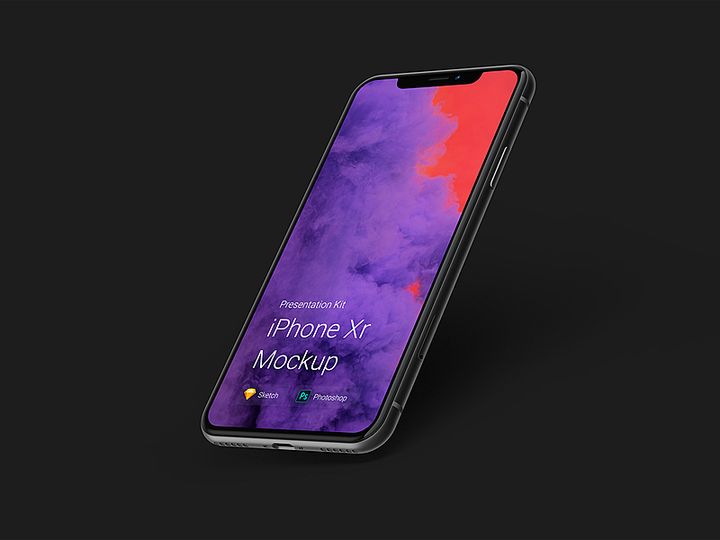
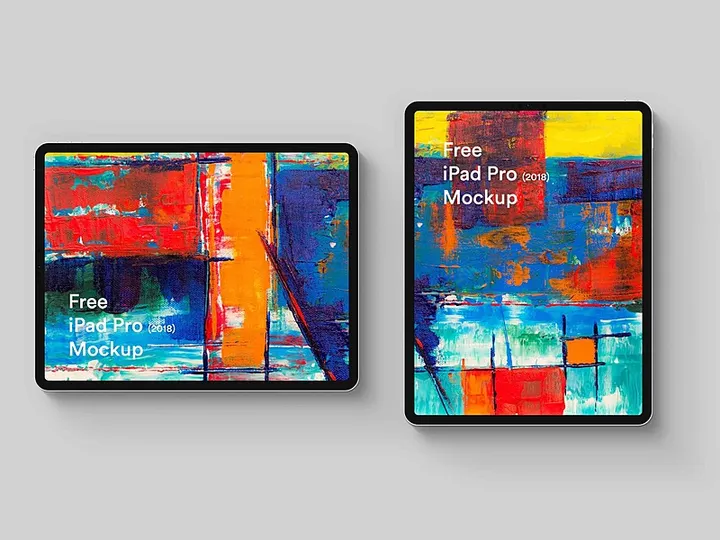




Try Our Free Resources
Download any of these for free - no account required
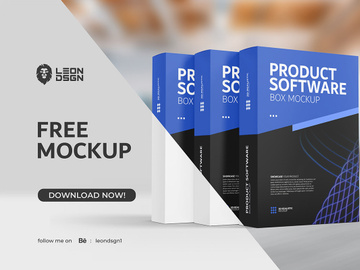
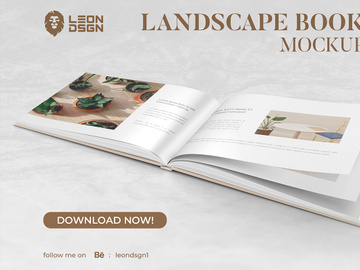
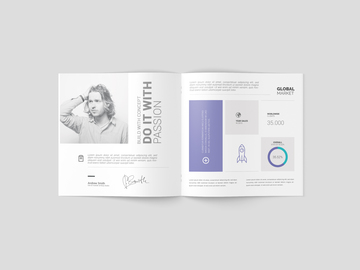
Getting Started with Mockups in PDF
Using mockups in PDF format offers designers, developers, and product teams a streamlined way to present, share, and collaborate on visual concepts without requiring complex design software. PDFs are universally accessible, retain high-quality visuals, and support layered content when properly structured—making them ideal for delivering polished mockups. Before diving into the integration process, ensure your system supports the latest version of a reliable PDF reader or editor that handles embedded design layers, such as Adobe Acrobat Pro or other compatible tools. These applications allow you to view, edit, and export layered PDFs while preserving the integrity of your mockups.
Finding mockups compatible with PDF is easier than ever, especially with curated platforms like EpicPxls, which hosts an extensive library of professionally designed mockup templates. These resources are optimized for cross-platform use and often include layered PDF versions alongside other formats like PSD or Figma. Whether you're designing for mobile apps, websites, print media, or packaging, the 83+ resources available on EpicPxls cover a wide range of industries and use cases. Each mockup is crafted with precision, ensuring resolution accuracy, smart object support (where applicable), and clean layer organization for seamless editing.
Before downloading, always check the file details to confirm PDF compatibility. Some mockups may be delivered in native design formats but include instructions for exporting to layered PDF. The advantage of using PDF-based mockups lies in their portability and consistency—what you see on one device will appear the same on another. This makes them especially useful for client presentations, stakeholder reviews, or internal documentation. With the right tools and access to high-quality resources like the 83+ templates on EpicPxls, integrating mockups into your PDF workflow becomes a fast, reliable process that enhances both productivity and presentation quality.
How to Import Mockups into PDF
- Choose the Right File Format: Start by downloading a mockup that includes a PDF version. Many design platforms, including EpicPxls, offer multi-format downloads. Look for options labeled "PDF (Layered)" or "Editable PDF" to ensure you can modify the content later.
- Verify Software Compatibility: Open your PDF editor and confirm it supports layered content. Adobe Acrobat Pro is the most widely used tool for this purpose, but other professional-grade editors also support layer visibility and basic editing in PDFs.
- Import the Mockup File: Launch your PDF editor and go to File > Open or simply drag and drop the downloaded mockup into the workspace. Wait for the file to load completely, especially if it contains high-resolution images or multiple layers.
- Access the Layers Panel: Once opened, navigate to the “Layers” panel (usually found in the right sidebar). This panel allows you to toggle visibility, lock elements, or isolate specific components of the mockup, such as device frames, backgrounds, or text placeholders.
- Handle Non-PDF Source Files (PSD, AI, SVG, Figma): If your mockup comes in PSD, AI, or another design format, open it in its native application (e.g., Photoshop or Illustrator). Then, go to File > Save As or Export and choose PDF as the output format. Make sure to enable options like “Preserve Editing Capabilities” or “Include Layers” during export.
- Test Editability: After importing, test whether key elements (like smart objects or text fields) are editable. Insert placeholder text or swap an image to confirm the mockup functions as expected within the PDF environment. This ensures no flattening occurred during conversion.
By following these steps, you ensure that your mockup retains its structure and functionality when brought into a PDF workflow. The 83+ resources on EpicPxls are pre-optimized to simplify this process, often including both native design files and ready-to-use layered PDFs for maximum flexibility.
Step-by-Step: Working with Mockups in PDF
Editing Layers and Components
One of the most powerful features of using mockups in PDF is the ability to edit individual layers without affecting the overall design. Once your mockup is imported and the Layers panel is visible, you can begin customizing. Common editable components include screen inserts, logo placements, color overlays, and text blocks. To edit a screen insert (such as a mobile app interface), locate the corresponding layer, double-click it (if it's linked to a smart object), and replace the embedded content. Some PDFs embed external image files—simply update the linked asset and refresh the preview.
Text editing in layered PDFs works similarly to word processors. Use the “Edit Text & Images” tool to click on any text placeholder and modify font, size, or color. Note that font availability depends on what’s installed on your system. If the original font isn’t present, the editor will substitute it, potentially altering spacing or layout. For consistent results, install the recommended fonts listed in the mockup’s documentation—many EpicPxls templates include font details and download links.
Organizing Your Mockups Library
As your collection grows, organizing your mockups becomes essential for efficiency. Create a structured folder system on your computer or cloud storage, categorized by project type (e.g., “Mobile Apps,” “Web Banners,” “Print Flyers”). Within each folder, store both the original downloaded files and your edited versions with clear naming conventions like ProjectName_Device_Mockup_v2.pdf. Consider maintaining a master index file listing all available mockups, their sources, and usage rights—especially helpful when working with the 83+ resources from EpicPxls.
To further streamline access, use PDF metadata fields (Title, Tags, Author) to make files searchable. Many professional PDF editors allow batch metadata editing, which is useful when managing large libraries. You can also bookmark frequently used mockups within your editor for one-click access during active projects.
Exporting for Production
Once your mockup is finalized, export settings play a crucial role in maintaining quality across different mediums. For web and mobile use, export as PDF with optimized compression: choose “Smallest File Size” in Adobe Acrobat’s export settings while ensuring resolution remains at least 144 PPI for clarity on high-density screens. Include interactive elements like hyperlinks or form fields if the mockup serves as a clickable prototype.
For print production, select “High Quality Print” or “Press Quality” presets. Set resolution to 300 PPI, color mode to CMYK, and embed all fonts to prevent substitution errors. Always include crop marks and bleed if required by your printer. When sharing with clients or stakeholders, consider generating two versions—one fully editable (with layers) for internal use and one flattened PDF for clean, secure distribution.
Finally, verify the exported file on multiple devices to ensure consistency. This step is especially important when using mockups from platforms like EpicPxls, where precision and realism are key selling points.
Troubleshooting Common PDF Issues
File Won't Open
If a mockup PDF fails to open, the issue may stem from version incompatibility. Older PDF readers may not support layered content or advanced features used in modern design exports. Always update your software to the latest version. Additionally, ensure the file wasn’t corrupted during download—re-download it from the source, preferably using a stable connection. If the problem persists, try opening the file on a different device or with an alternative PDF editor. Some mockups are exported with specific settings only compatible with premium tools like Adobe Acrobat Pro, so confirm your software meets the minimum requirements before use.
Missing Fonts or Assets
When text appears distorted or displays warning symbols, missing fonts are usually the culprit. The PDF may reference a font not installed on your system. To resolve this, check the mockup documentation—many EpicPxls templates provide font names and external links for downloading. Alternatively, use your PDF editor’s font substitution tool to replace missing fonts with visually similar ones. For embedded assets like images or icons, ensure all linked files are in the correct directory if the mockup uses external references. Flattening the PDF can also eliminate dependency issues, though it reduces future editability.
Performance Problems
Large mockup files, especially those with high-resolution textures or multiple layers, can cause lag or crashes in PDF editors. To improve performance, simplify the file by hiding or merging unused layers. You can also reduce image resolution temporarily during editing and restore it before export. If your system has limited RAM, close other applications to free up memory. For ongoing projects, consider splitting large mockups into separate PDFs by section (e.g., homepage, dashboard, settings) to maintain responsiveness. Cloud-based PDF tools with server-side rendering may also offer smoother handling of resource-heavy files.
Advanced PDF Tips for Mockups
Batch Processing
When working with multiple mockups—such as creating a series of app screen presentations—batch processing saves significant time. Use your PDF editor’s automation tools to apply actions like resizing, watermarking, or layer visibility changes across several files at once. For example, you can create an action that exports all mockups in a folder to a compressed web-ready format with consistent naming. This is particularly useful when leveraging the 83+ resources from EpicPxls for large-scale campaigns or client portfolios. Scheduled batch jobs can run overnight, ensuring your assets are ready the next morning.
Plugins and Extensions
Enhance your PDF workflow with plugins designed for design and mockup tasks. Some third-party extensions allow direct integration with cloud storage, version control, or project management tools. Others enable advanced editing features like vector path manipulation, color replacement across layers, or AI-powered image upscaling. While not all PDF editors support plugins, Adobe Acrobat has a robust marketplace for add-ons that can streamline mockup customization. Always download extensions from trusted sources to avoid security risks, and ensure compatibility with your current software version.
Collaboration Workflows
PDF mockups excel in team environments due to their universal accessibility and annotation capabilities. Set up a shared mockups library using cloud platforms like Google Drive or Dropbox, and grant team members access based on role permissions. Use comment and markup tools to collect feedback directly on the PDF—stakeholders can highlight areas, suggest changes, or approve designs without needing design software. To maintain consistency, establish a review workflow: one team member edits the mockup, another reviews it, and a final approver exports the production-ready version. With the 83+ professionally crafted templates from EpicPxls, teams can standardize their visual language and accelerate project timelines through reusable, high-fidelity assets.
Why Download from EpicPxls?
Commercial License
Use in personal and commercial projects
No Account Required
Download free resources instantly
Quality Curated
Every resource is reviewed for quality
Preview Files
See Figma and Photoshop files before downloading
Who Uses These Mockups?
Professionals and teams who benefit most from our collection
UI/UX Designers
Speed up your workflow with ready-to-use mockups for PDF. Perfect for prototyping and client presentations.
Developers
Get production-ready assets without design skills. Export in any format for web and mobile apps.
Startups & Agencies
Save design budget with affordable premium mockups. Commercial license included for client work.
Marketing Teams
Create professional campaigns faster. All mockups are optimized for social media and ads.
Mockups for PDF FAQCommon questions about these resources
Simple, Transparent Pricing
Get unlimited access to all premium resources
Yearly
- 20 downloads per month
- All file formats
- Commercial license
Lifetime
- Unlimited downloads forever
- All file formats
- Commercial license
Ready to Get Started?
Access 4,441+ free design resources today.
Browse Free ResourcesView Premium PlansEarn 85% and
more on all sales
Upload your products and put them up
for sale at whatever price you want.


