How to Use UI Kits in PDF: Complete Guide
EpicPxls offers 122+ curated ui kits for PDF, all with a commercial license and editable source files (Figma, Sketch, PSD). Download your chosen ui kits from EpicPxls, then use PDF's import function. Most resources include PDF-native files for seamless opening.
Last updated February 13, 2026
Everything you need to know about using ui kits in PDF.
Trusted by designers at leading companies
Top UI Kits for PDF
Handpicked resources from our curated collection



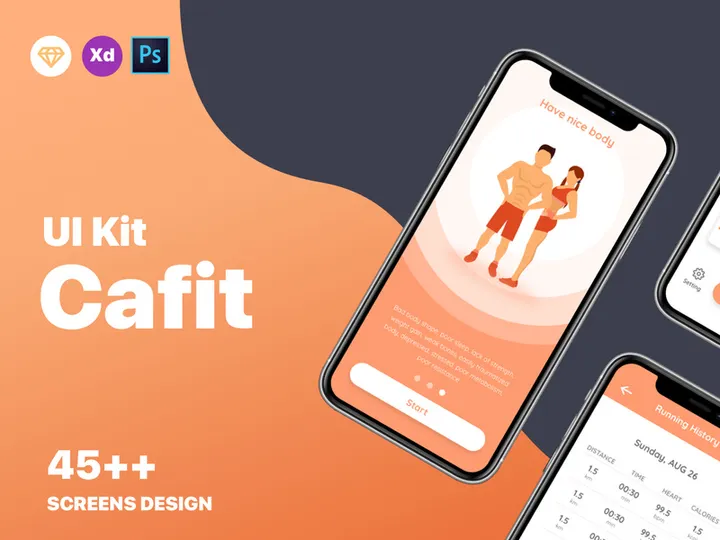
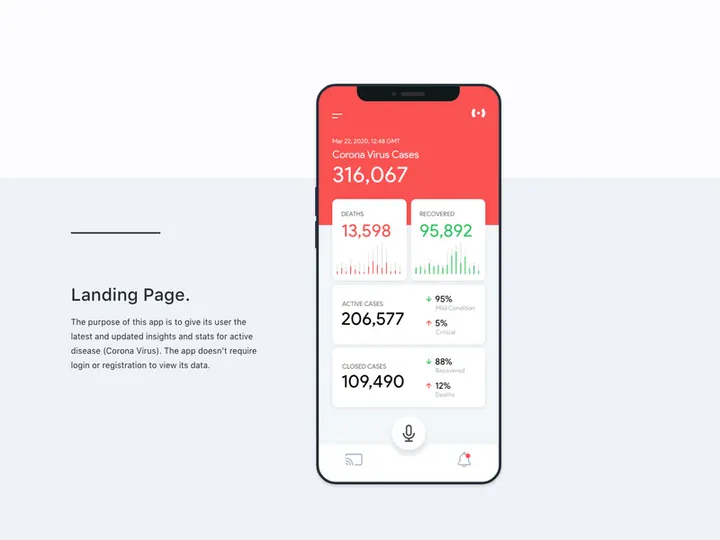

![Lando UI Kit [Sketch] preview picture](https://imgproxy.epicpxls.com/1z_2PFUSd9bZB7_0mno1S2SiGmGuXQHHXN3jebj98b4/rs:fill:720:540:0/g:no/aHR0cHM6Ly9pdGVt/cy5lcGljcHhscy5j/b20vdXBsb2Fkcy9w/aG90by9iNzM2NjYy/NzYwM2Q3ZWMzNDM3/NGRlNzczNTA5MTUz/Ny5qcGc.jpg)
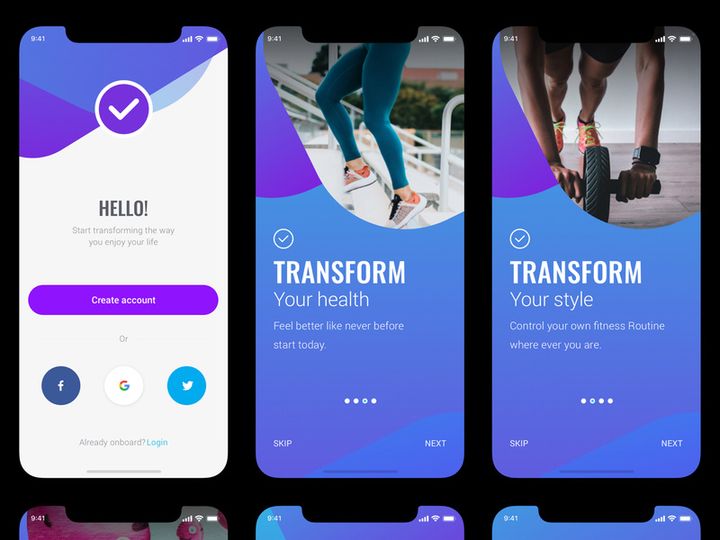






Try Our Free Resources
Download any of these for free - no account required
Getting Started with UI Kits in PDF
Using UI kits in PDF format can streamline your design workflow, especially when you need to share, review, or present user interface elements with stakeholders who may not have access to advanced design tools. While PDFs are traditionally viewed as static documents, they can serve as a powerful medium for organizing, distributing, and accessing UI components when used correctly. Before diving into how to use UI kits in PDF, it's important to understand the prerequisites and setup needed to make the most of this approach.
To begin, ensure you have a reliable PDF viewer installed—such as Adobe Acrobat Reader or a compatible alternative—that supports interactive elements, layers, and annotations. While basic viewers can open PDFs, advanced features like layer visibility, form fields, and embedded assets require a more robust application. For designers, Adobe Acrobat Pro offers editing capabilities that allow for deeper interaction with layered UI elements, making it ideal for working with complex UI kits.
Finding UI kits compatible with PDF is easier than ever, especially with platforms like EpicPxls offering a curated collection of design resources. Many UI kits originally created in Figma, Sketch, or Adobe XD can be exported to PDF with layers, components, and metadata preserved, enabling seamless access across devices. The key is to look for kits that are explicitly designed or adapted for PDF use, ensuring compatibility and functionality.
EpicPxls hosts over 121+ resources, including UI kits tailored for various platforms such as mobile, web, and dashboard interfaces. These kits are often provided in multiple formats, including PDF, making them accessible to a wider audience. Whether you're a UX designer, product manager, or developer, leveraging these PDF-ready kits allows you to quickly reference design systems, component libraries, and style guides without switching environments. With this foundation, you're ready to import and utilize UI kits effectively within the PDF ecosystem.
How to Import UI Kits into PDF
- Download the Correct File Format: Begin by downloading the UI kit from a trusted source like EpicPxls. Ensure the download includes a PDF version, or a source file (like PSD, AI, or Figma) that can be exported to PDF. Always verify that the kit supports layered content, which is essential for editing and navigation within the PDF.
- Prepare Source Files if Needed: If the UI kit comes in a design tool format (e.g., Figma, Adobe XD, or Sketch), open it in the respective software. Use the “Export” or “Print to PDF” function to generate a high-quality PDF. Choose settings that preserve layers, vector quality, and metadata for maximum flexibility.
- Open Your PDF Editor: Launch Adobe Acrobat Pro or another advanced PDF editor that supports layers and object manipulation. Free tools may allow viewing but limit editing capabilities, so a professional-grade application is recommended for full functionality.
- Import the UI Kit: Use the “File” > “Open” command to load your exported UI kit PDF. If importing into an existing document, go to “Tools” > “Edit PDF” > “Add Image” or “Copy Pages” to insert elements from the kit into your current project.
- Verify Layer Integrity: Once imported, check the “Layers” panel to confirm that UI components (buttons, icons, cards) are organized into separate, toggleable layers. This structure enables selective visibility and editing, making it easier to customize or extract specific elements.
- Test Interactivity and Navigation: If the UI kit includes hyperlinks, bookmarks, or form fields (common in design system PDFs), test these features to ensure they function correctly. This step is crucial when using the PDF for presentations or client reviews.
When handling various file types—such as PSD for layered Photoshop files, AI for Illustrator vectors, or SVG for scalable graphics—it’s important to convert them properly. For instance, PSD files should be flattened or exported with layers preserved depending on the use case. SVGs can be embedded directly or converted to vector paths in the PDF. Figma designs should be exported using high-resolution settings with “Include ‘Page’ in file name” enabled to maintain structure. With the right preparation, you can seamlessly integrate any of the 121+ resources from EpicPxls into your PDF workflow, ensuring design consistency and accessibility.
Step-by-Step: Working with UI Kits in PDF
Editing Layers and Components
One of the most powerful features of using UI kits in PDF is the ability to work with layers. Unlike flat image-based PDFs, layered PDFs allow you to toggle visibility, edit individual components, and extract assets without affecting the overall design. In Adobe Acrobat Pro, open the “Layers” panel to see how the UI kit components are organized—often grouped by type (e.g., Navigation, Forms, Cards).
To customize a button or form field, select the “Edit PDF” tool and click directly on the element. You can change text, adjust colors (if vectors), or reposition items. For vector-based icons and shapes, use the “Edit Object” option to modify paths. While PDFs don’t support advanced boolean operations like design tools, basic adjustments are possible. Keep in mind that raster images (like screenshots) can’t be edited beyond resizing or cropping. For maximum flexibility, always start with vector-rich UI kits—many of which are available among the 121+ resources on EpicPxls.
Organizing Your UI Kits Library
As you collect more UI kits in PDF format, maintaining an organized library becomes essential. Create a dedicated folder structure on your computer, categorizing kits by project type (e.g., Mobile Apps, Admin Dashboards, E-commerce). Use consistent naming conventions such as “UI-Kit-Mobile-v2.pdf” to simplify searching.
Within each PDF, leverage built-in bookmarks and tags to navigate quickly. When you import multiple kits, consider merging related ones into a single master document using Acrobat’s “Combine Files” feature. This creates a unified design system reference that teams can use for consistency. Additionally, use metadata fields (Title, Author, Keywords) to enhance searchability. Storing your library in cloud storage with sync capabilities ensures access across devices and facilitates team sharing—especially useful when working with standardized kits from platforms like EpicPxls.
Exporting for Production
Once your designs are finalized in PDF, exporting for production depends on the intended use—web, mobile, or print. For web and mobile development, extract individual assets using the “Export Selected Object” tool. Choose PNG for raster graphics or SVG for scalable vectors. Ensure resolution is set to 72 PPI for screens and 300 PPI for print.
If delivering a complete UI specification, export the entire PDF with all layers visible and bookmarks intact. This version serves as a design handoff document for developers and stakeholders. For print-ready outputs, use the “Print Production” tools in Acrobat to check color profiles, bleed areas, and font embedding. Always perform a preflight check to detect missing fonts or low-resolution images. When sourcing from trusted providers like EpicPxls, you're more likely to receive production-ready files that reduce post-processing time. Whether you're creating a prototype spec sheet or a client presentation, proper export settings ensure your UI kit delivers value across platforms.
Troubleshooting Common PDF Issues
File Won't Open
If a UI kit PDF fails to open, the most common causes are version incompatibility or file corruption. Older PDF viewers may not support newer features like embedded fonts, transparency, or layered content. Always use an up-to-date version of Adobe Acrobat or a compatible reader. If the file is damaged, try downloading it again from the source—especially if obtained from a reliable platform like EpicPxls. Additionally, ensure the file extension is .pdf and not mistakenly labeled as .zip or another format.
Missing Fonts or Assets
Missing fonts are a frequent issue when sharing UI kits. If text appears substituted or garbled, it means the original fonts weren’t embedded. To fix this, open the PDF in Acrobat Pro and check “File” > “Properties” > “Fonts” to see which are missing. If possible, install the required fonts manually. Alternatively, convert text to outlines before exporting—though this makes future edits impossible. For assets like icons or images, verify that they were embedded during export and not linked externally. When downloading from collections with 121+ resources, prioritize kits labeled as “font-embedded” or “print-ready” to avoid this issue.
Performance Problems
Large UI kits with high-resolution images or excessive layers can cause slow loading or crashes. To improve performance, optimize the PDF using Acrobat’s “Reduce File Size” feature under “Save As Other.” You can also flatten unnecessary layers or downsample images. For frequent editing, consider splitting the kit into smaller sections (e.g., one PDF per screen type). Avoid opening multiple large PDFs simultaneously, and ensure your system has sufficient RAM and storage. Using lighter-weight versions of UI kits—often available alongside full versions on platforms like EpicPxls—can also enhance responsiveness without sacrificing usability.
Advanced PDF Tips for UI Kits
Batch Processing
When managing multiple UI kits or need to apply consistent changes across several PDFs, batch processing saves significant time. In Adobe Acrobat Pro, use the “Action Wizard” to create custom workflows—such as resizing pages, converting colors, or adding watermarks across all files in a folder. For example, you can automate the export of specific layers from each UI kit into individual image files for a design system documentation site. This is especially useful when handling large collections like the 121+ resources available on EpicPxls, enabling scalable management of design assets.
Plugins and Extensions
Extend the functionality of your PDF editor with plugins designed for designers. Tools like “iText” or “PDFlib” allow for programmatic manipulation of PDFs, useful for developers integrating UI components into documentation systems. Acrobat also supports JavaScript-based scripts that can auto-tag components, rename layers, or generate indexes. While not all plugins are free, they offer powerful automation for teams managing complex UI libraries. Be sure to download only trusted extensions to maintain file security and stability.
Collaboration Workflows
PDFs are ideal for collaboration because they’re universally accessible. Use shared cloud folders (Google Drive, Dropbox, or OneDrive) to host your UI kit library, allowing team members to access the latest versions. Enable commenting and review features in Acrobat to gather feedback directly on components—great for stakeholder approvals. For version control, adopt a naming system like “UI-Kit-Dashboard-v1.2-review.pdf” to track iterations. Designers can work in Figma or Sketch, then export updated kits to PDF for distribution. This hybrid workflow combines the flexibility of design tools with the accessibility of PDF, making it easier to maintain consistency across teams—all while leveraging high-quality resources from platforms like EpicPxls.
Why Download from EpicPxls?
Commercial License
Use in personal and commercial projects
No Account Required
Download free resources instantly
Quality Curated
Every resource is reviewed for quality
Preview Files
See Figma and Photoshop files before downloading
Who Uses These Ui Kits?
Professionals and teams who benefit most from our collection
UI/UX Designers
Speed up your workflow with ready-to-use ui kits for PDF. Perfect for prototyping and client presentations.
Developers
Get production-ready assets without design skills. Export in any format for web and mobile apps.
Startups & Agencies
Save design budget with affordable premium ui kits. Commercial license included for client work.
Marketing Teams
Create professional campaigns faster. All ui kits are optimized for social media and ads.
UI Kits for PDF FAQCommon questions about these resources
Simple, Transparent Pricing
Get unlimited access to all premium resources
Yearly
- 20 downloads per month
- All file formats
- Commercial license
Lifetime
- Unlimited downloads forever
- All file formats
- Commercial license
Ready to Get Started?
Access 4,441+ free design resources today.
Browse Free ResourcesView Premium PlansEarn 85% and
more on all sales
Upload your products and put them up
for sale at whatever price you want.


