UI Kits for Illustrator: 140+ Resources
EpicPxls offers 140+ curated ui kits for Illustrator, all with a commercial license and editable source files (Figma, Sketch, PSD). We have 140+ ui kits compatible with Illustrator, tested and verified for seamless integration.
Last updated February 12, 2026
Discover 140+ handpicked ui kits for Illustrator.
Trusted by designers at leading companies
Top UI Kits for Illustrator
Handpicked resources from our curated collection

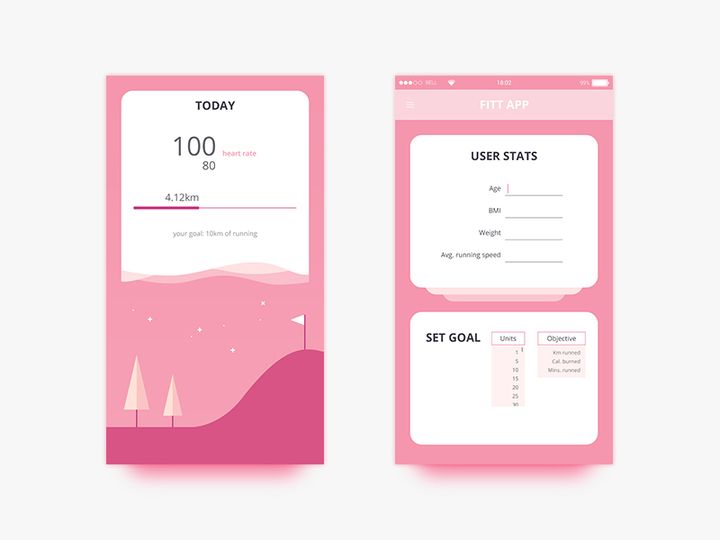
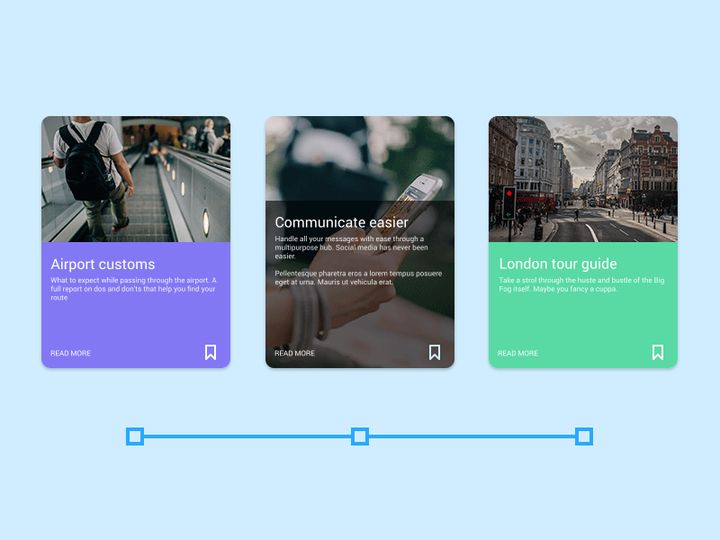

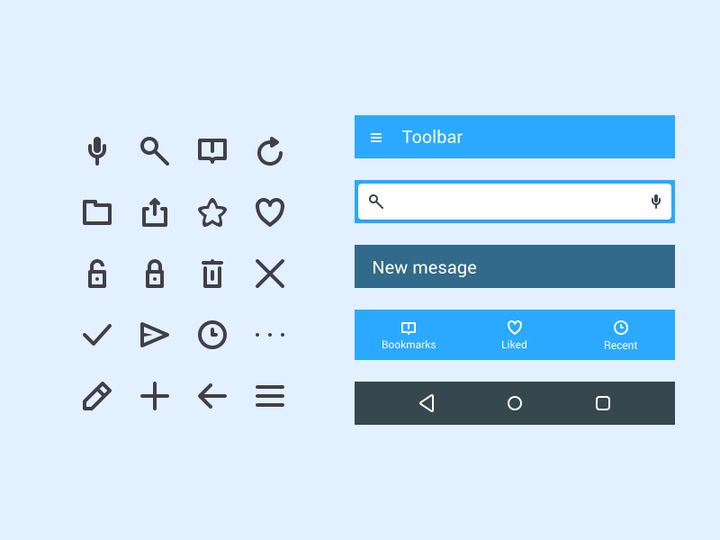


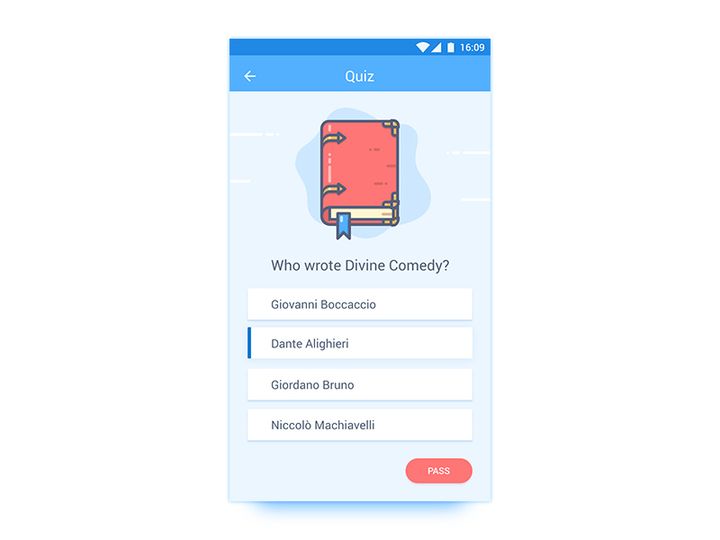


Try Our Free Resources
Download any of these for free - no account required
Why Illustrator for UI Kits?
Adobe Illustrator has long been a cornerstone tool for designers working across branding, print, and digital design. While tools like Figma and Sketch have gained traction in the UI/UX space, Illustrator remains a powerful and versatile option—especially for those already embedded in the Adobe Creative Cloud ecosystem. Its precision, vector-based scalability, and robust typographic controls make it an ideal platform for crafting and using UI kits. Designers appreciate the ability to create crisp, resolution-independent interfaces that can be reused across multiple contexts without loss of quality.
One of the key strengths of Illustrator for UI design is its advanced vector editing capabilities. Components such as buttons, icons, and form elements can be easily customized, scaled, and recolored using global swatches and appearance attributes. This level of control is particularly useful when building consistent, brand-aligned interfaces. Additionally, features like Artboards allow designers to map out entire user flows, from login screens to checkout processes, within a single document. The Layers panel provides intuitive organization, enabling efficient navigation through complex UI structures.
Illustrator also supports symbols and reusable components, which streamline the process of building and maintaining UI kits. Designers can create master components and update them globally, ensuring consistency across projects. With seamless integration into other Adobe apps—such as Photoshop for image editing and After Effects for animation—Illustrator offers a comprehensive design pipeline. At EpicPxls, we recognize the enduring value of Illustrator in UI workflows, which is why we’ve curated over 140+ high-quality, Illustrator-compatible UI kits. Each resource is tested for compatibility, organization, and usability, ensuring that designers can jump into their projects with confidence and efficiency.
Top UI Kits Picks for Illustrator
With so many resources available, choosing the right UI kit can make a significant difference in your design workflow. Whether you're just starting out or you're a seasoned professional, having access to well-structured, visually appealing kits can save time and elevate your projects. At EpicPxls, we've hand-selected a diverse collection of over 140+ Illustrator-compatible UI kits that cater to various skill levels and design needs. Below, we highlight our top picks based on usability, design quality, and feature set.
Best for Beginners
If you're new to UI design or transitioning into Illustrator, it’s essential to start with kits that are intuitive and well-documented. Look for resources that include labeled layers, organized artboards, and clear style guides. Beginner-friendly kits often come with pre-built screen templates, common UI patterns like navigation bars and cards, and easy-to-edit vector shapes. At EpicPxls, we recommend kits that feature drag-and-drop components and include helpful README files or video tutorials to guide your learning process. These kits help you understand layout grids, spacing systems, and typography hierarchies without overwhelming you with complexity.
Best for Professionals
Experienced designers benefit from advanced UI kits that offer modular components, responsive layout frameworks, and deep customization options. Premium kits often include extensive icon libraries, dark and light mode variants, and support for multiple device resolutions. Many professional-grade kits use advanced Illustrator features like dynamic symbols, global colors, and layered effects to maximize efficiency. These resources are ideal for agency work, enterprise applications, or when crafting pixel-perfect mockups for developer handoff. The 140+ resources curated by EpicPxls include several high-end kits tailored for complex, production-ready projects.
Best Free Options
High-quality doesn’t always have to mean high cost. There are several excellent free UI kits available that are fully compatible with Illustrator. These kits often originate from design communities, open-source initiatives, or as promotional tools from design studios. While free kits may have fewer components than premium versions, many still offer meticulously crafted elements such as form controls, modals, and mobile app screens. We at EpicPxls carefully vet each free resource to ensure it meets professional standards in terms of organization and scalability. Whether you're prototyping a side project or building a portfolio, these free options deliver real value without compromise.
Illustrator vs Other Tools for UI Kits
When it comes to UI design, the debate between Illustrator and other tools like Figma, Sketch, or Adobe XD often centers on workflow preferences and collaboration needs. Each platform has its strengths, but Illustrator stands out for its unmatched vector precision and integration within the broader Adobe suite. Unlike some newer tools that focus primarily on screen-based design, Illustrator excels in creating assets that serve both digital and print purposes—making it a favorite among multidisciplinary designers.
One unique advantage of Illustrator is its ability to handle complex vector illustrations alongside UI components. This is particularly useful when designing branded interfaces that incorporate custom icons, illustrations, or logotypes. Additionally, Illustrator’s support for multiple artboards and non-destructive effects allows for detailed mockups with layered transparency, gradients, and precise stroke control. While real-time collaboration is more limited compared to cloud-based tools, Illustrator’s file stability and backward compatibility ensure long-term project accessibility.
From a format perspective, Illustrator (.AI) files are widely supported and can be easily exported to SVG, PDF, or PNG for use in development or presentations. However, it's important to consider compatibility when sharing UI kits with team members who may use different tools. Many modern UI kits are designed in multi-format packages, including Illustrator versions. At EpicPxls, we prioritize resources that offer clean, well-structured AI files, making it easy to import and adapt components regardless of your primary workflow. With over 140+ Illustrator-ready kits, our collection ensures you’re never short on compatible, high-fidelity design assets.
Setting Up UI Kits in Illustrator
Getting started with a new UI kit in Illustrator is straightforward when you follow a consistent setup process. Proper organization from the beginning will save time and prevent frustration as your design project grows. Whether you're working with a single kit or managing a library of multiple resources, these steps will help you integrate UI kits efficiently into your workflow.
- Download and Extract: Begin by downloading your chosen UI kit from a trusted source like EpicPxls. Most kits come in .ZIP format, so extract the contents to a dedicated folder on your computer.
- Open the AI File: Launch Adobe Illustrator and open the main .AI file from the extracted folder. Check for any included documentation or readme files that explain the kit’s structure.
- Review Artboards and Layers: Navigate through the artboards to understand the included screens and components. Open the Layers panel to explore how elements are grouped and named.
- Set Up Your Document: Create a new Illustrator document for your project and copy over the components you need. Avoid editing the original kit file to preserve its integrity.
- Customize Global Styles: Update swatches, character styles, and symbols to match your brand. Use the Recolor Artwork tool to quickly adapt color schemes across multiple elements.
- Save as a Template: Once your core components are in place, save your working file as a template (.AIT) for future reuse. This creates a consistent starting point for similar projects.
Managing a large collection of UI kits becomes easier when you adopt a standardized naming convention and folder structure. Consider creating subfolders by category—such as mobile, web, or dashboard—to quickly locate the right kit. With EpicPxls offering access to 140+ resources, having a clear system ensures you can leverage the full breadth of available tools without clutter.
Illustrator Workflow Tips
Maximizing your efficiency in Illustrator involves more than just knowing where the tools are—it’s about building smart habits and leveraging the software’s full capabilities. When working with UI kits, a few strategic practices can dramatically improve your productivity, consistency, and collaboration readiness.
Organizing UI Kits Libraries
Create a centralized library folder on your local drive or cloud storage to house all your UI kits. Within this folder, use subdirectories to categorize kits by type (e.g., e-commerce, SaaS, mobile apps) or industry. Inside each kit folder, keep the original AI file untouched and use duplicates for active projects. This preserves the master version for future use. You can also maintain a spreadsheet or Notion database to track kit features, licenses, and compatibility—especially helpful when managing the extensive selection of 140+ resources available through platforms like EpicPxls.
Batch Operations
Illustrator allows you to perform batch edits using features like Find and Replace, Actions, and Global Colors. For example, if you need to update a primary brand color across multiple components, define it as a global swatch and apply it universally. Any changes to the swatch will automatically update all linked elements. You can also record Actions to automate repetitive tasks such as resizing buttons, aligning icons, or exporting assets. This is particularly valuable when adapting large UI kits for different projects or client requirements.
Collaboration Best Practices
While Illustrator isn’t inherently collaborative like cloud-based tools, you can still streamline teamwork with proper file management. Always name layers and groups clearly—avoid generic names like “Layer 1” or “Group.” Use consistent naming conventions such as “btn-primary” or “icon-menu” to make navigation easier for team members. When sharing files, package them with all linked assets using the Package command to ensure nothing is missing. If you’re handing off designs to developers, consider exporting assets as SVG or PDF with a style guide that explains spacing, typography, and color values. EpicPxls resources are designed with collaboration in mind, featuring clean layer structures and documented components to support smooth team workflows.
Why Download from EpicPxls?
Commercial License
Use in personal and commercial projects
No Account Required
Download free resources instantly
Quality Curated
Every resource is reviewed for quality
Preview Files
See Figma and Photoshop files before downloading
Who Uses These Ui Kits?
Professionals and teams who benefit most from our collection
UI/UX Designers
Speed up your workflow with ready-to-use ui kits for Illustrator. Perfect for prototyping and client presentations.
Developers
Get production-ready assets without design skills. Export in any format for web and mobile apps.
Startups & Agencies
Save design budget with affordable premium ui kits. Commercial license included for client work.
Marketing Teams
Create professional campaigns faster. All ui kits are optimized for social media and ads.
UI Kits for Illustrator FAQCommon questions about these resources
Simple, Transparent Pricing
Get unlimited access to all premium resources
Yearly
- 20 downloads per month
- All file formats
- Commercial license
Lifetime
- Unlimited downloads forever
- All file formats
- Commercial license
Ready to Get Started?
Access 4,441+ free design resources today.
Browse Free ResourcesView Premium PlansEarn 85% and
more on all sales
Upload your products and put them up
for sale at whatever price you want.


