How to Use Themes in Photoshop: Complete Guide
EpicPxls offers 71+ curated themes for Photoshop, all with a commercial license and editable source files (Figma, Sketch, PSD). Download your chosen themes from EpicPxls, then use Photoshop's import function. Most resources include Photoshop-native files for seamless opening.
Last updated February 13, 2026
Everything you need to know about using themes in Photoshop.
Trusted by designers at leading companies
Top Themes for Photoshop
Handpicked resources from our curated collection


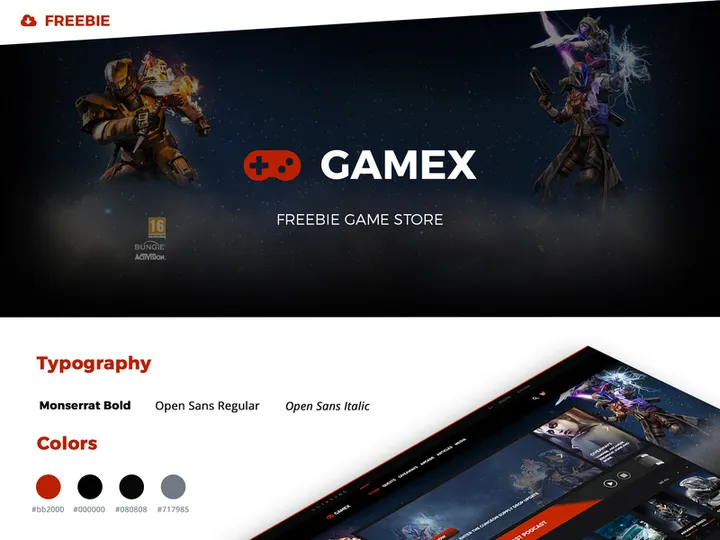

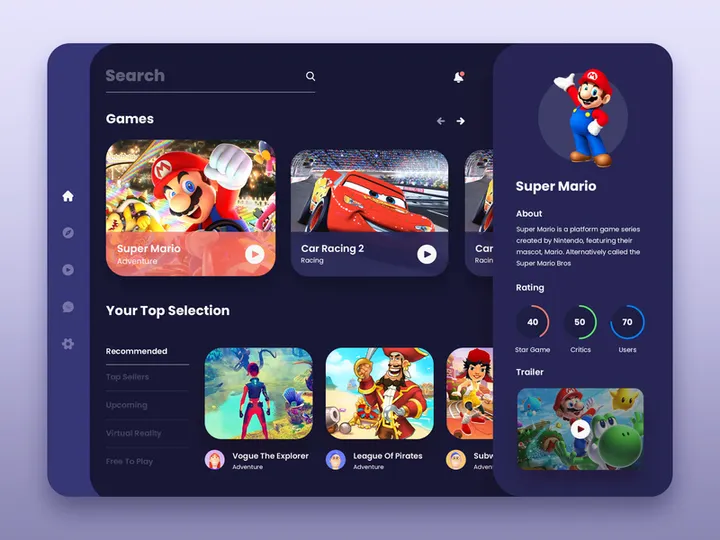



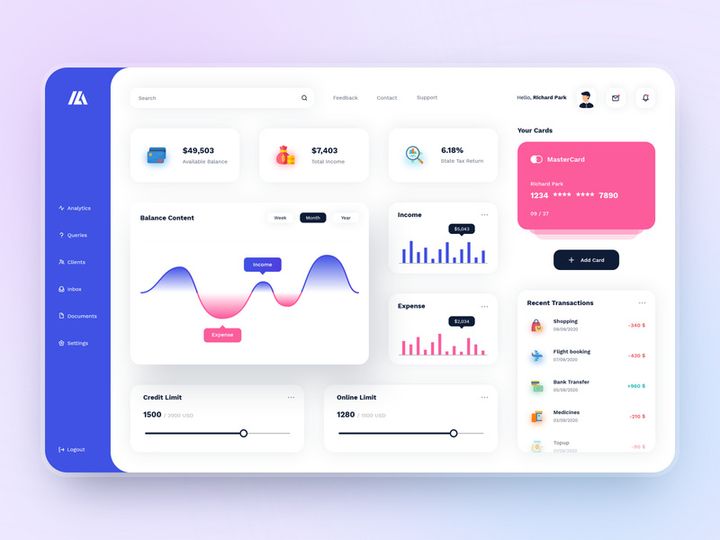
![HappyBox – Landing Page Template [Personal Use License] preview picture](https://imgproxy.epicpxls.com/f4DCUD9EmEuhPIVAUAWBhM-Cto4k3dv0gSKpujV1qeA/rs:fill:720:540:0/g:no/aHR0cHM6Ly9pdGVt/cy5lcGljcHhscy5j/b20vdXBsb2Fkcy9w/aG90by82MDM1YzU5/NGQ3M2Q4ODFkYWZj/NjU0ODk2ZGQ2YzEx/ZA.jpg)
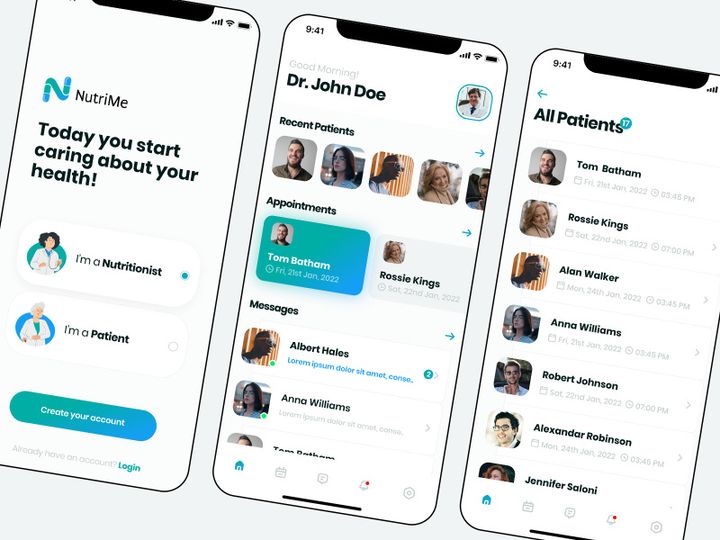



Try Our Free Resources
Download any of these for free - no account required
Getting Started with Themes in Photoshop
Adobe Photoshop is one of the most powerful tools for graphic designers, digital artists, and web developers. One of its standout features is the ability to use and customize design themes—pre-built visual styles, color palettes, typography, and layout frameworks that streamline the creative process. Whether you're crafting a website, mobile app interface, or print design, themes can dramatically reduce development time and ensure visual consistency. Before diving into how to use themes in Photoshop, it’s essential to ensure you have the proper setup. Make sure you’re running a supported version of Photoshop—ideally the latest release from Adobe Creative Cloud. Older versions may lack compatibility with modern theme files, especially those using advanced layer effects or smart objects.
Themes for Photoshop can be sourced from various design marketplaces, community forums, and specialized platforms like EpicPxls, which offers a growing collection of high-quality, customizable themes. These themes often come in layered PSD format, making them fully editable within Photoshop. When selecting a theme, look for compatibility indicators such as supported Photoshop versions, included file types (PSD, AI, SVG), and documentation. Many themes also come with style guides, font files, and icons, which enhance usability. The 71+ resources available on EpicPxls include a diverse range of themes tailored for different design needs—from minimalist UI kits to vibrant social media templates. These resources are designed with professional workflows in mind, ensuring clean layer structures and organized folders.
Before downloading any theme, verify that your system meets Photoshop’s performance requirements, especially if you plan to work with complex, multi-layered files. A solid-state drive (SSD), sufficient RAM (16GB or more), and a dedicated graphics card will help maintain smooth performance. Once your environment is ready, you can begin exploring the available themes and preparing for import. With over 71+ resources on platforms like EpicPxls, you’ll have no shortage of creative options to elevate your design projects efficiently and professionally.
How to Import Themes into Photoshop
- Choose the Right Theme File: Begin by downloading a theme that is compatible with Photoshop. While some design themes are created in Figma, Illustrator (AI), or SVG format, ensure you either download the native PSD version or confirm that the file can be opened in Photoshop. If the theme is only available in Figma or another format, you may need to export individual assets as PNG, SVG, or PSD before importing.
- Download from a Trusted Source: Visit a reputable design resource platform such as EpicPxls to download your chosen theme. Look for themes that include clear descriptions, version compatibility, and file details. Save the downloaded ZIP file to a dedicated folder on your computer for easy access.
- Extract the Archive: Most theme downloads come as compressed ZIP files. Right-click the file and select “Extract All” (Windows) or double-click to unzip (macOS). Be sure to preserve the folder structure, as themes often include subfolders for fonts, icons, and documentation.
- Open Photoshop and Locate the Theme File: Launch Photoshop and go to File > Open. Navigate to the extracted folder and select the main PSD file (usually named “Theme.psd”, “Main.psd”, or similar). Click “Open” to load the theme into Photoshop’s workspace.
- Verify Layer Integrity: After opening, inspect the Layers panel. A well-structured theme will have grouped layers, named folders, and smart objects. If layers appear flattened or disorganized, the theme may not be fully compatible or may require additional setup.
- Install Supporting Assets: Some themes rely on external fonts, vector shapes, or custom brushes. If you see missing font warnings, navigate to the “Fonts” folder in the extracted files and install them via your operating system’s font manager. For SVG or AI files included with the theme, open them in Illustrator and copy-paste vector elements into Photoshop as Smart Objects for scalability.
By following these steps, you ensure a smooth import process and set the foundation for efficient customization. Handling different file types properly—like converting AI files to Smart Objects or importing SVGs as vectors—helps maintain design quality. With the 71+ resources available on EpicPxls, you’ll find themes that are optimized for Photoshop and designed to integrate seamlessly into your creative workflow.
Step-by-Step: Working with Themes in Photoshop
Editing Layers and Components
Once a theme is successfully imported, the real work begins: customization. Photoshop’s layered structure makes it easy to modify individual elements without affecting the entire design. Start by exploring the Layers panel, where components are typically grouped by function—such as “Headers”, “Buttons”, “Navigation”, or “Typography”. Double-click on editable layers (like text or shapes) to make changes. For text layers, update content and adjust font size, color, or alignment using the Options bar. If a layer is locked, click the lock icon to unlock it.
Many themes use Smart Objects, which allow non-destructive editing. To modify a Smart Object, double-click its thumbnail in the Layers panel to open it in a new window. Make your changes, save (Ctrl+S or Cmd+S), and return to the main file—the update will appear automatically. This is especially useful for icons, logos, and complex illustrations. You can also recolor entire sections using Adjustment Layers like Hue/Saturation or Color Overlay. Right-click a layer and choose “Blending Options” to apply effects such as drop shadows, glows, or gradients that match the theme’s aesthetic.
Organizing Your Themes Library
As you collect more themes—especially from a rich repository like EpicPxls—organization becomes critical. Create a dedicated folder on your hard drive named “Photoshop Themes” and subdivide it by category (e.g., “Web Themes”, “Mobile UI”, “Print Templates”). Inside each folder, keep the original PSD, documentation, fonts, and any assets. Consider maintaining a spreadsheet or text file that lists each theme, its purpose, color scheme, and font usage for quick reference.
Within Photoshop, use consistent naming conventions for layers and groups. Avoid generic names like “Layer 1”—instead, use descriptive labels such as “Hero Button – Primary” or “Footer – Dark Mode”. Collapse groups when not in use to reduce clutter. You can also color-code layer folders using the right-click context menu to assign colors (e.g., red for alerts, blue for navigation). These small habits save time when switching between multiple 71+ resources or revisiting old projects.
Exporting for Production
After customizing your theme, the next step is exporting assets for real-world use. Go to File > Export > Export As or use the newer Export Preferences for batch exporting. For web and mobile projects, PNG is ideal for transparent graphics, JPEG for photographs, and SVG for scalable icons (if your design includes vector layers). Ensure the resolution is set to 72 PPI for screen use.
For print materials, export in high resolution (300 PPI) using TIFF or PDF formats to preserve quality. Use File > Save As and choose Photoshop PDF to retain layers and editability. When exporting individual elements like buttons or icons, select the layer, right-click, and choose “Export As” to save it directly. You can also use the “Generate” feature (under File > Generate > Image Assets) to auto-export layers based on filename conventions (e.g., “button.png” or “icon@2x.png”). This is particularly helpful when preparing assets for developers or integrating with web frameworks.
Troubleshooting Common Photoshop Issues
File Won't Open
If a theme file fails to open in Photoshop, the most likely cause is version incompatibility. Newer PSD files created with advanced features may not open in older versions of Photoshop. Always check the theme’s documentation for the minimum required version. If you’re using an outdated version, consider updating via Adobe Creative Cloud. Additionally, ensure the file format is supported—while PSD is native, files from other platforms (like Figma) may need conversion. If the file appears corrupted, re-download it from the original source, such as EpicPxls, where 71+ resources are regularly updated for compatibility.
Missing Fonts or Assets
When opening a theme, Photoshop may display warnings about missing fonts. This happens when the theme uses custom typefaces not installed on your system. To fix this, locate the “Fonts” folder in the downloaded theme package and install the required fonts. On Windows, right-click each font file and select “Install”. On macOS, double-click the file and click “Install Font”. If fonts aren’t included, check the theme’s documentation or license for font names and download them from legitimate sources. For missing icons or images, ensure all linked Smart Objects are properly loaded—right-click any rasterized Smart Object and choose “Relink to File” if available.
Performance Problems
Large theme files with hundreds of layers, high-resolution images, or multiple Smart Objects can slow down Photoshop. To improve performance, go to Edit > Preferences > Performance (Windows) or Photoshop > Settings > Performance (macOS) and allocate more RAM to Photoshop (up to 70-80% of your system’s total memory). Reduce the number of open documents and disable unnecessary panels. Flatten non-essential layers (after duplicating the original) or merge groups that won’t be edited further. Save frequently and use the Purge function (Edit > Purge > All) to clear cached data. Working on an SSD also helps with file access speed, especially when handling complex themes.
Advanced Photoshop Tips for Themes
Batch Processing
When working with multiple theme variations or exporting numerous assets, batch processing can save hours. Use File > Automate > Batch to apply actions (recorded workflows) to a folder of PSD files. For example, create an action that resizes a theme layout to different screen sizes, applies a color filter, and exports as PNG. Then run the batch command to process 10, 20, or more files automatically. This is ideal for creating theme variants (light/dark modes) or preparing social media graphics from a single template.
Plugins and Extensions
Extend Photoshop’s capabilities with plugins tailored for theme designers. Tools that help manage colors, export assets, or sync with cloud libraries can integrate seamlessly into your workflow. Look for extensions that support style libraries, swatch imports, or automated layer organization. While Photoshop’s built-in features are robust, plugins can fill gaps—especially when handling the 71+ resources available on platforms like EpicPxls that may use unique organizational systems or naming conventions.
Collaboration Workflows
When working in teams, maintaining a shared themes library ensures design consistency. Store theme files on a shared network drive or cloud service (like Adobe Creative Cloud Libraries or a team folder) with clear access permissions. Use version naming (e.g., “Theme_v1.1.psd”) to track updates. Encourage team members to document changes and avoid overwriting master files. For remote collaboration, consider using Adobe’s cloud documents or third-party tools that sync design assets. By standardizing how themes are stored, named, and updated, teams can efficiently leverage the full range of resources from EpicPxls and maintain a cohesive visual language across projects.
Why Download from EpicPxls?
Commercial License
Use in personal and commercial projects
No Account Required
Download free resources instantly
Quality Curated
Every resource is reviewed for quality
Preview Files
See Figma and Photoshop files before downloading
Who Uses These Themes?
Professionals and teams who benefit most from our collection
UI/UX Designers
Speed up your workflow with ready-to-use themes for Photoshop. Perfect for prototyping and client presentations.
Developers
Get production-ready assets without design skills. Export in any format for web and mobile apps.
Startups & Agencies
Save design budget with affordable premium themes. Commercial license included.
Marketing Teams
Create professional campaigns faster. All themes are optimized for social media and ads.
Themes for Photoshop FAQCommon questions about these resources
Simple, Transparent Pricing
Get unlimited access to all premium resources
Yearly
- 20 downloads per month
- All file formats
- Commercial license
Lifetime
- Unlimited downloads forever
- All file formats
- Commercial license
Ready to Get Started?
Access 4,442+ free design resources today.
Browse Free ResourcesView Premium PlansEarn 85% and
more on all sales
Upload your products and put them up
for sale at whatever price you want.


