How to Use Photoshop Add-Ons in Illustrator: Complete Guide
EpicPxls offers 12+ curated photoshop add-ons for Illustrator, all with a commercial license and editable source files (Figma, Sketch, PSD). Download your chosen photoshop add-ons from EpicPxls, then use Illustrator's import function. Most resources include Illustrator-native files for seamless opening.
Last updated February 13, 2026
Everything you need to know about using photoshop add-ons in Illustrator.
Trusted by designers at leading companies
Top Photoshop Add-Ons for Illustrator
Handpicked resources from our curated collection
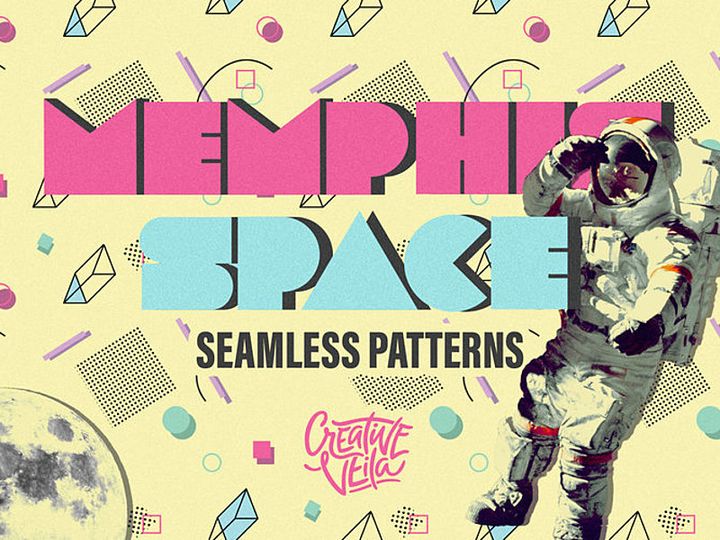
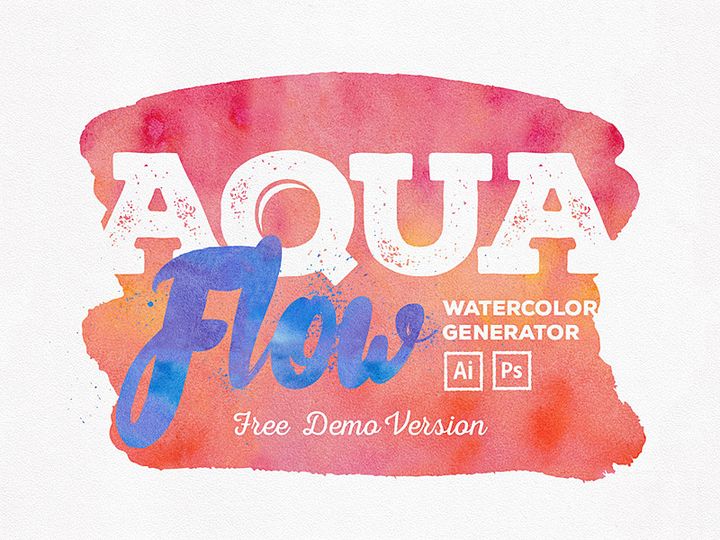
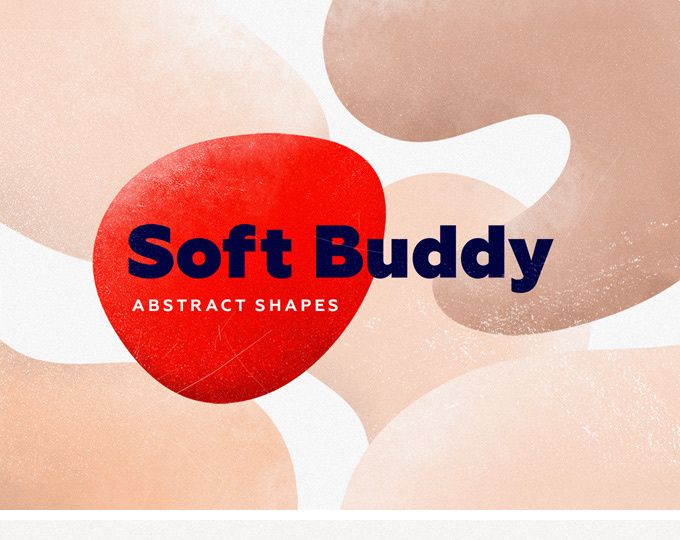
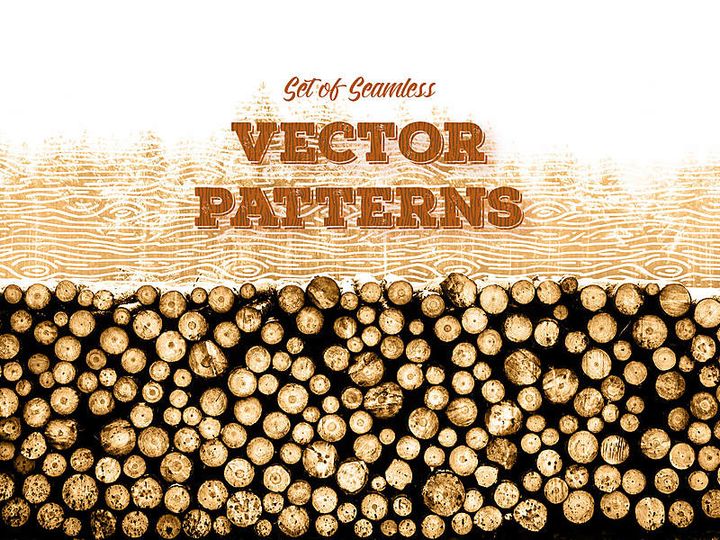
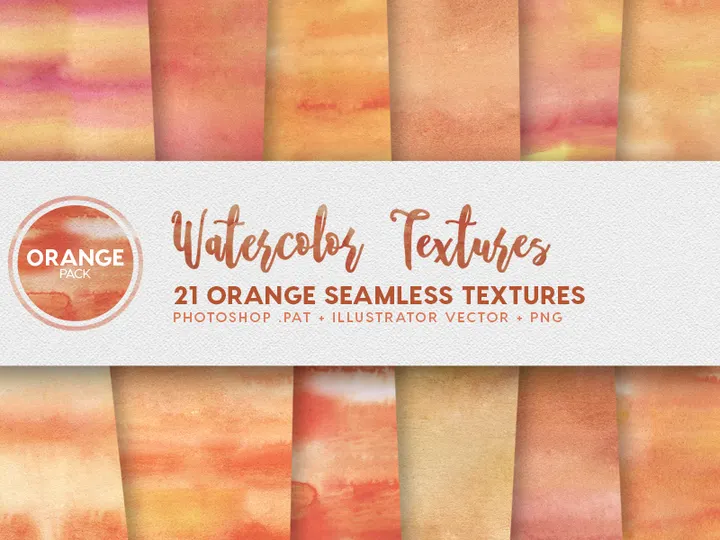
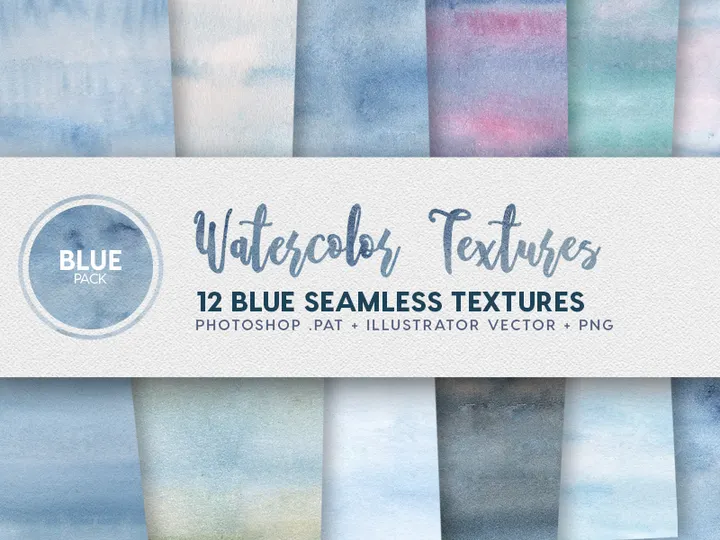
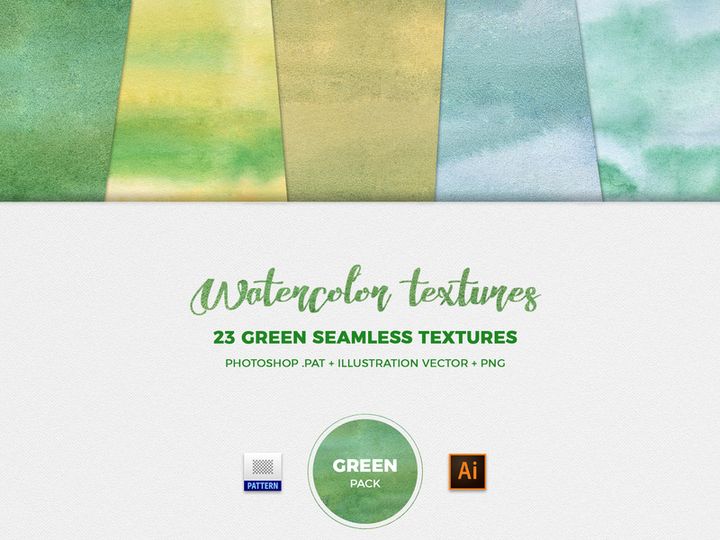
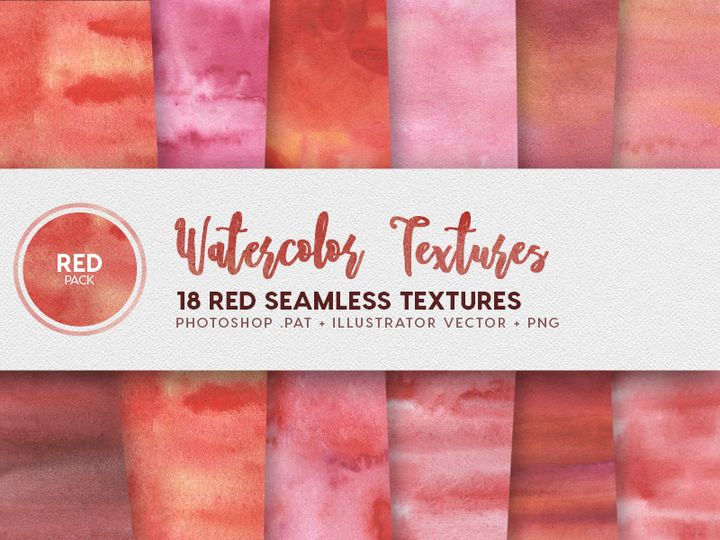
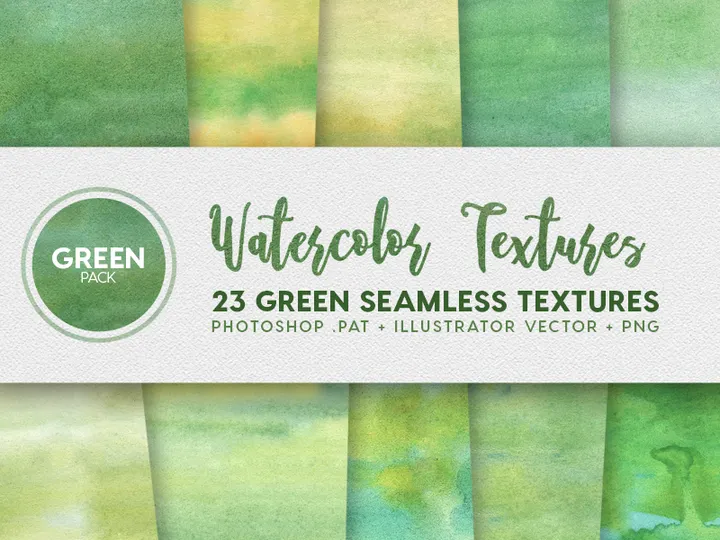
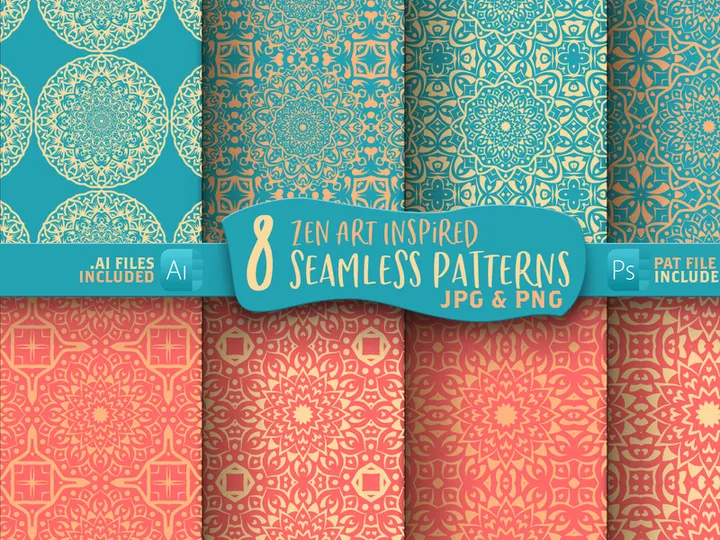
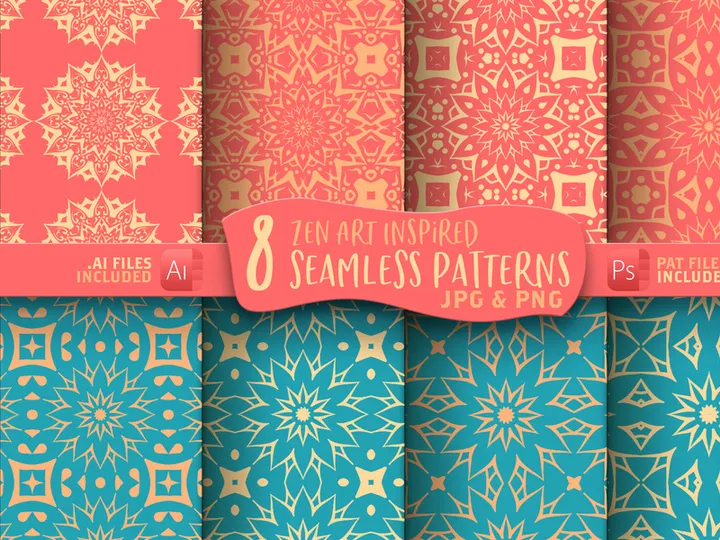
Try Our Free Resources
Download any of these for free - no account required

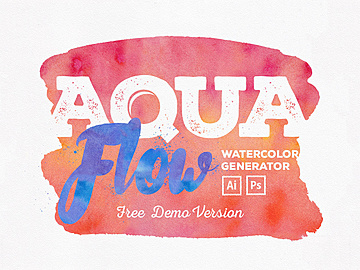
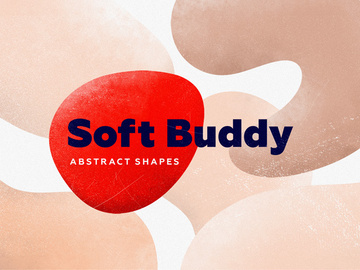
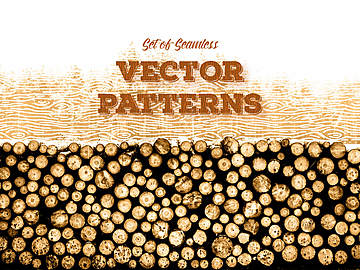
Getting Started with Photoshop Add-Ons in Illustrator
Integrating Photoshop add-ons into Adobe Illustrator can significantly enhance your design workflow by combining the powerful raster-based capabilities of Photoshop with Illustrator’s precision vector editing. While the two programs serve different purposes, many creative professionals leverage Photoshop add-ons—such as brushes, textures, layer styles, and smart objects—within Illustrator to achieve unique visual effects and streamline production. Before diving in, it's essential to ensure your environment is set up correctly.
First, make sure you're using a compatible version of Adobe Illustrator. Adobe consistently updates its Creative Cloud suite, so running the latest version ensures better compatibility with modern file formats and third-party resources. Illustrator CC 2019 or later is recommended for seamless integration with Photoshop-based assets. Additionally, ensure your system meets Illustrator’s minimum hardware requirements, especially when working with complex layered files.
Next, locate Photoshop add-ons that are compatible with Illustrator. While many add-ons are designed specifically for Photoshop (.PSD), several formats can be adapted or natively imported into Illustrator. Look for resources labeled as multi-format, which often include AI, SVG, or EPS versions ideal for vector workflows. Platforms like EpicPxls offer a curated collection of over 12+ resources that are optimized for cross-application use, including textures, overlays, mockups, and design templates that blend seamlessly between Photoshop and Illustrator.
At EpicPxls, you’ll find high-quality Photoshop add-ons that come with Illustrator-friendly versions, making the transition between applications smooth. These 12+ resources range from grunge brushes and photo effects to layered UI kits and typography assets, all designed with cross-software compatibility in mind. Always check the product details to confirm supported formats before downloading. With the right setup and resources, you can unlock powerful hybrid workflows that combine the best of both Adobe applications, allowing for richer textures, enhanced depth, and professional-grade output directly within Illustrator.
How to Import Photoshop Add-Ons into Illustrator
- Download the Correct File Format: When sourcing Photoshop add-ons from platforms like EpicPxls, always check the available file formats. While .PSD files can be opened in Illustrator, you’ll have better results with native vector formats like .AI, .SVG, or .EPS. If only a .PSD is available, ensure it’s saved with layers intact and in a resolution suitable for your project.
- Unzip the Downloaded Package: Most add-ons come in compressed .ZIP format. Extract the contents to a dedicated folder on your computer. This helps you locate supporting files such as documentation, fonts, or alternate format versions (like AI or SVG) that may be included alongside the main PSD file.
- Launch Adobe Illustrator: Open Illustrator and create a new document or open an existing one where you plan to use the add-on. Set your document size and color mode (CMYK for print, RGB for digital) based on your project needs.
- Use “File > Place” to Import: Go to File > Place, then navigate to your extracted add-on file. Select the file (PSD, AI, or SVG) and click Place. Click anywhere on the artboard to insert it. For PSD files, Illustrator will prompt you with import options—choose whether to import as a Layers, Merged, or Flattened image. Selecting Layers preserves individual layer structure, giving you more editing flexibility.
- Adjust Import Settings for PSD Files: If importing a layered PSD, Illustrator allows you to preserve layers, transparency, and even text. Enable options like Convert Photoshop Layers to Objects and Preserve Text Editability when possible. This ensures that text remains editable and layers remain separate for manipulation.
- Scale and Position the Asset: After placing, resize the add-on using the bounding box while holding Shift to maintain proportions. Use the Align panel or Smart Guides to position it accurately. For vector-based add-ons (AI, SVG), you can edit anchor points and colors directly. For raster-based assets, consider embedding or linking based on your workflow needs—linking saves file size, while embedding ensures portability.
Pro tip: If you frequently use the same add-ons, consider creating a custom Libraries panel in Illustrator to store and reuse them across projects. This is especially useful when working with the 12+ resources from EpicPxls, which include versatile elements like textured overlays and smart mockups that can be repurposed efficiently.
Step-by-Step: Working with Photoshop Add-Ons in Illustrator
Editing Layers and Components
Once a Photoshop add-on is imported into Illustrator, you can begin customizing it to fit your design. If you imported a layered PSD with the “Preserve Layers” option enabled, you can access individual layers via the Layers panel. Expand the placed object to view its internal structure and toggle visibility, lock layers, or adjust opacity. While raster layers remain pixel-based, you can apply vector effects such as Drop Shadow, Outer Glow, or Feather directly in Illustrator.
For add-ons that include vector components (such as text or shapes saved in a PSD with vector data), Illustrator may convert them into editable paths or grouped objects. Use the Direct Selection Tool (A) to modify anchor points or change colors using the Recolor Artwork feature. If the add-on includes smart objects, note that they remain rasterized but can be double-clicked to open in Photoshop for editing—ideal for refining textures or effects before re-importing.
Organizing Your Photoshop Add-Ons Library
As you collect more Photoshop add-ons—especially from a reliable source like EpicPxls—it’s crucial to maintain an organized system. Create a dedicated folder on your hard drive labeled “Photoshop Add-Ons for Illustrator” and subdivide it by category (e.g., Textures, Brushes, Mockups, Overlays). Use consistent naming conventions so files are easy to locate.
Within Illustrator, leverage the CC Libraries panel to store frequently used assets. Drag and drop imported add-ons into your library for instant access across documents and devices. For teams, consider syncing libraries via Creative Cloud to ensure consistency. Regularly audit your collection, removing outdated or unused items to reduce clutter. This organization becomes especially valuable when working with the 12+ resources that offer reusable design elements, helping you maintain a fast, efficient workflow.
Exporting for Production
When your design is complete, export settings depend on the final use case. For web and mobile projects, go to File > Export > Export As and choose PNG or SVG. PNG is ideal for preserving transparency and raster details, while SVG is perfect for scalable vector-based add-ons. Set resolution to 72 PPI and enable Anti-aliasing for smooth edges.
For print output, use File > Save As or File > Export > Export As and select PDF or EPS. Choose a high resolution (300 PPI), CMYK color mode, and include crop marks or bleed if needed. If your design contains linked PSD files, embed them before exporting to avoid missing assets. Always perform a soft proof using View > Proof Setup to simulate how colors will appear in print. By carefully managing your export workflow, you ensure that Photoshop add-ons retain their visual impact across all mediums.
Troubleshooting Common Illustrator Issues
File Won't Open
If a Photoshop add-on fails to open in Illustrator, the most common cause is version incompatibility. Older .PSD files saved in outdated Photoshop versions may not import correctly. Try opening the file in Photoshop first, then resave it in a current format before placing it in Illustrator. Additionally, ensure the file isn’t corrupted—verify by opening it in Photoshop. If the add-on was downloaded from EpicPxls, check the product page for version requirements and download the latest update if available.
Missing Fonts or Assets
When importing layered PSDs, Illustrator may display warnings about missing fonts. This occurs when the original design used typefaces not installed on your system. To resolve, use the Find Font dialog (Type > Find Font) to replace missing fonts with available alternatives. For linked assets (like external images within a PSD), ensure all files are in the same folder or relink them through the Links panel. Always review the documentation included with your add-on package—many EpicPxls resources provide font details and alternative suggestions to help you maintain visual consistency.
Performance Problems
Large or high-resolution Photoshop add-ons can slow down Illustrator, especially if they contain numerous layers or embedded smart objects. To improve performance, consider flattening non-essential layers after editing. Use the Links panel to embed only what’s necessary, and link large raster assets instead. Close unused panels and documents, and increase Illustrator’s memory allocation via Edit > Preferences > Performance. For complex projects, break the design into smaller sections or use Artboards to manage different components separately. These steps help maintain smooth operation even when working with resource-intensive add-ons.
Advanced Illustrator Tips for Photoshop Add-Ons
Batch Processing
If you're applying the same Photoshop add-on (like a texture overlay or watermark) across multiple Illustrator files, use Actions to automate the process. Record an action that places the add-on, applies scaling, and exports the file. Then, use File > Automate > Batch to apply it to a folder of documents. This is especially efficient when using repeatable elements from the 12+ resources on EpicPxls, such as border effects or background textures designed for consistent branding.
Plugins and Extensions
Enhance Illustrator’s ability to work with Photoshop add-ons by installing compatible plugins. Tools like VectorScribe or Phantasm offer advanced editing features for refining imported raster effects or converting textures into vector patterns. Some extensions also support direct PSD layer management within Illustrator, reducing the need to switch between applications. Always download plugins from trusted sources and ensure they are updated for your Illustrator version.
Collaboration Workflows
For team-based projects, establish a shared library of approved Photoshop add-ons. Use Creative Cloud Libraries or a shared network drive to store and distribute assets like those from EpicPxls. Standardize file naming, version control, and usage guidelines to prevent inconsistencies. When sharing files, package your Illustrator project (File > Package) to include all linked add-ons, fonts, and assets. This ensures team members can open and edit files without missing dependencies, maintaining design integrity across the workflow.
Why Download from EpicPxls?
Commercial License
Use in personal and commercial projects
No Account Required
Download free resources instantly
Quality Curated
Every resource is reviewed for quality
Preview Files
See Figma and Photoshop files before downloading
Who Uses These Photoshop Add Ons?
Professionals and teams who benefit most from our collection
UI/UX Designers
Speed up your workflow with ready-to-use photoshop add-ons for Illustrator. Perfect for prototyping and client presentations.
Developers
Get production-ready assets without design skills. Export in any format for web and mobile apps.
Startups & Agencies
Save design budget with affordable premium photoshop add-ons. Commercial license included for client work.
Marketing Teams
Create professional campaigns faster. All photoshop add-ons are optimized for social media and ads.
Photoshop Add-Ons for Illustrator FAQCommon questions about these resources
Simple, Transparent Pricing
Get unlimited access to all premium resources
Yearly
- 20 downloads per month
- All file formats
- Commercial license
Lifetime
- Unlimited downloads forever
- All file formats
- Commercial license
Ready to Get Started?
Access 4,441+ free design resources today.
Browse Free ResourcesView Premium PlansEarn 85% and
more on all sales
Upload your products and put them up
for sale at whatever price you want.


